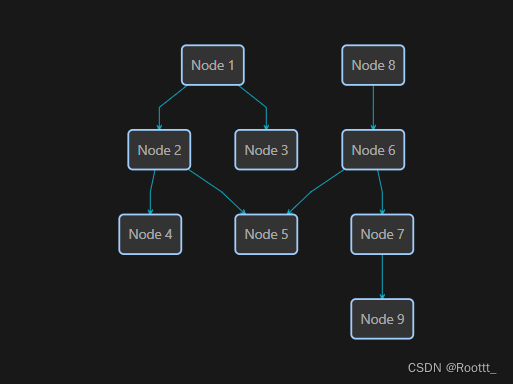
完整代码,复制即可用,样式自调
试过 jointjs dagre-d3
vis,好用一点,可添加同层的双向箭头
方法1:Vis.js
npm install vis-network
html
<template>
  <div id="mynetwork" class="myChart" :style="{width: '100%', height: '90vh'}"></div>
</template>
<script setup lang="ts">
import 'vis-network/dist/dist/vis-network.min.css'
import vis from 'vis-network/dist/vis-network.min'
import { onMounted, ref } from 'vue';
onMounted(() => {
  makeVis()
})
const mynetwork = ref()
const makeVis = () => {
  var nodes = [ // 每行加上shape: 'circle' ,则节点显示圆形
      {id: 1, label: 'Node 1'},
      {id: 2, label: 'Node 2'},
      {id: 3, label: 'Node 3'},
      {id: 4, label: 'Node 4'},
      {id: 6, label: 'Node 6'},
      {id: 7, label: 'Node 7'},
      {id: 8, label: 'Node 8'},
      {id: 9, label: 'Node 9'},
      {id: 5, label: 'Node 5'},
  ]
  var edges = [ // 每行加上label: '关系名称',则会在线中间显示节点关系名
    {from: 1, to: 3},
    {from: 1, to: 2},
    {from: 2, to: 4},
    {from: 2, to: 5},
    {from: 6, to: 5},
    {from: 6, to: 7},
    {from: 8, to: 6},
    {from: 7, to: 9},
    //{from: 2, to: 6},
    //{from: 6, to: 2},
  ]
  var data = {
    nodes: nodes,
    edges: edges
  }
    var container = document.getElementById('mynetwork')
    var options = {
      nodes: {
        shape: 'box', //设置节点node样式为矩形
        fixed: false, //节点node固定可移动
        font: {
          color: 'red', //字体的颜色
          size: 20, //显示字体大小
        },
        scaling: {
          min: 16,
          max: 32, //缩放效果比例
        },
        borderWidth: 1,
        color: {
          border: 'red',
          background: 'white' // 若是引用图标,背景颜色
        }
      },
      // groups: {
      //   ws: { // 系统定义的形状 dot等 这些官网都可以找到
      //     shape: 'dot',
      //     color: 'white'
      //   }
      // },
      layout: {
        // randomSeed: 1, // 配置每次生成的节点位置都一样,参数为数字1、2等
        //以分层方式定位节点
        hierarchical: {
          direction: 'UD', //分层排序方向
          sortMethod: 'directed', //分层排序方法
          levelSeparation: 100, //不同级别之间的距离
          nodeSpacing: 200, // 节点之间的距离
        },
      },
      physics: {
        enabled: false,
        // 避免重叠
         hierarchicalRepulsion: {
            avoidOverlap: '1',
          },
        // barnesHut: { gravitationalConstant: -30000 },
        // barnesHut: {
        //   gravitationalConstant: -80000,
        //   springConstant: 0.001,
        //   springLength: 200
        // },
        // stabilization: false
        // { iterations: 2500 }
      },
      interaction: {
        // navigationButtons: true,
        hover: false, // 鼠标移过后加粗该节点和连接线
        selectConnectedEdges: false, // 选择节点后是否显示连接线
        hoverConnectedEdges: false, // 鼠标滑动节点后是否显示连接线
        tooltipDelay: 200,
        dragNodes: false, // 是否能拖动节点
        dragView: true, // 是否能拖动画布
        zoomView: true // 是否能缩放画布
      },
      edges: {
        color: { // 连接线的样式
          color: '#848484',
          highlight: 'white',
          hover: '#848484',
          inherit: 'from',
          opacity: 1.0
        },
        // font: {
        //   align: 'top', //连接线文字位置
        // },
        shadow: true, // 连接线阴影配置
        smooth: true // 是否连线平滑
        //arrows: {to : true }//是否显示方向箭头 箭头指向to节点
      }
    }
    const network = new vis.Network(container, data, options)
    network.on('click',(params) => {
      console.log(params);
    })
  }
</script>
效果
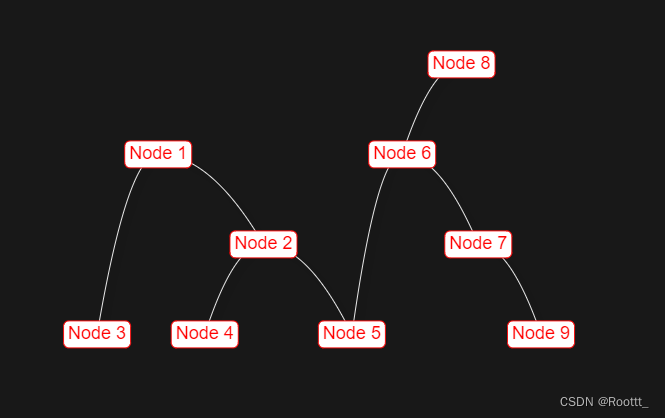
html
// 测试双向绑定 配置level
var nodes = [ // 每行加上shape: 'circle' ,则节点显示圆形
     {id: 1, label: 'Node 1',level: 1},
     {id: 2, label: 'Node 2',level: 2},
     {id: 3, label: 'Node 3',level: 4},
     {id: 4, label: 'Node 4',level: 4},
     {id: 6, label: 'Node 6',level: 2},
     {id: 7, label: 'Node 7',level: 3},
     {id: 8, label: 'Node 8',level: 4},
     {id: 9, label: 'Node 9',level: 4},
     {id: 5, label: 'Node 5',level: 3}
]
var edges = [ // 每行加上label: '关系名称',则会在线中间显示节点关系名
    {from: 1, to: 3},
    {from: 1, to: 2},
    {from: 2, to: 4},
    {from: 2, to: 5},
    {from: 2, to: 6},
    {from: 6, to: 2},
    {from: 6, to: 5},
    {from: 6, to: 7},
    {from: 6, to: 8},
    {from: 5, to: 8},
    {from: 7, to: 9},
  ]
//edges配置
//smooth: true // 是否连线平滑
arrows: {to : true }//是否显示方向箭头 箭头指向to节点
效果
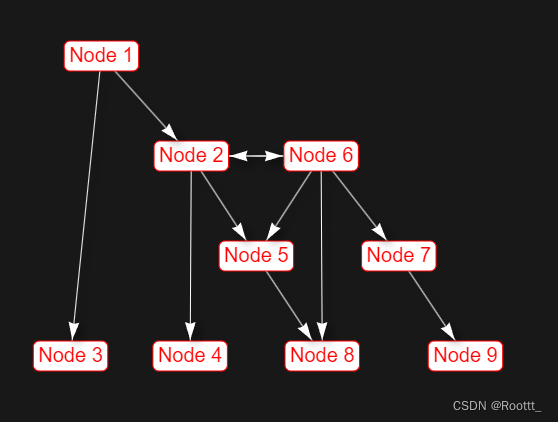
自定义节点样式
html
let newNodes = [] as any
nodes.map((item: any) => {
      const svg = `<svg xmlns="http://www.w3.org/2000/svg" width="120" height="50">
        <foreignObject x="0" y="0" width="100%" height="100%">
          <div xmlns="http://www.w3.org/1999/xhtml" style="border:1px solid #0fb2cc; z-index:11;background-color: #FFF">
            <div style="height: 40px;">${item.label}</div>
          </div>
        </foreignObject>
      </svg>`;
      const url = `data:image/svg+xml;charset=utf-8,${encodeURIComponent(svg)}`;
      newNodes.push({
        id: item.id,
        level: item.level,
        shape: "image",
        image: url
      })
})
var data = {
  nodes: newNodes,
  edges: edges
}
效果
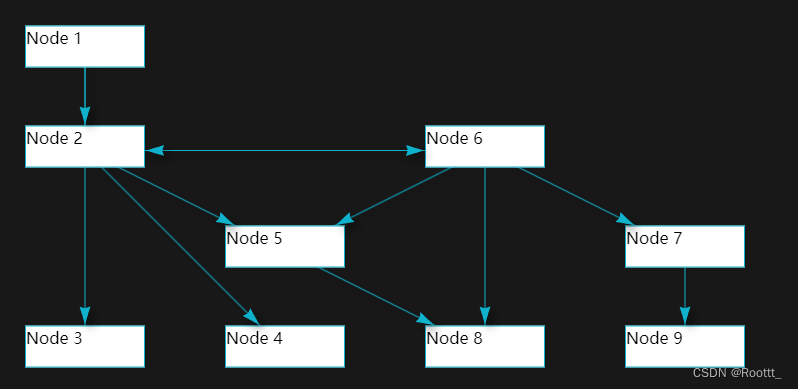
方法2 -dagre-d3
npm i d3@5.16.0
npm i dagre-d3@0.6.4
html
<template>
  <div >
    <svg class="dagre" width="1500" height="800">
      <g class="container"></g>
    </svg>
  </div>
</template>

<script setup lang="ts">
import { ref, onMounted, watch } from "vue";
import dagreD3 from "dagre-d3";
import * as d3 from "d3";
const draw = () => {
  var nodes = [ // 每行加上shape: 'circle' ,则节点显示圆形
      {id: 1, label: 'Node 1'},
      {id: 2, label: 'Node 2'},
      {id: 3, label: 'Node 3'},
      {id: 4, label: 'Node 4'},
      {id: 6, label: 'Node 6'},
      {id: 7, label: 'Node 7'},
      {id: 8, label: 'Node 8'},
      {id: 9, label: 'Node 9'},
      {id: 5, label: 'Node 5'}
  ]
  var edges = [ // 每行加上label: '关系名称',则会在线中间显示节点关系名
    {from: 1, to: 3},
    {from: 1, to: 2},
    {from: 2, to: 4},
    {from: 2, to: 5},
    {from: 6, to: 5},
    {from: 6, to: 7},
    {from: 8, to: 6},
    {from: 7, to: 9},
  ]
  // 创建 Graph 对象
  const g = new dagreD3.graphlib.Graph()
    .setGraph({
      zoom: 1,
      rankdir: "TB", // 流程图从下向上显示,默认'TB',可取值'TB'、'BT'、'LR'、'RL'
      // align: 'UL', //节点的对齐方式。有4个值: UL,UR,DL,DR。
      // acyclicer: 'greedy',//如果设置为贪婪模式(greedy), 则使用贪婪启发式来查找. 返回的弧设置是一组可以删除的线, 从而使图无环.
      //ranker: "network-simplex",//连线算法
      // nodesep: 120, //水平方向上, 分隔节点的距离(节点之间的间距)
      // edgesep: 100,//在水平方向上, 线段间的距离
      // ranksep: 50,//每个层级间的距离
      // marginx: 200,//图形左右边缘的距离
      // marginy: 20,//图形上下边缘的距离
    })
    .setDefaultEdgeLabel(function () {
      return {};
    });
  nodes.forEach((node) => {
    g.setNode(node.id, {
      id: node.id,
      label: `<foreignObject id='${node.id}'>
        <div id='${node.id}'>
         <span>${node.label}</span>
        </div>
        </foreignObject>`, //node.nodeName,
      labelType: "html",
      shape: "rect", //节点形状,可以设置rect(长方形),circle,ellipse(椭圆),diamond(菱形) 四种形状,还可以使用render.shapes()自定义形状
      style: "fill:#333;stroke:#a0cfff;stroke-width: 2px;",  //节点样式,可设置节点的颜色填充、节点边框
      labelStyle: "fill: #ddd;font-weight:bold;",  //节点标签样式, 可设置节点标签的文本样式(颜色、粗细、大小)
      rx: 5, // 设置圆角
      ry: 5, // 设置圆角
      // paddingBottom: 0,
      // paddingLeft: 0,
      // paddingRight: 0,
      // paddingTop: 0,`
    });
  });

  // Graph添加节点之间的连线
  if (nodes.length > 1) {
    edges.forEach((edge) => {
      g.setEdge(edge.from, edge.to, {
        // curve: d3.curveBasis , //d3.curveBasis 贝塞尔曲线  curveStepBefore直线
        style: "stroke: #0fb2cc; fill: none; stroke-width: 1px", // 连线样式
        arrowheadStyle: "fill: #0fb2cc;stroke: #0fb2cc;", //箭头样式,可以设置箭头颜色
        arrowhead: "vee", //箭头形状,可以设置 normal,vee,undirected 三种样式,默认为 normal
      });
    });
  }

  // 获取要绘制流程图的绘图容器
  const container = d3.select("svg.dagre").select("g.container");

  // 创建渲染器
  const render = new dagreD3.render();
  // 在绘图容器上运行渲染器绘制流程图
  render(container, g);
  let svg = d3.select('svg.dagre')
  // 建立拖拽缩放
  let zoom = d3.zoom()
    .on("zoom", function () {
      container.attr("transform", d3.event.transform);
     });
  svg.call(zoom);
};
onMounted(() => {
  draw();
});
</script>
效果