CkEditor5官网地址:CKEditor 5 documentation
ckeditor5一款现代JavaScript富文本编辑器,有多种安装方法-本文主要使用npm的安装方式
因为我的项目是vue3,所以按照介绍安装对应版本的编辑器(属于是打包好的编辑器,扩展性不高)
1.介绍:ckeditor5包括五种类型
javascript
经典,传统工具栏在顶部 ClassicEditor
内联,工具栏在选中内容附近 InlineEditor
气球,浮动工具栏 BalloonEditor
气球块,块级浮动工具栏 BalloonBlockEditor
文档,类似 Word 的文档编辑器 DocumentEditor
javascript
// Vue 的 CKEditor 5 所见即所得编辑器组件。
npm install @ckeditor/ckeditor5-vue

//经典编辑器
npm install @ckeditor/ckeditor5-build-classic


//"@ckeditor/ckeditor5-build-classic": "^41.4.2",
//"@ckeditor/ckeditor5-vue": "^7.3.0",

//写文档时安装的版本,可能时间间隔太久有些规则就会发生变化,以官网为准
javascript
<template>
  <ckeditor
      v-model="data"
      :editor="ClassicEditor"
  />
</template>

<script setup>
import { ref, computed } from 'vue';
import ClassicEditor from '@ckeditor/ckeditor5-build-classic';
import { Ckeditor } from '@ckeditor/ckeditor5-vue';

import 'ckeditor5/ckeditor5.css';

const data = ref( '<p>Hello world!</p>' );

</script>
javascript
// 其他类型安装指令

//内联
// import InlineEditor from '@ckeditor/ckeditor5-build-inline';

npm install @ckeditor/ckeditor5-build-inline


//气球
// import BalloonEditor from '@ckeditor/ckeditor5-build-balloon';

npm install @ckeditor/ckeditor5-build-balloon


//气球块
// import BalloonBlockEditor from '@ckeditor/ckeditor5-build-balloon-block';

npm install @ckeditor/ckeditor5-build-balloon-block


//文档
//import  DecoupledEditor from '@ckeditor/ckeditor5-build-decoupled-document';

npm install @ckeditor/ckeditor5-build-decoupled-document
内联:点击文字会出现

气球:点击文字会出现

气球块: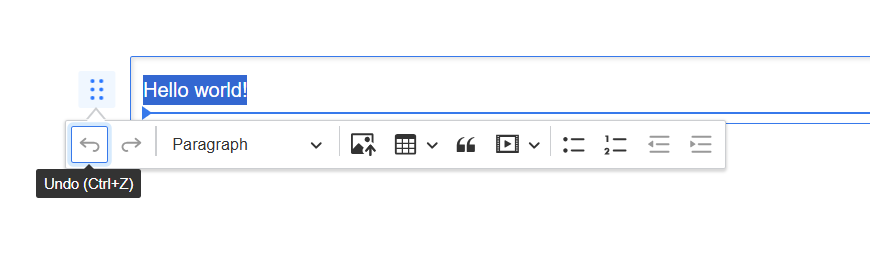
文档类编辑器需手动挂载:
javascript
<template>
  <div class="doc-editor-wrapper">
    <!-- 工具栏占位符 -->
    <div id="toolbar-container"></div>

    <!-- 编辑器 -->
    <div id="editor">
      <ckeditor
        v-model="content"
        :editor="DocumentEditor"
        @ready="handleEditorReady"
      />
    </div>
  </div>
</template>

<script setup>
import { ref } from 'vue';
import DocumentEditor from '@ckeditor/ckeditor5-build-decoupled-document';
import { Ckeditor  } from '@ckeditor/ckeditor5-vue';

const content = ref('<p>文档内容</p>');

const handleEditorReady = (editor) => {
  // 插入工具栏到指定位置
  const toolbarContainer = document.querySelector('#toolbar-container');
  if (toolbarContainer) {
    toolbarContainer.appendChild(editor.ui.view.toolbar.element);
  }

  // 聚焦编辑器
  editor.editing.view.focus();
};
</script>

<style>

</style>
2.实现上传图片
上传图片接口
javascript
<template>
  <div class="editor-container">
    <ckeditor
      v-model="content"
      :editor="editor"
      :config="editorConfig"
      @ready="onEditorReady"
    />

    <!-- 上传状态提示 -->
    <div v-if="uploadStatus.show" class="upload-status" :class="uploadStatus.type">
      <span v-if="uploadStatus.type === 'uploading'">
        ⏳ 上传中... {{ uploadStatus.progress }}%
      </span>
      <span v-else-if="uploadStatus.type === 'success'">
        ✅ 上传成功
      </span>
      <span v-else-if="uploadStatus.type === 'error'">
        ❌ {{ uploadStatus.message }}
      </span>
    </div>
  </div>
</template>

<script setup>
import { ref, reactive, shallowRef } from 'vue';
import ClassicEditor from '@ckeditor/ckeditor5-build-classic';
import { Ckeditor } from '@ckeditor/ckeditor5-vue';

// 使用 shallowRef 避免不必要的响应式开销
const editor = shallowRef(ClassicEditor);
const content = ref('<p>Hello world!</p>');

// 上传状态
const uploadStatus = reactive({
  show: false,
  type: '', // uploading, success, error
  progress: 0,
  message: ''
});

// ==================== 自定义上传适配器 ====================
class CustomUploadAdapter {
  constructor(loader) {
    this.loader = loader;
    this.xhr = null;
    console.log('📤 上传适配器创建');
  }

  async upload() {
    console.log('🚀 开始上传流程');

    try {
      const file = await this.loader.file;
      console.log('📄 上传文件:', {
        name: file.name,
        size: formatFileSize(file.size),
        type: file.type
      });

      // 验证文件
      const validationError = this.validateFile(file);
      if (validationError) {
        throw new Error(validationError);
      }

      return new Promise((resolve, reject) => {
        this._uploadToServer(file, resolve, reject);
      });

    } catch (error) {
      console.error('❌ 上传错误:', error);
      this.showUploadStatus('error', error.message);
      throw error;
    }
  }

  abort() {
    console.log('⏹️ 上传中止');
    if (this.xhr) {
      this.xhr.abort();
    }
    this.showUploadStatus('', '');
  }

  // 文件验证
  validateFile(file) {
    const maxSize = 5 * 1024 * 1024; // 5MB
    const allowedTypes = [
      'image/jpeg',
      'image/jpg',
      'image/png',
      'image/gif',
      'image/webp',
      'image/bmp'
    ];

    if (file.size > maxSize) {
      return `文件大小不能超过 5MB (当前: ${formatFileSize(file.size)})`;
    }

    if (!allowedTypes.includes(file.type)) {
      return `不支持的文件格式,请上传 JPG、PNG、GIF、WebP、BMP 格式的图片`;
    }

    return null;
  }

  // 上传到服务器
  _uploadToServer(file, resolve, reject) {
    const formData = new FormData();

    // 注意:很多后端接口期望字段名为 'file' 或 'upload'
    formData.append('file', file);
    formData.append('upload', file); // 双重保险

    // 添加额外参数
    formData.append('source', 'ckeditor');
    formData.append('timestamp', Date.now());
    formData.append('culture', 'zh-CN');

    this.xhr = new XMLHttpRequest();

    // 进度监听
    this.xhr.upload.addEventListener('progress', (evt) => {
      if (evt.lengthComputable) {
        const progress = Math.round((evt.loaded / evt.total) * 100);
        this.showUploadStatus('uploading', '', progress);
      }
    });

    // 完成监听
    this.xhr.addEventListener('load', () => {
      console.log('📨 服务器响应状态:', this.xhr.status);

      try {
        let response;
        try {
          response = JSON.parse(this.xhr.responseText);
        } catch {
          response = this.xhr.responseText;
        }

        console.log('📨 服务器响应:', response);

        if (this.xhr.status >= 200 && this.xhr.status < 300) {
          // 根据你的 API 响应格式调整这里
          let imageUrl = '';

          if (typeof response === 'string' && response.startsWith('http')) {
            // 如果直接返回 URL 字符串
            imageUrl = response;
          } else if (response && response.url) {
            // 标准格式: { url: '...' }
            imageUrl = response.url;
          } else if (response && response.data && response.data.url) {
            // 嵌套格式: { data: { url: '...' } }
            imageUrl = response.data.url;
          } else if (response && response.success && response.data) {
            // 成功格式: { success: true, data: '...' }
            imageUrl = response.data;
          } else {
            throw new Error('服务器返回格式不正确');
          }

          console.log('✅ 上传成功,图片URL:', imageUrl);
          this.showUploadStatus('success', '上传成功');

          resolve({
            default: imageUrl
          });

        } else {
          const errorMsg = response?.message || response?.error || '上传失败';
          this.showUploadStatus('error', errorMsg);
          reject(new Error(errorMsg));
        }

      } catch (error) {
        console.error('❌ 响应解析错误:', error);
        this.showUploadStatus('error', '响应格式错误');
        reject(error);
      }
    });

    // 错误监听
    this.xhr.addEventListener('error', () => {
      console.error('❌ 网络错误');
      this.showUploadStatus('error', '网络错误,请检查连接');
      reject(new Error('网络错误'));
    });

    // 中止监听
    this.xhr.addEventListener('abort', () => {
      console.log('⏹️ 请求被中止');
      this.showUploadStatus('', '');
      reject(new Error('上传被取消'));
    });

    // 发送请求
    this.xhr.open('POST', 上传图片接口', true);

    // 设置请求头(根据你的后端要求)
    // this.xhr.setRequestHeader('Authorization', 'Bearer ' + localStorage.getItem('token'));
    // this.xhr.setRequestHeader('X-Requested-With', 'XMLHttpRequest');

    console.log('🌐 发送上传请求到:', '上传文件接口');
    this.xhr.send(formData);
  }

  // 显示上传状态
  showUploadStatus(type, message = '', progress = 0) {
    uploadStatus.type = type;
    uploadStatus.message = message;
    uploadStatus.progress = progress;
    uploadStatus.show = type !== '';

    // 成功状态3秒后消失
    if (type === 'success') {
      setTimeout(() => {
        uploadStatus.show = false;
      }, 3000);
    }
  }
}

// ==================== 自定义上传插件 ====================
function CustomUploadPlugin(editor) {
  console.log('🔌 注册自定义上传插件');

  editor.plugins.get('FileRepository').createUploadAdapter = (loader) => {
    console.log('🔧 创建上传适配器实例');
    return new CustomUploadAdapter(loader);
  };
}

// ==================== 编辑器配置 ====================
const editorConfig = ref({
  placeholder: '请在此输入内容...',

  // 关键:添加自定义上传插件
  extraPlugins: [CustomUploadPlugin],

  // 简化工具栏,只保留确实存在的功能
  toolbar: {
    items: [
      'heading', '|',
      'bold', 'italic', 'underline', 'strikethrough', '|',
      'fontColor', 'fontBackgroundColor', '|',
      'alignment', '|',
      'numberedList', 'bulletedList', '|',
      'link', 'imageUpload', 'mediaEmbed', '|',
      'blockQuote', 'insertTable', '|',
      'codeBlock', '|',
      'undo', 'redo'
    ],
    shouldNotGroupWhenFull: true
  },

  // 图片配置
  image: {
    // 工具栏配置
    toolbar: [
      'imageTextAlternative',  // 图片描述
      'toggleImageCaption',    // 切换标题
      'imageStyle:inline',     // 行内样式
      'imageStyle:block',      // 块样式
      'imageStyle:side',       // 侧边样式
      'linkImage'              // 图片链接
    ],

    // 上传配置
    upload: {
      types: ['jpeg', 'jpg', 'png', 'gif', 'webp', 'bmp'],
      maxFileSize: '5MB'
    }
  },

  // 表格配置
  table: {
    contentToolbar: [
      'tableColumn',
      'tableRow',
      'mergeTableCells'
    ]
  },

  // 链接配置
  link: {
    addTargetToExternalLinks: true,
    defaultProtocol: 'https://'
  },

  language: 'zh-cn'
});

// ==================== 编辑器就绪回调 ====================
const onEditorReady = (editor) => {
  console.log('🎉 编辑器已就绪');

  // 检查可用功能
  const availableItems = Array.from(editor.ui.componentFactory.names());
  console.log('🔧 可用的工具栏项:', availableItems);

  // 验证图片上传是否可用
  if (availableItems.includes('imageUpload')) {
    console.log('✅ 图片上传功能可用');
  } else {
    console.warn('⚠️ 图片上传功能不可用,请检查插件');
  }

  // 添加图片上传成功后的回调
  editor.plugins.get('FileRepository').on('change:uploaded', (evt, data) => {
    console.log('📊 上传完成数据:', data);
  });
};

// ==================== 工具函数 ====================
function formatFileSize(bytes) {
  if (bytes === 0) return '0 Bytes';
  const k = 1024;
  const sizes = ['Bytes', 'KB', 'MB', 'GB'];
  const i = Math.floor(Math.log(bytes) / Math.log(k));
  return parseFloat((bytes / Math.pow(k, i)).toFixed(2)) + ' ' + sizes[i];
}

// 如果还是不行,提供一个备用的模拟上传函数
function createMockUploadAdapter(loader) {
  return {
    upload: () => {
      return loader.file.then(file => {
        console.log('🎭 模拟上传文件:', file.name);

        // 模拟上传延迟
        return new Promise((resolve) => {
          setTimeout(() => {
            // 使用图床服务作为备选方案
            const mockUrl = `https://via.placeholder.com/800x600/4CAF50/FFFFFF?text=${encodeURIComponent('图片已上传')}`;
            console.log('🎭 模拟上传成功:', mockUrl);

            resolve({
              default: mockUrl
            });
          }, 1000);
        });
      });
    },
    abort: () => {
      console.log('🎭 模拟上传取消');
    }
  };
}
</script>

<style scoped>
.editor-container {
  position: relative;
}

.upload-status {
  position: fixed;
  bottom: 20px;
  right: 20px;
  padding: 12px 20px;
  border-radius: 8px;
  box-shadow: 0 4px 12px rgba(0, 0, 0, 0.15);
  z-index: 1000;
  max-width: 300px;
  animation: slideIn 0.3s ease;
}

@keyframes slideIn {
  from {
    transform: translateX(100%);
    opacity: 0;
  }
  to {
    transform: translateX(0);
    opacity: 1;
  }
}

.upload-status.uploading {
  background: linear-gradient(135deg, #2196F3, #21CBF3);
  color: white;
}

.upload-status.success {
  background: linear-gradient(135deg, #4CAF50, #8BC34A);
  color: white;
}

.upload-status.error {
  background: linear-gradient(135deg, #F44336, #FF9800);
  color: white;
}

:deep(.ck-editor__editable) {
  min-height: 400px;
  padding: 20px !important;
  border: 1px solid #e0e0e0 !important;
  border-radius: 4px !important;
}

:deep(.ck-toolbar) {
  border: 1px solid #e0e0e0 !important;
  border-radius: 4px 4px 0 0 !important;
  background: #f8f9fa !important;
}
</style>
没有图片上传接口-Base64
javascript
<template>
  <ckeditor
    v-model="data"
    :editor="ClassicEditor"
    :config="editorConfig"
  />
</template>

<script setup>
import { ref } from 'vue';
import ClassicEditor from '@ckeditor/ckeditor5-build-classic';
import { Ckeditor } from '@ckeditor/ckeditor5-vue';

const data = ref('<p>Hello world!</p>');

// Base64 上传适配器
function Base64UploadPlugin(editor) {
  editor.plugins.get('FileRepository').createUploadAdapter = (loader) => {
    return {
      upload: () => {
        return loader.file.then(file => {
          return new Promise((resolve, reject) => {
            const reader = new FileReader();

            reader.onload = () => {
              // 生成 Base64 数据 URL
              const base64Data = reader.result;
              console.log('Base64 图片数据长度:', base64Data.length);

              // 限制大小(Base64 会比原文件大 33%)
              if (base64Data.length > 5 * 1024 * 1024) { // 约 3.75MB 原文件
                reject('图片太大,请压缩后上传');
                return;
              }

              resolve({
                default: base64Data
              });
            };

            reader.onerror = () => {
              reject('读取文件失败');
            };

            reader.readAsDataURL(file);
          });
        });
      },

      abort: () => {
        console.log('上传取消');
      }
    };
  };
}

const editorConfig = ref({
  placeholder: '请在此输入内容',

  extraPlugins: [Base64UploadPlugin],

  toolbar: {
    items: [
      'heading',
      '|',
      'bold', 'italic',
      '|',
      'imageUpload', // 测试这个按钮
      '|',
      'undo', 'redo'
    ]
  },

  language: 'zh-cn'
});
</script>
3.支持上传文件
ckeditor5-filemanager 是一个用于 CKEditor 5 的文件管理插件,它允许用户在编辑器中上传、浏览和管理服务器上的文件(如图片、文档等)
javascript
npm install ckeditor5-filemanager@2.0.8

npm install @ckeditor/ckeditor5-vue@5.1.0
封装
javascript
<template>
  <!-- 使用 ckeditor 组件 -->
  <ckeditor
    :editor="state.editor"
    v-model="editorData"
    :config="state.editorConfig"
  />
</template>

<script lang="ts" setup>
import { reactive, computed } from 'vue';
// 导入 CKEditor Vue 组件
import CKEditor from '@ckeditor/ckeditor5-vue';
// 导入你需要的编辑器(注意:ckeditor5-filemanager 可能不是完整的编辑器)
import FileManagerEditor from 'ckeditor5-filemanager';

// 创建 CKEditor Vue 组件实例
const { component: ckeditor } = CKEditor;

const props = defineProps({
  value: {
    type: String,
    default: '',
  },
  placeholder: {
    type: String,
    default: '',
  },
});

const emit = defineEmits(['change', 'update:value']);

const state = reactive({
  editor: FileManagerEditor,
  editorConfig: {
    toolbar: {
      items: [
        'undo',
        'redo',
        '|',
        'removeFormat',
        '|',
        'fontSize',
        'fontFamily',
        'bold',
        'italic',
        'underline',
        'strikethrough',
        'fontColor',
        'fontBackgroundColor',
        'highlight',
        '|',
        'alignment',
        'outdent',
        'indent',
        'lineHeight',
        'bulletedList',
        'numberedList',
        '|',
        'FileManager', // 文件管理器按钮
        'insertTable',
        'mediaEmbed',
        'link',
        'blockQuote',
        'horizontalLine',
        'specialCharacters',
        'subscript',
        'superscript',
        '|',
        'sourceEditing',
      ],
      shouldNotGroupWhenFull: true,
    },
    placeholder: props.placeholder ? props.placeholder : '请输入内容!',
    fileManager: {
      uploadUrl: 'uploadUrl文件上传接口地址',
      headers: {
        Authorization: 'Bearer Token',
      },
    },
    htmlSupport: {
      allow: [
        {
          name: /.*/,
          attributes: true,
          classes: true,
          styles: true,
        },
      ],
    },
  },
});

const editorData = computed({
  get: () => props.value,
  set: (val) => emit('update:value', val),
});
</script>

<style>
</style>
导出
javascript
import ckeditor from './src/Editor.vue';

export const CKeditor = ckeditor;
使用
javascript
<template>
  <div>
    <CKeditor
      style="min-height: 150px"
      v-model:value="data"
      placeholder="请输入内容"
    />
  </div>
</template>

<script setup lang="ts">
  import {ref}from 'vue'
  import { CKeditor } from './CKeditor/index';
  const data = ref('33')
</script>

<style scoped>

</style>