离线VSCode对接本地大模型:单文件对话界面实现(持久化+文件图片上传)
前言
最近在处理离线内网环境下的VSCode开发需求,场景很明确:没有外网,没法安装GitHub Copilot之类的在线AI插件;本地已经部署好了大模型API(无论是Ollama、vLLM还是私有化部署的模型服务),想在VSCode的开发工作流里直接做代码问答、本地文档分析,不想切换厚重的独立客户端,也不想折腾复杂的插件配置和编译。
找了一圈没找到适配纯离线、零依赖的轻量方案,索性用纯前端写了一个单HTML文件的对话界面。它不需要任何后端服务、没有外部CDN依赖、全程离线运行,支持多会话历史持久化、文本/代码文件上传、图片上传,直接在VSCode环境里就能打开使用。今天把完整的实现思路和可直接复用的源码分享出来,适合同样有离线本地模型使用需求的开发者。
需求与设计目标
做这个工具的时候,我围绕「VSCode离线开发场景」定了几个核心设计原则,所有功能都围绕这几点展开:
- 纯离线单文件:单个HTML文件,无任何外部依赖,不引用任何在线CDN资源,完美适配完全断网的内网开发环境
- VSCode零侵入:不需要安装任何VSCode插件,不修改编辑器配置,纯文件级使用,拷贝即用,不会污染基础版VSCode环境
- 标准API兼容 :完全兼容OpenAI
/v1/chat/completions标准接口格式,无缝适配Ollama、vLLM、本地私有化模型等所有兼容方案 - 多会话持久化:会话历史存储在浏览器本地存储中,刷新页面、关闭浏览器甚至重启电脑,所有对话记录都不会丢失
- 开发场景适配:支持上传文本/代码文件、图片,自动拼接进提问内容,满足本地代码审阅、文档分析、报错截图解读等开发需求
- 轻量无残留:纯前端运行,不安装任何系统服务,不留下后台进程,删除文件即完全卸载
技术选型
为了满足「单文件、零依赖、离线可用」的核心要求,全程使用浏览器原生能力实现,没有引入任何前端框架或第三方库:
- 原生HTML + CSS + JavaScript:零构建、零依赖,单文件即可分发运行,不需要Node.js等环境支持
- LocalStorage:浏览器本地持久化存储会话数据,全程离线不联网,数据仅存在本地浏览器中
- Fetch API:原生HTTP请求能力,调用本地模型接口,完美兼容标准OpenAI请求格式
- FileReader API:前端直接读取本地文件内容、生成图片预览,不需要后端上传服务,全程本地处理
核心功能实现
1. 整体布局设计
采用类ChatGPT的经典左右分栏布局,左侧为会话管理侧边栏,右侧为聊天主区域,底部固定输入工具栏。通过Flex布局实现全高度自适应,聊天内容溢出时自动出现滚动条。
核心布局CSS实现:
css
body {
    display: flex;
    height: 100vh;
    overflow: hidden;
    background: #f2f3f5;
}
/* 左侧会话栏 */
.sidebar {
    width: 240px;
    background: #ffffff;
    border-right: 1px solid #e5e7eb;
    display: flex;
    flex-direction: column;
}
/* 右侧聊天主区域 */
.main {
    flex: 1;
    display: flex;
    flex-direction: column;
}
.chat-box {
    flex: 1;
    padding: 20px;
    overflow-y: auto;
}
2. 多会话管理逻辑
设计了独立的会话数据结构,每个会话包含唯一ID、会话标题、消息列表,不同会话的上下文完全隔离,互不干扰。核心实现三个基础方法:
createNewSession():创建全新会话,自动生成时间戳作为唯一IDswitchSession():切换会话时清空当前聊天区,批量渲染对应历史消息renderChatList():重绘左侧会话列表,高亮当前激活的会话
核心数据结构与切换逻辑:
js
// 单条会话数据结构
{
    id: "1718000000000",  // 时间戳生成唯一ID
    title: "新会话",        // 会话标题,自动取第一条提问前12字
    messages: []            // 对话消息列表,存储角色+内容
}

// 会话切换核心逻辑
function switchSession(sessionId) {
    currentSessionId = sessionId;
    const session = chatSessions.find(s => s.id === sessionId);
    // 清空当前聊天区与待上传附件
    chatBoxEl.innerHTML = '';
    attachList = [];
    renderAttachPreview();
    // 批量渲染当前会话的历史消息
    session.messages.forEach(item => {
        addMsgToView(item.content, item.role);
    });
    renderChatList();
    saveToLocalStorage();
}
3. 本地持久化存储
这是解决「刷新页面数据丢失」的核心能力。我封装了读写两个工具方法,在所有数据变更节点自动触发保存,页面加载时自动读取恢复数据。
自动保存的时机覆盖:新建会话、切换会话、发送消息完成、修改会话标题。
持久化核心代码:
js
// 本地存储唯一键名,避免和其他站点数据冲突
const STORAGE_KEY = "local_ai_chat_data";

// 保存会话数据到本地存储
function saveToLocalStorage() {
    const saveData = {
        chatSessions: chatSessions,
        currentSessionId: currentSessionId
    };
    localStorage.setItem(STORAGE_KEY, JSON.stringify(saveData));
}

// 页面加载时从本地存储读取数据
function loadFromLocalStorage() {
    const str = localStorage.getItem(STORAGE_KEY);
    if (!str) return;
    try {
        const data = JSON.parse(str);
        chatSessions = data.chatSessions || [];
        currentSessionId = data.currentSessionId;
    } catch (e) {
        console.log("历史数据读取失败,已自动重置为空");
    }
}
4. 文件与图片上传处理
通过FileReader API纯前端读取本地文件,完全不需要后端服务参与,所有文件内容都在本地处理:
- 文本/代码文件:读取文件纯文本内容,自动按文件名拼接进提问prompt,支持多文件同时上传
- 图片文件:读取为DataURL生成缩略图预览,在提问中标注图片文件名,适配多模态模型场景
同时做了附件预览区,支持单个删除已选附件,消息发送后自动清空附件列表。
5. 模型API对接
完全兼容标准OpenAI聊天补全接口,内置加载状态提示、错误捕获,接口调用失败时会在聊天界面给出明确的错误提示,方便排查问题。
核心请求逻辑:
js
const res = await fetch(API_URL, {
    method: "POST",
    headers: {
        "Content-Type": "application/json",
        "Authorization": `Bearer ${API_KEY}`
    },
    body: JSON.stringify({
        model: MODEL_NAME,
        messages: session.messages,
        temperature: 0.7
    })
});
在 VSCode 中的使用方法
这个方案完全不需要安装任何VSCode插件,对无外网的基础版VSCode环境完美适配,使用步骤非常简单:
- 将下方完整源码保存为
local-chat.html文件,放入你的VSCode工作区任意目录 - 在VSCode左侧资源管理器中找到该文件,右键选择「在默认浏览器中打开」
- 浏览器打开后即可正常使用,对话数据保存在当前浏览器本地存储中,和VSCode环境完全解耦
- 如果需要常驻在VSCode窗口内使用,可提前部署离线版的内置浏览器插件,直接在编辑器侧边栏打开该HTML文件即可
完整可运行源码
下面是完整的单文件代码,复制保存为 local-chat.html 即可直接使用。
html
<!DOCTYPE html>
<html lang="zh-CN">
<head>
<meta charset="UTF-8">
<meta name="viewport" content="width=device-width, initial-scale=1.0">
<title>本地模型对话 - 持久化会话+文件图片上传</title>
<style>
* {
margin: 0;
padding: 0;
box-sizing: border-box;
font-family: "Microsoft Yahei", sans-serif;
}
body {
display: flex;
height: 100vh;
overflow: hidden;
background: #f2f3f5;
}
/* 左侧会话栏 */
.sidebar {
width: 240px;
background: #ffffff;
border-right: 1px solid #e5e7eb;
display: flex;
flex-direction: column;
}
.sidebar-header {
padding: 16px;
border-bottom: 1px solid #e5e7eb;
}
#newChat {
width: 100%;
padding: 10px;
background: #1677ff;
color: #fff;
border: none;
border-radius: 6px;
cursor: pointer;
font-size: 14px;
}
#newChat:hover {
background: #0958d9;
}
.chat-list {
flex: 1;
padding: 8px;
overflow-y: auto;
}
.chat-item {
padding: 10px 12px;
margin: 4px 0;
border-radius: 6px;
cursor: pointer;
font-size: 14px;
white-space: nowrap;
overflow: hidden;
text-overflow: ellipsis;
}
.chat-item:hover {
background: #f5f7fa;
}
.chat-item.active {
background: #e8f3ff;
color: #1677ff;
}
/* 右侧主区域 */
.main {
flex: 1;
display: flex;
flex-direction: column;
}
.chat-box {
flex: 1;
padding: 20px;
overflow-y: auto;
}
.message {
max-width: 75%;
padding: 12px 16px;
border-radius: 12px;
line-height: 1.6;
margin-bottom: 16px;
white-space: pre-wrap;
}
.user-msg {
background: #1677ff;
color: #fff;
margin-left: auto;
}
.bot-msg {
background: #fff;
border: 1px solid #e5e7eb;
color: #333;
}
.thinking {
color: #888;
font-style: italic;
}
/* 附件预览区 */
.attach-preview {
padding: 0 20px 10px;
display: flex;
gap: 10px;
flex-wrap: wrap;
}
.attach-item {
position: relative;
width: 80px;
height: 80px;
border: 1px solid #ddd;
border-radius: 6px;
overflow: hidden;
background: #f9f9f9;
}
.attach-item img {
width: 100%;
height: 100%;
object-fit: cover;
}
.attach-item .file-name {
font-size: 10px;
padding: 2px;
text-align: center;
overflow: hidden;
}
.attach-item .close {
position: absolute;
top: 2px;
right: 2px;
width: 16px;
height: 16px;
background: #ccc;
color: #fff;
border-radius: 50%;
text-align: center;
line-height: 16px;
font-size: 12px;
cursor: pointer;
}
/* 底部输入+上传栏 */
.input-area {
padding: 16px;
background: #fff;
border-top: 1px solid #e5e7eb;
}
.tool-bar {
display: flex;
gap: 10px;
margin-bottom: 10px;
}
.tool-btn {
padding: 6px 12px;
border: 1px solid #ddd;
border-radius: 4px;
background: #f8f8f8;
cursor: pointer;
font-size: 13px;
}
.tool-btn:hover {
background: #eee;
}
.input-row {
display: flex;
gap: 10px;
}
#inputText {
flex: 1;
padding: 12px 16px;
border: 1px solid #dcdcdc;
border-radius: 8px;
outline: none;
font-size: 14px;
min-height: 48px;
resize: none;
}
#inputText:focus {
border-color: #1677ff;
}
#sendBtn {
padding: 0 20px;
background: #1677ff;
color: #fff;
border: none;
border-radius: 8px;
cursor: pointer;
}
#sendBtn:disabled {
background: #b3d1f8;
cursor: not-allowed;
}
/* 隐藏原生文件输入 */
input[type="file"] {
display: none;
}
</style>
</head>
<body>
<!-- 左侧会话列表 -->
<div class="sidebar">
<div class="sidebar-header">
<button id="newChat">+ 新建会话</button>
</div>
<div class="chat-list" id="chatList"></div>
</div>
<!-- 右侧主界面 -->
<div class="main">
<div class="chat-box" id="chatBox"></div>
<!-- 附件预览区 -->
<div class="attach-preview" id="attachPreview"></div>
<div class="input-area">
<!-- 上传按钮栏 -->
<div class="tool-bar">
<label class="tool-btn" for="imgUpload">📷 上传图片</label>
<input type="file" id="imgUpload" accept="image/*" multiple>
<label class="tool-btn" for="fileUpload">📄 上传文件</label>
<input type="file" id="fileUpload" multiple>
</div>
<!-- 输入发送栏 -->
<div class="input-row">
<textarea id="inputText" placeholder="输入问题,回车发送"></textarea>
<button id="sendBtn">发送</button>
</div>
</div>
</div>
<script>
// ========== 模型配置(修改为你本地接口) ==========
const API_URL = "http://localhost:11434/v1/chat/completions";
const MODEL_NAME = "qwen:7b";
const API_KEY = "sk-local";
// 本地存储键名
const STORAGE_KEY = "local_ai_chat_data";
// ================================================
// 全局数据
let chatSessions = [];
let currentSessionId = null;
let attachList = [];
// DOM 元素
const chatListEl = document.getElementById('chatList');
const chatBoxEl = document.getElementById('chatBox');
const attachPreviewEl = document.getElementById('attachPreview');
const inputEl = document.getElementById('inputText');
const sendBtn = document.getElementById('sendBtn');
const newChatBtn = document.getElementById('newChat');
const imgUpload = document.getElementById('imgUpload');
const fileUpload = document.getElementById('fileUpload');
// 页面加载:读取本地存储
window.onload = function () {
loadFromLocalStorage();
initFirstChat();
renderChatList();
if(currentSessionId) switchSession(currentSessionId);
};
// 保存数据到本地存储
function saveToLocalStorage() {
const saveData = {
chatSessions: chatSessions,
currentSessionId: currentSessionId
};
localStorage.setItem(STORAGE_KEY, JSON.stringify(saveData));
}
// 从本地存储读取数据
function loadFromLocalStorage() {
const str = localStorage.getItem(STORAGE_KEY);
if (!str) return;
try {
const data = JSON.parse(str);
chatSessions = data.chatSessions || [];
currentSessionId = data.currentSessionId;
} catch (e) {
console.log("读取历史会话失败,初始化空数据");
chatSessions = [];
currentSessionId = null;
}
}
// 新建会话
function createNewSession() {
const sessionId = Date.now().toString();
chatSessions.push({
id: sessionId,
title: "新会话",
messages: []
});
switchSession(sessionId);
renderChatList();
saveToLocalStorage();
}
// 初始化首个会话
function initFirstChat() {
if (chatSessions.length === 0) createNewSession();
}
// 切换会话
function switchSession(sessionId) {
currentSessionId = sessionId;
const session = chatSessions.find(s => s.id === sessionId);
chatBoxEl.innerHTML = '';
attachList = [];
renderAttachPreview();
session.messages.forEach(item => {
addMsgToView(item.content, item.role);
});
renderChatList();
saveToLocalStorage();
}
// 渲染会话列表
function renderChatList() {
chatListEl.innerHTML = '';
chatSessions.forEach(session => {
const item = document.createElement('div');
item.className = `chat-item ${session.id === currentSessionId ? 'active' : ''}`;
item.innerText = session.title;
item.onclick = () => switchSession(session.id);
chatListEl.appendChild(item);
});
}
// 渲染附件预览
function renderAttachPreview() {
attachPreviewEl.innerHTML = '';
attachList.forEach((item, idx) => {
const div = document.createElement('div');
div.className = 'attach-item';
const close = document.createElement('span');
close.className = 'close';
close.innerText = '×';
close.onclick = () => {
attachList.splice(idx, 1);
renderAttachPreview();
};
div.appendChild(close);
if (item.type === 'image') {
const img = document.createElement('img');
img.src = item.dataUrl;
div.appendChild(img);
} else {
const name = document.createElement('div');
name.className = 'file-name';
name.innerText = item.name;
div.appendChild(name);
}
attachPreviewEl.appendChild(div);
});
}
// 选择图片
function handleImageSelect(e) {
const files = e.target.files;
for (let file of files) {
const reader = new FileReader();
reader.onload = function (ev) {
attachList.push({
type: 'image',
name: file.name,
dataUrl: ev.target.result,
raw: file
});
renderAttachPreview();
};
reader.readAsDataURL(file);
}
imgUpload.value = '';
}
// 选择普通文件
function handleFileSelect(e) {
const files = e.target.files;
for (let file of files) {
const reader = new FileReader();
reader.onload = function (ev) {
attachList.push({
type: 'file',
name: file.name,
content: ev.target.result,
raw: file
});
renderAttachPreview();
};
reader.readAsText(file);
}
fileUpload.value = '';
}
// 页面添加消息
function addMsgToView(text, role) {
const div = document.createElement('div');
if (role === 'user') {
div.className = 'message user-msg';
} else if (role === 'assistant') {
div.className = 'message bot-msg';
} else {
div.className = 'message bot-msg thinking';
}
div.innerText = text;
chatBoxEl.appendChild(div);
chatBoxEl.scrollTop = chatBoxEl.scrollHeight;
return div;
}
// 发送消息 + 附件
async function sendMessage() {
const content = inputEl.value.trim();
const session = chatSessions.find(s => s.id === currentSessionId);
if (!content && attachList.length === 0) return;
// 设置会话标题
if (session.messages.length === 0) {
session.title = content.substring(0, 12) + (content.length > 12 ? '...' : '');
renderChatList();
}
// 拼接提问内容
let fullPrompt = content + "\n\n";
attachList.forEach(att => {
if (att.type === 'file') {
fullPrompt += `【文件:${att.name}】\n${att.content}\n\n`;
} else if (att.type === 'image') {
fullPrompt += `【已上传图片:${att.name}】\n`;
}
});
// 存入会话
const userMsg = { role: 'user', content: fullPrompt };
session.messages.push(userMsg);
addMsgToView(fullPrompt, 'user');
// 清空输入和附件
inputEl.value = '';
attachList = [];
renderAttachPreview();
// 加载状态
const loadingDom = addMsgToView("模型思考中...", "thinking");
sendBtn.disabled = true;
try {
const res = await fetch(API_URL, {
method: "POST",
headers: {
"Content-Type": "application/json",
"Authorization": `Bearer ${API_KEY}`
},
body: JSON.stringify({
model: MODEL_NAME,
messages: session.messages,
temperature: 0.7
})
});
const data = await res.json();
const reply = data.choices?.[0]?.message?.content || "模型无返回";
chatBoxEl.removeChild(loadingDom);
const botMsg = { role: 'assistant', content: reply };
session.messages.push(botMsg);
addMsgToView(reply, 'assistant');
// 每次对话后自动保存
saveToLocalStorage();
} catch (err) {
chatBoxEl.removeChild(loadingDom);
addMsgToView(`请求失败:${err.message}`, "thinking");
}
sendBtn.disabled = false;
}
// 事件绑定
newChatBtn.addEventListener('click', createNewSession);
sendBtn.addEventListener('click', sendMessage);
inputEl.addEventListener('keydown', e => {
if (e.key === 'Enter' && !e.shiftKey) {
e.preventDefault();
sendMessage();
}
});
imgUpload.addEventListener('change', handleImageSelect);
fileUpload.addEventListener('change', handleFileSelect);
</script>
</body>
</html>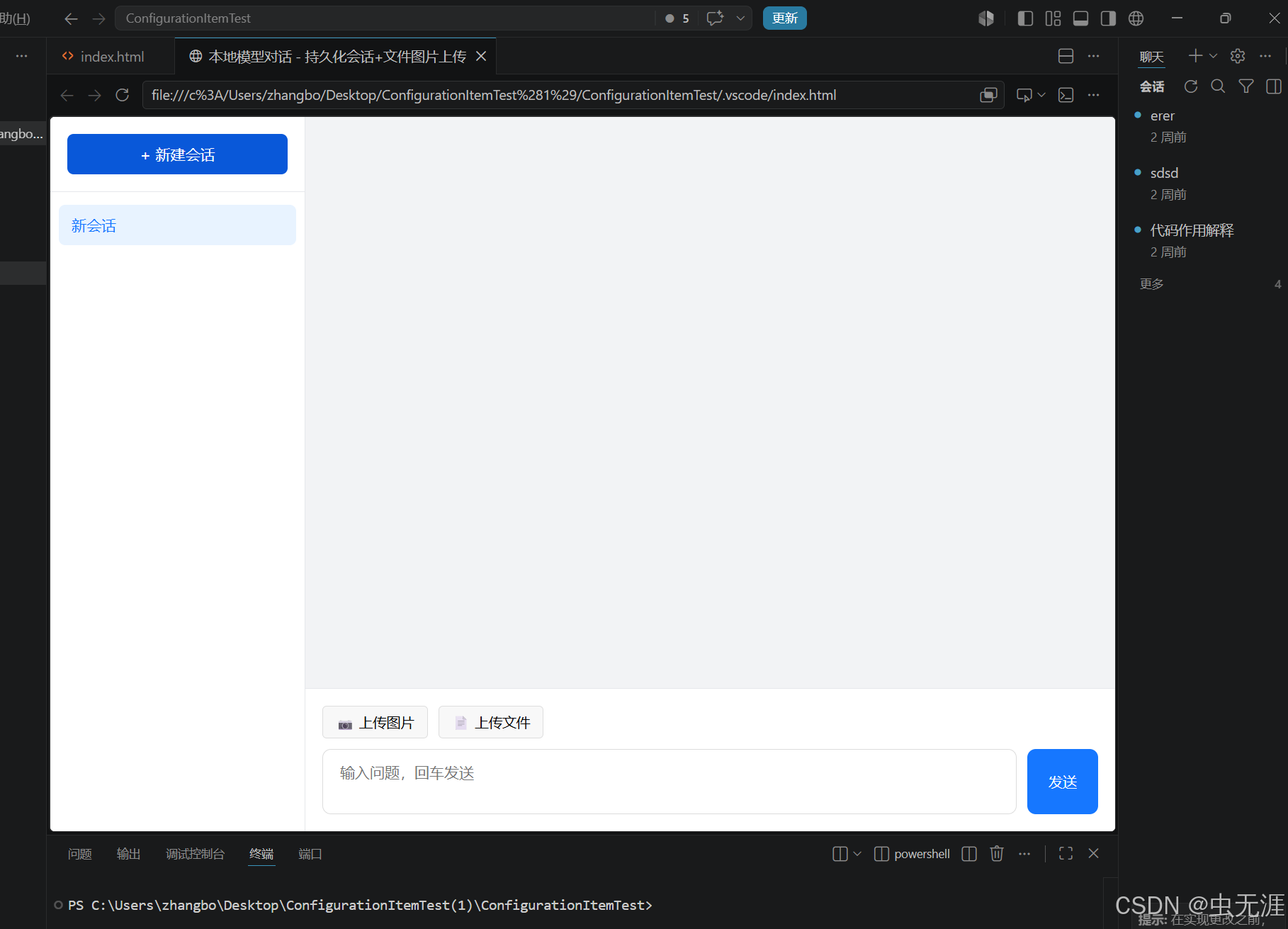
接口配置说明
打开HTML文件,找到顶部的配置区域,修改为你自己的本地模型信息即可:
js
const API_URL = "http://localhost:11434/v1/chat/completions"; // 你的模型API地址
const MODEL_NAME = "qwen:7b"; // 你的模型名称
const API_KEY = "sk-local"; // 本地无鉴权模型可随意填写
可扩展方向
这个版本是基础可用版,还有很多可以优化扩展的空间,大家可以根据自己的需求二次开发:
- 流式输出:对接SSE流式响应,实现打字机输出效果,大幅提升交互体验
- 多模型切换:配置多个模型参数,通过下拉菜单快速切换不同的本地模型
- 会话导出:支持导出Markdown、JSON格式的对话记录,方便归档和分享
- 完整多模态支持:如果你的模型支持图文输入,可将图片base64按接口格式传入请求体
- 会话管理增强:增加单个会话删除、重命名会话、清空所有历史的功能
- VSCode插件封装:可将该页面封装为极简VSCode插件,常驻侧边栏使用
写在最后
这个小工具最适合的场景就是离线内网开发环境、本地模型调试、隐私敏感的代码对话需求。纯前端单文件的形式足够轻量,拷贝到任何地方都能直接运行,也不用担心中间件、依赖和环境问题。
我自己日常在无外网的VSCode开发环境里,用它对接本地的代码大模型,上传代码文件直接提问,比在终端里用curl调用接口方便太多。如果你也有本地大模型的使用需求,不妨保存下来试试,有什么优化想法也欢迎一起交流。