@TOC
前言
最近在做一个在线预览附件功能,相信大多数前端都不陌生,刚开始我就一顿操作,下载pdf.js/pptx.js/vue-office,但是不太友好,我发现怎么弄都不支持.doc和.xls后缀名的文件,然而,一个偶然的机会,我发现了一个非常不错的插件,那就是Fiyfish Viewer。
支持格式
它支持 206 个扩展名映射,覆盖 24 条预览链路。  简直太棒了。
集成方式
它可以通过多种集成方式使用。 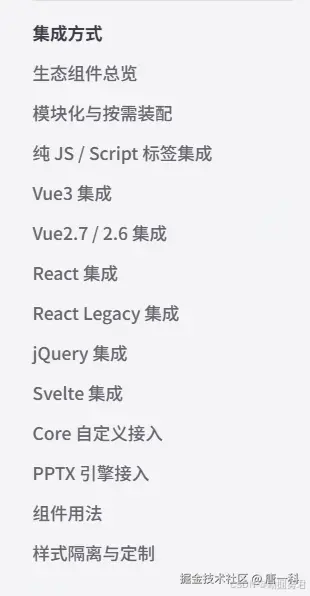
使用中的问题
我的项目是个老项目,用的vue2.6版本,然而,我在用npm安装@file-viewer/vue2.6 @file-viewer/preset-office 时,怎么都下载不下来,直接卡死了,排查了好久都没发现是啥问题,有大佬用npm安装成功的可以在评论区分享一下经验。
这能难住我?
于是,我就使用了纯js集成方式。
javascript
<div id="viewer" style="height:720px"></div>

<script src="https://cdn.jsdelivr.net/npm/@file-viewer/web-full@latest/dist/flyfish-file-viewer-web-full.iife.js"></script>
<script>
  FlyfishFileViewerWebFull.mountViewer(document.getElementById('viewer'), {
    url: '/files/demo.pdf',
    options: {
      theme: 'light',
      toolbar: { position: 'bottom-right' }
    }
  })
</script>
虽然可以正常预览excel和word,还有一些.stl文件了,但是还有一个问题,它预览pptx失败了。  一直报这个错误。说是因为PPTX Worker失败了,因为有一个文件加载失败,原因有很多说法,但不管因为啥吧,怎么解决问题呢?
于是,我直接把cdn.jsdelivr.net/npm/@file-v... 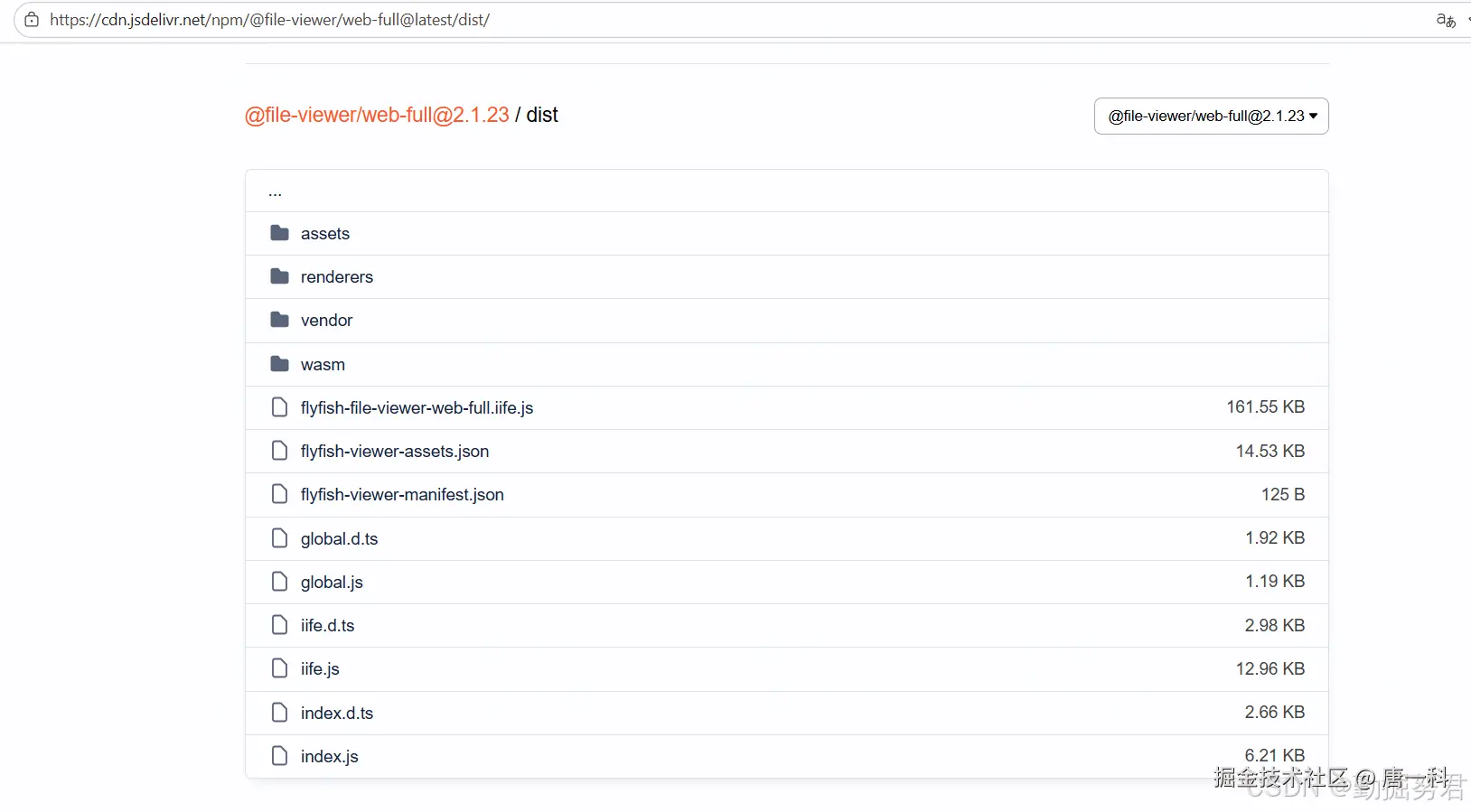 如果懒得下载,可以点击链接拿取上面的源码文件
如何使用
 拿到文件之后,直接放进项目的public目录下面,然后在index.html文件中直接引入即可正常使用。
javascript
<script src="/file-viewer/flyfish-file-viewer-web-full.iife.js" onerror="console.error('Failed to load flyfish-file-viewer')"></script>组件中使用
我的组件名称叫previewFile.vue,代码如下:
javascript
<template>
  <el-dialog
    class="preview-file-dialog"
    :class="{ 'is-fullscreen': isFullscreen }"
    :title="dialogTitle"
    :visible.sync="dialogVisible"
    :fullscreen="isFullscreen"
    :close-on-click-modal="false"
    :append-to-body="true"
    :modal-append-to-body="true"
    width="70%"
    @close="handleClose"
  >
    <template #title>
      <div class="preview-dialog-header">
        <span class="preview-dialog-title">{{ dialogTitle }}</span>
        <i
          class="header-icon"
          :class="isFullscreen ? 'el-icon-copy-document' : 'el-icon-full-screen'"
          :title="isFullscreen ? '退出全屏' : '全屏查看'"
          @click="isFullscreen = !isFullscreen"
        ></i>
      </div>
    </template>
    <div
      class="preview-file-body"
      :style="bodyStyle"
      v-loading="loading"
      element-loading-text="文件加载中,请稍后..."
    >
      <div
        ref="fileViewerRef"
        style="height: 100%; width: 100%"
      ></div>
    </div>
  </el-dialog>
</template>

<script lang="ts">
import { Component, Prop, Watch, Vue } from 'vue-property-decorator';

@Component({
  name: 'PreviewFile'
})
export default class extends Vue {
  // 是否显示
  @Prop({ type: Boolean, default: false }) visible!: boolean;
  // 文件数据
  @Prop({ type: Object, default: () => ({ name: '', url: '' }) }) fileData!: any;

  public loading = false;
  public isFullscreen = true;
  // 弹框标题
  public dialogTitle = '预览附件';

  // 内容区高度跟随全屏状态变化
  get bodyStyle() {
    return {
      height: this.isFullscreen ? 'calc(100vh - 54px)' : '70vh',
      width: '100%'
    };
  }

  get dialogVisible() {
    return this.visible;
  }
  set dialogVisible(val: boolean) {
    this.$emit('update:visible', val);
  }

  @Watch('visible', { immediate: true })
  visibleChange(val: boolean) {
    if (val) {
      Object.keys(this.fileData).length && this.renderFile(this.fileData);
    }
    if (!val) {
      this.resetData();
    }
  }

  // 渲染 flyfish-file-viewer (Web Component)
  private renderFlyfishViewer(url: string, fileName: string) {
    const viewerRef = this.$refs.fileViewerRef as any;
    if (!viewerRef || !viewerRef) return;
    (window as any).FlyfishFileViewerWebFull.mountViewer(viewerRef, {
      url: url,
      filename: fileName,
      options: {
        theme: 'light',
        toolbar: false
      },
      onEvent(event: any) {
        switch (event.type) {
          case 'load-start':
            this.loading = true;
            break;
          case 'load-complete':
            this.loading = false;
            console.log('预览加载完成');
            break;
          case 'unload-start':
            this.loading = true;
            break;
        }
      },
      onError(event: any) {
        console.log(event);
        this.loading = false;
      }
    });
  }

  // 重置数据
  public resetData() {
    this.isFullscreen = false;
    this.dialogTitle = '文件预览';
  }

  // 关闭弹框
  public handleClose() {
    this.dialogVisible = false;
  }

  // 文件渲染开始
  public async renderFile(data: any) {
    try {
      this.loading = true;
      if (!data.name && !data.url) {
        return;
      }
      if (data.name) {
        this.dialogTitle = data.name;
      }
      if (data.name.indexOf('.') === -1) {
        data.name += `.${data.url.split('.').pop()}`;
      }
      let filePreviewUrl = data.url || '';
      filePreviewUrl = filePreviewUrl;
      // 如果是 flyfish-file-viewer 支持的格式,调用 Web Component 加载
      this.$nextTick(() => {
        this.renderFlyfishViewer(filePreviewUrl, data.name);
      });
    } finally {
      this.loading = false;
    }
  }
}
</script>

<style lang="scss" scoped>
.preview-file-dialog {
  ::v-deep .el-dialog__header {
    padding: 15px 20px;
    border-bottom: 1px solid #e8e8e8;
  }
  ::v-deep .el-dialog__body {
    padding: 0;
  }
  ::v-deep .el-dialog__headerbtn {
    top: 17px;
  }
}
.preview-dialog-header {
  display: flex;
  align-items: center;
  .preview-dialog-title {
    font-size: 16px;
    font-weight: 600;
    color: #303133;
    overflow: hidden;
    text-overflow: ellipsis;
    white-space: nowrap;
    flex: 1;
  }
  .header-icon {
    font-size: 16px;
    color: #909399;
    cursor: pointer;
    margin-right: 30px;
    &:hover {
      color: #409eff;
    }
  }
}
.preview-file-body {
  height: 400px;
  overflow: auto;
  box-sizing: border-box;
}
</style>
使用组件代码
javascript
<!-- 文件预览弹框 -->
<preview-file
  v-if="previewVisible"
  :visible.sync="previewVisible"
  :fileData="{ name: 'word文件', url: 'https://demo.file-viewer.app/example/word.docx' }"
></preview-file>
总结
file-view使用起来倒是不难,但是在使用中有不少问题。 关注我不迷路 不定期发表前端开发技巧类的文章