📖封装加载弹框
-
- [✅1. 构造LoadingDialog](#✅1. 构造LoadingDialog)
- [✅2. 调用LoadingDialog](#✅2. 调用LoadingDialog)
效果:
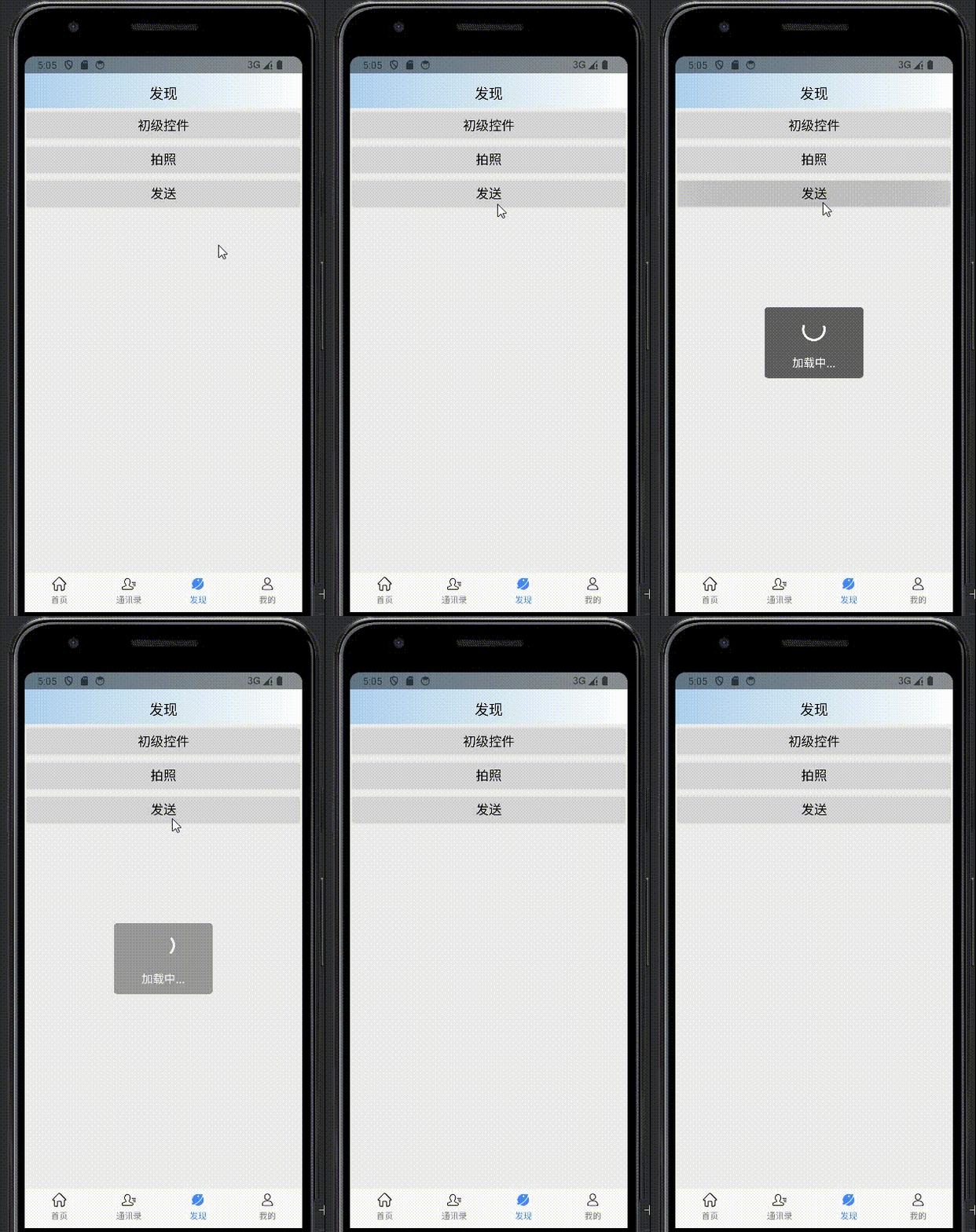
✅1. 构造LoadingDialog
构造LoadingDialog类涉及到设计模式中的建造者模式,进行链式调用,注重的是构建的过程,设置需要的属性。
步骤一:在utils包下创建LoadingDialog
java
import android.app.Dialog;
import android.content.Context;
import android.view.LayoutInflater;
import android.view.View;
import android.widget.TextView;

public class LoadingDialog extends Dialog {

    public LoadingDialog(Context context, int themeResId) {
        super(context, themeResId);
    }

    public static class Builder {
        private Context context;//上下文
        private String message;//提示信息
        private boolean isShowMessage = true;//是否显示提示信息
        private boolean isCancelable = false;//返回键是否可以取消
        private boolean isCancelOutside = false;//点击外部是否可以取消

        //构造方法传入上下文
        public Builder(Context context) {
            this.context = context;
        }

        //设置提示信息
        public Builder setMessage(String message) {
            this.message = message;
            return this;
        }

        //设置是否显示提示信息
        public Builder setShowMessage(boolean isShowMessage) {
            this.isShowMessage = isShowMessage;
            return this;
        }

        //设置是否可以按返回键取消
        public Builder setCancelable(boolean isCancelable) {
            this.isCancelable = isCancelable;
            return this;
        }

        //设置是否可以取消
        public Builder setCancelOutside(boolean isCancelOutside) {
            this.isCancelOutside = isCancelOutside;
            return this;
        }

        //创建LoadingDialog对象
        public LoadingDialog create() {
            LayoutInflater inflater = LayoutInflater.from(context);
            View view = inflater.inflate(R.layout.dialog_loading, null);
            LoadingDialog loadingDailog = new LoadingDialog(context, R.style.MyProgressDialog);
            TextView msgText = (TextView) view.findViewById(R.id.messageTextView);
            if (isShowMessage) {
                msgText.setText(message);
            } else {
                msgText.setVisibility(View.GONE);
            }
            loadingDailog.setContentView(view);
            loadingDailog.setCancelable(isCancelable);
            loadingDailog.setCanceledOnTouchOutside(isCancelOutside);
            return loadingDailog;
        }

    }
}步骤二:在layout文件下添加组件:dialog_loading.xml
xml
<?xml version="1.0" encoding="utf-8"?>
<RelativeLayout xmlns:android="http://schemas.android.com/apk/res/android"
	android:layout_width="match_parent"
	android:layout_height="match_parent"
	android:gravity="center">
	<!--白色:<color name="white">#ffffffff</color>
    -->

	<LinearLayout
		android:layout_width="140dp"
		android:layout_height="100dp"
		android:gravity="center"
		android:orientation="vertical"
		android:background="@drawable/shape_dialog_redius_gray"
		>
		<ProgressBar
			android:id="@+id/progressBar"
			android:layout_width="40dp"
			android:layout_height="40dp"
			android:layout_centerHorizontal="true"
			android:layout_centerVertical="true"
			android:indeterminate="true"
			android:indeterminateTint="@android:color/white" />

		<TextView
			android:id="@+id/messageTextView"
			android:layout_width="wrap_content"
			android:layout_height="wrap_content"
			android:layout_below="@id/progressBar"
			android:layout_centerHorizontal="true"
			android:layout_marginTop="16dp"
			android:textColor="@android:color/white"
			android:textSize="16sp" />
	</LinearLayout>

</RelativeLayout>
步骤三:在drawable文件下添加shape:shape_dialog_redius_gray.xml
xml
<?xml version="1.0" encoding="utf-8"?>
<shape xmlns:android="http://schemas.android.com/apk/res/android" >
    <!--黑色半透明:<color name="black_transparent">#98000000</color>
    -->
    <solid android:color="@color/black_transparent" />
    <corners android:radius="5dp" />
</shape>
步骤四:在 values 文件下的themes.xml下添加如下主题
xml
	<!--弹框加载样式-->
    <!--透明色:<color name="transparent">#00000000</color>-->
    <style name="MyProgressDialog" parent="Theme.AppCompat.Dialog">
        <item name="android:windowBackground">@android:color/transparent</item><!--背景透明-->
        <item name="android:windowIsFloating">true</item><!--是否浮动-->
        <item name="android:backgroundDimEnabled">false</item><!--对话框背后的内容是否被暗淡-->
        <item name="android:windowContentOverlay">@null</item><!--设置窗口的内容覆盖物-->
        <item name="android:statusBarColor">@null</item><!--状态栏背景色-->
    </style>
✅2. 调用LoadingDialog
在点击事件或者发生http请求时显示弹框,请求结束后关闭显示即可,下面是使用1秒延时来模拟发送请求
java
private Handler mHandler = new Handler();//全局定义

send.setOnClickListener(new View.OnClickListener() {
            @Override
            public void onClick(View view) {
                //加载弹窗
                LoadingDialog loadingDialog = new LoadingDialog.Builder(getActivity())
                        .setMessage("加载中...")
                        .setCancelable(true)//返回键是否可关闭
                        .setCancelOutside(false)//点击弹框外是否可关闭
                        .create();

                //显示
                loadingDialog.show();

                //模拟异步发送请求后关闭加载弹窗
                mHandler.postDelayed(new Runnable() {
                    @Override
                    public void run() {
                        //关闭显示
                        loadingDialog.dismiss();
                    }
                }, 1000);
            }
        });