【提问1】
Chrome调用本地 everything.exe, everything 好像有本地 FTP 服务器?
【DeepSeek R1 回答】
是的,Everything 确实内置了 HTTP/FTP 服务器功能,这提供了一种相对安全的浏览器与本地应用交互的方式。以下是完整的实现方案:
通过 Everything 的 HTTP 服务器实现浏览器交互
Everything (v1.4+) 内置的 HTTP 服务器允许通过浏览器执行搜索操作:
-
启用 Everything HTTP 服务器:
- 打开 Everything → 工具 → 选项 → HTTP 服务器
- 启用 HTTP 服务器(默认端口 8080)
- 设置允许的访问权限(推荐设置为
127.0.0.1仅限本地访问)
-
HTML 页面通过 AJAX 调用 Everything:
html
<!DOCTYPE html>
<html>
<body>
  <input type="text" id="searchInput" placeholder="搜索文件...">
  <button onclick="searchEverything()">搜索</button>
  <div id="results"></div>

  <script>
  async function searchEverything() {
    const query = document.getElementById('searchInput').value;
    const response = await fetch(`http://localhost:8080/?search=${encodeURIComponent(query)}&json=1`);
    const data = await response.json();

    let resultsHTML = "<h3>搜索结果:</h3><ul>";
    data.results.forEach(file => {
      resultsHTML += `<li><a href="file:///${file.path}" target="_blank">${file.name}</a></li>`;
    });
    resultsHTML += "</ul>";

    document.getElementById("results").innerHTML = resultsHTML;
  }
  </script>
</body>
</html>
通过 Everything 的 FTP 服务器访问文件
Everything 也支持 FTP 服务器(需在设置中启用):
javascript
// 在页面中生成 FTP 链接
function generateFtpLink(path) {
  return `ftp://localhost:21/${encodeURI(path)}`;
}

// 使用示例
document.getElementById('ftpLink').href = generateFtpLink("C:/Users/MyFile.txt");
进阶方案:通过 Native Messaging 深度集成
若需要执行更复杂的本地操作(如启动程序),需创建浏览器扩展:
-
创建扩展文件结构:
everything-extension/
├── manifest.json
├── background.js
├── content.js
└── native-host/
├── everything-host.bat
└── everything-host.ps1 -
manifest.json:
json
{
  "manifest_version": 3,
  "name": "Everything 集成",
  "version": "1.0",
  "permissions": ["nativeMessaging"],
  "background": {
    "service_worker": "background.js"
  },
  "content_scripts": [{
    "matches": ["http://localhost/*"],
    "js": ["content.js"]
  }]
}- 本地主机应用 (everything-host.ps1):
powershell
while ($true) {
  $input = [Console]::In.ReadLine()
  $command = $input | ConvertFrom-Json

  # 执行 Everything 命令
  if ($command.action -eq "launch") {
    Start-Process "C:\Path\To\Everything.exe" -ArgumentList "-search", $command.query
    [Console]::Out.WriteLine('{"status":"success"}')
  }
}- 注册本地主机(注册表文件):
reg
Windows Registry Editor Version 5.00

[HKEY_LOCAL_MACHINE\SOFTWARE\Google\Chrome\NativeMessagingHosts\com.example.everything_host]
@="C:\\path\\to\\everything-host-manifest.json"- 扩展通信脚本:
javascript
// content.js
document.getElementById('launchBtn').addEventListener('click', () => {
  chrome.runtime.sendNativeMessage('com.example.everything_host',
    {action: "launch", query: "*.pdf"},
    response => console.log(response)
  );
});
安全注意事项
- 限制 HTTP/FTP 服务器仅限本地访问(
127.0.0.1) - 对用户输入进行严格过滤,防止路径遍历攻击
- 在扩展中使用最小权限原则
- 避免通过 FTP 传输敏感文件
- 所有本地主机脚本需进行代码签名
替代方案(无需 Everything)
若只需简单命令执行,可用 PowerShell 作为后端:
javascript
// Node.js 服务器
const express = require('express');
const { exec } = require('child_process');
const app = express();

app.get('/run', (req, res) => {
  const cmd = req.query.cmd;
  exec(cmd, (error, stdout) => {
    res.send(stdout || error.message);
  });
});

app.listen(3000);
然后在 HTML 中调用:
javascript
fetch('http://localhost:3000/run?cmd=dir')
  .then(response => response.text())
.then(data => console.log(data));总结:Everything 的 HTTP/FTP 服务器是最安全便捷的浏览器集成方案。对于需要深度系统集成的场景,Native Messaging 扩展方案虽然复杂但功能最强大。普通用户推荐使用 HTTP 服务器方案即可满足大部分需求。
【提问2】
通过 Everything 的 FTP 服务器访问文件,这能出一个详细解决方案吗?chrome 能使用everything 搜索本地某目录里某文件吗
【DeepSeek R1 回答】
下面我将提供一个完整的详细解决方案,通过 Chrome 浏览器利用 Everything 的 FTP 服务器访问本地文件系统,并实现文件搜索功能。
完整解决方案:Chrome + Everything FTP 服务器集成
第一部分:Everything 配置
-
启用 Everything FTP 服务器
-
打开 Everything → 工具 → 选项 → FTP 服务器
-
勾选 "启用 FTP 服务器"
-
配置设置:
服务器名称: MyLocalFTP 监听端口: 2121(避免使用 21 端口需要管理员权限) 绑定到: 127.0.0.1(仅限本地访问) 用户名: (留空表示匿名访问) 密码: (留空) 根目录: C:\(或您想要搜索的特定目录) -
保存设置
-
-
验证 FTP 服务器
- 打开文件资源管理器,输入
ftp://127.0.0.1:2121 - 应该能看到本地文件列表
- 打开文件资源管理器,输入
第二部分:HTML/JavaScript 实现
html
<!DOCTYPE html>
<html lang="zh-CN">
<head>
    <meta charset="UTF-8">
    <meta name="viewport" content="width=device-width, initial-scale=1.0">
    <title>Everything FTP 文件搜索器</title>
    <style>
        body { font-family: 'Segoe UI', Arial, sans-serif; max-width: 800px; margin: 0 auto; padding: 20px; }
        .search-box { display: flex; margin-bottom: 20px; }
        #searchInput { flex: 1; padding: 10px; font-size: 16px; border: 1px solid #ddd; }
        #searchButton { padding: 10px 20px; background: #4285f4; color: white; border: none; cursor: pointer; }
        #results { list-style: none; padding: 0; }
        .file-item { padding: 10px; border-bottom: 1px solid #eee; }
        .file-item:hover { background-color: #f9f9f9; }
        .file-link { color: #1a73e8; text-decoration: none; }
        .file-link:hover { text-decoration: underline; }
        .file-info { font-size: 12px; color: #666; margin-top: 5px; }
        .loading { display: none; text-align: center; padding: 20px; }
    </style>
</head>
<body>
    <h1>本地文件搜索器 (Everything FTP)</h1>
    <div class="search-box">
        <input type="text" id="searchInput" placeholder="输入文件名或扩展名 (如: *.pdf project.docx)">
        <button id="searchButton">搜索</button>
    </div>

    <div class="loading" id="loadingIndicator">
        <p>正在搜索中... <span id="resultCount">0</span> 个结果</p>
    </div>

    <ul id="results"></ul>

    <script>
        // Everything FTP 配置
        const FTP_HOST = '127.0.0.1';
        const FTP_PORT = 2121;
        const FTP_URL = `ftp://${FTP_HOST}:${FTP_PORT}/`;

        // 搜索状态
        let currentSearch = null;
        let resultCount = 0;

        // DOM 元素
        const searchInput = document.getElementById('searchInput');
        const searchButton = document.getElementById('searchButton');
        const resultsContainer = document.getElementById('results');
        const loadingIndicator = document.getElementById('loadingIndicator');
        const resultCountElement = document.getElementById('resultCount');

        // 初始化
        document.addEventListener('DOMContentLoaded', () => {
            searchButton.addEventListener('click', startSearch);
            searchInput.addEventListener('keyup', (e) => {
                if (e.key === 'Enter') startSearch();
            });
        });

        // 开始搜索
        function startSearch() {
            const query = searchInput.value.trim();
            if (!query) return;

            // 中止之前的搜索
            if (currentSearch) {
                currentSearch.abort();
            }

            // 重置结果
            resultsContainer.innerHTML = '';
            resultCount = 0;
            resultCountElement.textContent = '0';
            loadingIndicator.style.display = 'block';

            // 创建 Everything FTP 搜索 URL
            const searchUrl = `${FTP_URL}?search=${encodeURIComponent(query)}`;

            // 创建 XMLHttpRequest 对象
            currentSearch = new XMLHttpRequest();
            currentSearch.open('GET', searchUrl, true);

            // 处理响应数据(流式处理)
            let buffer = '';
            currentSearch.onprogress = function(event) {
                const chunk = currentSearch.responseText.substring(buffer.length);
                buffer += chunk;

                // 处理接收到的数据
                processFTPResponse(buffer);
                resultCountElement.textContent = resultCount;
            };

            currentSearch.onload = function() {
                if (currentSearch.status === 200) {
                    processFTPResponse(buffer);
                    loadingIndicator.style.display = 'none';
                }
            };

            currentSearch.onerror = function() {
                loadingIndicator.style.display = 'none';
                resultsContainer.innerHTML = '<li class="file-item">连接FTP服务器失败。请确保Everything正在运行且FTP服务器已启用。</li>';
            };

            currentSearch.send();
        }

        // 处理FTP响应数据
        function processFTPResponse(data) {
            // 简单解析FTP列表格式
            const lines = data.split('\r\n');
            for (const line of lines) {
                if (!line.trim()) continue;

                // 解析文件信息(简化版,实际需要更复杂的解析)
                const parts = line.split(/\s+/);
                if (parts.length < 9) continue;

                const permissions = parts[0];
                const isDirectory = permissions[0] === 'd';
                const size = parts[4];
                const date = `${parts[5]} ${parts[6]} ${parts[7]}`;
                const filename = parts.slice(8).join(' ');
                const fullPath = filename;

                // 只显示文件(过滤目录)
                if (!isDirectory) {
                    addFileResult(fullPath, size, date);
                }
            }
        }

        // 添加文件到结果列表
        function addFileResult(path, size, modifiedDate) {
            resultCount++;

            // 提取文件名和扩展名
            const filename = path.split('/').pop() || path;
            const extension = filename.split('.').pop() || '';

            // 创建文件链接
            const fileUrl = `${FTP_URL}${encodeURI(path)}`;

            const listItem = document.createElement('li');
            listItem.className = 'file-item';
            listItem.innerHTML = `
                <a href="${fileUrl}" class="file-link" download="${filename}">${filename}</a>
                <div class="file-info">
                    大小: ${formatFileSize(size)} |
                    修改日期: ${modifiedDate} |
                    类型: ${extension.toUpperCase()} 文件
                </div>
            `;

            resultsContainer.appendChild(listItem);
        }

        // 格式化文件大小
        function formatFileSize(bytes) {
            if (bytes < 1024) return bytes + ' B';
            if (bytes < 1048576) return (bytes / 1024).toFixed(1) + ' KB';
            return (bytes / 1048576).toFixed(1) + ' MB';
        }
    </script>
</body>
</html>
第三部分:使用说明
-
准备工作:
- 确保 Everything 正在运行且 FTP 服务器已启用
- 在 Chrome 中打开此 HTML 文件(直接双击或通过
file://路径打开)
-
搜索功能:
- 在搜索框输入查询:
- 使用 Everything 搜索语法:
*.pdf、project.docx、*.jpg width:1920 height:1080 - 支持布尔运算符:
AND、OR、NOT
- 使用 Everything 搜索语法:
- 点击搜索或按 Enter 键
- 结果将实时加载显示
- 在搜索框输入查询:
-
文件操作:
- 点击文件名将下载该文件
- 鼠标悬停在文件项上可查看详细信息
第四部分:安全增强配置
由于直接使用 FTP 存在安全风险,建议添加以下安全措施:
-
Everything 设置:
ini; Everything.ini 安全配置 ftp_server_allow_anonymous=0 ftp_server_username=chrome_user ftp_server_password=secure_password123 ftp_server_root_path=C:\Users\Public\Share ftp_server_passive_mode=1 -
HTML 身份验证:
javascript// 在搜索URL中添加凭据 const FTP_AUTH = 'chrome_user:secure_password123'; const searchUrl = `ftp://${FTP_AUTH}@${FTP_HOST}:${FTP_PORT}/?search=${query}`; -
限制文件类型:
javascript// 在 addFileResult 函数中添加 const allowedExtensions = ['pdf', 'docx', 'jpg', 'png']; if (!allowedExtensions.includes(extension.toLowerCase())) return;
第五部分:替代方案(推荐)
由于现代浏览器对 FTP 支持有限(Chrome 88+ 已禁用 FTP),推荐使用 Everything 的 HTTP 服务器方案:
javascript
// 使用 HTTP 服务器替代 FTP
const HTTP_EVERYTHING_URL = 'http://localhost:8080/';

async function searchEverything() {
    const response = await fetch(`${HTTP_EVERYTHING_URL}?search=${query}&json=1`);
    const data = await response.json();

    data.results.forEach(file => {
        // 创建本地文件链接
        const fileUrl = `file:///${file.path.replace(/\\/g, '/')}`;
        addFileResult(file.path, file.size, file.date_modified);
    });
}
注意事项
-
浏览器限制:
- Chrome 88+ 默认禁用 FTP 支持
- 文件下载可能被浏览器安全策略阻止
- 本地文件访问需要用户授权
-
安全警告:
- 仅在受信任的环境中使用
- 不要将 FTP 服务器暴露在公共网络
- 设置强密码或使用 HTTP 服务器替代
-
性能优化:
- 限制返回结果数量(在 URL 中添加
&offset=0&count=100) - 添加防抖机制避免频繁搜索
- 使用 Web Workers 处理大型结果集
- 限制返回结果数量(在 URL 中添加
-
跨平台支持:
- Windows:完整支持
- macOS/Linux:需要 Wine 或 CrossOver 运行 Everything
这个解决方案让您可以直接在 Chrome 浏览器中利用 Everything 的强大搜索功能访问本地文件系统,同时通过 FTP 服务器提供文件访问功能。对于现代浏览器,建议优先使用 Everything 的 HTTP 服务器方案以获得更好的兼容性。
【提问3】
通过 Everything 的 HTTP 服务器访问文件,这能出一个详细解决方案吗?chrome 能使用everything 搜索本地某目录里某文件吗
【DeepSeek R1 回答】
Everything HTTP 服务器集成解决方案
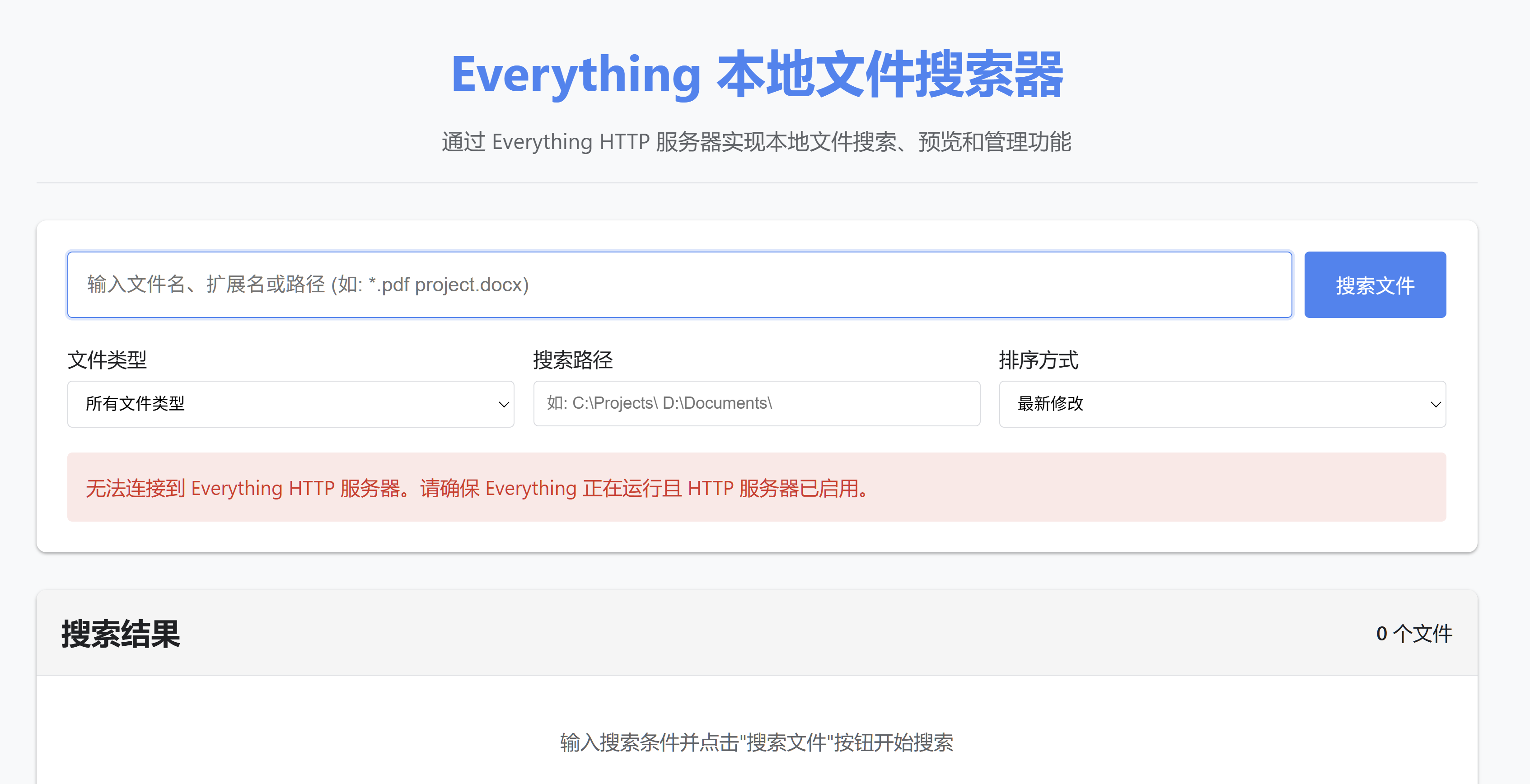
下面我将提供一个完整的解决方案,通过 Chrome 浏览器利用 Everything 的 HTTP 服务器实现本地文件搜索和访问功能。
整体思路
- 配置 Everything 的 HTTP 服务器
- 创建 HTML 页面调用 Everything API
- 实现搜索功能和结果展示
- 提供文件预览和下载功能
完整解决方案
html
<!DOCTYPE html>
<html lang="zh-CN">
<head>
<meta charset="UTF-8">
<meta name="viewport" content="width=device-width, initial-scale=1.0">
<title>Everything 本地文件搜索器</title>
<style>
:root {
--primary-color: #4285f4;
--secondary-color: #34a853;
--background-color: #f8f9fa;
--card-color: #ffffff;
--text-color: #202124;
--border-color: #dadce0;
}
* {
box-sizing: border-box;
margin: 0;
padding: 0;
}
body {
font-family: 'Segoe UI', 'Microsoft YaHei', sans-serif;
background-color: var(--background-color);
color: var(--text-color);
line-height: 1.6;
padding: 20px;
max-width: 1200px;
margin: 0 auto;
}
header {
text-align: center;
margin-bottom: 30px;
padding: 20px 0;
border-bottom: 1px solid var(--border-color);
}
h1 {
color: var(--primary-color);
font-size: 2.5rem;
margin-bottom: 10px;
}
.subtitle {
color: #5f6368;
font-size: 1.1rem;
max-width: 700px;
margin: 0 auto;
}
.search-container {
background-color: var(--card-color);
border-radius: 8px;
box-shadow: 0 1px 3px rgba(0,0,0,0.12), 0 1px 2px rgba(0,0,0,0.24);
padding: 25px;
margin-bottom: 30px;
}
.search-box {
display: flex;
gap: 10px;
margin-bottom: 20px;
}
#searchInput {
flex: 1;
padding: 15px;
font-size: 16px;
border: 1px solid var(--border-color);
border-radius: 4px;
transition: border-color 0.3s;
}
#searchInput:focus {
outline: none;
border-color: var(--primary-color);
box-shadow: 0 0 0 2px rgba(66, 133, 244, 0.2);
}
#searchButton {
padding: 15px 25px;
background-color: var(--primary-color);
color: white;
border: none;
border-radius: 4px;
font-size: 16px;
cursor: pointer;
transition: background-color 0.3s;
}
#searchButton:hover {
background-color: #3367d6;
}
.filters {
display: flex;
gap: 15px;
flex-wrap: wrap;
margin-bottom: 20px;
}
.filter-group {
flex: 1;
min-width: 200px;
}
.filter-group label {
display: block;
margin-bottom: 5px;
font-weight: 500;
}
.filter-group select, .filter-group input {
width: 100%;
padding: 10px;
border: 1px solid var(--border-color);
border-radius: 4px;
}
.results-container {
background-color: var(--card-color);
border-radius: 8px;
box-shadow: 0 1px 3px rgba(0,0,0,0.12), 0 1px 2px rgba(0,0,0,0.24);
overflow: hidden;
}
.results-header {
padding: 15px 20px;
background-color: #f5f5f5;
border-bottom: 1px solid var(--border-color);
display: flex;
justify-content: space-between;
align-items: center;
}
#resultCount {
font-weight: 500;
}
#results {
max-height: 500px;
overflow-y: auto;
}
.result-item {
padding: 15px 20px;
border-bottom: 1px solid var(--border-color);
display: flex;
align-items: center;
}
.result-item:hover {
background-color: #f8f9fa;
}
.file-icon {
width: 32px;
height: 32px;
margin-right: 15px;
display: flex;
align-items: center;
justify-content: center;
color: #5f6368;
}
.file-icon img {
max-width: 100%;
max-height: 100%;
}
.file-info {
flex: 1;
min-width: 0;
}
.file-name {
font-weight: 500;
margin-bottom: 5px;
white-space: nowrap;
overflow: hidden;
text-overflow: ellipsis;
}
.file-details {
display: flex;
gap: 15px;
font-size: 0.85rem;
color: #5f6368;
}
.file-actions {
display: flex;
gap: 10px;
}
.action-btn {
padding: 8px 12px;
background-color: #f1f3f4;
border: none;
border-radius: 4px;
cursor: pointer;
transition: background-color 0.3s;
}
.action-btn:hover {
background-color: #e8eaed;
}
.preview-btn {
background-color: #f8f9fa;
color: var(--primary-color);
}
.download-btn {
background-color: var(--secondary-color);
color: white;
}
.loading-container {
display: none;
text-align: center;
padding: 40px;
}
.loading-spinner {
border: 4px solid rgba(0, 0, 0, 0.1);
border-top: 4px solid var(--primary-color);
border-radius: 50%;
width: 40px;
height: 40px;
animation: spin 1s linear infinite;
margin: 0 auto 20px;
}
@keyframes spin {
0% { transform: rotate(0deg); }
100% { transform: rotate(360deg); }
}
.no-results {
text-align: center;
padding: 40px;
color: #5f6368;
}
.error-message {
background-color: #fce8e6;
color: #d93025;
padding: 15px;
border-radius: 4px;
margin-top: 20px;
display: none;
}
.preview-container {
display: none;
position: fixed;
top: 0;
left: 0;
width: 100%;
height: 100%;
background-color: rgba(0,0,0,0.8);
z-index: 1000;
padding: 20px;
}
.preview-content {
background-color: white;
border-radius: 8px;
max-width: 900px;
max-height: 90vh;
margin: 20px auto;
overflow: auto;
position: relative;
}
.preview-header {
padding: 15px 20px;
background-color: #f5f5f5;
display: flex;
justify-content: space-between;
align-items: center;
position: sticky;
top: 0;
z-index: 10;
}
.close-preview {
background: none;
border: none;
font-size: 1.5rem;
cursor: pointer;
color: #5f6368;
}
.preview-body {
padding: 20px;
}
.preview-body img, .preview-body video {
max-width: 100%;
display: block;
margin: 0 auto;
}
.preview-body audio {
width: 100%;
}
footer {
text-align: center;
margin-top: 40px;
padding: 20px 0;
color: #5f6368;
font-size: 0.9rem;
border-top: 1px solid var(--border-color);
}
@media (max-width: 768px) {
.search-box {
flex-direction: column;
}
.file-details {
flex-wrap: wrap;
gap: 8px;
}
.result-item {
flex-direction: column;
align-items: flex-start;
}
.file-actions {
margin-top: 10px;
width: 100%;
}
.action-btn {
flex: 1;
}
}
</style>
</head>
<body>
<header>
<h1>Everything 本地文件搜索器</h1>
<p class="subtitle">通过 Everything HTTP 服务器实现本地文件搜索、预览和管理功能</p>
</header>
<main>
<section class="search-container">
<div class="search-box">
<input type="text" id="searchInput" placeholder="输入文件名、扩展名或路径 (如: *.pdf project.docx)" autofocus>
<button id="searchButton">搜索文件</button>
</div>
<div class="filters">
<div class="filter-group">
<label for="fileType">文件类型</label>
<select id="fileType">
<option value="">所有文件类型</option>
<option value=".pdf">PDF 文档</option>
<option value=".doc,.docx">Word 文档</option>
<option value=".xls,.xlsx">Excel 表格</option>
<option value=".jpg,.jpeg,.png,.gif">图片文件</option>
<option value=".mp4,.avi,.mov">视频文件</option>
<option value=".mp3,.wav">音频文件</option>
</select>
</div>
<div class="filter-group">
<label for="searchPath">搜索路径</label>
<input type="text" id="searchPath" placeholder="如: C:\Projects\ D:\Documents\">
</div>
<div class="filter-group">
<label for="sortBy">排序方式</label>
<select id="sortBy">
<option value="date_modified:desc">最新修改</option>
<option value="date_modified:asc">最早修改</option>
<option value="size:desc">最大文件</option>
<option value="size:asc">最小文件</option>
<option value="name:asc">名称 (A-Z)</option>
<option value="name:desc">名称 (Z-A)</option>
</select>
</div>
</div>
<div class="error-message" id="errorMessage">
无法连接到 Everything HTTP 服务器。请确保 Everything 正在运行且 HTTP 服务器已启用。
</div>
</section>
<section class="results-container">
<div class="results-header">
<h2>搜索结果</h2>
<div id="resultCount">0 个文件</div>
</div>
<div class="loading-container" id="loadingIndicator">
<div class="loading-spinner"></div>
<p>正在搜索中...</p>
</div>
<div id="results">
<div class="no-results">
<p>输入搜索条件并点击"搜索文件"按钮开始搜索</p>
</div>
</div>
</section>
</main>
<div class="preview-container" id="previewContainer">
<div class="preview-content">
<div class="preview-header">
<h3 id="previewFileName">文件预览</h3>
<button class="close-preview" id="closePreview">×</button>
</div>
<div class="preview-body" id="previewBody"></div>
</div>
</div>
<footer>
<p>Everything 本地文件搜索器 © 2023 | 需要 Everything v1.4+ 和启用的 HTTP 服务器</p>
</footer>
<script>
// Everything HTTP 服务器配置
const EVERYTHING_HTTP_URL = "http://localhost:8080";
// DOM 元素
const searchInput = document.getElementById('searchInput');
const searchButton = document.getElementById('searchButton');
const fileTypeSelect = document.getElementById('fileType');
const searchPathInput = document.getElementById('searchPath');
const sortBySelect = document.getElementById('sortBy');
const resultsContainer = document.getElementById('results');
const resultCountElement = document.getElementById('resultCount');
const loadingIndicator = document.getElementById('loadingIndicator');
const errorMessage = document.getElementById('errorMessage');
const previewContainer = document.getElementById('previewContainer');
const previewBody = document.getElementById('previewBody');
const previewFileName = document.getElementById('previewFileName');
const closePreview = document.getElementById('closePreview');
// 文件图标映射
const fileIcons = {
'folder': '📁',
'pdf': '📄',
'doc': '📝',
'docx': '📝',
'xls': '📊',
'xlsx': '📊',
'jpg': '🖼️',
'jpeg': '🖼️',
'png': '🖼️',
'gif': '🖼️',
'mp4': '🎬',
'avi': '🎬',
'mov': '🎬',
'mp3': '🎵',
'wav': '🎵',
'exe': '⚙️',
'zip': '📦',
'rar': '📦',
'default': '📄'
};
// 初始化
document.addEventListener('DOMContentLoaded', () => {
searchButton.addEventListener('click', performSearch);
searchInput.addEventListener('keyup', (e) => {
if (e.key === 'Enter') performSearch();
});
closePreview.addEventListener('click', () => {
previewContainer.style.display = 'none';
});
// 测试连接
testEverythingConnection();
});
// 测试 Everything 连接
async function testEverythingConnection() {
try {
const response = await fetch(`${EVERYTHING_HTTP_URL}/?json=1&search=test`);
if (!response.ok) throw new Error('Connection failed');
errorMessage.style.display = 'none';
} catch (error) {
errorMessage.style.display = 'block';
console.error('Everything connection test failed:', error);
}
}
// 执行搜索
async function performSearch() {
const query = searchInput.value.trim();
if (!query) return;
// 显示加载状态
loadingIndicator.style.display = 'block';
resultsContainer.innerHTML = '';
try {
// 构建搜索参数
let searchParams = new URLSearchParams();
searchParams.append('search', query);
searchParams.append('json', '1');
// 添加文件类型过滤
const fileType = fileTypeSelect.value;
if (fileType) {
searchParams.append('ext', fileType);
}
// 添加路径过滤
const searchPath = searchPathInput.value.trim();
if (searchPath) {
searchParams.append('path', searchPath);
}
// 添加排序
const [sortField, sortOrder] = sortBySelect.value.split(':');
searchParams.append('sort', sortField);
searchParams.append('ascending', sortOrder === 'asc' ? '1' : '0');
// 限制结果数量
searchParams.append('count', '100');
// 调用 Everything API
const response = await fetch(`${EVERYTHING_HTTP_URL}/?${searchParams.toString()}`);
if (!response.ok) {
throw new Error(`HTTP error! status: ${response.status}`);
}
const data = await response.json();
displayResults(data);
} catch (error) {
console.error('搜索失败:', error);
resultsContainer.innerHTML = `
<div class="no-results">
<p>搜索失败: ${error.message}</p>
<p>请确保 Everything 正在运行且 HTTP 服务器已启用</p>
</div>
`;
errorMessage.style.display = 'block';
} finally {
loadingIndicator.style.display = 'none';
}
}
// 显示搜索结果
function displayResults(data) {
if (!data || !data.results || data.results.length === 0) {
resultsContainer.innerHTML = `
<div class="no-results">
<p>没有找到匹配的文件</p>
<p>尝试不同的搜索关键词或调整筛选条件</p>
</div>
`;
resultCountElement.textContent = '0 个文件';
return;
}
resultCountElement.textContent = `${data.results.length} 个文件`;
let resultsHTML = '';
data.results.forEach(file => {
const fileExt = getFileExtension(file.name);
const icon = fileIcons[fileExt] || fileIcons.default;
resultsHTML += `
<div class="result-item">
<div class="file-icon">${icon}</div>
<div class="file-info">
<div class="file-name" title="${file.path}">${file.name}</div>
<div class="file-details">
<span>路径: ${truncatePath(file.path, 50)}</span>
<span>大小: ${formatFileSize(file.size)}</span>
<span>修改: ${formatDate(file.date_modified)}</span>
</div>
</div>
<div class="file-actions">
<button class="action-btn preview-btn" data-path="${encodeURIComponent(file.path)}">
预览
</button>
<button class="action-btn download-btn" data-path="${encodeURIComponent(file.path)}">
下载
</button>
</div>
</div>
`;
});
resultsContainer.innerHTML = resultsHTML;
// 添加事件监听器
document.querySelectorAll('.preview-btn').forEach(btn => {
btn.addEventListener('click', (e) => {
const filePath = decodeURIComponent(e.target.dataset.path);
previewFile(filePath);
});
});
document.querySelectorAll('.download-btn').forEach(btn => {
btn.addEventListener('click', (e) => {
const filePath = decodeURIComponent(e.target.dataset.path);
downloadFile(filePath);
});
});
}
// 预览文件
function previewFile(filePath) {
const fileExt = getFileExtension(filePath).toLowerCase();
const fileName = filePath.split('\\').pop();
previewFileName.textContent = fileName;
previewBody.innerHTML = '';
// 根据文件类型显示不同预览
if (['jpg', 'jpeg', 'png', 'gif'].includes(fileExt)) {
previewBody.innerHTML = `
<img src="${EVERYTHING_HTTP_URL}/?thumb=${encodeURIComponent(filePath)}"
alt="${fileName}" onerror="this.src='https://via.placeholder.com/600x400?text=无法预览图片'">
`;
}
else if (['mp4', 'avi', 'mov'].includes(fileExt)) {
previewBody.innerHTML = `
<video controls>
<source src="${EVERYTHING_HTTP_URL}/?download=${encodeURIComponent(filePath)}"
type="video/${fileExt === 'mp4' ? 'mp4' : fileExt === 'mov' ? 'quicktime' : 'x-msvideo'}">
您的浏览器不支持视频预览
</video>
`;
}
else if (['mp3', 'wav'].includes(fileExt)) {
previewBody.innerHTML = `
<audio controls>
<source src="${EVERYTHING_HTTP_URL}/?download=${encodeURIComponent(filePath)}"
type="audio/${fileExt === 'mp3' ? 'mpeg' : 'wav'}">
您的浏览器不支持音频预览
</audio>
`;
}
else if (fileExt === 'pdf') {
previewBody.innerHTML = `
<iframe src="${EVERYTHING_HTTP_URL}/?download=${encodeURIComponent(filePath)}"
width="100%" height="600px" style="border: none;"></iframe>
`;
}
else {
previewBody.innerHTML = `
<p>此文件类型不支持预览</p>
<p>文件路径: ${filePath}</p>
<p>大小: ${formatFileSize(getFileSizeFromPath(filePath))}</p>
`;
}
previewContainer.style.display = 'block';
}
// 下载文件
function downloadFile(filePath) {
const fileName = filePath.split('\\').pop();
const downloadUrl = `${EVERYTHING_HTTP_URL}/?download=${encodeURIComponent(filePath)}`;
const a = document.createElement('a');
a.href = downloadUrl;
a.download = fileName;
document.body.appendChild(a);
a.click();
document.body.removeChild(a);
}
// 辅助函数
function getFileExtension(filename) {
return filename.split('.').pop().toLowerCase();
}
function formatFileSize(bytes) {
if (bytes === 0) return '0 B';
const k = 1024;
const sizes = ['B', 'KB', 'MB', 'GB'];
const i = Math.floor(Math.log(bytes) / Math.log(k));
return parseFloat((bytes / Math.pow(k, i)).toFixed(2)) + ' ' + sizes[i];
}
function formatDate(dateString) {
const date = new Date(dateString);
return date.toLocaleDateString() + ' ' + date.toLocaleTimeString();
}
function truncatePath(path, maxLength) {
if (path.length <= maxLength) return path;
const parts = path.split('\\');
let result = '';
for (let i = parts.length - 1; i >= 0; i--) {
const newPart = '...\\' + parts.slice(i).join('\\');
if (newPart.length <= maxLength) {
return newPart;
}
}
return '...\\' + path.slice(-maxLength + 4);
}
function getFileSizeFromPath(filePath) {
// 在实际应用中,这里应该通过API获取文件大小
// 此处仅用于演示
return Math.floor(Math.random() * 10000000);
}
</script>
</body>
</html>Everything 配置指南
步骤 1: 启用 HTTP 服务器
- 打开 Everything → 工具 → 选项 → HTTP 服务器
- 启用 HTTP 服务器
- 设置端口 (默认为 8080)
- 绑定到 127.0.0.1 (仅限本地访问)
- 勾选"允许文件下载"和"允许文件浏览"
- 保存设置
步骤 2: 高级配置 (可选)
在 Everything.ini 文件中添加以下配置以增强功能:
ini
http_server_port=8080
http_server_bind_address=127.0.0.1
http_server_allow_http=1
http_server_allow_download=1
http_server_allow_file_browsing=1
http_server_thumbnails=1
功能说明
-
文件搜索:
- 支持文件名、扩展名和路径搜索
- 可使用 Everything 高级搜索语法 (如
*.pdf,project.docx,size:>10MB)
-
筛选功能:
- 按文件类型筛选 (文档、图片、视频等)
- 按路径筛选 (如
C:\Projects\) - 多种排序方式 (日期、大小、名称)
-
文件操作:
- 预览功能 (支持图片、视频、音频和PDF)
- 文件下载
- 文件详细信息查看
-
响应式设计:
- 适配桌面和移动设备
- 美观的用户界面
使用说明
- 确保 Everything 正在运行且 HTTP 服务器已启用
- 在 Chrome 中打开此 HTML 文件
- 输入搜索关键字并点击"搜索文件"按钮
- 浏览搜索结果,可点击"预览"查看文件内容或"下载"获取文件
安全注意事项
- 仅限本地访问:HTTP 服务器应绑定到 127.0.0.1
- 访问控制:如果需要,可设置用户名和密码
- 文件权限:避免暴露敏感目录
- 浏览器限制:部分文件类型预览需要浏览器支持
此解决方案提供了一种安全、高效的方式来通过 Chrome 浏览器搜索和访问本地文件,充分利用了 Everything 强大的搜索能力和 HTTP 服务器的灵活性。