一.配置ntp时间服务器,确保客户端主机能和服务主机同步时间
1:服务器端配置(IP:192.168.31.131)
(1)编辑/etc/chrony.conf,配置上游时间源(此处选用阿里云 NTP 服务器),并允许目标客户端网段接入:
bash
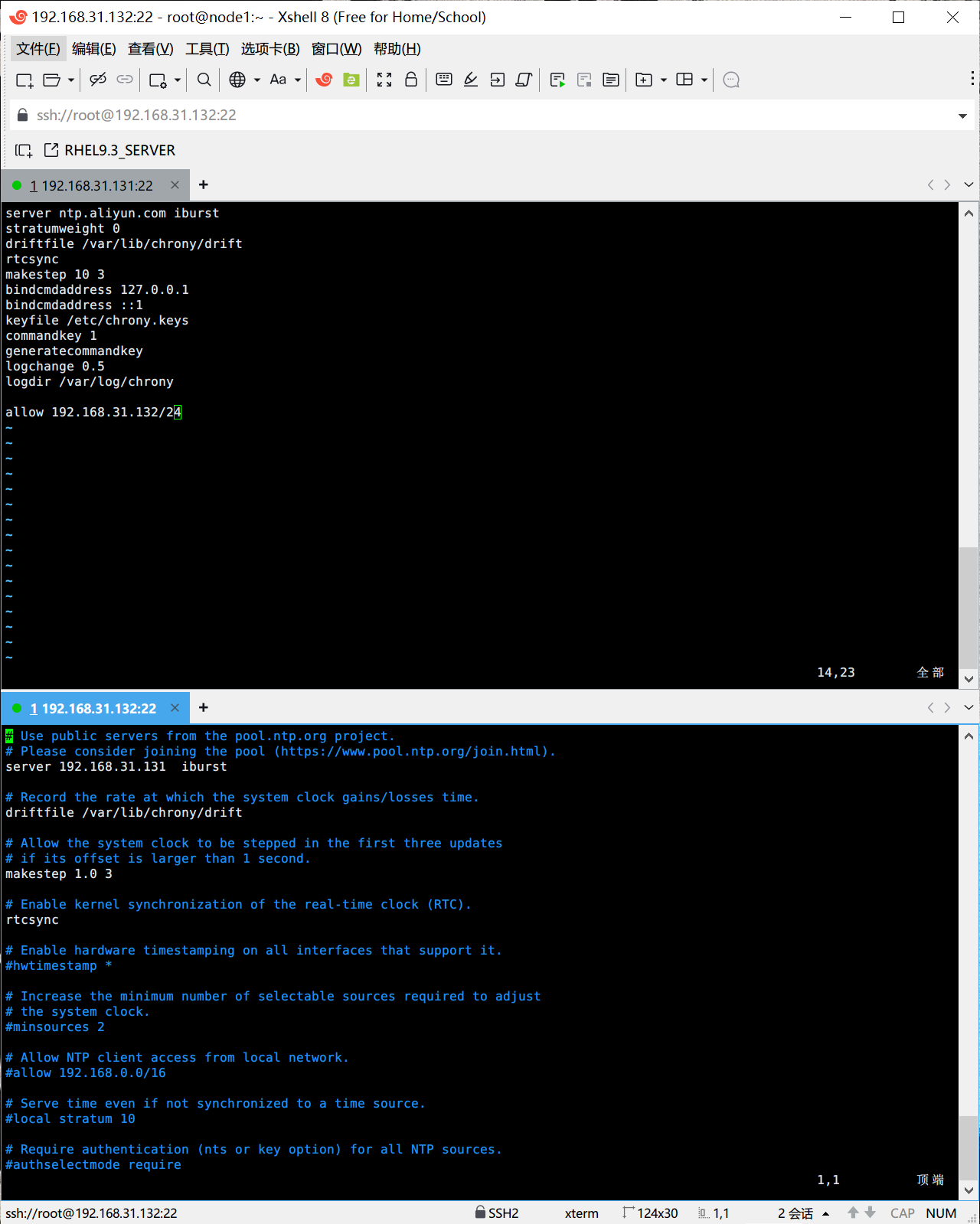
[root@master ~]# vim /etc/chrony.conf


#在其中复制阿里的时间服务器配置(设置allow参数允许客户端同步时间),如下:
server ntp.aliyun.com iburst
stratumweight 0
driftfile /var/lib/chrony/drift
rtcsync
makestep 10 3
bindcmdaddress 127.0.0.1
bindcmdaddress ::1
keyfile /etc/chrony.keys
commandkey 1
generatecommandkey
logchange 0.5
logdir /var/log/chrony

关键配置内容(添加 / 修改):
allow 192.168.31.132/24(2)重启服务使配置生效,并通过timedatectl确认时间同步状态:
bash
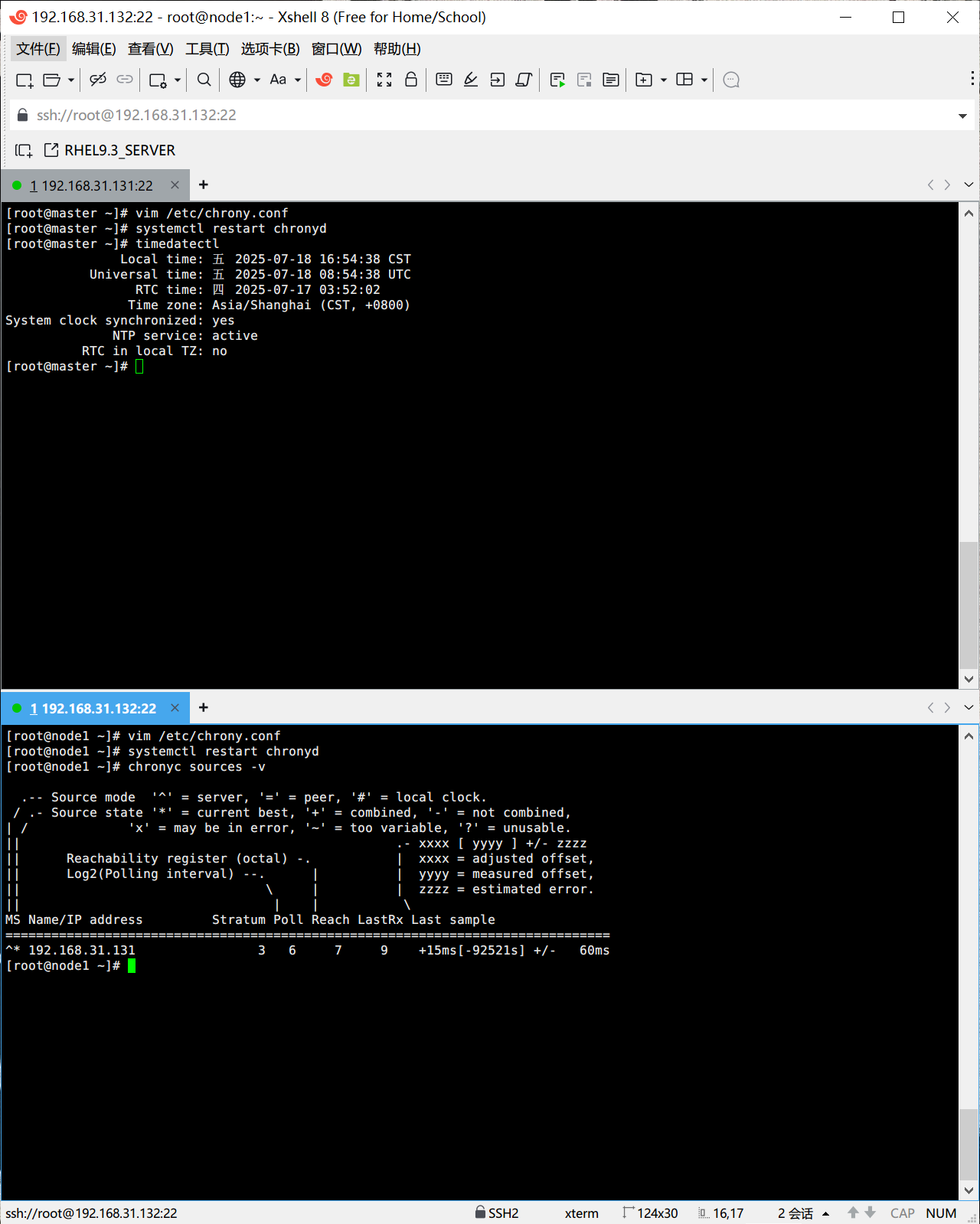
[root@master ~]# systemctl restart chronyd
[root@master ~]# timedatectl
               Local time: 五 2025-07-18 16:54:38 CST
           Universal time: 五 2025-07-18 08:54:38 UTC
                 RTC time: 四 2025-07-17 03:52:02
                Time zone: Asia/Shanghai (CST, +0800)
System clock synchronized: yes
              NTP service: active
          RTC in local TZ: no
2.客户端配置(IP:192.168.31.132)
(1)配置客户端主机chrony配置文件
编辑/etc/chrony.conf,将时间源指向自建 NTP 服务器 IP:
bash
[root@node1 ~]# vim /etc/chrony.conf

## 将默认的pool.ntp.org替换为服务器IP
# Use public servers from the pool.ntp.org project.
# Please consider joining the pool (https://www.pool.ntp.org/join.html).
server 192.168.31.131  iburst
(2)重启chrony服务,并且查看是否同步
重启服务后,通过chronyc sources -v查看与服务器的同步状态:
bash
[root@node1 ~]# systemctl restart chronyd
[root@node1 ~]# chronyc sources -v

  .-- Source mode  '^' = server, '=' = peer, '#' = local clock.
 / .- Source state '*' = current best, '+' = combined, '-' = not combined,
| /             'x' = may be in error, '~' = too variable, '?' = unusable.
||                                                 .- xxxx [ yyyy ] +/- zzzz
||      Reachability register (octal) -.           |  xxxx = adjusted offset,
||      Log2(Polling interval) --.      |          |  yyyy = measured offset,
||                                \     |          |  zzzz = estimated error.
||                                 |    |           \
MS Name/IP address         Stratum Poll Reach LastRx Last sample
===============================================================================
^* 192.168.31.131 3 6 7 9 +15ms[-92521s] +/- 60ms输出中若出现^* 192.168.31.131(*表示当前最优同步源),说明客户端已成功从服务器同步时间。
以下是代码实现具体:
二.配置ssh免密登陆,能够实现客户端主机通过服务器端的redhat账户进行基于公钥验证方式的远程连接
1. 服务器端准备(IP:192.168.31.131)
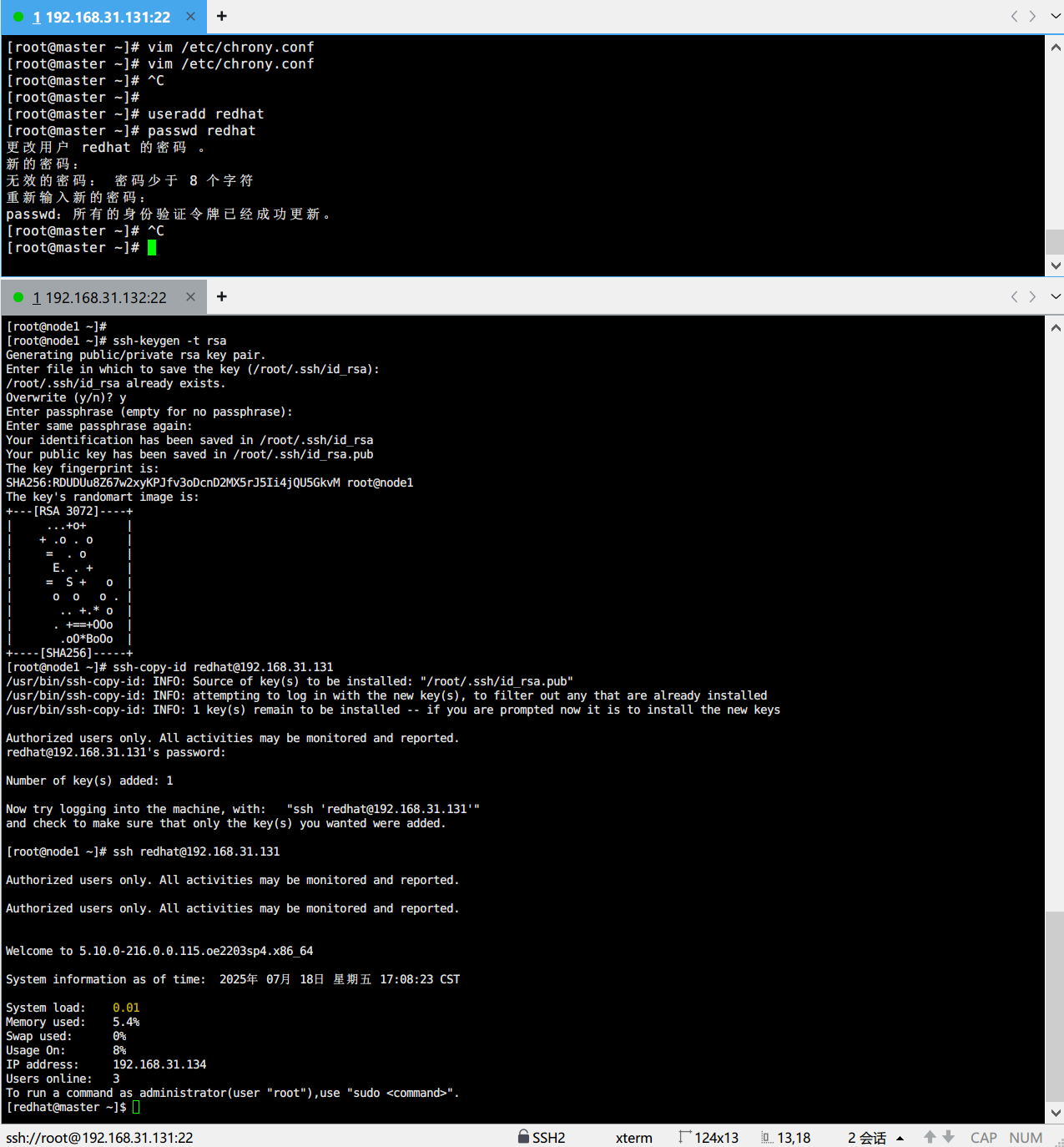
新建 redhat 账户(可根据需求自定义),并设置密码(后续仅首次验证时需输入):
bash
[root@master ~]# useradd redhat  #创建账户
[root@master ~]# passwd redhat   #设置密码
更改用户 redhat 的密码 。
新的密码:
无效的密码: 密码少于 8 个字符
重新输入新的密码:
passwd:所有的身份验证令牌已经成功更新。
2. 客户端配置(IP:192.168.31.132)
(1)生成 RSA 密钥对
使用ssh-keygen生成公私钥对(默认保存路径为/root/.ssh/,文件名分别为id_rsa(私钥)和id_rsa.pub(公钥)):
bash
[root@node1 ~]# ssh-keygen -t rsa    ###第一步:定位客户端,制作公私钥对
Generating public/private rsa key pair.
Enter file in which to save the key (/root/.ssh/id_rsa):
/root/.ssh/id_rsa already exists.
Overwrite (y/n)? y
Enter passphrase (empty for no passphrase):
Enter same passphrase again:
Your identification has been saved in /root/.ssh/id_rsa
Your public key has been saved in /root/.ssh/id_rsa.pub
The key fingerprint is:
SHA256:RDUDUu8Z67w2xyKPJfv3oDcnD2MX5rJ5Ii4jQU5GkvM root@node1
The key's randomart image is:
+---[RSA 3072]----+
|     ...+o+      |
|    + .o . o     |
|     =  . o      |
|      E. . +     |
|     =  S +   o  |
|      o  o   o . |
|       .. +.* o  |
|      . +==+OOo  |
|       .oO*BoOo  |
+----[SHA256]-----+
(2)上传公钥至服务器端 redhat 账户
使用ssh-copy-id工具将客户端公钥传输到服务器端 redhat 账户的~/.ssh/authorized_keys文件(该文件用于存储信任的客户端公钥):
bash
[root@node1 ~]# ssh-copy-id redhat@192.168.31.131     ###第二步:定位客户端,将公钥上传到服务器端
/usr/bin/ssh-copy-id: INFO: Source of key(s) to be installed: "/root/.ssh/id_rsa.pub"
/usr/bin/ssh-copy-id: INFO: attempting to log in with the new key(s), to filter out any that are already installed
/usr/bin/ssh-copy-id: INFO: 1 key(s) remain to be installed -- if you are prompted now it is to install the new keys

Authorized users only. All activities may be monitored and reported.
redhat@192.168.31.131's password:

Number of key(s) added: 1

Now try logging into the machine, with:   "ssh 'redhat@192.168.31.131'"
and check to make sure that only the key(s) you wanted were added.(3)验证免密登录
客户端尝试登录服务器端 redhat 账户,若无需输入密码直接进入交互界面,说明配置成功:
bash
[root@node1 ~]# ssh redhat@192.168.31.131   ####第三步:客户端测试

Authorized users only. All activities may be monitored and reported.

Authorized users only. All activities may be monitored and reported.


Welcome to 5.10.0-216.0.0.115.oe2203sp4.x86_64

System information as of time: 	2025年 07月 18日 星期五 17:08:23 CST

System load: 	0.01
Memory used: 	5.4%
Swap used: 	0%
Usage On: 	8%
IP address: 	192.168.31.134
Users online: 	3
To run a command as administrator(user "root"),use "sudo <command>".
[redhat@master ~]$
以下是具体实现代码: