需求
需求是:我要在富文本中新建一个下拉框,点击下拉框让页面中出现类似于按钮的样式
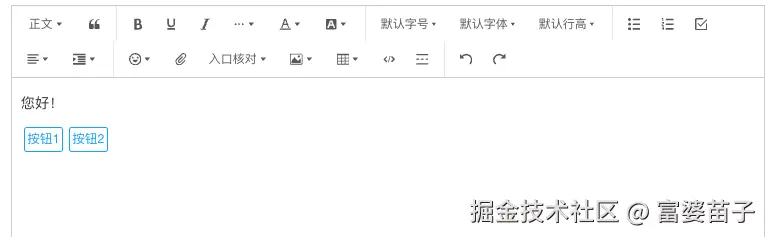
参考链接官网:www.wangeditor.com/v5/developm...
实现
注册新菜单
js
class MyButtonMenu {
    constructor(vueInstance) {
        this.vueInstance = vueInstance;
        this.title = '按钮'; // 自定义菜单标题
        this.iconSvg = '<svg></svg>'; // 可选 菜单图标
        this.tag = 'select'; // 自定义菜单的 HTML 标签
        this.showModal = true
        this.modalWidth = 300
    }

    // 获取菜单执行时的 value,返回空字符串或 false
    getValue(editor) {
        return '1'; // 默认返回空
    }
    getOptions(editor) {
        const options = [
            { value: '1',text: '入口核对',styleForRenderMenuList: {},},
            { value: '2', text: '出口核对', selected: false },
            // { value: 'shenzhen', text: '深圳' },
        ]
        return options
    }
    // 菜单是否需要激活(如选中加粗文本,"加粗"菜单会激活),用不到则返回 false
    isActive(editor) {
        return false; // 默认不激活
    }

    // 菜单是否需要禁用(如选中 H1,"引用"菜单被禁用),用不到则返回 false
    isDisabled(editor) {
        return false; // 默认不禁用
    }

    // 点击菜单时触发的函数
    exec(editor, value) {
        if (this.isDisabled(editor)) return;
        let name = "按钮1"
        if (value != 1) {
            name = "按钮2"
        }
        //插入元素,因为是要自定义插入样式
        editor.insertNode({
            type: "shiftButton",
            fileName: name,
            children: [{
                text: "",
                style: {
                    display: 'inline-block', // inline
                    marginLeft: '3px',
                    marginRight: '3px',
                    fontSize: '14px',
                    color: '#409eff',
                    border: '2px solid #409eff',
                    borderRadius: '3px',
                    padding: '2px 3px',
                    backgroundColor: '#fff',
                }
            }],
        });
        //会报错
        // this.vueInstance.editHTML(value);
    }
}
// 注册菜单
const shiftButton = {
    key: "shiftButton", // 定义唯一的 menu key
    factory: () => new MyButtonMenu(this) // 使用箭头函数以避免 `this` 问题
};
export default shiftButton;
劫持编辑器事件和操作
js
/**
 * @description shiftButton plugin
 * @author
 */

import { DomEditor } from '@wangeditor/editor'

// 定义 inline 和 void
function withAttachment(editor) {
    const { isInline, isVoid } = editor
    const newEditor = editor

    newEditor.isInline = (elem) => {
        const type = DomEditor.getNodeType(elem)
        if (type === 'shiftButton') return true // 针对 type: attachment ,设置为 inline
        return isInline(elem)
    }

    newEditor.isVoid = (elem) => {
        const type = DomEditor.getNodeType(elem)
        if (type === 'shiftButton') return true // 针对 type: attachment ,设置为 void
        return isVoid(elem)
    }

    return newEditor // 返回 newEditor ,重要!!!
}

export default withAttachment
定义新元素
在编辑器里渲染新元素
js
// 注册一个新元素到页面中
import { DomEditor, IDomEditor } from '@wangeditor/editor'
import { Boot, IModuleConf } from '@wangeditor/editor'


import { h, VNode } from 'snabbdom'
import { SlateElement } from '@wangeditor/editor'

// 定义节点结构
const resume = {
    type: 'uploadattachment',
    fileName: 'resume.pdf',
    link: 'https://xxx.com/files/resume.pdf',
    children: [{ text: '' }]  // void 元素必须有一个 children ,其中只有一个空字符串,重要!!!
}

/**
 * 渲染"附件"元素到编辑器
 * @param elem 附件元素,即上文的 myResume
 * @param children 元素子节点,void 元素可忽略
 * @param editor 编辑器实例
 * @returns vnode 节点(通过 snabbdom.js 的 h 函数生成)
 */
function renderAttachment(elem, children, editor) {                                                // JS 语法
  // 当前节点是否选中
  const selected = DomEditor.isNodeSelected(editor, elem)
  const isDisabled = editor.isDisabled()
    // 获取"附件"的数据,参考上文 myResume 数据结构
    const { fileName = '', link = '' } = elem

    // icon 图标 vnode
    const iconVnode = h(
        // HTML tag
        'img',
        // HTML 属性
        {
            props: {
                src: ''//如果需要的话,传入base64格式,参考官网
            },
            style: {
                width: '1em',
                marginRight: '0.1em',
                minWidth: '0',
                minHeight: '0',
            },
        }
        // img 没有子节点,所以第三个参数不用写
    )

    // 元素 vnode
    const attachVnode = h(
        // HTML tag
        'span',
        {
            props: {
                contentEditable: false, // 不可编辑
            },
            style: {
                display: 'inline-block', // inline
                marginLeft: '3px',
                marginRight: '3px',
                fontSize:'14px',
                color:'#409eff',
                border:
                    selected && !isDisabled
                        ? '2px solid var(--w-e-textarea-selected-border-color)' // wangEditor 提供了 css var https://www.wangeditor.com/v5/theme.html
                        : '2px solid #409eff',
                borderRadius: '3px',
                padding: '2px 3px',
                backgroundColor: '#fff',
                cursor: isDisabled ? 'pointer' : 'inherit',
            },
            on: {
                click() {
                    if (!isDisabled) return
                },
            },
        },
        // 子节点
        [ fileName]
    )

    return attachVnode
}

export const renderElemConf = {
    type: 'shiftButton', // 新元素 type ,重要!!!
    renderElem: renderAttachment,
}
把新元素转换为 HTML
js
import { SlateElement } from '@wangeditor/editor'

/**
 * 生成"附件"元素的 HTML
 * @param elem 附件元素,即上文的 myResume
 * @param childrenHtml 子节点的 HTML 代码,void 元素可忽略
 * @returns "附件"元素的 HTML 字符串
 */
function attachmentToHtml(elem, childrenHtml) {                             // JS 语法

  // 获取附件元素的数据
  const { link = '', fileName = '', children } = elem
  const style = JSON.stringify(children[0].style);
  // let newStr = style.replace(/\"/g, "'");
  // 生成 HTML 代码
  const html = `<span
        data-w-e-type="shiftButton"
        data-w-e-is-void
        style="
            display: inline-block;
            margin-left: 3px;
            margin-right: 3px;
            font-size:14px;
            color:#3e6df1;border:
            2px solid #3e6df1;
          border-radius: 3px;
          padding: 2px 3px;
          cursor: pointer;"
        class="clickable"
        data-fileName="${fileName}"
    >
    ${fileName}</span>`
  return html
}

const elemToHtmlConf = {
  type: 'shiftButton', // 新元素的 type ,重要!!!
  elemToHtml: attachmentToHtml,
}
export default elemToHtmlConf;
解析新元素到页面
js
/**
 * @description 解析新元素到html中
 * @author
 */

function parseHtml(elem, children, editor) {
    const buttonName = elem.getAttribute('data-filename') || '';
    return {
        type: 'shiftButton',
        fileName:buttonName,
        children: [{ text: '' }], // void node 必须有一个空白 text
    }
}

const parseHtmlConf = {
    selector: 'span[data-w-e-type="shiftButton"]',
    parseElemHtml: parseHtml,
}

export default parseHtmlConf