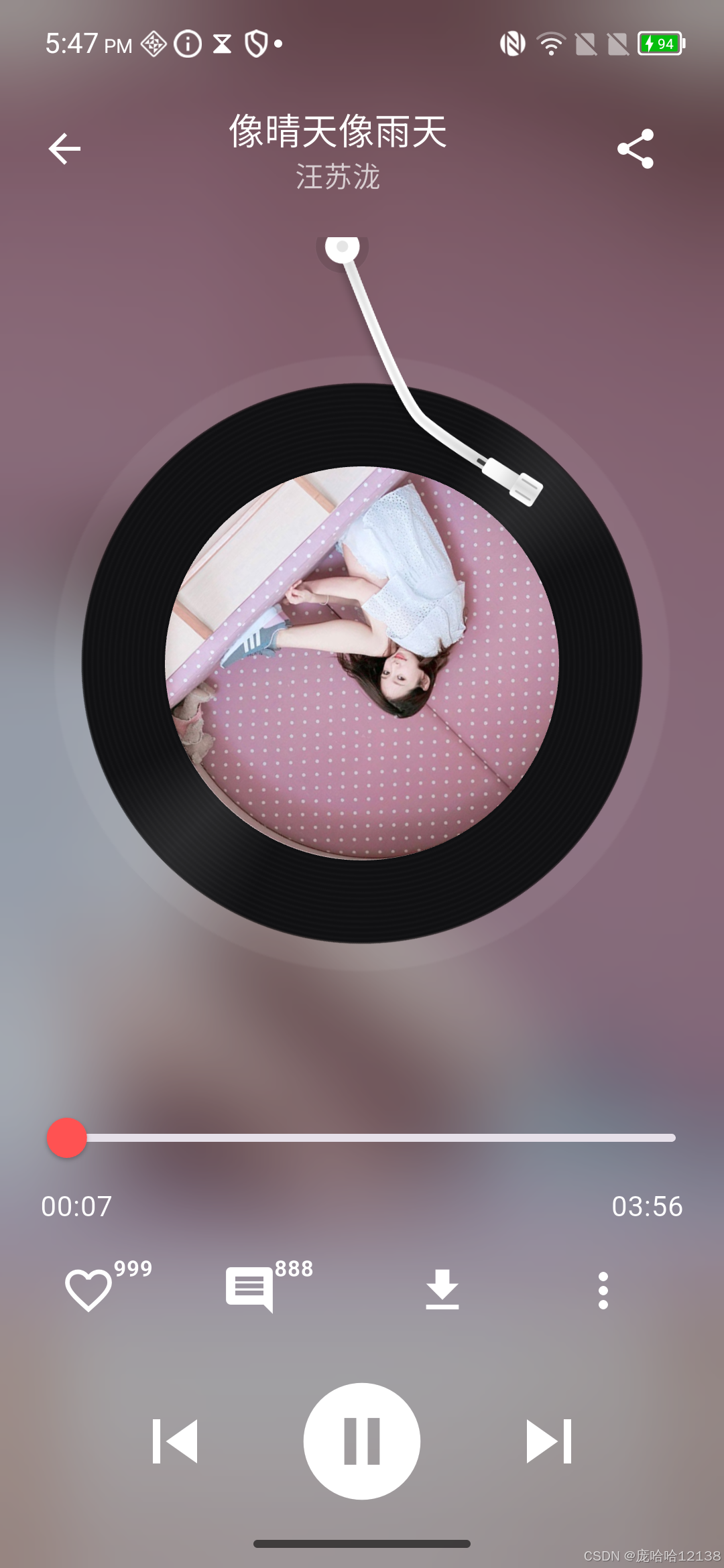
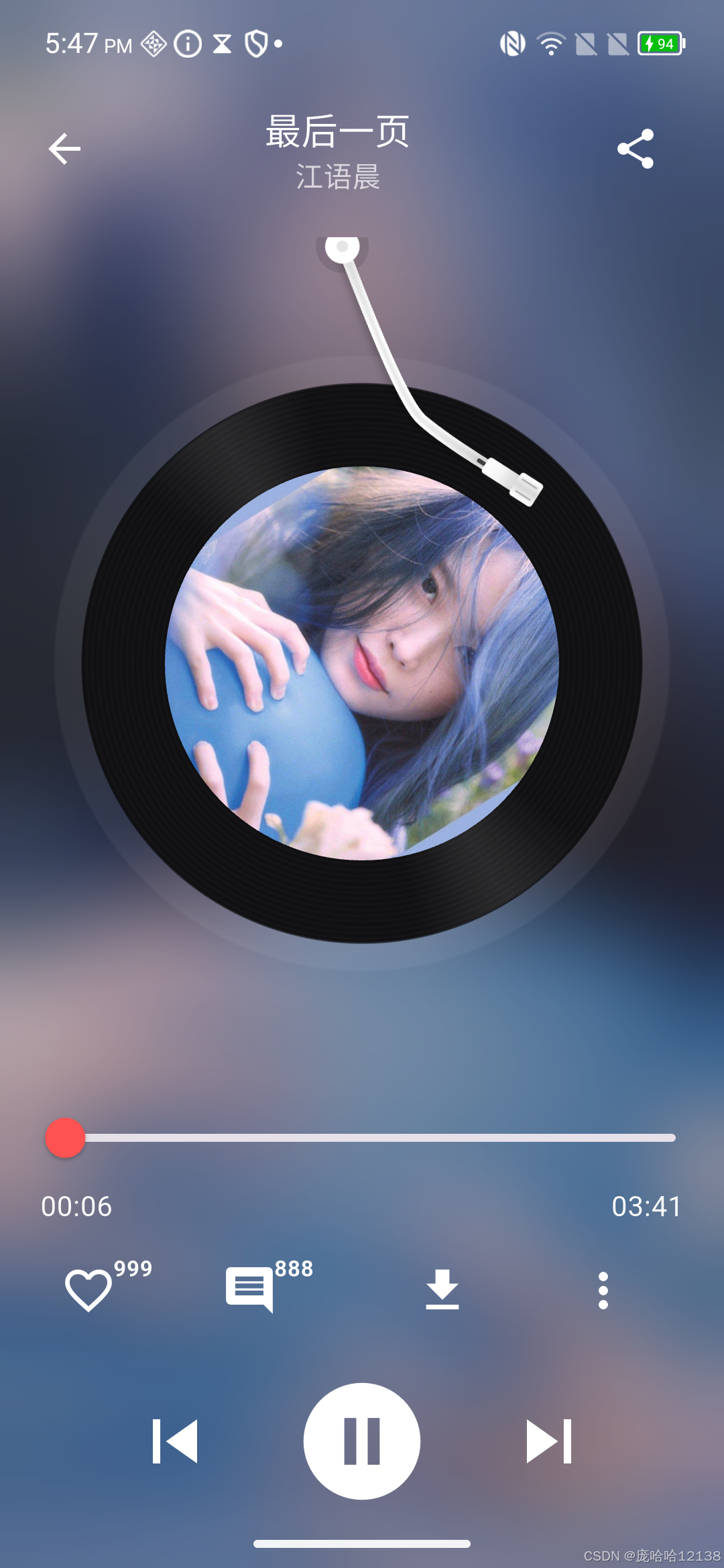
最近闲着的时候,用 Flutter 做了一个仿网易云音乐播放页面的小练手项目,主要是想实现两个效果:
- 唱片旋转、唱针随播放状态摆动
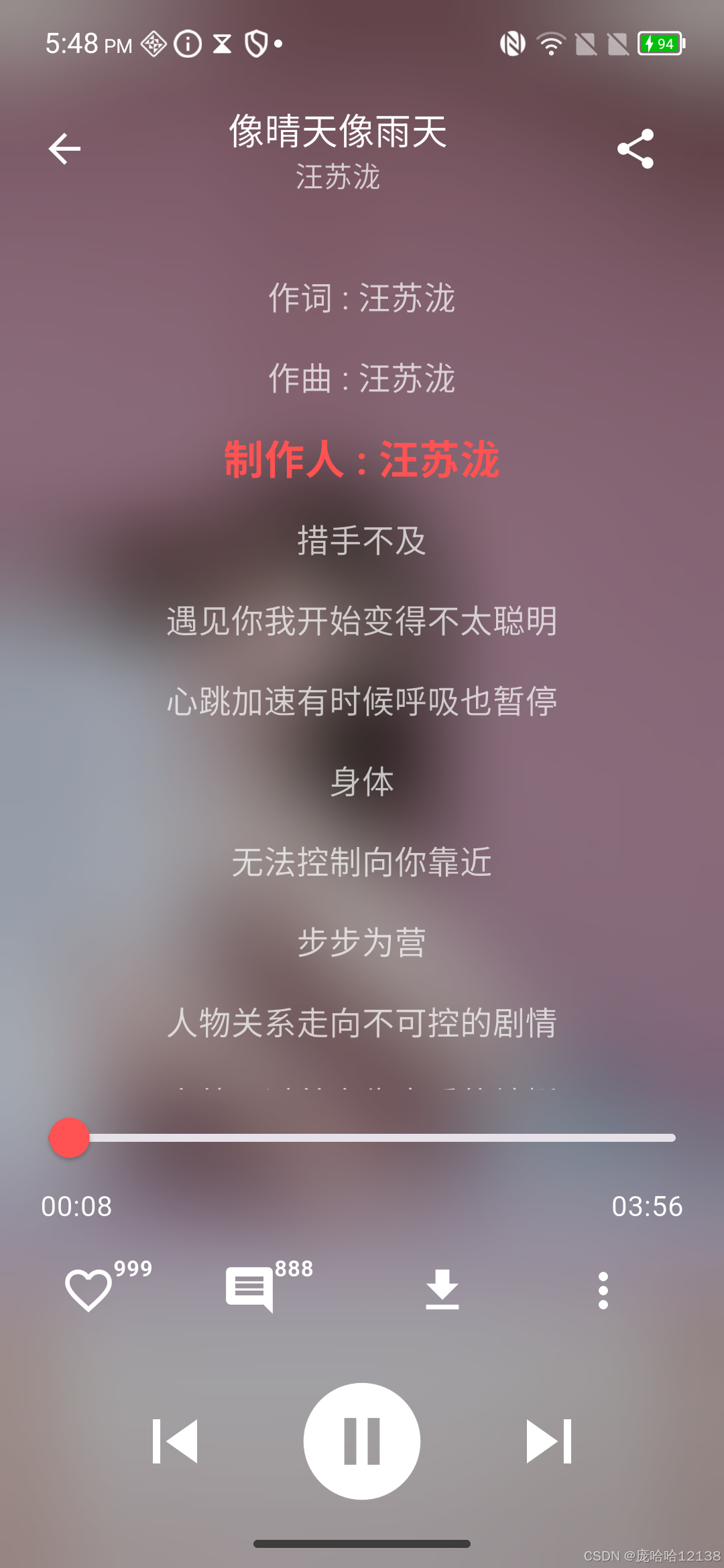
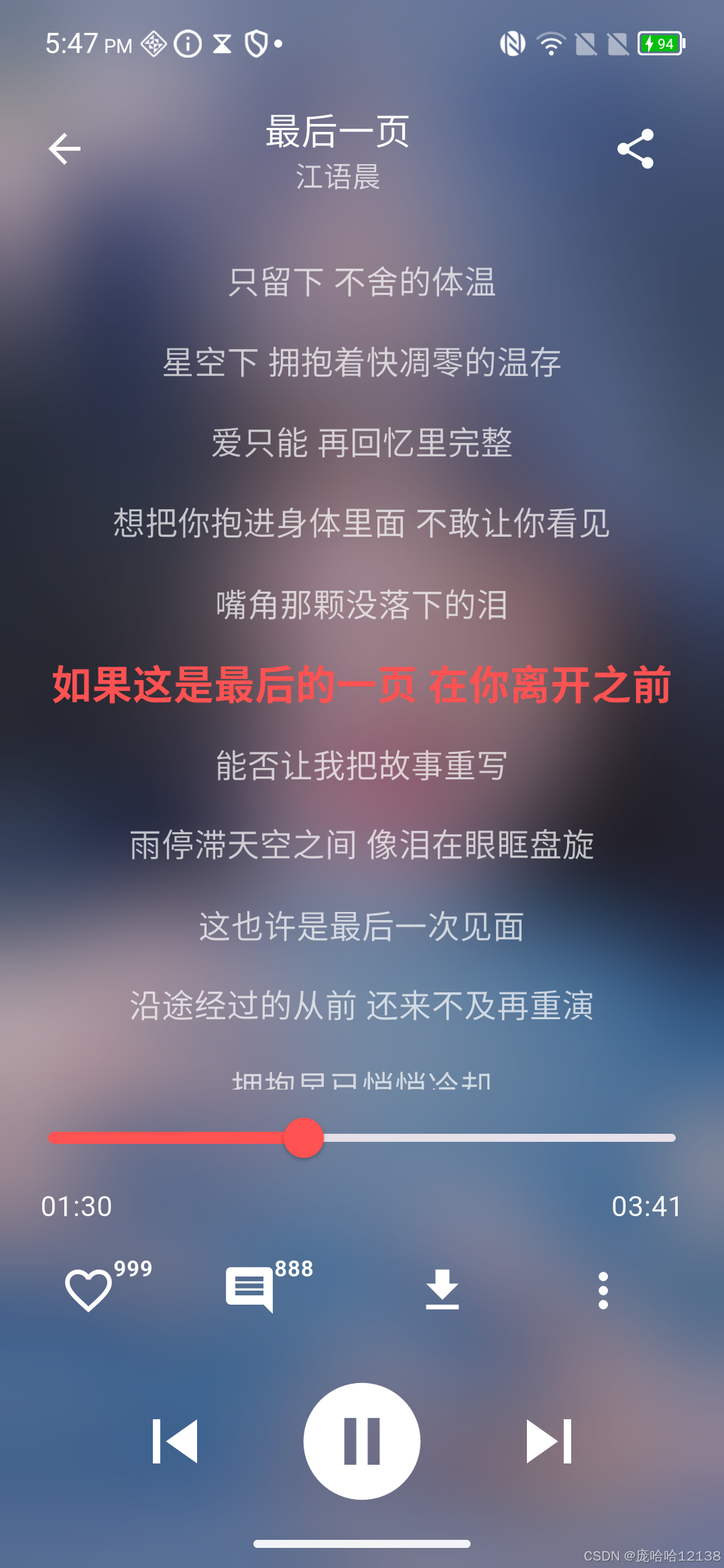
- 播放时歌词自动滚动,当前行高亮
做完之后发现,除了好玩之外,这个过程也算帮我复习了 Flutter 的动画、布局,以及音频播放的相关知识。这里就把整个实现过程聊一下,给有兴趣的朋友参考。
demo效果图
先说整体结构
页面主要分成几个部分:
- 模糊背景:用当前歌曲封面图作为背景,再加毛玻璃效果,整个画面有点沉浸感。
- 顶部信息栏:歌名、歌手,以及返回和分享按钮。
- 中间:默认是唱片+唱针,点击一下切到歌词,再点回来。
- 底部:进度条+播放时间,点赞/评论/下载等小按钮,以及控制播放的三个大按钮。
这个页面我用一个 StatefulWidget 来做,方便统一管理播放状态、动画、歌词数据等等。
背景模糊
背景的效果特别简单,封面图铺满全屏,然后用 BackdropFilter + 高斯模糊处理一下,再盖一层半透明黑色,让前景更突出:
Dart
Positioned.fill( child: Image.asset(song.coverPath, fit: BoxFit.cover), ), Positioned.fill( child: BackdropFilter( filter: ImageFilter.blur(sigmaX: 30, sigmaY: 30), child: Container(color: Colors.black.withOpacity(0.3)), ), ),模糊的程度我随便调了个值,基本是越大的 sigma 越糊。
唱片旋转和唱针动画
网易云那个唱片和唱针联动的效果,我是用两个 AnimationController 控的:
_rotationController:控制唱片旋转_needleController:控制唱针压下/抬起的角度
唱片部分套一个 RotationTransition,播放时 repeat(),暂停时 stop()。
唱针这块稍微有意思一点,我用了 lerpDouble 来做角度的插值,这样播放的时候唱针就慢慢压下来:
Dart
final double angle = lerpDouble(-0.7, -0.18, _needleController.value)!; Transform.rotate(angle: angle, alignment: Alignment.topCenter, child: Image.asset('assets/ic_needle.png'));0.0 态是抬起,1.0 态是压下,动画时间我设成 400ms,感觉还算柔和。
点击切换歌词视图
这个很简单,弄个 bool showLyrics 标记,外面套一个 AnimatedSwitcher:
Dart
AnimatedSwitcher( duration: const Duration(milliseconds: 300), child: showLyrics ? _buildLyricView() : _buildNeedleAndDisc(discSize, song), )外层加 GestureDetector,点一下就 setState(() => showLyrics = !showLyrics) 切状态。
歌词解析
我在 assets 里放了几首歌的 .lrc 文件,然后用 rootBundle.loadString() 读取。解析的时候就是按行找时间戳和歌词内容:
Dart
int start = line.indexOf('['); int end = line.indexOf(']'); String timeStr = line.substring(start + 1, end); String lyricText = line.substring(end + 1).trim();时间部分用 Duration 来存,歌词用一个简单的 LyricLine 类管理。最后按时间排序一下。
歌词滚动和高亮
我监听了 _audioPlayer.onPositionChanged,每次播放位置变动的时候,去找当前应该显示的歌词行,然后更新 currentLyricIndex,同时调用 _scrollLyricsToIndex() 来让滚动条居中到这一行:
Dart
double targetOffset = index * lineHeight - (viewportHeight / 2) + (lineHeight / 2); _lyricScrollController.animateTo(targetOffset, duration: Duration(milliseconds: 300), curve: Curves.easeInOut);渲染的时候,如果是当前行就换个颜色、调大字体:
Dart
style: TextStyle( color: isActive ? Colors.redAccent : Colors.white70, fontSize: isActive ? 20 : 16, fontWeight: isActive ? FontWeight.bold : FontWeight.normal, ),挺简单的,但是效果出来很像网易云。
音频播放
用的是 audioplayers,本地播放资源直接用 AssetSource:
Dart
_audioPlayer.play(AssetSource(song.musicFile.replaceFirst('assets/', '')));状态监听:
Dart
_audioPlayer.onDurationChanged.listen((d) => setState(() => duration = d)); _audioPlayer.onPositionChanged.listen((p) { setState(() => position = p); _updateCurrentLyric(p); });这样歌词滚动就跟着时间走了。
交互细节
除了播放控制之外,我还仿着网易云加了点赞、评论、下载三个按钮,每个按钮的图标和颜色会根据状态切换。评论会弹一个 AlertDialog 输入框,点赞会有数量变化,分享用 share_plus 发一条"我正在听xxx"这样的文本。
整体源码
Dart
import 'dart:ui';
import 'package:audioplayers/audioplayers.dart';
import 'package:flutter/material.dart';
import 'package:flutter/services.dart' show rootBundle;
import 'package:share_plus/share_plus.dart';
void main() {
runApp(const MyApp());
}
class MyApp extends StatelessWidget {
const MyApp({super.key});
@override
Widget build(BuildContext context) {
return const MaterialApp(
debugShowCheckedModeBanner: false,
home: PlayerPage(),
);
}
}
class Song {
final String title;
final String artist;
final String coverPath;
final String musicFile;
final String lyricFile;
Song(this.title, this.artist, this.coverPath, this.musicFile, this.lyricFile);
}
class LyricLine {
final Duration timestamp;
final String text;
LyricLine(this.timestamp, this.text);
}
class PlayerPage extends StatefulWidget {
const PlayerPage({super.key});
@override
State<PlayerPage> createState() => _PlayerPageState();
}
class _PlayerPageState extends State<PlayerPage> with TickerProviderStateMixin {
final AudioPlayer _audioPlayer = AudioPlayer();
bool isPlaying = false;
bool showLyrics = false;
Duration position = Duration.zero;
Duration duration = Duration.zero;
late AnimationController _rotationController;
late AnimationController _needleController;
List<LyricLine> _lyrics = [];
int currentLyricIndex = 0;
bool isLiked = false;
bool isDownloaded = false;
final ScrollController _lyricScrollController = ScrollController();
final List<Song> playlist = [
Song(
'像晴天像雨天',
'汪苏泷',
'assets/cover_demo1.png',
'assets/music1.mp3',
'assets/music1.lrc',
),
Song(
'忘不掉的你',
'h3R3',
'assets/cover_demo2.jpg',
'assets/music2.mp3',
'assets/music2.lrc',
),
Song(
'最后一页',
'江语晨',
'assets/cover_demo3.jpg',
'assets/music3.mp3',
'assets/music3.lrc',
),
Song(
'跳楼机',
'LBI利比',
'assets/cover_demo2.jpg',
'assets/music4.mp3',
'assets/music4.lrc',
),
];
int currentIndex = 0;
@override
void initState() {
super.initState();
_rotationController = AnimationController(
vsync: this,
duration: const Duration(seconds: 20),
)..stop();
_needleController = AnimationController(
vsync: this,
duration: const Duration(milliseconds: 400),
)..value = 0.0;
_audioPlayer.onDurationChanged.listen((d) {
if (mounted) setState(() => duration = d);
});
_audioPlayer.onPositionChanged.listen((p) {
if (mounted) setState(() => position = p);
});
_audioPlayer.onPositionChanged.listen((p) {
_updateCurrentLyric(p);
});
_audioPlayer.onPlayerComplete.listen((_) => _nextSong());
_loadLyricsForCurrent();
_playCurrent();
}
Future<void> _loadLyricsForCurrent() async {
final song = playlist[currentIndex];
try {
final raw = await rootBundle.loadString(song.lyricFile);
final lines = raw.split('\n');
final List<LyricLine> parsed = [];
for (var line in lines) {
// 每一行找 '[' 和 ']' 之间的时间标签
int start = line.indexOf('[');
int end = line.indexOf(']');
if (start != -1 && end != -1) {
String timeStr = line.substring(
start + 1,
end,
); // 取出 mm:ss.xxx 或 mm:ss
String lyricText = line.substring(end + 1).trim(); // 取 ']' 后面的歌词
if (lyricText.isEmpty) continue; // 没歌词就跳过
// 解析时间
List<String> timeParts = timeStr.split(':'); // 分成 mm 和 ss.xxx
int minute = int.parse(timeParts[0]);
double secondsDouble = double.parse(timeParts[1]);
int second = secondsDouble.floor();
int millisecond = ((secondsDouble - second) * 1000).round();
parsed.add(
LyricLine(
Duration(
minutes: minute,
seconds: second,
milliseconds: millisecond,
),
lyricText,
),
);
}
}
// 排序
parsed.sort((a, b) => a.timestamp.compareTo(b.timestamp));
if (mounted) {
setState(() {
_lyrics = parsed;
currentLyricIndex = 0;
});
}
} catch (e) {
debugPrint('歌词加载失败: $e');
if (mounted) {
setState(() {
_lyrics = [];
currentLyricIndex = 0;
});
}
}
}
void _updateCurrentLyric(Duration pos) {
for (int i = 0; i < _lyrics.length; i++) {
if (pos >= _lyrics[i].timestamp &&
(i == _lyrics.length - 1 || pos < _lyrics[i + 1].timestamp)) {
if (currentLyricIndex != i) {
setState(() {
currentLyricIndex = i;
});
_scrollLyricsToIndex(i);
}
break;
}
}
}
void _scrollLyricsToIndex(int index) {
if (!_lyricScrollController.hasClients) return;
double lineHeight = 40;
double viewportHeight = _lyricScrollController.position.viewportDimension;
// 当前行的理论位置
double targetOffset =
index * lineHeight - (viewportHeight / 2) + (lineHeight / 2);
if (targetOffset < 0) targetOffset = 0;
_lyricScrollController.animateTo(
targetOffset,
duration: const Duration(milliseconds: 300),
curve: Curves.easeInOut,
);
}
Future<void> _playCurrent() async {
final song = playlist[currentIndex];
await _audioPlayer.play(
AssetSource(song.musicFile.replaceFirst('assets/', '')),
);
_rotationController.repeat();
_needleController.forward();
setState(() => isPlaying = true);
await _loadLyricsForCurrent();
}
void _togglePlay() async {
if (isPlaying) {
await _audioPlayer.pause();
_rotationController.stop();
_needleController.reverse();
setState(() => isPlaying = false);
} else {
await _playCurrent();
}
}
void _nextSong() async {
currentIndex = (currentIndex + 1) % playlist.length;
await _playCurrent();
}
void _prevSong() async {
currentIndex = (currentIndex - 1 + playlist.length) % playlist.length;
await _playCurrent();
}
void _seekToSecond(double value) {
_audioPlayer.seek(Duration(seconds: value.toInt()));
}
@override
void dispose() {
_audioPlayer.dispose();
_rotationController.dispose();
_needleController.dispose();
_lyricScrollController.dispose();
super.dispose();
}
@override
Widget build(BuildContext context) {
final song = playlist[currentIndex];
double discSize = MediaQuery.of(context).size.width * 0.85;
return Scaffold(
body: Stack(
children: [
Positioned.fill(
child: Image.asset(song.coverPath, fit: BoxFit.cover),
),
Positioned.fill(
child: BackdropFilter(
filter: ImageFilter.blur(sigmaX: 30, sigmaY: 30),
child: Container(color: Colors.black.withOpacity(0.3)),
),
),
Column(
children: [
const SizedBox(height: 50),
_buildHeader(song),
const SizedBox(height: 20),
// 唱针 + 唱片容器分离
Expanded(
child: GestureDetector(
onTap: () => setState(() => showLyrics = !showLyrics),
child: AnimatedSwitcher(
duration: const Duration(milliseconds: 300),
child:
showLyrics
? _buildLyricView()
: _buildNeedleAndDisc(discSize, song),
),
),
),
_buildSlider(),
_buildTimeLabels(),
_buildSmallButtons(),
_buildPlayControls(),
const SizedBox(height: 20),
],
),
],
),
);
}
Widget _buildHeader(Song song) {
return Padding(
padding: const EdgeInsets.symmetric(horizontal: 20),
child: Row(
mainAxisAlignment: MainAxisAlignment.spaceBetween,
children: [
const Icon(Icons.arrow_back, color: Colors.white),
Column(
children: [
Text(
song.title,
style: const TextStyle(color: Colors.white, fontSize: 18),
),
Text(
song.artist,
style: const TextStyle(color: Colors.white70, fontSize: 14),
),
],
),
IconButton(
icon: const Icon(Icons.share, color: Colors.white),
onPressed: () => Share.share('我正在听 "${song.title} - ${song.artist}" 推荐给你'),
),
],
),
);
}
/// 唱针和唱片的组合视图
/// [discSize] 唱片的整体宽度(根据屏幕宽计算)
/// [song] 当前歌曲信息,用于显示封面
Widget _buildNeedleAndDisc(double discSize, Song song) {
/// 唱针图片的宽度(像素)
final double needleWidth = discSize * 0.32;
/// 唱针图片的高度(像素)
final double needleHeight = needleWidth * 1.8;
/// 屏幕总宽度,方便居中针的位置
final double screenW = MediaQuery.of(context).size.width;
/// 水平方向针的摆放位置(left),这样针根能居中于屏幕
final double needleLeft = (screenW - needleWidth) / 2 + 15;
/// 垂直方向针的位置(top)
/// 负值表示针根在唱片中心点上方
/// 这个值决定针的根离唱片有多高
/// 调大负值(比如 -discSize * 0.2)针会更高,调小负值针会更低更接近唱片
final double needleTop = -discSize * 0.1;
return Stack(
alignment: Alignment.center, // 让唱片中心在 Stack 中居中
children: [
// -------------------------------
// 唱片底层(在针下面绘制)
// -------------------------------
Center(
child: RotationTransition(
turns: _rotationController, // 控制唱片旋转动画
child: Stack(
alignment: Alignment.center, // 图片居中叠放
children: [
// 唱片背景圈
Image.asset(
'assets/ic_disc_blackground.png',
width: discSize,
height: discSize,
),
// 唱片主体图层
Image.asset(
'assets/ic_disc.png',
width: discSize - 20,
height: discSize - 20,
),
// 中心封面(裁剪为圆形)
ClipOval(
child: Image.asset(
song.coverPath,
fit: BoxFit.cover,
width: discSize - 110,
height: discSize - 110,
),
),
],
),
),
),
// -------------------------------
// 唱针上层(在唱片上方显示)
// -------------------------------
Positioned(
top: needleTop, // 垂直偏移(针根高度)
left: needleLeft, // 水平居中偏移
child: AnimatedBuilder(
animation: _needleController, // 播放/暂停控制针动画
builder: (context, child) {
// 从抬起角度到压下角度的插值
// 第一个参数:暂停时的角度 (负值表示向外抬起)
// 第二个参数:播放时的角度 (通常为0,表示竖直压下)
// 根据 _needleController.value 在 0~1 之间插值计算实际角度
final double angle =
lerpDouble(-0.7, -0.18, _needleController.value)!;
return Transform.translate(
offset: const Offset(0, 0),
child: Transform.rotate(
angle: angle,
alignment: Alignment.topCenter,
child: Image.asset(
'assets/ic_needle.png',
width: needleWidth,
height: needleHeight,
),
),
);
},
),
),
],
);
}
Widget _buildLyricView() {
return ListView.builder(
controller: _lyricScrollController,
key: const ValueKey('lyrics'),
padding: const EdgeInsets.symmetric(horizontal: 20, vertical: 10),
itemCount: _lyrics.length,
itemBuilder: (context, index) {
final isActive = index == currentLyricIndex;
return SizedBox(
height: 40,
child: Center(
child: Text(
_lyrics[index].text,
textAlign: TextAlign.center,
style: TextStyle(
color: isActive ? Colors.redAccent : Colors.white70,
fontSize: isActive ? 20 : 16,
fontWeight: isActive ? FontWeight.bold : FontWeight.normal,
),
),
),
);
},
);
}
Widget _buildSlider() {
return Slider(
value: position.inSeconds.toDouble(),
min: 0.0,
max: duration.inSeconds > 0 ? duration.inSeconds.toDouble() : 1.0,
onChanged: _seekToSecond,
activeColor: Colors.redAccent,
);
}
Widget _buildTimeLabels() {
return Padding(
padding: const EdgeInsets.symmetric(horizontal: 20),
child: Row(
mainAxisAlignment: MainAxisAlignment.spaceBetween,
children: [
Text(
_formatDuration(position),
style: const TextStyle(color: Colors.white),
),
Text(
_formatDuration(duration),
style: const TextStyle(color: Colors.white),
),
],
),
);
}
Widget _buildSmallButtons() {
int likeCount = 999;
int commentCount = 888;
return Padding(
padding: const EdgeInsets.symmetric(horizontal: 20, vertical: 8),
child: Row(
children: [
Expanded(
child: _iconBtnWithBadge(
iconOn: Icons.favorite,
iconOff: Icons.favorite_border,
state: isLiked,
badgeCount: likeCount,
onPressed: () {
setState(() {
if (isLiked) {
likeCount = (likeCount > 0) ? likeCount - 1 : 0;
isLiked = false;
} else {
likeCount++;
isLiked = true;
}
});
},
color: isLiked ? Colors.redAccent : Colors.white,
),
),
Expanded(
child: _iconBtnWithBadge(
iconOn: Icons.comment,
iconOff: null,
state: false,
badgeCount: commentCount,
onPressed: () {
_showCommentDialog();
setState(() {
commentCount++;
});
},
color: Colors.white,
),
),
Expanded(
child: _iconBtn(
Icons.download,
null,
false,
() => setState(() => isDownloaded = !isDownloaded),
isDownloaded ? Colors.redAccent : Colors.white,
),
),
Expanded(
child: _iconBtn(Icons.more_vert, null, false, () {}, Colors.white),
),
],
),
);
}
Widget _iconBtnWithBadge({
required IconData iconOn,
IconData? iconOff,
required bool state,
required int badgeCount,
required VoidCallback onPressed,
required Color color,
}) {
return Stack(
clipBehavior: Clip.none,
children: [
IconButton(
icon: Icon(state ? iconOn : (iconOff ?? iconOn), color: color),
onPressed: onPressed,
iconSize: 28,
),
if (badgeCount > 0)
Positioned(
// 位置卡在 icon 的右上角
right: 24,
top: 5,
child: Text(
badgeCount.toString(),
style: const TextStyle(
color: Colors.white,
fontSize: 11,
fontWeight: FontWeight.bold,
),
),
),
],
);
}
Widget _buildPlayControls() {
return Row(
mainAxisAlignment: MainAxisAlignment.center,
children: [
IconButton(
icon: const Icon(Icons.skip_previous, color: Colors.white, size: 44),
onPressed: _prevSong,
),
const SizedBox(width: 20),
IconButton(
icon: Icon(
isPlaying ? Icons.pause_circle : Icons.play_circle,
color: Colors.white,
size: 70,
),
onPressed: _togglePlay,
),
const SizedBox(width: 20),
IconButton(
icon: const Icon(Icons.skip_next, color: Colors.white, size: 44),
onPressed: _nextSong,
),
],
);
}
Widget _iconBtn(
IconData iconOn,
IconData? iconOff,
bool state,
VoidCallback onPressed,
Color color,
) {
return IconButton(
icon: Icon(state ? iconOn : (iconOff ?? iconOn), color: color),
onPressed: onPressed,
iconSize: 28,
);
}
void _showCommentDialog() {
String commentText = '';
showDialog(
context: context,
builder: (ctx) {
return AlertDialog(
title: const Text('发表评论'),
content: TextField(
autofocus: true,
decoration: const InputDecoration(hintText: '输入内容...'),
onChanged: (val) => commentText = val,
),
actions: [
TextButton(
onPressed: () => Navigator.pop(ctx),
child: const Text('取消'),
),
TextButton(
onPressed: () {
Navigator.pop(ctx);
ScaffoldMessenger.of(
context,
).showSnackBar(SnackBar(content: Text('已评论: $commentText')));
},
child: const Text('发送'),
),
],
);
},
);
}
String _formatDuration(Duration d) {
String twoDigits(int n) => n.toString().padLeft(2, '0');
return "${twoDigits(d.inMinutes)}:${twoDigits(d.inSeconds % 60)}";
}
}感受
整个项目做下来,其实不难,主要就是组合动画、布局和音频播放这几个要素。但这些细节堆起来,感觉非常有成就感------尤其是歌词滚动那一瞬间,真的有点"一模一样"的错觉。
如果你也想练练 Flutter 动画和媒体播放,这种仿网易云播放器的项目是个很好的练习题,代码量适中,效果直观成就感高。