1. 功能介绍:
• 支持文本创建,打开,保存,关闭的功能。
• UI样式美化。
• 添加打开快捷键,添加保存快捷。
• 底部显示行列号以及切换文本字符编码。
• Ctrl加鼠标滚轮支持字体放大缩小。
2. 信号与槽
2.1 概要
• 在 Qt 中,信号和槽机制 是一种非常强大的事件通信机制。
• 特点:
- 信号**(Signals):是由对象在特定事件发生时发出的消息**。例如,QPushButton 有一个clicked() 信号,当用户点击按钮时发出。
- 槽**(Slots)**:是用来响应信号的方法。一个槽可以是任何函数,当其关联的信号被发出时,该槽函数将被调用。
- 连接信号和槽:使用 QObject::connect() 方法将信号连接到槽。当信号发出时,关联的槽函数
会自动执行。
2.2 按键QPushButton设置信号与槽
• 在 Qt 中,有几种不同的方式来设置按键信号与槽的连接,主要包括:
• Qt的信号和槽机制是其事件处理系统的核心。这种机制允许对象之间的通信,而不需要它们知道对方的具体实现。以下是Qt信号和槽的几种常见连接方式的简要概述:
|--------------------|-----------------------------------------------------------------------------------------------|------------------------------------------------------------------------------|
| 连接方式 | 描述 | 示例 |
| 使用QObject::connect | 最常用的方式,直接通过QObject::connect 函数连接信号和槽。 | QObject::connect(sender, SIGNAL(signal()), receiver, SLOT(slot())); |
| 使用C++11的Lambda表达式 | 利用C++11引入的Lambda表达式进行信号与槽的连接。这种方式可以直接在连接点使用匿名函数,使代码更加简洁。 | QObject::connect(sender, &Sender::signal, =() { /* lambda body */ }); |
| 使用函数指针 | Qt 5中引入,允许使用函数指针直接连接信号和槽,这种方式类型安全,且可以利用IDE的代码补全和错误检 查。 | QObject::connect(sender, &Sender::signal, receiver, &Receiver::slot); |
| 自动连接(使用UI文件) | 在使用Qt Designer时,可以通过命名约定自动连接信号和槽。当UI文件加载时,以 on_<objectName>_<signalName> 命名的槽会自动连接到相应的信号。 | 在Qt Designer中命名按钮为pushButton ,然后在代码中定义 on_pushButton_clicked()。 |
3. QList
• 在Qt 框架中,QList是一个容器类,它在内部实现上类似于一个数组,但也提供了一些链表的特性。
• QList 的设计旨在提供一个在多数情况下既高效又方便的通用列表容器。用于存储元素列表。它提供了丰富的功能,包括添加、移除、访问元素等。
• QList 的内部工作原理:
- **数组式存储:**QList在大多数情况下使用连续内存存储其元素,类似于数组。这意味着它提供了快
速的索引访问(通过下标操作符 \[\] ),以及相对高效的迭代性能。 - 动态调整大小:与静态数组不同, QList 可以动态增长和缩减,自动管理内存分配。
- 链表特性:虽然 QList 主要基于数组,但它也提供了一些链表的操作,比如在列表的开始或结束
处添加和移除元素。这些操作通常比在数组中间插入或删除元素更高效。 - 复制时共享内存: QList 使用一种称为"隐式共享"(implicit sharing)或"写时复制"(copy-on-
write)的技术。这意味着当你复制一个 QList 时,它不会立即复制所有元素,而是共享相同的数
据,直到你尝试修改其中一个列表,此时才进行实际的复制。这使得复制 QList 变得非常高效。
4. 事件
• 事件处理过程:
• 众所周知Qt是一个基于C++的框架,主要用来开发带窗口的应用程序。我们使用的基于窗口的应用程序都是基于事件,其目的主要是用来实现回调(因为只有这样程序的效率才是最高的)。所以在Qt框架内部为我们提供了一些列的事件处理机制,当窗口事件产生之后,事件会经过: 事件派发**-> 事件过滤->事件分发->事件处理** 几个阶段。Qt窗口中对于产生的一系列事件都有默认的处理动作,如果我们有特殊需求就需要在合适的阶段重写事件的处理动作,比如信号与槽就是一种事件(event)是由系统或者 Qt 本身在不同的场景下发出的。当用户按下/移动鼠标、敲下键盘,或者是窗口关闭/大小发生变化/隐藏或显示都会发出一个相应的事件。一些事件在对用户操作做出响应时发出,如鼠标/键盘事件等;另一些事件则是由系统自动发出,如计时器事件。每一个Qt应用程序都对应一个唯一的 QApplication 应用程序对象,然后调用这个对象的 exec() 函数,这样Qt框架内部的事件检测就开始了(程序将进入事件循环来监听应用程序的事件)。
cpp
int main(int argc, char *argv[])
{
    QApplication a(argc, argv);
    MainWindow* w = new MainWindow;
    w.show();
    return a.exec();
}
事件在Qt中产生之后,的分发过程是这样的:
- 当事件产生之后,Qt使用应用程序对象调用notify() 函数将事件发送到指定的窗口:
cpp
[override virtual] bool QApplication::notify(QObject *receiver, QEvent *e);- 事件在发送过程中可以通过事件过滤器进行过滤,默认不对任何产生的事件进行过滤。
cpp
// 需要先给窗口安装过滤器, 该事件才会触发
[virtual] bool QObject::eventFilter(QObject *watched, QEvent *event)- 当事件发送到指定窗口之后,窗口的事件分发器会对收到的事件进行分类:
cpp
[override virtual protected] bool QWidget::event(QEvent *event);- 事件分发器会将分类之后的事件(鼠标事件、键盘事件、绘图事件。。。)分发给对应的事件处理器函数进行处理,每个事件处理器函数都有默认的处理动作(我们也可以重写这些事件处理器函
数),比如:鼠标事件:
cpp
// 鼠标按下
[virtual protected] void QWidget::mousePressEvent(QMouseEvent *event);
// 鼠标释放
[virtual protected] void QWidget::mouseReleaseEvent(QMouseEvent *event);
// 鼠标移动
[virtual protected] void QWidget::mouseMoveEvent(QMouseEvent *event);
• 重写事件案例
• 程序关闭之前的询问,鼠标进入,鼠标离开,窗口大小改变:
cpp
#include "widget.h"
#include "ui_widget.h"
#include <QDebug>
#include <QMessageBox>
#include <QWheelEvent>


Widget::Widget(QWidget *parent)
    : QWidget(parent)
    , ui(new Ui::Widget)
{
    ui->setupUi(this);
}

Widget::~Widget()
{
    delete ui;
}

void Widget::enterEvent(QEvent *event)
{
    qDebug() << "mouse event";
}

void Widget::leaveEvent(QEvent *event)
{
    qDebug() << "mouse leave";
}

void Widget::wheelEvent(QWheelEvent *event)
{
    qDebug() << event->angleDelta();
}

void Widget::closeEvent(QCloseEvent *event)
{
    int ret = QMessageBox::warning(this, tr("My Application"),
                                   tr("close the window\n"
                                      "Do you want to close the window?"),
                                   QMessageBox::Ok | QMessageBox::No
                                   );
    switch(ret){
    case QMessageBox::Ok:
        event->accept();
        break;
    case QMessageBox::No:
        event->ignore();
        break;
    }
}

void Widget::resizeEvent(QResizeEvent *event)
{
    qDebug() << "oldSize" << event->oldSize();
    qDebug() << "newSize" << event->size();
}
• 自定义按键
• UI:
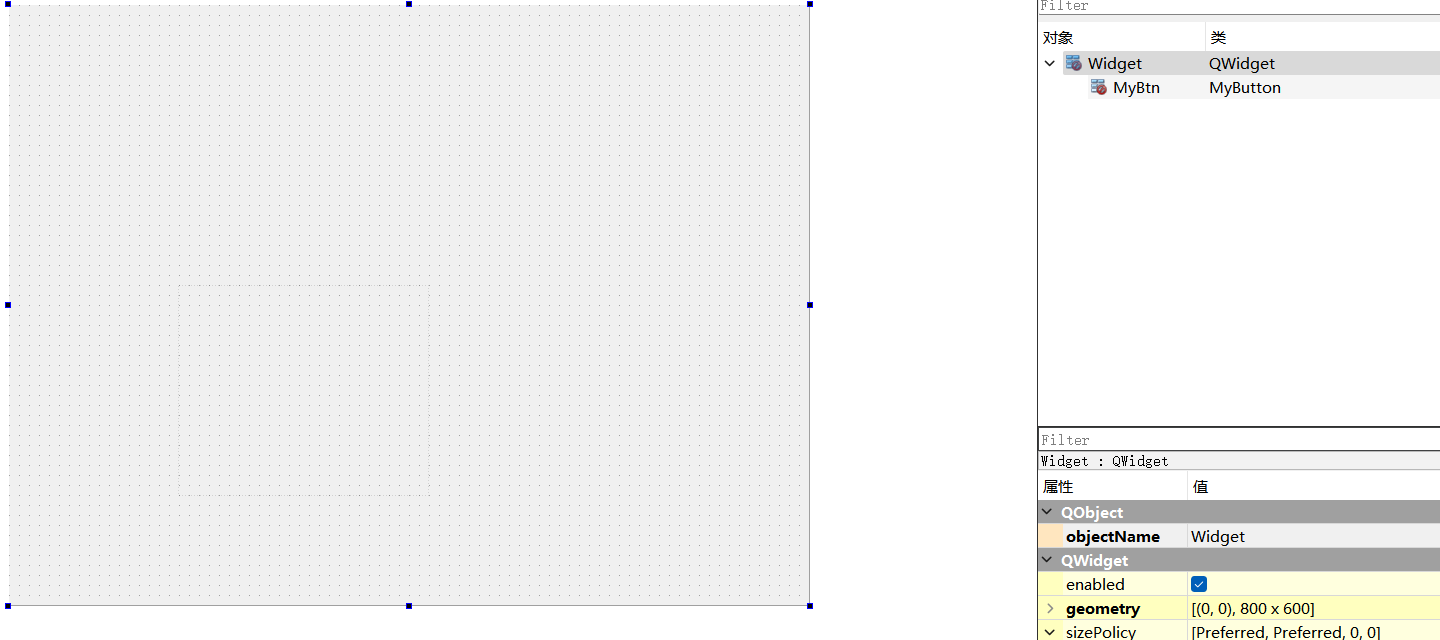
• 代码:
cpp
// mybutton.h


#ifndef MYBUTTON_H
#define MYBUTTON_H

#include <QEvent>
#include <QWidget>

class MyButton : public QWidget
{
    Q_OBJECT
public:
    explicit MyButton(QWidget *parent = nullptr);

private:
    QPixmap pic;//创建一个空的图片容器,后面用load加载进去

signals:
    void click();

protected:
    void mousePressEvent(QMouseEvent *event) override;
    void leaveEvent(QEvent *event) override;
    void enterEvent(QEvent *event) override;
    void paintEvent(QPaintEvent *event) override;

};

#endif // MYBUTTON_H
cpp
//mybutton.cpp

#include "mybutton.h"

#include <QPainter>

MyButton::MyButton(QWidget *parent) : QWidget(parent)
{
    pic.load(":/icon/o1.png");
    update();
}

void MyButton::mousePressEvent(QMouseEvent *event)
{
    pic.load(":/icon/o3.png");
    update();
    emit click();//发送信号
}

void MyButton::leaveEvent(QEvent *event)
{
    pic.load(":/icon/o1.png");
    update();
}

void MyButton::enterEvent(QEvent *event)
{
    pic.load(":/icon/o2.png");
    update();
}

void MyButton::paintEvent(QPaintEvent *event)
{
    QPainter painter(this);
    painter.drawPixmap(rect(),pic);
    //补充,自定义按键一样要widget承接
}
cpp
//widget.cpp

#include "widget.h"
#include "ui_widget.h"
#include <QDebug>

Widget::Widget(QWidget *parent)
    : QWidget(parent)
    , ui(new Ui::Widget)
{
    ui->setupUi(this);
    //创建信号与曹
    connect(ui->MyBtn,&MyButton::click,[=](){
        qDebug() << "MyButton is clicked ";
    });
}

Widget::~Widget()
{
    delete ui;
}
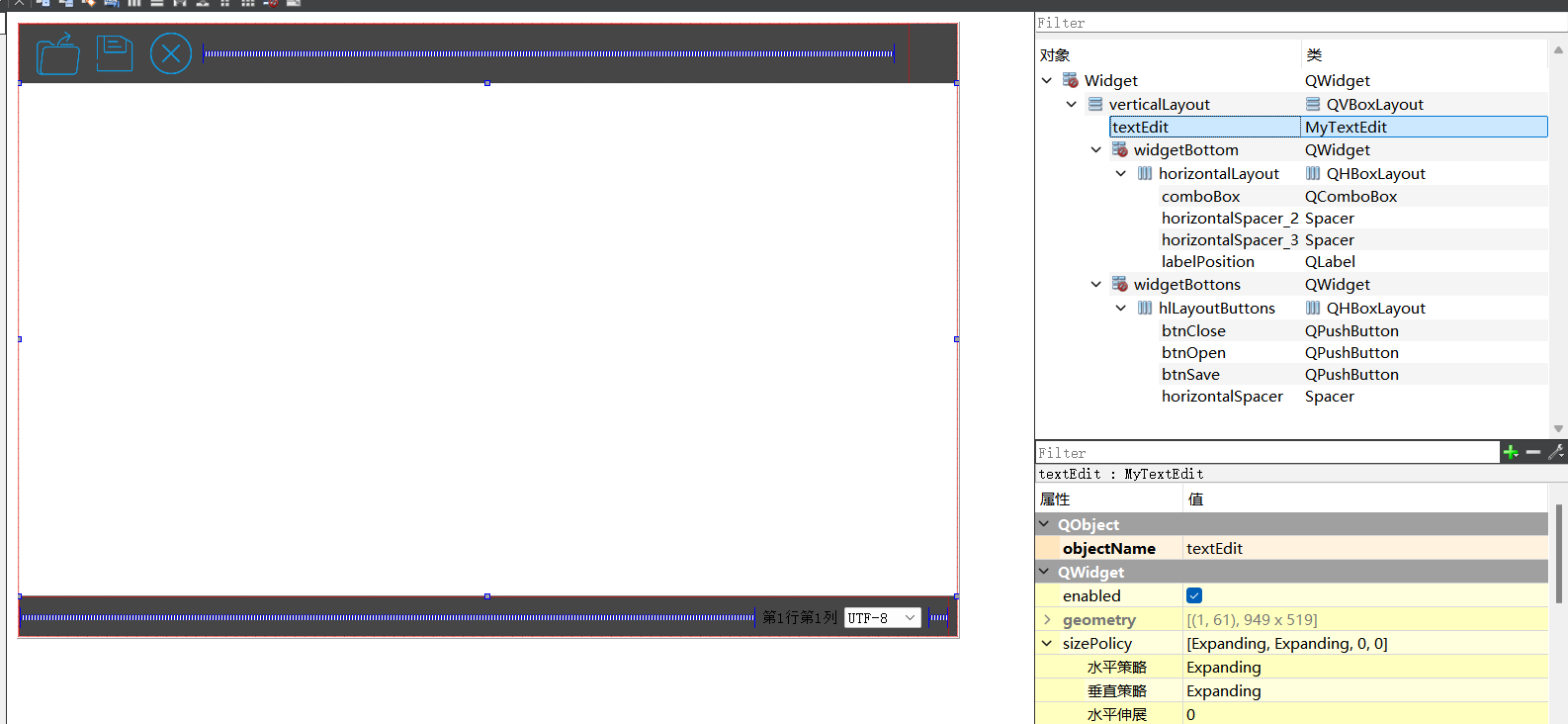
5. UI
5.1 使用事件方式实现字体放大缩小
6. 全部代码
6.1 使用事件方式实现字体放大缩小
• widget.cpp
cpp
#include "widget.h"
#include "ui_widget.h"

#include <QFileDialog>
#include <QDebug>
#include <QMessageBox>
#include <QShortcut>

Widget::Widget(QWidget *parent)
    : QWidget(parent)
    , ui(new Ui::Widget)
{
    ui->setupUi(this);
    //将UI文件中设计的垂直布局设置为此widget窗口部件的主布局
    this->setLayout(ui->verticalLayout);
    //将预先创建的水平布局(hlLayoutButtons)应用到名为widgetBottons的容器部件上。
    //将水平布局hlLayoutButtons设置到名为 widgetBottons 的顶部容器部件中
    ui->widgetBottons->setLayout(ui->hlLayoutButtons);
    //将名为horizontalLayout的水平布局应用到名为widgetBottom的容器部件上。
    //将水平布局设置到名为 widgetBottom 的底部容器部件中
    ui->widgetBottom->setLayout(ui->horizontalLayout);
    //总结,没有上述这三步,无setLayout(),部件可能不显示或重叠(拖动窗口的时候,可能被吞掉)。

    //信号与槽
    //更换字符编码在textEdit显示,这里使用currentIndexChanged这个信号
    //这个信号只要是索引发生改变,就触发
    connect(ui->comboBox,SIGNAL(currentIndexChanged(int)),
            this,SLOT(onCurrentIndexChanged(int)));

    //设置信号与槽,当光标位置发生变化(显示行列和高亮)
    connect(ui->textEdit,SIGNAL(cursorPositionChanged()),
            this,SLOT(onCursorPositionChanged()));

    //设置打开快捷键
    QShortcut *shortcutOpen = new QShortcut(QKeySequence(tr("Ctrl+O", "File|Open")),
                             this);

    //设置快捷键的信号与槽
    connect(shortcutOpen,&QShortcut::activated,[=](){
        on_btnOpen_clicked();
    });
    //设置保存快捷键
    QShortcut *shortSave = new QShortcut(QKeySequence(tr("Ctrl+S", "File|Save")),
                             this);

    //设置快捷键的信号与槽
    connect(shortSave,&QShortcut::activated,[=](){
        on_btnSave_clicked();
    });

    //设置放大快捷键
    QShortcut *shortZoomIn = new QShortcut(QKeySequence(tr("Ctrl+Shift+=", "File|Save")),
                             this);

    //设置快捷键的信号与槽
    connect(shortZoomIn,&QShortcut::activated,[=](){
        ZoomIn();
    });

    //设置缩小快捷键
    QShortcut *shortZoomOut = new QShortcut(QKeySequence(tr("Ctrl+Shift+-", "File|Save")),
                             this);

    //设置快捷键的信号与槽
    connect(shortZoomOut,&QShortcut::activated,[=](){
        ZoomOut();
    });


}

Widget::~Widget()
{
    delete ui;
}

void Widget::ZoomIn(){
    //获得当前字体的信息
    QFont font = ui->textEdit->font();
    //获得当前字体的大小
    int currentSize = font.pointSize();
    if(currentSize == -1)return;
    //放大字体
    int newSize = currentSize + 1;
    //重新放回到字体
    font.setPointSize(newSize);
    //重新放回到textEdit上
    ui->textEdit->setFont(font);
}

void Widget::ZoomOut(){
    //获得当前字体的信息
    QFont font = ui->textEdit->font();
    //获得当前字体的大小
    int currentSize = font.pointSize();
    if(currentSize == -1)return;
    //缩小字体
    int newSize = currentSize - 1;
    //重新放回到字体
    font.setPointSize(newSize);
    //重新放回到textEdit上
    ui->textEdit->setFont(font);
}

void Widget::onCursorPositionChanged(){
    //获取当前鼠标的光标位置
    QTextCursor cursor = ui->textEdit->textCursor();
    //显示行和列
//    qDebug() << QString :: number(cursor.blockNumber() + 1);
//    qDebug() << QString :: number(cursor.columnNumber() + 1);
    QString position = "L:" + QString :: number(cursor.blockNumber() + 1) +
                        ",C:" + QString :: number(cursor.columnNumber() + 1);

    ui->labelPosition->setText(position);

    //高亮显示
    //void QTextEdit::setExtraSelections(const QList<QTextEdit::ExtraSelection> &selections)
    QList<QTextEdit::ExtraSelection> selections;//存储高亮配置的列表
    QTextEdit::ExtraSelection ext;//一个具体的高亮配置
    //光标当前的位置
    ext.cursor = cursor;
    //设置背景色
    QBrush brush(Qt::lightGray);
    ext.format.setBackground(brush);
    //设置段属性:高亮整行显示,如果没有这句话,不会高亮显示
    ext.format.setProperty(QTextFormat::FullWidthSelection,true);
    //设置下划线
    ext.format.setFontUnderline(true);
    //加入到selections
    selections.append(ext);//将配置添加到列表
    //显示
    //setExtraSelections() 是Qt中用于批量设置临时文本高亮的关键函数
    ui->textEdit->setExtraSelections(selections);//应用到textEdit高亮显示


}

void Widget::onCurrentIndexChanged(int index){
    qDebug() << index;
    //先清理edittext
    ui->textEdit->clear();

    //判断文件是否有打开
    //然后重新换一种编码打开
    if(file.isOpen()){
        //在处理之前需要把光标移回到开头,重新读取
        file.seek(0);
        //用QTextStream处理
        QTextStream in(&file);
        //设置编码
        in.setCodec(ui->comboBox->currentText().toStdString().c_str());
        //读取数据
        //检查是否到达末尾
        while(!in.atEnd()){
            QString str = in.readLine();//一行一行读取
            qDebug() << str;
            ui->textEdit->append(str);
        }
    }
}


void Widget::on_btnOpen_clicked()
{
    //创建一个文本对话框,选择要打开的文件
    QString fileName = QFileDialog::getOpenFileName(this,
                                                    tr("Open File"), "D:\\txts", tr("Text Files (*.txt)"));

    //每次打开一个新文件都要清理一下textEdit
    ui->textEdit->clear();

    //qDebug() << fileName;
    //用QFile打开文件
    //QFile file;
    //setFileName函数通常用于设置或修改文件的名称
    file.setFileName(fileName);
    if(!file.open(QIODevice::ReadWrite | QIODevice::Text)){
        qDebug() << "open file error";//打开失败的情况下
    }
    //设置title
    this->setWindowTitle(fileName + " - MyNoteBook");

    //用QTextStream处理
    QTextStream in(&file);
    //设置编码
    in.setCodec(ui->comboBox->currentText().toStdString().c_str());
    //读取数据
    //检查是否到达末尾
    while(!in.atEnd()){
        QString str = in.readLine();//一行一行读取
        qDebug() << str;
        ui->textEdit->append(str);
    }
    //file.close();

}

void Widget::on_btnSave_clicked()
{
    //保存有两种情况
    //1.没有文件打开的情况下
    if(!file.isOpen()){//判断文件是否有打开
        //打开对话框让用户选择文件保存。
        QString fileName = QFileDialog::getSaveFileName(this, tr("Save File"),
                                                        "D:\\txts\\untitled.txt",
                                                        tr("Text (*.txt)"));
        //创建该路径的文件
        file.setFileName(fileName);
        if(!file.open(QIODevice::WriteOnly | QIODevice::Text)){
            qDebug() << "write open error!";
        }

        //设置title
        this->setWindowTitle(fileName + " - MyNoteBook");
    }
    //2.是有文件打开的情况下,直接保存当前文件
    //关联到QTextStream
    QTextStream out(&file);
    out.setCodec(ui->comboBox->currentText().toStdString().c_str());
    QString str = ui->textEdit->toPlainText();//toPlainText是移除所有格式,只保留文本内容
    out << str;


}

void Widget::on_btnClose_clicked()
{
    //close的操作,使用QMessageBox

     QMessageBox msgBox;
     msgBox.setWindowTitle("MyNoteBook Notice");
     msgBox.setText("The document has been modified.");
     msgBox.setInformativeText("Do you want to save your changes?");
     msgBox.setStandardButtons(QMessageBox::Save | QMessageBox::Discard | QMessageBox::Cancel);
     msgBox.setDefaultButton(QMessageBox::Save);
     int ret = msgBox.exec();

     switch (ret) {
        case QMessageBox::Save:
            // Save was clicked
            on_btnSave_clicked();
            break;
        case QMessageBox::Discard:
            // Don't Save was clicked
            ui->textEdit->clear();
            //还要判断文件有没有打开
            if(file.isOpen())
                file.close();
            this->setWindowTitle("MyNoteBook");
            break;
        case QMessageBox::Cancel:
            // Cancel was clicked
            qDebug() << "QMessageBox::Cancel";
            break;
        default:
            // should never be reached
            break;
      }
}
• widget.h
cpp
#ifndef WIDGET_H
#define WIDGET_H

#include <QFile>
#include <QWidget>

QT_BEGIN_NAMESPACE
namespace Ui { class Widget; }
QT_END_NAMESPACE

class Widget : public QWidget
{
    Q_OBJECT

public:
    Widget(QWidget *parent = nullptr);
    ~Widget();
    QFile file;
    void zoomIn();
    void zoomOut();

private slots:
    void on_btnOpen_clicked();

    void on_btnSave_clicked();

    void on_btnClose_clicked();

    void onCurrentIndexChanged(int index);

    void onCursorPositionChanged();

private:
    Ui::Widget *ui;
};
#endif // WIDGET_H
• mytextedit.cpp
cpp
#include "mytextedit.h"

#include <QWheelEvent>
#include <QDebug>

//让MyTextedit继承QTextEdit,先前的函数和功能都不会变
MyTextEdit::MyTextEdit(QWidget *parent) : QTextEdit(parent)
{

}

void MyTextEdit::keyPressEvent(QKeyEvent *e)
{
    if(e->key() == Qt::Key_Control){//仅仅记录状态,最后交给父类去处理
        qDebug() << "ctrl Pressed!";
        ctrlKeyPress = 1;//按下了
    }
    QTextEdit::keyPressEvent(e);
}

void MyTextEdit::keyReleaseEvent(QKeyEvent *e)
{
    if(e->key() == Qt::Key_Control){//仅仅记录状态,最后交给父类去处理
        qDebug() << "ctrl Released!";
        ctrlKeyPress = 0;//按下了
    }
    QTextEdit::keyReleaseEvent(e);
}

void MyTextEdit::wheelEvent(QWheelEvent *e)
{
    if(ctrlKeyPress == 1){//被按下ctrl
        if(e->angleDelta().y() > 0){//鼠标向上滚动
            zoomIn();
        }else if(e->angleDelta().y() < 0){//鼠标向下滚动
            zoomOut();
        }
        e->accept();//处理完毕(执行完毕·)
    }else {
        QTextEdit::wheelEvent(e);//按照他父类那里该怎么 处理就怎么处理
    }

}
• mytextedit.h
cpp
#ifndef MYTEXTEDIT_H
#define MYTEXTEDIT_H

#include <QTextEdit>


class MyTextEdit : public QTextEdit
{
    //MyTextedit();
    //建立QTextEdit父空间,需要ui上面的textedit和自定义的MyTextedit关联上,不然会失去联系
    Q_OBJECT
public:
    MyTextEdit(QWidget* parent);
private:
     bool ctrlKeyPress = 0; //0表示没有被按下
protected:
    void keyPressEvent(QKeyEvent *e) override;
    void keyReleaseEvent(QKeyEvent *e) override;
    void wheelEvent(QWheelEvent *e) override;
};

#endif // MYTEXTEDIT_H
7. 使用事件过滤器实现放大缩小
7.1 事件过滤器
• 我们通过继承QTextEdit来重写事件实现Ctrl加滚轮的检测,还有一种处理方式,叫做事件过滤器
在Qt的事件处理过程中,引入事件过滤器(Event Filter)可以让你在事件达到目标对象之前进行拦截和****处理。这是一种强大的机制,允许你在不同对象间共享事件处理逻辑或在父对象中集中处理特定事件。
• 下面是加入事件过滤器的步骤:
- 定义事件过滤器: 事件过滤器通常是一个重写了 QObject::eventFilter() 方法的对象。这个方法
会在事件传递给目标对象之前被调用。 - 安装事件过滤器: 使用 QObject::installEventFilter() 方法安装事件过滤器。这个方法告诉Qt
在将事件发送给特定对象之前先通过过滤器对象。例如,如果你想在父窗口中过滤子窗口的事件,
你需要在父窗口的对象上调用 installEventFilter() ,并将子窗口作为参数传递。 - 事件过滤器逻辑: 在 eventFilter() 方法内部,你可以编写自定义逻辑来决定如何处理或忽略事
件。如果此方法返回 true ,则表示事件已被处理,不应该继续传递;如果返回 false ,则事件将
正常传递给目标对象。 - 事件分发: 当事件发生时,Qt首先将事件发送到安装了事件过滤器的对象。在这一步,eventFilter() 方法被调用。
- 决定是否传递事件: 根据 eventFilter() 方法的返回值,Qt决定是否继续向目标对象传递事件。如
果过滤器返回 true ,事件处理到此结束;如果返回 false ,事件继续传递到原始目标对象。 - 目标对象处理事件: 如果事件过滤器允许事件继续传递,目标对象将像没有事件过滤器存在时那样处理事件。
• 事件过滤器特别适用于以下情况:
• 当你想在不修改子类代码的情况下改变事件的行为。
• 当多个对象需要共享相同的事件处理逻辑。
• 当你需要在更高的层级上监控或修改应用程序的事件流。
7.2 UI
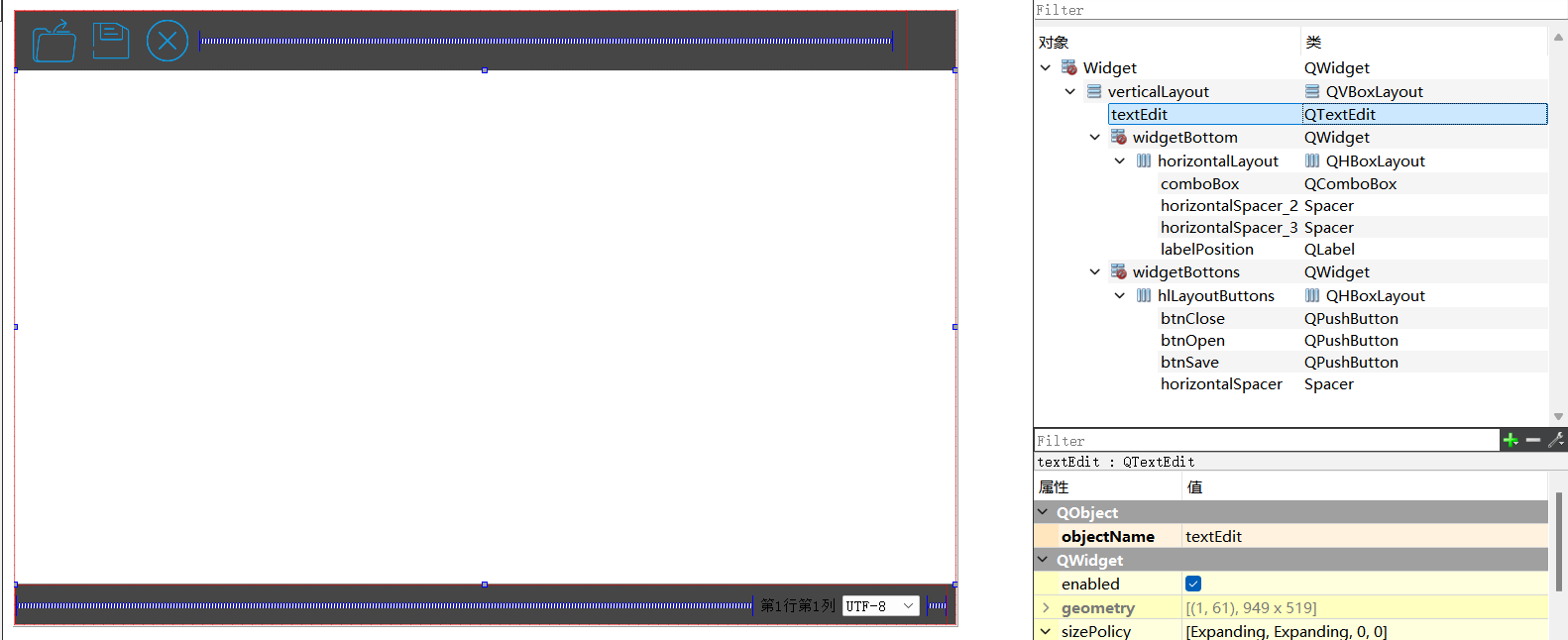
7.3 代码
• 在widget.cpp
cpp
#include "widget.h"
#include "ui_widget.h"

#include <QFileDialog>
#include <QDebug>
#include <QMessageBox>
#include <QShortcut>
#include <QWheelEvent>

Widget::Widget(QWidget *parent)
    : QWidget(parent)
    , ui(new Ui::Widget)
{
    ui->setupUi(this);
    //将UI文件中设计的垂直布局设置为此widget窗口部件的主布局
    this->setLayout(ui->verticalLayout);
    //将预先创建的水平布局(hlLayoutButtons)应用到名为widgetBottons的容器部件上。
    //将水平布局hlLayoutButtons设置到名为 widgetBottons 的顶部容器部件中
    ui->widgetBottons->setLayout(ui->hlLayoutButtons);
    //将名为horizontalLayout的水平布局应用到名为widgetBottom的容器部件上。
    //将水平布局设置到名为 widgetBottom 的底部容器部件中
    ui->widgetBottom->setLayout(ui->horizontalLayout);
    //总结,没有上述这三步,无setLayout(),部件可能不显示或重叠(拖动窗口的时候,可能被吞掉)。

    //信号与槽
    //更换字符编码在textEdit显示,这里使用currentIndexChanged这个信号
    //这个信号只要是索引发生改变,就触发
    connect(ui->comboBox,SIGNAL(currentIndexChanged(int)),
            this,SLOT(onCurrentIndexChanged(int)));

    //设置信号与槽,当光标位置发生变化(显示行列和高亮)
    connect(ui->textEdit,SIGNAL(cursorPositionChanged()),
            this,SLOT(onCursorPositionChanged()));

    //设置打开快捷键
    QShortcut *shortcutOpen = new QShortcut(QKeySequence(tr("Ctrl+O", "File|Open")),
                             this);

    //设置快捷键的信号与槽
    connect(shortcutOpen,&QShortcut::activated,[=](){
        on_btnOpen_clicked();
    });
    //设置保存快捷键
    QShortcut *shortSave = new QShortcut(QKeySequence(tr("Ctrl+S", "File|Save")),
                             this);

    //设置快捷键的信号与槽
    connect(shortSave,&QShortcut::activated,[=](){
        on_btnSave_clicked();
    });

    //设置放大快捷键
    QShortcut *shortZoomIn = new QShortcut(QKeySequence(tr("Ctrl+Shift+=", "File|Save")),
                             this);

    //设置快捷键的信号与槽
    connect(shortZoomIn,&QShortcut::activated,[=](){
        ZoomIn();
    });

    //设置缩小快捷键
    QShortcut *shortZoomOut = new QShortcut(QKeySequence(tr("Ctrl+Shift+-", "File|Save")),
                             this);

    //设置快捷键的信号与槽
    connect(shortZoomOut,&QShortcut::activated,[=](){
        ZoomOut();
    });

    //安装事件过滤器
    ui->textEdit->installEventFilter(this);
}

Widget::~Widget()
{
    delete ui;
}

bool Widget::eventFilter(QObject *object,QEvent *event){
    if(event->type() == QEvent::Wheel){//判断事件类型是鼠标滚轮事件
        if(QApplication::keyboardModifiers() & Qt::ControlModifier){//判断是否是ctrl被按下
            //判断是向上还是向下滚动
            //将事件对象转化为滚轮事件
            //解释:
            //尝试将通用的事件对象转换为具体的滚轮事件对象。
            //如果事件确实是滚轮事件,就得到一个有效的指针;
            //如果不是,就得到空指针,不会导致程序崩溃
            QWheelEvent *wheel = dynamic_cast<QWheelEvent *>(event);
            if(wheel->angleDelta().y() > 0){
                ZoomIn();
            }else if(wheel->angleDelta().y() < 0){
                ZoomOut();
            }
//            如果此方法返回 true ,则表示事件已被处理,不应该继续传递;
//            如果返回 false ,则事件将正常传递给目标对象。
            return true;
        }
        return false;
    }
}

void Widget::ZoomIn(){
    //获得当前字体的信息
    QFont font = ui->textEdit->font();
    //获得当前字体的大小
    int currentSize = font.pointSize();
    if(currentSize == -1)return;
    //放大字体
    int newSize = currentSize + 1;
    //重新放回到字体
    font.setPointSize(newSize);
    //重新放回到textEdit上
    ui->textEdit->setFont(font);
}

void Widget::ZoomOut(){
    //获得当前字体的信息
    QFont font = ui->textEdit->font();
    //获得当前字体的大小
    int currentSize = font.pointSize();
    if(currentSize == -1)return;
    //缩小字体
    int newSize = currentSize - 1;
    //重新放回到字体
    font.setPointSize(newSize);
    //重新放回到textEdit上
    ui->textEdit->setFont(font);
}

void Widget::onCursorPositionChanged(){
    //获取当前鼠标的光标位置
    QTextCursor cursor = ui->textEdit->textCursor();
    //显示行和列
//    qDebug() << QString :: number(cursor.blockNumber() + 1);
//    qDebug() << QString :: number(cursor.columnNumber() + 1);
    QString position = "L:" + QString :: number(cursor.blockNumber() + 1) +
                        ",C:" + QString :: number(cursor.columnNumber() + 1);

    ui->labelPosition->setText(position);

    //高亮显示
    //void QTextEdit::setExtraSelections(const QList<QTextEdit::ExtraSelection> &selections)
    QList<QTextEdit::ExtraSelection> selections;//存储高亮配置的列表
    QTextEdit::ExtraSelection ext;//一个具体的高亮配置
    //光标当前的位置
    ext.cursor = cursor;
    //设置背景色
    QBrush brush(Qt::lightGray);
    ext.format.setBackground(brush);
    //设置段属性:高亮整行显示,如果没有这句话,不会高亮显示
    ext.format.setProperty(QTextFormat::FullWidthSelection,true);
    //设置下划线
    ext.format.setFontUnderline(true);
    //加入到selections
    selections.append(ext);//将配置添加到列表
    //显示
    //setExtraSelections() 是Qt中用于批量设置临时文本高亮的关键函数
    ui->textEdit->setExtraSelections(selections);//应用到textEdit高亮显示


}

void Widget::onCurrentIndexChanged(int index){
    qDebug() << index;
    //先清理edittext
    ui->textEdit->clear();

    //判断文件是否有打开
    //然后重新换一种编码打开
    if(file.isOpen()){
        //在处理之前需要把光标移回到开头,重新读取
        file.seek(0);
        //用QTextStream处理
        QTextStream in(&file);
        //设置编码
        in.setCodec(ui->comboBox->currentText().toStdString().c_str());
        //读取数据
        //检查是否到达末尾
        while(!in.atEnd()){
            QString str = in.readLine();//一行一行读取
            qDebug() << str;
            ui->textEdit->append(str);
        }
    }
}


void Widget::on_btnOpen_clicked()
{
    //创建一个文本对话框,选择要打开的文件
    QString fileName = QFileDialog::getOpenFileName(this,
                                                    tr("Open File"), "D:\\txts", tr("Text Files (*.txt)"));

    //每次打开一个新文件都要清理一下textEdit
    ui->textEdit->clear();

    //qDebug() << fileName;
    //用QFile打开文件
    //QFile file;
    //setFileName函数通常用于设置或修改文件的名称
    file.setFileName(fileName);
    if(!file.open(QIODevice::ReadWrite | QIODevice::Text)){
        qDebug() << "open file error";//打开失败的情况下
    }
    //设置title
    this->setWindowTitle(fileName + " - MyNoteBook");

    //用QTextStream处理
    QTextStream in(&file);
    //设置编码
    in.setCodec(ui->comboBox->currentText().toStdString().c_str());
    //读取数据
    //检查是否到达末尾
    while(!in.atEnd()){
        QString str = in.readLine();//一行一行读取
        qDebug() << str;
        ui->textEdit->append(str);
    }
    //file.close();

}

void Widget::on_btnSave_clicked()
{
    //保存有两种情况
    //1.没有文件打开的情况下
    if(!file.isOpen()){//判断文件是否有打开
        //打开对话框让用户选择文件保存。
        QString fileName = QFileDialog::getSaveFileName(this, tr("Save File"),
                                                        "D:\\txts\\untitled.txt",
                                                        tr("Text (*.txt)"));
        //创建该路径的文件
        file.setFileName(fileName);
        if(!file.open(QIODevice::WriteOnly | QIODevice::Text)){
            qDebug() << "write open error!";
        }

        //设置title
        this->setWindowTitle(fileName + " - MyNoteBook");
    }
    //2.是有文件打开的情况下,直接保存当前文件
    //关联到QTextStream
    QTextStream out(&file);
    out.setCodec(ui->comboBox->currentText().toStdString().c_str());
    QString str = ui->textEdit->toPlainText();//toPlainText是移除所有格式,只保留文本内容
    out << str;


}

void Widget::on_btnClose_clicked()
{
    //close的操作,使用QMessageBox

     QMessageBox msgBox;
     msgBox.setWindowTitle("MyNoteBook Notice");
     msgBox.setText("The document has been modified.");
     msgBox.setInformativeText("Do you want to save your changes?");
     msgBox.setStandardButtons(QMessageBox::Save | QMessageBox::Discard | QMessageBox::Cancel);
     msgBox.setDefaultButton(QMessageBox::Save);
     int ret = msgBox.exec();

     switch (ret) {
        case QMessageBox::Save:
            // Save was clicked
            on_btnSave_clicked();
            break;
        case QMessageBox::Discard:
            // Don't Save was clicked
            ui->textEdit->clear();
            //还要判断文件有没有打开
            if(file.isOpen())
                file.close();
            this->setWindowTitle("MyNoteBook");
            break;
        case QMessageBox::Cancel:
            // Cancel was clicked
            qDebug() << "QMessageBox::Cancel";
            break;
        default:
            // should never be reached
            break;
      }
}
• 在widget.h
cpp
#ifndef WIDGET_H
#define WIDGET_H

#include <QFile>
#include <QWidget>

QT_BEGIN_NAMESPACE
namespace Ui { class Widget; }
QT_END_NAMESPACE

class Widget : public QWidget
{
    Q_OBJECT

public:
    Widget(QWidget *parent = nullptr);
    ~Widget();

private slots:
    void on_btnOpen_clicked();

    void on_btnSave_clicked();

    void on_btnClose_clicked();

    void onCurrentIndexChanged(int index);

    void onCursorPositionChanged();

public:
    void ZoomIn();

    void ZoomOut();
    //bool eventFilter(QObject *object, QEvent *event) override;
    bool eventFilter(QObject *object,QEvent *event) override;

private:
    QFile file;

    Ui::Widget *ui;
};
#endif // WIDGET_H
8. 补充
• 在 C++ 中,强制类型转换(或类型转换)是一种将变量从一种类型转换为另一种类型的方法。C++ 提供了四种强制转换运算符,每种都有其特定的用途和适用场景:
- **static_cast:**static_cast 是最常用的类型转换运算符,用于无风险的转换,如整数到浮点数,字符到整数等。它在编译时执行,不执行运行时类型检查。 示例:int x = static_cast<int>(y); 其中 y 可能是 float 类型。
- dynamic_cast :专门用于处理对象的多态性,只能用于指针和引用,且涉及对象类必须有虚函数。 它在运行时检查类型的安全性,如果转换失败,对于指针类型返回 nullptr ,对于引用类型
抛出异常。 示例: Derived *dp = dynamic_cast<Derived *>(bp); 其中 bp 是基类指针, Derived
是派生类。 - **const_cast:**用于修改类型的 const 或 volatile 属性。
通常用于去除对象的 const 性质,允许修改原本被声明为 const 的变量。
示例: const int a = 10; int* b = const_cast<int*>(&a)。 - **reinterpret_cast:**用于进行低级别的重新解释转换,几乎无限制,但也是最危险的。
它可以将一种完全不相关的类型转换为另一种类型,比如将指针类型转换为整数类型。
示例: long p = reinterpret_cast<long>(&object); 其中 object 是某个类的对象。