需求:实现世界地图,并且标点、打开弹窗、根据状态自定义弹窗,不需要申请key(OpenStreetMap(OSM)免费开源地图),就可以实现
1. 效果
1.1国内效果(运行较快,没有白块)
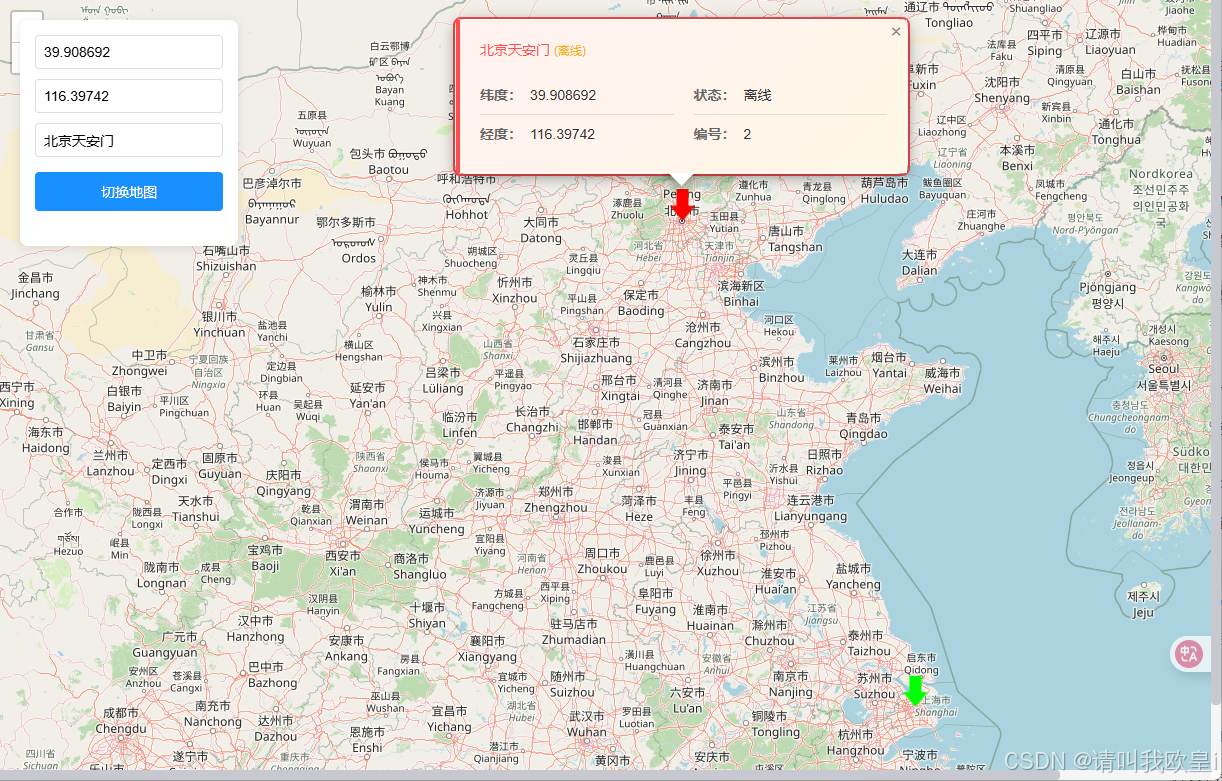
1.1国外效果
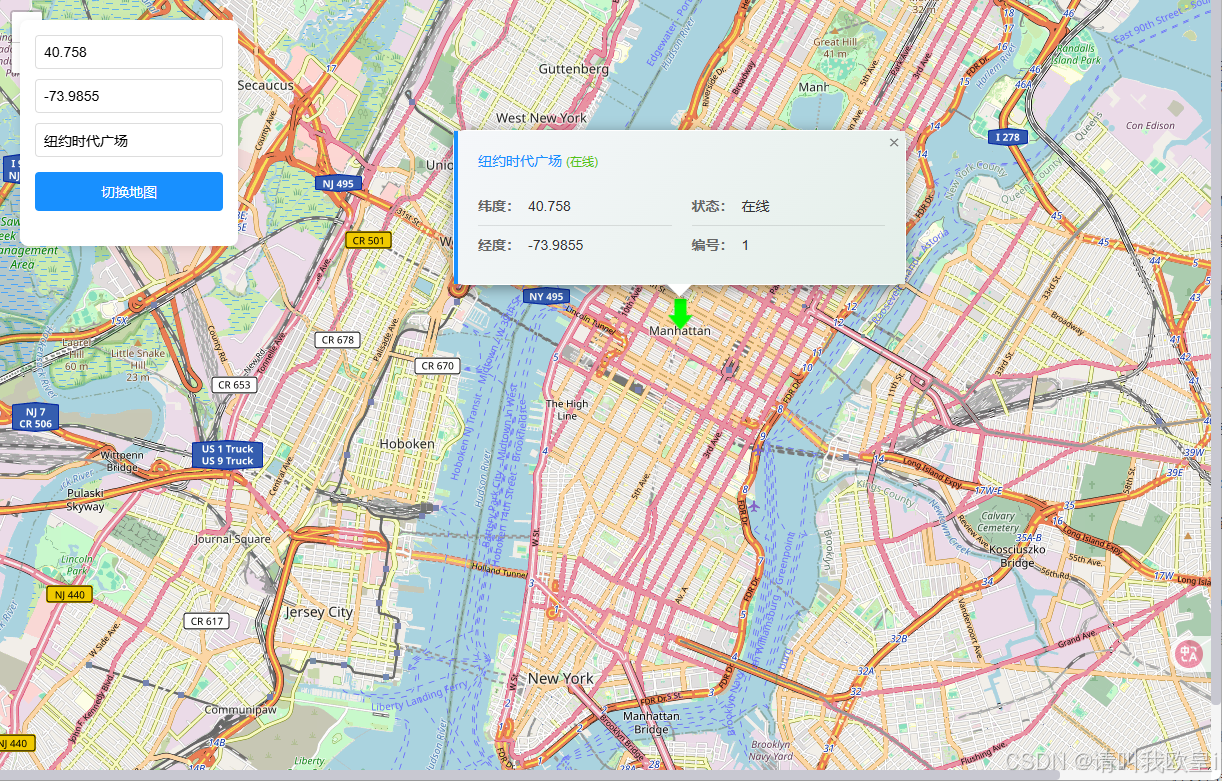
1.3 卫星地图样式(无文字标注)
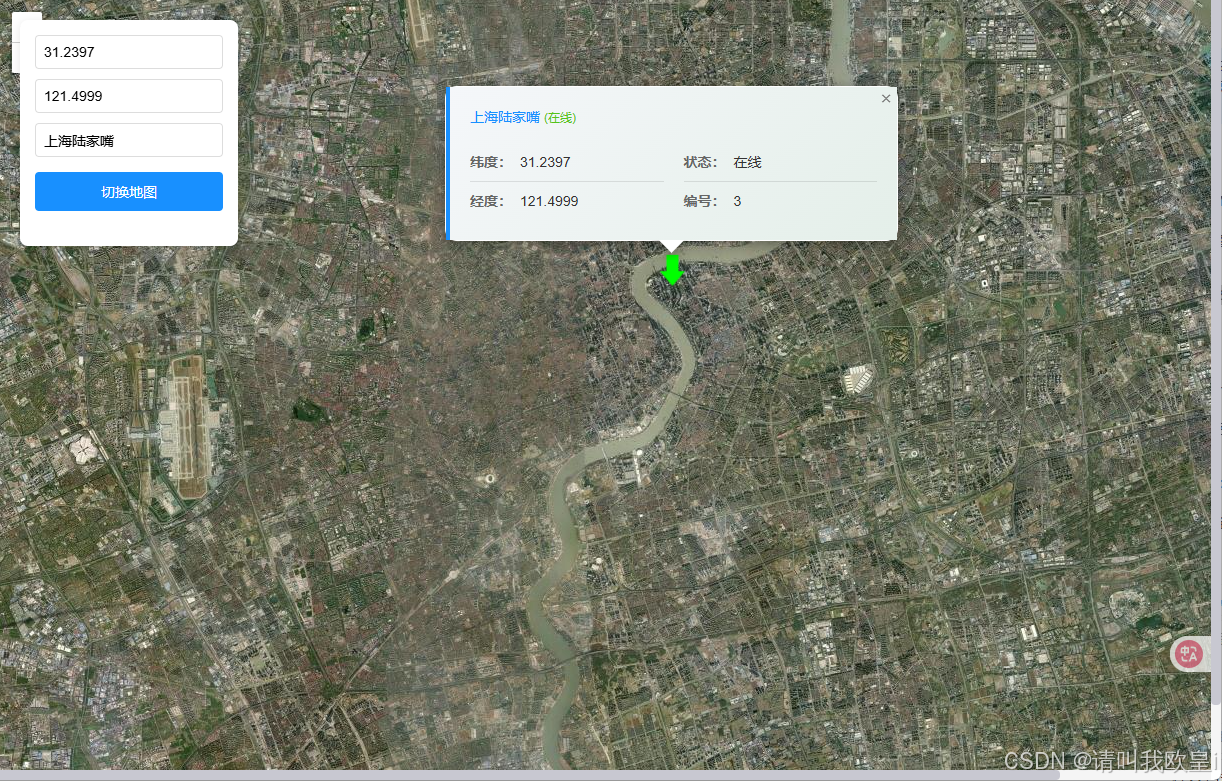
1.3 深色地图样式(无文字标注,国内加载较慢,不推荐)
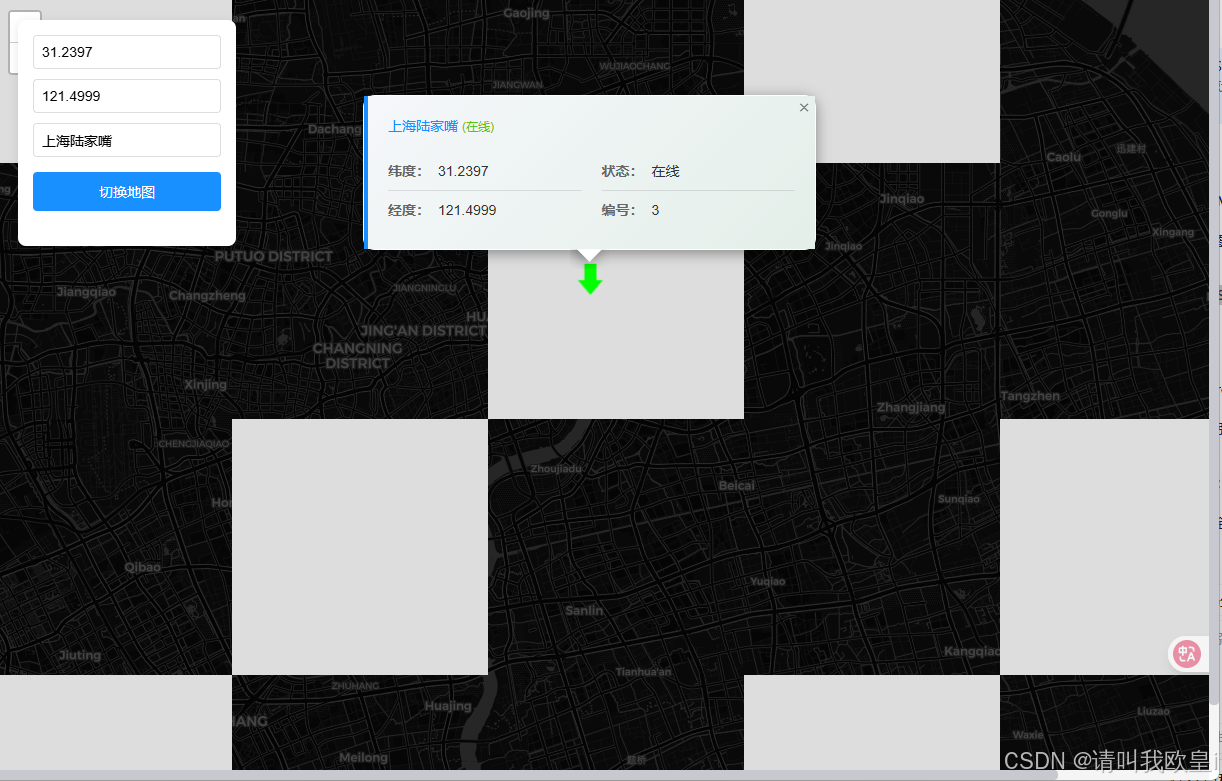
2.主要问题
2.1下载
本实例需要使用leaflet加载osm地图,下载最新版的leaflet即可
bash
npm install leaflet2.2 解决地图加载问题
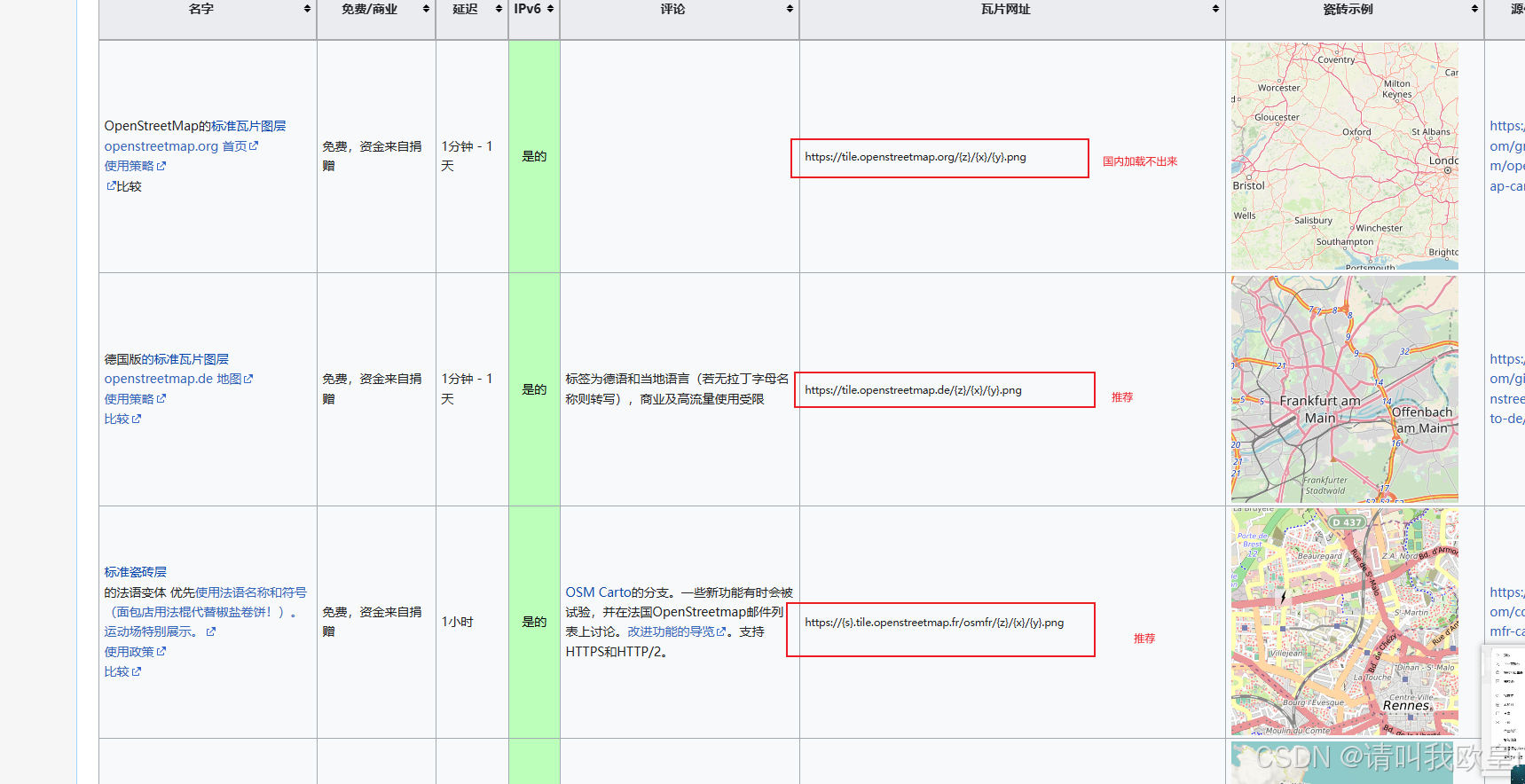
国内用https://{s}.tile.openstreetmap.org的域名就加载不出来,但是官网提供了很多种加载osm切换加载链接地址,替换一下就可以了,不需要申请key,为了避免小伙伴没有vpn打不开官网我直接把图贴上,以下推荐的加载速度都挺快的
3.完整代码
代码已经写好备注了,看代码即可
javascript
<template>
  <div class="street-map-container">
    <div ref="map" class="street-map"></div>
    <div class="map-controls">
      <div class="control-panel">
        <input
          v-model="showLocation.lat"
          placeholder="纬度"
          type="number"
          step="0.000001"
        />
        <input
          v-model="showLocation.lng"
          placeholder="经度"
          type="number"
          step="0.000001"
        />
        <input v-model="showLocation.name" placeholder="地点名称" />
        <button @click="changeMapStyle">切换地图</button>
        <!-- <button @click="addMarkerFromInput">添加标记</button> -->
      </div>
    </div>
  </div>
</template>

<script>
import L from "leaflet";
import "leaflet/dist/leaflet.css";

// 修复Leaflet图标问题
delete L.Icon.Default.prototype._getIconUrl;
L.Icon.Default.mergeOptions({
  iconRetinaUrl: require("leaflet/dist/images/marker-icon-2x.png"),
  iconUrl: require("leaflet/dist/images/marker-icon.png"),
  shadowUrl: require("leaflet/dist/images/marker-shadow.png"),
});

export default {
  name: "StreetMap",
  data() {
    return {
      map: null,
      markers: [],
      currentMarker: null,
      streetLocation: [
        {
          name: "纽约时代广场",
          lat: 40.758,
          lng: -73.9855,
          online: 1,
        },
        {
          name: "北京天安门",
          lat: 39.908692,
          lng: 116.39742,
          online: 0,
        },
        {
          name: "上海陆家嘴",
          lat: 31.2397,
          lng: 121.4999,
          online: 1,
        },
      ],
      showLocation: {
        lat: 39.908692,
        lng: 116.39742,
        name: "北京",
        online: 1,
      },
      mapStyles: [
        {
          name: "OpenStreetMap",
          url: "https://{s}.tile.openstreetmap.de/{z}/{x}/{y}.png",
        },
        {
          name: "卫星地图",
          url: "https://server.arcgisonline.com/ArcGIS/rest/services/World_Imagery/MapServer/tile/{z}/{y}/{x}",
        },
        {
          name: "深色地图",
          url: "https://{s}.basemaps.cartocdn.com/dark_all/{z}/{x}/{y}.png",
        },
      ],
      currentMapStyle: 0,
      deviceMarkersLayer: null,
      bounds: [], // 添加 bounds 数组用于自适应缩放
    };
  },
  mounted() {
    this.initStreetMap();
  },
  beforeDestroy() {
    if (this.map) {
      this.map.remove();
    }
  },
  methods: {
    initStreetMap() {
      // 初始化地图
      this.map = L.map(this.$refs.map).setView(
        [this.streetLocation[0].lat, this.streetLocation[0].lng],
        12 // 调整初始缩放级别
      );

      // 添加地图图层
      L.tileLayer(this.mapStyles[this.currentMapStyle].url, {
        attribution: "© OpenStreetMap contributors",
        maxZoom: 19,
        minZoom: 3,
      }).addTo(this.map);

      // 创建用于存放设备标记的图层组
      this.deviceMarkersLayer = L.layerGroup().addTo(this.map); // 修复:this.osmMap -> this.map

      // 添加初始标记
      this.addStreetMarker();
    },

    addStreetMarker() {
      // 清除之前的标记
      if (this.deviceMarkersLayer) {
        this.deviceMarkersLayer.clearLayers();
      }

      // 清空 bounds 数组
      this.bounds = [];

      if (!this.streetLocation || this.streetLocation.length === 0) {
        console.log("没有设备数据");
        return;
      }

      this.streetLocation.forEach((device, index) => {
        // 确保经纬度存在
        const lat = parseFloat(device.lat);
        const lng = parseFloat(device.lng);

        if (isNaN(lat) || isNaN(lng)) {
          console.warn(`设备 ${device.name} 坐标无效,跳过标记。`);
          return;
        }

        const point = [lat, lng];
        this.bounds.push(point); // 添加到 bounds 数组

        // 创建自定义图标(在线/离线状态)
        const markerIcon = L.icon({
          iconUrl:
            device.online == 1
              ? require("@/assets/images/online.png")
              : require("@/assets/images/offline.png"),
          iconSize: [25, 32], // 调整尺寸以匹配原图
          iconAnchor: [12.5, 32], // 图标锚点(底部中心)
          popupAnchor: [0, -32], // 弹出框相对于图标的偏移
        });

        // 创建标记
        const marker = L.marker(point, { icon: markerIcon })
          .addTo(this.deviceMarkersLayer)
          .bindPopup(this.createDevicePopupContent(device), {
            maxWidth: 450, // 与之前信息框宽度接近
            minWidth: 450,
            className:
              device.online == 1 ? "infowindow-popup" : "warning-popup",
          });

        // 为标记添加点击事件
        marker.on("click", () => {
          this.handleMarkerClick(device, marker);
        });

        // 保存标记引用
        this.markers[index] = marker;
      });

      // 如果有点位,自适应缩放显示所有标记
      if (this.bounds.length > 0) {
        setTimeout(() => {
          if (this.bounds.length === 1) {
            // 只有一个点时,居中显示并设置合适缩放级别
            this.map.setView(this.bounds[0], 14);
          } else {
            // 多个点时,自动调整视图显示所有点
            const bounds = L.latLngBounds(this.bounds);
            this.map.fitBounds(bounds, { padding: [50, 50] });
          }
        }, 100);
      }
    },
    // 处理标记点击事件
    handleMarkerClick(device, marker) {
      console.log("点击了标记:", device.name);
      // 这里可以添加点击标记后的处理逻辑
      // 例如:更新显示位置、弹出详细信息等
      this.showLocation = {
        name: device.name,
        lat: device.lat,
        lng: device.lng,
        online: device.online,
      };

      // 打开弹窗
      marker.openPopup();
    },

    createDevicePopupContent(device) {
      // 修复经纬度显示顺序
      return `
        <div class="${device.online == 1 ? "infowindow" : "warningInfo"}">
          <h3 style="margin: 0 0 10px 0; color: ${
            device.online == 1 ? "#1890ff" : "#ff4d4f"
          }">
            ${device.name}
            <span style="font-size: 12px; color: ${
              device.online == 1 ? "#52c41a" : "#faad14"
            }">
              ${device.online == 1 ? "(在线)" : "(离线)"}
            </span>
          </h3>
          <div class='info-main'>
            <ul>
              <li><strong>纬度:</strong>${device.lat}</li>
              <li><strong>经度:</strong>${device.lng}</li>
            </ul>
            <ul>
              <li><strong>状态:</strong>${
                device.online == 1 ? "在线" : "离线"
              }</li>
              <li><strong>编号:</strong>${
                this.streetLocation.findIndex((d) => d.name === device.name) + 1
              }</li>
            </ul>
          </div>
        </div>
      `;
    },

    changeMapStyle() {
      this.currentMapStyle = (this.currentMapStyle + 1) % this.mapStyles.length;

      // 移除所有瓦片图层(保持标记图层)
      this.map.eachLayer((layer) => {
        if (layer._url && layer !== this.deviceMarkersLayer) {
          this.map.removeLayer(layer);
        }
      });

      // 添加新图层
      L.tileLayer(this.mapStyles[this.currentMapStyle].url, {
        attribution: "© OpenStreetMap contributors",
        maxZoom: 19,
        minZoom: 3,
      }).addTo(this.map);
    },
  },
};
</script>

<style scoped>
.street-map-container {
  width: 100%;
  height: 100vh;
  position: relative;
}

.street-map {
  width: 100%;
  height: 100%;
}

.map-controls {
  position: absolute;
  top: 20px;
  left: 20px; /* 调整左边距 */
  z-index: 1000;
  background: white;
  padding: 15px;
  border-radius: 8px;
  box-shadow: 0 2px 10px rgba(0, 0, 0, 0.1);
  max-width: 350px;
  max-height: 80vh;
  overflow-y: auto;
}

.control-panel {
  display: flex;
  flex-direction: column;
  gap: 10px;
  margin-bottom: 20px;
}

.control-panel input {
  padding: 8px;
  border: 1px solid #ddd;
  border-radius: 4px;
  font-size: 14px;
}

.control-panel button {
  padding: 10px 15px;
  background: #1890ff;
  color: white;
  border: none;
  border-radius: 4px;
  cursor: pointer;
  transition: background 0.3s;
  font-size: 14px;
  margin-top: 5px;
}

.control-panel button:hover {
  background: #40a9ff;
}

.control-panel button:nth-child(5) {
  background: #52c41a;
}

.control-panel button:nth-child(5):hover {
  background: #73d13d;
}

/* 弹出窗口样式 */
:deep(.leaflet-popup-content) {
  margin: 0;
  padding: 0;
}

:deep(.infowindow-popup) {
  border-radius: 8px;
}

:deep(.warning-popup) {
  border-radius: 8px;
  border: 2px solid #ff4d4f;
}

:deep(.infowindow),
:deep(.warningInfo) {
  padding: 20px;
  font-size: 14px;
  line-height: 1.5;
  color: #333;
}

:deep(.infowindow) {
  background: linear-gradient(135deg, #f5f7fa 0%, #e4efe9 100%);
  border-left: 4px solid #1890ff;
}

:deep(.warningInfo) {
  background: linear-gradient(135deg, #fff2f0 0%, #fff7e6 100%);
  border-left: 4px solid #ff4d4f;
}

:deep(.info-main) {
  display: flex;
  margin-top: 15px;
  gap: 20px;
}

:deep(.info-main ul) {
  flex: 1;
  list-style: none;
  padding: 0;
  margin: 0;
}

:deep(.info-main li) {
  line-height: 28px;
  padding: 5px 0;
  border-bottom: 1px solid rgba(0, 0, 0, 0.1);
}

:deep(.info-main li:last-child) {
  border-bottom: none;
}

:deep(.info-main strong) {
  color: #666;
  font-weight: 600;
  margin-right: 8px;
}
</style>
文章到此结束,希望对你有所帮助~