在 uni-app 开发中,文件上传是一个常见且重要的功能。尤其是在 App 端,如何实现一个既美观又实用的文件上传与展示界面,是很多开发者关心的问题。本文将介绍如何通过 xe-upload 插件,结合自定义 UI,实现一个完整的文件上传、展示与下载功能。
📸 效果预览
先来看一下最终实现的效果:
https://your-image-url.com/example.png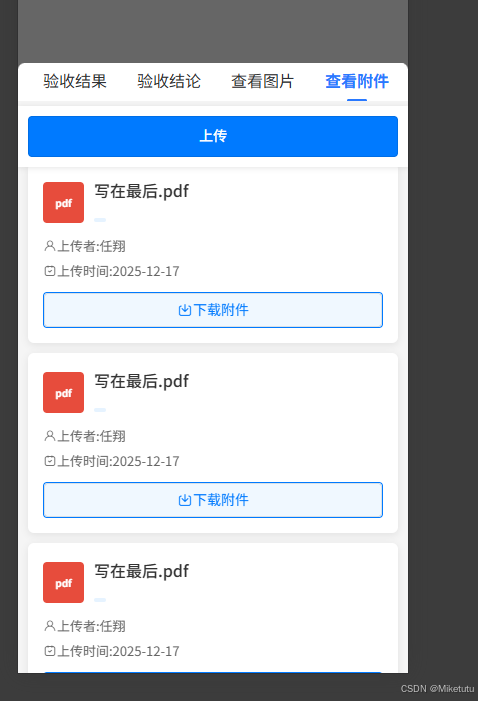 https://your-image-url.com/example.png
界面分为上下两部分:
-
上方为固定位置的"上传"按钮
-
下方为附件列表,支持文件图标、信息展示和下载功能
🛠️ 主要功能
-
✅ 支持多类型文件上传(图片、文档、PDF 等)
-
✅ 文件列表展示(图标、名称、上传者、上传时间)
-
✅ 文件下载功能
-
✅ 上传状态提示与错误处理
-
✅ 空状态友好提示
📦 使用插件
我们使用 xe-upload 插件来实现文件选择与上传功能,它是一个功能丰富且兼容性好的 uni-app 上传组件。
安装与引入
bash
npm install xe-upload或者直接在uniapp插件市场下载
在页面中引入:
vue
html
<xe-upload ref="XeUpload" :options="uploadOptions" @callback="handleUploadCallback"></xe-upload>📝 核心代码实现
1. 模板结构
html
<template>
	<view class="viewFileListWrapper">
		<!-- 固定上传按钮 -->
		<view class="upload-btn-fixed">
			<button class="upload-btn" @click="handleUploadClick">上传</button>
			<xe-upload ref="XeUpload" :options="uploadOptions" @callback="handleUploadCallback"></xe-upload>
		</view>

		<!-- 文件列表区域 -->
		<view class="content-wrapper">
			<view class="file-list" v-if="fileList.length > 0">
				<!-- 文件卡片循环 -->
				<view class="file-card" v-for="(file, index) in fileList" :key="index">
					<!-- 文件头部:图标和基本信息 -->
					<view class="file-header">
						<view class="file-icon" :class="getFileIconClass(file.fileType)">
							<text class="file-type-text">{{ getFileTypeText(file.fileType) }}</text>
						</view>
						<view class="file-info">
							<text class="file-name">{{ file.fileName }}</text>
							<text class="file-category">{{ file.type }}</text>
						</view>
					</view>

					<!-- 文件详情:上传者和时间 -->
					<view class="file-details">
						<view class="detail-item">
							<uni-icons type="person" size="14" color="#666"></uni-icons>
							<text class="detail-text">上传者:{{ file.itemCreateUser }}</text>
						</view>
						<view class="detail-item">
							<uni-icons type="calendar" size="14" color="#666"></uni-icons>
							<text class="detail-text">上传时间:{{ formatDate(file.itemCreateTime) }}</text>
						</view>
					</view>

					<!-- 下载按钮 -->
					<view class="file-actions">
						<button class="download-btn" @click="handleDownload(file)">
							<uni-icons type="download" size="16" color="#007AFF"></uni-icons>
							下载附件
						</button>
					</view>
				</view>
			</view>

			<!-- 空状态提示 -->
			<view class="empty-state" v-else>
				<uni-icons type="folder-open" size="60" color="#CCCCCC"></uni-icons>
				<text class="empty-text">暂无附件</text>
				<text class="empty-tip">点击上方按钮上传第一个附件</text>
			</view>
		</view>
	</view>
</template>
2. 上传功能实现
点击上传按钮
javascript
javascript
handleUploadClick() {
    // 触发 xe-upload 的文件选择
    this.$refs.XeUpload.upload('file');
}
上传回调处理
javascript
javascript
handleUploadCallback(e) {
    if (['success'].includes(e.type)) {
        const tmpFiles = (e.data || []).map(({ response, tempFilePath, name, fileType }) => {
            const resData = response?.data || {};
            return {
                url: resData.url,
                name: resData.name || name,
                fileRealName: e.data[0].name,
                fileExtension: resData.fileExtension,
                fileSize: resData.fileSize,
                originalResponse: response,
                tempFilePath: tempFilePath,
                fileType: fileType || resData.fileExtension
            };
        });

        if (tmpFiles && tmpFiles.length > 0) {
            // 调用上传完成后的接口
            this.handleFileUploadSuccess(tmpFiles);
        }
    }
}
上传成功后调用接口
javascript
javascript
handleFileUploadSuccess(files) {
    if (files.length === 0) return;
    const firstFile = files[0];

    let query = {
        attachmentList: [{
            businessIds: [this.config.row[0].fatId],
            extension: firstFile.fileExtension,
            fileId: firstFile.name,
            fileName: firstFile.fileRealName,
            fileSize: firstFile.fileSize,
            identifier: firstFile.name,
            isAccount: 0,
            moduleId: this.config.modelId,
            pathType: "defaultPath",
            tableName: "deliveryAcceptanceFile",
            type: "annex",
            url: this.define.comUploadUrl + firstFile.url
        }]
    };

    mergeAttachmentFile({ ...query }).then(res => {
        if (res.code === 200) {
            uni.showToast({ title: '文件上传成功', icon: 'none' });
            // 刷新文件列表
            setTimeout(() => this.getFileList(), 1000);
        }
    }).catch(err => {
        console.error('上传失败:', err);
        uni.showToast({ title: '文件上传失败', icon: 'none' });
    });
}
3. 文件下载功能
javascript
javascript
handleDownload(file) {
    uni.showLoading({ title: '下载中...', mask: true });

    let token = uni.getStorageSync("token");
    uni.downloadFile({
        url: this.define.baseURL + `/api/file/downloadAttachmentApp?id=${file.id}`,
        header: {
            'Authorization': token,
            'Content-Type': 'application/vnd.ms-excel',
        },
        success: (res) => {
            if (res.statusCode === 200) {
                uni.openDocument({
                    filePath: res.tempFilePath,
                    fileType: 'xlsx',
                    success(res) { uni.hideLoading(); }
                });
            }
        }
    });
}
4. 获取文件列表
javascript
javascript
getFileList() {
    uni.showLoading({ title: '加载中...', mask: true });

    let params = {
        businessType: "",
        businessId: this.config.row[0].fatId,
        moduleId: this.config.modelId,
        tableName: "deliveryAcceptanceFile"
    };

    getTaskExcuteUploadList(params).then((res) => {
        uni.hideLoading();
        if (res) {
            this.fileList = res.data;
        }
    }).catch((error) => {
        uni.hideLoading();
        console.error('获取文件列表失败:', error);
        uni.showToast({ title: '加载失败', icon: 'none' });
    });
}
🎨 样式设计要点
固定上传按钮
css
css
.upload-btn-fixed {
    position: fixed;
    top: 7%;
    left: 0;
    right: 0;
    z-index: 999;
    background-color: #ffffff;
    padding: 20rpx;
    box-shadow: 0 2rpx 12rpx rgba(0, 0, 0, 0.1);
}
文件图标根据类型显示不同颜色
css
css
.file-icon-excel { background-color: #1d6f42; }
.file-icon-word { background-color: #2b579a; }
.file-icon-pdf { background-color: #e74c3c; }
.file-icon-image { background-color: #9b59b6; }
.file-icon-ppt { background-color: #d24726; }
🔧 配置说明
xe-upload 配置
javascript
css
uploadOptions: {
    url: this.define.comUploadUrl + 'annexpic', // 上传地址
}
文件类型映射
javascript
javascript
getFileIconClass(fileType) {
    const typeMap = {
        'xlsx': 'excel', 'xls': 'excel',
        'docx': 'word', 'doc': 'word',
        'pdf': 'pdf', 'txt': 'txt',
        'png': 'image', 'jpg': 'image', 'jpeg': 'image',
        'ppt': 'ppt', 'pptx': 'ppt', 'rtf': 'rtf'
    };
    return `file-icon-${typeMap[fileType] || 'default'}`;
}
整体代码:
javascript
<template>
	<view class="viewFileListWrapper">
		<!-- 上传按钮 - 固定定位 -->
		<view class="upload-btn-fixed">
			<button class="upload-btn" @click="handleUploadClick">上传</button>
			<xe-upload ref="XeUpload" :options="uploadOptions" @callback="handleUploadCallback"></xe-upload>
		</view>
		<!-- 内容区域,给上传按钮留出空间 -->
		<view class="content-wrapper">
			<!-- 附件列表 -->
			<view class="file-list" v-if="fileList.length > 0">
				<view class="file-card" v-for="(file, index) in fileList" :key="index">
					<view class="file-header">
						<!-- 文件类型图标 -->
						<view class="file-icon" :class="getFileIconClass(file.fileName)">
							<text class="file-type-text">{{ getFileTypeText(file.fileName) }}</text>
						</view>
						<view class="file-info">
							<text class="file-name">{{ file.fileName }}</text>
							<text class="file-category">{{ file.type }}</text>
						</view>
					</view>

					<view class="file-details">
						<view class="detail-item">
							<uni-icons type="person" size="14" color="#666"></uni-icons>
							<text class="detail-text">上传者:{{ file.itemCreateUser }}</text>
						</view>
						<view class="detail-item">
							<uni-icons type="calendar" size="14" color="#666"></uni-icons>
							<text class="detail-text">上传时间:{{ formatDate(file.itemCreateTime) }}</text>
						</view>
					</view>

					<!-- 下载按钮 -->
					<view class="file-actions">
						<button class="download-btn" @click="handleDownload(file)">
							<uni-icons type="download" size="16" color="#007AFF"></uni-icons>
							下载附件
						</button>
					</view>
				</view>
			</view>

			<!-- 空状态 -->
			<view class="empty-state" v-else>
				<uni-icons type="folder-open" size="60" color="#CCCCCC"></uni-icons>
				<text class="empty-text">暂无附件</text>
				<text class="empty-tip">点击上方按钮上传第一个附件</text>
			</view>
		</view>
	</view>
</template>

<script>
	import {
		getTaskExcuteUploadList
	} from '@/api/apply/coustomComponent.js'
	import {
		uploadFile
	} from '@/api/apply/file.js'
	import {
		mergeAttachmentFile
	} from '@/api/common.js'
	export default {
		name: "viewFileListVue",
		props: ['config'],
		data() {
			return {
				// 模拟数据 - 添加更多数据以便测试滚动
				fileList: [],
				uploadProgress: 0,
				uploadingFileName: '',
				uploadTask: null, // 上传任务对象
				currentUploadFile: null, // 当前上传的文件
				uploadOptions: {
					url: this.define.comUploadUrl + 'annexpicApp', // 不传入上传地址则返回本地链接
				},
			}
		},
		mounted() {
			this.getFileList()
		},
		methods: {
			handleUploadClick() {
				// 使用默认配置则不需要传入第二个参数
				// type: ['image', 'video', 'file'];
				this.$refs.XeUpload.upload('file');
			},
			handleUploadCallback(e) {
				console.log(e, "3333333")
				if (['success'].includes(e.type)) {
					// 根据接口返回修改对应的response相关的逻辑
					const tmpFiles = (e.data || []).map(({
						response,
						tempFilePath,
						name,
						fileType
					}) => {
						console.log(response, "responseresponseresponse")
						// 提取响应数据
						const resData = response?.data || {}

						// 返回处理后的文件对象
						return {
							url: resData.url,
							name: resData.name || name,
							fileRealName: e.data[0].name,
							fileExtension: resData.fileExtension,
							fileSize: resData.fileSize,
							originalResponse: response,
							tempFilePath: tempFilePath,
							fileType: fileType || resData.fileExtension
						}
					});
					console.log(tmpFiles, "处理后的文件数组")
					// 如果需要,可以在这里调用上传完成后的接口
					if (tmpFiles && tmpFiles.length > 0) {
						// 调用 mergeAttachmentFile 接口
						this.handleFileUploadSuccess(tmpFiles)
					}
				}
			},

			// 新增方法:处理上传成功的文件
			handleFileUploadSuccess(files) {
				console.log(files, "999999999999")
				if (files.length === 0) return
				const firstFile = files[0]
				let query = {
					attachmentList: [{
						businessIds: [this.config.row[0].fatId],
						extension: firstFile.fileExtension,
						fileId: firstFile.name,
						fileName: firstFile.fileRealName,
						fileSize: firstFile.fileSize,
						identifier: firstFile.name,
						isAccount: 0,
						moduleId: this.config.modelId,
						pathType: "defaultPath",
						tableName: "deliveryAcceptanceFile",
						type: "annex",
						url: this.define.comUploadUrl + firstFile.url // 使用上传返回的url
					}]
				}
				mergeAttachmentFile({
					...query
				}).then(res => {
					if (res.code === 200) {
						uni.showToast({
							title: '文件上传成功',
							icon: 'none'
						})
						setTimeout(() => {
							// 上传成功后刷新文件列表
							this.getFileList()
						}, 1000)

					}
				}).catch(err => {
					console.error('上传失败:', err)
					uni.showToast({
						title: '文件上传失败',
						icon: 'none'
					})
				})
			},
			getFileList() {
				// 显示加载中
				uni.showLoading({
					title: '加载中...',
					mask: true
				});
				let params = {
					businessType: "",
					businessId: this.config.row[0].fatId,
					moduleId: this.config.modelId,
					tableName: "deliveryAcceptanceFile"
				}
				getTaskExcuteUploadList(params).then((res) => {
					console.log("resresres",res)
					// 隐藏加载提示
					uni.hideLoading();
					if (res) {
						this.fileList = res.data
					}
				}).catch((error) => {
					// 隐藏加载提示
					uni.hideLoading();

					console.error('获取文件列表失败:', error);
					uni.showToast({
						title: '加载失败',
						icon: 'none'
					});
				})
			},
			// 修改 handleDownload 方法
			handleDownload(file) {
				let fileId = file.id
				// 显示加载提示
				uni.showLoading({
					title: '下载中...',
					mask: true
				});

				let token = uni.getStorageSync("token")
				uni.downloadFile({
					url: this.define.baseURL + `/api/file/downloadAttachmentApp?id=${fileId}`,
					header: {
						'Authorization': token,
						'Content-Type': 'application/vnd.ms-excel',
					},
					success: (res) => {
						if (res.statusCode === 200) {
							uni.openDocument({
								filePath: res.tempFilePath,
								fileType: 'xlsx',
								success(res) {
									uni.hideLoading();
								}
							})
						}
					}
				});
			},
			// 获取文件类型图标样式
			getFileIconClass(fileType) {
				let fileExtension = fileType.split('.').pop();
				const typeMap = {
					'xlsx': 'excel',
					'xls': 'excel',
					'docx': 'word',
					'doc': 'word',
					'pdf': 'pdf',
					'txt': 'txt',
					'png': 'image',
					'jpg': 'image',
					'jpeg': 'image',
					'ppt': 'ppt',
					'pptx': 'ppt',
					'rtf': 'rtf'
				};
				return `file-icon-${typeMap[fileExtension] || 'default'}`;
			},
			// 获取文件类型显示文本
			getFileTypeText(fileType) {
				if(fileType) {
					return fileType.split('.').pop()
				} else {
					return ""
				}
			},
			// 格式化日期
			formatDate(dateString) {
				return dateString;
			}
		}
	}
</script>

<style lang="scss" scoped>
	.viewFileListWrapper {
		width: 100%;
		height: 100vh;
		background-color: #f5f5f5;
		position: relative;
	}

	/* 固定上传按钮 */
	.upload-btn-fixed {
		position: fixed;
		top: 7%;
		left: 0;
		right: 0;
		z-index: 999;
		background-color: #ffffff;
		padding: 20rpx;
		box-shadow: 0 2rpx 12rpx rgba(0, 0, 0, 0.1);

		.upload-btn {
			display: flex;
			align-items: center;
			justify-content: center;
			width: 100%;
			height: 80rpx;
			background-color: #007AFF;
			color: #ffffff;
			border-radius: 8rpx;
			font-size: 28rpx;
			font-weight: 500;
			border: none;

			uni-icons {
				margin-right: 10rpx;
			}
		}
	}

	/* 内容区域 - 为固定按钮留出空间 */
	.content-wrapper {
		padding-top: 120rpx;
		/* 按钮高度 + 上下padding */
		padding-left: 20rpx;
		padding-right: 20rpx;
		padding-bottom: 40rpx;
		box-sizing: border-box;
		min-height: 100vh;
	}

	.file-list {
		.file-card {
			background-color: #ffffff;
			border-radius: 12rpx;
			padding: 30rpx;
			margin-bottom: 20rpx;
			box-shadow: 0 4rpx 16rpx rgba(0, 0, 0, 0.08);

			.file-header {
				display: flex;
				align-items: center;
				margin-bottom: 20rpx;

				.file-icon {
					width: 80rpx;
					height: 80rpx;
					border-radius: 8rpx;
					display: flex;
					align-items: center;
					justify-content: center;
					margin-right: 20rpx;
					flex-shrink: 0;

					.file-type-text {
						color: #ffffff;
						font-size: 20rpx;
						font-weight: bold;
					}
				}

				// 文件类型颜色
				.file-icon-excel {
					background-color: #1d6f42;
				}

				.file-icon-word {
					background-color: #2b579a;
				}

				.file-icon-pdf {
					background-color: #e74c3c;
				}

				.file-icon-image {
					background-color: #9b59b6;
				}

				.file-icon-ppt {
					background-color: #d24726;
				}

				.file-icon-txt {
					background-color: #7f8c8d;
				}

				.file-icon-rtf {
					background-color: #3498db;
				}

				.file-icon-default {
					background-color: #95a5a6;
				}

				.file-info {
					flex: 1;
					overflow: hidden;

					.file-name {
						display: block;
						font-size: 32rpx;
						font-weight: 500;
						color: #333333;
						margin-bottom: 8rpx;
						white-space: nowrap;
						overflow: hidden;
						text-overflow: ellipsis;
					}

					.file-category {
						display: inline-block;
						font-size: 24rpx;
						color: #007AFF;
						background-color: #e6f3ff;
						padding: 4rpx 12rpx;
						border-radius: 20rpx;
					}
				}
			}

			.file-details {
				display: flex;
				flex-direction: column;
				gap: 12rpx;
				margin-bottom: 24rpx;

				.detail-item {
					display: flex;
					align-items: center;

					uni-icons {
						margin-right: 10rpx;
						flex-shrink: 0;
					}

					.detail-text {
						font-size: 26rpx;
						color: #666666;
					}
				}
			}

			.file-actions {
				.download-btn {
					display: flex;
					align-items: center;
					justify-content: center;
					width: 100%;
					height: 70rpx;
					background-color: #f0f8ff;
					color: #007AFF;
					border: 2rpx solid #007AFF;
					border-radius: 8rpx;
					font-size: 28rpx;

					uni-icons {
						margin-right: 10rpx;
					}
				}
			}
		}
	}

	.empty-state {
		display: flex;
		flex-direction: column;
		align-items: center;
		justify-content: center;
		padding: 100rpx 0;

		.empty-text {
			font-size: 32rpx;
			color: #999999;
			margin-top: 20rpx;
		}

		.empty-tip {
			font-size: 26rpx;
			color: #cccccc;
			margin-top: 10rpx;
		}
	}
</style>
📱 适配说明
-
使用
rpx单位确保在不同设备上的适配 -
固定按钮使用
position: fixed确保始终可见 -
为内容区域设置
padding-top避免被固定按钮遮挡
💡 使用建议
-
权限控制:可根据业务需求添加上传权限控制
-
文件大小限制:可在上传前添加文件大小校验
-
上传进度:可扩展显示上传进度条
-
批量上传:支持多文件同时上传
-
上传失败重试:添加上传失败后的重试机制
🎯 总结
通过 xe-upload 插件结合自定义 UI,我们实现了一个功能完整、用户体验良好的文件上传系统。这个方案不仅适用于验收任务场景,也可轻松适配到其他需要文件管理的业务模块中。