vue 可视化表单设计器 vxe-form-design 创建自定义控件的详细用法,vxe-design 是 vxe 下的一个开源的可视化设计器,在使用表单设计器时,通常需要将业务的的每一个控件进行封装,以适应业务的需求,接下来介绍一下如果来定义一个自定义的控件。
定义控件分组
支持任意分组和自定义左侧控件分组名称
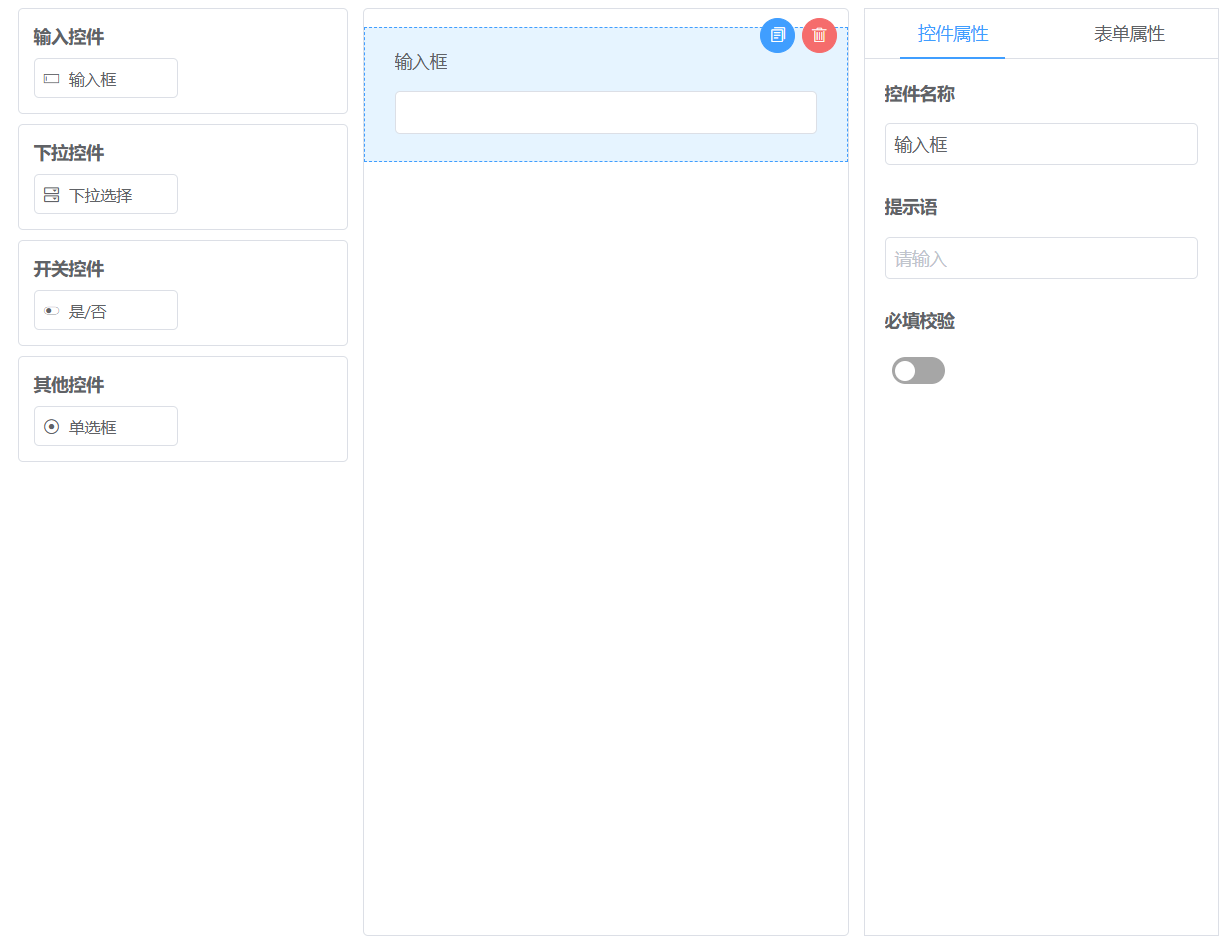
html
<template>
  <div>
    <vxe-form-design :widgets="formDesignWidgets" :height="800"></vxe-form-design>
  </div>
</template>

<script setup>
import { ref } from 'vue'

const formDesignWidgets = ref([
  {
    customGroup: '输入控件',
    children: [
      'VxeInput'
    ]
  },
  {
    customGroup: '下拉控件',
    children: [
      'VxeSelect'
    ]
  },
  {
    customGroup: '开关控件',
    children: [
      'VxeSwitch'
    ]
  },
  {
    customGroup: '其他控件',
    children: [
      'VxeRadioGroup'
    ]
  }
])
</script>
定义控件
创建了一个自定义的输入框控件,说明,一个控件包含几个步骤:定义控件数据,定义控件表单项模板,定义控件右侧参数配置模板
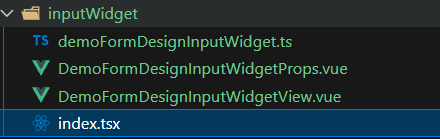
具体自行命名,该控件示例目录:
步骤1,定义控件数据
目录:src/form-design/inputWidget/demoFormDesignInputWidget.js
这里是定义该控件的字段参数
html
export const getFormDesignWidgetInputConfig = () => {
  return {
    // 控件名称
    title: '单行输入',
    // 控件图标
    icon: 'vxe-icon-input',
    // 控件参数,用于在右侧配置
    options: {
      placeholder: '请输入',
      maxLength: '',
      showWordCount: false,
      clearable: true,
      align: ''
    }
  }
}
步骤2,定义控件表单项模板
目录:src/form-design/inputWidget/DemoFormDesignInputWidgetView.vue
这里是定义该控件的渲染时的表单模板
html
<template>
  <vxe-form-item :field="currWidget.field" :title="currWidget.title">
    <vxe-input
      v-model="widgetModel"
      :placeholder="currWidget.options.placeholder"
      :maxLength="currWidget.options.maxLength"
      :show-word-count="currWidget.options.showWordCount"
      :align="currWidget.options.align">
    </vxe-input>
  </vxe-form-item>
</template>

<script setup>
import { VxeUI } from 'vxe-pc-ui'

const { useWidgetView } = VxeUI.formDesignHandle

const props = defineProps({
  renderOpts: {
    type: Object,
    default: () => ({})
  },
  renderParams: {
    type: Object,
    default: () => ({})
  }
})

const { currWidget, widgetModel } = useWidgetView(props)
</script>
步骤3,定义控件右侧参数配置模板
目录:src/form-design/inputWidget/DemoFormDesignInputWidgetProps.vue
这里是定义控件拖拽到视图后,右侧显示的字段配置模板
html
<template>
  <vxe-form
    vertical
    title-bold
    title-overflow
    span="24"
    :data="currWidget.options">
    <vxe-form-item title="控件字段名" :title-prefix="{icon: 'vxe-icon-question-circle-fill', content: '唯一字段名,默认自动生成'}">
      <vxe-input v-model="currWidget.field" placeholder="唯一,默认自动生成"></vxe-input>
    </vxe-form-item>
    <vxe-form-item title="控件名称">
      <vxe-input v-model="currWidget.title"></vxe-input>
    </vxe-form-item>
    <vxe-form-item title="是否必填">
      <vxe-switch v-model="currWidget.required"></vxe-switch>
    </vxe-form-item>
    <vxe-form-item title="空值占位提示">
      <vxe-input v-model="currWidget.options.placeholder"></vxe-input>
    </vxe-form-item>
    <vxe-form-item title="显示清除按钮">
      <vxe-switch v-model="currWidget.options.clearable"></vxe-switch>
    </vxe-form-item>
    <vxe-form-item title="限制字符长度">
      <vxe-number-input v-model="currWidget.options.maxLength" type="integer" min="0" max="3000"></vxe-number-input>
    </vxe-form-item>
    <vxe-form-item title="是否显示字数统计">
      <vxe-switch v-model="currWidget.options.showWordCount"></vxe-switch>
    </vxe-form-item>
    <vxe-form-item title="对齐方式">
      <vxe-radio-group v-model="currWidget.options.align">
        <vxe-radio label="" content="居左"></vxe-radio>
        <vxe-radio label="center" content="居中"></vxe-radio>
        <vxe-radio label="right" content="居右"></vxe-radio>
      </vxe-radio-group>
    </vxe-form-item>
  </vxe-form>
</template>

<script setup>
import { computed } from 'vue'

const props = defineProps({
  renderOpts: {
    type: Object,
    default: () => ({})
  },
  renderParams: {
    type: Object,
    default: () => ({})
  }
})

const currWidget = computed(() => {
  const { renderParams } = props
  return renderParams.widget
})
</script>
注册控件
目录:src/form-design/inputWidget/index.jsx
html
import { VxeUI } from 'vxe-pc-ui'
import { getFormDesignWidgetInputConfig } from './demoFormDesignInputWidget'
import DemoFormDesignInputWidgetView from './DemoFormDesignInputWidgetView.vue'
import DemoFormDesignInputWidgetProps from './DemoFormDesignInputWidgetProps.vue'

// 创建表单设计器控件 - 单行输入
VxeUI.renderer.add('MyFormDesignInputWidget', {
  // 定义左侧控件
  createFormDesignWidgetConfig: getFormDesignWidgetInputConfig,
  // 渲染控件的表单视图
  renderFormDesignWidgetView (renderOpts, renderParams) {
    return <DemoFormDesignInputWidgetView renderOpts={renderOpts} renderParams={renderParams}/>
  },
  // 渲染控件右侧的属性配置视图
  renderFormDesignWidgetFormView (renderOpts, renderParams) {
    return <DemoFormDesignInputWidgetProps renderOpts={renderOpts} renderParams={renderParams}/>
  }
})
在 main.js 引入
javascript
// ...
import './form-design/inputWidget'
// ...
使用效果
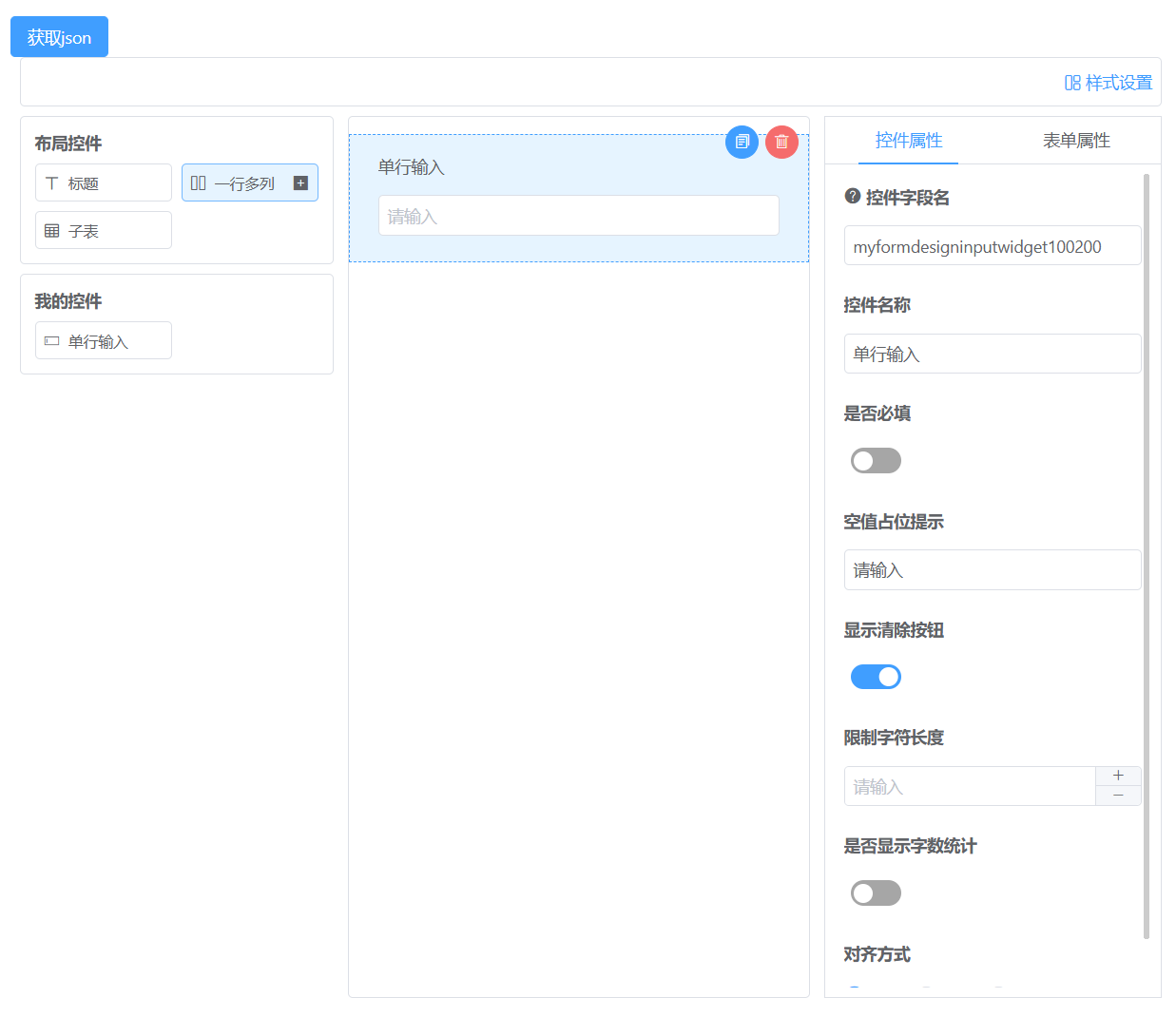
以上就创建了一个控件,对于业务开发就可以继续创建控件了,最终就可以实现一个低代码或零代码平台,可视化拖拽就可以生成业务系统
html