在AI 问答烂大街的今天,只要是个平台都在搞聊天机器人,主要应用场景无非是问答式的"智能"客服。
笔者所在小团队维护着一个OA系统(技术栈:react17 + webpack5.0 + tailwindcss + ArcoDesign),该系统沉淀了很多知识文档,经过后端同学的努力(据说是用了开源框架实现文档的Embedding)将其文档知识化,搭配司内部署的DeepSeek,基本实现了boss要求的智能问答。
智能问答UI
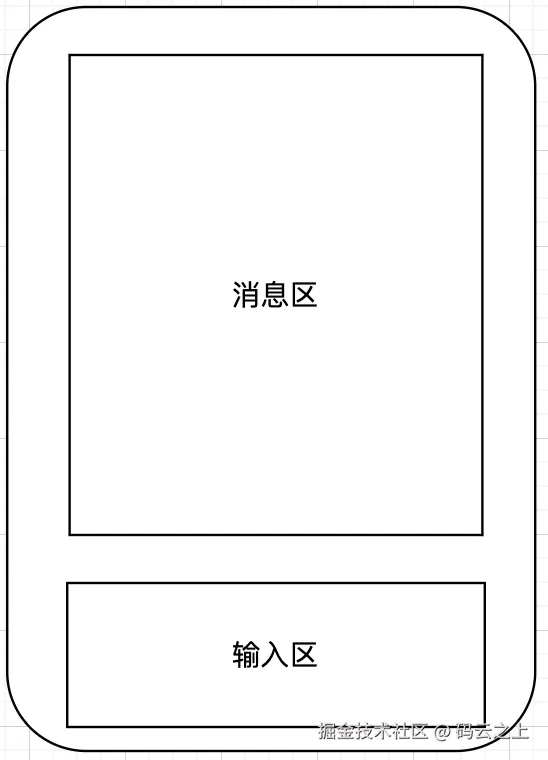
因为是内部OA系统,使用者基本是HR小姐姐,她们给的需求基本是一句话描述,哈哈哈,也挺好,方便笔者自由发挥。 参(抄)考(袭)类似平台的交互,决定采用右侧抽屉的形式底部一个输入框,上方展示消息区:
搞事1.0
HR小姐姐: 这个对话框挺好用的,只是固定在页面左侧,能不能像微信一样自由拖动到屏幕其他位置?
我:额,这是前端页面,全屏幕拖动可实现不了,在当前页面拖动还可以努力一下。
HR小姐姐: 当前页面拖动不就是在显示屏上拖动嘛,有什么区别呢~
我:额...
实现
要拖动是吧,那还不简单,都2025年了,拖动还不是随便找个库就可以打发实现。
首先想到的便是 react-dnd ,但是吧,这个库能力很强大,用来做单组件的拖动太杀鸡用牛刀了。而且笔者不喜欢重复以往的方案,喜欢用点新玩意儿。
继续 Searching,啊哈,还真找着了一个轻量且合适的库:react-rnd
其文档中的例子和契合本次需求: 
说干就干,引入 react-rnd,按照官方文档进行配置:
js
import { Rnd } from "react-rnd";

export function DragForm() {
  return (
    <Rnd
      default={{
        x: 0,
        y: 0,
        width: 500,
        height: 190,
      }}
      minWidth={500}
      minHeight={190}
      bounds="window"
    >
      <div className="drag__content">
        <MyForm />
      </div>
    </Rnd>
  );
}
优化1完成,交差!
搞事1.1
HR小姐姐: 可以拖动啦,真的很丝滑唉~,能不能支持折叠?有时候我想看页面主体内容但是又不想关掉弹窗,关掉再打开历史记录就没了(当时着急交差,还不支持查看历史会话)。
好吧,我就知道没那么简单~
继续优化,折叠嘛,用上 Collapse 组件不就行了。
js
// 下面为 demo 代码,使用简易 Form 代替了 Drawer 内容
export function DragForm() {
  return (
    <Rnd
      default={{
        x: 0,
        y: 0,
        width: 500,
        height: 190,
      }}
      minWidth={500}
      minHeight={190}
      bounds="window"
    >
      <div className="drag__content">
        <Collapse expandIcon className="collapse__header" defaultActiveKey="1">
          <CollapseItem name="1" header="折叠面板">
            <MyForm />
          </CollapseItem>
        </Collapse>
      </div>
    </Rnd>
  );
}
嗯,能拖动,能折叠,这回够用了吧。
搞事2.0
HR小姐姐: 不对啊,我这边展开内容后,下面部分被挡住了:
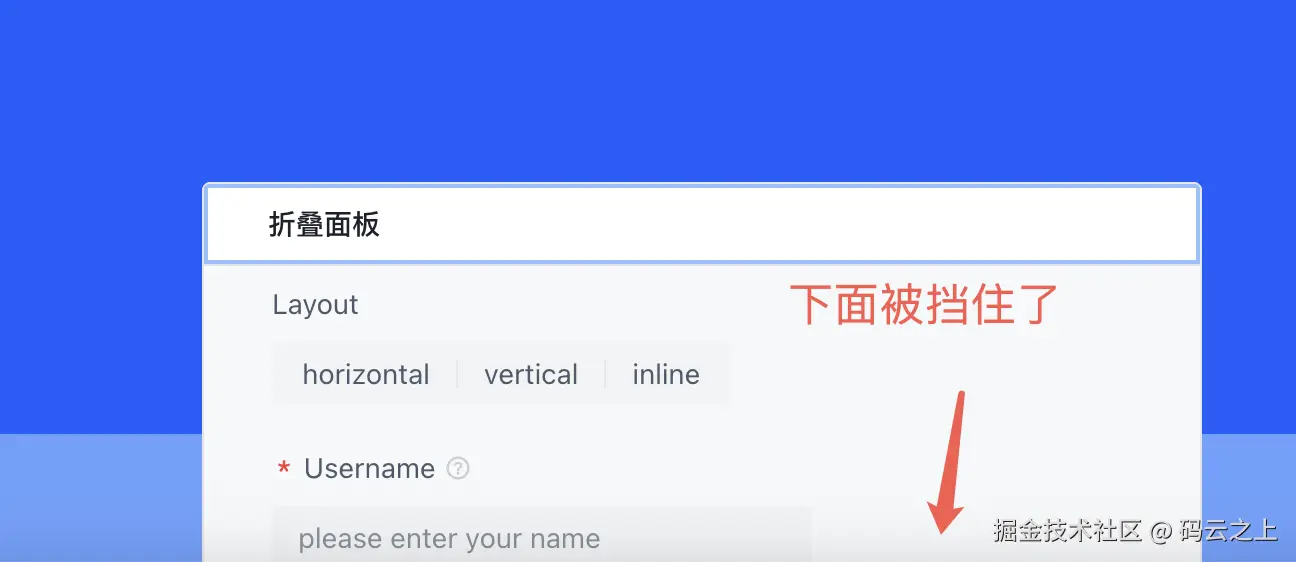
能不能让被挡住部分自动移动上来?不要让我手工调整位置?
好吧好吧,继续优化~
初步优化
首先分析问题原因:

Collapse展开、收起时会引发容器高度的变化,但是没有触发rnd容器的位置变化,造成内容被遮挡了,所以解决办法是监听Collapse的onChange事件,在回调里重新定位,防止rnd容器溢出可视范围。
效果:
进一步优化
上面的处理可以解决 Collapse 展开时被遮挡问题,但是用户可以无限制拖动 Collapse,将 Collapse 拖动到视窗之外,所以还需要给拖动加上一个边界,防止内容被拖动到视窗之外。
这里有两种实现:
- 限定拖动范围,当
Collapse离开视窗时禁止拖动 - 增加兜底逻辑,当最后防止位置不在视窗范围内时,自动将
Collapse定位到最低可视范围内
综合用户体验,决定采用第二种实现。
提取工具类
为了满足拖动后自动定位,需要实现一个工具函数,笔者刚开始写的时候确实是定义了一个function,最后发现内联方法越来越多,最后重构为一个 Class:
JavaScript
export interface IPositionData {
  x: number;
  y: number;
}
export interface ISizeData {
  width: number;
  height: number;
}

export interface IHelpPanelRectData {
  defaultRightOffset: number;
  defaultBottomOffset: number;
  defaultTopOffset: number;
  defaultSize: ISizeData;
}

export const getDefaultRect = (data: IHelpPanelRectData) => {
  const winWidth = window.innerWidth;
  const winHeight = window.innerHeight;
  const width = Math.min(
    winWidth - data.defaultRightOffset,
    data.defaultSize.width
  );
  const height = Math.min(
    winHeight - data.defaultBottomOffset - data.defaultTopOffset,
    data.defaultSize.height
  );
  const position = {
    x: winWidth - width - data.defaultRightOffset,
    y: winHeight - height - data.defaultBottomOffset,
  };
  return { size: { width, height }, position };
};

export default class HelpPanelRect {
  // 拖动容器最小高度
  public minHeight = 100;
  // 拖动容器最小宽度
  public minWidth = 400;
  // 拖动容器最大高度
  public maxHeight = 1024;
  // 拖动容器最大宽度
  public maxWidth = 1024;
  // 默认上边距
  public defaultTopOffset = 20;
  // 当前上边距
  public topOffset = 20;
  // 默认右边距
  public defaultRightOffset = 20;
  // 当前右边距
  public rightOffset = 20;
  // 默认情况下距底高度,紧贴帮助按钮
  public defaultBottomOffset = 20;
  // 面板移动之后底部边距,0 表示紧贴窗口
  public bottomOffset = 20;
  // 默认大小
  public defaultSize = {
    width: 450,
    height: 457,
  };
  // 最大大小
  public maxSize = {
    width: this.maxWidth,
    height: this.maxHeight,
  };

  private prevSize: ISizeData;
  private prevPosition: IPositionData;

  constructor(data: IHelpPanelRectData) {
    this.defaultRightOffset = data.defaultRightOffset;
    this.defaultBottomOffset = data.defaultBottomOffset;
    this.defaultTopOffset = data.defaultTopOffset;
    this.defaultSize = data.defaultSize;

    this.prevSize = this.defaultSize;
    this.prevPosition = this.getDefaultRect(data).position;
  }

  // 点击入口按钮时的初始状态
  getDefaultRect(data?: IHelpPanelRectData) {
    const defaultRect = data ? getDefaultRect(data) : getDefaultRect(this);
    this.prevSize = defaultRect.size;
    return {
      ...defaultRect,
    };
  }

  /**
   *
   * @param windowIsResize 是否拖动浏览器窗口
   */
  getRectByWindowResize(windowIsResize = false) {
    const winWidth = window.innerWidth;
    const winHeight = window.innerHeight;
    let { x, y } = this.prevPosition;
    y = Math.max(y, this.topOffset);

    const getMaxHeight = () =>
      Math.max(
        this.minHeight,
        Math.min(winHeight - y - this.bottomOffset, this.maxHeight)
      );

    let { width, height } = this.prevSize;
    if (this.rightOffset + x + width > winWidth) {
      if (x > 0) {
        x = Math.max(winWidth - width - this.rightOffset, 0);
      } else {
        width = Math.max(
          this.minWidth,
          Math.min(winWidth - this.rightOffset, this.maxWidth)
        );
      }
    }

    if (y + height + this.bottomOffset > winHeight) {
      if (y > this.topOffset) {
        y = Math.max(this.topOffset, winHeight - height - this.bottomOffset);
      } else {
        height = Math.max(
          this.minHeight,
          Math.min(
            winHeight - this.topOffset - this.bottomOffset,
            this.maxHeight
          )
        );
      }
    } else {
      height = windowIsResize
        ? getMaxHeight()
        : Math.min(height, winHeight - this.bottomOffset - this.topOffset);
    }

    return { size: { width, height }, position: { x, y } };
  }

  /**
   * 尺寸不变,只调整位置
   * @param position 拖动之后的位置
   */
  getRectByPosition(position: IPositionData) {
    const winWidth = window.innerWidth;
    const winHeight = window.innerHeight;
    const { width, height } = this.prevSize;

    this.prevPosition = {
      x: Math.min(Math.max(0, position.x), winWidth - width - this.rightOffset),
      y: Math.min(
        Math.max(0, this.topOffset, position.y),
        winHeight - height - this.bottomOffset
      ),
    };

    return { size: { width, height }, position: this.prevPosition };
  }

  getRectByResize(pos?: IPositionData, s?: ISizeData) {
    this.prevSize = s ?? this.prevSize;

    this.prevPosition = pos ?? this.prevPosition;

    const { size, position } = this.getRectByWindowResize();
    this.prevSize = size;
    this.prevPosition = position;
    return { size, position };
  }

  getRect() {
    return { position: this.prevPosition, size: this.prevSize };
  }

  setRect(position?: IPositionData, size?: ISizeData) {
    this.prevPosition = position ?? this.prevPosition;
    this.prevSize = size ?? this.prevSize;
  }

  setDefaultSize(size: ISizeData) {
    this.defaultSize = size;
  }

  setSize(size: ISizeData) {
    this.prevSize = size;
  }

  resetSize() {
    this.prevSize = this.defaultSize;
  }

  resetPosition() {
    const winWidth = window.innerWidth;
    const winHeight = window.innerHeight;
    const { height, width } = this.prevSize;

    this.prevPosition = {
      x: winWidth - width - this.defaultRightOffset,
      y: winHeight - height - this.defaultBottomOffset,
    };
  }

  /**
   * 重置布局
   */
  resetRect() {
    this.resetSize();
    this.resetPosition();
  }
}
使用示例:
JavaScript
import { Rnd } from "react-rnd";
import {
  Form,
  Input,
  Checkbox,
  Button,
  Radio,
  Collapse,
} from "@arco-design/web-react";
import "./DragForm.less";
import { useRef, useState, useLayoutEffect } from "react";
import HelpPanelRect from "../utils/HelpPanelRect";

const FormItem = Form.Item;
const RadioGroup = Radio.Group;
const CollapseItem = Collapse.Item;

const helpPanelRect = new HelpPanelRect({
  defaultRightOffset: 20,
  defaultBottomOffset: 20,
  defaultTopOffset: 20,
  defaultSize: {
    width: 400,
    height: 300,
  },
});

/**
 *
 */
export function DragForm() {
  const panelRef = useRef<HTMLDivElement>(null);

  // 浮窗大小
  const [floatPanelSize, setFloatPanelSize] = useState(
    helpPanelRect.defaultSize
  );
  // 浮窗坐标
  const [floatPanelPosition, setFloatPanelPosition] = useState(
    helpPanelRect.getDefaultRect().position
  );

  useLayoutEffect(() => {
    if (!panelRef.current) {
      return;
    }

    const target = panelRef.current;
    const resizeObserver = new ResizeObserver((entries) => {
      for (const entry of entries) {
        const { width, height } = entry.contentRect;
        if (
          width === floatPanelSize.width &&
          height === floatPanelSize.height
        ) {
          continue;
        }
        setFloatPanelSize({ width, height });
        helpPanelRect.setDefaultSize({ width, height });
        // 更新面板高度
        const newSize = {
          ...floatPanelSize,
          height,
        };

        // 获取当前位置并调整,确保面板不会超出视口
        const currentRect = helpPanelRect.getRectByResize(
          floatPanelPosition,
          newSize
        );

        setFloatPanelSize(currentRect.size);
        setFloatPanelPosition(currentRect.position);
      }
    });
    if (target) {
      resizeObserver.observe(target);
    }

    return () => {
      resizeObserver.disconnect();
    };
  }, [panelRef, floatPanelSize, floatPanelPosition]);

  return (
    <Rnd
      style={{
        pointerEvents: "all",
        zIndex: 101,
      }}
      className="float-panel"
      disableDragging={false}
      enableResizing={{
        bottom: false,
        bottomLeft: false,
        bottomRight: false,
        left: false,
        right: false,
        top: false,
        topLeft: false,
        topRight: false,
      }}
      position={floatPanelPosition}
      size={floatPanelSize}
      maxWidth={helpPanelRect.maxWidth}
      maxHeight={helpPanelRect.maxHeight}
      minHeight={helpPanelRect.minHeight}
      minWidth={helpPanelRect.minWidth}
      onResizeStop={(e, direction, ref, delta, position) => {
        const currentRect = helpPanelRect.getRectByResize(position, {
          width: parseInt(ref.style.width, 10),
          height: parseInt(ref.style.height, 10),
        });
        setFloatPanelSize(currentRect.size);
        setFloatPanelPosition(currentRect.position);
      }}
      onDragStop={(e, data) => {
        const currentRect = helpPanelRect.getRectByPosition(data);
        setFloatPanelSize(currentRect.size);
        setFloatPanelPosition(currentRect.position);
      }}
      dragHandleClassName="drag__content"
    >
      <div ref={panelRef} className="drag__content">
        <header className="drag__header">拖动区域</header>
        <Collapse expandIcon className="collapse__header" defaultActiveKey="1">
          <CollapseItem name="1" header="折叠面板">
            <MyForm />
          </CollapseItem>
        </Collapse>
      </div>
    </Rnd>
  );
}

function MyForm() {
  return (
    <Form
      style={{
        maxWidth: 600,
      }}
      autoComplete="off"
      layout={"vertical"}
    >
      <FormItem label="Layout">
        <RadioGroup type="button" name="layout">
          <Radio value="horizontal">horizontal</Radio>
          <Radio value="vertical">vertical</Radio>
          <Radio value="inline">inline</Radio>
        </RadioGroup>
      </FormItem>
      <FormItem
        label="Username"
        field="username"
        tooltip={<div>Username is required </div>}
        rules={[{ required: true }]}
      >
        <Input style={{ width: 270 }} placeholder="please enter your name" />
      </FormItem>
      <FormItem label="Post">
        <Input style={{ width: 270 }} placeholder="please enter your post" />
      </FormItem>
      <FormItem wrapperCol={{}}>
        <Checkbox>I have read the manual</Checkbox>
      </FormItem>
      <FormItem wrapperCol={{}}>
        <Button type="primary" htmlType="submit">
          Submit
        </Button>
      </FormItem>
    </Form>
  );
}
上面的代码基本演示了 HelpPanelRect 的使用。
PS: 第一步优化中监听
Collapse的onChange事件来重新定位的实现被我改成了监听 ResizeObserver,这样可以解决真正展开、收起Collapse后误触发重新定位的bug
最终效果

小结
- 全屏拖拽应该是很常见的功能,社区里也有很多好的实现,但是有特殊位置要求时就需要有额外开发;
- 文中的工具函数结合
react-rnd可以适配很多拖拽时有边界控制的场景,希望给大家带来一点帮助。