欢迎加入开源鸿蒙跨平台社区:https://openharmonycrossplatform.csdn.net
🎯 欢迎来到 Flutter for OpenHarmony 社区!本文将深入讲解 Flutter 中 fluttertoast 消息提示组件的使用方法,带你全面掌握在应用中显示 Toast 提示的各种技巧。
一、fluttertoast 组件概述
在 Flutter for OpenHarmony 应用开发中,fluttertoast 是一个非常实用的消息提示插件,用于在应用中显示简短的 Toast 提示信息。Toast 是一种轻量级的反馈机制,它会在屏幕上短暂显示一条消息,然后自动消失,不会打断用户的操作流程。
📋 fluttertoast 组件特点
| 特点 | 说明 |
|---|---|
| 跨平台支持 | 支持 Android、iOS、Web、OpenHarmony |
| 轻量级 | 不需要上下文,可在任何地方调用 |
| 自定义样式 | 支持自定义背景色、文字颜色、位置、时长等 |
| 非阻塞式 | Toast 显示不会阻塞用户操作 |
| 自动消失 | Toast 会在显示一段时间后自动消失 |
| 简单易用 | API 简洁直观,一行代码即可显示 Toast |
💡 使用场景:操作成功提示、错误信息提示、网络状态提示、表单验证反馈、复制成功提示等轻量级消息通知。
二、OpenHarmony 平台适配说明
2.1 兼容性信息
本项目基于 fluttertoast@8.2.8 开发,适配 Flutter 3.27.5-ohos-1.0.4。
2.2 支持的功能
在 OpenHarmony 平台上,fluttertoast 支持以下功能:
| 功能 | 说明 | OpenHarmony 支持 |
|---|---|---|
| showToast() | 显示 Toast 消息 | ✅ yes |
| cancel() | 取消当前显示的 Toast | ✅ yes |
| 自定义背景色 | 设置 Toast 背景颜色 | ✅ yes |
| 自定义文字颜色 | 设置 Toast 文字颜色 | ✅ yes |
| 自定义位置 | 设置 Toast 显示位置 | ✅ yes |
| 自定义时长 | 设置 Toast 显示时长 | ✅ yes |
三、项目配置与安装
3.1 添加依赖配置
首先,需要在你的 Flutter 项目的 pubspec.yaml 文件中添加 fluttertoast 依赖。
打开项目根目录下的 pubspec.yaml 文件,找到 dependencies 部分,添加以下配置:
yaml
dependencies:
  flutter:
    sdk: flutter

  # 添加 fluttertoast 依赖(OpenHarmony 适配版本)
  fluttertoast:
    git:
      url: "https://atomgit.com/openharmony-sig/flutter_fluttertoast.git"
      ref: "br_8.2.8_ohos"
配置说明:
- 使用 git 方式引用开源鸿蒙适配的 flutter_fluttertoast 仓库
url:指定 AtomGit 托管的仓库地址ref:指定适配 OpenHarmony 的分支版本- 本项目基于
fluttertoast@8.2.8开发,适配 Flutter 3.27.5-ohos-1.0.4
⚠️ 重要:对于 OpenHarmony 平台,必须使用 git 方式引用适配版本,不能直接使用 pub.dev 的版本号。
3.2 下载依赖
配置完成后,需要在项目根目录执行以下命令下载依赖:
bash
flutter pub get执行成功后,你会看到类似以下的输出:
Running "flutter pub get" in my_cross_platform_app...
Resolving dependencies...
Got dependencies!
3.3 依赖自动配置说明
执行 flutter pub get 后,OpenHarmony 平台的依赖会自动配置到 ohos/entry/oh-package.json5 文件中。Flutter 构建系统会自动处理平台相关的依赖配置,无需手动干预。
四、fluttertoast 基础用法
4.1 导入库
在使用 fluttertoast 之前,需要先导入库:
dart
import 'package:fluttertoast/fluttertoast.dart';4.2 显示简单 Toast
最简单的 Toast 调用方式:
dart
Fluttertoast.showToast(
  msg: "这是一条 Toast 消息",
);
4.3 自定义 Toast 样式
fluttertoast 提供了丰富的自定义选项:
dart
Fluttertoast.showToast(
  msg: "操作成功!",
  toastLength: Toast.LENGTH_SHORT,
  gravity: ToastGravity.BOTTOM,
  timeInSecForIosWeb: 1,
  backgroundColor: Colors.green,
  textColor: Colors.white,
  fontSize: 16.0,
);
4.4 Toast 位置设置
Toast 可以显示在屏幕的不同位置:
dart
// 底部显示(默认)
Fluttertoast.showToast(
  msg: "底部 Toast",
  gravity: ToastGravity.BOTTOM,
);

// 居中显示
Fluttertoast.showToast(
  msg: "居中 Toast",
  gravity: ToastGravity.CENTER,
);

// 顶部显示
Fluttertoast.showToast(
  msg: "顶部 Toast",
  gravity: ToastGravity.TOP,
);
4.5 Toast 时长设置
Toast 支持两种显示时长:
dart
// 短时间显示(约 2 秒)
Fluttertoast.showToast(
  msg: "短时间 Toast",
  toastLength: Toast.LENGTH_SHORT,
);

// 长时间显示(约 3.5 秒)
Fluttertoast.showToast(
  msg: "长时间 Toast",
  toastLength: Toast.LENGTH_LONG,
);
五、常用 API 详解
5.1 showToast - 显示 Toast
显示 Toast 消息的主要方法:
dart
Fluttertoast.showToast({
  required String msg,              // 必填:Toast 消息内容
  Toast? toastLength,               // 显示时长:LENGTH_SHORT 或 LENGTH_LONG
  int? timeInSecForIosWeb,          // iOS/Web 平台的显示秒数
  double? fontSize,                 // 文字大小
  ToastGravity? gravity,            // 显示位置
  Color? backgroundColor,           // 背景颜色
  Color? textColor,                 // 文字颜色
});
参数说明:
| 参数 | 类型 | 默认值 | 说明 |
|---|---|---|---|
| msg | String | 必填 | Toast 显示的消息内容 |
| toastLength | Toast | LENGTH_SHORT | Toast 显示时长 |
| timeInSecForIosWeb | int | 1 | iOS/Web 平台显示秒数 |
| fontSize | double | 16.0 | 文字大小 |
| gravity | ToastGravity | BOTTOM | Toast 显示位置 |
| backgroundColor | Color | Colors.black87 | 背景颜色 |
| textColor | Color | Colors.white | 文字颜色 |
5.2 cancel - 取消 Toast
取消当前正在显示的 Toast:
dart
Fluttertoast.cancel();使用场景:
- 页面退出时取消 Toast
- 显示新的 Toast 前取消旧的 Toast
- 用户主动关闭 Toast
5.3 ToastGravity - 位置枚举
Toast 显示位置的枚举值:
| 枚举值 | 说明 |
|---|---|
| ToastGravity.TOP | 屏幕顶部显示 |
| ToastGravity.CENTER | 屏幕居中显示 |
| ToastGravity.BOTTOM | 屏幕底部显示 |
5.4 Toast - 时长枚举
Toast 显示时长的枚举值:
| 枚举值 | 说明 |
|---|---|
| Toast.LENGTH_SHORT | 短时间显示 |
| Toast.LENGTH_LONG | 长时间显示 |
六、实际应用场景
6.1 操作成功提示
dart
class SuccessToastExample extends StatelessWidget {
  const SuccessToastExample({super.key});

  void _showSuccessToast() {
    Fluttertoast.showToast(
      msg: "保存成功!",
      toastLength: Toast.LENGTH_SHORT,
      gravity: ToastGravity.CENTER,
      backgroundColor: Colors.green,
      textColor: Colors.white,
      fontSize: 16.0,
    );
  }

  @override
  Widget build(BuildContext context) {
    return ElevatedButton(
      onPressed: _showSuccessToast,
      child: const Text('保存'),
    );
  }
}
6.2 错误提示
dart
class ErrorToastExample extends StatelessWidget {
  const ErrorToastExample({super.key});

  void _showErrorToast(String message) {
    Fluttertoast.showToast(
      msg: message,
      toastLength: Toast.LENGTH_LONG,
      gravity: ToastGravity.CENTER,
      backgroundColor: Colors.red,
      textColor: Colors.white,
      fontSize: 16.0,
    );
  }

  Future<void> _submitForm() async {
    try {
      // 提交表单逻辑
      await Future.delayed(const Duration(seconds: 1));
      Fluttertoast.showToast(
        msg: "提交成功!",
        backgroundColor: Colors.green,
        textColor: Colors.white,
      );
    } catch (e) {
      _showErrorToast("提交失败:$e");
    }
  }

  @override
  Widget build(BuildContext context) {
    return ElevatedButton(
      onPressed: _submitForm,
      child: const Text('提交'),
    );
  }
}
6.3 网络状态提示
dart
class NetworkToastExample {
  void showNetworkError() {
    Fluttertoast.showToast(
      msg: "网络连接失败,请检查网络设置",
      toastLength: Toast.LENGTH_LONG,
      gravity: ToastGravity.BOTTOM,
      backgroundColor: Colors.orange,
      textColor: Colors.white,
    );
  }

  void showNetworkRestored() {
    Fluttertoast.showToast(
      msg: "网络已恢复",
      toastLength: Toast.LENGTH_SHORT,
      gravity: ToastGravity.BOTTOM,
      backgroundColor: Colors.blue,
      textColor: Colors.white,
    );
  }
}
6.4 表单验证提示
dart
class FormValidationExample extends StatefulWidget {
  const FormValidationExample({super.key});

  @override
  State<FormValidationExample> createState() => _FormValidationExampleState();
}

class _FormValidationExampleState extends State<FormValidationExample> {
  final TextEditingController _emailController = TextEditingController();
  final TextEditingController _passwordController = TextEditingController();

  bool _validateForm() {
    if (_emailController.text.isEmpty) {
      Fluttertoast.showToast(
        msg: "请输入邮箱地址",
        backgroundColor: Colors.orange,
        textColor: Colors.white,
      );
      return false;
    }

    if (!_emailController.text.contains('@')) {
      Fluttertoast.showToast(
        msg: "请输入有效的邮箱地址",
        backgroundColor: Colors.orange,
        textColor: Colors.white,
      );
      return false;
    }

    if (_passwordController.text.length < 6) {
      Fluttertoast.showToast(
        msg: "密码长度不能少于6位",
        backgroundColor: Colors.orange,
        textColor: Colors.white,
      );
      return false;
    }

    return true;
  }

  void _submit() {
    if (_validateForm()) {
      Fluttertoast.showToast(
        msg: "登录成功!",
        backgroundColor: Colors.green,
        textColor: Colors.white,
      );
    }
  }

  @override
  Widget build(BuildContext context) {
    return Column(
      children: [
        TextField(
          controller: _emailController,
          decoration: const InputDecoration(labelText: '邮箱'),
        ),
        TextField(
          controller: _passwordController,
          decoration: const InputDecoration(labelText: '密码'),
          obscureText: true,
        ),
        const SizedBox(height: 16),
        ElevatedButton(
          onPressed: _submit,
          child: const Text('登录'),
        ),
      ],
    );
  }
}
6.5 复制成功提示
dart
import 'package:flutter/services.dart';

class CopyToastExample extends StatelessWidget {
  const CopyToastExample({super.key});

  Future<void> _copyToClipboard(String text) async {
    await Clipboard.setData(ClipboardData(text: text));
    Fluttertoast.showToast(
      msg: "已复制到剪贴板",
      toastLength: Toast.LENGTH_SHORT,
      gravity: ToastGravity.CENTER,
      backgroundColor: Colors.grey[800],
      textColor: Colors.white,
    );
  }

  @override
  Widget build(BuildContext context) {
    return IconButton(
      icon: const Icon(Icons.copy),
      onPressed: () => _copyToClipboard("复制的内容"),
    );
  }
}
七、完整示例代码
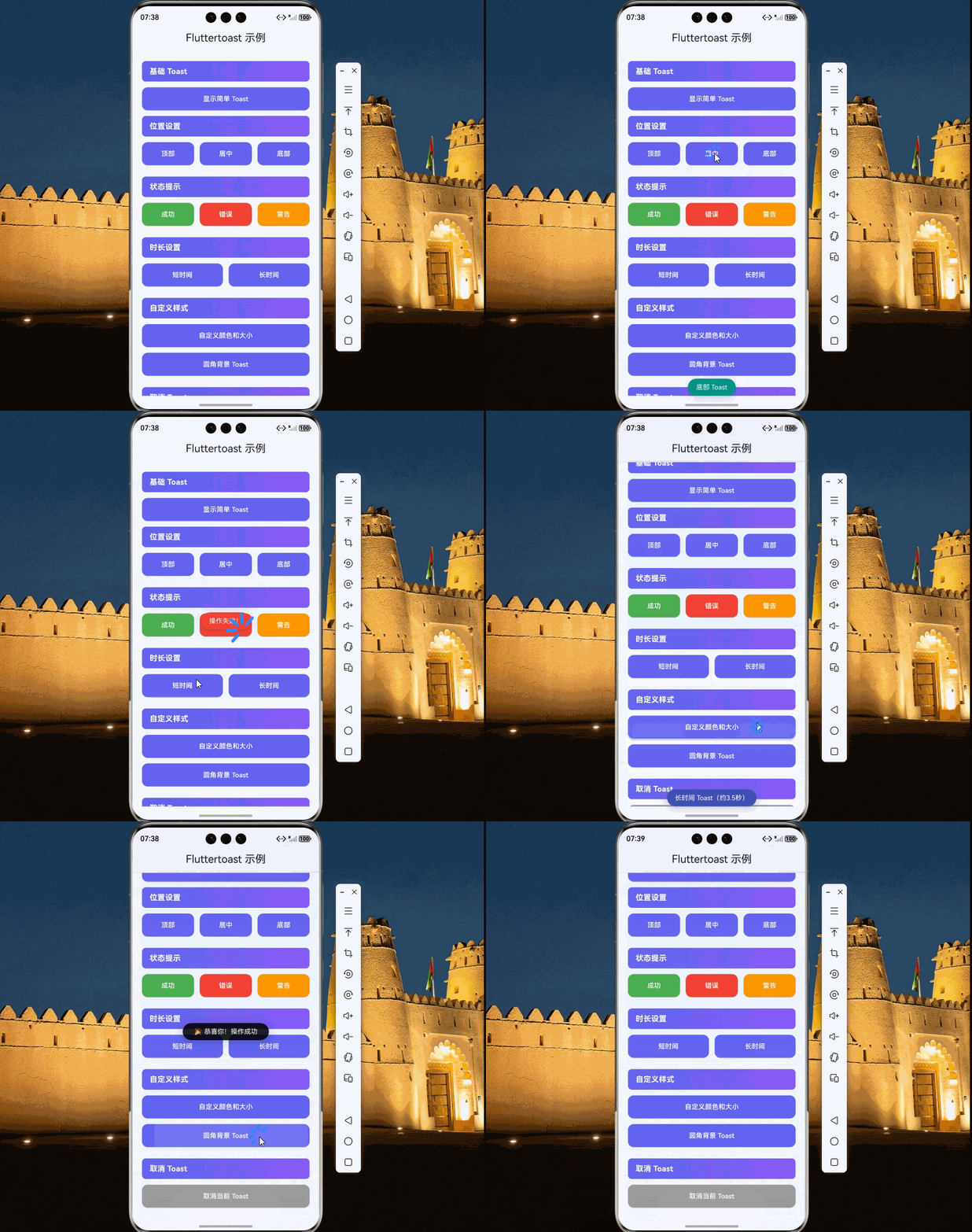
下面是一个完整的示例应用,展示了 fluttertoast 的各种用法:
dart
import 'package:flutter/material.dart';
import 'package:fluttertoast/fluttertoast.dart';

void main() {
  runApp(const MyApp());
}

class MyApp extends StatelessWidget {
  const MyApp({super.key});

  @override
  Widget build(BuildContext context) {
    return MaterialApp(
      title: 'Fluttertoast 示例',
      debugShowCheckedModeBanner: false,
      theme: ThemeData(
        colorScheme: ColorScheme.fromSeed(seedColor: const Color(0xFF6366F1)),
        useMaterial3: true,
      ),
      home: const ToastDemoPage(),
    );
  }
}

class ToastDemoPage extends StatelessWidget {
  const ToastDemoPage({super.key});

  @override
  Widget build(BuildContext context) {
    return Scaffold(
      appBar: AppBar(
        title: const Text('Fluttertoast 示例'),
        centerTitle: true,
        elevation: 0,
      ),
      body: Container(
        decoration: const BoxDecoration(
          gradient: LinearGradient(
            begin: Alignment.topCenter,
            end: Alignment.bottomCenter,
            colors: [
              Color(0xFFE8F4FF),
              Color(0xFFF8F9FF),
            ],
          ),
        ),
        child: SafeArea(
          child: SingleChildScrollView(
            padding: const EdgeInsets.all(20),
            child: Column(
              crossAxisAlignment: CrossAxisAlignment.stretch,
              children: [
                _buildSectionTitle('基础 Toast'),
                const SizedBox(height: 12),
                _buildButton('显示简单 Toast', () {
                  Fluttertoast.showToast(msg: "这是一条简单的 Toast 消息");
                }),
                const SizedBox(height: 12),
                _buildSectionTitle('位置设置'),
                const SizedBox(height: 12),
                Row(
                  children: [
                    Expanded(
                      child: _buildButton('顶部', () {
                        Fluttertoast.showToast(
                          msg: "顶部 Toast",
                          gravity: ToastGravity.TOP,
                          backgroundColor: Colors.blue,
                        );
                      }),
                    ),
                    const SizedBox(width: 12),
                    Expanded(
                      child: _buildButton('居中', () {
                        Fluttertoast.showToast(
                          msg: "居中 Toast",
                          gravity: ToastGravity.CENTER,
                          backgroundColor: Colors.purple,
                        );
                      }),
                    ),
                    const SizedBox(width: 12),
                    Expanded(
                      child: _buildButton('底部', () {
                        Fluttertoast.showToast(
                          msg: "底部 Toast",
                          gravity: ToastGravity.BOTTOM,
                          backgroundColor: Colors.teal,
                        );
                      }),
                    ),
                  ],
                ),
                const SizedBox(height: 24),
                _buildSectionTitle('状态提示'),
                const SizedBox(height: 12),
                Row(
                  children: [
                    Expanded(
                      child: _buildButton('成功', () {
                        Fluttertoast.showToast(
                          msg: "操作成功!",
                          gravity: ToastGravity.CENTER,
                          backgroundColor: Colors.green,
                          textColor: Colors.white,
                        );
                      }, color: Colors.green),
                    ),
                    const SizedBox(width: 12),
                    Expanded(
                      child: _buildButton('错误', () {
                        Fluttertoast.showToast(
                          msg: "操作失败!",
                          gravity: ToastGravity.CENTER,
                          backgroundColor: Colors.red,
                          textColor: Colors.white,
                        );
                      }, color: Colors.red),
                    ),
                    const SizedBox(width: 12),
                    Expanded(
                      child: _buildButton('警告', () {
                        Fluttertoast.showToast(
                          msg: "请注意!",
                          gravity: ToastGravity.CENTER,
                          backgroundColor: Colors.orange,
                          textColor: Colors.white,
                        );
                      }, color: Colors.orange),
                    ),
                  ],
                ),
                const SizedBox(height: 24),
                _buildSectionTitle('时长设置'),
                const SizedBox(height: 12),
                Row(
                  children: [
                    Expanded(
                      child: _buildButton('短时间', () {
                        Fluttertoast.showToast(
                          msg: "短时间 Toast(约2秒)",
                          toastLength: Toast.LENGTH_SHORT,
                          backgroundColor: Colors.indigo,
                        );
                      }),
                    ),
                    const SizedBox(width: 12),
                    Expanded(
                      child: _buildButton('长时间', () {
                        Fluttertoast.showToast(
                          msg: "长时间 Toast(约3.5秒)",
                          toastLength: Toast.LENGTH_LONG,
                          backgroundColor: Colors.indigo,
                        );
                      }),
                    ),
                  ],
                ),
                const SizedBox(height: 24),
                _buildSectionTitle('自定义样式'),
                const SizedBox(height: 12),
                _buildButton('自定义颜色和大小', () {
                  Fluttertoast.showToast(
                    msg: "自定义样式的 Toast",
                    gravity: ToastGravity.CENTER,
                    backgroundColor: const Color(0xFF6366F1),
                    textColor: Colors.white,
                    fontSize: 18.0,
                  );
                }),
                const SizedBox(height: 12),
                _buildButton('圆角背景 Toast', () {
                  Fluttertoast.showToast(
                    msg: "  🎉 恭喜你!操作成功  ",
                    gravity: ToastGravity.CENTER,
                    backgroundColor: Colors.black87,
                    textColor: Colors.white,
                    fontSize: 16.0,
                  );
                }),
                const SizedBox(height: 24),
                _buildSectionTitle('取消 Toast'),
                const SizedBox(height: 12),
                _buildButton('取消当前 Toast', () {
                  Fluttertoast.cancel();
                  ScaffoldMessenger.of(context).showSnackBar(
                    const SnackBar(content: Text('Toast 已取消')),
                  );
                }, color: Colors.grey),
              ],
            ),
          ),
        ),
      ),
    );
  }

  Widget _buildSectionTitle(String title) {
    return Container(
      padding: const EdgeInsets.symmetric(horizontal: 16, vertical: 10),
      decoration: BoxDecoration(
        gradient: const LinearGradient(
          colors: [Color(0xFF6366F1), Color(0xFF8B5CF6)],
        ),
        borderRadius: BorderRadius.circular(8),
      ),
      child: Text(
        title,
        style: const TextStyle(
          color: Colors.white,
          fontSize: 16,
          fontWeight: FontWeight.bold,
        ),
      ),
    );
  }

  Widget _buildButton(String text, VoidCallback onPressed, {Color? color}) {
    return ElevatedButton(
      onPressed: onPressed,
      style: ElevatedButton.styleFrom(
        backgroundColor: color ?? const Color(0xFF6366F1),
        foregroundColor: Colors.white,
        padding: const EdgeInsets.symmetric(vertical: 14),
        shape: RoundedRectangleBorder(
          borderRadius: BorderRadius.circular(12),
        ),
      ),
      child: Text(text),
    );
  }
}
八、Toast 与 SnackBar 的区别
在 Flutter 中,除了 Toast,还有 SnackBar 也可以用于显示提示信息。两者有以下区别:
| 特性 | Toast | SnackBar |
|---|---|---|
| 上下文依赖 | 不需要 BuildContext | 需要 ScaffoldMessenger |
| 显示位置 | 可自定义(上/中/下) | 固定在底部 |
| 交互能力 | 不支持交互 | 支持添加操作按钮 |
| 持续时间 | 固定时长 | 可自定义时长 |
| 隐藏方式 | 自动消失 | 可滑动关闭或手动关闭 |
| 适用场景 | 轻量级提示、无需交互 | 需要用户确认或操作的提示 |
选择建议:
- 如果只需要简单的提示信息,不需要用户交互,使用 Toast
- 如果需要用户确认或提供撤销操作,使用 SnackBar
九、常见问题与解决方案
9.1 Toast 不显示
问题原因:
- 未正确导入库
- 在 initState 中调用(Widget 未构建完成)
解决方案:
dart
// 错误示例
@override
void initState() {
  super.initState();
  Fluttertoast.showToast(msg: "初始化提示");  // 可能不显示
}

// 正确示例
@override
void initState() {
  super.initState();
  WidgetsBinding.instance.addPostFrameCallback((_) {
    Fluttertoast.showToast(msg: "初始化提示");
  });
}
9.2 Toast 样式不生效
问题原因:
- 平台限制,某些样式在某些平台上可能不支持
解决方案:
- 使用平台支持的样式属性
- 对于复杂样式需求,考虑使用 Overlay 或自定义 Widget
9.3 Toast 重复显示
问题原因:
- 快速点击按钮触发多次 Toast
解决方案:
dart
DateTime? _lastToastTime;

void _showToast(String message) {
  final now = DateTime.now();
  if (_lastToastTime == null ||
      now.difference(_lastToastTime!).inMilliseconds > 2000) {
    Fluttertoast.showToast(msg: message);
    _lastToastTime = now;
  }
}
十、总结
fluttertoast 是 Flutter for OpenHarmony 应用开发中常用的消息提示组件。通过本文的学习,我们掌握了:
- 基础用法:显示简单 Toast 消息
- 自定义样式:背景色、文字颜色、位置、时长等
- 位置设置:顶部、居中、底部显示
- 时长设置:短时间和长时间显示
- 实际应用:成功提示、错误提示、表单验证等场景
- 与 SnackBar 的区别:选择合适的提示方式
💡 开发建议:使用 fluttertoast 时应注意:
- Toast 应简洁明了,避免过长文字
- 选择合适的显示位置和颜色
- 避免在短时间内频繁显示 Toast
- 重要操作提示考虑使用 SnackBar 或 Dialog