欢迎加入开源鸿蒙跨平台社区:https://openharmonycrossplatform.csdn.net
🎯 欢迎来到 Flutter for OpenHarmony 社区!本文将深入讲解 Flutter 中 Transform 变换组件的使用方法,带你从基础到精通,掌握这一重要的视觉效果组件。
一、Transform 组件概述
Transform 是 Flutter 中用于对子组件进行各种变换的组件。通过 Transform,我们可以实现旋转、缩放、平移、倾斜等视觉效果,为应用增添丰富的动态感和交互性。Transform 使用矩阵变换来修改子组件的外观,但不会影响其布局。
📋 Transform 组件特点
| 特点 | 说明 |
|---|---|
| 不影响布局 | 变换只影响视觉效果,不影响组件的布局位置 |
| 多种变换类型 | 支持旋转、缩放、平移、倾斜等变换 |
| 高性能 | 使用 GPU 加速,变换操作非常高效 |
| 可组合 | 多个变换可以嵌套组合使用 |
| 支持动画 | 可以与动画组件配合实现动态效果 |
变换在 UI 设计中的作用
变换在用户界面设计中有着广泛的应用:
- 视觉动感:通过旋转和缩放增加界面的动感
- 交互反馈:按钮点击时的缩放效果
- 图标复用:通过翻转实现图标的镜像效果
- 动画效果:加载指示器的旋转动画
- 3D 效果:卡片翻转等 3D 视觉效果
- 创意布局:倾斜卡片等创意设计
💡 使用场景:Transform 广泛应用于旋转动画、按钮点击效果、图标翻转、加载指示器、卡片翻转、3D 效果等场景。
二、Transform.rotate 旋转变换
旋转变换是最常用的变换之一,可以让组件围绕中心点旋转。
2.1 最简单的旋转
最基础的旋转只需要设置 angle 参数:
dart
Transform.rotate(
  angle: 0.5,  // 弧度值
  child: Container(
    width: 100,
    height: 100,
    color: Colors.blue,
  ),
)
代码解析:
angle: 0.5:设置旋转角度为 0.5 弧度(约 28.6 度)child:要应用旋转效果的子组件- 默认围绕组件中心点旋转
2.2 角度与弧度
Flutter 使用弧度作为角度单位,需要导入 dart:math 库:
dart
import 'dart:math' as math;

Transform.rotate(
  angle: math.pi / 4,  // 45度
  child: Container(...),
)
常用角度对照表:
| 角度 | 弧度值 | 代码表示 |
|---|---|---|
| 15° | π/12 | math.pi / 12 |
| 30° | π/6 | math.pi / 6 |
| 45° | π/4 | math.pi / 4 |
| 90° | π/2 | math.pi / 2 |
| 180° | π | math.pi |
| 360° | 2π | 2 * math.pi |
2.3 设置旋转中心点
通过 origin 和 alignment 参数可以设置旋转中心:
dart
Transform.rotate(
  angle: math.pi / 4,
  origin: const Offset(0, 0),  // 以左上角为旋转中心
  child: Container(...),
)

Transform.rotate(
  angle: math.pi / 4,
  alignment: Alignment.topLeft,  // 左上角对齐
  child: Container(...),
)
2.4 完整示例
dart
class RotateExample extends StatelessWidget {
  const RotateExample({super.key});

  @override
  Widget build(BuildContext context) {
    return Scaffold(
      appBar: AppBar(title: const Text('旋转示例')),
      body: Center(
        child: Row(
          mainAxisAlignment: MainAxisAlignment.spaceEvenly,
          children: [
            _buildRotatedBox(0, '0°'),
            _buildRotatedBox(math.pi / 6, '30°'),
            _buildRotatedBox(math.pi / 4, '45°'),
            _buildRotatedBox(math.pi / 2, '90°'),
          ],
        ),
      ),
    );
  }

  Widget _buildRotatedBox(double angle, String label) {
    return Column(
      mainAxisSize: MainAxisSize.min,
      children: [
        Transform.rotate(
          angle: angle,
          child: Container(
            width: 60,
            height: 60,
            color: Colors.blue,
          ),
        ),
        const SizedBox(height: 8),
        Text(label),
      ],
    );
  }
}
三、Transform.scale 缩放变换
缩放变换可以放大或缩小组件的显示大小。
3.1 基础缩放
dart
Transform.scale(
  scale: 1.5,  // 放大 1.5 倍
  child: Container(
    width: 100,
    height: 100,
    color: Colors.green,
  ),
)
scale 参数说明:
| 值 | 效果 |
|---|---|
| > 1 | 放大 |
| = 1 | 原始大小 |
| < 1 | 缩小 |
3.2 分别设置水平和垂直缩放
dart
Transform.scale(
  scaleX: 1.5,  // 水平方向放大 1.5 倍
  scaleY: 0.8,  // 垂直方向缩小到 0.8 倍
  child: Container(
    width: 100,
    height: 100,
    color: Colors.orange,
  ),
)
3.3 缩放中心点
dart
Transform.scale(
  scale: 1.5,
  alignment: Alignment.bottomRight,  // 以右下角为中心缩放
  child: Container(...),
)
四、Transform.translate 平移变换
平移变换可以将组件在水平或垂直方向上移动。
4.1 基础平移
dart
Transform.translate(
  offset: const Offset(50, 30),  // 向右移动 50,向下移动 30
  child: Container(
    width: 100,
    height: 100,
    color: Colors.purple,
  ),
)
Offset 参数说明:
- 第一个参数:水平偏移量(正值向右,负值向左)
- 第二个参数:垂直偏移量(正值向下,负值向上)
4.2 平移不影响布局
需要注意的是,Transform.translate 只影响视觉位置,不影响布局:
dart
Row(
  children: [
    Container(width: 50, height: 50, color: Colors.red),
    Transform.translate(
      offset: const Offset(25, 0),  // 视觉上向右移动
      child: Container(width: 50, height: 50, color: Colors.blue),
    ),
    Container(width: 50, height: 50, color: Colors.green),
  ],
)
蓝色方块视觉上移动了,但仍占据原来的布局空间。
五、Transform.flip 翻转变换
翻转变换可以水平或垂直翻转组件。
5.1 水平翻转
dart
Transform.flip(
  flipX: true,  // 水平翻转
  child: const Icon(Icons.arrow_forward, size: 48),
)
5.2 垂直翻转
dart
Transform.flip(
  flipY: true,  // 垂直翻转
  child: const Icon(Icons.arrow_upward, size: 48),
)
5.3 同时翻转
dart
Transform.flip(
  flipX: true,
  flipY: true,
  child: const Icon(Icons.arrow_forward, size: 48),
)适用场景:
- 创建镜像效果
- 复用图标(如将右箭头翻转为左箭头)
- 创建对称图案
六、组合变换
多个变换可以通过嵌套的方式组合使用。
6.1 旋转 + 缩放
dart
Transform.rotate(
  angle: math.pi / 4,
  child: Transform.scale(
    scale: 1.2,
    child: Container(
      width: 100,
      height: 100,
      color: Colors.blue,
    ),
  ),
)
6.2 平移 + 旋转
dart
Transform.translate(
  offset: const Offset(20, 20),
  child: Transform.rotate(
    angle: math.pi / 6,
    child: Container(...),
  ),
)
6.3 变换顺序的重要性
变换的顺序会影响最终效果:
dart
// 先旋转再平移
Transform.translate(
  offset: const Offset(50, 0),
  child: Transform.rotate(angle: math.pi / 4, child: ...),
)

// 先平移再旋转(效果不同)
Transform.rotate(
  angle: math.pi / 4,
  child: Transform.translate(offset: const Offset(50, 0), child: ...),
)
七、动画效果
Transform 经常与动画组件配合使用,实现动态效果。
7.1 AnimatedRotation
dart
AnimatedRotation(
  turns: _turns,  // 旋转圈数
  duration: const Duration(milliseconds: 500),
  child: Container(...),
)
7.2 AnimatedScale
dart
AnimatedScale(
  scale: _scale,
  duration: const Duration(milliseconds: 300),
  child: Container(...),
)
7.3 AnimatedSlide
dart
AnimatedSlide(
  offset: _offset,  // 偏移量(相对于自身大小)
  duration: const Duration(milliseconds: 300),
  child: Container(...),
)
八、完整代码示例
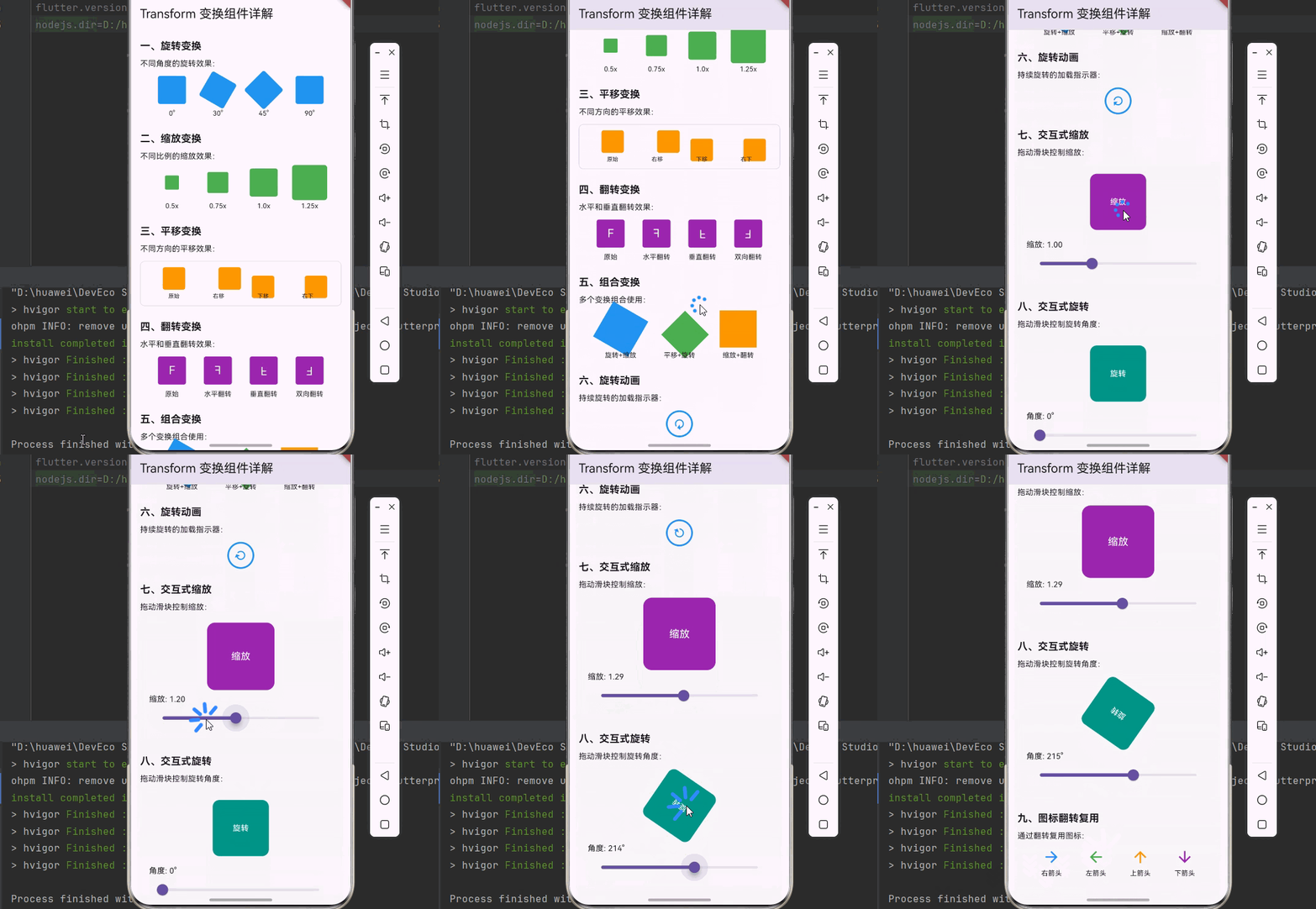
下面是一个完整的、可以直接运行的 main.dart 文件,展示了 Transform 组件的各种用法:
dart
import 'dart:math' as math;
import 'package:flutter/material.dart';
void main() {
runApp(const MyApp());
}
class MyApp extends StatelessWidget {
const MyApp({super.key});
@override
Widget build(BuildContext context) {
return MaterialApp(
title: 'Transform 组件示例',
theme: ThemeData(
primarySwatch: Colors.blue,
useMaterial3: true,
),
home: const TransformDemoPage(),
);
}
}
class TransformDemoPage extends StatefulWidget {
const TransformDemoPage({super.key});
@override
State<TransformDemoPage> createState() => _TransformDemoPageState();
}
class _TransformDemoPageState extends State<TransformDemoPage>
with SingleTickerProviderStateMixin {
late AnimationController _rotationController;
double _scaleValue = 1.0;
double _rotationValue = 0.0;
@override
void initState() {
super.initState();
_rotationController = AnimationController(
duration: const Duration(seconds: 2),
vsync: this,
)..repeat();
}
@override
void dispose() {
_rotationController.dispose();
super.dispose();
}
@override
Widget build(BuildContext context) {
return Scaffold(
appBar: AppBar(
title: const Text('Transform 变换组件详解'),
),
body: SingleChildScrollView(
padding: const EdgeInsets.all(16),
child: Column(
crossAxisAlignment: CrossAxisAlignment.start,
children: [
_buildSection('一、旋转变换', [
const Text('不同角度的旋转效果:'),
const SizedBox(height: 12),
Row(
mainAxisAlignment: MainAxisAlignment.spaceEvenly,
children: [
_buildRotatedBox(0, '0°'),
_buildRotatedBox(math.pi / 6, '30°'),
_buildRotatedBox(math.pi / 4, '45°'),
_buildRotatedBox(math.pi / 2, '90°'),
],
),
]),
const SizedBox(height: 24),
_buildSection('二、缩放变换', [
const Text('不同比例的缩放效果:'),
const SizedBox(height: 12),
Row(
mainAxisAlignment: MainAxisAlignment.spaceEvenly,
children: [
_buildScaledBox(0.5, '0.5x'),
_buildScaledBox(0.75, '0.75x'),
_buildScaledBox(1.0, '1.0x'),
_buildScaledBox(1.25, '1.25x'),
],
),
]),
const SizedBox(height: 24),
_buildSection('三、平移变换', [
const Text('不同方向的平移效果:'),
const SizedBox(height: 12),
Container(
height: 80,
decoration: BoxDecoration(
border: Border.all(color: Colors.grey[300]!),
borderRadius: BorderRadius.circular(8),
),
child: Row(
mainAxisAlignment: MainAxisAlignment.spaceEvenly,
children: [
_buildTranslatedBox(const Offset(0, 0), '原始'),
_buildTranslatedBox(const Offset(20, 0), '右移'),
_buildTranslatedBox(const Offset(0, 15), '下移'),
_buildTranslatedBox(const Offset(15, 15), '右下'),
],
),
),
]),
const SizedBox(height: 24),
_buildSection('四、翻转变换', [
const Text('水平和垂直翻转效果:'),
const SizedBox(height: 12),
Row(
mainAxisAlignment: MainAxisAlignment.spaceEvenly,
children: [
_buildFlippedBox(false, false, '原始'),
_buildFlippedBox(true, false, '水平翻转'),
_buildFlippedBox(false, true, '垂直翻转'),
_buildFlippedBox(true, true, '双向翻转'),
],
),
]),
const SizedBox(height: 24),
_buildSection('五、组合变换', [
const Text('多个变换组合使用:'),
const SizedBox(height: 12),
Row(
mainAxisAlignment: MainAxisAlignment.spaceEvenly,
children: [
Column(
children: [
Transform.rotate(
angle: math.pi / 6,
child: Transform.scale(
scale: 1.2,
child: Container(
width: 60,
height: 60,
color: Colors.blue,
),
),
),
const SizedBox(height: 8),
const Text('旋转+缩放', style: TextStyle(fontSize: 12)),
],
),
Column(
children: [
Transform.translate(
offset: const Offset(10, 10),
child: Transform.rotate(
angle: math.pi / 4,
child: Container(
width: 60,
height: 60,
color: Colors.green,
),
),
),
const SizedBox(height: 8),
const Text('平移+旋转', style: TextStyle(fontSize: 12)),
],
),
Column(
children: [
Transform.scale(
scale: 1.1,
child: Transform.flip(
flipX: true,
child: Container(
width: 60,
height: 60,
color: Colors.orange,
),
),
),
const SizedBox(height: 8),
const Text('缩放+翻转', style: TextStyle(fontSize: 12)),
],
),
],
),
]),
const SizedBox(height: 24),
_buildSection('六、旋转动画', [
const Text('持续旋转的加载指示器:'),
const SizedBox(height: 12),
Center(
child: AnimatedBuilder(
animation: _rotationController,
builder: (context, child) {
return Transform.rotate(
angle: _rotationController.value * 2 * math.pi,
child: Container(
width: 48,
height: 48,
decoration: BoxDecoration(
border: Border.all(color: Colors.blue, width: 3),
borderRadius: BorderRadius.circular(24),
),
child: const Center(
child: Icon(Icons.refresh, color: Colors.blue),
),
),
);
},
),
),
]),
const SizedBox(height: 24),
_buildSection('七、交互式缩放', [
const Text('拖动滑块控制缩放:'),
const SizedBox(height: 12),
Container(
padding: const EdgeInsets.all(16),
decoration: BoxDecoration(
color: Colors.grey[100],
borderRadius: BorderRadius.circular(8),
),
child: Column(
children: [
Transform.scale(
scale: _scaleValue,
child: Container(
width: 100,
height: 100,
decoration: BoxDecoration(
color: Colors.purple,
borderRadius: BorderRadius.circular(12),
),
child: const Center(
child: Text(
'缩放',
style: TextStyle(color: Colors.white),
),
),
),
),
const SizedBox(height: 16),
Row(
children: [
const Text('缩放: '),
Text(_scaleValue.toStringAsFixed(2)),
],
),
Slider(
value: _scaleValue,
min: 0.5,
max: 2.0,
onChanged: (value) {
setState(() {
_scaleValue = value;
});
},
),
],
),
),
]),
const SizedBox(height: 24),
_buildSection('八、交互式旋转', [
const Text('拖动滑块控制旋转角度:'),
const SizedBox(height: 12),
Container(
padding: const EdgeInsets.all(16),
decoration: BoxDecoration(
color: Colors.grey[100],
borderRadius: BorderRadius.circular(8),
),
child: Column(
children: [
Transform.rotate(
angle: _rotationValue,
child: Container(
width: 100,
height: 100,
decoration: BoxDecoration(
color: Colors.teal,
borderRadius: BorderRadius.circular(12),
),
child: const Center(
child: Text(
'旋转',
style: TextStyle(color: Colors.white),
),
),
),
),
const SizedBox(height: 16),
Row(
children: [
const Text('角度: '),
Text('${(_rotationValue * 180 / math.pi).toStringAsFixed(0)}°'),
],
),
Slider(
value: _rotationValue,
min: 0,
max: 2 * math.pi,
onChanged: (value) {
setState(() {
_rotationValue = value;
});
},
),
],
),
),
]),
const SizedBox(height: 24),
_buildSection('九、图标翻转复用', [
const Text('通过翻转复用图标:'),
const SizedBox(height: 12),
Row(
mainAxisAlignment: MainAxisAlignment.spaceEvenly,
children: [
Column(
children: [
const Icon(Icons.arrow_forward, size: 32, color: Colors.blue),
const SizedBox(height: 4),
const Text('右箭头', style: TextStyle(fontSize: 12)),
],
),
Column(
children: [
Transform.flip(
flipX: true,
child: const Icon(Icons.arrow_forward, size: 32, color: Colors.green),
),
const SizedBox(height: 4),
const Text('左箭头', style: TextStyle(fontSize: 12)),
],
),
Column(
children: [
const Icon(Icons.arrow_upward, size: 32, color: Colors.orange),
const SizedBox(height: 4),
const Text('上箭头', style: TextStyle(fontSize: 12)),
],
),
Column(
children: [
Transform.flip(
flipY: true,
child: const Icon(Icons.arrow_upward, size: 32, color: Colors.purple),
),
const SizedBox(height: 4),
const Text('下箭头', style: TextStyle(fontSize: 12)),
],
),
],
),
]),
const SizedBox(height: 32),
],
),
),
);
}
Widget _buildSection(String title, List<Widget> children) {
return Column(
crossAxisAlignment: CrossAxisAlignment.start,
children: [
Text(
title,
style: const TextStyle(
fontSize: 18,
fontWeight: FontWeight.bold,
),
),
const SizedBox(height: 8),
...children,
],
);
}
Widget _buildRotatedBox(double angle, String label) {
return Column(
children: [
Transform.rotate(
angle: angle,
child: Container(
width: 50,
height: 50,
decoration: BoxDecoration(
color: Colors.blue,
borderRadius: BorderRadius.circular(4),
),
),
),
const SizedBox(height: 8),
Text(label, style: const TextStyle(fontSize: 12)),
],
);
}
Widget _buildScaledBox(double scale, String label) {
return Column(
children: [
Transform.scale(
scale: scale,
child: Container(
width: 50,
height: 50,
decoration: BoxDecoration(
color: Colors.green,
borderRadius: BorderRadius.circular(4),
),
),
),
const SizedBox(height: 8),
Text(label, style: const TextStyle(fontSize: 12)),
],
);
}
Widget _buildTranslatedBox(Offset offset, String label) {
return Column(
mainAxisSize: MainAxisSize.min,
children: [
Transform.translate(
offset: offset,
child: Container(
width: 40,
height: 40,
decoration: BoxDecoration(
color: Colors.orange,
borderRadius: BorderRadius.circular(4),
),
),
),
const SizedBox(height: 4),
Text(label, style: const TextStyle(fontSize: 10)),
],
);
}
Widget _buildFlippedBox(bool flipX, bool flipY, String label) {
return Column(
children: [
Transform.flip(
flipX: flipX,
flipY: flipY,
child: Container(
width: 50,
height: 50,
decoration: BoxDecoration(
color: Colors.purple,
borderRadius: BorderRadius.circular(4),
),
child: const Center(
child: Text('F', style: TextStyle(color: Colors.white, fontSize: 20)),
),
),
),
const SizedBox(height: 8),
Text(label, style: const TextStyle(fontSize: 12)),
],
);
}
}九、总结
Transform 组件是 Flutter 中实现视觉效果变换的核心组件。通过本文的学习,我们掌握了:
- Transform 组件的基本概念:了解了变换的原理和特点
- 旋转变换:学会了使用 Transform.rotate 实现旋转效果
- 缩放变换:学会了使用 Transform.scale 实现缩放效果
- 平移变换:学会了使用 Transform.translate 实现平移效果
- 翻转变换:学会了使用 Transform.flip 实现翻转效果
- 组合变换:学会了如何组合多个变换效果
- 动画效果:学会了与动画组件配合实现动态效果
💡 学习建议:Transform 是一个非常强大的组件,可以实现各种复杂的视觉效果。注意变换不影响布局的特点,合理使用可以实现意想不到的效果。
📚 延伸阅读: