欢迎加入开源鸿蒙跨平台社区:https://openharmonycrossplatform.csdn.net
🎯 欢迎来到 Flutter for OpenHarmony 社区!本文将深入讲解 Flutter 中 IndexedStack 索引堆叠组件的使用方法,带你从基础到精通,掌握这一高效的页面切换组件。
一、IndexedStack 组件概述
在应用开发中,我们经常需要实现页面或内容的切换效果。传统的做法是使用条件判断来显示不同的组件,但这种方式效率较低。Flutter 提供了 IndexedStack 组件,它可以在多个子组件之间快速切换,同时保持所有子组件的状态,是实现标签页、引导页、多步骤表单等场景的理想选择。
📋 IndexedStack 组件特点
| 特点 | 说明 |
|---|---|
| 状态保持 | 切换时保持所有子组件的状态 |
| 高效切换 | 只显示一个子组件,切换速度快 |
| 索引控制 | 通过索引值控制显示哪个子组件 |
| 内存占用 | 所有子组件都会被创建和保持 |
| 动画支持 | 可配合动画实现切换效果 |
IndexedStack 与 Stack 的区别
| 特性 | Stack | IndexedStack |
|---|---|---|
| 显示方式 | 所有子组件叠加显示 | 只显示一个子组件 |
| 状态保持 | 所有子组件都保持 | 所有子组件都保持 |
| 切换方式 | 需要手动控制显示隐藏 | 通过索引直接切换 |
| 适用场景 | 叠加布局、悬浮效果 | 页面切换、标签页 |
IndexedStack 与条件判断的区别
| 方式 | 状态保持 | 性能 | 实现复杂度 |
|---|---|---|---|
| 条件判断 | 不保持 | 每次重建 | 简单 |
| IndexedStack | 保持 | 只切换显示 | 简单 |
| PageView | 保持 | 支持滑动 | 中等 |
💡 使用场景:IndexedStack 广泛应用于底部导航栏切换、标签页切换、引导页、多步骤表单、内容分类展示等场景。
二、IndexedStack 基础用法
IndexedStack 的使用非常简单,主要涉及 index 参数和 children 子组件列表。让我们从最基础的用法开始学习。
2.1 最简单的 IndexedStack
最基础的 IndexedStack 只需要设置 index 参数和 children 子组件:
dart
IndexedStack(
  index: 0,
  children: [
    Container(color: Colors.red, child: const Center(child: Text('页面1'))),
    Container(color: Colors.green, child: const Center(child: Text('页面2'))),
    Container(color: Colors.blue, child: const Center(child: Text('页面3'))),
  ],
)
代码解析:
index: 0:当前显示第一个子组件(索引从 0 开始)children:子组件列表,所有子组件都会被创建- 只有
index对应的子组件会显示
2.2 index 参数详解
index 参数决定了当前显示哪个子组件:
| index 值 | 显示的子组件 |
|---|---|
| 0 | 第一个子组件 |
| 1 | 第二个子组件 |
| 2 | 第三个子组件 |
| ... | ... |
注意事项:
- index 必须是有效的索引值(0 到 children.length - 1)
- 如果 index 超出范围,会报错
- 可以动态改变 index 来切换显示的子组件
2.3 完整示例
下面是一个完整的可运行示例,展示了 IndexedStack 的基础用法:
dart
class IndexedStackBasicExample extends StatefulWidget {
  const IndexedStackBasicExample({super.key});

  @override
  State<IndexedStackBasicExample> createState() => _IndexedStackBasicExampleState();
}

class _IndexedStackBasicExampleState extends State<IndexedStackBasicExample> {
  int _currentIndex = 0;

  @override
  Widget build(BuildContext context) {
    return Scaffold(
      appBar: AppBar(title: const Text('IndexedStack 基础示例')),
      body: IndexedStack(
        index: _currentIndex,
        children: [
          _buildPage('首页', Colors.red),
          _buildPage('发现', Colors.green),
          _buildPage('我的', Colors.blue),
        ],
      ),
      bottomNavigationBar: BottomNavigationBar(
        currentIndex: _currentIndex,
        onTap: (index) {
          setState(() {
            _currentIndex = index;
          });
        },
        items: const [
          BottomNavigationBarItem(icon: Icon(Icons.home), label: '首页'),
          BottomNavigationBarItem(icon: Icon(Icons.explore), label: '发现'),
          BottomNavigationBarItem(icon: Icon(Icons.person), label: '我的'),
        ],
      ),
    );
  }

  Widget _buildPage(String title, Color color) {
    return Container(
      color: color.withOpacity(0.2),
      child: Center(
        child: Text(
          title,
          style: const TextStyle(fontSize: 32, fontWeight: FontWeight.bold),
        ),
      ),
    );
  }
}
三、IndexedStack 核心属性
IndexedStack 继承自 Stack,因此具有 Stack 的部分属性。让我们详细了解这些属性。
3.1 index - 当前索引
index 是 IndexedStack 最核心的属性,控制显示哪个子组件。
dart
IndexedStack(
  index: currentIndex,  // 动态索引
  children: [...],
)
动态切换示例:
dart
setState(() {
  currentIndex = 1;  // 切换到第二个页面
});
3.2 children - 子组件列表
children 是要显示的子组件列表,所有子组件都会被创建。
dart
IndexedStack(
  children: [
    Page1(),
    Page2(),
    Page3(),
  ],
)
重要提示:
- 所有子组件都会被创建并保持在内存中
- 子组件的状态会被保留
- 适合子组件数量较少的场景
3.3 sizing - 尺寸策略
sizing 参数决定 IndexedStack 的尺寸如何计算:
dart
IndexedStack(
  sizing: StackFit.expand,  // 扩展填充父容器
  children: [...],
)
sizing 选项:
| 值 | 效果 |
|---|---|
| StackFit.loose | 使用子组件自身的尺寸 |
| StackFit.expand | 扩展到父容器的尺寸 |
| StackFit.passthrough | 传递父容器的约束 |
3.4 alignment - 对齐方式
alignment 参数控制子组件在 IndexedStack 中的对齐方式:
dart
IndexedStack(
  alignment: Alignment.center,
  children: [...],
)
3.5 textDirection - 文本方向
textDirection 参数控制文本的方向:
dart
IndexedStack(
  textDirection: TextDirection.ltr,
  children: [...],
)
📊 IndexedStack 属性速查表
| 属性 | 类型 | 默认值 | 说明 |
|---|---|---|---|
| index | int | 0 | 当前显示的子组件索引 |
| children | List<Widget\ | 必填 | 子组件列表 |
| sizing | StackFit | StackFit.loose | 尺寸策略 |
| alignment | AlignmentGeometry | AlignmentDirectional.topStart | 对齐方式 |
| textDirection | TextDirection? | - | 文本方向 |
四、IndexedStack 实际应用场景
IndexedStack 在实际开发中有着广泛的应用,让我们通过具体示例来学习。
4.1 底部导航栏
使用 IndexedStack 实现底部导航栏切换:
dart
class BottomNavExample extends StatefulWidget {
  const BottomNavExample({super.key});

  @override
  State<BottomNavExample> createState() => _BottomNavExampleState();
}

class _BottomNavExampleState extends State<BottomNavExample> {
  int _currentIndex = 0;

  @override
  Widget build(BuildContext context) {
    return Scaffold(
      body: IndexedStack(
        index: _currentIndex,
        children: const [
          HomePage(),
          DiscoverPage(),
          MessagePage(),
          ProfilePage(),
        ],
      ),
      bottomNavigationBar: BottomNavigationBar(
        type: BottomNavigationBarType.fixed,
        currentIndex: _currentIndex,
        selectedItemColor: Colors.blue,
        unselectedItemColor: Colors.grey,
        onTap: (index) {
          setState(() {
            _currentIndex = index;
          });
        },
        items: const [
          BottomNavigationBarItem(icon: Icon(Icons.home), label: '首页'),
          BottomNavigationBarItem(icon: Icon(Icons.explore), label: '发现'),
          BottomNavigationBarItem(icon: Icon(Icons.message), label: '消息'),
          BottomNavigationBarItem(icon: Icon(Icons.person), label: '我的'),
        ],
      ),
    );
  }
}

class HomePage extends StatelessWidget {
  const HomePage({super.key});

  @override
  Widget build(BuildContext context) {
    return Scaffold(
      appBar: AppBar(title: const Text('首页')),
      body: const Center(child: Text('首页内容')),
    );
  }
}

class DiscoverPage extends StatelessWidget {
  const DiscoverPage({super.key});

  @override
  Widget build(BuildContext context) {
    return Scaffold(
      appBar: AppBar(title: const Text('发现')),
      body: const Center(child: Text('发现内容')),
    );
  }
}

class MessagePage extends StatelessWidget {
  const MessagePage({super.key});

  @override
  Widget build(BuildContext context) {
    return Scaffold(
      appBar: AppBar(title: const Text('消息')),
      body: const Center(child: Text('消息内容')),
    );
  }
}

class ProfilePage extends StatelessWidget {
  const ProfilePage({super.key});

  @override
  Widget build(BuildContext context) {
    return Scaffold(
      appBar: AppBar(title: const Text('我的')),
      body: const Center(child: Text('我的内容')),
    );
  }
}
4.2 顶部标签页
使用 IndexedStack 实现顶部标签页切换:
dart
class TopTabsExample extends StatefulWidget {
  const TopTabsExample({super.key});

  @override
  State<TopTabsExample> createState() => _TopTabsExampleState();
}

class _TopTabsExampleState extends State<TopTabsExample> {
  int _currentIndex = 0;

  @override
  Widget build(BuildContext context) {
    return Scaffold(
      appBar: AppBar(
        title: const Text('顶部标签页'),
        bottom: PreferredSize(
          preferredSize: const Size.fromHeight(48),
          child: Container(
            color: Colors.white,
            child: Row(
              children: [
                _buildTab('推荐', 0),
                _buildTab('热门', 1),
                _buildTab('最新', 2),
              ],
            ),
          ),
        ),
      ),
      body: IndexedStack(
        index: _currentIndex,
        children: [
          _buildTabPage('推荐内容', Colors.red),
          _buildTabPage('热门内容', Colors.orange),
          _buildTabPage('最新内容', Colors.blue),
        ],
      ),
    );
  }

  Widget _buildTab(String title, int index) {
    return Expanded(
      child: GestureDetector(
        onTap: () {
          setState(() {
            _currentIndex = index;
          });
        },
        child: Container(
          padding: const EdgeInsets.symmetric(vertical: 12),
          decoration: BoxDecoration(
            border: Border(
              bottom: BorderSide(
                color: _currentIndex == index ? Colors.blue : Colors.transparent,
                width: 2,
              ),
            ),
          ),
          child: Text(
            title,
            textAlign: TextAlign.center,
            style: TextStyle(
              color: _currentIndex == index ? Colors.blue : Colors.grey,
              fontWeight: _currentIndex == index ? FontWeight.bold : FontWeight.normal,
            ),
          ),
        ),
      ),
    );
  }

  Widget _buildTabPage(String content, Color color) {
    return Container(
      color: color.withOpacity(0.1),
      child: Center(
        child: Text(content, style: const TextStyle(fontSize: 24)),
      ),
    );
  }
}
4.3 引导页
使用 IndexedStack 实现应用引导页:
dart
class OnboardingExample extends StatefulWidget {
  const OnboardingExample({super.key});

  @override
  State<OnboardingExample> createState() => _OnboardingExampleState();
}

class _OnboardingExampleState extends State<OnboardingExample> {
  int _currentPage = 0;

  final List<OnboardingItem> _items = [
    OnboardingItem(
      title: '欢迎使用',
      description: '这是一款功能强大的应用',
      color: Colors.blue,
      icon: Icons.waving_hand,
    ),
    OnboardingItem(
      title: '发现精彩',
      description: '探索更多有趣的内容',
      color: Colors.green,
      icon: Icons.explore,
    ),
    OnboardingItem(
      title: '开始使用',
      description: '立即开始您的旅程',
      color: Colors.orange,
      icon: Icons.rocket_launch,
    ),
  ];

  @override
  Widget build(BuildContext context) {
    return Scaffold(
      body: Column(
        children: [
          Expanded(
            child: IndexedStack(
              index: _currentPage,
              children: _items.map((item) => _buildPage(item)).toList(),
            ),
          ),
          _buildBottomControls(),
        ],
      ),
    );
  }

  Widget _buildPage(OnboardingItem item) {
    return Container(
      color: item.color.withOpacity(0.1),
      child: Column(
        mainAxisAlignment: MainAxisAlignment.center,
        children: [
          Icon(item.icon, size: 100, color: item.color),
          const SizedBox(height: 32),
          Text(
            item.title,
            style: const TextStyle(fontSize: 28, fontWeight: FontWeight.bold),
          ),
          const SizedBox(height: 16),
          Text(
            item.description,
            style: const TextStyle(fontSize: 16, color: Colors.grey),
          ),
        ],
      ),
    );
  }

  Widget _buildBottomControls() {
    return Padding(
      padding: const EdgeInsets.all(24),
      child: Row(
        mainAxisAlignment: MainAxisAlignment.spaceBetween,
        children: [
          Row(
            children: List.generate(
              _items.length,
              (index) => Container(
                margin: const EdgeInsets.symmetric(horizontal: 4),
                width: _currentPage == index ? 24 : 8,
                height: 8,
                decoration: BoxDecoration(
                  color: _currentPage == index ? Colors.blue : Colors.grey[300],
                  borderRadius: BorderRadius.circular(4),
                ),
              ),
            ),
          ),
          ElevatedButton(
            onPressed: () {
              if (_currentPage < _items.length - 1) {
                setState(() {
                  _currentPage++;
                });
              } else {
                Navigator.pop(context);
              }
            },
            child: Text(_currentPage < _items.length - 1 ? '下一步' : '开始'),
          ),
        ],
      ),
    );
  }
}

class OnboardingItem {
  final String title;
  final String description;
  final Color color;
  final IconData icon;

  OnboardingItem({
    required this.title,
    required this.description,
    required this.color,
    required this.icon,
  });
}
4.4 多步骤表单
使用 IndexedStack 实现多步骤表单:
dart
class MultiStepFormExample extends StatefulWidget {
  const MultiStepFormExample({super.key});

  @override
  State<MultiStepFormExample> createState() => _MultiStepFormExampleState();
}

class _MultiStepFormExampleState extends State<MultiStepFormExample> {
  int _currentStep = 0;
  final _nameController = TextEditingController();
  final _emailController = TextEditingController();
  final _phoneController = TextEditingController();

  @override
  void dispose() {
    _nameController.dispose();
    _emailController.dispose();
    _phoneController.dispose();
    super.dispose();
  }

  @override
  Widget build(BuildContext context) {
    return Scaffold(
      appBar: AppBar(title: const Text('多步骤表单')),
      body: Column(
        children: [
          _buildStepIndicator(),
          Expanded(
            child: IndexedStack(
              index: _currentStep,
              children: [
                _buildStep1(),
                _buildStep2(),
                _buildStep3(),
              ],
            ),
          ),
          _buildButtons(),
        ],
      ),
    );
  }

  Widget _buildStepIndicator() {
    return Container(
      padding: const EdgeInsets.all(16),
      child: Row(
        children: List.generate(3, (index) {
          return Expanded(
            child: Row(
              children: [
                Expanded(
                  child: Container(
                    height: 4,
                    color: index <= _currentStep ? Colors.blue : Colors.grey[300],
                  ),
                ),
                if (index < 2) const SizedBox(width: 8),
              ],
            ),
          );
        }),
      ),
    );
  }

  Widget _buildStep1() {
    return Padding(
      padding: const EdgeInsets.all(24),
      child: Column(
        children: [
          const Text('步骤 1:基本信息', style: TextStyle(fontSize: 20, fontWeight: FontWeight.bold)),
          const SizedBox(height: 24),
          TextField(
            controller: _nameController,
            decoration: const InputDecoration(
              labelText: '姓名',
              border: OutlineInputBorder(),
            ),
          ),
        ],
      ),
    );
  }

  Widget _buildStep2() {
    return Padding(
      padding: const EdgeInsets.all(24),
      child: Column(
        children: [
          const Text('步骤 2:联系方式', style: TextStyle(fontSize: 20, fontWeight: FontWeight.bold)),
          const SizedBox(height: 24),
          TextField(
            controller: _emailController,
            decoration: const InputDecoration(
              labelText: '邮箱',
              border: OutlineInputBorder(),
            ),
          ),
          const SizedBox(height: 16),
          TextField(
            controller: _phoneController,
            decoration: const InputDecoration(
              labelText: '电话',
              border: OutlineInputBorder(),
            ),
          ),
        ],
      ),
    );
  }

  Widget _buildStep3() {
    return Padding(
      padding: const EdgeInsets.all(24),
      child: Column(
        children: [
          const Text('步骤 3:确认信息', style: TextStyle(fontSize: 20, fontWeight: FontWeight.bold)),
          const SizedBox(height: 24),
          Card(
            child: Padding(
              padding: const EdgeInsets.all(16),
              child: Column(
                crossAxisAlignment: CrossAxisAlignment.start,
                children: [
                  Text('姓名:${_nameController.text}'),
                  const SizedBox(height: 8),
                  Text('邮箱:${_emailController.text}'),
                  const SizedBox(height: 8),
                  Text('电话:${_phoneController.text}'),
                ],
              ),
            ),
          ),
        ],
      ),
    );
  }

  Widget _buildButtons() {
    return Padding(
      padding: const EdgeInsets.all(16),
      child: Row(
        mainAxisAlignment: MainAxisAlignment.spaceBetween,
        children: [
          if (_currentStep > 0)
            TextButton(
              onPressed: () {
                setState(() {
                  _currentStep--;
                });
              },
              child: const Text('上一步'),
            )
          else
            const SizedBox(),
          ElevatedButton(
            onPressed: () {
              if (_currentStep < 2) {
                setState(() {
                  _currentStep++;
                });
              } else {
                ScaffoldMessenger.of(context).showSnackBar(
                  const SnackBar(content: Text('提交成功!')),
                );
              }
            },
            child: Text(_currentStep < 2 ? '下一步' : '提交'),
          ),
        ],
      ),
    );
  }
}
4.5 内容分类展示
使用 IndexedStack 实现内容分类展示:
dart
class CategoryExample extends StatefulWidget {
  const CategoryExample({super.key});

  @override
  State<CategoryExample> createState() => _CategoryExampleState();
}

class _CategoryExampleState extends State<CategoryExample> {
  int _selectedIndex = 0;

  @override
  Widget build(BuildContext context) {
    return Scaffold(
      appBar: AppBar(title: const Text('内容分类')),
      body: Column(
        children: [
          _buildCategoryTabs(),
          Expanded(
            child: IndexedStack(
              index: _selectedIndex,
              children: [
                _buildCategoryContent('全部', Colors.grey),
                _buildCategoryContent('科技', Colors.blue),
                _buildCategoryContent('生活', Colors.green),
                _buildCategoryContent('娱乐', Colors.orange),
              ],
            ),
          ),
        ],
      ),
    );
  }

  Widget _buildCategoryTabs() {
    return Container(
      height: 48,
      padding: const EdgeInsets.symmetric(vertical: 8),
      child: ListView(
        scrollDirection: Axis.horizontal,
        children: ['全部', '科技', '生活', '娱乐'].asMap().entries.map((entry) {
          return GestureDetector(
            onTap: () {
              setState(() {
                _selectedIndex = entry.key;
              });
            },
            child: Container(
              margin: const EdgeInsets.symmetric(horizontal: 8),
              padding: const EdgeInsets.symmetric(horizontal: 16),
              decoration: BoxDecoration(
                color: _selectedIndex == entry.key ? Colors.blue : Colors.grey[200],
                borderRadius: BorderRadius.circular(20),
              ),
              child: Center(
                child: Text(
                  entry.value,
                  style: TextStyle(
                    color: _selectedIndex == entry.key ? Colors.white : Colors.black,
                  ),
                ),
              ),
            ),
          );
        }).toList(),
      ),
    );
  }

  Widget _buildCategoryContent(String category, Color color) {
    return Container(
      color: color.withOpacity(0.1),
      child: ListView.builder(
        padding: const EdgeInsets.all(16),
        itemCount: 10,
        itemBuilder: (context, index) {
          return Card(
            margin: const EdgeInsets.only(bottom: 12),
            child: ListTile(
              leading: CircleAvatar(backgroundColor: color, child: Text('${index + 1}')),
              title: Text('$category - 项目 ${index + 1}'),
              subtitle: const Text('这是项目的描述内容'),
            ),
          );
        },
      ),
    );
  }
}
五、IndexedStack 与动画结合
IndexedStack 本身不支持动画,但可以配合 AnimatedSwitcher 或其他动画组件实现切换动画。
5.1 使用 AnimatedSwitcher
dart
AnimatedSwitcher(
  duration: const Duration(milliseconds: 300),
  child: IndexedStack(
    key: ValueKey(currentIndex),
    index: currentIndex,
    children: [...],
  ),
)
5.2 自定义切换动画
dart
class AnimatedIndexedStack extends StatefulWidget {
  final int index;
  final List<Widget> children;
  final Duration duration;

  const AnimatedIndexedStack({
    super.key,
    required this.index,
    required this.children,
    this.duration = const Duration(milliseconds: 300),
  });

  @override
  State<AnimatedIndexedStack> createState() => _AnimatedIndexedStackState();
}

class _AnimatedIndexedStackState extends State<AnimatedIndexedStack>
    with SingleTickerProviderStateMixin {
  late AnimationController _controller;
  late Animation<double> _animation;

  @override
  void initState() {
    super.initState();
    _controller = AnimationController(
      duration: widget.duration,
      vsync: this,
    );
    _animation = CurvedAnimation(
      parent: _controller,
      curve: Curves.easeInOut,
    );
    _controller.forward();
  }

  @override
  void didUpdateWidget(AnimatedIndexedStack oldWidget) {
    super.didUpdateWidget(oldWidget);
    if (oldWidget.index != widget.index) {
      _controller.reset();
      _controller.forward();
    }
  }

  @override
  void dispose() {
    _controller.dispose();
    super.dispose();
  }

  @override
  Widget build(BuildContext context) {
    return FadeTransition(
      opacity: _animation,
      child: IndexedStack(
        index: widget.index,
        children: widget.children,
      ),
    );
  }
}
六、性能考虑
IndexedStack 组件虽然方便,但在某些情况下需要注意性能优化。
6.1 性能优化建议
- 控制子组件数量:子组件过多会占用大量内存
- 懒加载:对于复杂的子组件,考虑使用懒加载
- 避免不必要的重建:使用 const 构造函数
- 合理使用状态管理:避免全局状态导致所有子组件重建
6.2 何时使用 IndexedStack
推荐使用:
- 子组件数量较少(通常少于 5 个)
- 需要保持子组件状态
- 频繁切换的场景
- 底部导航栏、标签页
不推荐使用:
- 子组件数量过多
- 子组件占用大量内存
- 不需要保持状态
- 使用 PageView 更合适的滑动切换场景
七、完整代码示例
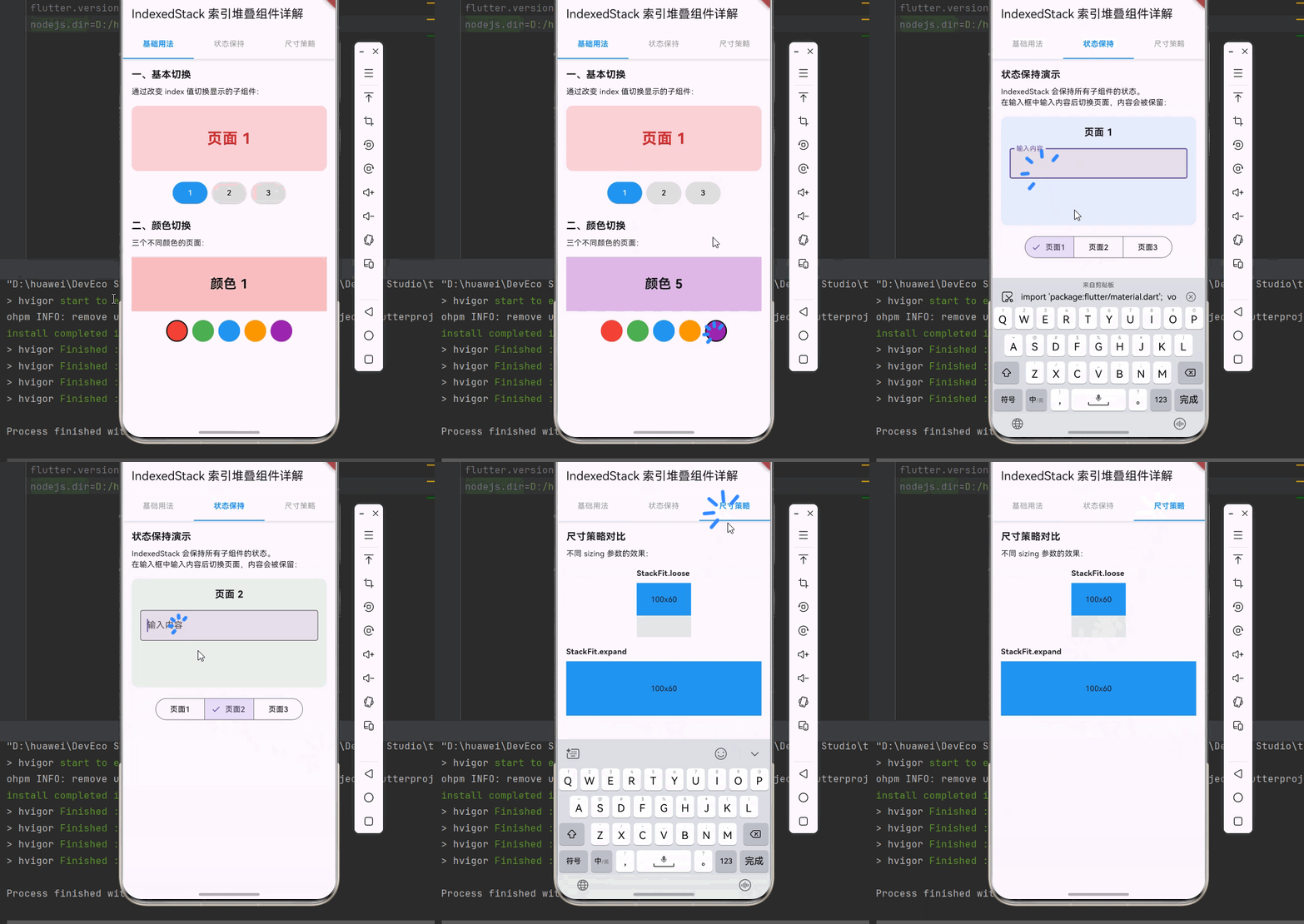
下面是一个完整的、可以直接运行的 main.dart 文件,展示了 IndexedStack 组件的各种用法:
dart
import 'package:flutter/material.dart';

void main() {
  runApp(const MyApp());
}

class MyApp extends StatelessWidget {
  const MyApp({super.key});

  @override
  Widget build(BuildContext context) {
    return MaterialApp(
      title: 'IndexedStack 组件示例',
      theme: ThemeData(
        primarySwatch: Colors.blue,
        useMaterial3: true,
      ),
      home: const IndexedStackDemoPage(),
    );
  }
}

class IndexedStackDemoPage extends StatefulWidget {
  const IndexedStackDemoPage({super.key});

  @override
  State<IndexedStackDemoPage> createState() => _IndexedStackDemoPageState();
}

class _IndexedStackDemoPageState extends State<IndexedStackDemoPage> {
  int _currentIndex = 0;

  @override
  Widget build(BuildContext context) {
    return Scaffold(
      appBar: AppBar(
        title: const Text('IndexedStack 索引堆叠组件详解'),
      ),
      body: Column(
        children: [
          _buildTabBar(),
          Expanded(
            child: IndexedStack(
              index: _currentIndex,
              children: [
                _buildBasicDemo(),
                _buildStateDemo(),
                _buildSizingDemo(),
              ],
            ),
          ),
        ],
      ),
    );
  }

  Widget _buildTabBar() {
    return Container(
      decoration: BoxDecoration(
        color: Colors.white,
        boxShadow: [
          BoxShadow(
            color: Colors.black.withOpacity(0.1),
            blurRadius: 4,
            offset: const Offset(0, 2),
          ),
        ],
      ),
      child: Row(
        children: [
          _buildTab('基础用法', 0),
          _buildTab('状态保持', 1),
          _buildTab('尺寸策略', 2),
        ],
      ),
    );
  }

  Widget _buildTab(String title, int index) {
    return Expanded(
      child: GestureDetector(
        onTap: () {
          setState(() {
            _currentIndex = index;
          });
        },
        child: Container(
          padding: const EdgeInsets.symmetric(vertical: 16),
          decoration: BoxDecoration(
            border: Border(
              bottom: BorderSide(
                color: _currentIndex == index ? Colors.blue : Colors.transparent,
                width: 2,
              ),
            ),
          ),
          child: Text(
            title,
            textAlign: TextAlign.center,
            style: TextStyle(
              color: _currentIndex == index ? Colors.blue : Colors.grey,
              fontWeight: _currentIndex == index ? FontWeight.bold : FontWeight.normal,
            ),
          ),
        ),
      ),
    );
  }

  Widget _buildBasicDemo() {
    return SingleChildScrollView(
      padding: const EdgeInsets.all(16),
      child: Column(
        crossAxisAlignment: CrossAxisAlignment.start,
        children: [
          _buildSection('一、基本切换', [
            const Text('通过改变 index 值切换显示的子组件:'),
            const SizedBox(height: 16),
            _buildBasicSwitcher(),
          ]),
          const SizedBox(height: 24),
          _buildSection('二、颜色切换', [
            const Text('三个不同颜色的页面:'),
            const SizedBox(height: 16),
            _buildColorSwitcher(),
          ]),
        ],
      ),
    );
  }

  Widget _buildBasicSwitcher() {
    return StatefulBuilder(
      builder: (context, setState) {
        int index = 0;
        return StatefulBuilder(
          builder: (context, innerSetState) {
            return Column(
              children: [
                SizedBox(
                  height: 120,
                  child: IndexedStack(
                    index: index,
                    children: [
                      _buildColorPage('页面 1', Colors.red),
                      _buildColorPage('页面 2', Colors.green),
                      _buildColorPage('页面 3', Colors.blue),
                    ],
                  ),
                ),
                const SizedBox(height: 16),
                Row(
                  mainAxisAlignment: MainAxisAlignment.center,
                  children: List.generate(3, (i) {
                    return Padding(
                      padding: const EdgeInsets.symmetric(horizontal: 4),
                      child: ElevatedButton(
                        onPressed: () {
                          innerSetState(() {
                            index = i;
                          });
                        },
                        style: ElevatedButton.styleFrom(
                          backgroundColor: index == i ? Colors.blue : Colors.grey[300],
                        ),
                        child: Text(
                          '${i + 1}',
                          style: TextStyle(
                            color: index == i ? Colors.white : Colors.black,
                          ),
                        ),
                      ),
                    );
                  }),
                ),
              ],
            );
          },
        );
      },
    );
  }

  Widget _buildColorSwitcher() {
    return StatefulBuilder(
      builder: (context, setState) {
        int colorIndex = 0;
        final colors = [Colors.red, Colors.green, Colors.blue, Colors.orange, Colors.purple];
        return StatefulBuilder(
          builder: (context, innerSetState) {
            return Column(
              children: [
                SizedBox(
                  height: 100,
                  child: IndexedStack(
                    index: colorIndex,
                    children: colors.asMap().entries.map((entry) {
                      return Container(
                        color: entry.value.withOpacity(0.3),
                        child: Center(
                          child: Text(
                            '颜色 ${entry.key + 1}',
                            style: const TextStyle(fontSize: 24, fontWeight: FontWeight.bold),
                          ),
                        ),
                      );
                    }).toList(),
                  ),
                ),
                const SizedBox(height: 16),
                Wrap(
                  spacing: 8,
                  children: colors.asMap().entries.map((entry) {
                    return GestureDetector(
                      onTap: () {
                        innerSetState(() {
                          colorIndex = entry.key;
                        });
                      },
                      child: Container(
                        width: 40,
                        height: 40,
                        decoration: BoxDecoration(
                          color: entry.value,
                          shape: BoxShape.circle,
                          border: colorIndex == entry.key
                              ? Border.all(color: Colors.black, width: 2)
                              : null,
                        ),
                      ),
                    );
                  }).toList(),
                ),
              ],
            );
          },
        );
      },
    );
  }

  Widget _buildStateDemo() {
    return SingleChildScrollView(
      padding: const EdgeInsets.all(16),
      child: Column(
        crossAxisAlignment: CrossAxisAlignment.start,
        children: [
          _buildSection('状态保持演示', [
            const Text('IndexedStack 会保持所有子组件的状态。'),
            const Text('在输入框中输入内容后切换页面,内容会被保留:'),
            const SizedBox(height: 16),
            _buildStatePreserver(),
          ]),
        ],
      ),
    );
  }

  Widget _buildStatePreserver() {
    return StatefulBuilder(
      builder: (context, setState) {
        int pageIndex = 0;
        return StatefulBuilder(
          builder: (context, innerSetState) {
            return Column(
              children: [
                SizedBox(
                  height: 200,
                  child: IndexedStack(
                    index: pageIndex,
                    children: [
                      _buildInputPage('页面 1', Colors.blue),
                      _buildInputPage('页面 2', Colors.green),
                      _buildInputPage('页面 3', Colors.orange),
                    ],
                  ),
                ),
                const SizedBox(height: 16),
                SegmentedButton<int>(
                  segments: const [
                    ButtonSegment(value: 0, label: Text('页面1')),
                    ButtonSegment(value: 1, label: Text('页面2')),
                    ButtonSegment(value: 2, label: Text('页面3')),
                  ],
                  selected: {pageIndex},
                  onSelectionChanged: (Set<int> selection) {
                    innerSetState(() {
                      pageIndex = selection.first;
                    });
                  },
                ),
              ],
            );
          },
        );
      },
    );
  }

  Widget _buildInputPage(String title, Color color) {
    return Container(
      padding: const EdgeInsets.all(16),
      decoration: BoxDecoration(
        color: color.withOpacity(0.1),
        borderRadius: BorderRadius.circular(12),
      ),
      child: Column(
        children: [
          Text(title, style: const TextStyle(fontSize: 18, fontWeight: FontWeight.bold)),
          const SizedBox(height: 16),
          const TextField(
            decoration: InputDecoration(
              labelText: '输入内容',
              border: OutlineInputBorder(),
              filled: true,
            ),
          ),
        ],
      ),
    );
  }

  Widget _buildSizingDemo() {
    return SingleChildScrollView(
      padding: const EdgeInsets.all(16),
      child: Column(
        crossAxisAlignment: CrossAxisAlignment.start,
        children: [
          _buildSection('尺寸策略对比', [
            const Text('不同 sizing 参数的效果:'),
            const SizedBox(height: 16),
            _buildSizingComparison(),
          ]),
        ],
      ),
    );
  }

  Widget _buildSizingComparison() {
    return Column(
      children: [
        _buildSizingItem('StackFit.loose', StackFit.loose),
        const SizedBox(height: 16),
        _buildSizingItem('StackFit.expand', StackFit.expand),
      ],
    );
  }

  Widget _buildSizingItem(String label, StackFit fit) {
    return Column(
      crossAxisAlignment: CrossAxisAlignment.start,
      children: [
        Text(label, style: const TextStyle(fontWeight: FontWeight.bold)),
        const SizedBox(height: 8),
        Container(
          height: 100,
          color: Colors.grey[200],
          child: IndexedStack(
            sizing: fit,
            index: 0,
            children: [
              Container(
                width: 100,
                height: 60,
                color: Colors.blue,
                child: const Center(child: Text('100x60')),
              ),
            ],
          ),
        ),
      ],
    );
  }

  Widget _buildSection(String title, List<Widget> children) {
    return Column(
      crossAxisAlignment: CrossAxisAlignment.start,
      children: [
        Text(
          title,
          style: const TextStyle(
            fontSize: 18,
            fontWeight: FontWeight.bold,
          ),
        ),
        const SizedBox(height: 8),
        ...children,
      ],
    );
  }

  Widget _buildColorPage(String title, MaterialColor color) {
    return Container(
      decoration: BoxDecoration(
        color: color.withOpacity(0.2),
        borderRadius: BorderRadius.circular(12),
      ),
      child: Center(
        child: Text(
          title,
          style: TextStyle(
            fontSize: 28,
            fontWeight: FontWeight.bold,
            color: color[700],
          ),
        ),
      ),
    );
  }
}
八、总结
IndexedStack 是 Flutter 中一个高效的状态保持切换组件,通过本文的学习,我们掌握了以下内容:
📝 知识点回顾
- IndexedStack 基础:了解 IndexedStack 的基本用法和 index 参数
- 核心属性:掌握 index、children、sizing 等属性
- 实际应用场景:底部导航栏、顶部标签页、引导页、多步骤表单等
- 动画结合:学习如何配合动画组件实现切换效果
- 性能优化:了解 IndexedStack 的性能考虑和最佳实践
🎯 最佳实践
- 控制子组件数量,避免内存占用过大
- 利用状态保持特性,避免重复初始化
- 配合动画组件实现平滑的切换效果
- 根据场景选择合适的尺寸策略