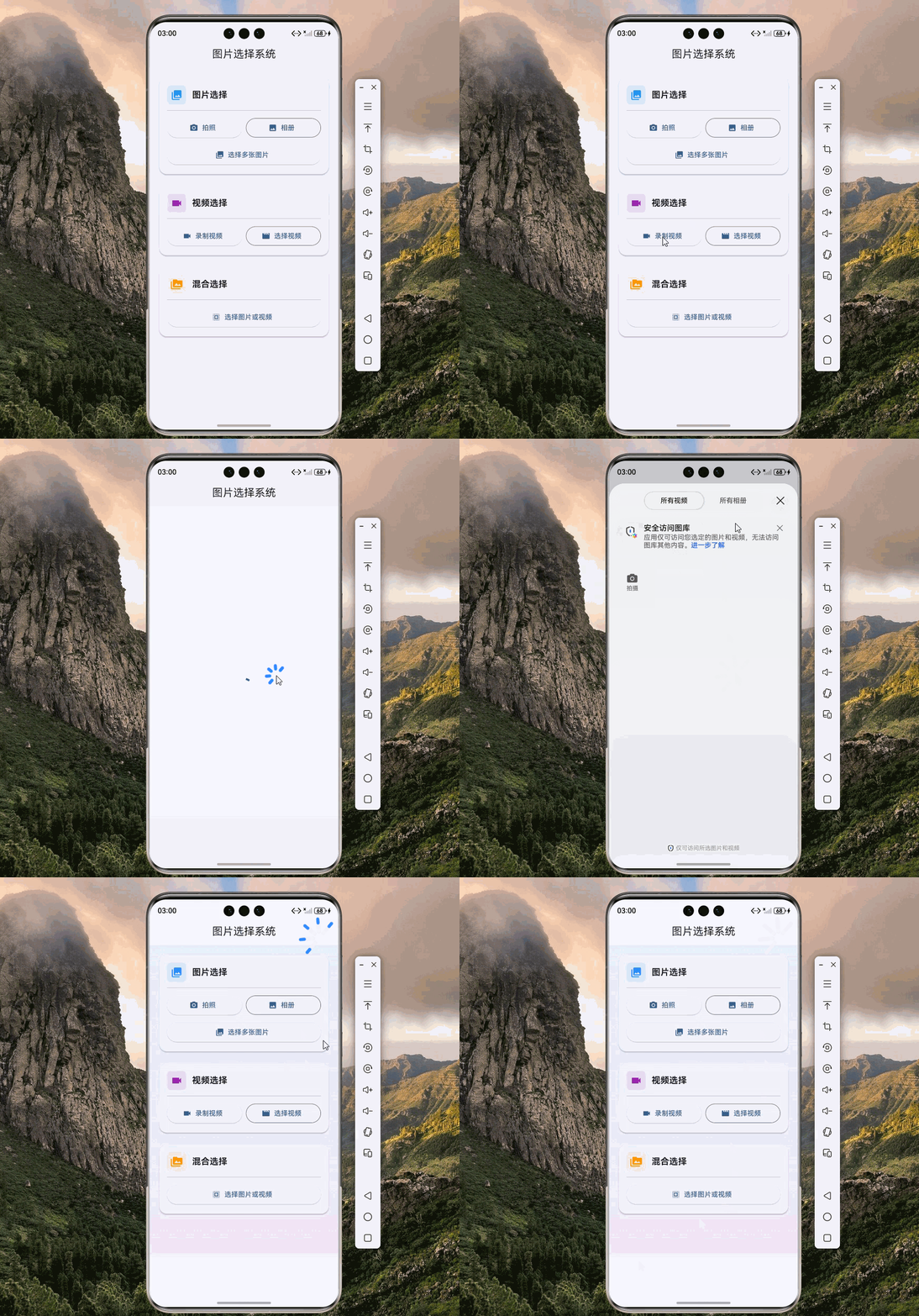
欢迎加入开源鸿蒙跨平台社区:https://openharmonycrossplatform.csdn.net
🔍 一、第三方库概述与应用场景
📱 1.1 为什么需要图片选择功能?
在现代移动应用开发中,图片选择功能几乎已经成为标配。无论是社交应用的用户头像上传、电商应用的商品图片发布、还是内容创作平台的图文编辑,都需要用户从设备中选择或拍摄图片。一个优秀的图片选择体验,能够显著提升用户满意度和应用的专业程度。
想象一下这样的场景:用户想要更换自己的头像,打开你的应用后,点击头像区域,系统弹出一个优雅的选择面板,用户可以选择从相机拍照或从相册选择。选择完成后,图片自动压缩到合适的大小,裁剪成圆形头像,并上传到服务器。整个过程流畅自然,用户无需关心技术细节,只需要专注于自己的需求。
这就是 image_picker 库要解决的问题。它提供了一套统一的 API,让开发者可以轻松实现跨平台的图片选择功能,同时屏蔽了不同平台的底层差异。
📋 1.2 image_picker 是什么?
image_picker 是 Flutter 官方维护的一个核心插件,专门用于在应用内选择图片和视频。它支持从相机拍摄、相册选择等多种来源,提供了丰富的配置选项,如图片质量压缩、尺寸限制、多选模式等。
在 OpenHarmony 平台上,image_picker 同样提供了完整的支持,让开发者可以无缝地使用这套 API 来实现图片和视频选择功能。无论是单图选择、多图选择,还是视频录制,都可以通过简单的 API 调用来完成。
🎯 1.3 核心功能特性
| 功能特性 | 详细说明 | OpenHarmony 支持 |
|---|---|---|
| 单图选择 | 从相机或相册选择单张图片 | ✅ 完全支持 |
| 多图选择 | 一次选择多张图片 | ✅ 完全支持 |
| 视频选择 | 从相机录制或相册选择视频 | ✅ 完全支持 |
| 图片压缩 | 选择时自动压缩图片质量和尺寸 | ✅ 完全支持 |
| 媒体混合 | 同时选择图片和视频 | ✅ 完全支持 |
| 前后摄像头 | 支持指定前置或后置摄像头 | ✅ 完全支持 |
| 录制时长限制 | 限制视频录制的最大时长 | ✅ 完全支持 |
💡 1.4 典型应用场景
在实际的应用开发中,image_picker 有着广泛的应用场景:
社交应用:用户头像上传、动态图片发布、聊天图片发送、朋友圈图片分享等。用户可以随时记录生活中的精彩瞬间,与好友分享。
电商应用:商品图片上传、评价晒单、客服反馈图片、身份认证照片等。商家可以快速上传商品图片,买家可以晒出购买的商品。
内容创作:图文编辑、文章配图、笔记插图、作品展示等。创作者可以为自己的内容添加精美的配图,提升内容的吸引力。
企业应用:工单照片上传、巡检记录图片、报销凭证拍照、合同文档扫描等。员工可以方便地记录工作现场情况。
🏗️ 二、系统架构设计
📐 2.1 整体架构
为了构建一个可维护、可扩展的图片选择系统,我们采用分层架构设计:
┌─────────────────────────────────────────────────────────┐
│                    UI 层 (展示层)                        │
│  ┌─────────────┐  ┌─────────────┐  ┌─────────────┐     │
│  │  图片预览   │  │  选择面板   │  │  操作按钮   │     │
│  └─────────────┘  └─────────────┘  └─────────────┘     │
├─────────────────────────────────────────────────────────┤
│                  服务层 (业务逻辑)                       │
│  ┌─────────────────────────────────────────────────┐   │
│  │              ImagePickerService                  │   │
│  │  • 统一的图片选择接口                            │   │
│  │  • 图片压缩与尺寸处理                            │   │
│  │  • 错误处理与重试机制                            │   │
│  │  • 选择结果缓存管理                              │   │
│  └─────────────────────────────────────────────────┘   │
├─────────────────────────────────────────────────────────┤
│                  基础设施层 (底层实现)                   │
│  ┌─────────────────────────────────────────────────┐   │
│  │              image_picker 插件                   │   │
│  │  • pickImage() - 选择图片                        │   │
│  │  • pickMultiImage() - 选择多张图片               │   │
│  │  • pickVideo() - 选择视频                        │   │
│  │  • pickMedia() - 选择媒体                        │   │
│  └─────────────────────────────────────────────────┘   │
└─────────────────────────────────────────────────────────┘
📊 2.2 数据模型设计
为了更好地管理图片选择的结果和配置,我们设计了一套数据模型:
dart
/// 媒体类型枚举
enum MediaType {
  image,    // 图片
  video,    // 视频
}

/// 图片来源枚举
enum ImageSource {
  camera,   // 相机
  gallery,  // 相册
}

/// 选择配置模型
class PickerConfig {
  /// 图片来源
  final ImageSource source;

  /// 最大宽度
  final int? maxWidth;

  /// 最大高度
  final int? maxHeight;

  /// 图片质量 (0-100)
  final int? imageQuality;

  /// 最大录制时长(视频)
  final Duration? maxDuration;

  /// 是否支持多选
  final bool allowMultiple;

  const PickerConfig({
    required this.source,
    this.maxWidth,
    this.maxHeight,
    this.imageQuality,
    this.maxDuration,
    this.allowMultiple = false,
  });
}

/// 媒体文件模型
class MediaFile {
  /// 文件路径
  final String path;

  /// 文件名
  final String name;

  /// 媒体类型
  final MediaType type;

  /// 文件大小(字节)
  final int size;

  /// 创建时间
  final DateTime createdAt;

  const MediaFile({
    required this.path,
    required this.name,
    required this.type,
    required this.size,
    required this.createdAt,
  });

  /// 格式化的文件大小
  String get formattedSize {
    if (size < 1024) return '$size B';
    if (size < 1024 * 1024) return '${(size / 1024).toStringAsFixed(1)} KB';
    return '${(size / (1024 * 1024)).toStringAsFixed(1)} MB';
  }
}
📦 三、项目配置与依赖安装
📥 3.1 添加依赖
在 Flutter 项目中使用 image_picker,需要在 pubspec.yaml 文件中添加依赖。由于我们要支持 OpenHarmony 平台,需要使用适配版本的仓库。
打开项目根目录下的 pubspec.yaml 文件,找到 dependencies 部分,添加以下配置:
yaml
dependencies:
  flutter:
    sdk: flutter

  # image_picker - 图片选择插件
  # 使用 OpenHarmony 适配版本
  image_picker:
    git:
      url: https://atomgit.com/openharmony-tpc/flutter_packages.git
path: packages/image_picker/image_picker配置说明:
git方式引用:因为 OpenHarmony 适配版本需要从指定的 Git 仓库获取url:指向开源鸿蒙 TPC 维护的 flutter_packages 仓库path:指定仓库中 image_picker 包的具体路径- 本项目基于
image_picker@1.1.2开发,适配 Flutter 3.27.5-ohos-1.0.4
🔧 3.2 权限配置
在 OpenHarmony 平台上,访问相册或相机需要配置相应的权限。权限配置分为两个步骤:
步骤一:配置权限声明
在 ohos/entry/src/main/module.json5 文件中添加权限声明:
json5
{
  "module": {
    "name": "entry",
    "type": "entry",
    "requestPermissions": [
      {
        "name": "ohos.permission.READ_MEDIA",
        "reason": "$string:read_media_reason",
        "usedScene": {
          "abilities": ["EntryAbility"],
          "when": "inuse"
        }
      },
      {
        "name": "ohos.permission.CAMERA",
        "reason": "$string:camera_reason",
        "usedScene": {
          "abilities": ["EntryAbility"],
          "when": "inuse"
        }
      }
    ]
  }
}
步骤二:添加字符串资源
在 ohos/entry/src/main/resources/base/element/string.json 文件中添加权限说明字符串:
json
{
  "string": [
    {
      "name": "read_media_reason",
      "value": "用于选择和读取图片、视频等媒体文件"
    },
    {
      "name": "camera_reason",
      "value": "用于拍摄照片和录制视频"
    }
  ]
}权限说明:
| 权限 | 说明 | 用途 |
|---|---|---|
ohos.permission.READ_MEDIA |
读取媒体文件 | 从相册选择图片和视频 |
ohos.permission.CAMERA |
相机权限 | 拍摄照片和录制视频 |
⚠️ 重要提示 :
reason字段使用$string:xxx格式引用字符串资源,这是 OpenHarmony 的规范要求,必须在string.json中定义对应的字符串,否则可能导致编译失败或权限申请异常。
🛠️ 四、核心服务实现
📸 4.1 图片选择服务
首先,我们实现一个图片选择服务,封装 image_picker 的底层 API:
dart
import 'dart:io';
import 'package:flutter/material.dart';
import 'package:image_picker/image_picker.dart';

/// 图片选择服务
///
/// 该服务封装了 image_picker 的底层 API,提供统一的图片选择接口。
/// 所有方法都是静态的,可以在应用的任何地方直接调用。
class ImagePickerService {
  /// ImagePicker 实例
  static final ImagePicker _picker = ImagePicker();

  /// 缓存的选择结果
  static final List<XFile> _selectedFiles = [];

  /// 获取已选择的文件
  static List<XFile> get selectedFiles => List.unmodifiable(_selectedFiles);

  /// 从相机拍照
  ///
  /// [maxWidth] 最大宽度
  /// [maxHeight] 最大高度
  /// [imageQuality] 图片质量 (0-100)
  /// [preferredCameraDevice] 首选摄像头
  static Future<XFile?> takePhoto({
    int? maxWidth,
    int? maxHeight,
    int? imageQuality,
    CameraDevice preferredCameraDevice = CameraDevice.rear,
  }) async {
    try {
      final XFile? photo = await _picker.pickImage(
        source: ImageSource.camera,
        maxWidth: maxWidth?.toDouble(),
        maxHeight: maxHeight?.toDouble(),
        imageQuality: imageQuality,
        preferredCameraDevice: preferredCameraDevice,
      );

      if (photo != null) {
        _selectedFiles.clear();
        _selectedFiles.add(photo);
      }

      return photo;
    } catch (e) {
      debugPrint('拍照失败: $e');
      return null;
    }
  }

  /// 从相册选择单张图片
  ///
  /// [maxWidth] 最大宽度
  /// [maxHeight] 最大高度
  /// [imageQuality] 图片质量 (0-100)
  static Future<XFile?> pickSingleImage({
    int? maxWidth,
    int? maxHeight,
    int? imageQuality,
  }) async {
    try {
      final XFile? image = await _picker.pickImage(
        source: ImageSource.gallery,
        maxWidth: maxWidth?.toDouble(),
        maxHeight: maxHeight?.toDouble(),
        imageQuality: imageQuality,
      );

      if (image != null) {
        _selectedFiles.clear();
        _selectedFiles.add(image);
      }

      return image;
    } catch (e) {
      debugPrint('选择图片失败: $e');
      return null;
    }
  }

  /// 从相册选择多张图片
  ///
  /// [maxWidth] 最大宽度
  /// [maxHeight] 最大高度
  /// [imageQuality] 图片质量 (0-100)
  static Future<List<XFile>> pickMultipleImages({
    int? maxWidth,
    int? maxHeight,
    int? imageQuality,
  }) async {
    try {
      final List<XFile> images = await _picker.pickMultiImage(
        maxWidth: maxWidth?.toDouble(),
        maxHeight: maxHeight?.toDouble(),
        imageQuality: imageQuality,
      );

      if (images.isNotEmpty) {
        _selectedFiles.clear();
        _selectedFiles.addAll(images);
      }

      return images;
    } catch (e) {
      debugPrint('选择多张图片失败: $e');
      return [];
    }
  }

  /// 录制视频
  ///
  /// [maxDuration] 最大录制时长
  /// [preferredCameraDevice] 首选摄像头
  static Future<XFile?> recordVideo({
    Duration? maxDuration,
    CameraDevice preferredCameraDevice = CameraDevice.rear,
  }) async {
    try {
      final XFile? video = await _picker.pickVideo(
        source: ImageSource.camera,
        maxDuration: maxDuration,
        preferredCameraDevice: preferredCameraDevice,
      );

      if (video != null) {
        _selectedFiles.clear();
        _selectedFiles.add(video);
      }

      return video;
    } catch (e) {
      debugPrint('录制视频失败: $e');
      return null;
    }
  }

  /// 从相册选择视频
  static Future<XFile?> pickVideo() async {
    try {
      final XFile? video = await _picker.pickVideo(
        source: ImageSource.gallery,
      );

      if (video != null) {
        _selectedFiles.clear();
        _selectedFiles.add(video);
      }

      return video;
    } catch (e) {
      debugPrint('选择视频失败: $e');
      return null;
    }
  }

  /// 选择图片或视频(混合模式)
  static Future<XFile?> pickMedia() async {
    try {
      final XFile? media = await _picker.pickMedia();

      if (media != null) {
        _selectedFiles.clear();
        _selectedFiles.add(media);
      }

      return media;
    } catch (e) {
      debugPrint('选择媒体失败: $e');
      return null;
    }
  }

  /// 选择多个图片或视频
  static Future<List<XFile>> pickMultipleMedia() async {
    try {
      final List<XFile> media = await _picker.pickMultipleMedia();

      if (media.isNotEmpty) {
        _selectedFiles.clear();
        _selectedFiles.addAll(media);
      }

      return media;
    } catch (e) {
      debugPrint('选择多个媒体失败: $e');
      return [];
    }
  }

  /// 获取文件信息
  static Future<MediaFile?> getFileInfo(XFile file) async {
    try {
      final stat = await File(file.path).stat();
      final extension = file.path.split('.').last.toLowerCase();

      return MediaFile(
        path: file.path,
        name: file.name,
        type: _getMediaType(extension),
        size: stat.size,
        createdAt: stat.changed,
      );
    } catch (e) {
      debugPrint('获取文件信息失败: $e');
      return null;
    }
  }

  /// 清除缓存
  static void clearCache() {
    _selectedFiles.clear();
  }

  /// 根据扩展名判断媒体类型
  static MediaType _getMediaType(String extension) {
    const imageExts = ['jpg', 'jpeg', 'png', 'gif', 'webp', 'bmp', 'heic'];
    const videoExts = ['mp4', 'mov', 'avi', 'mkv', 'webm', '3gp'];

    if (imageExts.contains(extension)) return MediaType.image;
    if (videoExts.contains(extension)) return MediaType.video;
    return MediaType.image;
  }
}
📋 4.2 选择配置管理
接下来,我们创建一个选择配置管理类,定义常用的配置预设:
dart
/// 媒体类型枚举
enum MediaType {
  image,
  video,
}

/// 媒体文件模型
class MediaFile {
  final String path;
  final String name;
  final MediaType type;
  final int size;
  final DateTime createdAt;

  const MediaFile({
    required this.path,
    required this.name,
    required this.type,
    required this.size,
    required this.createdAt,
  });

  String get formattedSize {
    if (size < 1024) return '$size B';
    if (size < 1024 * 1024) return '${(size / 1024).toStringAsFixed(1)} KB';
    return '${(size / (1024 * 1024)).toStringAsFixed(1)} MB';
  }
}

/// 选择配置预设
class PickerPresets {
  /// 头像选择配置(正方形、压缩)
  static const avatar = PickerConfig(
    source: ImageSource.gallery,
    maxWidth: 512,
    maxHeight: 512,
    imageQuality: 85,
  );

  /// 高清图片配置
  static const hdImage = PickerConfig(
    source: ImageSource.gallery,
    maxWidth: 1920,
    maxHeight: 1080,
    imageQuality: 90,
  );

  /// 缩略图配置
  static const thumbnail = PickerConfig(
    source: ImageSource.gallery,
    maxWidth: 256,
    maxHeight: 256,
    imageQuality: 70,
  );

  /// 多图选择配置
  static const multiImage = PickerConfig(
    source: ImageSource.gallery,
    maxWidth: 1280,
    maxHeight: 720,
    imageQuality: 80,
    allowMultiple: true,
  );

  /// 短视频配置(30秒)
  static const shortVideo = PickerConfig(
    source: ImageSource.camera,
    maxDuration: Duration(seconds: 30),
  );
}

/// 选择配置模型
class PickerConfig {
  final ImageSource source;
  final int? maxWidth;
  final int? maxHeight;
  final int? imageQuality;
  final Duration? maxDuration;
  final bool allowMultiple;

  const PickerConfig({
    required this.source,
    this.maxWidth,
    this.maxHeight,
    this.imageQuality,
    this.maxDuration,
    this.allowMultiple = false,
  });
}
📝 五、完整示例代码
下面是一个完整的智能图片选择与管理系统示例:
dart
import 'dart:io';
import 'package:flutter/material.dart';
import 'package:image_picker/image_picker.dart';

// ============ 枚举定义 ============

enum MediaType {
  image,
  video,
}

// ============ 数据模型 ============

class MediaFile {
  final String path;
  final String name;
  final MediaType type;
  final int size;
  final DateTime createdAt;

  const MediaFile({
    required this.path,
    required this.name,
    required this.type,
    required this.size,
    required this.createdAt,
  });

  String get formattedSize {
    if (size < 1024) return '$size B';
    if (size < 1024 * 1024) return '${(size / 1024).toStringAsFixed(1)} KB';
    return '${(size / (1024 * 1024)).toStringAsFixed(1)} MB';
  }
}

class PickerConfig {
  final ImageSource source;
  final int? maxWidth;
  final int? maxHeight;
  final int? imageQuality;
  final Duration? maxDuration;
  final bool allowMultiple;

  const PickerConfig({
    required this.source,
    this.maxWidth,
    this.maxHeight,
    this.imageQuality,
    this.maxDuration,
    this.allowMultiple = false,
  });
}

class PickerPresets {
  static const avatar = PickerConfig(
    source: ImageSource.gallery,
    maxWidth: 512,
    maxHeight: 512,
    imageQuality: 85,
  );

  static const hdImage = PickerConfig(
    source: ImageSource.gallery,
    maxWidth: 1920,
    maxHeight: 1080,
    imageQuality: 90,
  );

  static const thumbnail = PickerConfig(
    source: ImageSource.gallery,
    maxWidth: 256,
    maxHeight: 256,
    imageQuality: 70,
  );
}

// ============ 服务类 ============

class ImagePickerService {
  static final ImagePicker _picker = ImagePicker();
  static final List<XFile> _selectedFiles = [];
  static List<XFile> get selectedFiles => List.unmodifiable(_selectedFiles);

  static Future<XFile?> takePhoto({
    int? maxWidth,
    int? maxHeight,
    int? imageQuality,
    CameraDevice preferredCameraDevice = CameraDevice.rear,
  }) async {
    try {
      final XFile? photo = await _picker.pickImage(
        source: ImageSource.camera,
        maxWidth: maxWidth?.toDouble(),
        maxHeight: maxHeight?.toDouble(),
        imageQuality: imageQuality,
        preferredCameraDevice: preferredCameraDevice,
      );

      if (photo != null) {
        _selectedFiles.clear();
        _selectedFiles.add(photo);
      }

      return photo;
    } catch (e) {
      debugPrint('拍照失败: $e');
      return null;
    }
  }

  static Future<XFile?> pickSingleImage({
    int? maxWidth,
    int? maxHeight,
    int? imageQuality,
  }) async {
    try {
      final XFile? image = await _picker.pickImage(
        source: ImageSource.gallery,
        maxWidth: maxWidth?.toDouble(),
        maxHeight: maxHeight?.toDouble(),
        imageQuality: imageQuality,
      );

      if (image != null) {
        _selectedFiles.clear();
        _selectedFiles.add(image);
      }

      return image;
    } catch (e) {
      debugPrint('选择图片失败: $e');
      return null;
    }
  }

  static Future<List<XFile>> pickMultipleImages({
    int? maxWidth,
    int? maxHeight,
    int? imageQuality,
  }) async {
    try {
      final List<XFile> images = await _picker.pickMultiImage(
        maxWidth: maxWidth?.toDouble(),
        maxHeight: maxHeight?.toDouble(),
        imageQuality: imageQuality,
      );

      if (images.isNotEmpty) {
        _selectedFiles.clear();
        _selectedFiles.addAll(images);
      }

      return images;
    } catch (e) {
      debugPrint('选择多张图片失败: $e');
      return [];
    }
  }

  static Future<XFile?> recordVideo({
    Duration? maxDuration,
    CameraDevice preferredCameraDevice = CameraDevice.rear,
  }) async {
    try {
      final XFile? video = await _picker.pickVideo(
        source: ImageSource.camera,
        maxDuration: maxDuration,
        preferredCameraDevice: preferredCameraDevice,
      );

      if (video != null) {
        _selectedFiles.clear();
        _selectedFiles.add(video);
      }

      return video;
    } catch (e) {
      debugPrint('录制视频失败: $e');
      return null;
    }
  }

  static Future<XFile?> pickVideo() async {
    try {
      final XFile? video = await _picker.pickVideo(
        source: ImageSource.gallery,
      );

      if (video != null) {
        _selectedFiles.clear();
        _selectedFiles.add(video);
      }

      return video;
    } catch (e) {
      debugPrint('选择视频失败: $e');
      return null;
    }
  }

  static Future<XFile?> pickMedia() async {
    try {
      final XFile? media = await _picker.pickMedia();

      if (media != null) {
        _selectedFiles.clear();
        _selectedFiles.add(media);
      }

      return media;
    } catch (e) {
      debugPrint('选择媒体失败: $e');
      return null;
    }
  }

  static Future<List<XFile>> pickMultipleMedia() async {
    try {
      final List<XFile> media = await _picker.pickMultipleMedia();

      if (media.isNotEmpty) {
        _selectedFiles.clear();
        _selectedFiles.addAll(media);
      }

      return media;
    } catch (e) {
      debugPrint('选择多个媒体失败: $e');
      return [];
    }
  }

  static Future<MediaFile?> getFileInfo(XFile file) async {
    try {
      final stat = await File(file.path).stat();
      final extension = file.path.split('.').last.toLowerCase();

      return MediaFile(
        path: file.path,
        name: file.name,
        type: _getMediaType(extension),
        size: stat.size,
        createdAt: stat.changed,
      );
    } catch (e) {
      debugPrint('获取文件信息失败: $e');
      return null;
    }
  }

  static void clearCache() {
    _selectedFiles.clear();
  }

  static MediaType _getMediaType(String extension) {
    const imageExts = ['jpg', 'jpeg', 'png', 'gif', 'webp', 'bmp'];
    const videoExts = ['mp4', 'mov', 'avi', 'mkv', 'webm'];

    if (imageExts.contains(extension)) return MediaType.image;
    if (videoExts.contains(extension)) return MediaType.video;
    return MediaType.image;
  }
}

// ============ 应用入口 ============

void main() {
  runApp(const ImagePickerApp());
}

class ImagePickerApp extends StatelessWidget {
  const ImagePickerApp({super.key});

  @override
  Widget build(BuildContext context) {
    return MaterialApp(
      title: '图片选择系统',
      debugShowCheckedModeBanner: false,
      theme: ThemeData(
        colorScheme: ColorScheme.fromSeed(seedColor: Colors.blue),
        useMaterial3: true,
      ),
      home: const ImagePickerPage(),
    );
  }
}

class ImagePickerPage extends StatefulWidget {
  const ImagePickerPage({super.key});

  @override
  State<ImagePickerPage> createState() => _ImagePickerPageState();
}

class _ImagePickerPageState extends State<ImagePickerPage> {
  List<XFile> _imageFiles = [];
  XFile? _videoFile;
  String? _error;
  bool _isLoading = false;

  Future<void> _executeAction(Future<dynamic> Function() action) async {
    setState(() => _isLoading = true);
    try {
      await action();
      setState(() => _error = null);
    } catch (e) {
      setState(() => _error = e.toString());
    } finally {
      if (mounted) {
        setState(() => _isLoading = false);
      }
    }
  }

  Future<void> _takePhoto() async {
    await _executeAction(() async {
      final photo = await ImagePickerService.takePhoto(
        maxWidth: 1280,
        maxHeight: 720,
        imageQuality: 85,
      );
      if (photo != null) {
        setState(() {
          _imageFiles = [photo];
          _videoFile = null;
        });
      }
    });
  }

  Future<void> _pickSingleImage() async {
    await _executeAction(() async {
      final image = await ImagePickerService.pickSingleImage(
        maxWidth: 1280,
        maxHeight: 720,
        imageQuality: 85,
      );
      if (image != null) {
        setState(() {
          _imageFiles = [image];
          _videoFile = null;
        });
      }
    });
  }

  Future<void> _pickMultipleImages() async {
    await _executeAction(() async {
      final images = await ImagePickerService.pickMultipleImages(
        maxWidth: 1280,
        maxHeight: 720,
        imageQuality: 80,
      );
      if (images.isNotEmpty) {
        setState(() {
          _imageFiles = images;
          _videoFile = null;
        });
      }
    });
  }

  Future<void> _recordVideo() async {
    await _executeAction(() async {
      final video = await ImagePickerService.recordVideo(
        maxDuration: const Duration(seconds: 30),
      );
      if (video != null) {
        setState(() {
          _videoFile = video;
          _imageFiles = [];
        });
      }
    });
  }

  Future<void> _pickVideo() async {
    await _executeAction(() async {
      final video = await ImagePickerService.pickVideo();
      if (video != null) {
        setState(() {
          _videoFile = video;
          _imageFiles = [];
        });
      }
    });
  }

  Future<void> _pickMedia() async {
    await _executeAction(() async {
      final media = await ImagePickerService.pickMedia();
      if (media != null) {
        final info = await ImagePickerService.getFileInfo(media);
        setState(() {
          if (info?.type == MediaType.video) {
            _videoFile = media;
            _imageFiles = [];
          } else {
            _imageFiles = [media];
            _videoFile = null;
          }
        });
      }
    });
  }

  void _clearAll() {
    setState(() {
      _imageFiles = [];
      _videoFile = null;
      _error = null;
    });
    ImagePickerService.clearCache();
  }

  @override
  Widget build(BuildContext context) {
    return Scaffold(
      appBar: AppBar(
        title: const Text('图片选择系统'),
        centerTitle: true,
        elevation: 0,
        actions: [
          if (_imageFiles.isNotEmpty || _videoFile != null)
            IconButton(
              icon: const Icon(Icons.clear),
              onPressed: _clearAll,
              tooltip: '清除所有',
            ),
        ],
      ),
      body: _isLoading
          ? const Center(child: CircularProgressIndicator())
          : Container(
              decoration: BoxDecoration(
                gradient: LinearGradient(
                  begin: Alignment.topCenter,
                  end: Alignment.bottomCenter,
                  colors: [
                    Colors.blue.shade50,
                    Colors.purple.shade50,
                  ],
                ),
              ),
              child: SingleChildScrollView(
                padding: const EdgeInsets.all(16),
                child: Column(
                  crossAxisAlignment: CrossAxisAlignment.start,
                  children: [
                    _buildImageSection(),
                    const SizedBox(height: 16),
                    _buildVideoSection(),
                    const SizedBox(height: 16),
                    _buildMediaSection(),
                    const SizedBox(height: 16),
                    if (_error != null) _buildErrorCard(),
                    const SizedBox(height: 16),
                    if (_imageFiles.isNotEmpty) _buildImagePreview(),
                    if (_videoFile != null) _buildVideoPreview(),
                    const SizedBox(height: 32),
                  ],
                ),
              ),
            ),
    );
  }

  Widget _buildImageSection() {
    return _buildSectionCard(
      title: '图片选择',
      icon: Icons.photo_library,
      color: Colors.blue,
      child: Column(
        children: [
          Row(
            children: [
              Expanded(
                child: ElevatedButton.icon(
                  onPressed: _takePhoto,
                  icon: const Icon(Icons.camera_alt),
                  label: const Text('拍照'),
                ),
              ),
              const SizedBox(width: 8),
              Expanded(
                child: OutlinedButton.icon(
                  onPressed: _pickSingleImage,
                  icon: const Icon(Icons.photo),
                  label: const Text('相册'),
                ),
              ),
            ],
          ),
          const SizedBox(height: 8),
          SizedBox(
            width: double.infinity,
            child: ElevatedButton.icon(
              onPressed: _pickMultipleImages,
              icon: const Icon(Icons.photo_library),
              label: const Text('选择多张图片'),
            ),
          ),
        ],
      ),
    );
  }

  Widget _buildVideoSection() {
    return _buildSectionCard(
      title: '视频选择',
      icon: Icons.videocam,
      color: Colors.purple,
      child: Row(
        children: [
          Expanded(
            child: ElevatedButton.icon(
              onPressed: _recordVideo,
              icon: const Icon(Icons.videocam),
              label: const Text('录制视频'),
            ),
          ),
          const SizedBox(width: 8),
          Expanded(
            child: OutlinedButton.icon(
              onPressed: _pickVideo,
              icon: const Icon(Icons.movie),
              label: const Text('选择视频'),
            ),
          ),
        ],
      ),
    );
  }

  Widget _buildMediaSection() {
    return _buildSectionCard(
      title: '混合选择',
      icon: Icons.perm_media,
      color: Colors.orange,
      child: SizedBox(
        width: double.infinity,
        child: ElevatedButton.icon(
          onPressed: _pickMedia,
          icon: const Icon(Icons.select_all),
          label: const Text('选择图片或视频'),
        ),
      ),
    );
  }

  Widget _buildErrorCard() {
    return Container(
      padding: const EdgeInsets.all(12),
      decoration: BoxDecoration(
        color: Colors.red.shade50,
        borderRadius: BorderRadius.circular(8),
        border: Border.all(color: Colors.red.shade200),
      ),
      child: Row(
        children: [
          const Icon(Icons.error, color: Colors.red),
          const SizedBox(width: 8),
          Expanded(
            child: Text(
              _error!,
              style: const TextStyle(color: Colors.red),
            ),
          ),
        ],
      ),
    );
  }

  Widget _buildImagePreview() {
    return _buildSectionCard(
      title: '选中的图片 (${_imageFiles.length})',
      icon: Icons.image,
      color: Colors.green,
      child: GridView.builder(
        shrinkWrap: true,
        physics: const NeverScrollableScrollPhysics(),
        gridDelegate: const SliverGridDelegateWithFixedCrossAxisCount(
          crossAxisCount: 3,
          crossAxisSpacing: 8,
          mainAxisSpacing: 8,
        ),
        itemCount: _imageFiles.length,
        itemBuilder: (context, index) {
          return Stack(
            children: [
              Positioned.fill(
                child: ClipRRect(
                  borderRadius: BorderRadius.circular(8),
                  child: Image.file(
                    File(_imageFiles[index].path),
                    fit: BoxFit.cover,
                  ),
                ),
              ),
              Positioned(
                top: 4,
                right: 4,
                child: Container(
                  padding: const EdgeInsets.all(4),
                  decoration: BoxDecoration(
                    color: Colors.black54,
                    borderRadius: BorderRadius.circular(12),
                  ),
                  child: Text(
                    '${index + 1}',
                    style: const TextStyle(
                      color: Colors.white,
                      fontSize: 12,
                    ),
                  ),
                ),
              ),
            ],
          );
        },
      ),
    );
  }

  Widget _buildVideoPreview() {
    return _buildSectionCard(
      title: '选中的视频',
      icon: Icons.video_library,
      color: Colors.red,
      child: Container(
        padding: const EdgeInsets.all(16),
        decoration: BoxDecoration(
          color: Colors.grey.shade100,
          borderRadius: BorderRadius.circular(8),
        ),
        child: Column(
          children: [
            const Icon(Icons.play_circle_outline, size: 48),
            const SizedBox(height: 8),
            Text(
              _videoFile!.name,
              style: const TextStyle(fontWeight: FontWeight.w500),
            ),
          ],
        ),
      ),
    );
  }

  Widget _buildSectionCard({
    required String title,
    required IconData icon,
    required Color color,
    required Widget child,
  }) {
    return Card(
      elevation: 2,
      shape: RoundedRectangleBorder(
        borderRadius: BorderRadius.circular(16),
      ),
      child: Padding(
        padding: const EdgeInsets.all(16),
        child: Column(
          crossAxisAlignment: CrossAxisAlignment.start,
          children: [
            Row(
              children: [
                Container(
                  padding: const EdgeInsets.all(8),
                  decoration: BoxDecoration(
                    color: color.withOpacity(0.1),
                    borderRadius: BorderRadius.circular(8),
                  ),
                  child: Icon(
                    icon,
                    color: color,
                    size: 24,
                  ),
                ),
                const SizedBox(width: 12),
                Text(
                  title,
                  style: const TextStyle(
                    fontSize: 18,
                    fontWeight: FontWeight.bold,
                  ),
                ),
              ],
            ),
            const Divider(height: 24),
            child,
          ],
        ),
      ),
    );
  }
}
🏆 六、最佳实践与注意事项
⚠️ 6.1 图片压缩策略
在实际应用中,直接使用原图往往不是最佳选择。高分辨率的照片可能达到几 MB 甚至几十 MB,这会导致:
上传耗时过长:用户需要等待很长时间才能完成上传,体验很差。
占用存储空间:服务器需要存储大量的大文件,成本增加。
加载速度慢:其他用户查看图片时需要下载大文件,加载缓慢。
因此,在选择图片时进行压缩是非常必要的:
dart
// 推荐的压缩配置
final XFile? image = await _picker.pickImage(
  source: ImageSource.gallery,
  maxWidth: 1280,      // 限制最大宽度
  maxHeight: 720,      // 限制最大高度
  imageQuality: 80,    // 压缩质量 80%
);
🔐 6.2 权限处理最佳实践
虽然 OpenHarmony 平台会自动处理权限请求,但作为开发者,了解权限处理流程仍然很重要:
提前告知用户:在请求权限之前,向用户解释为什么需要这个权限。
优雅处理拒绝:如果用户拒绝授权,提供替代方案或引导用户手动开启权限。
避免频繁请求:不要在短时间内频繁请求权限,这会让用户感到烦躁。
📱 6.3 OpenHarmony 平台特殊说明
相机调用:OpenHarmony 平台支持调用系统相机应用进行拍照和录像。
相册访问:可以正常访问系统相册,选择图片和视频。
权限管理:OpenHarmony 平台会自动处理运行时权限请求。
📌 七、总结
本文通过一个完整的智能图片选择与管理系统案例,深入讲解了 image_picker 第三方库的使用方法与最佳实践:
架构设计:采用分层架构(UI层 → 服务层 → 基础设施层),让代码更清晰,便于维护和测试。
服务封装:统一封装图片选择逻辑,提供语义化的方法名,让调用代码更易读。
配置预设:定义常用的选择配置预设,方便在不同场景下快速使用。
错误处理:完善的错误处理机制,确保应用在各种情况下都能稳定运行。
掌握这些技巧,你就能构建出专业级的图片选择功能,为用户提供流畅、可靠的媒体选择体验。