欢迎加入开源鸿蒙跨平台社区:https://openharmonycrossplatform.csdn.net
🎯 欢迎来到 Flutter for OpenHarmony 社区!本文将结合 image_picker、image_cropper 和 palette_generator 三个三方库,实现一个完整的图片处理工作流,包括图片选择、裁剪和主色调提取功能。
一、图片处理工作流概述
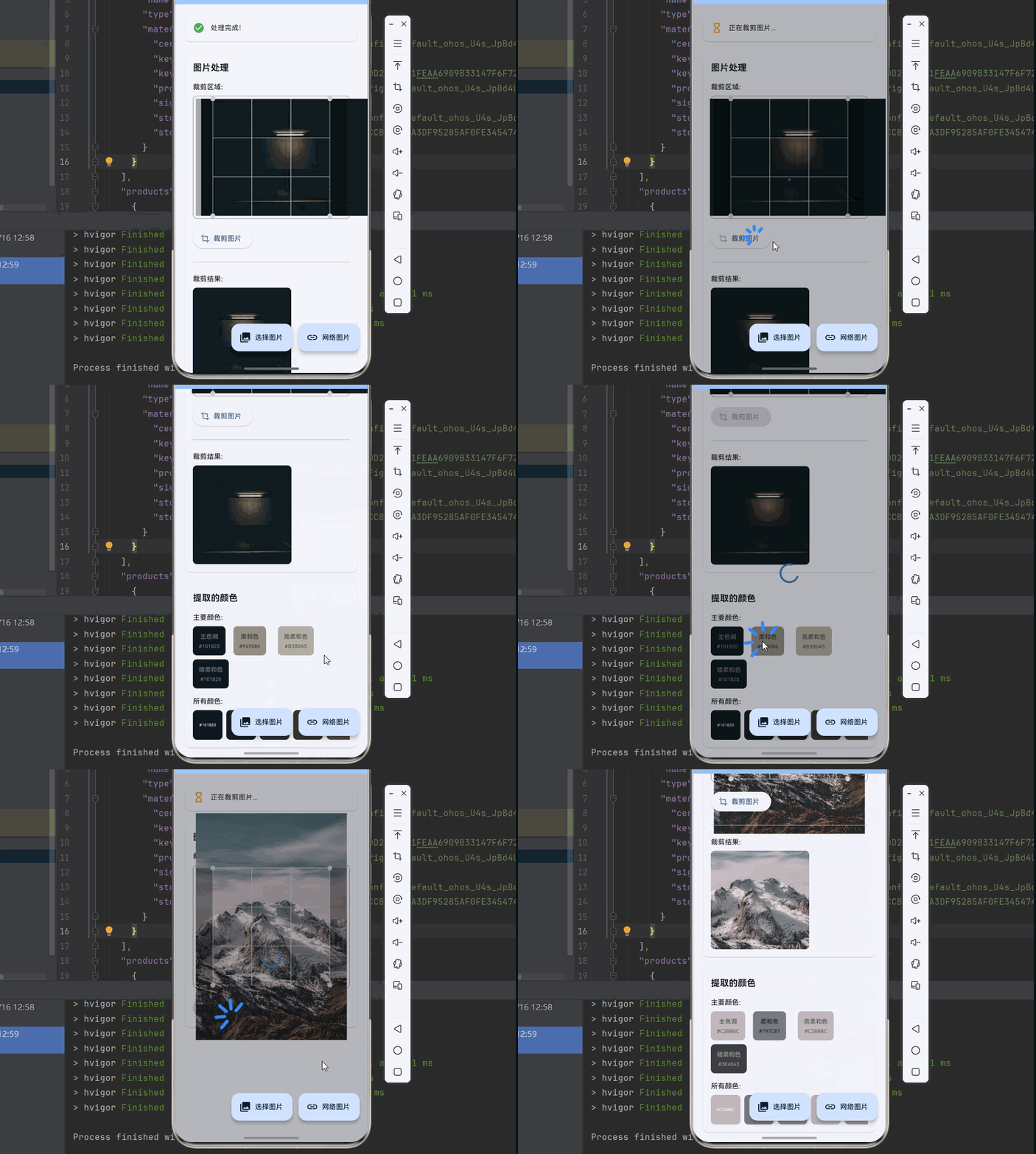
在实际应用开发中,图片处理是一个非常常见的需求。用户可能需要选择图片、裁剪图片、然后提取图片的主色调用于界面配色。本教程将结合三个三方库,实现一个完整的图片处理工作流。
📋 涉及的三方库
| 库名 | 功能 | 版本 |
|---|---|---|
| image_picker | 图片选择 | ^1.0.4 |
| image_cropper | 图片裁剪 | 2.0.0 |
| palette_generator | 主色调提取 | ^0.3.3 |
工作流程
┌─────────────┐    ┌─────────────┐    ┌─────────────┐
│  选择图片   │ -> │  裁剪图片   │ -> │  提取颜色   │
│ image_picker│    │image_cropper│    │palette_gen  │
└─────────────┘    └─────────────┘    └─────────────┘
OpenHarmony 平台适配
本项目适配 Flutter 3.7.12-ohos-1.0.6,SDK 5.0.0(12)。
依赖配置:
yaml
dependencies:
  image_picker:
    git:
      url: https://atomgit.com/openharmony-tpc/flutter_packages.git
      path: packages/image_picker/image_picker
  image_cropper:
    git:
      url: https://atomgit.com/openharmony-sig/fluttertpc_image_cropper.git
      path: ./image_cropper
      ref: master
  palette_generator:
    git:
      url: https://atomgit.com/openharmony-sig/flutter_packages.git
      path: packages/palette_generator
  http: ^1.1.0
  path_provider:
    git:
      url: https://atomgit.com/openharmony-tpc/flutter_packages.git
      path: packages/path_provider/path_provider

dev_dependencies:
  imagecropper_ohos:
    git:
      url: https://atomgit.com/openharmony-sig/fluttertpc_image_cropper.git
      path: ./image_cropper/ohos
      ref: master
💡 使用场景:图片处理工作流适用于头像上传、产品图片编辑、社交媒体图片处理等场景。
二、image_picker 图片选择
2.1 基本用法
image_picker 提供了从相册选择图片和拍照两种方式:
dart
import 'package:image_picker/image_picker.dart';

final ImagePicker _picker = ImagePicker();

Future<void> _pickFromGallery() async {
  final XFile? image = await _picker.pickImage(
    source: ImageSource.gallery,
    maxWidth: 1024,
    maxHeight: 1024,
    imageQuality: 85,
  );
  if (image != null) {
    print('选择的图片路径: ${image.path}');
  }
}

Future<void> _pickFromCamera() async {
  final XFile? image = await _picker.pickImage(
    source: ImageSource.camera,
    maxWidth: 1024,
    maxHeight: 1024,
  );
  if (image != null) {
    print('拍摄的图片路径: ${image.path}');
  }
}
2.2 pickImage 参数说明
| 参数 | 类型 | 说明 |
|---|---|---|
| source | ImageSource | 图片来源(相册/相机) |
| maxWidth | double? | 最大宽度 |
| maxHeight | double? | 最大高度 |
| imageQuality | int? | 图片质量(0-100) |
| preferredCameraDevice | CameraDevice | 首选摄像头 |
2.3 多图选择
dart
Future<void> _pickMultipleImages() async {
  final List<XFile> images = await _picker.pickMultiImage(
    maxWidth: 1024,
    maxHeight: 1024,
    imageQuality: 85,
  );
  for (var image in images) {
    print('图片路径: ${image.path}');
  }
}
2.4 加载网络图片
除了从相册选择图片,还可以加载网络图片进行处理。可以提供预设的图片列表供用户选择:
dart
import 'package:http/http.dart' as http;
import 'package:path_provider/path_provider.dart';

final networkImages = [
  'https://images.pexels.com/photos/2662116/pexels-photo-2662116.jpeg?auto=compress&cs=tinysrgb&w=800',
  'https://images.pexels.com/photos/1366919/pexels-photo-1366919.jpeg?auto=compress&cs=tinysrgb&w=800',
  'https://images.pexels.com/photos/1040499/pexels-photo-1040499.jpeg?auto=compress&cs=tinysrgb&w=800',
];

Future<File?> _loadNetworkImage(String url) async {
  try {
    final uri = Uri.parse(url);
    final response = await http.get(uri);
    final bytes = response.bodyBytes;
    final tempDir = await getTemporaryDirectory();
    final file = File('${tempDir.path}/network_image_${DateTime.now().millisecondsSinceEpoch}.jpg');
    await file.writeAsBytes(bytes);
    return file;
  } catch (e) {
    print('加载网络图片失败: $e');
    return null;
  }
}
使用 showModalBottomSheet 展示图片选择器:
dart
void _showNetworkImagePicker() {
  showModalBottomSheet(
    context: context,
    builder: (context) {
      return Container(
        padding: const EdgeInsets.all(16),
        child: GridView.builder(
          shrinkWrap: true,
          gridDelegate: const SliverGridDelegateWithFixedCrossAxisCount(
            crossAxisCount: 3,
            crossAxisSpacing: 8,
            mainAxisSpacing: 8,
          ),
          itemCount: networkImages.length,
          itemBuilder: (context, index) {
            return GestureDetector(
              onTap: () {
                Navigator.pop(context);
                _loadNetworkImage(networkImages[index]);
              },
              child: Image.network(networkImages[index], fit: BoxFit.cover),
            );
          },
        ),
      );
    },
  );
}
💡 提示:加载网络图片后,可以像本地图片一样进行裁剪和颜色提取操作。
三、image_cropper 图片裁剪
3.1 裁剪器核心类
OpenHarmony 平台使用 ImagecropperOhos 类进行图片裁剪:
dart
import 'package:imagecropper_ohos/imagecropper_ohos.dart';
import 'package:imagecropper_ohos/page/crop.dart';

final imageCropper = ImagecropperOhos();

Future<File?> _cropImage(String imagePath) async {
  final sample = await imageCropper.sampleImage(
    path: imagePath,
    maximumSize: 1024,
  );

  return sample;
}
3.2 Crop Widget 裁剪界面
使用 Crop Widget 提供交互式裁剪界面:
dart
final cropKey = GlobalKey<CropState>();

Crop.file(
  sampleFile,
  key: cropKey,
  aspectRatio: 1.0,
  maximumScale: 4.0,
  alwaysShowGrid: true,
)
3.3 执行裁剪操作
dart
Future<File?> _performCrop(String originalPath) async {
  final scale = cropKey.currentState?.scale;
  final area = cropKey.currentState?.area;
  final angle = cropKey.currentState?.angle;
  final cx = cropKey.currentState?.cx ?? 0;
  final cy = cropKey.currentState?.cy ?? 0;

  if (area == null) return null;

  final sample = await imageCropper.sampleImage(
    path: originalPath,
    maximumSize: (2000 / scale!).round(),
  );

  final croppedFile = await imageCropper.cropImage(
    file: sample!,
    area: area,
    angle: angle,
    cx: cx,
    cy: cy,
  );

  return croppedFile;
}
四、palette_generator 主色调提取
4.1 基本用法
palette_generator 可以从图片中提取主色调:
dart
import 'package:palette_generator/palette_generator.dart';

Future<PaletteGenerator> _extractColors(ImageProvider imageProvider) async {
  final paletteGenerator = await PaletteGenerator.fromImageProvider(
    imageProvider,
    maximumColorCount: 10,
  );
  return paletteGenerator;
}
4.2 PaletteGenerator 属性
| 属性 | 类型 | 说明 |
|---|---|---|
| dominantColor | PaletteColor? | 主色调 |
| lightVibrantColor | PaletteColor? | 亮活力色 |
| darkVibrantColor | PaletteColor? | 暗活力色 |
| lightMutedColor | PaletteColor? | 亮柔和色 |
| darkMutedColor | PaletteColor? | 暗柔和色 |
| vibrantColor | PaletteColor? | 活力色 |
| mutedColor | PaletteColor? | 柔和色 |
| colors | List<PaletteColor> |
所有提取的颜色 |
4.3 PaletteColor 属性
| 属性 | 类型 | 说明 |
|---|---|---|
| color | Color | 颜色值 |
| titleTextColor | Color | 适合标题的文字颜色 |
| bodyTextColor | Color | 适合正文的文字颜色 |
4.4 提取颜色示例
dart
Future<void> _analyzeImage(File imageFile) async {
  final paletteGenerator = await PaletteGenerator.fromImageProvider(
    FileImage(imageFile),
    maximumColorCount: 20,
  );

  print('主色调: ${paletteGenerator.dominantColor?.color}');
  print('活力色: ${paletteGenerator.vibrantColor?.color}');
  print('柔和色: ${paletteGenerator.mutedColor?.color}');
  print('亮活力色: ${paletteGenerator.lightVibrantColor?.color}');
  print('暗活力色: ${paletteGenerator.darkVibrantColor?.color}');
}
五、实战:完整图片处理工作流
5.1 工作流状态管理
dart
enum ProcessingStep {
  idle,
  selecting,
  cropping,
  extracting,
  completed,
}

class ImageProcessingState {
  final ProcessingStep step;
  final File? originalImage;
  final File? croppedImage;
  final PaletteGenerator? palette;
  final String? error;

  const ImageProcessingState({
    this.step = ProcessingStep.idle,
    this.originalImage,
    this.croppedImage,
    this.palette,
    this.error,
  });
}
5.2 图片处理服务类
dart
class ImageProcessingService {
  final ImagePicker _picker = ImagePicker();
  final imageCropper = ImagecropperOhos();

  Future<File?> selectImage() async {
    final XFile? image = await _picker.pickImage(
      source: ImageSource.gallery,
      maxWidth: 2048,
      maxHeight: 2048,
    );
    return image != null ? File(image.path) : null;
  }

  Future<File?> cropImage(File originalFile, GlobalKey<CropState> cropKey) async {
    final scale = cropKey.currentState?.scale;
    final area = cropKey.currentState?.area;
    final angle = cropKey.currentState?.angle;
    final cx = cropKey.currentState?.cx ?? 0;
    final cy = cropKey.currentState?.cy ?? 0;

    if (area == null) return null;

    final sample = await imageCropper.sampleImage(
      path: originalFile.path,
      maximumSize: (2000 / scale!).round(),
    );

    final croppedFile = await imageCropper.cropImage(
      file: sample!,
      area: area,
      angle: angle,
      cx: cx,
      cy: cy,
    );
    sample.delete();

    return croppedFile;
  }

  Future<PaletteGenerator> extractColors(File imageFile) async {
    return await PaletteGenerator.fromImageProvider(
      FileImage(imageFile),
      maximumColorCount: 16,
    );
  }
}
六、颜色应用场景
6.1 动态主题配色
根据提取的颜色动态设置应用主题:
dart
ThemeData _buildThemeFromPalette(PaletteGenerator palette) {
  final primaryColor = palette.dominantColor?.color ?? Colors.blue;
  final backgroundColor = palette.lightMutedColor?.color ?? Colors.white;

  return ThemeData(
    primaryColor: primaryColor,
    scaffoldBackgroundColor: backgroundColor,
    colorScheme: ColorScheme.fromSeed(
      seedColor: primaryColor,
      brightness: Brightness.light,
    ),
  );
}
6.2 卡片配色
使用提取的颜色为卡片设置配色:
dart
Widget _buildColorCard(PaletteColor paletteColor, String label) {
  return Container(
    padding: const EdgeInsets.all(16),
    decoration: BoxDecoration(
      color: paletteColor.color,
      borderRadius: BorderRadius.circular(12),
    ),
    child: Column(
      children: [
        Text(
          label,
          style: TextStyle(
            color: paletteColor.titleTextColor,
            fontWeight: FontWeight.bold,
          ),
        ),
        const SizedBox(height: 8),
        Text(
          '#${paletteColor.color.value.toRadixString(16).substring(2).toUpperCase()}',
          style: TextStyle(
            color: paletteColor.bodyTextColor,
            fontSize: 12,
          ),
        ),
      ],
    ),
  );
}
6.3 渐变背景
使用提取的颜色创建渐变背景:
dart
Container _buildGradientBackground(PaletteGenerator palette) {
  final colors = [
    palette.dominantColor?.color ?? Colors.blue,
    palette.vibrantColor?.color ?? Colors.purple,
    palette.darkVibrantColor?.color ?? Colors.indigo,
  ];

  return Container(
    decoration: BoxDecoration(
      gradient: LinearGradient(
        begin: Alignment.topLeft,
        end: Alignment.bottomRight,
        colors: colors,
      ),
    ),
  );
}
七、最佳实践
7.1 性能优化
| 建议 | 说明 |
|---|---|
| 限制图片尺寸 | 选择图片时设置 maxWidth/maxHeight |
| 异步处理 | 使用 Future/async-await 避免阻塞 UI |
| 缓存结果 | 缓存裁剪后的图片和提取的颜色 |
| 及时释放资源 | 裁剪完成后删除临时采样文件 |
7.2 错误处理
dart
Future<File?> _safeSelectImage() async {
  try {
    return await _processingService.selectImage();
  } on PlatformException catch (e) {
    print('选择图片失败: ${e.message}');
    return null;
  } catch (e) {
    print('未知错误: $e');
    return null;
  }
}
7.3 用户体验
| 建议 | 说明 |
|---|---|
| 显示处理进度 | 使用进度指示器显示当前步骤 |
| 提供预览 | 裁剪后预览图片效果 |
| 支持撤销 | 允许用户重新选择或裁剪 |
| 保存历史 | 记录处理历史方便回溯 |
八、完整示例代码
下面是一个完整的可运行示例,展示了图片处理工作流的各种功能:
dart
import 'dart:io';
import 'package:flutter/material.dart';
import 'package:http/http.dart' as http;
import 'package:image_picker/image_picker.dart';
import 'package:imagecropper_ohos/imagecropper_ohos.dart';
import 'package:imagecropper_ohos/page/crop.dart';
import 'package:palette_generator/palette_generator.dart';
import 'package:path_provider/path_provider.dart';

void main() {
  runApp(const MyApp());
}

class MyApp extends StatelessWidget {
  const MyApp({super.key});

  @override
  Widget build(BuildContext context) {
    return MaterialApp(
      title: '图片处理工作流',
      theme: ThemeData(
        colorScheme: ColorScheme.fromSeed(seedColor: Colors.blue),
        useMaterial3: true,
      ),
      home: const ImageProcessingPage(),
    );
  }
}

class ImageProcessingPage extends StatefulWidget {
  const ImageProcessingPage({super.key});

  @override
  State<ImageProcessingPage> createState() => _ImageProcessingPageState();
}

class _ImageProcessingPageState extends State<ImageProcessingPage> {
  final ImagePicker _picker = ImagePicker();
  final imageCropper = ImagecropperOhos();
  final cropKey = GlobalKey<CropState>();

  File? _originalImage;
  File? _sampleFile;
  File? _croppedImage;
  PaletteGenerator? _palette;
  bool _isLoading = false;
  String _statusText = '请选择一张图片开始处理';

  Future<void> _selectImage() async {
    final XFile? image = await _picker.pickImage(
      source: ImageSource.gallery,
      maxWidth: 2048,
      maxHeight: 2048,
    );

    if (image != null) {
      setState(() {
        _originalImage = File(image.path);
        _croppedImage = null;
        _palette = null;
        _isLoading = true;
        _statusText = '正在加载图片...';
      });

      final sample = await imageCropper.sampleImage(
        path: image.path,
        maximumSize: 512,
      );

      setState(() {
        _sampleFile = sample;
        _isLoading = false;
        _statusText = '图片已加载,请调整裁剪区域后点击裁剪按钮';
      });
    }
  }

  Future<void> _loadNetworkImage(String url) async {
    if (url.isEmpty) {
      ScaffoldMessenger.of(context).showSnackBar(
        const SnackBar(content: Text('请输入图片URL')),
      );
      return;
    }

    setState(() {
      _isLoading = true;
      _statusText = '正在加载网络图片...';
    });

    try {
      final uri = Uri.parse(url);
      final response = await http.get(uri);
      final bytes = response.bodyBytes;
      final tempDir = await getTemporaryDirectory();
      final file = File('${tempDir.path}/network_image_${DateTime.now().millisecondsSinceEpoch}.jpg');
      await file.writeAsBytes(bytes);

      setState(() {
        _originalImage = file;
        _croppedImage = null;
        _palette = null;
        _statusText = '正在准备裁剪...';
      });

      final sample = await imageCropper.sampleImage(
        path: file.path,
        maximumSize: 512,
      );

      setState(() {
        _sampleFile = sample;
        _isLoading = false;
        _statusText = '网络图片已加载,请调整裁剪区域后点击裁剪按钮';
      });
    } catch (e) {
      setState(() {
        _isLoading = false;
        _statusText = '加载网络图片失败: $e';
      });
      if (mounted) {
        ScaffoldMessenger.of(context).showSnackBar(
          SnackBar(content: Text('加载网络图片失败: $e')),
        );
      }
    }
  }

  Future<void> _performCrop() async {
    if (_originalImage == null) return;

    final scale = cropKey.currentState?.scale;
    final area = cropKey.currentState?.area;
    final angle = cropKey.currentState?.angle;
    final cx = cropKey.currentState?.cx ?? 0;
    final cy = cropKey.currentState?.cy ?? 0;

    if (area == null) {
      ScaffoldMessenger.of(context).showSnackBar(
        const SnackBar(content: Text('请先选择裁剪区域')),
      );
      return;
    }

    setState(() {
      _isLoading = true;
      _statusText = '正在裁剪图片...';
    });

    final sample = await imageCropper.sampleImage(
      path: _originalImage!.path,
      maximumSize: (2000 / scale!).round(),
    );

    final croppedFile = await imageCropper.cropImage(
      file: sample!,
      area: area,
      angle: angle,
      cx: cx,
      cy: cy,
    );
    sample.delete();

    setState(() {
      _croppedImage = croppedFile;
      _isLoading = false;
      _statusText = '裁剪完成,正在提取颜色...';
    });

    await _extractColors();
  }

  Future<void> _extractColors() async {
    if (_croppedImage == null) return;

    setState(() {
      _isLoading = true;
      _statusText = '正在提取颜色...';
    });

    final palette = await PaletteGenerator.fromImageProvider(
      FileImage(_croppedImage!),
      maximumColorCount: 16,
    );

    setState(() {
      _palette = palette;
      _isLoading = false;
      _statusText = '处理完成!';
    });
  }

  @override
  Widget build(BuildContext context) {
    return Scaffold(
      appBar: AppBar(
        title: const Text('图片处理工作流'),
        backgroundColor: Theme.of(context).colorScheme.inversePrimary,
        actions: [
          if (_originalImage != null)
            IconButton(
              icon: const Icon(Icons.refresh),
              onPressed: () {
                setState(() {
                  _originalImage = null;
                  _sampleFile = null;
                  _croppedImage = null;
                  _palette = null;
                  _statusText = '请选择一张图片开始处理';
                });
              },
              tooltip: '重置',
            ),
        ],
      ),
      body: Stack(
        children: [
          SingleChildScrollView(
            padding: const EdgeInsets.all(16),
            child: Column(
              crossAxisAlignment: CrossAxisAlignment.stretch,
              children: [
                _buildStatusCard(),
                const SizedBox(height: 16),
                _buildImageSection(),
                const SizedBox(height: 16),
                _buildColorSection(),
              ],
            ),
          ),
          if (_isLoading)
            Container(
              color: Colors.black26,
              child: const Center(child: CircularProgressIndicator()),
            ),
        ],
      ),
      floatingActionButton: Row(
        mainAxisSize: MainAxisSize.min,
        children: [
          FloatingActionButton.extended(
            heroTag: 'gallery',
            onPressed: _isLoading ? null : _selectImage,
            icon: const Icon(Icons.photo_library),
            label: const Text('选择图片'),
          ),
          const SizedBox(width: 12),
          FloatingActionButton.extended(
            heroTag: 'network',
            onPressed: _isLoading ? null : () => _showNetworkImagePicker(),
            icon: const Icon(Icons.link),
            label: const Text('网络图片'),
          ),
        ],
      ),
    );
  }

  void _showNetworkImagePicker() {
    final networkImages = [
      'https://images.pexels.com/photos/2662116/pexels-photo-2662116.jpeg?auto=compress&cs=tinysrgb&w=800',
      'https://images.pexels.com/photos/1366919/pexels-photo-1366919.jpeg?auto=compress&cs=tinysrgb&w=800',
      'https://images.pexels.com/photos/1040499/pexels-photo-1040499.jpeg?auto=compress&cs=tinysrgb&w=800',
      'https://images.pexels.com/photos/3225517/pexels-photo-3225517.jpeg?auto=compress&cs=tinysrgb&w=800',
      'https://images.pexels.com/photos/1054218/pexels-photo-1054218.jpeg?auto=compress&cs=tinysrgb&w=800',
      'https://images.pexels.com/photos/1287145/pexels-photo-1287145.jpeg?auto=compress&cs=tinysrgb&w=800',
    ];

    showModalBottomSheet(
      context: context,
      builder: (context) {
        return Container(
          padding: const EdgeInsets.all(16),
          child: Column(
            mainAxisSize: MainAxisSize.min,
            crossAxisAlignment: CrossAxisAlignment.start,
            children: [
              const Text(
                '选择网络图片',
                style: TextStyle(fontSize: 18, fontWeight: FontWeight.bold),
              ),
              const SizedBox(height: 16),
              GridView.builder(
                shrinkWrap: true,
                gridDelegate: const SliverGridDelegateWithFixedCrossAxisCount(
                  crossAxisCount: 3,
                  crossAxisSpacing: 8,
                  mainAxisSpacing: 8,
                ),
                itemCount: networkImages.length,
                itemBuilder: (context, index) {
                  return GestureDetector(
                    onTap: () {
                      Navigator.pop(context);
                      _loadNetworkImage(networkImages[index]);
                    },
                    child: Container(
                      decoration: BoxDecoration(
                        color: Colors.grey[200],
                        borderRadius: BorderRadius.circular(8),
                      ),
                      child: ClipRRect(
                        borderRadius: BorderRadius.circular(8),
                        child: Image.network(
                          networkImages[index],
                          fit: BoxFit.cover,
                          errorBuilder: (_, __, ___) => const Icon(Icons.broken_image),
                        ),
                      ),
                    ),
                  );
                },
              ),
            ],
          ),
        );
      },
    );
  }

  Widget _buildStatusCard() {
    return Card(
      child: Padding(
        padding: const EdgeInsets.all(16),
        child: Row(
          children: [
            Icon(
              _isLoading
                  ? Icons.hourglass_empty
                  : (_croppedImage != null && _palette != null
                      ? Icons.check_circle
                      : Icons.info_outline),
              color: _isLoading
                  ? Colors.orange
                  : (_croppedImage != null && _palette != null
                      ? Colors.green
                      : Colors.blue),
            ),
            const SizedBox(width: 12),
            Expanded(
              child: Text(
                _statusText,
                style: const TextStyle(fontSize: 14),
              ),
            ),
          ],
        ),
      ),
    );
  }

  Widget _buildImageSection() {
    return Card(
      child: Padding(
        padding: const EdgeInsets.all(16),
        child: Column(
          crossAxisAlignment: CrossAxisAlignment.start,
          children: [
            const Text(
              '图片处理',
              style: TextStyle(fontSize: 18, fontWeight: FontWeight.bold),
            ),
            const SizedBox(height: 16),
            if (_sampleFile != null) ...[
              const Text('裁剪区域:', style: TextStyle(fontWeight: FontWeight.w500)),
              const SizedBox(height: 8),
              Container(
                height: 250,
                decoration: BoxDecoration(
                  border: Border.all(color: Colors.grey),
                  borderRadius: BorderRadius.circular(8),
                ),
                child: Crop.file(_sampleFile!, key: cropKey),
              ),
              const SizedBox(height: 16),
              ElevatedButton.icon(
                onPressed: _isLoading ? null : _performCrop,
                icon: const Icon(Icons.crop),
                label: const Text('裁剪图片'),
              ),
            ] else
              const Center(
                child: Padding(
                  padding: EdgeInsets.all(32),
                  child: Text(
                    '点击下方按钮选择图片',
                    style: TextStyle(color: Colors.grey),
                  ),
                ),
              ),
            if (_croppedImage != null) ...[
              const SizedBox(height: 16),
              const Divider(),
              const SizedBox(height: 16),
              const Text('裁剪结果:', style: TextStyle(fontWeight: FontWeight.w500)),
              const SizedBox(height: 8),
              ClipRRect(
                borderRadius: BorderRadius.circular(8),
                child: Image.file(
                  _croppedImage!,
                  height: 200,
                  fit: BoxFit.cover,
                ),
              ),
            ],
          ],
        ),
      ),
    );
  }

  Widget _buildColorSection() {
    if (_palette == null) return const SizedBox.shrink();

    return Card(
      child: Padding(
        padding: const EdgeInsets.all(16),
        child: Column(
          crossAxisAlignment: CrossAxisAlignment.start,
          children: [
            const Text(
              '提取的颜色',
              style: TextStyle(fontSize: 18, fontWeight: FontWeight.bold),
            ),
            const SizedBox(height: 16),
            _buildMainColors(),
            const SizedBox(height: 16),
            _buildAllColors(),
          ],
        ),
      ),
    );
  }

  Widget _buildMainColors() {
    final colors = [
      ('主色调', _palette!.dominantColor),
      ('活力色', _palette!.vibrantColor),
      ('柔和色', _palette!.mutedColor),
      ('亮活力色', _palette!.lightVibrantColor),
      ('暗活力色', _palette!.darkVibrantColor),
      ('亮柔和色', _palette!.lightMutedColor),
      ('暗柔和色', _palette!.darkMutedColor),
    ];

    return Column(
      crossAxisAlignment: CrossAxisAlignment.start,
      children: [
        const Text('主要颜色:', style: TextStyle(fontWeight: FontWeight.w500)),
        const SizedBox(height: 8),
        Wrap(
          spacing: 8,
          runSpacing: 8,
          children: colors.map((item) {
            final label = item.$1;
            final paletteColor = item.$2;
            if (paletteColor == null) return const SizedBox.shrink();
            return _buildColorChip(paletteColor, label);
          }).toList(),
        ),
      ],
    );
  }

  Widget _buildAllColors() {
    if (_palette!.colors.isEmpty) return const SizedBox.shrink();

    return Column(
      crossAxisAlignment: CrossAxisAlignment.start,
      children: [
        const Text('所有颜色:', style: TextStyle(fontWeight: FontWeight.w500)),
        const SizedBox(height: 8),
        SizedBox(
          height: 60,
          child: ListView.separated(
            scrollDirection: Axis.horizontal,
            itemCount: _palette!.colors.length,
            separatorBuilder: (_, __) => const SizedBox(width: 8),
            itemBuilder: (context, index) {
              final color = _palette!.colors.elementAt(index);
              return _buildSmallColorChip(color);
            },
          ),
        ),
      ],
    );
  }

  Widget _buildColorChip(PaletteColor paletteColor, String label) {
    return Container(
      padding: const EdgeInsets.all(12),
      decoration: BoxDecoration(
        color: paletteColor.color,
        borderRadius: BorderRadius.circular(8),
      ),
      child: Column(
        mainAxisSize: MainAxisSize.min,
        children: [
          Text(
            label,
            style: TextStyle(
              color: paletteColor.titleTextColor,
              fontWeight: FontWeight.bold,
              fontSize: 12,
            ),
          ),
          const SizedBox(height: 4),
          Text(
            '#${paletteColor.color.value.toRadixString(16).substring(2).toUpperCase()}',
            style: TextStyle(
              color: paletteColor.bodyTextColor,
              fontSize: 10,
            ),
          ),
        ],
      ),
    );
  }

  Widget _buildSmallColorChip(Color color) {
    return Container(
      width: 60,
      padding: const EdgeInsets.all(8),
      decoration: BoxDecoration(
        color: color,
        borderRadius: BorderRadius.circular(8),
      ),
      child: Center(
        child: Text(
          '#${color.value.toRadixString(16).substring(2).toUpperCase()}',
          style: TextStyle(
            color: color.computeLuminance() > 0.5 ? Colors.black : Colors.white,
            fontSize: 8,
          ),
          textAlign: TextAlign.center,
        ),
      ),
    );
  }

  @override
  void dispose() {
    _sampleFile?.delete();
    super.dispose();
  }
}
九、总结
本文介绍了如何结合 image_picker、image_cropper 和 palette_generator 三个三方库实现完整的图片处理工作流。通过本文的学习,你应该已经掌握了:
- 使用 image_picker 选择图片
- 加载网络图片并处理
- 使用 image_cropper 裁剪图片
- 使用 palette_generator 提取图片主色调
- 如何将三个库组合实现完整工作流
- 颜色提取结果的应用场景
在实际开发中,这种图片处理工作流可以应用于头像上传、产品图片编辑、社交媒体图片处理等多种场景。