欢迎加入开源鸿蒙跨平台社区:https://openharmonycrossplatform.csdn.net

🎯 一、组件概述与应用场景
📋 1.1 image_gallery_saver 简介
在移动应用开发中,将图片、视频等媒体文件保存到系统相册是一个非常常见的需求。image_gallery_saver 是一个功能强大的 Flutter 插件,专门用于将图片和视频保存到设备的相册中。该插件支持 Android、iOS 和 HarmonyOS 三大平台,是跨平台媒体保存的理想选择。
核心特性:
| 特性 | 说明 |
|---|---|
| 🖼️ 图片保存 | 支持 PNG、JPG、JPEG 等多种图片格式保存 |
| 🎬 视频保存 | 支持将视频文件保存到相册 |
| 📁 文件保存 | 支持保存任意文件到相册(GIF、视频等) |
| ⚡ 质量控制 | 支持设置图片保存质量(0-100) |
| 📱 跨平台支持 | 支持 Android、iOS、HarmonyOS 三大平台 |
| 🔐 权限管理 | 自动处理各平台的存储权限请求 |
💡 1.2 实际应用场景
社交应用:保存用户头像、聊天图片、表情包到相册。
电商应用:保存商品图片、分享海报到相册。
工具应用:截图保存、二维码保存、证件照保存。
内容应用:保存文章配图、壁纸、表情包。
视频应用:保存视频片段、GIF 动图到相册。
🏗️ 1.3 系统架构设计
┌─────────────────────────────────────────────────────────┐
│                    UI 展示层                             │
│  ┌─────────────┐  ┌─────────────┐  ┌─────────────┐     │
│  │ 图片预览页面 │  │ 保存进度页面 │  │ 网络图片页面 │     │
│  └─────────────┘  └─────────────┘  └─────────────┘     │
└─────────────────────────────────────────────────────────┘
                          │
                          ▼
┌─────────────────────────────────────────────────────────┐
│                    服务层                                │
│  ┌─────────────────────────────────────────────────┐   │
│  │              SaveService (保存服务)              │   │
│  │  • saveImage()  • saveFile()  • saveNetwork()   │   │
│  └─────────────────────────────────────────────────┘   │
└─────────────────────────────────────────────────────────┘
                          │
                          ▼
┌─────────────────────────────────────────────────────────┐
│                    插件层                                │
│  ┌─────────────────────────────────────────────────┐   │
│  │         ImageGallerySaver (原生插件)             │   │
│  │  • Android  • iOS  • HarmonyOS                  │   │
│  └─────────────────────────────────────────────────┘   │
└─────────────────────────────────────────────────────────┘
📦 二、项目配置与依赖安装
🔧 2.1 添加依赖配置
打开项目根目录下的 pubspec.yaml 文件,添加以下配置:
yaml
dependencies:
  flutter:
    sdk: flutter

  # image_gallery_saver - 图片视频保存到相册(OpenHarmony 适配版本)
  image_gallery_saver:
    git:
      url: https://atomgit.com/openharmony-sig/flutter_image_gallery_saver.git

  # 网络请求
  dio: ^5.4.0

  # 路径获取
  path_provider:
    git:
      url: https://atomgit.com/openharmony-tpc/flutter_packages.git
      path: packages/path_provider/path_provider
配置说明:
image_gallery_saver使用 OpenHarmony 适配版本- 需要配合
dio进行网络图片下载 - 需要配合
path_provider获取临时目录
🔐 2.2 HarmonyOS 权限配置
在 OpenHarmony 项目的 entry/src/main/module.json5 文件中添加所需权限:
json
{
  "module": {
    "requestPermissions": [
      {
        "name": "ohos.permission.INTERNET",
        "reason": "$string:network_reason",
        "usedScene": {
          "abilities": [
            "EntryAbility"
          ],
          "when": "inuse"
        }
      },
      {
        "name": "ohos.permission.READ_IMAGEVIDEO",
        "reason": "$string:read_media_reason",
        "usedScene": {
          "abilities": [
            "EntryAbility"
          ],
          "when": "inuse"
        }
      }
    ]
  }
}
权限说明:
| 权限 | 说明 |
|---|---|
| ohos.permission.INTERNET | 网络访问权限,用于下载网络图片 |
| ohos.permission.READ_IMAGEVIDEO | 读取图片和视频权限 |
string.json 配置:
在 entry/src/main/resources/base/element/string.json 中添加权限说明:
json
{
  "string": [
    {
      "name": "network_reason",
      "value": "用于下载网络图片"
    },
    {
      "name": "read_media_reason",
      "value": "用于保存图片到相册"
    }
  ]
}
📥 2.3 下载依赖
配置完成后,在项目根目录执行以下命令:
bash
flutter pub get🔧 三、核心功能详解
🖼️ 3.1 保存图片字节
dart
import 'dart:typed_data';
import 'package:image_gallery_saver/image_gallery_saver.dart';

Future<Map<String, dynamic>> saveImage(Uint8List bytes, {String? name, int quality = 80}) async {
  final result = await ImageGallerySaver.saveImage(
    bytes,
    quality: quality,
    name: name,
  );
  return result;
}
参数说明:
| 参数 | 类型 | 说明 |
|---|---|---|
| imageBytes | Uint8List | 图片字节数据 |
| quality | int | 图片质量(0-100),仅 jpg 有效 |
| name | String? | 保存的文件名(可选) |
| isReturnImagePathOfIOS | bool | iOS 是否返回文件路径 |
返回值说明:
| 字段 | 类型 | 说明 |
|---|---|---|
| isSuccess | bool | 是否保存成功 |
| filePath | String? | 保存的文件路径 |
📁 3.2 保存文件
dart
Future<Map<String, dynamic>> saveFile(String filePath, {String? name}) async {
  final result = await ImageGallerySaver.saveFile(
    filePath,
    name: name,
  );
  return result;
}
参数说明:
| 参数 | 类型 | 说明 |
|---|---|---|
| file | String | 文件路径 |
| name | String? | 保存的文件名(可选) |
| isReturnPathOfIOS | bool | iOS 是否返回文件路径 |
🌐 3.3 保存网络图片
dart
import 'package:dio/dio.dart';

Future<Map<String, dynamic>> saveNetworkImage(String url, {String? name}) async {
  final response = await Dio().get(
    url,
    options: Options(responseType: ResponseType.bytes),
  );

  final result = await ImageGallerySaver.saveImage(
    Uint8List.fromList(response.data),
    quality: 80,
    name: name,
  );
  return result;
}
🎬 3.4 保存网络视频
dart
Future<Map<String, dynamic>> saveNetworkVideo(String url) async {
  final appDocDir = await getTemporaryDirectory();
  final savePath = '${appDocDir.path}/temp_video.mp4';

  await Dio().download(url, savePath, onReceiveProgress: (count, total) {
    print('下载进度: ${(count / total * 100).toStringAsFixed(0)}%');
  });

  final result = await ImageGallerySaver.saveFile(savePath);
  return result;
}
⚠️ 3.5 HarmonyOS 格式限制
注意:HarmonyOS 平台当前不支持存储以下格式的视频:
- flv
- mts
- rm
- vob
- wms
📝 四、完整示例代码
下面是一个完整的图片保存系统示例:
dart
import 'dart:typed_data';
import 'dart:ui' as ui;
import 'package:dio/dio.dart';
import 'package:flutter/material.dart';
import 'package:flutter/rendering.dart';
import 'package:image_gallery_saver/image_gallery_saver.dart';
import 'package:path_provider/path_provider.dart';
void main() {
runApp(const GallerySaverApp());
}
class GallerySaverApp extends StatelessWidget {
const GallerySaverApp({super.key});
@override
Widget build(BuildContext context) {
return MaterialApp(
title: '图片保存系统',
debugShowCheckedModeBanner: false,
theme: ThemeData(
colorScheme: ColorScheme.fromSeed(seedColor: Colors.purple),
useMaterial3: true,
),
home: const MainPage(),
);
}
}
class MainPage extends StatefulWidget {
const MainPage({super.key});
@override
State<MainPage> createState() => _MainPageState();
}
class _MainPageState extends State<MainPage> {
int _currentIndex = 0;
final List<Widget> _pages = [
const LocalImagePage(),
const NetworkImagePage(),
const VideoSavePage(),
];
@override
Widget build(BuildContext context) {
return Scaffold(
body: _pages[_currentIndex],
bottomNavigationBar: NavigationBar(
selectedIndex: _currentIndex,
onDestinationSelected: (index) {
setState(() => _currentIndex = index);
},
destinations: const [
NavigationDestination(icon: Icon(Icons.image), label: '本地图片'),
NavigationDestination(icon: Icon(Icons.cloud_download), label: '网络图片'),
NavigationDestination(icon: Icon(Icons.video_file), label: '视频保存'),
],
),
);
}
}
// ============ 本地图片保存页面 ============
class LocalImagePage extends StatefulWidget {
const LocalImagePage({super.key});
@override
State<LocalImagePage> createState() => _LocalImagePageState();
}
class _LocalImagePageState extends State<LocalImagePage> {
final GlobalKey _repaintBoundaryKey = GlobalKey();
bool _isSaving = false;
String? _resultMessage;
Future<void> _saveWidgetAsImage() async {
setState(() {
_isSaving = true;
_resultMessage = null;
});
try {
final boundary = _repaintBoundaryKey.currentContext!.findRenderObject() as RenderRepaintBoundary;
final image = await boundary.toImage(pixelRatio: 3.0);
final byteData = await image.toByteData(format: ui.ImageByteFormat.png);
if (byteData != null) {
final result = await ImageGallerySaver.saveImage(
byteData.buffer.asUint8List(),
quality: 100,
name: 'widget_capture_${DateTime.now().millisecondsSinceEpoch}',
);
setState(() {
_resultMessage = result['isSuccess'] == true
? '保存成功!路径: ${result['filePath'] ?? ''}'
: '保存失败';
});
}
} catch (e) {
setState(() {
_resultMessage = '保存出错: $e';
});
} finally {
setState(() {
_isSaving = false;
});
}
}
@override
Widget build(BuildContext context) {
return Scaffold(
appBar: AppBar(
title: const Text('本地图片保存'),
centerTitle: true,
),
body: SingleChildScrollView(
padding: const EdgeInsets.all(16),
child: Column(
children: [
const Text(
'截图保存示例',
style: TextStyle(fontSize: 18, fontWeight: FontWeight.bold),
),
const SizedBox(height: 16),
RepaintBoundary(
key: _repaintBoundaryKey,
child: Container(
padding: const EdgeInsets.all(24),
decoration: BoxDecoration(
gradient: LinearGradient(
colors: [Colors.purple.shade300, Colors.blue.shade300],
begin: Alignment.topLeft,
end: Alignment.bottomRight,
),
borderRadius: BorderRadius.circular(16),
),
child: const Column(
mainAxisSize: MainAxisSize.min,
children: [
Icon(Icons.favorite, size: 64, color: Colors.white),
SizedBox(height: 16),
Text(
'截图保存演示',
style: TextStyle(fontSize: 24, fontWeight: FontWeight.bold, color: Colors.white),
),
SizedBox(height: 8),
Text(
'点击下方按钮将此卡片保存到相册',
style: TextStyle(color: Colors.white70),
),
],
),
),
),
const SizedBox(height: 24),
if (_isSaving)
const CircularProgressIndicator()
else
ElevatedButton.icon(
onPressed: _saveWidgetAsImage,
icon: const Icon(Icons.save),
label: const Text('保存截图到相册'),
style: ElevatedButton.styleFrom(
backgroundColor: Colors.purple,
foregroundColor: Colors.white,
padding: const EdgeInsets.symmetric(horizontal: 32, vertical: 16),
),
),
if (_resultMessage != null) ...[
const SizedBox(height: 16),
Container(
padding: const EdgeInsets.all(16),
decoration: BoxDecoration(
color: _resultMessage!.contains('成功') ? Colors.green.shade50 : Colors.red.shade50,
borderRadius: BorderRadius.circular(8),
border: Border.all(
color: _resultMessage!.contains('成功') ? Colors.green.shade200 : Colors.red.shade200,
),
),
child: Row(
children: [
Icon(
_resultMessage!.contains('成功') ? Icons.check_circle : Icons.error,
color: _resultMessage!.contains('成功') ? Colors.green : Colors.red,
),
const SizedBox(width: 12),
Expanded(
child: Text(
_resultMessage!,
style: TextStyle(
color: _resultMessage!.contains('成功') ? Colors.green.shade700 : Colors.red.shade700,
),
),
),
],
),
),
],
],
),
),
);
}
}
// ============ 网络图片保存页面 ============
class NetworkImagePage extends StatefulWidget {
const NetworkImagePage({super.key});
@override
State<NetworkImagePage> createState() => _NetworkImagePageState();
}
class _NetworkImagePageState extends State<NetworkImagePage> {
final List<String> _imageUrls = [
'https://picsum.photos/seed/image1/400/300',
'https://picsum.photos/seed/image2/400/300',
'https://picsum.photos/seed/image3/400/300',
'https://picsum.photos/seed/image4/400/300',
'https://picsum.photos/seed/image5/400/300',
'https://picsum.photos/seed/image6/400/300',
];
bool _isSaving = false;
int _currentIndex = -1;
String? _resultMessage;
Future<void> _saveNetworkImage(String url, int index) async {
setState(() {
_isSaving = true;
_currentIndex = index;
_resultMessage = null;
});
try {
final response = await Dio().get(
url,
options: Options(responseType: ResponseType.bytes),
);
final result = await ImageGallerySaver.saveImage(
Uint8List.fromList(response.data),
quality: 80,
name: 'network_image_${DateTime.now().millisecondsSinceEpoch}',
);
setState(() {
_resultMessage = result['isSuccess'] == true
? '保存成功!'
: '保存失败';
});
} catch (e) {
setState(() {
_resultMessage = '保存出错: $e';
});
} finally {
setState(() {
_isSaving = false;
_currentIndex = -1;
});
}
}
@override
Widget build(BuildContext context) {
return Scaffold(
appBar: AppBar(
title: const Text('网络图片保存'),
centerTitle: true,
),
body: Column(
children: [
if (_resultMessage != null)
Container(
width: double.infinity,
padding: const EdgeInsets.all(12),
color: _resultMessage!.contains('成功') ? Colors.green.shade100 : Colors.red.shade100,
child: Text(
_resultMessage!,
textAlign: TextAlign.center,
style: TextStyle(
color: _resultMessage!.contains('成功') ? Colors.green.shade700 : Colors.red.shade700,
),
),
),
Expanded(
child: GridView.builder(
padding: const EdgeInsets.all(8),
gridDelegate: const SliverGridDelegateWithFixedCrossAxisCount(
crossAxisCount: 2,
crossAxisSpacing: 8,
mainAxisSpacing: 8,
),
itemCount: _imageUrls.length,
itemBuilder: (context, index) {
final url = _imageUrls[index];
return Card(
clipBehavior: Clip.antiAlias,
child: Stack(
fit: StackFit.expand,
children: [
Image.network(
url,
fit: BoxFit.cover,
loadingBuilder: (context, child, loadingProgress) {
if (loadingProgress == null) return child;
return Center(
child: CircularProgressIndicator(
value: loadingProgress.expectedTotalBytes != null
? loadingProgress.cumulativeBytesLoaded / loadingProgress.expectedTotalBytes!
: null,
),
);
},
errorBuilder: (context, error, stackTrace) {
return const Center(
child: Icon(Icons.error_outline, size: 48, color: Colors.grey),
);
},
),
Positioned(
bottom: 0,
left: 0,
right: 0,
child: Container(
padding: const EdgeInsets.all(8),
decoration: BoxDecoration(
gradient: LinearGradient(
begin: Alignment.bottomCenter,
end: Alignment.topCenter,
colors: [Colors.black.withOpacity(0.7), Colors.transparent],
),
),
child: Row(
mainAxisAlignment: MainAxisAlignment.end,
children: [
if (_isSaving && _currentIndex == index)
const SizedBox(
width: 24,
height: 24,
child: CircularProgressIndicator(strokeWidth: 2, color: Colors.white),
)
else
IconButton(
onPressed: () => _saveNetworkImage(url, index),
icon: const Icon(Icons.download, color: Colors.white),
style: IconButton.styleFrom(
backgroundColor: Colors.black38,
),
),
],
),
),
),
],
),
);
},
),
),
],
),
);
}
}
// ============ 视频保存页面 ============
class VideoSavePage extends StatefulWidget {
const VideoSavePage({super.key});
@override
State<VideoSavePage> createState() => _VideoSavePageState();
}
class _VideoSavePageState extends State<VideoSavePage> {
final String _videoUrl = 'https://www.w3schools.com/html/mov_bbb.mp4';
bool _isDownloading = false;
double _downloadProgress = 0;
String? _resultMessage;
Future<void> _saveNetworkVideo() async {
setState(() {
_isDownloading = true;
_downloadProgress = 0;
_resultMessage = null;
});
try {
final appDocDir = await getTemporaryDirectory();
final savePath = '${appDocDir.path}/temp_video_${DateTime.now().millisecondsSinceEpoch}.mp4';
await Dio().download(
_videoUrl,
savePath,
onReceiveProgress: (count, total) {
setState(() {
_downloadProgress = total > 0 ? count / total : 0;
});
},
);
final result = await ImageGallerySaver.saveFile(savePath);
setState(() {
_resultMessage = result['isSuccess'] == true
? '视频保存成功!'
: '视频保存失败';
});
} catch (e) {
setState(() {
_resultMessage = '保存出错: $e';
});
} finally {
setState(() {
_isDownloading = false;
});
}
}
@override
Widget build(BuildContext context) {
return Scaffold(
appBar: AppBar(
title: const Text('视频保存'),
centerTitle: true,
),
body: Padding(
padding: const EdgeInsets.all(16),
child: Column(
children: [
Card(
child: Padding(
padding: const EdgeInsets.all(16),
child: Column(
children: [
const Icon(Icons.video_file, size: 80, color: Colors.purple),
const SizedBox(height: 16),
const Text(
'网络视频保存示例',
style: TextStyle(fontSize: 18, fontWeight: FontWeight.bold),
),
const SizedBox(height: 8),
Text(
'视频地址: $_videoUrl',
style: TextStyle(color: Colors.grey.shade600, fontSize: 12),
textAlign: TextAlign.center,
),
],
),
),
),
const SizedBox(height: 24),
if (_isDownloading) ...[
LinearProgressIndicator(value: _downloadProgress),
const SizedBox(height: 8),
Text('下载进度: ${(_downloadProgress * 100).toStringAsFixed(1)}%'),
],
const SizedBox(height: 16),
ElevatedButton.icon(
onPressed: _isDownloading ? null : _saveNetworkVideo,
icon: const Icon(Icons.download),
label: const Text('下载并保存视频'),
style: ElevatedButton.styleFrom(
backgroundColor: Colors.purple,
foregroundColor: Colors.white,
padding: const EdgeInsets.symmetric(horizontal: 32, vertical: 16),
),
),
if (_resultMessage != null) ...[
const SizedBox(height: 24),
Container(
padding: const EdgeInsets.all(16),
decoration: BoxDecoration(
color: _resultMessage!.contains('成功') ? Colors.green.shade50 : Colors.red.shade50,
borderRadius: BorderRadius.circular(8),
border: Border.all(
color: _resultMessage!.contains('成功') ? Colors.green.shade200 : Colors.red.shade200,
),
),
child: Row(
children: [
Icon(
_resultMessage!.contains('成功') ? Icons.check_circle : Icons.error,
color: _resultMessage!.contains('成功') ? Colors.green : Colors.red,
),
const SizedBox(width: 12),
Expanded(
child: Text(
_resultMessage!,
style: TextStyle(
color: _resultMessage!.contains('成功') ? Colors.green.shade700 : Colors.red.shade700,
),
),
),
],
),
),
],
const Spacer(),
const Card(
color: Colors.orange,
child: Padding(
padding: EdgeInsets.all(16),
child: Column(
crossAxisAlignment: CrossAxisAlignment.start,
children: [
Row(
children: [
Icon(Icons.warning, color: Colors.white),
SizedBox(width: 8),
Text(
'HarmonyOS 格式限制',
style: TextStyle(fontWeight: FontWeight.bold, color: Colors.white),
),
],
),
SizedBox(height: 8),
Text(
'HarmonyOS 平台不支持存储以下格式的视频:flv、mts、rm、vob、wms',
style: TextStyle(color: Colors.white70),
),
],
),
),
),
],
),
),
);
}
}🏆 五、最佳实践与注意事项
⚠️ 5.1 权限处理
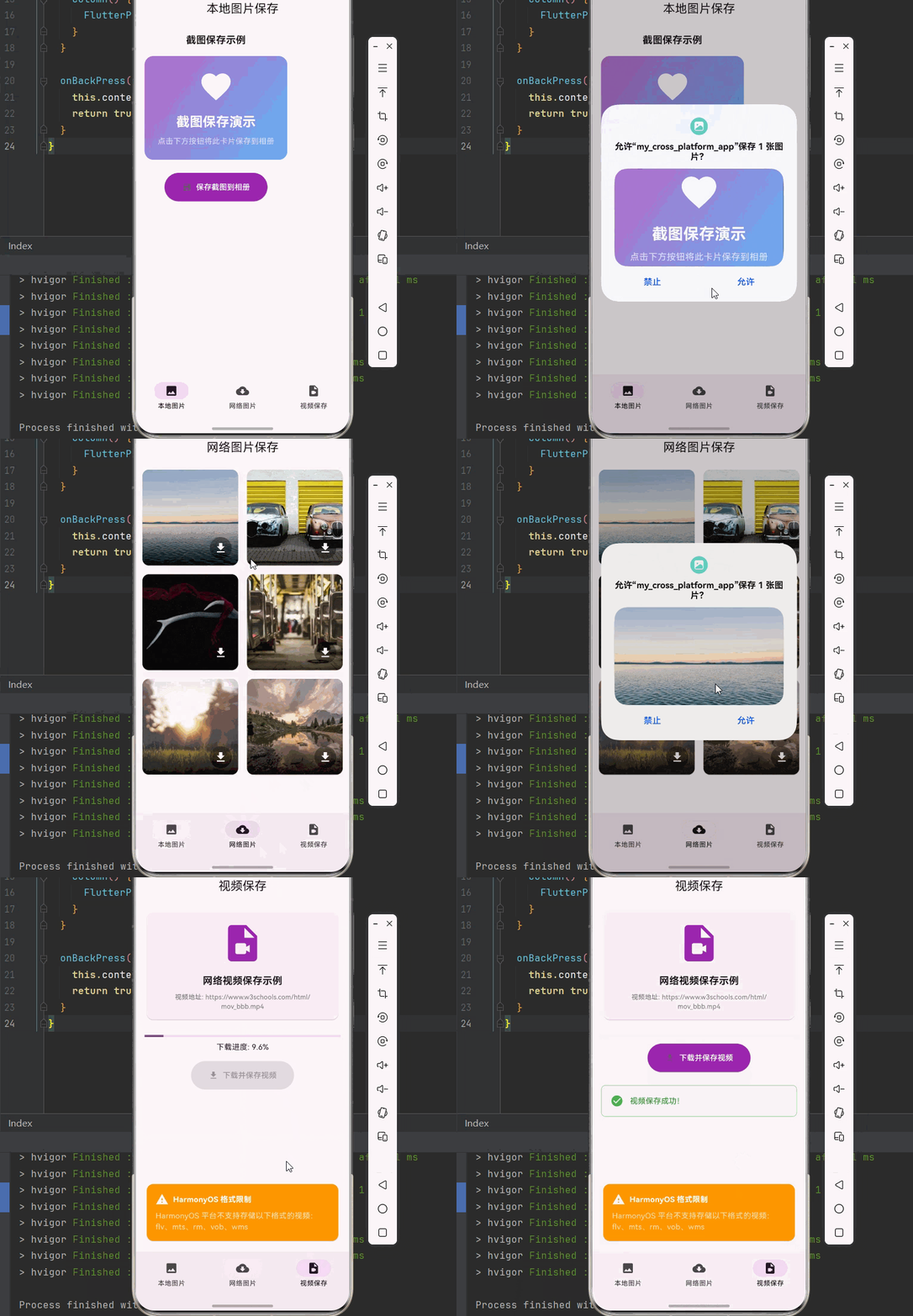
HarmonyOS 平台保存图片时会自动弹出系统授权对话框,无需手动请求权限。
📊 5.2 返回值处理
dart
final result = await ImageGallerySaver.saveImage(bytes);

if (result['isSuccess'] == true) {
  print('保存成功: ${result['filePath']}');
} else {
  print('保存失败');
}
🔄 5.3 下载进度显示
dart
await Dio().download(
  url,
  savePath,
  onReceiveProgress: (received, total) {
    if (total != -1) {
      print('进度: ${(received / total * 100).toStringAsFixed(0)}%');
    }
  },
);
📱 5.4 平台差异
| 平台 | 特殊说明 |
|---|---|
| Android | 需要存储权限(Android 10+ 自动处理) |
| iOS | 需要在 Info.plist 添加相册权限描述 |
| HarmonyOS | 自动弹出系统授权对话框,不支持部分视频格式 |
📌 六、总结
本文通过一个完整的图片保存系统案例,深入讲解了 image_gallery_saver 插件的使用方法与最佳实践:
图片保存:掌握图片字节数据的保存方法。
文件保存:学会保存任意文件到相册。
网络资源:实现网络图片和视频的下载保存。
平台适配:了解 HarmonyOS 平台的特殊限制。
掌握这些技巧,你就能构建出完善的媒体文件保存系统,提升用户体验。