欢迎加入开源鸿蒙跨平台社区:https://openharmonycrossplatform.csdn.net
一、场景引入:为什么需要自定义动画?
在移动应用开发中,动画是提升用户体验的重要手段。想象一下这样的场景:你打开一个应用,页面加载时显示一个优雅的加载动画;点击一个按钮,按钮会有一个流畅的缩放反馈;滑动列表,列表项会有一个漂亮的入场动画。这些动画效果让应用感觉更加生动、专业,给用户带来愉悦的使用体验。
这就是为什么我们需要 自定义动画 。AnimatedBuilder 是 Flutter 提供的动画构建器,它允许我们将动画与 UI 组件分离,实现高度可复用的动画效果,同时保持代码的清晰和可维护性。
📱 1.1 动画的典型应用场景
在现代移动应用中,动画的需求非常广泛:
加载与等待动画:当应用需要加载数据时,显示一个旋转的加载指示器或骨架屏动画,让用户知道应用正在工作,而不是卡住了。
交互反馈动画:当用户点击按钮时,按钮会有一个缩放或涟漪效果;当用户滑动开关时,开关会有一个平滑的过渡动画。这些反馈让用户感受到应用在响应他们的操作。
页面转场动画:当用户从一个页面跳转到另一个页面时,页面之间会有一个流畅的过渡效果,如淡入淡出、滑动、缩放等。
数据可视化动画:当数据发生变化时,图表会有一个平滑的过渡动画,让用户清楚地看到数据的变化趋势。
引导与教学动画:当应用需要引导用户完成某个操作时,可以使用动画来吸引用户的注意力,如高亮某个按钮、显示操作提示等。
1.2 Flutter 动画体系概述
Flutter 提供了完整的动画体系,从简单到复杂:
| 组件/类 | 功能描述 | 适用场景 | 学习成本 |
|---|---|---|---|
| AnimatedContainer | 动画容器 | 简单属性动画 | 低 |
| AnimatedOpacity | 透明度动画 | 淡入淡出效果 | 低 |
| AnimatedPositioned | 位置动画 | 位置变化动画 | 低 |
| AnimatedBuilder | 自定义动画构建器 | 复杂自定义动画 | 中 |
| AnimationController | 动画控制器 | 控制动画播放 | 中 |
| Tween | 值插值器 | 定义动画范围 | 低 |
| CurvedAnimation | 曲线动画 | 自定义动画曲线 | 低 |
| Hero | 共享元素动画 | 页面转场 | 低 |
| Lottie | 复杂矢量动画 | AE 动画导出 | 低 |
对于复杂自定义动画 场景,AnimatedBuilder 是最佳选择:
高度灵活:你可以完全控制动画的每一个细节,实现任何你想要的动画效果。
性能优秀:AnimatedBuilder 只在动画值变化时重建子组件,不会造成不必要的性能开销。
代码复用:可以将动画逻辑封装成独立的组件,在多个地方复用。
与 Flutter 完美集成:可以与 AnimationController、Tween、Curve 等 Flutter 动画组件无缝配合。
1.3 动画核心概念
理解 Flutter 动画的核心概念是掌握自定义动画的关键:
AnimationController:动画控制器,控制动画的播放、暂停、停止、反向等。它产生一个 0.0 到 1.0 之间的值,表示动画的进度。
Animation:动画对象,它是一个可以在一段时间内产生变化的值。AnimationController 本身就是一个 Animation。
Tween:补间动画,定义动画的起始值和结束值。它将 AnimationController 的 0.0-1.0 值映射到你需要的值范围。
Curve:动画曲线,定义动画的变化速率。Flutter 提供了丰富的预设曲线,如 Curves.easeIn、Curves.bounceOut 等。
AnimatedBuilder:动画构建器,监听 Animation 的变化,在值变化时重建子组件。
Ticker:帧回调机制,每帧调用一次回调函数,用于驱动动画。AnimationController 内部使用 Ticker 来驱动动画。
二、技术架构设计
在正式编写代码之前,我们需要设计一个清晰的架构。良好的架构设计可以让代码更易于理解、维护和扩展。
🏛️ 2.1 动画架构设计
┌─────────────────────────────────────────────────────────────┐
│                    动画驱动层                                │
│  ┌─────────────────────────────────────────────────────┐    │
│  │           AnimationController                        │    │
│  │  - 控制动画播放、暂停、停止                           │    │
│  │  - 产生 0.0 - 1.0 的动画进度值                        │    │
│  └─────────────────────────────────────────────────────┘    │
│                              │                               │
│                              ▼                               │
│  ┌─────────────────────────────────────────────────────┐    │
│  │           Tween / CurvedAnimation                    │    │
│  │  - 将进度值映射到目标值范围                           │    │
│  │  - 应用动画曲线                                       │    │
│  └─────────────────────────────────────────────────────┘    │
│                              │                               │
│                              ▼                               │
│  ┌─────────────────────────────────────────────────────┐    │
│  │           Animation<double>                          │    │
│  │  - 最终的动画值                                       │    │
│  └─────────────────────────────────────────────────────┘    │
└─────────────────────────────────────────────────────────────┘
                               │
                               │ 监听
                               ▼
┌─────────────────────────────────────────────────────────────┐
│                    动画展示层                                │
│  ┌─────────────────────────────────────────────────────┐    │
│  │           AnimatedBuilder                            │    │
│  │  - 监听 Animation 的变化                              │    │
│  │  - 在值变化时重建子组件                               │    │
│  └─────────────────────────────────────────────────────┘    │
│                              │                               │
│                              ▼                               │
│  ┌─────────────────────────────────────────────────────┐    │
│  │           Widget Tree                                │    │
│  │  - 根据动画值构建 UI                                  │    │
│  └─────────────────────────────────────────────────────┘    │
└─────────────────────────────────────────────────────────────┘
🎯 2.2 动画生命周期
创建 AnimationController
      │
      ▼
创建 Tween 和 Curve
      │
      ▼
创建 Animation 对象
      │
      ▼
使用 AnimatedBuilder 监听
      │
      ├──▶ controller.forward()  正向播放
      │
      ├──▶ controller.reverse()  反向播放
      │
      ├──▶ controller.repeat()   循环播放
      │
      └──▶ controller.stop()     停止播放
            │
            ▼
      dispose() 释放资源
📐 2.3 常用动画曲线
Flutter 提供了丰富的动画曲线:
| 曲线名称 | 效果描述 | 典型用途 |
|---|---|---|
| Curves.linear | 线性变化 | 匀速动画 |
| Curves.easeIn | 开始慢,结束快 | 入场动画 |
| Curves.easeOut | 开始快,结束慢 | 退场动画 |
| Curves.easeInOut | 两头慢,中间快 | 通用动画 |
| Curves.bounceIn | 弹跳进入 | 活泼效果 |
| Curves.bounceOut | 弹跳退出 | 活泼效果 |
| Curves.elasticIn | 弹性进入 | 弹性效果 |
| Curves.elasticOut | 弹性退出 | 弹性效果 |
| Curves.fastOutSlowIn | 快出慢进 | Material 动画 |
| Curves.slowMiddle | 中间慢 | 特殊效果 |
三、核心功能实现
🔧 3.1 基础动画控制器
dart
import 'package:flutter/material.dart';

class BasicAnimationPage extends StatefulWidget {
  const BasicAnimationPage({super.key});

  @override
  State<BasicAnimationPage> createState() => _BasicAnimationPageState();
}

class _BasicAnimationPageState extends State<BasicAnimationPage>
    with SingleTickerProviderStateMixin {
  late AnimationController _controller;
  late Animation<double> _animation;

  @override
  void initState() {
    super.initState();

    // 创建动画控制器
    _controller = AnimationController(
      duration: const Duration(seconds: 2),
      vsync: this,
    );

    // 创建动画(带曲线)
    _animation = CurvedAnimation(
      parent: _controller,
      curve: Curves.easeInOut,
    );

    // 创建补间动画
    _animation = Tween<double>(begin: 0, end: 1).animate(_animation);
  }

  @override
  void dispose() {
    _controller.dispose();
    super.dispose();
  }

  @override
  Widget build(BuildContext context) {
    return Scaffold(
      appBar: AppBar(title: const Text('基础动画')),
      body: Center(
        child: AnimatedBuilder(
          animation: _animation,
          builder: (context, child) {
            return Transform.scale(
              scale: _animation.value,
              child: Container(
                width: 200,
                height: 200,
                color: Colors.blue,
                child: const Center(
                  child: Text(
                    '动画方块',
                    style: TextStyle(color: Colors.white, fontSize: 20),
                  ),
                ),
              ),
            );
          },
        ),
      ),
      floatingActionButton: FloatingActionButton(
        onPressed: () {
          if (_controller.status == AnimationStatus.completed) {
            _controller.reverse();
          } else {
            _controller.forward();
          }
        },
        child: const Icon(Icons.play_arrow),
      ),
    );
  }
}
🎨 3.2 多属性动画
dart
/// 多属性动画示例
class MultiPropertyAnimation extends StatefulWidget {
  const MultiPropertyAnimation({super.key});

  @override
  State<MultiPropertyAnimation> createState() => _MultiPropertyAnimationState();
}

class _MultiPropertyAnimationState extends State<MultiPropertyAnimation>
    with SingleTickerProviderStateMixin {
  late AnimationController _controller;

  // 多个动画属性
  late Animation<double> _scaleAnimation;
  late Animation<double> _rotationAnimation;
  late Animation<double> _opacityAnimation;
  late Animation<Offset> _positionAnimation;
  late Animation<Color?> _colorAnimation;

  @override
  void initState() {
    super.initState();

    _controller = AnimationController(
      duration: const Duration(milliseconds: 1500),
      vsync: this,
    );

    // 缩放动画
    _scaleAnimation = Tween<double>(begin: 0.5, end: 1.0).animate(
      CurvedAnimation(parent: _controller, curve: Curves.elasticOut),
    );

    // 旋转动画
    _rotationAnimation = Tween<double>(begin: 0, end: 2 * 3.14159).animate(
      CurvedAnimation(parent: _controller, curve: Curves.easeInOut),
    );

    // 透明度动画
    _opacityAnimation = Tween<double>(begin: 0.0, end: 1.0).animate(
      CurvedAnimation(parent: _controller, curve: Curves.easeIn),
    );

    // 位置动画
    _positionAnimation = Tween<Offset>(
      begin: const Offset(0, 0.5),
      end: Offset.zero,
    ).animate(
      CurvedAnimation(parent: _controller, curve: Curves.easeOutCubic),
    );

    // 颜色动画
    _colorAnimation = ColorTween(
      begin: Colors.blue,
      end: Colors.purple,
    ).animate(
      CurvedAnimation(parent: _controller, curve: Curves.easeInOut),
    );
  }

  @override
  void dispose() {
    _controller.dispose();
    super.dispose();
  }

  @override
  Widget build(BuildContext context) {
    return Scaffold(
      appBar: AppBar(title: const Text('多属性动画')),
      body: Center(
        child: AnimatedBuilder(
          animation: _controller,
          builder: (context, child) {
            return SlideTransition(
              position: _positionAnimation,
              child: Opacity(
                opacity: _opacityAnimation.value,
                child: Transform.scale(
                  scale: _scaleAnimation.value,
                  child: Transform.rotate(
                    angle: _rotationAnimation.value,
                    child: Container(
                      width: 150,
                      height: 150,
                      decoration: BoxDecoration(
                        color: _colorAnimation.value,
                        borderRadius: BorderRadius.circular(16),
                        boxShadow: [
                          BoxShadow(
                            color: (_colorAnimation.value ?? Colors.blue)
                                .withOpacity(0.4),
                            blurRadius: 20,
                            spreadRadius: 5,
                          ),
                        ],
                      ),
                      child: const Center(
                        child: Text(
                          '组合动画',
                          style: TextStyle(color: Colors.white, fontSize: 18),
                        ),
                      ),
                    ),
                  ),
                ),
              ),
            );
          },
        ),
      ),
      floatingActionButton: FloatingActionButton(
        onPressed: () {
          _controller.forward(from: 0);
        },
        child: const Icon(Icons.refresh),
      ),
    );
  }
}
🔄 3.3 循环动画
dart
/// 循环加载动画
class LoadingAnimation extends StatefulWidget {
  final double size;
  final Color color;

  const LoadingAnimation({
    super.key,
    this.size = 50,
    this.color = Colors.blue,
  });

  @override
  State<LoadingAnimation> createState() => _LoadingAnimationState();
}

class _LoadingAnimationState extends State<LoadingAnimation>
    with SingleTickerProviderStateMixin {
  late AnimationController _controller;

  @override
  void initState() {
    super.initState();
    _controller = AnimationController(
      duration: const Duration(seconds: 1),
      vsync: this,
    )..repeat();
  }

  @override
  void dispose() {
    _controller.dispose();
    super.dispose();
  }

  @override
  Widget build(BuildContext context) {
    return AnimatedBuilder(
      animation: _controller,
      builder: (context, child) {
        return Transform.rotate(
          angle: _controller.value * 2 * 3.14159,
          child: SizedBox(
            width: widget.size,
            height: widget.size,
            child: CircularProgressIndicator(
              strokeWidth: 3,
              valueColor: AlwaysStoppedAnimation(widget.color),
            ),
          ),
        );
      },
    );
  }
}

/// 脉冲动画
class PulseAnimation extends StatefulWidget {
  final Widget child;
  final Duration duration;

  const PulseAnimation({
    super.key,
    required this.child,
    this.duration = const Duration(milliseconds: 1000),
  });

  @override
  State<PulseAnimation> createState() => _PulseAnimationState();
}

class _PulseAnimationState extends State<PulseAnimation>
    with SingleTickerProviderStateMixin {
  late AnimationController _controller;
  late Animation<double> _animation;

  @override
  void initState() {
    super.initState();
    _controller = AnimationController(
      duration: widget.duration,
      vsync: this,
    )..repeat(reverse: true);

    _animation = Tween<double>(begin: 1.0, end: 1.1).animate(
      CurvedAnimation(parent: _controller, curve: Curves.easeInOut),
    );
  }

  @override
  void dispose() {
    _controller.dispose();
    super.dispose();
  }

  @override
  Widget build(BuildContext context) {
    return AnimatedBuilder(
      animation: _animation,
      builder: (context, child) {
        return Transform.scale(
          scale: _animation.value,
          child: widget.child,
        );
      },
      child: widget.child,
    );
  }
}
🎭 3.4 交错动画
dart
/// 交错动画示例
class StaggeredAnimationPage extends StatefulWidget {
  const StaggeredAnimationPage({super.key});

  @override
  State<StaggeredAnimationPage> createState() => _StaggeredAnimationPageState();
}

class _StaggeredAnimationPageState extends State<StaggeredAnimationPage>
    with TickerProviderStateMixin {
  late AnimationController _controller;

  @override
  void initState() {
    super.initState();
    _controller = AnimationController(
      duration: const Duration(seconds: 2),
      vsync: this,
    );
  }

  @override
  void dispose() {
    _controller.dispose();
    super.dispose();
  }

  @override
  Widget build(BuildContext context) {
    return Scaffold(
      appBar: AppBar(title: const Text('交错动画')),
      body: Center(
        child: Column(
          mainAxisAlignment: MainAxisAlignment.center,
          children: List.generate(5, (index) {
            return AnimatedBuilder(
              animation: _controller,
              builder: (context, child) {
                // 计算每个元素的延迟
                final delay = index * 0.1;
                final start = delay.clamp(0.0, 1.0);
                final end = (delay + 0.5).clamp(0.0, 1.0);

                // 创建区间动画
                final intervalAnimation = Tween<double>(begin: 0, end: 1).animate(
                  CurvedAnimation(
                    parent: _controller,
                    curve: Interval(start, end, curve: Curves.easeOut),
                  ),
                );

                return SlideTransition(
                  position: Tween<Offset>(
                    begin: const Offset(1, 0),
                    end: Offset.zero,
                  ).animate(intervalAnimation),
                  child: FadeTransition(
                    opacity: intervalAnimation,
                    child: Container(
                      margin: const EdgeInsets.symmetric(vertical: 8, horizontal: 20),
                      padding: const EdgeInsets.all(16),
                      decoration: BoxDecoration(
                        color: Colors.primaries[index % Colors.primaries.length],
                        borderRadius: BorderRadius.circular(8),
                      ),
                      child: ListTile(
                        title: Text(
                          '列表项 ${index + 1}',
                          style: const TextStyle(color: Colors.white),
                        ),
                        subtitle: Text(
                          '这是第 ${index + 1} 个列表项',
                          style: TextStyle(color: Colors.white.withOpacity(0.8)),
                        ),
                      ),
                    ),
                  ),
                );
              },
            );
          }),
        ),
      ),
      floatingActionButton: FloatingActionButton(
        onPressed: () {
          _controller.forward(from: 0);
        },
        child: const Icon(Icons.play_arrow),
      ),
    );
  }
}
四、完整应用示例
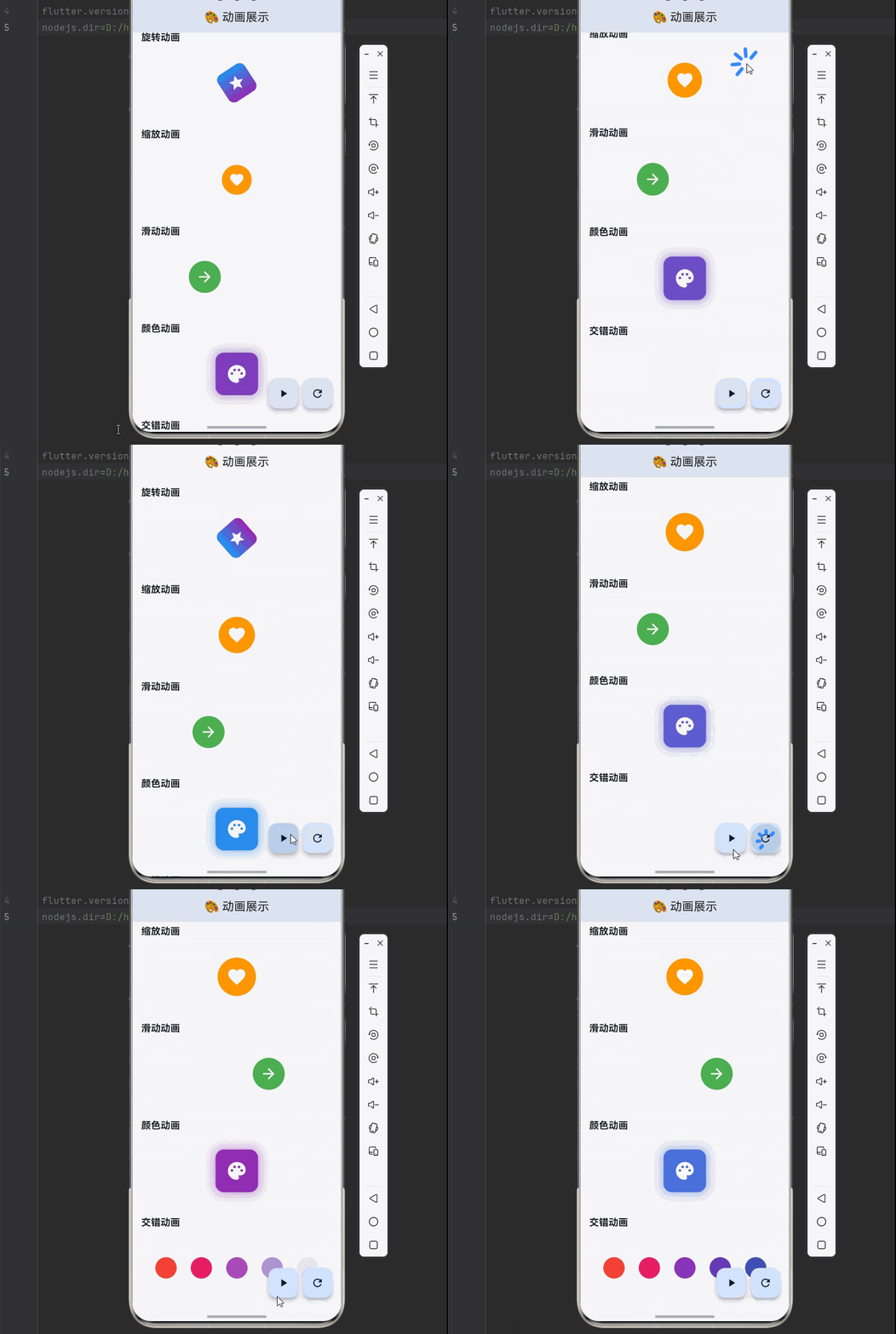
下面是一个完整的动画展示应用:
dart
import 'package:flutter/material.dart';

void main() {
  runApp(const AnimationApp());
}

class AnimationApp extends StatelessWidget {
  const AnimationApp({super.key});

  @override
  Widget build(BuildContext context) {
    return MaterialApp(
      title: '动画展示',
      debugShowCheckedModeBanner: false,
      theme: ThemeData(
        colorScheme: ColorScheme.fromSeed(seedColor: Colors.blue),
        useMaterial3: true,
      ),
      home: const AnimationShowcasePage(),
    );
  }
}

class AnimationShowcasePage extends StatefulWidget {
  const AnimationShowcasePage({super.key});

  @override
  State<AnimationShowcasePage> createState() => _AnimationShowcasePageState();
}

class _AnimationShowcasePageState extends State<AnimationShowcasePage>
    with TickerProviderStateMixin {
  late AnimationController _rotateController;
  late AnimationController _scaleController;
  late AnimationController _slideController;
  late AnimationController _colorController;
  late AnimationController _staggeredController;

  late Animation<double> _rotateAnimation;
  late Animation<double> _scaleAnimation;
  late Animation<Offset> _slideAnimation;
  late Animation<Color?> _colorAnimation;

  @override
  void initState() {
    super.initState();

    _rotateController = AnimationController(
      duration: const Duration(seconds: 2),
      vsync: this,
    )..repeat();

    _scaleController = AnimationController(
      duration: const Duration(milliseconds: 800),
      vsync: this,
    )..repeat(reverse: true);

    _slideController = AnimationController(
      duration: const Duration(milliseconds: 1000),
      vsync: this,
    );

    _colorController = AnimationController(
      duration: const Duration(seconds: 3),
      vsync: this,
    )..repeat(reverse: true);

    _staggeredController = AnimationController(
      duration: const Duration(seconds: 2),
      vsync: this,
    );

    _rotateAnimation = Tween<double>(begin: 0, end: 2 * 3.14159).animate(
      CurvedAnimation(parent: _rotateController, curve: Curves.linear),
    );

    _scaleAnimation = Tween<double>(begin: 0.8, end: 1.2).animate(
      CurvedAnimation(parent: _scaleController, curve: Curves.easeInOut),
    );

    _slideAnimation = Tween<Offset>(
      begin: const Offset(-1, 0),
      end: const Offset(1, 0),
    ).animate(
      CurvedAnimation(parent: _slideController, curve: Curves.easeInOut),
    );

    _colorAnimation = ColorTween(
      begin: Colors.blue,
      end: Colors.purple,
    ).animate(_colorController);
  }

  @override
  void dispose() {
    _rotateController.dispose();
    _scaleController.dispose();
    _slideController.dispose();
    _colorController.dispose();
    _staggeredController.dispose();
    super.dispose();
  }

  @override
  Widget build(BuildContext context) {
    return Scaffold(
      appBar: AppBar(
        title: const Text('🎨 动画展示'),
        centerTitle: true,
      ),
      body: SingleChildScrollView(
        padding: const EdgeInsets.all(16),
        child: Column(
          crossAxisAlignment: CrossAxisAlignment.start,
          children: [
            _buildSection('旋转动画', _buildRotateAnimation()),
            _buildSection('缩放动画', _buildScaleAnimation()),
            _buildSection('滑动动画', _buildSlideAnimation()),
            _buildSection('颜色动画', _buildColorAnimation()),
            _buildSection('交错动画', _buildStaggeredAnimation()),
          ],
        ),
      ),
      floatingActionButton: Row(
        mainAxisAlignment: MainAxisAlignment.end,
        children: [
          FloatingActionButton(
            heroTag: 'play',
            onPressed: () {
              _slideController.forward();
              _staggeredController.forward(from: 0);
            },
            child: const Icon(Icons.play_arrow),
          ),
          const SizedBox(width: 8),
          FloatingActionButton(
            heroTag: 'reset',
            onPressed: () {
              _slideController.reset();
              _staggeredController.reset();
            },
            child: const Icon(Icons.refresh),
          ),
        ],
      ),
    );
  }

  Widget _buildSection(String title, Widget child) {
    return Container(
      margin: const EdgeInsets.only(bottom: 24),
      child: Column(
        crossAxisAlignment: CrossAxisAlignment.start,
        children: [
          Text(
            title,
            style: const TextStyle(
              fontSize: 18,
              fontWeight: FontWeight.bold,
            ),
          ),
          const SizedBox(height: 12),
          Container(
            height: 120,
            decoration: BoxDecoration(
              color: Colors.grey.shade100,
              borderRadius: BorderRadius.circular(12),
            ),
            child: Center(child: child),
          ),
        ],
      ),
    );
  }

  Widget _buildRotateAnimation() {
    return AnimatedBuilder(
      animation: _rotateAnimation,
      builder: (context, child) {
        return Transform.rotate(
          angle: _rotateAnimation.value,
          child: Container(
            width: 60,
            height: 60,
            decoration: BoxDecoration(
              gradient: LinearGradient(
                colors: [Colors.blue, Colors.purple],
              ),
              borderRadius: BorderRadius.circular(12),
            ),
            child: const Icon(Icons.star, color: Colors.white, size: 32),
          ),
        );
      },
    );
  }

  Widget _buildScaleAnimation() {
    return AnimatedBuilder(
      animation: _scaleAnimation,
      builder: (context, child) {
        return Transform.scale(
          scale: _scaleAnimation.value,
          child: Container(
            width: 60,
            height: 60,
            decoration: const BoxDecoration(
              color: Colors.orange,
              shape: BoxShape.circle,
            ),
            child: const Icon(Icons.favorite, color: Colors.white, size: 32),
          ),
        );
      },
    );
  }

  Widget _buildSlideAnimation() {
    return AnimatedBuilder(
      animation: _slideAnimation,
      builder: (context, child) {
        return SlideTransition(
          position: _slideAnimation,
          child: Container(
            width: 60,
            height: 60,
            decoration: BoxDecoration(
              color: Colors.green,
              borderRadius: BorderRadius.circular(30),
            ),
            child: const Icon(Icons.arrow_forward, color: Colors.white, size: 32),
          ),
        );
      },
    );
  }

  Widget _buildColorAnimation() {
    return AnimatedBuilder(
      animation: _colorAnimation,
      builder: (context, child) {
        return Container(
          width: 80,
          height: 80,
          decoration: BoxDecoration(
            color: _colorAnimation.value,
            borderRadius: BorderRadius.circular(16),
            boxShadow: [
              BoxShadow(
                color: (_colorAnimation.value ?? Colors.blue).withOpacity(0.5),
                blurRadius: 15,
                spreadRadius: 3,
              ),
            ],
          ),
          child: const Icon(Icons.palette, color: Colors.white, size: 40),
        );
      },
    );
  }

  Widget _buildStaggeredAnimation() {
    return SizedBox(
      height: 80,
      child: Row(
        mainAxisAlignment: MainAxisAlignment.spaceEvenly,
        children: List.generate(5, (index) {
          return AnimatedBuilder(
            animation: _staggeredController,
            builder: (context, child) {
              final delay = (index * 0.15).clamp(0.0, 1.0);
              final end = (delay + 0.5).clamp(0.0, 1.0);
              final interval = Interval(delay, end, curve: Curves.easeOut);
              final animation = Tween<double>(begin: 0, end: 1).animate(
                CurvedAnimation(parent: _staggeredController, curve: interval),
              );

              return Transform.scale(
                scale: animation.value,
                child: Opacity(
                  opacity: animation.value,
                  child: Container(
                    width: 40,
                    height: 40,
                    decoration: BoxDecoration(
                      color: Colors.primaries[index % Colors.primaries.length],
                      shape: BoxShape.circle,
                    ),
                  ),
                ),
              );
            },
          );
        }),
      ),
    );
  }
}
五、进阶动画技巧
🌟 5.1 自定义动画曲线
dart
/// 自定义弹跳曲线
class BounceCurve extends Curve {
  final int bounces;
  final double elasticity;

  const BounceCurve({
    this.bounces = 3,
    this.elasticity = 0.5,
  });

  @override
  double transformInternal(double t) {
    if (t == 0 || t == 1) return t;

    final double duration = 1.0 / (bounces + 1);
    double currentTime = 0;

    for (int i = 0; i < bounces; i++) {
      final double bounceStart = currentTime;
      final double bounceEnd = currentTime + duration;

      if (t >= bounceStart && t < bounceEnd) {
        final double bounceT = (t - bounceStart) / duration;
        final double amplitude = 1.0 - (i * elasticity / bounces);
        return amplitude * (1 - (1 - bounceT) * (1 - bounceT));
      }

      currentTime = bounceEnd;
    }

    return t;
  }
}

// 使用自定义曲线
_animation = Tween<double>(begin: 0, end: 1).animate(
  CurvedAnimation(
    parent: _controller,
    curve: const BounceCurve(bounces: 4),
  ),
);
🎭 5.2 物理动画
dart
/// 弹簧动画
class SpringAnimation extends StatefulWidget {
  const SpringAnimation({super.key});

  @override
  State<SpringAnimation> createState() => _SpringAnimationState();
}

class _SpringAnimationState extends State<SpringAnimation>
    with SingleTickerProviderStateMixin {
  late AnimationController _controller;
  late Animation<double> _animation;

  @override
  void initState() {
    super.initState();

    _controller = AnimationController(
      duration: const Duration(milliseconds: 1000),
      vsync: this,
    );

    // 使用弹簧描述
    _animation = Tween<double>(begin: 0, end: 1).animate(
      CurvedAnimation(
        parent: _controller,
        curve: Curves.elasticOut,
      ),
    );
  }

  @override
  void dispose() {
    _controller.dispose();
    super.dispose();
  }

  @override
  Widget build(BuildContext context) {
    return AnimatedBuilder(
      animation: _animation,
      builder: (context, child) {
        return Transform.scale(
          scale: _animation.value,
          child: Container(
            width: 100,
            height: 100,
            color: Colors.blue,
            child: const Center(
              child: Text('弹簧', style: TextStyle(color: Colors.white)),
            ),
          ),
        );
      },
    );
  }
}
📊 5.3 数字动画
dart
/// 数字滚动动画
class NumberCounterAnimation extends StatefulWidget {
  final int begin;
  final int end;
  final Duration duration;
  final TextStyle? style;

  const NumberCounterAnimation({
    super.key,
    required this.begin,
    required this.end,
    this.duration = const Duration(seconds: 1),
    this.style,
  });

  @override
  State<NumberCounterAnimation> createState() => _NumberCounterAnimationState();
}

class _NumberCounterAnimationState extends State<NumberCounterAnimation>
    with SingleTickerProviderStateMixin {
  late AnimationController _controller;
  late Animation<int> _animation;

  @override
  void initState() {
    super.initState();

    _controller = AnimationController(
      duration: widget.duration,
      vsync: this,
    );

    _animation = IntTween(begin: widget.begin, end: widget.end).animate(
      CurvedAnimation(parent: _controller, curve: Curves.easeOut),
    );

    _controller.forward();
  }

  @override
  void dispose() {
    _controller.dispose();
    super.dispose();
  }

  @override
  Widget build(BuildContext context) {
    return AnimatedBuilder(
      animation: _animation,
      builder: (context, child) {
        return Text(
          _animation.value.toString(),
          style: widget.style ?? const TextStyle(fontSize: 32),
        );
      },
    );
  }
}
六、最佳实践与注意事项
✅ 6.1 性能优化建议
-
使用 child 参数:AnimatedBuilder 的 child 参数可以缓存不变的子组件,避免不必要的重建。
-
正确释放资源:在 dispose 中释放 AnimationController,避免内存泄漏。
-
使用 const 构造函数:对于不变的子组件,使用 const 构造函数。
-
避免过度动画:不要在动画中执行耗时操作,如网络请求、复杂计算等。
-
合理设置动画时长:动画时长不宜过长或过短,一般 200-500ms 为宜。
⚠️ 6.2 常见问题与解决方案
| 问题 | 原因 | 解决方案 |
|---|---|---|
| 动画不执行 | Controller 未启动 | 调用 forward() 或 repeat() |
| 内存泄漏 | 未释放 Controller | 在 dispose 中调用 dispose() |
| 动画卡顿 | 主线程阻塞 | 使用 Isolate 处理耗时操作 |
| 状态丢失 | Widget 重建 | 使用 GlobalKey 或状态管理 |
| 曲线不生效 | Curve 配置错误 | 检查 CurvedAnimation 配置 |
📝 6.3 代码规范建议
-
分离动画逻辑:将动画逻辑封装成独立的 Widget 或 Mixin。
-
使用命名常量:对于动画时长、曲线等,使用命名常量。
-
添加注释:复杂的动画逻辑应该添加注释说明。
-
错误处理:处理边界情况,如空值、越界等。
七、总结
本文详细介绍了 Flutter 中 AnimatedBuilder 组件的使用方法,从基础概念到高级技巧,帮助你掌握自定义动画的核心能力。
核心要点回顾:
📌 动画基础:理解 AnimationController、Tween、Curve 的概念和用法
📌 AnimatedBuilder 使用:监听动画变化,构建动态 UI
📌 多属性动画:组合多个动画效果,实现复杂动画
📌 交错动画:使用 Interval 实现元素依次入场效果
📌 自定义曲线:实现独特的动画效果
通过本文的学习,你应该能够独立开发各种动画效果,并能够将动画技术应用到更多场景中。