- 安装 MinGW-w64 编译器
首先,从 MinGW-w64 官网 或 SourceForge 下载适合你系统的版本(如 x86_64 架构、posix 线程模型和 seh 异常处理)。下载后将其解压到一个无空格、无中文的路径,例如 C:\mingw64。
2. 配置环境变量
将 MinGW 的 bin 目录添加到系统环境变量 PATH 中。具体操作如下:
- 右键"此电脑"或"我的电脑" → 属性 → 高级系统设置 → 环境变量。
- 在"系统变量"中找到
Path,点击"编辑"。 - 添加 MinGW 的 bin 路径,如
C:\mingw64\bin。 - 保存后重启终端或 VS Code 以使更改生效。
验证是否成功安装:
打开命令提示符(CMD)或 PowerShell,输入以下命令:
g++ --version 如果显示版本信息,则表示安装成功。
3. 安装 VS Code 插件
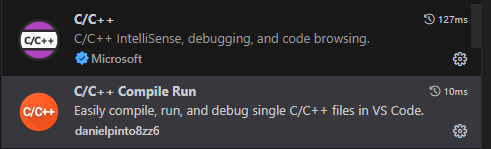
打开 VS Code,进入扩展面板(Ctrl + Shift + X),搜索并安装以下插件:
- **C/C++**(由 Microsoft 提供):提供语法高亮、智能提示、调试支持。
- C/C++ COMPILE Run:调试
.
4. 配置项目相关文件
在你的 C++ 项目根目录下创建 .vscode 文件夹,并添加以下三个 JSON 文件:
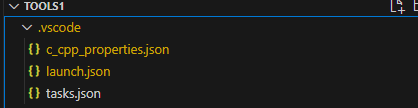
1)c_cpp_properties.json
用于配置 IntelliSense 和编译器路径:注意修改 compilerPath 为你实际的 MinGW 安装路径。
{
"configurations": [
{
"name": "Win32",
"includePath": [
"${workspaceFolder}/**"
],
"defines": [
"_DEBUG",
"UNICODE",
"_UNICODE"
],
"windows":
{
"compilerPath": "C:\\\\MinGW\\\\bin\\\\gcc.exe"
},
"linux":
{
"compilerPath": "/usr/bin/gcc"
},
"osx":
{
"compilerPath": "/usr/bin/gcc"
},
"cStandard": "c99",
"cppStandard": "c++17",
"intelliSenseMode": "windows-gcc-x64"
}
],
"version": 4
}
2)
tasks.json 定义如何编译你的 C++ 文件:
{
"version": "2.0.0",
"tasks": [
{
"label": "build",
"type": "process",
"command": "mingw32-make.exe",
"args": "debug",
"group": "build",
"problemMatcher": "$gcc"
},
{
"label": "clean",
"type": "process",
"command": "mingw32-make.exe",
"args": "clean",
"group": "none"
}
]
}
launch.json
配置调试设置:注意输出文件名称
{
"version": "0.2.0",
"configurations": [
{
"name": "Debug",
"type": "cppdbg",
"request": "launch",
"program": "${workspaceFolder}/output/1901_parser.exe",
"args": \[\],
"stopAtEntry": true,
"cwd": "${workspaceFolder}/output",
"console": "integratedTerminal",
"MIMode": "gdb",
"miDebuggerPath": "C:/MinGW/bin/gdb.exe",
"preLaunchTask": "build"
}
]
4)settings.json

{
"terminal.integrated.defaultProfile.windows": "Command Prompt"
}
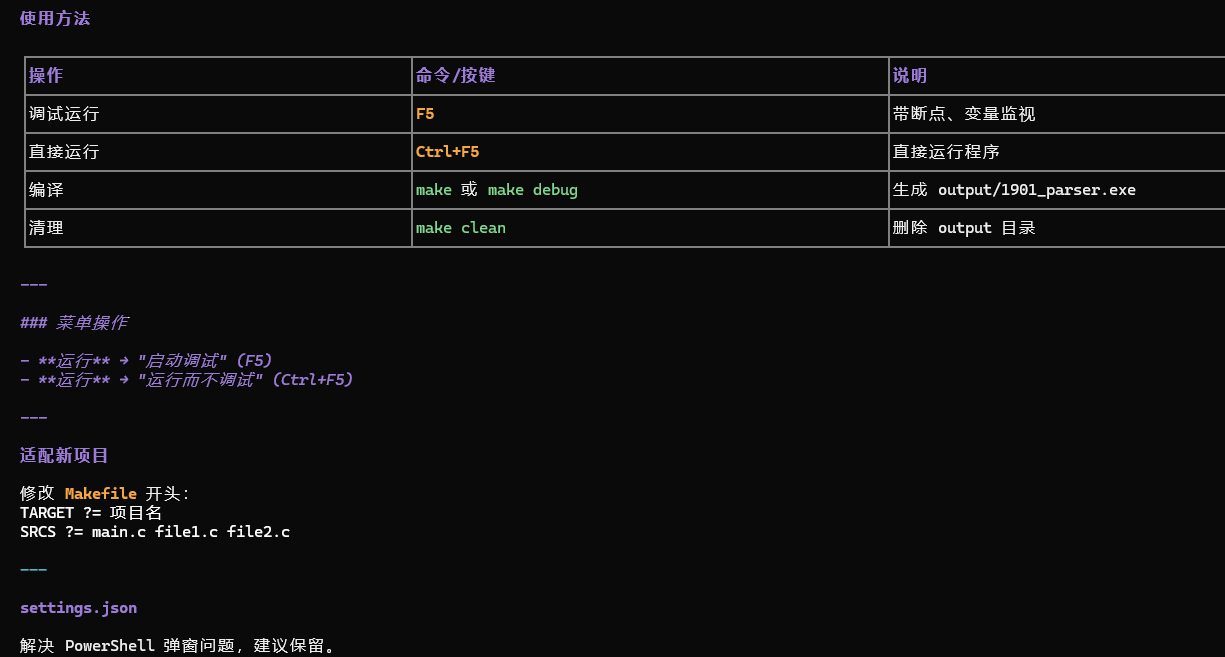
- 使用方法