HTML编写一个标题排版:
html
<!--!DOCTYPE 声明文档类型为HTML VSCode快捷键 ! -->
<!DOCTYPE html>

<html lang="en">
<head>
    <!-- 声明字符集为UTF-8 -->
    <meta charset="UTF-8">

    <!-- 设置浏览器兼容性 -->
    <meta name="viewport" content="width=device-width, initial-scale=1.0">
    <title>标题标题标题</title>
</head>
<body>
    <!--
    img标签:
    src:图片资源路径
        路径指定方式:
            1.绝对路径
                1.1:绝对磁盘路径 图片-属性-安全 例:C:\Users\90527\Desktop\HTML\2.png
                1.2:绝对网络路径 浏览器图片-右键在新标签页中打开图片-复制网址 例:https://img-home.csdnimg.cn/images/20201124032511.png
            2.相对路径
                2.1: ./ :当前目录,可以省略
                2.2: ../ :上一级目录,不能省略
    width:宽度(px,像素; %,相对于父元素的百分比)
    height:高度(px,像素; %,相对于父元素的百分比)
    例: <img src="./2.png" width="300px">
    一般只设置宽度,高度会等比例调整
      -->
    <img src="C:\Users\90527\Desktop\HTML\2.png" width="10%"> 旧浪政务 > 正文
    <h1> 标题标题标题 </h1>
    <hr>
    2026年3月13日 18:42 华南农业大学珠江学院
</body>
</html>
效果图(过不了审自行脑补吧)
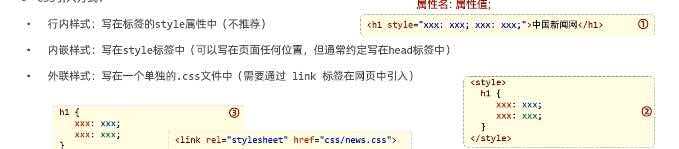
CSS引入方式::
html
<!DOCTYPE html>
<html lang="en">
<head>
    <meta charset="UTF-8">
    <meta name="viewport" content="width=device-width, initial-scale=1.0">
    <title>标题标题标题</title>

    <!-- 方式二演示: -->
    <style>
        /*
        h1{
            color: red;
        }
        */

    </style>

    <!-- 方式三演示 -->
    <!-- href指定引用的css文件路径 -->
    <link rel="stylesheet" href="CSS\news.css">

</head>
<body>
    <img src="C:\Users\90527\Desktop\HTML\2.png" width="10%"> 旧浪政务 > 正文
    <!--
    调整字体颜色
    方式一:行内样式
       <h1 style="color: red;"> 焦点访谈:中国底气 新思想夯实大国粮仓 </h1>
    方式二:内嵌样式 一般写在<head>中,只针对当前页面有效
    方式三:外联样式
    -->
    <h1> 标题标题标题 </h1>
    <hr>
    2026年3月13日 18:42 华南农业大学珠江学院
</body>
</html>
css
        h1{
            color: red;
        }
颜色表示形式:

css
        h1{
            /* 第一种表示方法: */
            /* color: red; */
            /* 第二种: */
            /* color: rgb(255, 0, 0); */
            /* 第三种: */
            color: #ff0000
        }
选择器:
css中共有三种选择器:

html
<!DOCTYPE html>
<html lang="en">
<head>
    <meta charset="UTF-8">
    <meta name="viewport" content="width=device-width, initial-scale=1.0">
    <title>标题标题标题</title>
    <style>
        /* 三种选择器优先级依次从低往高 */
        /* 元素选择器
        span{
            color: #968d92;
        }
        */

        /* 类选择器 */
        .cls{
            color: #968d92;
        }


        /* ID选择器 */
        #locate{
            color: #a84141;
            front-size:12px;
        }
    </style>
    <link rel="stylesheet" href="CSS\news.css">

</head>
<body>
    <img src="C:\Users\90527\Desktop\HTML\2.png" width="10%"> 旧浪政务 > 正文
    <h1> 标题标题标题 </h1>
    <hr>
    <!-- <span>标签本身无意义,用于包裹语句 -->
    <span class = "cls">2026年3月13日 18:42</span>  <span id="locate">华南农业大学珠江学院</span>
    <hr>
</body>
</html>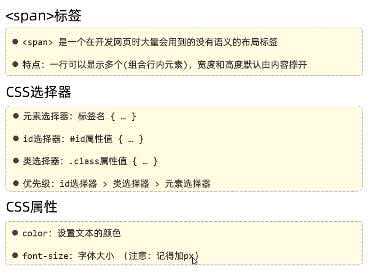
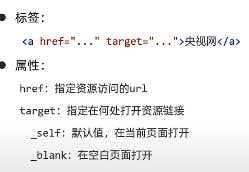
超链接:
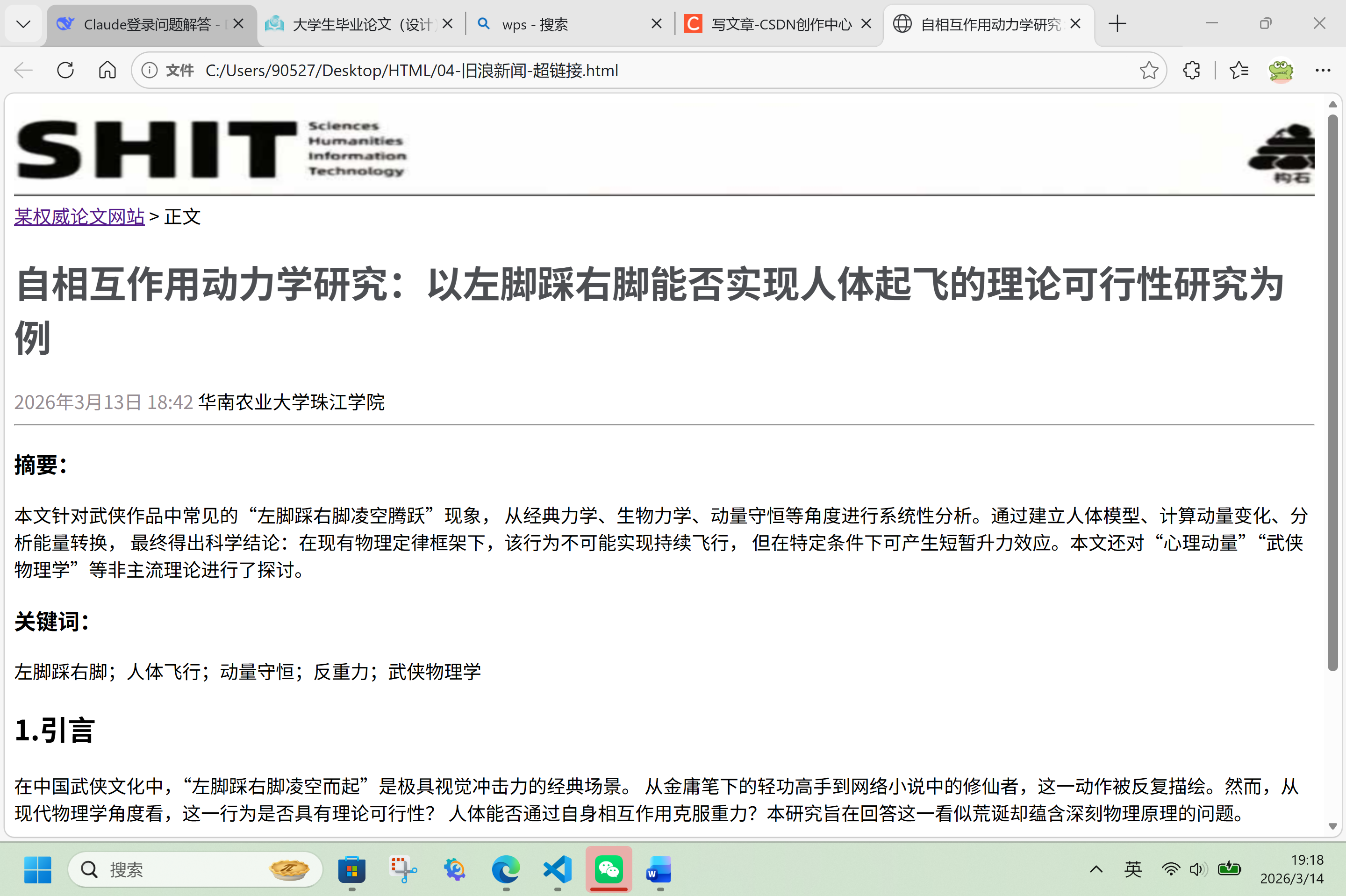
html
 <img src="C:\Users\90527\Desktop\HTML\2.png" width="100%" height="80px">
    <a href="https://shitjournal.sbs/" target="_blank">某权威论文网站</a> > 正文
    <h1> 自相互作用动力学研究:以左脚踩右脚能否实现人体起飞的理论可行性研究为例 </h1>
正文排版:
html
<!DOCTYPE html>
<html lang="en">
<head>
    <meta charset="UTF-8">
    <meta name="viewport" content="width=device-width, initial-scale=1.0">
    <title>标题标题标题</title>
    <style>
        a{
            color: #000;
            text-decoration: none;
        }
        .cls{
            color: #968d92;
        }
        #locate{
            color: #000000;
            front-size:12px;
        }
        p{
            text-indent: 50px;
            line-height: 40px;
        }
        #plast{
            text-align: right;
        }
    </style>
    <link rel="stylesheet" href="CSS\news.css">

</head>
<body>
    <img src="C:\Users\90527\Desktop\HTML\2.png" width="10%">
    <a href="https://csdn.com/" target="_blank">旧浪新闻</a> > 正文
    <h1> 标题标题标题 </h1>
    <hr>
    <span class = "cls">2026年3月13日 18:42</span>  <span id="locate"><a href="https://www.scauzj.edu.cn/">华南农业大学珠江学院</a></span>
    <hr>
    <!-- 正文 -->
    <!-- 定义视频 -->
    <!-- controls控件展示 -->
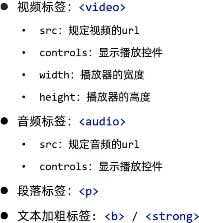
    <video src="https://news.sina.com.cn/gov/xlxw/2023-03-03/doc-imyipzuy7321600.shtml?hasPlayedTime=3.643833" controls width="800ps"></video>
    <!-- 定义音频 -->
    <!-- <audio src="audio1.mp3" controls></audio> -->
    <!-- <br>换行 <p>标签用于包裹段落 -->
    <!-- 首行缩进-通过p的元素选择器控制 text-indent-->
    <!-- 设置行高:line-height -->
    <!-- 加粗展示:<b> 强调展示:<strong>-->
    <p><b>加粗字体</b>文字文字文字文字文字文字文字文字文字文字文字文字文字文字文字文字文字文字文字文字文字文字文字文字文字文字文字文字文字文字文字文字文字文字文字文字文字文字文字文字
文字文字文字文字文字文字文字文字文字文字文字文字文字文字文字文字</p>
    <p>人文字文字文字文字文字文字文字文字文字文字文字文字文字文字文字文字文字文字文字文字文字文字文字文字文字文字文字文字文字文字文字文字</p>
    <img src="4.jpg">
    <p>文字文字文字文字文字文字文字文字文字文字文字文字文字文字文字文字文字文字文字文字文字文字文字文字文字文字文字文字文字文字文字文字文字文字文字文字文字文字文字文字文字文字文字文字文字文字文字文字文字文字文字文字文字文字文字文字文字文字文字文字文字文字文字文字
       文字文字文字文字文字文字文字文字文字文字文字文字文字文字文字文字文字文字文字文字文字文字文字文字文字文字文字文字文字文字文字文字文字文字文字文字文字文字文字文字</p>
    <!-- 靠右对齐:text-align -->
    <p id="plast">文字文字文字文字文字文字文字文字</p>
</body>
</html>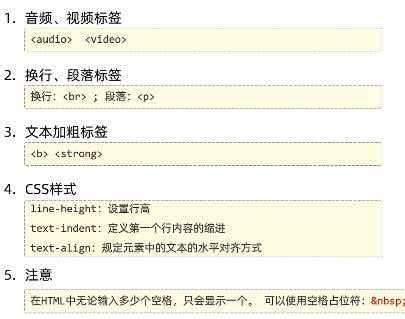
页面布局:
盒子模型:
页面中所有的元素(标签)都可以看作是一个盒子,由盒子将页面中的元素包含在一个矩形区域内,通过盒子的视角更方便的进行页面布局
盒子模型组成:内容区域(content),内边距区域(padding),边框区域(border),外边距区域(margin)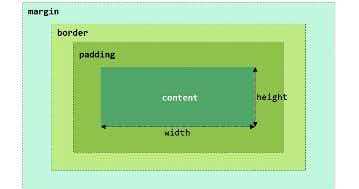
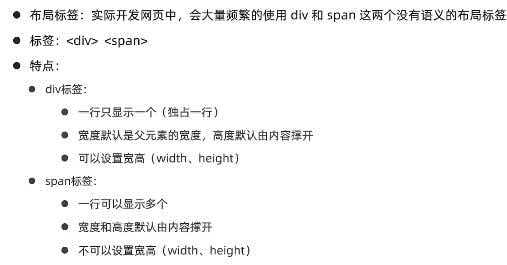
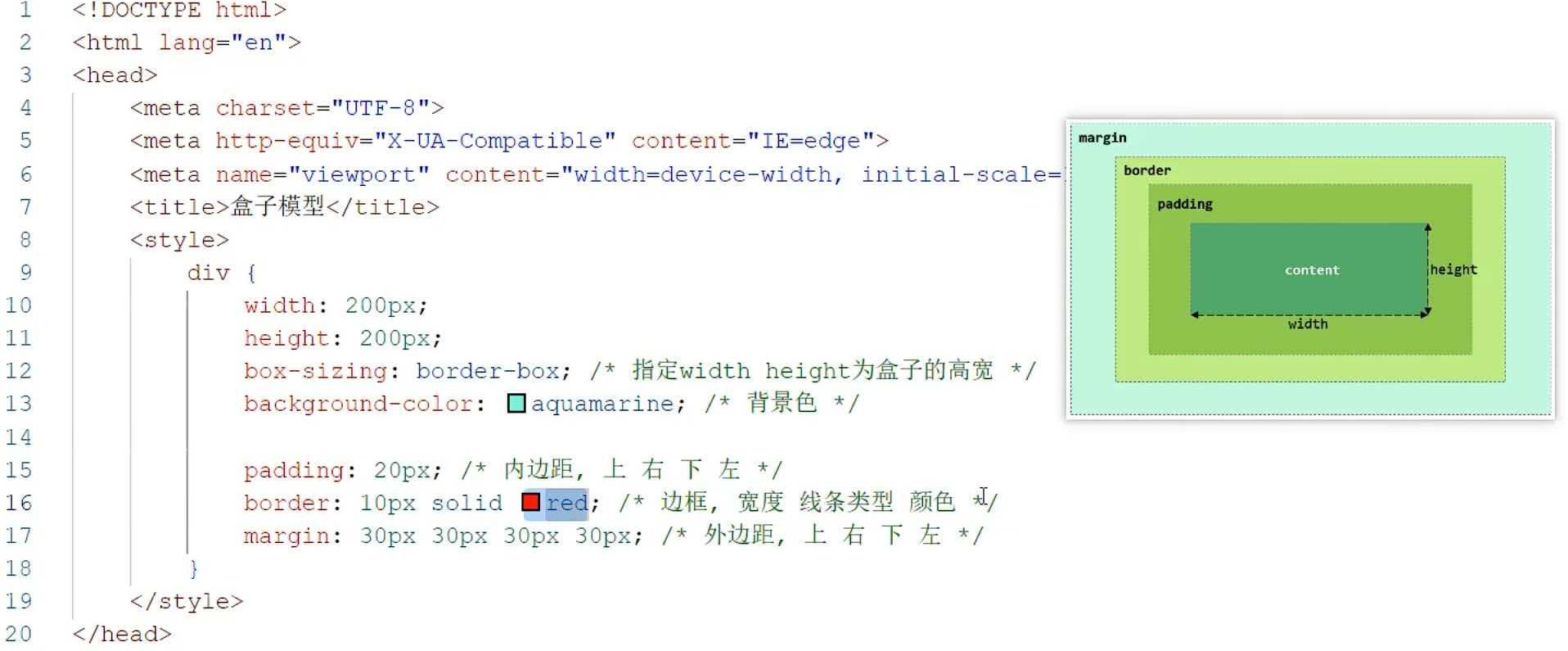
在style中设置div的边距,后将正文圈起来即可
html
<!DOCTYPE html>
<html lang="en">
<head>
    <meta charset="UTF-8">
    <meta name="viewport" content="width=device-width, initial-scale=1.0">
    <title>标题标题标题</title>
    <style>
        a{
            color: #000;
            text-decoration: none;
        }
        .cls{
            color: #968d92;
        }
        #locate{
            color: #000000;
            front-size:12px;
        }
        p{
            text-indent: 50px;
            line-height: 40px;
        }
        #plast{
            text-align: right;
        }
        #center{
            width: 65%;
            /* 设置外边距 margin:上右下左*/
            /* margin: 0% 17.5% 0% 17.5%;*/
            /* 简化写法: */
            margin:0 auto;
        }
    </style>
    <link rel="stylesheet" href="CSS\news.css">

</head>
<body>
    <div id="center">
    <img src="C:\Users\90527\Desktop\HTML\2.png" width="10%">
    <a href="https://csdn.com/" target="_blank">旧浪新闻</a> > 正文
    <h1> 标题标题标题 </h1>
    <hr>
    <span class = "cls">2026年3月13日 18:42</span>  <span id="locate"><a href="https://www.scauzj.edu.cn/">华南农业大学珠江学院</a></span>
    <hr>
    <video src="https://news.sina.com.cn/gov/xlxw/2023-03-03/doc-imyipzuy7321600.shtml?hasPlayedTime=3.643833" controls width="700px"></video>
    <p><b>加粗文字</b>文字文字文字文字文字文字文字文字文字文字文字文字文字文字文字文字文字文字文字文字文字文字文字文字文字文字文字文字文字文字文字文字文字文字文字文字文字文字文字文字文字文字文字文字文字文字文字文字文字文字文字文字文字文字文字文字</p>
    <p>文字文字文字文字文字文字文字文字文字文字文字文字文字文字文字文字文字文字文字文字文字文字文字文字文字文字文字文字文字文字文字文字</p>
    <img src="4.jpg" width="700px">
    <p>文字文字文字文字文字文字文字文字文字文字文字文字文字文字文字文字文字文字文字文字文字文字文字文字文字文字文字文字文字文字文字文字文字文字文字文字文字文字文字文字</p>
    <p id="plast">文字文字文字文字文字文字文字文字</p>
    </div>
</body>
</html>
效果展示:

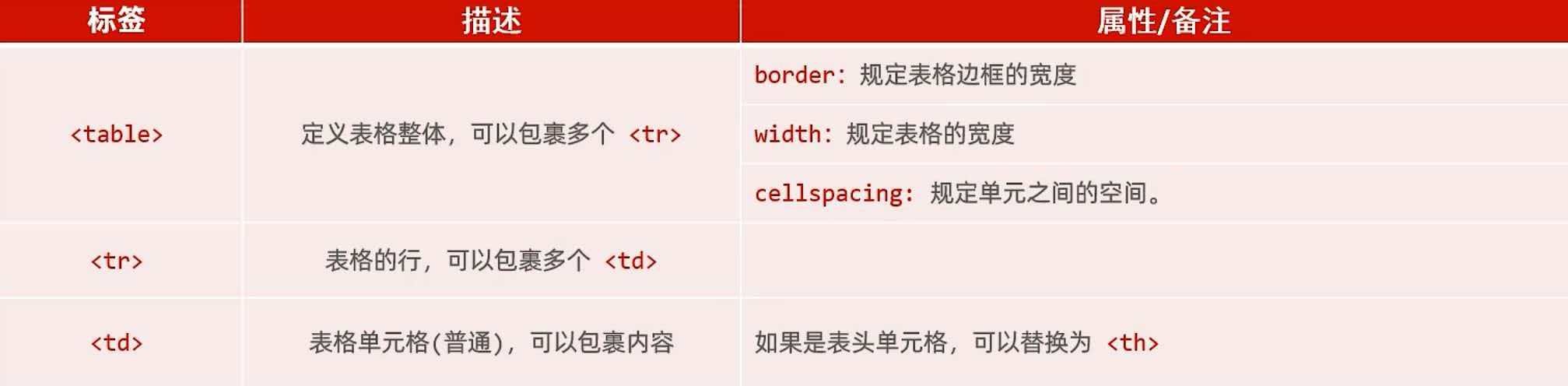
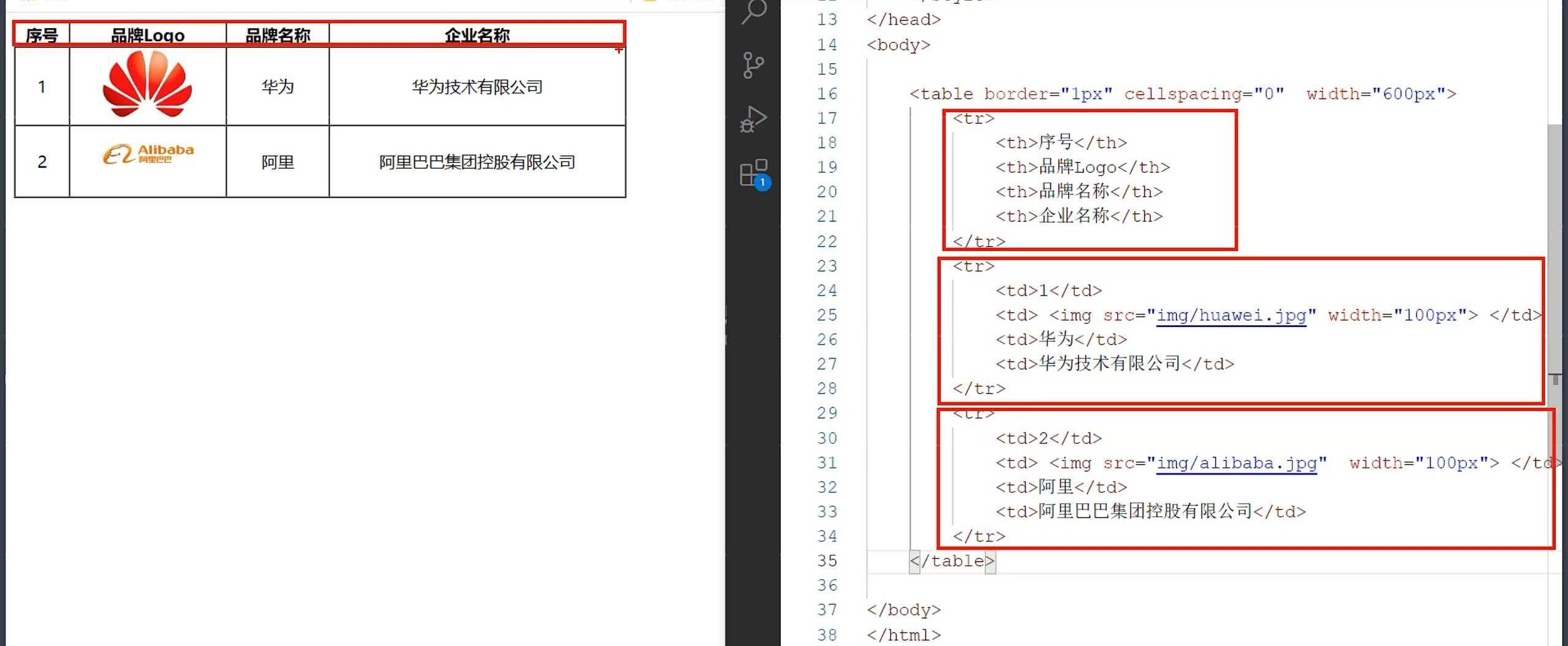
表格标签:
场景:在网页中以表格(行,列)形式整齐展示数据,如:班级表
标签:
表单标签:
场景:在网页中主要负责数据采集功能,如注册,登陆等数据采集
标签:<form>
表单项:不同类型的input元素,下拉列表,文本域等
<input>:定义表单项,通过type属性控制输入形式
<select>:定义下拉列表
<textarea>:定义文本域
属性:
action:规定当提交表单时向何处发送表单数据,URL
method:规定用于发送表单数据的方式.GET,POST
表单标签:
html
<!DOCTYPE html>
<html lang="en">
<head>
    <meta charset="UTF-8">
    <meta name="viewport" content="width=device-width, initial-scale=1.0">
    <title>Document</title>
</head>
<body>
    <!-- form表单属性 -->
    <!--
    action:规定当提交表单时向何处发送表单数据,URL
    method:规定用于发送表单数据的方式.GET,POST
    -->
    <!-- action:指定表单提交到何处,不指定则默认提交到当前页面 -->
    <!-- method="get"以get方式提交,则会在url后面拼接数据,如果不设置method则默认是get
        但url长度有限制 例:file:///C:/Users/90527/07-HTML11.html?username=&age= -->
    <!-- <form action="" method="get"> -->
    <form action="" method="post">
        <!-- 定义表单项 -->
        <!-- text表示输入文本流,name是表单的名字,没有name就无法采集成功 -->
        用户名:<input type="text" name="username">
        年龄:<input type="text" name="age">
        <!-- 定义提交按钮 -->
        <input type="submit" value="提交">
    <!-- method="post":如果是以post来传递,那么信息是在消息(请求)体中传递,大小无限制 -->
    </form>
</body>
</html>
表单项:
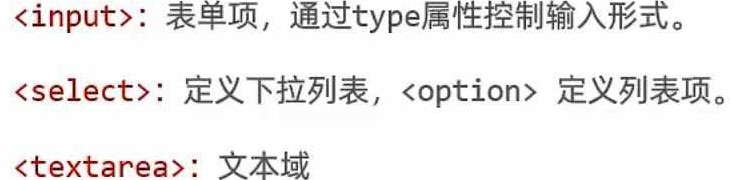
<input type>取值: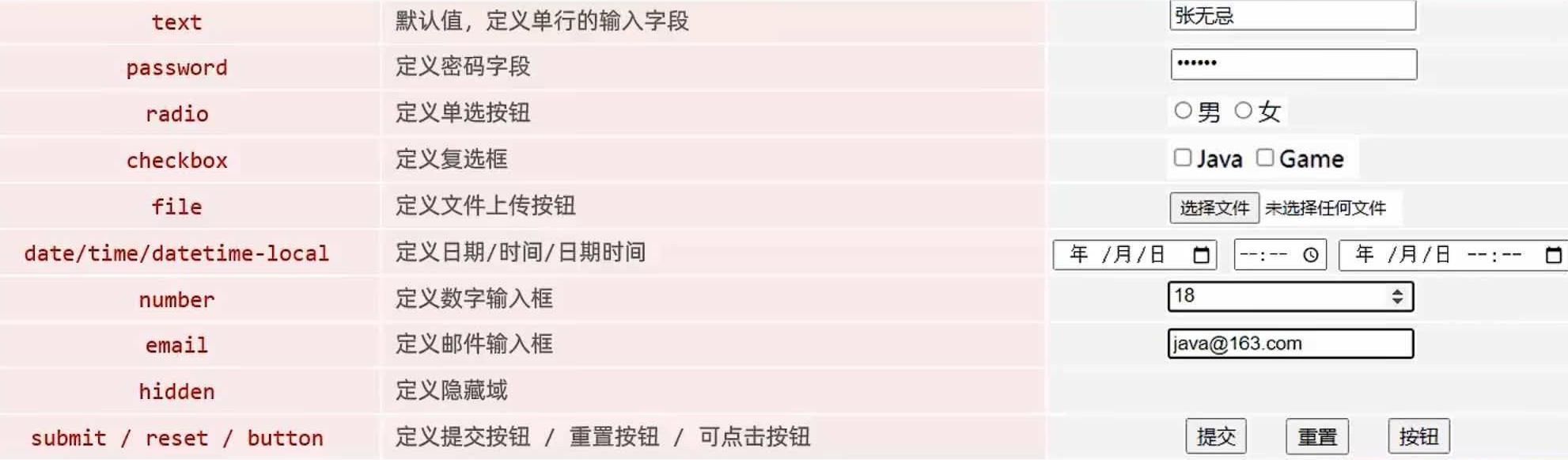
<select>可以用来定义下拉列表: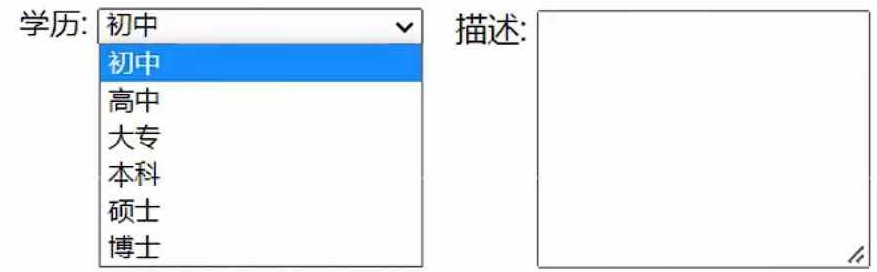
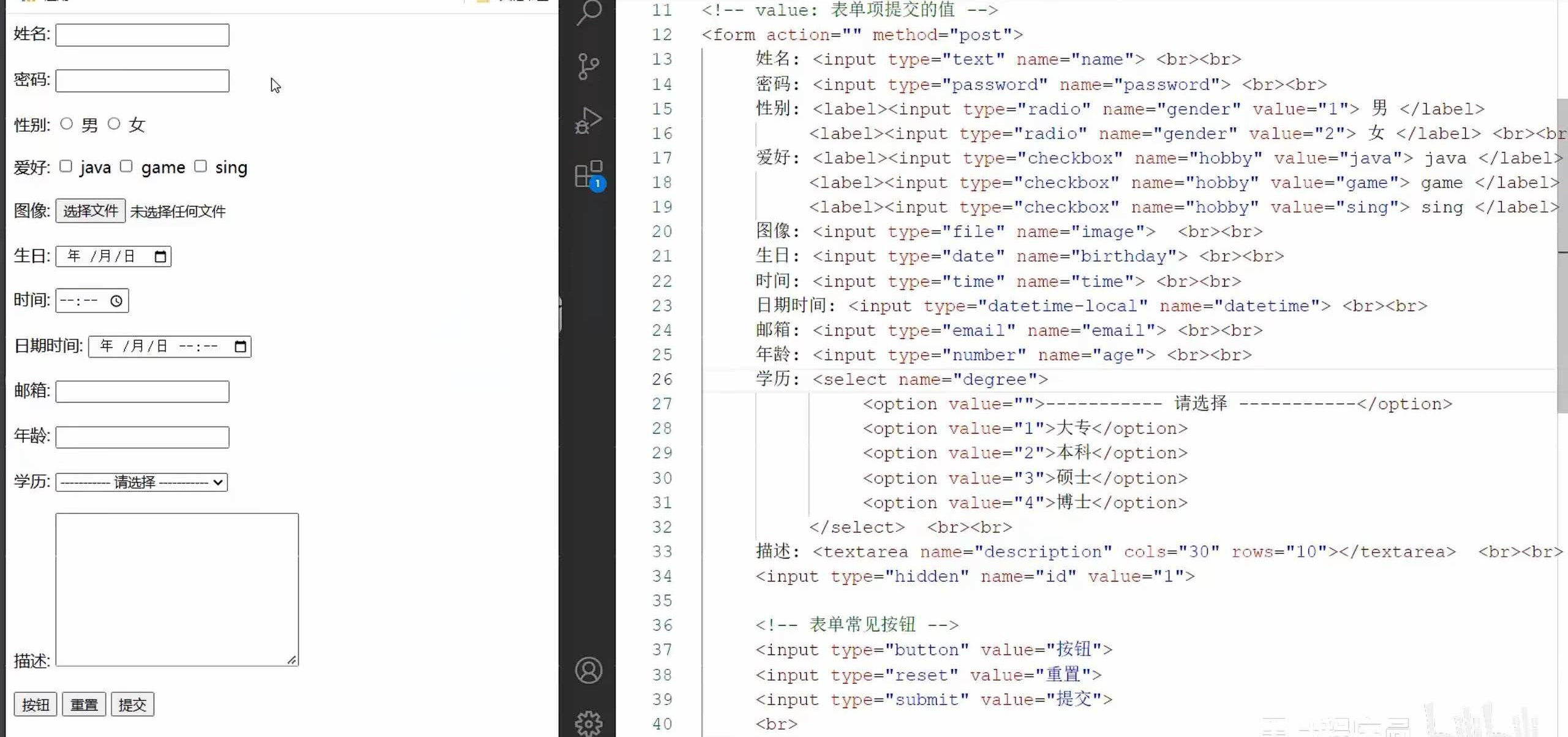
*<label>的作用是点击选项时即使点击到选项框对应的文字而非选项框本体时,选项依然会被选中