欢迎加入开源鸿蒙跨平台社区 :https://openharmonycrossplatform.csdn.net
📋 前言
在现代移动应用开发中,动画是提升用户体验的重要手段。Lottie 是 Airbnb 开源的一个动画库,它可以将 Adobe After Effects 制作的动画导出为 JSON 文件,并在移动端高效渲染。lottie-react-native 让 React Native 开发者能够轻松地在应用中展示高质量的矢量动画,无需编写复杂的动画代码,大大降低了动画开发的门槛。
🎯 库简介
基本信息
- 库名称 :
lottie-react-native - 版本信息 :
@react-native-ohos/lottie-react-native@6.4.2+: 支持 RN 0.72 版本,支持 Autolink@react-native-oh-tpl/lottie-react-native@6.4.1-0.1.17: 旧版本,不支持 Autolink(已废弃)
- 官方仓库: https://atomgit.com/openharmony-sig/rntpc_lottie-react-native
- 主要功能 :
- 🎬 支持 JSON 格式的 Lottie 动画文件
- 🌐 支持本地文件和网络 URL
- 🔄 支持循环播放、自动播放
- ⏯️ 支持播放、暂停、重置等控制
- 🎨 支持颜色滤镜动态修改颜色
- 📱 跨平台一致性表现
为什么选择 Lottie?
| 特性 | GIF 动图 | 帧动画 | Lottie 动画 |
|---|---|---|---|
| 文件大小 | ⚠️ 较大 | ⚠️ 较大 | ✅ 极小 (JSON) |
| 缩放清晰度 | ⚠️ 放大模糊 | ⚠️ 放大模糊 | ✅ 矢量无损 |
| 动态修改 | ❌ 不支持 | ❌ 不支持 | ✅ 支持颜色/速度 |
| 性能 | ⚠️ 一般 | ⚠️ 一般 | ✅ 原生渲染 |
| 交互控制 | ❌ 不支持 | ⚠️ 有限 | ✅ 完整控制 |
| HarmonyOS支持 | ✅ 原生支持 | ✅ 原生支持 | ✅ lottie-react-native |
支持的属性
| 属性 | 说明 | 类型 | 默认值 | HarmonyOS 支持 |
|---|---|---|---|---|
source |
动画源(本地/网络/对象) | string| AnimationObject | { uri: string } | - | ✅ |
progress |
播放进度 (0-1) | number | 0 | ✅ |
speed |
播放速度 | number | 1 | ✅ |
duration |
动画时长 (ms) | number | - | ✅ |
loop |
是否循环播放 | boolean | true | ✅ |
autoPlay |
是否自动播放 | boolean | false | ✅ |
resizeMode |
缩放模式 | 'cover'| 'contain' | 'center' | contain | ✅ |
style |
样式 | StyleProp<ViewStyle> |
- | ✅ |
imageAssetsFolder |
图片资源文件夹路径 | string | - | ✅ |
colorFilters |
颜色滤镜 | Array<ColorFilter> |
\[\] | ✅ |
cacheComposition |
是否缓存动画 | boolean | true | ✅ |
支持的方法
| 方法 | 说明 | 参数 | HarmonyOS 支持 |
|---|---|---|---|
play |
播放动画 | (startFrame?, endFrame?) | ✅ |
pause |
暂停动画 | - | ✅ |
reset |
重置动画到起始状态 | - | ✅ |
resume |
恢复播放 | - | ✅ |
支持的回调
| 回调 | 说明 | 参数 | HarmonyOS 支持 |
|---|---|---|---|
onAnimationFinish |
动画播放完成回调 | isCancelled | ✅ |
onAnimationLoaded |
动画加载完成回调 | - | ✅ |
onAnimationFailure |
动画加载失败回调 | error: string | ✅ |
兼容性验证
在以下环境验证通过:
- RNOH : 0.72.96; SDK : HarmonyOS 6.0.0 Release SDK; IDE : DevEco Studio 6.0.0.858; ROM: 6.0.0.112
📦 安装步骤
1. 安装依赖
在项目根目录执行以下命令,本文基于 RN 0.72.90 版本开发:
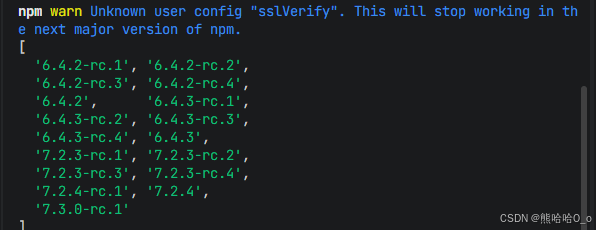
bash
# 安装鸿蒙适配包
npm install @react-native-ohos/lottie-react-native@6.4.2-rc.1

# 或者使用 yarn
yarn add @react-native-ohos/lottie-react-native@6.4.2-rc.1
2. 验证安装
安装完成后,检查 package.json 文件,应该能看到新增的依赖:
json
{
  "dependencies": {
    "@react-native-ohos/lottie-react-native": "^6.4.2-rc.1",
    // ... 其他依赖
  }
}
🔧 HarmonyOS 平台配置 ⭐
由于 HarmonyOS 暂不支持 AutoLink,需要手动配置原生端代码。本文提供 HAR 包引入 和 源码引入 两种方式,可根据实际需求选择。
1. 在工程根目录的 oh-package.json5 添加 overrides 字段
打开 harmony/oh-package.json5,添加以下配置:
json5
{
  // ... 其他配置
  "overrides": {
    "@rnoh/react-native-openharmony": "0.72.90"
  }
}
方式一:HAR 包引入(推荐)📦
HAR 包引入方式简单快捷,适合大多数场景。
💡 提示 :HAR 包位于三方库安装路径的
harmony文件夹下。
2.1 在 entry/oh-package.json5 添加依赖
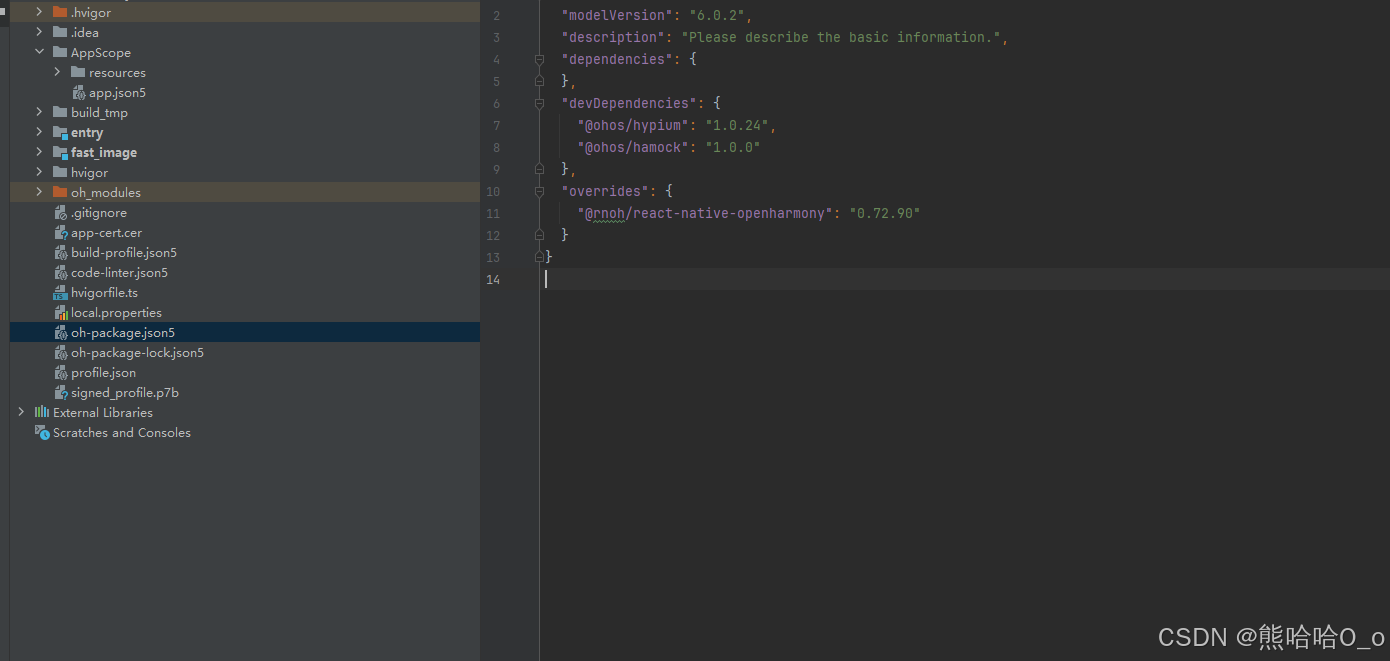
打开 harmony/entry/oh-package.json5,添加以下依赖:
json5
"dependencies": {
  "@rnoh/react-native-openharmony": "0.72.90",
  + "@react-native-ohos/lottie-react-native": "file:../../node_modules/@react-native-ohos/lottie-react-native/harmony/lottie.har"
}
2.2 同步依赖
点击 DevEco Studio 右上角的 sync 按钮,或者在终端执行:
bash
cd harmony/entry
ohpm install
2.3 配置 CMakeLists.txt
打开 harmony/entry/src/main/cpp/CMakeLists.txt,添加以下配置:
cmake
project(rnapp)
cmake_minimum_required(VERSION 3.4.1)
set(CMAKE_SKIP_BUILD_RPATH TRUE)
set(RNOH_APP_DIR "${CMAKE_CURRENT_SOURCE_DIR}")
set(NODE_MODULES "${CMAKE_CURRENT_SOURCE_DIR}/../../../../../node_modules")
+ set(OH_MODULES "${CMAKE_CURRENT_SOURCE_DIR}/../../../oh_modules")
set(RNOH_CPP_DIR "${CMAKE_CURRENT_SOURCE_DIR}/../../../../../../react-native-harmony/harmony/cpp")
set(LOG_VERBOSITY_LEVEL 1)
set(CMAKE_ASM_FLAGS "-Wno-error- unused-command-line-argument -Qunused-arguments")
set(CMAKE_CXX_FLAGS "-fstack-protector-strong -Wl,-z,relro,-z,now,-z,noexecstack -s -fPIE -pie")
set(WITH_HITRACE_SYSTRACE 1)
add_compile_definitions(WITH_HITRACE_SYSTRACE)

add_subdirectory("${RNOH_CPP_DIR}" ./rn)

# 添加 Lottie 模块(HAR方式)
+ add_subdirectory("${OH_MODULES}/@react-native-ohos/lottie-react-native/src/main/cpp" ./lottie)

file(GLOB GENERATED_CPP_FILES "./generated/*.cpp")

add_library(rnoh_app SHARED
    ${GENERATED_CPP_FILES}
    "./PackageProvider.cpp"
    "${RNOH_CPP_DIR}/RNOHAppNapiBridge.cpp"
)
target_link_libraries(rnoh_app PUBLIC rnoh)

# 链接 Lottie 库
+ target_link_libraries(rnoh_app PUBLIC rnoh_lottie)
2.4 修改 PackageProvider.cpp
打开 harmony/entry/src/main/cpp/PackageProvider.cpp,添加:
cpp
#include "RNOH/PackageProvider.h"
#include "generated/RNOHGeneratedPackage.h"
+ #include "LottieAnimationViewPackage.h"

using namespace rnoh;

std::vector<std::shared_ptr<Package>> PackageProvider::getPackages(Package::Context ctx) {
    return {
        std::make_shared<RNOHGeneratedPackage>(ctx),
        + std::make_shared<LottieAnimationViewPackage>(ctx),
    };
}
2.5 在 ArkTs 侧引入 LottieAnimationViewPackage
打开 harmony/entry/src/main/ets/RNPackagesFactory.ts,添加:
typescript
import type { RNPackageContext, RNPackage } from 'rnoh/ts';
+ import { LottieAnimationViewPackage } from '@react-native-ohos/lottie-react-native/ts';

export function createRNPackages(ctx: RNPackageContext): RNPackage[] {
  return [
    // ... 其他包
    + new LottieAnimationViewPackage(ctx),
  ];
}
2.6 引入 Lottie 组件到 ArkTS
找到 entry/src/main/ets/pages/index.ets 或 entry/src/main/ets/rn/LoadBundle.ets,添加以下代码:
typescript
+ import { LottieAnimationView, LOTTIE_TYPE } from "@react-native-ohos/lottie-react-native"

@Builder
export function buildCustomRNComponent(ctx: ComponentBuilderContext) {
  // ... 其他组件
  + if (ctx.componentName === LOTTIE_TYPE) {
  +   LottieAnimationView({
  +     ctx: ctx.rnComponentContext,
  +     tag: ctx.tag
  +   })
  + }
}
2.7 添加组件名称到常量数组
找到 arkTsComponentNames 常量,添加组件名称:
typescript
const arkTsComponentNames: Array<string> = [
  // ... 其他组件名称
  + LOTTIE_TYPE
];
方式二:源码引入 📁
源码引入方式适合需要调试或修改原生代码的场景。
2.1 复制源码到 harmony 工程根目录
把 <RN工程>/node_modules/@react-native-ohos/lottie-react-native/harmony 目录下的源码 lottie 复制到 harmony(鸿蒙壳工程)工程根目录下。
bash
# 复制源码目录
cp -r node_modules/@react-native-ohos/lottie-react-native/harmony/lottie harmony/
2.2 在 build-profile.json5 添加模块
打开 harmony/build-profile.json5,添加以下模块:
json5
modules: [
  // ... 其他模块
  + {
  +   name: 'lottie',
  +   srcPath: './lottie',
  + }
]
💡 提示 :如果存在
build-profile.template.json5文件,也需要同步添加上述模块配置。
2.3 修改 lottie/oh-package.json5
打开 harmony/lottie/oh-package.json5,修改 react-native-openharmony 版本与项目版本一致:
json5
{
  "dependencies": {
    "@rnoh/react-native-openharmony": "0.72.90"
  }
}
2.4 在 entry/oh-package.json5 添加依赖
打开 harmony/entry/oh-package.json5,添加以下依赖:
json5
"dependencies": {
  "@rnoh/react-native-openharmony": "0.72.90",
  + "@react-native-ohos/lottie-react-native": "file:../lottie"
}
2.5 同步依赖
点击 DevEco Studio 右上角的 sync 按钮,或者在终端执行:
bash
cd harmony/entry
ohpm install
2.6 配置 CMakeLists.txt
打开 harmony/entry/src/main/cpp/CMakeLists.txt,添加以下配置:
cmake
project(rnapp)
cmake_minimum_required(VERSION 3.4.1)
set(CMAKE_SKIP_BUILD_RPATH TRUE)
set(RNOH_APP_DIR "${CMAKE_CURRENT_SOURCE_DIR}")
set(NODE_MODULES "${CMAKE_CURRENT_SOURCE_DIR}/../../../../../node_modules")
+ set(OH_MODULES "${CMAKE_CURRENT_SOURCE_DIR}/../../../oh_modules")
set(RNOH_CPP_DIR "${CMAKE_CURRENT_SOURCE_DIR}/../../../../../../react-native-harmony/harmony/cpp")
set(LOG_VERBOSITY_LEVEL 1)
set(CMAKE_ASM_FLAGS "-Wno-error- unused-command-line-argument -Qunused-arguments")
set(CMAKE_CXX_FLAGS "-fstack-protector-strong -Wl,-z,relro,-z,now,-z,noexecstack -s -fPIE -pie")
set(WITH_HITRACE_SYSTRACE 1)
add_compile_definitions(WITH_HITRACE_SYSTRACE)

add_subdirectory("${RNOH_CPP_DIR}" ./rn)

# 添加 Lottie 模块(源码方式)
+ add_subdirectory("${OH_MODULES}/@react-native-ohos/lottie-react-native/src/main/cpp" ./lottie)

file(GLOB GENERATED_CPP_FILES "./generated/*.cpp")

add_library(rnoh_app SHARED
    ${GENERATED_CPP_FILES}
    "./PackageProvider.cpp"
    "${RNOH_CPP_DIR}/RNOHAppNapiBridge.cpp"
)
target_link_libraries(rnoh_app PUBLIC rnoh)

# 链接 Lottie 库
+ target_link_libraries(rnoh_app PUBLIC rnoh_lottie)
2.7 修改 PackageProvider.cpp
打开 harmony/entry/src/main/cpp/PackageProvider.cpp,添加:
cpp
#include "RNOH/PackageProvider.h"
#include "generated/RNOHGeneratedPackage.h"
+ #include "LottieAnimationViewPackage.h"

using namespace rnoh;

std::vector<std::shared_ptr<Package>> PackageProvider::getPackages(Package::Context ctx) {
    return {
        std::make_shared<RNOHGeneratedPackage>(ctx),
        + std::make_shared<LottieAnimationViewPackage>(ctx),
    };
}
2.8 在 ArkTs 侧引入 LottieAnimationViewPackage
打开 harmony/entry/src/main/ets/RNPackagesFactory.ts,添加:
typescript
import type { RNPackageContext, RNPackage } from 'rnoh/ts';
+ import { LottieAnimationViewPackage } from '@react-native-ohos/lottie-react-native/ts';

export function createRNPackages(ctx: RNPackageContext): RNPackage[] {
  return [
    // ... 其他包
    + new LottieAnimationViewPackage(ctx),
  ];
}
2.9 引入 Lottie 组件到 ArkTS
找到 entry/src/main/ets/pages/index.ets 或 entry/src/main/ets/rn/LoadBundle.ets,添加以下代码:
typescript
+ import { LottieAnimationView, LOTTIE_TYPE } from "@react-native-ohos/lottie-react-native"

@Builder
export function buildCustomRNComponent(ctx: ComponentBuilderContext) {
  // ... 其他组件
  + if (ctx.componentName === LOTTIE_TYPE) {
  +   LottieAnimationView({
  +     ctx: ctx.rnComponentContext,
  +     tag: ctx.tag
  +   })
  + }
}
2.10 添加组件名称到常量数组
找到 arkTsComponentNames 常量,添加组件名称:
typescript
const arkTsComponentNames: Array<string> = [
  // ... 其他组件名称
  + LOTTIE_TYPE
];
🔐 权限配置
如果使用网络 URL 加载动画,需要在 entry/src/main/module.json5 中添加网络权限:
json5
{
  "module": {
    "requestPermissions": [
      {
        "name": "ohos.permission.INTERNET"
      }
    ]
  }
}
同步并运行 🚀
3. 同步依赖
点击 DevEco Studio 右上角的 sync 按钮,或者在终端执行:
bash
cd harmony/entry
ohpm install
然后编译、运行即可。
📖 API 详解
🔷 基础属性
1. source - 动画源 ⭐
source 是 LottieView 最重要的属性,支持三种格式:
typescript
import LottieView from 'lottie-react-native';

// 方式1:本地 JSON 文件
<LottieView
  source={require('./animations/loading.json')}
  autoPlay
  loop
/>

// 方式2:网络 URL
<LottieView
  source={{ uri: 'https://assets.example.com/animation.json' }}
  autoPlay
  loop
/>

// 方式3:JSON 对象(从 API 获取后直接使用)
const animationData = { /* JSON 动画数据 */ };
<LottieView
  source={animationData}
  autoPlay
  loop
/>| 格式 | 说明 | 使用场景 |
|---|---|---|
require('./file.json') |
本地文件 | 应用内置动画 |
{ uri: 'https://...' } |
网络 URL | 动态更新动画 |
| JSON 对象 | 动画数据对象 | 从 API 获取 |
2. progress - 播放进度
progress 用于控制动画的播放进度,取值范围 0-1:
typescript
import { useState } from 'react';

const [progress, setProgress] = useState(0);

<LottieView
  source={require('./animation.json')}
  progress={progress}
/>

// 通过 Slider 控制进度
<Slider
  value={progress}
  onValueChange={setProgress}
  minimumValue={0}
  maximumValue={1}
/>
3. speed - 播放速度
speed 控制动画播放速度,默认为 1:
typescript
// 正常速度
<LottieView source={require('./animation.json')} speed={1} />

// 2倍速
<LottieView source={require('./animation.json')} speed={2} />

// 0.5倍速(慢放)
<LottieView source={require('./animation.json')} speed={0.5} />

// 负数反向播放
<LottieView source={require('./animation.json')} speed={-1} />
4. loop - 循环播放
loop 控制是否循环播放,默认为 true:
typescript
// 循环播放
<LottieView source={require('./animation.json')} loop={true} />

// 只播放一次
<LottieView source={require('./animation.json')} loop={false} />
5. autoPlay - 自动播放
autoPlay 控制是否自动播放,默认为 false:
typescript
// 自动播放
<LottieView source={require('./animation.json')} autoPlay loop />

// 手动控制播放
const animationRef = useRef<LottieView>(null);

<LottieView
  ref={animationRef}
  source={require('./animation.json')}
/>

<TouchableOpacity onPress={() => animationRef.current?.play()}>
  <Text>播放</Text>
</TouchableOpacity>
6. resizeMode - 缩放模式
resizeMode 控制动画的缩放方式:
typescript
// contain:保持比例,完整显示
<LottieView source={require('./animation.json')} resizeMode="contain" />

// cover:保持比例,填满容器
<LottieView source={require('./animation.json')} resizeMode="cover" />

// center:原始大小,居中显示
<LottieView source={require('./animation.json')} resizeMode="center" />
🔷 高级属性
7. colorFilters - 颜色滤镜 🎨
colorFilters 用于动态修改动画中的颜色:
typescript
<LottieView
  source={require('./animation.json')}
  colorFilters={[
    {
      keypath: 'layer1.shape1.fill1',  // 图层路径
      color: '#FF0000',                // 新颜色
    },
    {
      keypath: 'layer2.*',             // 支持通配符
      color: '#00FF00',
    },
  ]}
  autoPlay
  loop
/>
keypath 说明:
- 使用点号分隔层级路径
- 支持
*通配符匹配多个图层 - 可以在 After Effects 中查看图层名称
8. imageAssetsFolder - 图片资源文件夹
如果动画包含图片资源,需要指定图片文件夹路径:
typescript
<LottieView
  source={require('./animation.json')}
  imageAssetsFolder="images/"
  autoPlay
  loop
/>
💡 提示 :图片资源需要放置到
entry/src/main/resources/rawfile/目录下。
9. cacheComposition - 缓存控制
控制是否缓存动画数据,默认为 true:
typescript
// 缓存动画(适合重复使用的动画)
<LottieView
  source={{ uri: 'https://example.com/animation.json' }}
  cacheComposition={true}
/>

// 不缓存(适合动态变化的动画)
<LottieView
  source={{ uri: 'https://example.com/animation.json' }}
  cacheComposition={false}
/>
🔷 方法调用
通过 ref 可以调用动画的控制方法:
typescript
import { useRef } from 'react';
import LottieView from 'lottie-react-native';

const animationRef = useRef<LottieView>(null);

// 播放动画
const handlePlay = () => {
  animationRef.current?.play();
};

// 播放指定帧范围
const handlePlayRange = () => {
  animationRef.current?.play(30, 60);  // 从第30帧播放到第60帧
};

// 暂停动画
const handlePause = () => {
  animationRef.current?.pause();
};

// 重置动画
const handleReset = () => {
  animationRef.current?.reset();
};

// 恢复播放
const handleResume = () => {
  animationRef.current?.resume();
};

<LottieView
  ref={animationRef}
  source={require('./animation.json')}
  loop={false}
/>
🔷 回调函数
onAnimationFinish - 动画完成回调
typescript
<LottieView
  source={require('./animation.json')}
  loop={false}
  onAnimationFinish={(isCancelled) => {
    if (isCancelled) {
      console.log('动画被取消');
    } else {
      console.log('动画正常完成');
    }
  }}
/>
💡 提示 :此回调仅在
loop={false}时触发。
onAnimationLoaded - 动画加载完成回调
typescript
<LottieView
  source={{ uri: 'https://example.com/animation.json' }}
  onAnimationLoaded={() => {
    console.log('动画加载完成,可以开始播放');
  }}
/>
onAnimationFailure - 动画加载失败回调
typescript
<LottieView
  source={{ uri: 'https://example.com/animation.json' }}
  onAnimationFailure={(error) => {
    console.error('动画加载失败:', error);
    // 显示错误提示或加载备用动画
  }}
/>
💻 完整代码示例
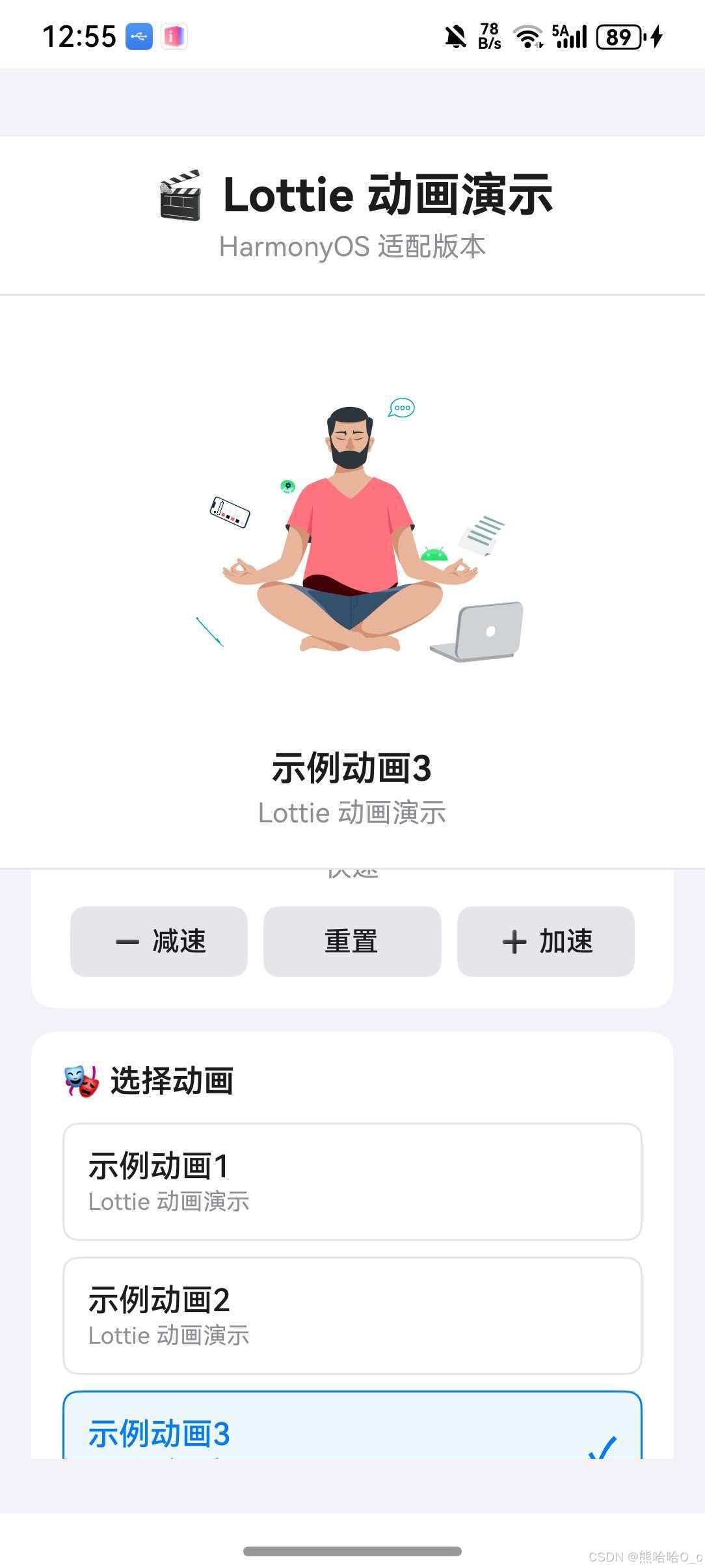
下面是一个完整的示例,展示了 lottie-react-native 的各种功能:
准备动画资源
首先创建动画资源目录并下载示例动画文件:
bash
# 创建动画资源目录
mkdir -p assets/animations

# 下载示例动画文件(可从 lottiefiles.com 获取更多动画)
curl -o assets/animations/demo1.json "https://assets2.lottiefiles.com/packages/lf20_UJNc2t.json"
curl -o assets/animations/demo2.json "https://assets1.lottiefiles.com/packages/lf20_z4cshyhf.json"
curl -o assets/animations/demo3.json "https://assets3.lottiefiles.com/packages/lf20_kkflmtur.json"
💡 提示 :你也可以从 lottiefiles.com 下载更多免费动画,或使用自己制作的 Lottie 动画 JSON 文件。
完整代码
typescript
import React, { useRef, useState, useEffect } from 'react';
import {
  View,
  Text,
  StyleSheet,
  TouchableOpacity,
  ScrollView,
  SafeAreaView,
  Switch,
} from 'react-native';
import LottieView from 'lottie-react-native';

type AnimationItem = {
  id: string;
  title: string;
  source: any;
  description: string;
};

const animations: AnimationItem[] = [
  {
    id: 'demo1',
    title: '示例动画1',
    source: require('./assets/animations/demo1.json'),
    description: 'Lottie 动画演示',
  },
  {
    id: 'demo2',
    title: '示例动画2',
    source: require('./assets/animations/demo2.json'),
    description: 'Lottie 动画演示',
  },
  {
    id: 'demo3',
    title: '示例动画3',
    source: require('./assets/animations/demo3.json'),
    description: 'Lottie 动画演示',
  },
];

function LottieDemo() {
  const animationRef = useRef<LottieView>(null);
  const [currentAnimation, setCurrentAnimation] = useState<AnimationItem>(animations[0]);
  const [isPlaying, setIsPlaying] = useState(true);
  const [isLooping, setIsLooping] = useState(true);
  const [speed, setSpeed] = useState(1);

  useEffect(() => {
    if (isPlaying) {
      animationRef.current?.play();
    } else {
      animationRef.current?.pause();
    }
  }, [isPlaying]);

  const handlePlay = () => {
    animationRef.current?.play();
    setIsPlaying(true);
  };

  const handlePause = () => {
    animationRef.current?.pause();
    setIsPlaying(false);
  };

  const handleReset = () => {
    animationRef.current?.reset();
    setIsPlaying(false);
  };

  const handleAnimationFinish = (isCancelled: boolean) => {
    if (!isLooping && !isCancelled) {
      setIsPlaying(false);
    }
  };

  const changeSpeed = (delta: number) => {
    const newSpeed = Math.max(0.25, Math.min(3, speed + delta));
    setSpeed(newSpeed);
  };

  const selectAnimation = (item: AnimationItem) => {
    setCurrentAnimation(item);
    setIsPlaying(true);
  };

  const getSpeedColor = () => {
    if (speed < 1) return '#FF9500';
    if (speed > 1) return '#34C759';
    return '#007AFF';
  };

  return (
    <SafeAreaView style={styles.container}>
      <View style={styles.header}>
        <Text style={styles.title}>🎬 Lottie 动画演示</Text>
        <Text style={styles.subtitle}>HarmonyOS 适配版本</Text>
      </View>

      <View style={styles.animationContainer}>
        <LottieView
          ref={animationRef}
          source={currentAnimation.source}
          style={styles.animation}
          autoPlay={isPlaying}
          loop={isLooping}
          speed={speed}
          onAnimationFinish={handleAnimationFinish}
          resizeMode="contain"
        />
        <View style={styles.animationInfo}>
          <Text style={styles.animationTitle}>{currentAnimation.title}</Text>
          <Text style={styles.animationDesc}>{currentAnimation.description}</Text>
        </View>
      </View>

      <ScrollView style={styles.controlsContainer} showsVerticalScrollIndicator={false}>
        <View style={styles.controlSection}>
          <Text style={styles.sectionTitle}>⏯️ 播放控制</Text>
          <View style={styles.buttonRow}>
            <TouchableOpacity
              style={[styles.controlButton, isPlaying && styles.controlButtonActive]}
              onPress={handlePlay}
            >
              <Text style={styles.controlButtonText}>▶️ 播放</Text>
            </TouchableOpacity>
            <TouchableOpacity
              style={[styles.controlButton, !isPlaying && styles.controlButtonActive]}
              onPress={handlePause}
            >
              <Text style={styles.controlButtonText}>⏸️ 暂停</Text>
            </TouchableOpacity>
            <TouchableOpacity style={styles.controlButton} onPress={handleReset}>
              <Text style={styles.controlButtonText}>🔄 重置</Text>
            </TouchableOpacity>
          </View>
        </View>

        <View style={styles.controlSection}>
          <Text style={styles.sectionTitle}>🔁 循环播放</Text>
          <View style={styles.switchRow}>
            <Text style={styles.switchLabel}>
              {isLooping ? '✅ 已开启' : '❌ 已关闭'}
            </Text>
            <Switch
              value={isLooping}
              onValueChange={setIsLooping}
              trackColor={{ false: '#E5E5EA', true: '#34C759' }}
              thumbColor={isLooping ? '#fff' : '#f4f3f4'}
              ios_backgroundColor="#E5E5EA"
            />
          </View>
        </View>

        <View style={styles.controlSection}>
          <Text style={styles.sectionTitle}>⚡ 播放速度</Text>
          <View style={styles.speedDisplay}>
            <Text style={[styles.speedValue, { color: getSpeedColor() }]}>
              {speed.toFixed(2)}x
            </Text>
            <Text style={styles.speedHint}>
              {speed < 1 ? '慢速' : speed > 1 ? '快速' : '正常'}
            </Text>
          </View>
          <View style={styles.buttonRow}>
            <TouchableOpacity
              style={styles.speedButton}
              onPress={() => changeSpeed(-0.25)}
              disabled={speed <= 0.25}
            >
              <Text style={styles.speedButtonText}>➖ 减速</Text>
            </TouchableOpacity>
            <TouchableOpacity
              style={styles.speedButton}
              onPress={() => setSpeed(1)}
            >
              <Text style={styles.speedButtonText}>重置</Text>
            </TouchableOpacity>
            <TouchableOpacity
              style={styles.speedButton}
              onPress={() => changeSpeed(0.25)}
              disabled={speed >= 3}
            >
              <Text style={styles.speedButtonText}>➕ 加速</Text>
            </TouchableOpacity>
          </View>
        </View>

        <View style={styles.controlSection}>
          <Text style={styles.sectionTitle}>🎭 选择动画</Text>
          {animations.map((item) => (
            <TouchableOpacity
              key={item.id}
              style={[
                styles.animationItem,
                currentAnimation.id === item.id && styles.animationItemActive,
              ]}
              onPress={() => selectAnimation(item)}
              activeOpacity={0.7}
            >
              <View style={styles.animationItemContent}>
                <Text
                  style={[
                    styles.animationItemTitle,
                    currentAnimation.id === item.id && styles.animationItemTitleActive,
                  ]}
                >
                  {item.title}
                </Text>
                <Text style={styles.animationItemDesc}>{item.description}</Text>
              </View>
              {currentAnimation.id === item.id && (
                <Text style={styles.checkmark}>✓</Text>
              )}
            </TouchableOpacity>
          ))}
        </View>

        <View style={styles.controlSection}>
          <Text style={styles.sectionTitle}>💡 使用提示</Text>
          <View style={styles.tipsContainer}>
            <Text style={styles.tipText}>• 支持本地 JSON 文件和网络 URL</Text>
            <Text style={styles.tipText}>• 可通过 colorFilters 动态修改颜色</Text>
            <Text style={styles.tipText}>• 使用 ref 调用 play/pause/reset 方法</Text>
            <Text style={styles.tipText}>• 动画资源需放置在正确路径</Text>
          </View>
        </View>
      </ScrollView>
    </SafeAreaView>
  );
}

const styles = StyleSheet.create({
  container: {
    flex: 1,
    backgroundColor: '#F2F2F7',
  },
  header: {
    backgroundColor: '#fff',
    paddingVertical: 16,
    paddingHorizontal: 20,
    borderBottomWidth: 1,
    borderBottomColor: '#E5E5EA',
  },
  title: {
    fontSize: 24,
    fontWeight: 'bold',
    color: '#1C1C1E',
    textAlign: 'center',
  },
  subtitle: {
    fontSize: 14,
    color: '#8E8E93',
    textAlign: 'center',
    marginTop: 4,
  },
  animationContainer: {
    backgroundColor: '#fff',
    alignItems: 'center',
    paddingVertical: 20,
    borderBottomWidth: 1,
    borderBottomColor: '#E5E5EA',
  },
  animation: {
    width: 200,
    height: 200,
  },
  animationInfo: {
    alignItems: 'center',
    marginTop: 12,
  },
  animationTitle: {
    fontSize: 18,
    fontWeight: '600',
    color: '#1C1C1E',
  },
  animationDesc: {
    fontSize: 14,
    color: '#8E8E93',
    marginTop: 4,
  },
  controlsContainer: {
    flex: 1,
    padding: 16,
  },
  controlSection: {
    backgroundColor: '#fff',
    borderRadius: 12,
    padding: 16,
    marginBottom: 12,
  },
  sectionTitle: {
    fontSize: 16,
    fontWeight: '600',
    color: '#1C1C1E',
    marginBottom: 12,
  },
  buttonRow: {
    flexDirection: 'row',
    justifyContent: 'space-between',
  },
  controlButton: {
    flex: 1,
    backgroundColor: '#007AFF',
    paddingVertical: 12,
    borderRadius: 8,
    marginHorizontal: 4,
    alignItems: 'center',
  },
  controlButtonActive: {
    backgroundColor: '#34C759',
  },
  controlButtonText: {
    color: '#fff',
    fontSize: 14,
    fontWeight: '500',
  },
  switchRow: {
    flexDirection: 'row',
    justifyContent: 'space-between',
    alignItems: 'center',
  },
  switchLabel: {
    fontSize: 16,
    color: '#1C1C1E',
  },
  speedDisplay: {
    alignItems: 'center',
    marginBottom: 12,
  },
  speedValue: {
    fontSize: 32,
    fontWeight: 'bold',
  },
  speedHint: {
    fontSize: 14,
    color: '#8E8E93',
    marginTop: 4,
  },
  speedButton: {
    flex: 1,
    backgroundColor: '#E5E5EA',
    paddingVertical: 10,
    borderRadius: 8,
    marginHorizontal: 4,
    alignItems: 'center',
  },
  speedButtonText: {
    color: '#1C1C1E',
    fontSize: 14,
    fontWeight: '500',
  },
  animationItem: {
    flexDirection: 'row',
    alignItems: 'center',
    padding: 12,
    borderRadius: 8,
    borderWidth: 1,
    borderColor: '#E5E5EA',
    marginBottom: 8,
  },
  animationItemActive: {
    borderColor: '#007AFF',
    backgroundColor: '#F0F8FF',
  },
  animationItemContent: {
    flex: 1,
  },
  animationItemTitle: {
    fontSize: 16,
    fontWeight: '500',
    color: '#1C1C1E',
  },
  animationItemTitleActive: {
    color: '#007AFF',
  },
  animationItemDesc: {
    fontSize: 12,
    color: '#8E8E93',
    marginTop: 2,
  },
  checkmark: {
    fontSize: 20,
    color: '#007AFF',
    fontWeight: 'bold',
  },
  tipsContainer: {
    backgroundColor: '#F2F2F7',
    borderRadius: 8,
    padding: 12,
  },
  tipText: {
    fontSize: 14,
    color: '#8E8E93',
    lineHeight: 22,
  },
});

export default LottieDemo;
⚠️ 注意事项与最佳实践
1. 动画资源放置
本地 JSON 动画文件需要放置在正确位置:
项目根目录/
├── assets/
│   └── animations/
│       ├── demo1.json
│       ├── demo2.json
│       └── demo3.json
├── App.tsx
└── ...
可以通过 curl 命令下载动画资源:
bash
# 创建目录
mkdir -p assets/animations

# 下载动画文件
curl -o assets/animations/demo1.json "https://assets2.lottiefiles.com/packages/lf20_UJNc2t.json"
curl -o assets/animations/demo2.json "https://assets1.lottiefiles.com/packages/lf20_z4cshyhf.json"
curl -o assets/animations/demo3.json "https://assets3.lottiefiles.com/packages/lf20_kkflmtur.json"
2. 图片资源处理
如果动画包含图片资源,需要:
- 将图片放置到
entry/src/main/resources/rawfile/目录 - 使用
imageAssetsFolder属性指定路径:
typescript
<LottieView
  source={require('./animation.json')}
  imageAssetsFolder="images/"
  autoPlay
  loop
/>
3. 网络动画缓存
网络动画默认会缓存,可通过 cacheComposition 控制:
typescript
// 缓存动画(适合重复使用)
<LottieView
  source={{ uri: 'https://example.com/animation.json' }}
  cacheComposition={true}
/>

// 不缓存(适合动态变化)
<LottieView
  source={{ uri: 'https://example.com/animation.json' }}
  cacheComposition={false}
/>
4. 性能优化建议
typescript
// ✅ 推荐:使用 resizeMode="contain" 避免不必要的重绘
<LottieView
  source={require('./animation.json')}
  resizeMode="contain"
/>

// ✅ 推荐:及时暂停不可见的动画
useEffect(() => {
  return () => {
    animationRef.current?.pause();
  };
}, []);

// ⚠️ 避免:过于复杂的动画
// 复杂动画可能导致性能问题,建议简化或降低帧率
5. 常见问题排查
问题 1: 动画不显示
- 检查 source 路径是否正确
- 确认 JSON 文件格式是否有效
- 检查原生配置是否正确
问题 2: 网络动画加载失败
- 确认已添加
ohos.permission.INTERNET权限 - 检查网络连接是否正常
- 验证 URL 是否可访问
问题 3: 动画卡顿
- 简化动画复杂度
- 使用
resizeMode="contain"减少重绘 - 避免同时播放多个复杂动画
📊 API 支持情况总览
属性支持
| 属性 | 说明 | HarmonyOS 支持 |
|---|---|---|
source |
动画源 | ✅ |
progress |
播放进度 | ✅ |
speed |
播放速度 | ✅ |
duration |
动画时长 | ✅ |
loop |
循环播放 | ✅ |
autoPlay |
自动播放 | ✅ |
resizeMode |
缩放模式 | ✅ |
style |
样式 | ✅ |
imageAssetsFolder |
图片资源路径 | ✅ |
colorFilters |
颜色滤镜 | ✅ |
cacheComposition |
缓存控制 | ✅ |
方法支持
| 方法 | 说明 | HarmonyOS 支持 |
|---|---|---|
play |
播放动画 | ✅ |
pause |
暂停动画 | ✅ |
reset |
重置动画 | ✅ |
resume |
恢复播放 | ✅ |
回调支持
| 回调 | 说明 | HarmonyOS 支持 |
|---|---|---|
onAnimationFinish |
动画完成回调 | ✅ |
onAnimationLoaded |
动画加载回调 | ✅ |
onAnimationFailure |
动画失败回调 | ✅ |