欢迎加入开源鸿蒙跨平台社区 :https://openharmonycrossplatform.csdn.net
项目基于 RN 0.72.90 开发
📋 前言
在移动应用开发中,HTML 内容渲染是一项常见需求,特别是在新闻资讯、富文本编辑、邮件展示等场景中。React Native 原生并不支持直接渲染 HTML,而 react-native-render-html 是一个功能强大的 HTML 渲染库,能够将 HTML 内容转换为 React Native 组件,支持丰富的样式定制、图片处理等特性,是处理富文本内容的理想选择。
🎯 库简介
基本信息
- 库名称 :
react-native-render-html - 版本信息 :
6.3.4支持 RN 0.72/0.77 版本 - 官方仓库: https://github.com/meliorence/react-native-render-html
- 主要功能 :
- 📄 HTML 内容渲染
- 🎨 CSS 样式支持
- 🖼️ 图片自适应处理
- 📱 跨平台支持(iOS、Android、Web、HarmonyOS)
为什么需要 HTML 渲染库?
| 特性 | WebView 方案 | react-native-render-html |
|---|---|---|
| 性能 | ⚠️ 较重 | ✅ 轻量级原生组件 |
| 样式定制 | ⚠️ 受限 | ✅ 完全可控 |
| 原生交互 | ⚠️ 复杂 | ✅ 直接使用 RN 组件 |
| 内存占用 | ⚠️ 较高 | ✅ 低内存占用 |
| HarmonyOS 支持 | ⚠️ 需适配 | ✅ 完善适配 |
核心功能
| 功能 | 说明 | HarmonyOS 支持 |
|---|---|---|
| source | HTML 内容源 | ✅ |
| contentWidth | 内容宽度 | ✅ |
| baseStyle | 基础样式 | ✅ |
| tagsStyles | 标签样式 | ✅ |
| classesStyles | 类名样式 | ✅ |
| ignoredDomTags | 忽略的标签 | ✅ |
| allowedStyles | 允许的样式属性 | ✅ |
| enableCSSInlineProcessing | 内联 CSS 处理 | ✅ |
| onHTMLLoaded | HTML 加载完成回调 | ✅ |
兼容性验证
在以下环境验证通过:
- RNOH : 0.72.27; SDK : HarmonyOS-Next-DB1 5.0.0.29(SP1); IDE : DevEco Studio 5.0.3.403; ROM: 3.0.0.25
- RNOH : 0.72.33; SDK : OpenHarmony 5.0.0.71(API Version 12 Release); IDE : DevEco Studio 5.0.3.900; ROM: NEXT.0.0.71
- RNOH : 0.77.18; SDK : HarmonyOS 5.1.1 Release; IDE : DevEco Studio 5.1.1.830; ROM: NEXT 5.1.0.150
📦 安装步骤
1. 安装依赖
bash
# RN 0.72/0.77 版本
npm install react-native-render-html@6.3.4

# 或者使用 yarn
yarn add react-native-render-html@6.3.4
2. 验证安装
安装完成后,检查 package.json 文件:
json
{
  "dependencies": {
    "react-native-render-html": "^6.3.4"
  }
}
🔧 HarmonyOS 平台配置
本库为纯 JavaScript 实现,无需额外的原生端配置。安装完成后即可直接使用。
📖 API 详解
source - HTML 内容源
指定要渲染的 HTML 内容,支持多种格式。
类型 :HTMLSource
必填:是
HTMLSource 结构:
| 属性 | 类型 | 说明 |
|---|---|---|
| html | string | HTML 字符串 |
| uri | string | 远程 HTML 地址 |
| dom | DOM | DOM 对象 |
使用场景:
- 新闻内容展示
- 富文本消息
- 产品详情描述
tsx
const source = {
  html: `
    <h1>标题示例</h1>
    <p>这是一段<strong>加粗</strong>的文本内容。</p>
    <ul>
      <li>列表项 1</li>
      <li>列表项 2</li>
    </ul>
  `,
};

<RenderHtml contentWidth={width} source={source} />
contentWidth - 内容宽度
设置 HTML 内容的渲染宽度,通常使用屏幕宽度减去边距。
类型 :number
必填:否(但强烈建议设置)
使用场景:
- 响应式布局
- 图片自适应
- 多列布局
tsx
const { width } = useWindowDimensions();

<RenderHtml
  contentWidth={width - 32}
  source={{ html: "<p>内容宽度自适应示例</p>" }}
/>
baseStyle - 基础样式
为整个 HTML 文档设置默认样式,可继承的样式会传递给子元素。
类型 :MixedStyleDeclaration
使用场景:
- 全局字体设置
- 默认文本颜色
- 行高和字号
tsx
const baseStyle = {
  fontSize: 16,
  color: "#333333",
  lineHeight: 24,
  fontFamily: "System",
};

<RenderHtml
  contentWidth={width}
  source={source}
  baseStyle={baseStyle}
/>
tagsStyles - 标签样式
为特定 HTML 标签设置样式。
类型 :Record<string, MixedStyleDeclaration>
使用场景:
- 标题样式定制
- 段落间距
- 列表样式
tsx
const tagsStyles = {
  h1: {
    fontSize: 28,
    fontWeight: "700" as const,
    color: "#1a1a1a",
    marginBottom: 16,
  },
  h2: {
    fontSize: 22,
    fontWeight: "600" as const,
    color: "#333333",
    marginBottom: 12,
  },
  p: {
    fontSize: 16,
    lineHeight: 24,
    color: "#666666",
    marginBottom: 12,
  },
  blockquote: {
    borderLeftWidth: 4,
    borderLeftColor: "#007AFF",
    paddingLeft: 16,
    marginVertical: 12,
    backgroundColor: "#F5F5F5",
    paddingVertical: 8,
  },
};

<RenderHtml
  contentWidth={width}
  source={source}
  tagsStyles={tagsStyles}
/>
classesStyles - 类名样式
为 CSS 类名设置样式。
类型 :Record<string, MixedStyleDeclaration>
使用场景:
- 自定义类名样式
- 多种样式变体
- 组件化样式
tsx
const source = {
  html: `
    <p class="highlight">高亮文本示例</p>
    <p class="warning">警告文本示例</p>
    <p class="success">成功文本示例</p>
  `,
};

const classesStyles = {
  highlight: {
    backgroundColor: "#FFF3CD",
    padding: 8,
    borderRadius: 4,
    borderLeftWidth: 4,
    borderLeftColor: "#FFC107",
  },
  warning: {
    backgroundColor: "#F8D7DA",
    padding: 8,
    borderRadius: 4,
    borderLeftWidth: 4,
    borderLeftColor: "#DC3545",
    color: "#721C24",
  },
  success: {
    backgroundColor: "#D4EDDA",
    padding: 8,
    borderRadius: 4,
    borderLeftWidth: 4,
    borderLeftColor: "#28A745",
    color: "#155724",
  },
};

<RenderHtml
  contentWidth={width}
  source={source}
  classesStyles={classesStyles}
/>
ignoredDomTags - 忽略标签
指定要忽略的 HTML 标签列表。
类型 :string[]
使用场景:
- 过滤不需要的标签
- 移除广告内容
- 简化渲染
tsx
<RenderHtml
  contentWidth={width}
  source={source}
  ignoredDomTags={["script", "style", "iframe"]}
/>
onHTMLLoaded - HTML 加载回调
HTML 内容加载完成时触发的回调函数。
类型 :(html: string) => void
使用场景:
- 加载完成处理
- 内容分析
- 调试日志
tsx
const handleHTMLLoaded = (html: string) => {
  console.log("HTML 加载完成:", html.length, "字符");
};

<RenderHtml
  contentWidth={width}
  source={source}
  onHTMLLoaded={handleHTMLLoaded}
/>
📋 完整示例
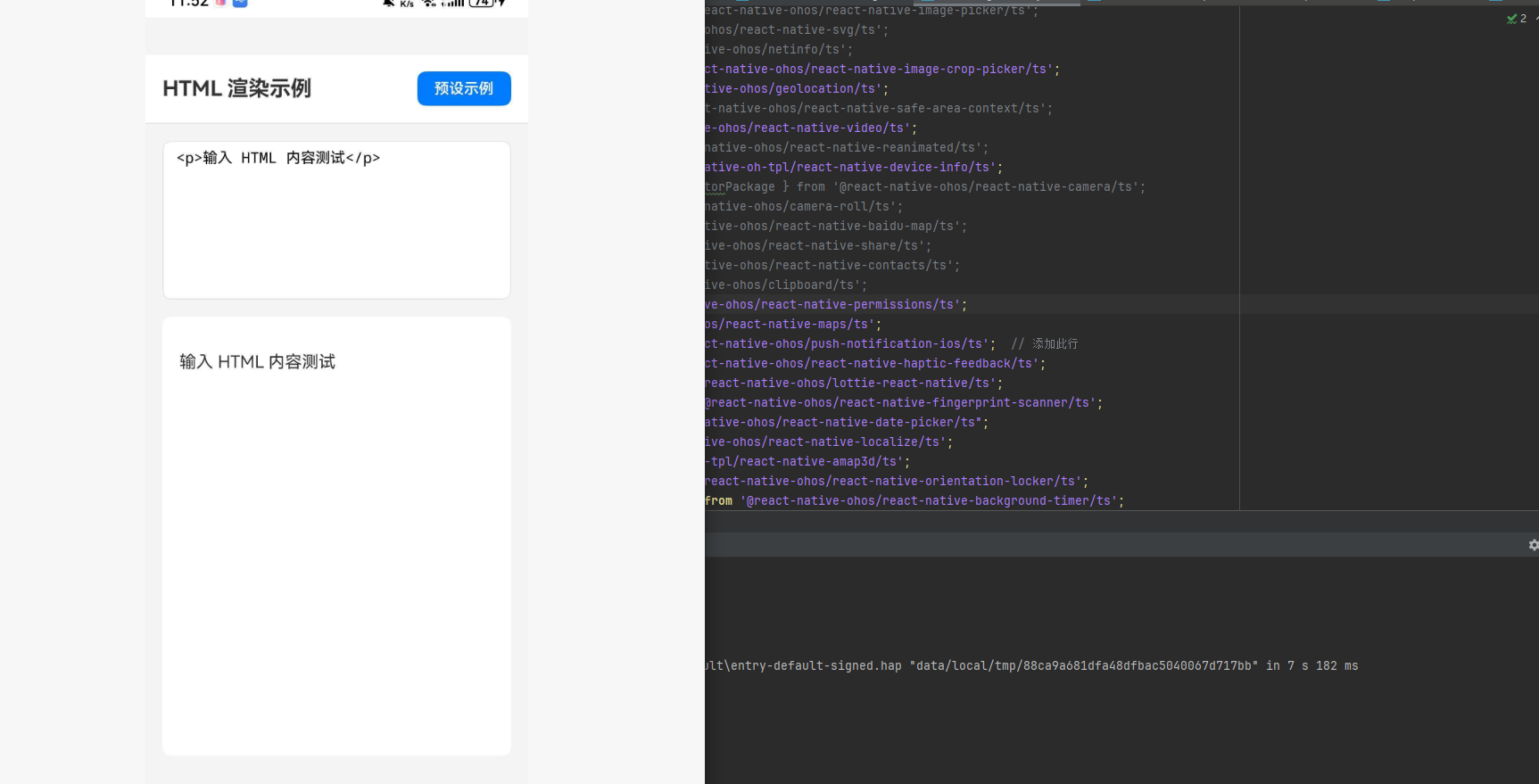
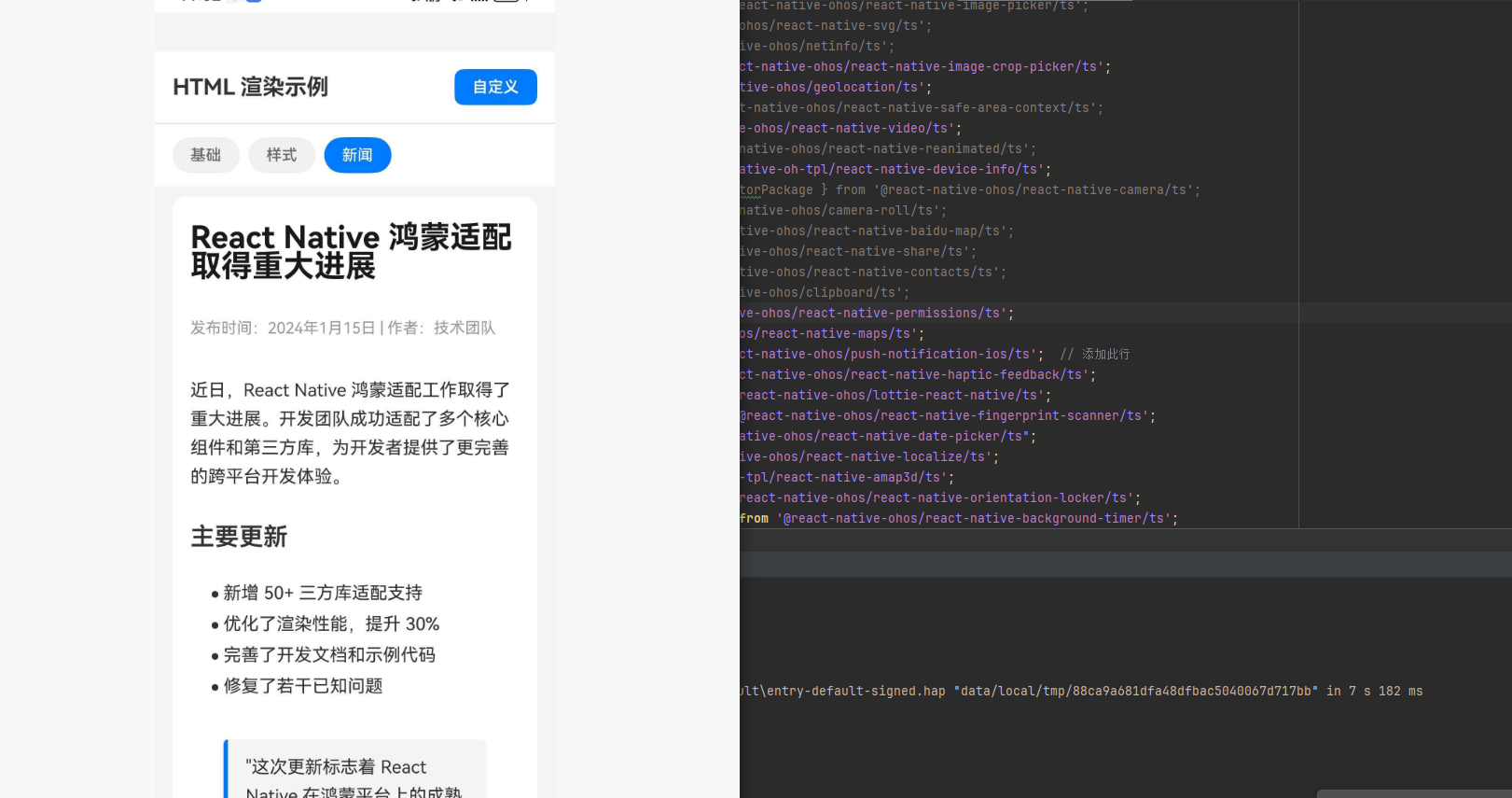
ts
import React, { useState } from "react";
import {
  View,
  Text,
  StyleSheet,
  ScrollView,
  TouchableOpacity,
  useWindowDimensions,
  SafeAreaView,
  StatusBar,
  TextInput,
} from "react-native";
import RenderHtml from "react-native-render-html";

type ExampleType = "basic" | "styled" | "news";

const HTML_EXAMPLES: Record<ExampleType, string> = {
  basic: `
    <h1>基础 HTML 渲染</h1>
    <p>这是一个基础的 HTML 渲染示例,展示了常见的 HTML 元素。</p>
    <h2>文本格式</h2>
    <p>支持<strong>加粗</strong>、<em>斜体</em>、<u>下划线</u>等格式。</p>
    <p>也支持<code>代码片段</code>和<mark>高亮文本</mark>。</p>
    <h2>列表</h2>
    <ul>
      <li>无序列表项 1</li>
      <li>无序列表项 2</li>
      <li>无序列表项 3</li>
    </ul>
    <ol>
      <li>有序列表项 1</li>
      <li>有序列表项 2</li>
      <li>有序列表项 3</li>
    </ol>
    <h2>引用</h2>
    <blockquote>
      这是一段引用文本,通常用于展示他人的言论或重要内容。
    </blockquote>
  `,
  styled: `
    <h1 class="title">样式化内容</h1>
    <p class="intro">通过自定义样式,可以实现丰富的视觉效果。</p>
    <div class="card">
      <h3>卡片标题</h3>
      <p>这是一个带有自定义样式的卡片组件。</p>
    </div>
    <div class="alert warning">
      <strong>警告:</strong>这是一条警告信息。
    </div>
    <div class="alert success">
      <strong>成功:</strong>操作已成功完成。
    </div>
    <div class="alert info">
      <strong>提示:</strong>这是一条提示信息。
    </div>
  `,
  news: `
    <article>
      <h1>React Native 鸿蒙适配取得重大进展</h1>
      <p class="meta">发布时间:2024年1月15日 | 作者:技术团队</p>
      <p>近日,React Native 鸿蒙适配工作取得了重大进展。开发团队成功适配了多个核心组件和第三方库,为开发者提供了更完善的跨平台开发体验。</p>
      <h2>主要更新</h2>
      <ul>
        <li>新增 50+ 三方库适配支持</li>
        <li>优化了渲染性能,提升 30%</li>
        <li>完善了开发文档和示例代码</li>
        <li>修复了若干已知问题</li>
      </ul>
      <blockquote>
        "这次更新标志着 React Native 在鸿蒙平台上的成熟度达到了新的高度。" ------ 项目负责人
      </blockquote>
      <h2>后续计划</h2>
      <p>团队将继续推进适配工作,预计在下一版本中支持更多常用库,并进一步优化性能表现。</p>
    </article>
  `,
};

const App: React.FC = () => {
  const { width } = useWindowDimensions();
  const [activeExample, setActiveExample] = useState<ExampleType>("basic");
  const [customHtml, setCustomHtml] = useState("<p>输入 HTML 内容测试</p>");
  const [showCustomInput, setShowCustomInput] = useState(false);

  const baseStyle = {
    fontSize: 16,
    color: "#333333",
    lineHeight: 26,
  };

  const tagsStyles = {
    h1: {
      fontSize: 28,
      fontWeight: "700" as const,
      color: "#1a1a1a",
      marginBottom: 16,
      marginTop: 8,
    },
    h2: {
      fontSize: 22,
      fontWeight: "600" as const,
      color: "#333333",
      marginBottom: 12,
      marginTop: 16,
    },
    h3: {
      fontSize: 18,
      fontWeight: "600" as const,
      color: "#444444",
      marginBottom: 8,
    },
    p: {
      fontSize: 16,
      lineHeight: 26,
      color: "#333333",
      marginBottom: 12,
    },
    ul: {
      marginBottom: 16,
    },
    ol: {
      marginBottom: 16,
    },
    li: {
      fontSize: 16,
      lineHeight: 24,
      marginBottom: 4,
    },
    blockquote: {
      borderLeftWidth: 4,
      borderLeftColor: "#007AFF",
      paddingLeft: 16,
      marginVertical: 16,
      backgroundColor: "#F5F5F5",
      paddingVertical: 12,
      paddingRight: 16,
      borderRadius: 4,
    },
    code: {
      backgroundColor: "#F0F0F0",
      paddingHorizontal: 8,
      paddingVertical: 2,
      borderRadius: 4,
      fontFamily: "monospace",
    },
    article: {
      paddingBottom: 20,
    },
  };

  const classesStyles = {
    title: {
      fontSize: 32,
      fontWeight: "700" as const,
      textAlign: "center" as const,
      color: "#007AFF",
      marginBottom: 20,
    },
    intro: {
      fontSize: 18,
      color: "#666666",
      textAlign: "center" as const,
      marginBottom: 24,
    },
    card: {
      backgroundColor: "#FFFFFF",
      borderRadius: 12,
      padding: 20,
      marginVertical: 12,
      shadowColor: "#000",
      shadowOffset: { width: 0, height: 2 },
      shadowOpacity: 0.1,
      shadowRadius: 8,
      elevation: 3,
    },
    alert: {
      padding: 16,
      borderRadius: 8,
      marginVertical: 8,
    },
    warning: {
      backgroundColor: "#FFF3CD",
      borderLeftWidth: 4,
      borderLeftColor: "#FFC107",
    },
    success: {
      backgroundColor: "#D4EDDA",
      borderLeftWidth: 4,
      borderLeftColor: "#28A745",
    },
    info: {
      backgroundColor: "#D1ECF1",
      borderLeftWidth: 4,
      borderLeftColor: "#17A2B8",
    },
    meta: {
      fontSize: 14,
      color: "#999999",
      marginBottom: 16,
    },
  };

  const renderExampleButton = (type: ExampleType, label: string) => (
    <TouchableOpacity
      key={type}
      style={[
        styles.exampleButton,
        activeExample === type && styles.exampleButtonActive,
      ]}
      onPress={() => {
        setActiveExample(type);
        setShowCustomInput(false);
      }}
    >
      <Text
        style={[
          styles.exampleButtonText,
          activeExample === type && styles.exampleButtonTextActive,
        ]}
      >
        {label}
      </Text>
    </TouchableOpacity>
  );

  return (
    <SafeAreaView style={styles.container}>
      <StatusBar barStyle="dark-content" backgroundColor="#FFFFFF" />
      <View style={styles.header}>
        <Text style={styles.headerTitle}>HTML 渲染示例</Text>
        <TouchableOpacity
          style={styles.customButtonHeader}
          onPress={() => setShowCustomInput(!showCustomInput)}
        >
          <Text style={styles.customButtonHeaderText}>
            {showCustomInput ? "预设示例" : "自定义"}
          </Text>
        </TouchableOpacity>
      </View>

      {!showCustomInput && (
        <View style={styles.tabBar}>
          {renderExampleButton("basic", "基础")}
          {renderExampleButton("styled", "样式")}
          {renderExampleButton("news", "新闻")}
        </View>
      )}

      {showCustomInput ? (
        <View style={styles.customInputContainer}>
          <TextInput
            style={styles.htmlInput}
            value={customHtml}
            onChangeText={setCustomHtml}
            multiline
            placeholder="输入 HTML 内容"
            textAlignVertical="top"
          />
          <ScrollView style={styles.previewContainer}>
            <RenderHtml
              contentWidth={width - 32}
              source={{ html: customHtml }}
              baseStyle={baseStyle}
              tagsStyles={tagsStyles}
            />
          </ScrollView>
        </View>
      ) : (
        <ScrollView style={styles.content}>
          <View style={styles.htmlContainer}>
            <RenderHtml
              contentWidth={width - 32}
              source={{ html: HTML_EXAMPLES[activeExample] }}
              baseStyle={baseStyle}
              tagsStyles={tagsStyles}
              classesStyles={classesStyles}
            />
          </View>
        </ScrollView>
      )}
    </SafeAreaView>
  );
};

const styles = StyleSheet.create({
  container: {
    flex: 1,
    backgroundColor: "#F5F5F5",
  },
  header: {
    flexDirection: "row",
    alignItems: "center",
    justifyContent: "space-between",
    padding: 16,
    backgroundColor: "#FFFFFF",
    borderBottomWidth: 1,
    borderBottomColor: "#E5E5EA",
  },
  headerTitle: {
    fontSize: 20,
    fontWeight: "700",
    color: "#333333",
  },
  customButtonHeader: {
    backgroundColor: "#007AFF",
    paddingHorizontal: 16,
    paddingVertical: 8,
    borderRadius: 8,
  },
  customButtonHeaderText: {
    color: "#FFFFFF",
    fontSize: 14,
    fontWeight: "600",
  },
  tabBar: {
    flexDirection: "row",
    backgroundColor: "#FFFFFF",
    paddingHorizontal: 16,
    paddingVertical: 12,
    gap: 8,
  },
  exampleButton: {
    paddingHorizontal: 16,
    paddingVertical: 8,
    backgroundColor: "#F0F0F0",
    borderRadius: 20,
  },
  exampleButtonActive: {
    backgroundColor: "#007AFF",
  },
  exampleButtonText: {
    fontSize: 14,
    color: "#666666",
    fontWeight: "500",
  },
  exampleButtonTextActive: {
    color: "#FFFFFF",
  },
  content: {
    flex: 1,
  },
  htmlContainer: {
    backgroundColor: "#FFFFFF",
    margin: 16,
    padding: 16,
    borderRadius: 12,
    minHeight: 400,
  },
  customInputContainer: {
    flex: 1,
    padding: 16,
  },
  htmlInput: {
    backgroundColor: "#FFFFFF",
    borderRadius: 8,
    padding: 12,
    fontSize: 14,
    fontFamily: "monospace",
    height: 150,
    marginBottom: 16,
    borderWidth: 1,
    borderColor: "#E5E5EA",
  },
  previewContainer: {
    flex: 1,
    backgroundColor: "#FFFFFF",
    borderRadius: 8,
    padding: 16,
  },
});

export default App;
⚠️ 注意事项
部分标签可能并不能适配。
遗留问题
- 图片宽度问题 : img 的宽度不会随着 contentWidth 的动态修改而更改,这是原库本身的限制(与 iOS/Android 表现一致)。issue#638
使用建议
- 设置 contentWidth : 始终设置
contentWidth属性以确保正确的布局计算 - 使用 useWindowDimensions : 结合
useWindowDimensions()实现响应式布局 - 性能优化: 对于长内容,考虑分块渲染或虚拟列表
常见问题
Q: 图片不显示?
A: 确保图片 URL 可访问,并且有正确的网络权限。远程图片需要配置网络请求。
Q: 样式不生效?
A: 检查样式属性名称是否正确,React Native 样式属性与 CSS 有所不同。例如使用 backgroundColor 而不是 background-color。
Q: HTML 内容过长导致卡顿?
A: 考虑分块渲染或使用虚拟列表优化性能。
Q: 特殊字符显示异常?
A: 确保 HTML 内容正确编码,必要时使用实体字符。