项目地址:https://github.com/PDFMathTranslate/PDFMathTranslate
一、配置ollama
1. 安装
# 使用 curl 安装,无sudo权限失败
curl -fsSL https://ollama.ai/install.sh | sh

# 手动安装
#1. 创建安装文件夹
mkdir ~/applications/ollama
# 2.进入文件夹
cd ~/applications/ollama
#3.下载安装包
wget https://gh-proxy.org/https://github.com/ollama/ollama/releases/download/v0.20.4/ollama-linux-amd64.tar.zst

#4.解压缩
tar xf ollama-linux-amd64.tar.zs
2. 环境变量
vim ~/.bashrc

# >>> ollama >>>
export OLLAMA=~/applications/ollama/bin
export PATH="$OLLAMA:$PATH"

export OLLAMA_DOWNLOAD_HOST=https://ollama.liblibai.com
# <<< ollama <<<

# >>> huggingface >>>
export HF_ENDPOINT=https://hf-mirror.com
# <<< huggingface <<<

source ~/.bashrc
3. 测试
ollama -v # 应显示版本号4. 运行
nohup ollama serve &

# 或者
nohup ollama serve > ~/applications/ollama/ollama.log 2>&1 &
5.下载模型
ollama pull qwen2.5:72b
# 或者
ollama pull qwen2.5:32b
6. 查看本地 Ollama 已拉取的模型:
ollama list二、配置PDFMathTranslate
1. 创建环境 (3.11 <= 版本 <= 3.12)
该项目并不适合3.12,3.12版本创建出来的URL是ipv6
* Running on local URL: http://[::]:7860
conda create -n pdf2zh python=3.10

conda activate pdf2zh
2. 安装包:
pip install pdf2zh

# 或者
pip install pdf2zh -i https://mirrors.aliyun.com/pypi/simple/ --trusted-host mirrors.aliyun.com

pip config set global.index-url https://mirrors.aliyun.com/pypi/simple/
pip config set global.trusted-host mirrors.aliyun.com
3. 在浏览器中开始使用:
pdf2zh -i

nohup pdf2zh -i > ~/applications/pdf2zh/pdf2zh.log 2>&1 &

# 查看日志文件
tail -f ~/applications/pdf2zh/pdf2zh.log
如果pdf2zh -i的话,pdf2zh 启动成功了,但终端里直接打开了内置的文本浏览器(类似 less/view),把 Gradio 的启动日志给 "卡住" 了,所以看不到地址、也没法操作。
按 q 键,就能立刻退出这个查看模式,回到终端命令行。
退出后显示 Can't open history
这是 Gradio(网页框架)的小提示,意思是无法保存历史记录
三、端口转发(利用docker)
启动一个轻量级的 Docker 容器,开放对外的 7861 端口,然后在容器内部利用 SSH 隧道,把流量反向引回宿主机的 7860 端口
docker run -itd --name port_forwarder -p 7861:7861 ubuntu:22.04 /bin/bash进入容器并安装 SSH 客户端:
docker exec -it port_forwarder /bin/bash
apt-get update && apt-get install -y openssh-client
建立转发隧道(在容器内执行):
ssh -o StrictHostKeyChecking=no -N -L 0.0.0.0:7861:127.0.0.1:7860 username@ip字体下载SourceHanSerifCN-Regular.ttf
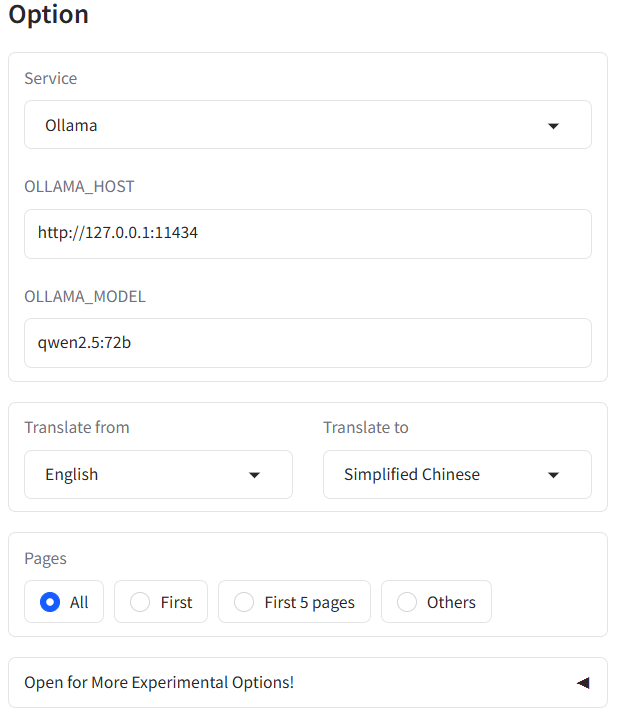
五、网页使用
四、日常维护命令
查看后台进程是否在运行
ps aux | grep pdf2zh彻底关闭 pdf2zh 服务
pkill -f pdf2zh查看哪个进程占用指定端口(比如 7860)
lsof -i :7860查看所有监听端口
lsof -i -P -n | grep LISTEN只看端口 + 进程名
ss -tulnp查看自己启动的程序占用的端口
lsof -i -P -n | grep $(whoami)