轻量、安全、易用的HTML测试运行预览工具
介绍
轻量、安全、易用的 HTML 代码 测试 运行工具 ,核心价值在于:
· 零依赖(纯 HTML/CSS/JS 实现,无需后端);
· 沙箱隔离保障运行安全;
· 开箱即用的示例代码,降低使用门槛。
使用方法
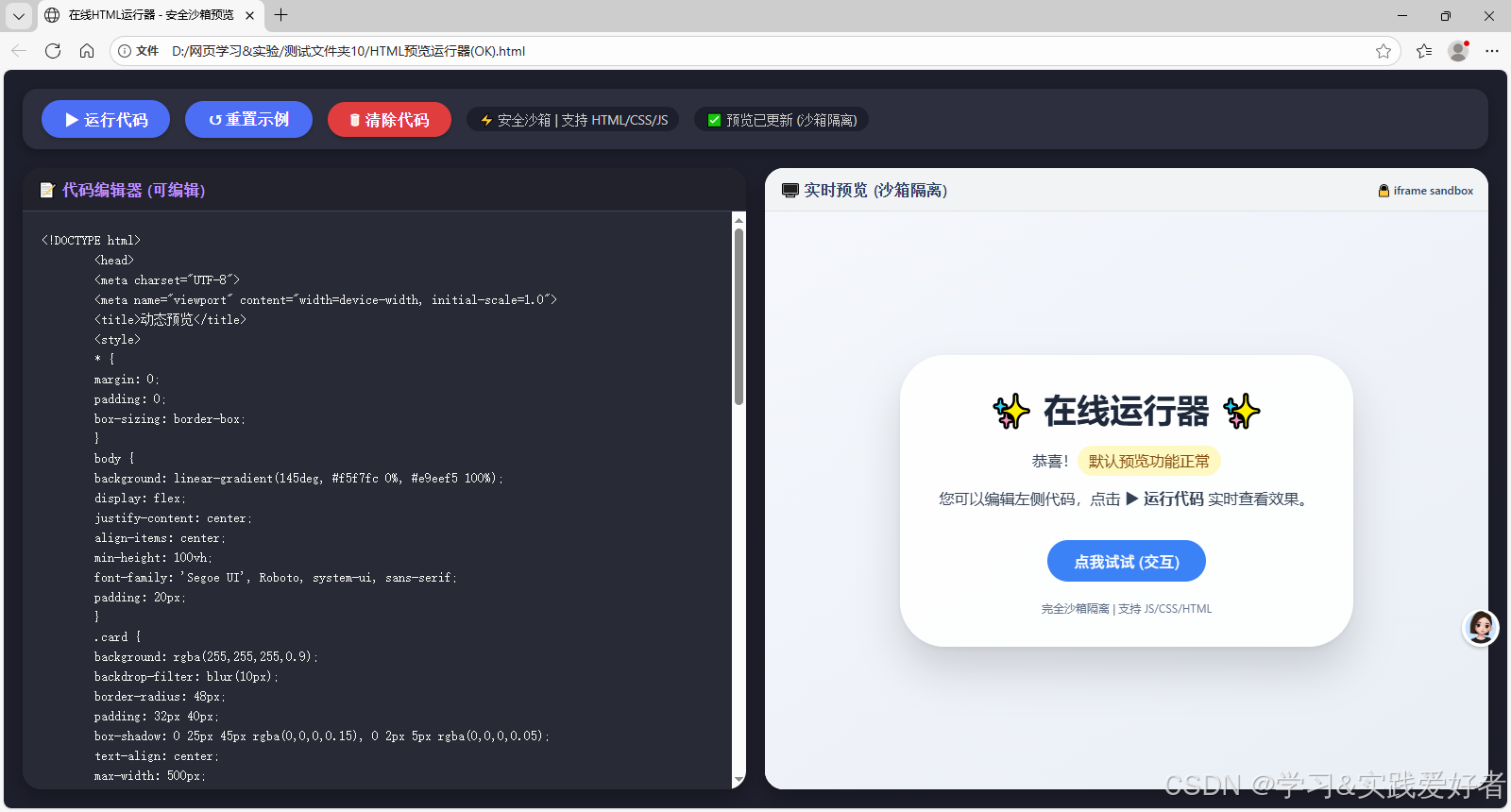
左右分栏:左侧代码编辑器,右侧沙箱预览。在编辑器中输入代码。点击"运行"按钮或 Ctrl+Enter 立即预览渲染结果------渲染出网页的样子。
几点说明:
代码编辑与实时预览:页面采用左右分栏布局。左侧是代码编辑器,您可以直接编写HTML、CSS或JavaScript代码。右侧是预览面板,点击"运行代码"按钮后,代码会在一个沙箱隔离的iframe中渲染,确保运行环境安全,不会影响主页面。
状态反馈与快捷操作:顶部工具栏会清晰显示运行状态(如"就绪"、"渲染中")。您可以使用Ctrl+Enter快捷键快速运行代码。工具栏上还提供了"重置示例" 按钮,方便您随时恢复内置的卡片示例代码。
清除功能:代码编辑器标题栏和工具栏都新增了"清除代码" 按钮。点击后,会清空左侧编辑器,并将右侧预览区替换为一个友好的空白引导页,提示您开始编写新代码。
运行截图及源码
运行截图:
源码如下:
html
<!DOCTYPE html>
<html lang="zh-CN">
<head>
    <meta charset="UTF-8">
    <meta name="viewport" content="width=device-width, initial-scale=1.0, user-scalable=no">
    <title>在线HTML运行器 - 安全沙箱预览</title>
    <style>
        /* ============ 全局样式重置 ============ */
        * {
            box-sizing: border-box;
        }

        body {
            background: #1e1f2c;
            font-family: 'Segoe UI', 'Fira Code', monospace;
            margin: 0;
            padding: 20px;
            height: 100vh;
            display: flex;
            flex-direction: column;
        }

        /* ============ 顶部工具栏 ============ */
        .toolbar {
            background: #2d2f3e;
            border-radius: 16px;
            padding: 12px 20px;
            margin-bottom: 20px;
            display: flex;
            gap: 16px;
            align-items: center;
            flex-wrap: wrap;
            box-shadow: 0 4px 12px rgba(0, 0, 0, 0.3);
        }

        /* 工具栏通用按钮样式 */
        .toolbar button {
            background: #4c6ef5;
            border: none;
            color: white;
            font-weight: bold;
            padding: 8px 24px;
            border-radius: 40px;
            font-size: 1rem;
            cursor: pointer;
            transition: 0.2s;
            font-family: inherit;
            box-shadow: 0 2px 5px rgba(0, 0, 0, 0.2);
        }

        .toolbar button:hover {
            background: #5f7bf6;
            transform: scale(1.02);
        }

        .toolbar button:active {
            transform: scale(0.98);
        }

        /* 清除按钮使用不同的配色,便于区分 */
        .toolbar button.clear-btn {
            background: #e03e3e;
        }

        .toolbar button.clear-btn:hover {
            background: #f04a4a;
        }

        /* 工具栏中的状态标签 */
        .toolbar span {
            color: #ccc;
            background: #1e1f2c;
            padding: 4px 12px;
            border-radius: 30px;
            font-size: 0.85rem;
        }

        /* ============ 左右分栏容器 ============ */
        .split-container {
            display: flex;
            flex: 1;
            gap: 20px;
            min-height: 0;
            /* 防止flex子元素溢出 */;
        }

        /* ============ 左侧:代码编辑器面板 ============ */
        .editor-pane {
            flex: 1;
            display: flex;
            flex-direction: column;
            background: #282a36;
            border-radius: 20px;
            overflow: hidden;
            box-shadow: 0 8px 20px rgba(0, 0, 0, 0.3);
        }

        .editor-header {
            background: #21222c;
            padding: 12px 16px;
            font-weight: 600;
            color: #bd93f9;
            border-bottom: 1px solid #44475a;
            /* 移除了之前的flex布局,标题单独显示 */
        }

        /* 代码输入区域 */
        textarea {
            flex: 1;
            background: #282a36;
            color: #f8f8f2;
            border: none;
            padding: 20px;
            font-family: 'Fira Code', 'Cascadia Code', monospace;
            font-size: 14px;
            line-height: 1.5;
            resize: none;
            outline: none;
            tab-size: 4;
        }

        /* ============ 右侧:预览面板 ============ */
        .preview-pane {
            flex: 1;
            display: flex;
            flex-direction: column;
            background: #ffffff;
            border-radius: 20px;
            overflow: hidden;
            box-shadow: 0 8px 20px rgba(0, 0, 0, 0.3);
        }

        .preview-header {
            background: #f1f3f5;
            padding: 12px 16px;
            font-weight: 600;
            color: #2c3e66;
            border-bottom: 1px solid #dee2e6;
            display: flex;
            justify-content: space-between;
            align-items: center;
        }

        /* 预览iframe */
        iframe {
            width: 100%;
            flex: 1;
            border: none;
            background: white;
        }

        /* 状态消息标签 */
        .status-msg {
            font-size: 12px;
            background: #e9ecef;
            padding: 4px 12px;
            border-radius: 20px;
            color: #495057;
        }

        /* ============ 响应式:窄屏幕时上下堆叠 ============ */
        @media (max-width: 700px) {
            .split-container {
                flex-direction: column;
            }
            body {
                padding: 12px;
            }
        }
    </style>
</head>
<body>

    <!-- ==================== 顶部工具栏 ==================== -->
    <div class="toolbar">
        <!-- 运行按钮:将编辑器中的代码渲染到右侧预览区 -->
        <button id="runBtn">▶ 运行代码</button>

        <!-- 重置按钮:恢复默认示例代码 -->
        <button id="resetBtn">↺ 重置示例</button>

        <!-- 🗑️ 清除按钮:清空代码编辑区内容(仅保留此一个清除按钮) -->
        <button id="clearBtn" class="clear-btn">🗑 清除代码</button>

        <!-- 功能说明标签 -->
        <span>⚡ 安全沙箱 | 支持 HTML/CSS/JS</span>

        <!-- 运行时状态指示 -->
        <span id="runtimeStatus" class="status-msg">就绪</span>
    </div>

    <!-- ==================== 左右分栏主体 ==================== -->
    <div class="split-container">

        <!-- ========== 左侧:代码编辑器 ========== -->
        <div class="editor-pane">
            <div class="editor-header">
                📝 代码编辑器 (可编辑)
            </div>
            <!-- 代码输入区域,支持HTML/CSS/JS混合编写 -->
            <textarea
            id="codeArea"
            spellcheck="false"
            placeholder="在这里编写 HTML/CSS/JS 代码..."
        ></textarea>
    </div>

    <!-- ========== 右侧:实时预览区 ========== -->
    <div class="preview-pane">
        <div class="preview-header">
            <span>🖥️ 实时预览 (沙箱隔离)</span>
            <!-- 安全提示 -->
            <span style="font-size:12px;">🔒 iframe sandbox</span>
        </div>
        <!--
        使用iframe进行沙箱隔离预览
        sandbox属性说明:
        - allow-same-origin: 允许同源策略(Blob URL需要)
        - allow-scripts: 允许执行JavaScript
        - allow-popups: 允许弹窗
        - allow-forms: 允许表单提交
        - allow-modals: 允许模态对话框(alert/confirm/prompt)
    -->
    <iframe
    id="previewFrame"
    sandbox="allow-same-origin allow-scripts allow-popups allow-forms allow-modals"
    title="代码预览"
></iframe>
</div>
</div>

<script>
    // ==================== DOM元素引用 ====================
    const codeArea = document.getElementById('codeArea'); // 代码编辑区textarea
    const runBtn = document.getElementById('runBtn'); // 运行按钮
    const resetBtn = document.getElementById('resetBtn'); // 重置按钮
    const clearBtn = document.getElementById('clearBtn'); // 工具栏清除按钮(唯一清除按钮)
    const previewFrame = document.getElementById('previewFrame'); // 预览iframe
    const runtimeStatus = document.getElementById('runtimeStatus'); // 状态显示标签

    // ==================== 默认示例代码 ====================
    // 包含一个漂亮的渐变卡片,展示HTML/CSS/JS的交互效果
    const DEFAULT_CODE = `<!DOCTYPE html>
        <head>
        <meta charset="UTF-8">
        <meta name="viewport" content="width=device-width, initial-scale=1.0">
        <title>动态预览</title>
        <style>
        * {
        margin: 0;
        padding: 0;
        box-sizing: border-box;
        }
        body {
        background: linear-gradient(145deg, #f5f7fc 0%, #e9eef5 100%);
        display: flex;
        justify-content: center;
        align-items: center;
        min-height: 100vh;
        font-family: 'Segoe UI', Roboto, system-ui, sans-serif;
        padding: 20px;
        }
        .card {
        background: rgba(255,255,255,0.9);
        backdrop-filter: blur(10px);
        border-radius: 48px;
        padding: 32px 40px;
        box-shadow: 0 25px 45px rgba(0,0,0,0.15), 0 2px 5px rgba(0,0,0,0.05);
        text-align: center;
        max-width: 500px;
        transition: transform 0.2s;
        border: 1px solid rgba(255,255,255,0.5);
        }
        .card:hover {
        transform: scale(1.01);
        }
        h1 {
        color: #1e293b;
        margin-bottom: 16px;
        font-size: 2.2rem;
        }
        p {
        color: #334155;
        margin: 12px 0;
        line-height: 1.5;
        }
        button {
        background: #3b82f6;
        border: none;
        color: white;
        padding: 10px 28px;
        border-radius: 40px;
        font-size: 1rem;
        cursor: pointer;
        margin-top: 20px;
        transition: background 0.2s;
        font-weight: 500;
        }
        button:hover {
        background: #2563eb;
        }
        .highlight {
        background: #fef9c3;
        color: #854d0e;
        padding: 4px 12px;
        border-radius: 40px;
        display: inline-block;
        }
        footer {
        margin-top: 20px;
        font-size: 0.75rem;
        color: #64748b;
        }
        </style>
        </head>
        <body>
        <div class="card">
        <h1>✨ 在线运行器 ✨</h1>
        <p>恭喜!<span class="highlight">默认预览功能正常</span></p>
        <p>您可以编辑左侧代码,点击 <strong>▶ 运行代码</strong> 实时查看效果。</p>
        <button id="demoBtn">点我试试 (交互)</button>
        <footer>完全沙箱隔离 | 支持 JS/CSS/HTML</footer>
        </div>
        <script>
        document.getElementById('demoBtn')?.addEventListener('click', () => {
        alert('🎉 交互成功!您可以在编辑区写任何HTML/CSS/JS代码');
        });
    <\/script>
</body>
</html>`;

// ==================== 核心函数:渲染代码到iframe ====================
/**
 * 将代码编辑区的内容渲染到右侧预览iframe中
 * 使用Blob URL方式实现安全沙箱隔离
 * 如果代码为空,则自动加载默认示例代码
 */
function runCode() {
    let code = codeArea.value;

    // 如果代码为空,自动加载默认示例
    if (!code.trim()) {
        runtimeStatus.textContent = '⚠️ 代码为空,加载示例...';
        code = DEFAULT_CODE;
        codeArea.value = DEFAULT_CODE;
    }

    runtimeStatus.textContent = '⏳ 渲染中...';

    try {
        // 使用Blob对象创建HTML文件,实现沙箱隔离
        //const blob = new Blob([code], { type: 'text/html' });
        // 如果代码中没有 <meta charset,则自动补全基本结构,应对乱码
        if (!/meta\s+charset/i.test(code)) {
            code = `<!DOCTYPE html><html><head><meta charset="UTF-8"><title>预览</title></head><body>${code}</body></html>`;
        }
        const blob = new Blob([code], { type: 'text/html' });

        const url = URL.createObjectURL(blob);

        // 监听iframe加载完成事件
        previewFrame.onload = () => {
            // 加载完成后释放Blob URL,避免内存泄漏
            URL.revokeObjectURL(url);
            runtimeStatus.textContent = '✅ 预览已更新 (沙箱隔离)';
        };

        // 将Blob URL赋值给iframe的src,触发渲染
        previewFrame.src = url;
    } catch (err) {
        // 错误处理:显示错误信息
        console.error('代码渲染失败:', err);
        runtimeStatus.textContent = '❌ 代码解析失败: ' + err.message;

        // 降级方案:使用srcdoc直接在iframe中显示错误信息
        previewFrame.srcdoc = `<html><body style="background:#fff1f0;font-family:sans-serif;padding:2rem;">
                <h3>代码错误</h3>
                <pre>${err.message}</pre>
            </body></html>`;
    }
}

// ==================== 重置功能:恢复默认示例代码 ====================
function resetExample() {
    codeArea.value = DEFAULT_CODE;
    runtimeStatus.textContent = '🔄 已重置示例,正在渲染...';
    runCode(); // 自动运行展示效果
}

// ==================== 清除功能:清空代码编辑区 ====================
function clearCode() {
    // 清空textarea内容
    codeArea.value = '';

    // 更新状态提示
    runtimeStatus.textContent = '🗑 代码已清除,预览区已清空';

    // 将预览区替换为一个简洁的默认提示页面
    const emptyPageHTML = `<!DOCTYPE html>
            <html lang="zh-CN">
            <head>
            <meta charset="UTF-8">
            <meta name="viewport" content="width=device-width, initial-scale=1.0">
            <title>空白预览</title>
            <style>
            * { margin: 0; padding: 0; box-sizing: border-box; }
            body {
            background: #f8f9fa;
            display: flex;
            justify-content: center;
            align-items: center;
            min-height: 100vh;
            font-family: 'Segoe UI', sans-serif;
            color: #6c757d;
            }
            .empty-state {
            text-align: center;
            padding: 40px;
            }
            .empty-state .icon { font-size: 4rem; margin-bottom: 20px; }
            .empty-state h2 { font-size: 1.5rem; margin-bottom: 10px; color: #495057; }
            .empty-state p { font-size: 0.95rem; line-height: 1.6; }
            .empty-state .hint {
            margin-top: 16px;
            padding: 10px 20px;
            background: #e9ecef;
            border-radius: 30px;
            font-size: 0.85rem;
            display: inline-block;
            }
    </style>
</head>
<body>
    <div class="empty-state">
        <div class="icon">📝</div>
        <h2>代码编辑区已清空</h2>
        <p>请在左侧编辑器中编写 HTML/CSS/JS 代码,<br>然后点击 <strong>▶ 运行代码</strong> 查看效果。</p>
        <span class="hint">💡 提示:点击 ↺ 重置示例 可恢复默认代码</span>
    </div>
</body>
</html>`;

// 使用Blob URL渲染空白提示页面
try {
const blob = new Blob([emptyPageHTML], { type: 'text/html' });
const url = URL.createObjectURL(blob);
previewFrame.onload = () => {
URL.revokeObjectURL(url);
};
previewFrame.src = url;
} catch (err) {
// 降级:使用srcdoc
previewFrame.srcdoc = emptyPageHTML;
}

// 让编辑区获得焦点,方便用户直接开始输入
codeArea.focus();
}

// ==================== 初始化 ====================
codeArea.value = DEFAULT_CODE;

// ==================== 事件绑定 ====================

// 运行按钮:点击后渲染代码到预览区
runBtn.addEventListener('click', runCode);

// 重置按钮:点击后恢复默认示例代码
resetBtn.addEventListener('click', resetExample);

// 工具栏清除按钮:点击后清空代码编辑区
clearBtn.addEventListener('click', clearCode);

// 页面加载完成后自动运行一次,展示默认示例
window.addEventListener('load', () => {
runCode();
});

// ==================== 快捷键支持 ====================
// 支持 Ctrl+Enter (Windows/Linux) 或 Cmd+Enter (Mac) 快速运行代码
codeArea.addEventListener('keydown', (e) => {
if ((e.ctrlKey || e.metaKey) && e.key === 'Enter') {
e.preventDefault();
runCode();
}
});
</script>
</body>
</html>
几段测试代码
以下是几段简单的测试代码,您可以直接复制到编辑器中运行,验证各项功能:
- 测试 HTML 结构
<h1>你好,世界!</h1>
<p>这是一个纯 HTML 测试。</p>
- 测试 CSS 样式
<style>
body { background: #ffeaa7; font-family: sans-serif; }
.box {
width: 200px; height: 200px; background: #fd79a8;
margin: 50px auto; border-radius: 20px;
display: flex; align-items: center; justify-content: center;
color: white; font-size: 24px;
}
</style>
<div class="box">CSS 样式正常</div>
- 测试 JavaScript 交互
<button οnclick="document.getElementById('msg').textContent = 'JS 运行成功!'">
点击测试 JavaScript
</button>
<p id="msg"></p>
- 综合计数器(HTML + CSS + JS)
<style>
body { font-family: Arial; text-align: center; padding-top: 80px; }
button { padding: 10px 20px; font-size: 20px; margin: 10px; }
#count { font-size: 48px; color: #2d3436; }
</style>
<h1>简单计数器</h1>
<p id="count">0</p>
<button οnclick="change(-1)">➖ 减少</button>
<button οnclick="change(1)">➕ 增加</button>
<script>
let num = 0;
function change(delta) {
num += delta;
document.getElementById('count').textContent = num;
}
</script>