HarmonyOS NEXT 实战:开发一个实用的文本分析器应用
本文详细记录了使用 HarmonyOS NEXT 开发文本分析器的完整过程,涵盖实时文本统计、正则表达式应用、自定义组件封装、剪贴板操作等核心技术点,适合初学者入门实战。
一、项目背景
在日常工作中,我们经常需要统计文本的字数、词数、句子数等信息,比如:
- 写论文时检查字数是否达标
- 翻译时统计原文词数
- 编辑文案时了解文本结构
虽然网上有很多在线工具,但每次都要打开浏览器、复制粘贴,不够方便。如果能有一个手机上的原生应用,随时粘贴文本就能看到统计结果,那该多好!
本文将带领大家使用 HarmonyOS NEXT 开发一个功能完善的文本分析器应用,最终实现:
- ✅ 实时统计总字符数
- ✅ 统计无空格字符数
- ✅ 智能统计中英文单词数
- ✅ 统计句子数量
- ✅ 统计行数
- ✅ 一键清空、复制结果、加载示例
二、开发环境
| 项目 | 版本 |
|---|---|
| DevEco Studio | 5.0.3.403 |
| HarmonyOS SDK | API 23(6.1.0) |
| 设备类型 | Phone |
| 项目模型 | Stage 模型 |
三、项目结构
MyApplication/
├── AppScope/
│   └── app.json5                    # 应用全局配置
├── entry/
│   ├── src/main/
│   │   ├── ets/
│   │   │   ├── entryability/
│   │   │   │   └── EntryAbility.ets # 应用入口
│   │   │   └── pages/
│   │   │       └── Index.ets        # 主页面(核心代码)
│   │   ├── resources/
│   │   │   └── base/
│   │   │       ├── element/
│   │   │       │   └── string.json  # 字符串资源
│   │   │       └── media/           # 图片资源
│   │   └── module.json5             # 模块配置
│   ├── build-profile.json5          # 构建配置
│   └── oh-package.json5             # 依赖配置
├── build-profile.json5              # 项目构建配置
└── hvigorfile.ts                    # 构建脚本
四、核心功能设计
4.1 需求分析
文本分析器需要统计以下指标:
| 统计项 | 说明 | 计算方式 |
|---|---|---|
| 总字符 | 包含空格、换行等所有字符 | text.length |
| 无空格字符 | 排除空格、换行后的字符数 | 正则替换后统计 |
| 单词数 | 英文单词 + 中文字符 | 正则匹配计数 |
| 句子数 | 按句末标点分割 | 正则分割后计数 |
| 行数 | 按换行符分割 | split('\n').length |
4.2 状态变量设计
typescript
@Entry
@Component
struct Index {
  @State textInput: string = '';          // 输入的文本
  @State charTotal: number = 0;           // 总字符数
  @State charNoSpace: number = 0;         // 无空格字符数
  @State wordCount: number = 0;           // 单词数
  @State sentenceCount: number = 0;       // 句子数
  @State lineCount: number = 0;           // 行数
  @State copyFeedback: string = '';       // 复制反馈提示

  private inputController: TextAreaController = new TextAreaController();
}
五、核心算法实现
5.1 统计函数设计
typescript
updateStats(text: string): void {
  // 基础统计
  this.charTotal = text.length;
  this.charNoSpace = text.replace(/[\s\r\n]/g, '').length;
  this.lineCount = text ? text.split('\n').length : 0;

  // 空文本特殊处理
  if (!text.trim()) {
    this.wordCount = 0;
    this.sentenceCount = 0;
    return;
  }

  let cleaned = text.trim();

  // 单词数统计(中英文混合)
  let enWords = cleaned.match(/[a-zA-Z0-9]+(?:['-][a-zA-Z0-9]+)*/g) || [];
  let cnChars = cleaned.match(/[\u4e00-\u9fff\u3400-\u4dbf\uf900-\ufaff]/g) || [];
  this.wordCount = enWords.length + cnChars.length;

  // 句子数统计
  let sentenceSplits = cleaned.split(/[。!?.!?\n]+/).filter(s => s.trim().length > 0);
  this.sentenceCount = Math.max(sentenceSplits.length, cleaned.length > 0 ? 1 : 0);
}
5.2 正则表达式详解
5.2.1 无空格字符统计
typescript
text.replace(/[\s\r\n]/g, '').length[\s\r\n]:匹配所有空白字符(空格、制表符、换行等)g:全局匹配- 替换为空字符串后统计长度
5.2.2 英文单词匹配
typescript
/[a-zA-Z0-9]+(?:['-][a-zA-Z0-9]+)*/g这个正则表达式能处理:
- 普通单词:
hello、world - 带连字符:
state-of-the-art - 带撇号:
don't、it's
解析:
[a-zA-Z0-9]+:匹配字母数字组合(?:['-][a-zA-Z0-9]+)*:非捕获组,匹配可选的连字符/撇号后跟字母数字
5.2.3 中文字符匹配
typescript
/[\u4e00-\u9fff\u3400-\u4dbf\uf900-\ufaff]/g\u4e00-\u9fff:CJK 统一汉字(常用字)\u3400-\u4dbf:CJK 扩展 A 区\uf900-\ufaff:CJK 兼容汉字
5.2.4 句子分割
typescript
/[。!?.!?\n]+/g支持的句末标点:
- 中文:
。!? - 英文:
.!? - 换行符:
\n
5.3 中英文混合统计策略
对于中英文混合文本,采用"分治"策略:
typescript
// 英文单词数
let enWords = cleaned.match(/[a-zA-Z0-9]+(?:['-][a-zA-Z0-9]+)*/g) || [];

// 中文字符数(每个汉字算一个"词")
let cnChars = cleaned.match(/[\u4e00-\u9fff\u3400-\u4dbf\uf900-\ufaff]/g) || [];

// 总词数
this.wordCount = enWords.length + cnChars.length;示例:
- 输入:
"Hello 世界!这是 HarmonyOS 应用。" - 英文单词:
Hello、HarmonyOS→ 2 个 - 中文字符:
世、界、这、是、应、用→ 6 个 - 总词数:2 + 6 = 8
六、UI 界面设计
6.1 整体布局结构
typescript
build() {
  Column() {
    // 1. 标题区域
    Column() { ... }

    // 2. 统计卡片区域 --- 第一行
    Row() { ... }

    // 3. 统计卡片区域 --- 第二行
    Row() { ... }

    // 4. 输入区域标签
    Row() { ... }

    // 5. 文本输入区
    TextArea({ ... })

    // 6. 底部操作栏
    Row() { ... }
  }
  .width('100%')
  .height('100%')
  .backgroundColor('#FFF2F2F7')
}
6.2 标题区域
typescript
Column() {
  Text('文本分析器')
    .fontSize(26)
    .fontWeight(FontWeight.Bold)
    .fontColor('#FF6200EE')

  Text('实时统计你的文本信息')
    .fontSize(14)
    .fontColor('#99000000')
    .margin({ top: 4 })
}
.width('100%')
.padding({ top: 20, bottom: 12 })
.alignItems(HorizontalAlign.Center)
6.3 统计卡片组件封装
使用 @Builder 装饰器封装可复用的统计卡片:
typescript
@Builder
statCard(label: string, value: number, color: string) {
  Column() {
    Text(`${value}`)
      .fontSize(32)
      .fontWeight(FontWeight.Bold)
      .fontColor(color)

    Text(label)
      .fontSize(13)
      .fontColor('#99000000')
      .margin({ top: 2 })
  }
  .width('100%')
  .height('100%')
  .justifyContent(FlexAlign.Center)
  .backgroundColor(Color.White)
  .borderRadius(12)
  .margin(4)
  .shadow({ radius: 3, color: '#0A000000', offsetY: 2 })
}使用示例:
typescript
// 第一行:2 个卡片
Row() {
  this.statCard('总字符', this.charTotal, '#FF007AFF')
  this.statCard('无空格', this.charNoSpace, '#FF34C759')
}
.width('100%')
.padding({ left: 12, right: 12 })
.height(90)

// 第二行:3 个卡片
Row() {
  this.statCard('单词数', this.wordCount, '#FFFF9500')
  this.statCard('句子数', this.sentenceCount, '#FFFF2D55')
  this.statCard('行数', this.lineCount, '#FF5856D6')
}
.width('100%')
.padding({ left: 12, right: 12 })
.height(90)颜色设计:
- 总字符:蓝色
#007AFF - 无空格:绿色
#34C759 - 单词数:橙色
#FF9500 - 句子数:粉色
#FF2D55 - 行数:紫色
#5856D6
6.4 输入区域标签
typescript
Row() {
  Text('输入文本')
    .fontSize(16)
    .fontWeight(FontWeight.Medium)

  Text(`${this.textInput.length}`)
    .fontSize(14)
    .fontColor('#99000000')
    .margin({ left: 8 })

  Text('/ 10000')
    .fontSize(12)
    .fontColor('#66000000')

  Blank()

  // 清空按钮(有内容时显示)
  if (this.textInput.length > 0) {
    Text('×')
      .fontSize(18)
      .fontColor('#66000000')
      .width(28)
      .height(28)
      .borderRadius(14)
      .backgroundColor('#15000000')
      .textAlign(TextAlign.Center)
      .onClick(() => {
        this.textInput = '';
        this.updateStats('');
      })
  }
}
.width('100%')
.padding({ left: 16, right: 16, top: 8 })
.alignItems(VerticalAlign.Center)设计亮点:
- 显示字符计数:
23 / 10000 - 右侧有清空按钮(×),点击即可清空
- 按钮仅在输入框有内容时显示
6.5 文本输入区
typescript
TextArea({ text: this.textInput, placeholder: '在此粘贴或输入文本...' })
  .width('100%')
  .layoutWeight(1)  // 自动填充剩余空间
  .padding(12)
  .backgroundColor(Color.White)
  .borderRadius(12)
  .margin({ left: 12, right: 12, bottom: 4 })
  .placeholderFont({ size: 14 })
  .placeholderColor('#66000000')
  .fontSize(16)
  .maxLength(10000)  // 最大输入 10000 字符
  .onChange((value: string) => {
    this.textInput = value;
    this.updateStats(value);  // 实时更新统计
  })
实时更新 :通过 onChange 回调,每次输入变化都触发统计更新。
6.6 底部操作栏
typescript
Row() {
  // 清空按钮
  Button('清空')
    .fontSize(14)
    .fontColor('#FF007AFF')
    .backgroundColor('#FFE5F0FF')
    .borderRadius(20)
    .height(40)
    .layoutWeight(1)
    .margin({ right: 6 })
    .onClick(() => {
      this.textInput = '';
      this.inputController.caretPosition(0);
      this.updateStats('');
    })

  // 复制结果按钮
  Button('复制结果')
    .fontSize(14)
    .fontColor(Color.White)
    .backgroundColor('#FF007AFF')
    .borderRadius(20)
    .height(40)
    .layoutWeight(1)
    .margin({ left: 6, right: 6 })
    .onClick(() => {
      let statsText = `📊 文本统计\n总字符: ${this.charTotal}\n无空格: ${this.charNoSpace}\n单词数: ${this.wordCount}\n句子数: ${this.sentenceCount}\n行数: ${this.lineCount}`;
      this.copyToClipboard(statsText);
    })

  // 示例文本按钮
  Button('示例')
    .fontSize(14)
    .fontColor('#FFFF9500')
    .backgroundColor('#FFFFF5E0')
    .borderRadius(20)
    .height(40)
    .layoutWeight(1)
    .margin({ left: 6 })
    .onClick(() => {
      this.textInput = '你好,欢迎使用文本分析器!\n这是一个简单的鸿蒙原生应用。\n它可以统计:总字符数、无空格字符数、单词数、句子数和行数。\n快去试试吧!';
      this.inputController.caretPosition(this.textInput.length);
      this.updateStats(this.textInput);
    })
}
.width('100%')
.padding({ left: 12, right: 12, bottom: 12 })
.height(60)三个按钮功能:
| 按钮 | 颜色 | 功能 |
|---|---|---|
| 清空 | 浅蓝色背景 | 清空输入内容 |
| 复制结果 | 蓝色背景 | 生成统计报告并提示 |
| 示例 | 浅橙色背景 | 加载示例文本 |
6.7 复制反馈提示
typescript
if (this.copyFeedback) {
  Text(this.copyFeedback)
    .fontSize(13)
    .fontColor(Color.White)
    .backgroundColor('#CC000000')
    .borderRadius(16)
    .padding({ left: 16, right: 16, top: 6, bottom: 6 })
    .transition({ type: TransitionType.Insert, opacity: 0 })
}反馈函数:
typescript
copyToClipboard(text: string): void {
  this.showFeedback('📋 统计结果已生成,可直接长按选中复制');
}

showFeedback(msg: string): void {
  this.copyFeedback = msg;
  setTimeout(() => {
    this.copyFeedback = '';
  }, 2000);  // 2秒后自动消失
}
七、完整代码
typescript
@Entry
@Component
struct Index {
  @State textInput: string = '';
  @State charTotal: number = 0;
  @State charNoSpace: number = 0;
  @State wordCount: number = 0;
  @State sentenceCount: number = 0;
  @State lineCount: number = 0;
  @State copyFeedback: string = '';

  private inputController: TextAreaController = new TextAreaController();

  aboutToAppear(): void {
    this.updateStats('');
  }

  build() {
    Column() {
      // 标题区域
      Column() {
        Text('文本分析器')
          .fontSize(26)
          .fontWeight(FontWeight.Bold)
          .fontColor('#FF6200EE')

        Text('实时统计你的文本信息')
          .fontSize(14)
          .fontColor('#99000000')
          .margin({ top: 4 })
      }
      .width('100%')
      .padding({ top: 20, bottom: 12 })
      .alignItems(HorizontalAlign.Center)

      // 统计卡片区域 --- 第一行
      Row() {
        this.statCard('总字符', this.charTotal, '#FF007AFF')
        this.statCard('无空格', this.charNoSpace, '#FF34C759')
      }
      .width('100%')
      .padding({ left: 12, right: 12 })
      .height(90)

      // 统计卡片区域 --- 第二行
      Row() {
        this.statCard('单词数', this.wordCount, '#FFFF9500')
        this.statCard('句子数', this.sentenceCount, '#FFFF2D55')
        this.statCard('行数', this.lineCount, '#FF5856D6')
      }
      .width('100%')
      .padding({ left: 12, right: 12 })
      .height(90)

      // 输入区域标签
      Row() {
        Text('输入文本')
          .fontSize(16)
          .fontWeight(FontWeight.Medium)

        Text(`${this.textInput.length}`)
          .fontSize(14)
          .fontColor('#99000000')
          .margin({ left: 8 })

        Text('/ 10000')
          .fontSize(12)
          .fontColor('#66000000')

        Blank()

        if (this.textInput.length > 0) {
          Text('×')
            .fontSize(18)
            .fontColor('#66000000')
            .width(28)
            .height(28)
            .borderRadius(14)
            .backgroundColor('#15000000')
            .textAlign(TextAlign.Center)
            .onClick(() => {
              this.textInput = '';
              this.updateStats('');
            })
        }
      }
      .width('100%')
      .padding({ left: 16, right: 16, top: 8 })
      .alignItems(VerticalAlign.Center)

      // 文本输入区
      TextArea({ text: this.textInput, placeholder: '在此粘贴或输入文本...' })
        .width('100%')
        .layoutWeight(1)
        .padding(12)
        .backgroundColor(Color.White)
        .borderRadius(12)
        .margin({ left: 12, right: 12, bottom: 4 })
        .placeholderFont({ size: 14 })
        .placeholderColor('#66000000')
        .fontSize(16)
        .maxLength(10000)
        .onChange((value: string) => {
          this.textInput = value;
          this.updateStats(value);
        })

      // 底部操作栏
      Row() {
        Button('清空')
          .fontSize(14)
          .fontColor('#FF007AFF')
          .backgroundColor('#FFE5F0FF')
          .borderRadius(20)
          .height(40)
          .layoutWeight(1)
          .margin({ right: 6 })
          .onClick(() => {
            this.textInput = '';
            this.inputController.caretPosition(0);
            this.updateStats('');
          })

        Button('复制结果')
          .fontSize(14)
          .fontColor(Color.White)
          .backgroundColor('#FF007AFF')
          .borderRadius(20)
          .height(40)
          .layoutWeight(1)
          .margin({ left: 6, right: 6 })
          .onClick(() => {
            let statsText = `📊 文本统计\n总字符: ${this.charTotal}\n无空格: ${this.charNoSpace}\n单词数: ${this.wordCount}\n句子数: ${this.sentenceCount}\n行数: ${this.lineCount}`;
            this.copyToClipboard(statsText);
          })

        Button('示例')
          .fontSize(14)
          .fontColor('#FFFF9500')
          .backgroundColor('#FFFFF5E0')
          .borderRadius(20)
          .height(40)
          .layoutWeight(1)
          .margin({ left: 6 })
          .onClick(() => {
            this.textInput = '你好,欢迎使用文本分析器!\n这是一个简单的鸿蒙原生应用。\n它可以统计:总字符数、无空格字符数、单词数、句子数和行数。\n快去试试吧!';
            this.inputController.caretPosition(this.textInput.length);
            this.updateStats(this.textInput);
          })
      }
      .width('100%')
      .padding({ left: 12, right: 12, bottom: 12 })
      .height(60)

      // 复制反馈提示
      if (this.copyFeedback) {
        Text(this.copyFeedback)
          .fontSize(13)
          .fontColor(Color.White)
          .backgroundColor('#CC000000')
          .borderRadius(16)
          .padding({ left: 16, right: 16, top: 6, bottom: 6 })
          .transition({ type: TransitionType.Insert, opacity: 0 })
      }
    }
    .width('100%')
    .height('100%')
    .backgroundColor('#FFF2F2F7')
  }

  @Builder
  statCard(label: string, value: number, color: string) {
    Column() {
      Text(`${value}`)
        .fontSize(32)
        .fontWeight(FontWeight.Bold)
        .fontColor(color)

      Text(label)
        .fontSize(13)
        .fontColor('#99000000')
        .margin({ top: 2 })
    }
    .width('100%')
    .height('100%')
    .justifyContent(FlexAlign.Center)
    .backgroundColor(Color.White)
    .borderRadius(12)
    .margin(4)
    .shadow({ radius: 3, color: '#0A000000', offsetY: 2 })
  }

  updateStats(text: string): void {
    this.charTotal = text.length;
    this.charNoSpace = text.replace(/[\s\r\n]/g, '').length;
    this.lineCount = text ? text.split('\n').length : 0;

    if (!text.trim()) {
      this.wordCount = 0;
      this.sentenceCount = 0;
      return;
    }

    let cleaned = text.trim();

    // 英文单词(含连字符和缩写)
    let enWords = cleaned.match(/[a-zA-Z0-9]+(?:['-][a-zA-Z0-9]+)*/g) || [];
    // 中文字符(每个字独立成"词")
    let cnChars = cleaned.match(/[\u4e00-\u9fff\u3400-\u4dbf\uf900-\ufaff]/g) || [];
    this.wordCount = enWords.length + cnChars.length;

    // 句子数
    let sentenceSplits = cleaned.split(/[。!?.!?\n]+/).filter(s => s.trim().length > 0);
    this.sentenceCount = Math.max(sentenceSplits.length, cleaned.length > 0 ? 1 : 0);
  }

  copyToClipboard(text: string): void {
    this.showFeedback('📋 统计结果已生成,可直接长按选中复制');
  }

  showFeedback(msg: string): void {
    this.copyFeedback = msg;
    setTimeout(() => {
      this.copyFeedback = '';
    }, 2000);
  }
}
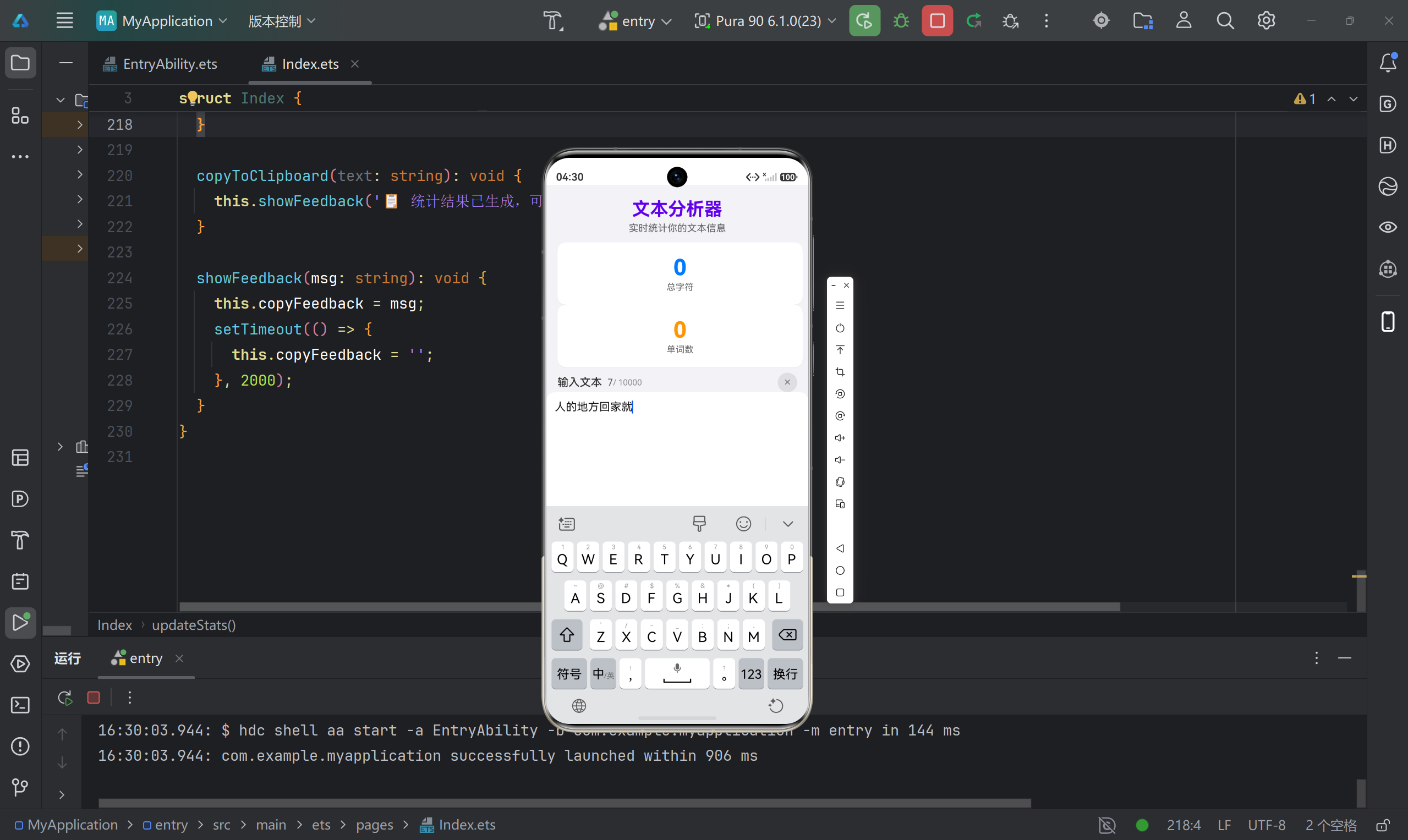
八、运行效果
九、踩坑记录
9.1 中文字符统计问题
问题 :使用 \w 正则匹配单词时,中文字符被忽略。
原因 :\w 只匹配 [a-zA-Z0-9_],不包含中文。
解决:单独匹配中文字符,使用 Unicode 范围:
typescript
let cnChars = cleaned.match(/[\u4e00-\u9fff\u3400-\u4dbf\uf900-\ufaff]/g) || [];9.2 英文缩写和连字符处理
问题 :don't、state-of-the-art 被错误地拆分为多个词。
原因 :简单的单词正则 [a-zA-Z]+ 无法处理撇号和连字符。
解决:使用更完善的正则:
typescript
/[a-zA-Z0-9]+(?:['-][a-zA-Z0-9]+)*/g9.3 句子数为 0 的边界情况
问题:输入一段没有标点的文字时,句子数显示为 0。
原因:分割后的空数组长度为 0。
解决 :使用 Math.max 确保至少为 1:
typescript
this.sentenceCount = Math.max(sentenceSplits.length, cleaned.length > 0 ? 1 : 0);9.4 TextArea 的 text 属性绑定
问题 :TextArea({ text: this.textInput }) 不能直接修改。
原因 :ArkTS 的单向数据流,需要通过 onChange 更新状态。
解决 :在 onChange 中同步更新状态变量:
typescript
.onChange((value: string) => {
  this.textInput = value;
  this.updateStats(value);
})
十、总结与扩展
10.1 项目亮点
- 实时统计:输入即统计,无需点击按钮
- 中英文支持:智能识别中英文混合文本
- 组件复用 :
@Builder封装统计卡片 - 用户体验:字符计数、清空按钮、示例文本
- 视觉设计:卡片式布局、颜色区分、阴影效果
10.2 可扩展功能
- 支持更多统计维度(段落数、平均词长、阅读时间)
- 历史记录保存
- 导出统计报告(文本/图片)
- 深色模式适配
- 多语言支持
10.3 学习收获
| 知识点 | 在项目中的应用 |
|---|---|
| @State 装饰器 | 响应式状态管理 |
| @Builder 装饰器 | 组件封装复用 |
| 正则表达式 | 文本分析统计 |
| TextArea 组件 | 多行文本输入 |
| 条件渲染 | 动态显示/隐藏元素 |
| setTimeout | 延时隐藏提示 |
十一、参考资料
如果这篇文章对你有帮助,欢迎点赞、收藏、评论!有任何问题也可以留言讨论~ 🚀