VS Code 配置 Git Bash 为默认终端完整教程
前言
如果你和我一样,习惯了 Linux/Mac 下的终端操作,来到 Windows 后一定会对 cmd 和 PowerShell 感到不适应。Git Bash 作为一个在 Windows 下提供类 Unix 命令行体验的工具,简直是救星。
但每次新建终端都要手动切换到 Git Bash 实在太麻烦,今天就来分享如何把它设置成 VS Code 的默认终端。
前置条件
确保已安装:
- Visual Studio Code(我使用的版本是 1.123.0)
- Git for Windows
第一步:找到你的 Git Bash 安装路径
这是最关键的一步,因为每个人安装 Git 的位置都不一样。
方法一:通过 Git Bash 快捷方式查找
-
在桌面或开始菜单找到 Git Bash 快捷方式
-
右键点击 → 属性
-
在「目标」一栏你会看到类似这样的内容:
"D:\software\Git\git-bash.exe" --cd=. -
复制引号里的路径,比如
D:\software\Git\git-bash.exe
方法二:通过文件资源管理器查找
Git Bash 通常安装在以下位置之一:
C:\Program Files\Git\git-bash.exeC:\Program Files (x86)\Git\git-bash.exeD:\software\Git\git-bash.exe(如果你自定义了安装路径)D:\Git\git-bash.exe
打开文件资源管理器,挨个检查这些路径,找到 git-bash.exe 就对了。
方法三:使用 where 命令查找
打开任意终端(cmd 或 PowerShell),输入:
bash
where git输出会是类似 D:\software\Git\cmd\git.exe,那么 Git Bash 的路径就是 D:\software\Git\git-bash.exe(把 \cmd\git.exe 换成 \git-bash.exe)。
注意 :记下你的路径,接下来要用。下面我以
D:\software\Git\git-bash.exe为例,记得替换成你自己的实际路径。
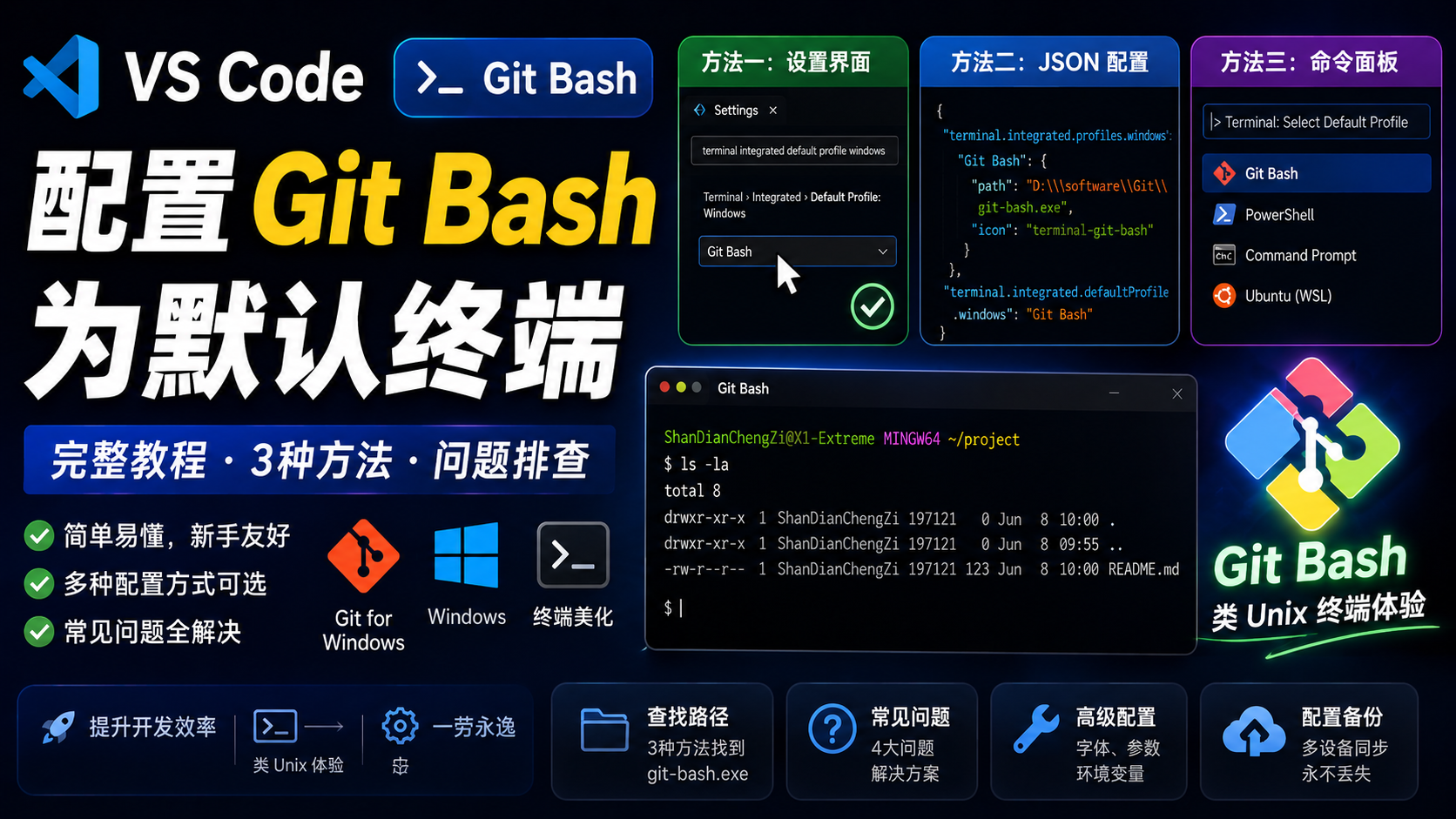
方法一:通过 VS Code 设置界面(最简单)
适合不想手动编辑 JSON 配置文件的新手。
步骤 1:打开设置
- 打开 VS Code
- 按
Ctrl + ,(逗号)打开设置 - 在搜索框中输入
terminal integrated default profile windows
步骤 2:配置终端
- 找到
Terminal > Integrated > Default Profile: Windows选项 - 在下拉菜单中选择
Git Bash
步骤 3:验证配置
按 ``Ctrl + ``` 打开终端,确认默认使用 Git Bash。
方法二:通过 settings.json 配置(推荐有经验用户)
如果你在方法一的下拉菜单中没有看到 Git Bash,或者想更精确地控制配置,可以用这个方法。
步骤 1:打开 settings.json
- 按
Ctrl + Shift + P打开命令面板 - 输入
Open User Settings (JSON) - 选择该选项打开配置文件
步骤 2:添加配置
在 settings.json 中添加或修改以下配置:
json
{
    // 定义终端 profiles
    "terminal.integrated.profiles.windows": {
        "PowerShell": {
            "source": "PowerShell",
            "icon": "terminal-powershell"
        },
        "Command Prompt": {
            "path": "C:\\WINDOWS\\System32\\cmd.exe",
            "args": []
        },
        "Git Bash": {
            "path": "D:\\software\\Git\\git-bash.exe",
            "icon": "terminal-git-bash"
        }
    },

    // 设置默认终端
    "terminal.integrated.defaultProfile.windows": "Git Bash"
}
重要 :把
D:\\software\\Git\\git-bash.exe替换成你自己的 Git Bash 路径。路径中的反斜杠要写成两个反斜杠\\。
步骤 3:保存并重启
保存 settings.json 文件,重启 VS Code 使配置生效。
方法三:使用 VS Code 命令面板(快捷键党最爱)
步骤 1:打开命令面板
按 Ctrl + Shift + P
步骤 2:选择终端配置
输入并选择以下命令之一:
Terminal: Select Default Profile终端: 选择默认配置文件
步骤 3:选择 Git Bash
在弹出的列表中选择 Git Bash。
常见问题排查
问题 1:Git Bash 未出现在列表中
原因:VS Code 可能未自动检测到 Git Bash
解决方案:使用方法二,手动指定 Git Bash 路径
json
"Git Bash": {
    "path": "D:\\software\\Git\\git-bash.exe",
    "icon": "terminal-git-bash"
}
问题 2:配置后未生效
解决方案:
- 完全关闭并重新打开 VS Code
- 或使用命令面板执行
Reload Window(按Ctrl + Shift + P,输入Reload Window)
问题 3:打开 Git Bash 后提示 "bash 不是内部或外部命令"
原因:Git 路径未添加到系统环境变量
解决方案:
- 检查 Git 安装时是否勾选了「Add to PATH」选项
- 或手动将
D:\software\Git\bin添加到系统环境变量 PATH 中
问题 4:Git Bash 终端中文乱码
解决方案 :在 settings.json 中添加:
json
"terminal.integrated.env.windows": {
    "LANG": "zh_CN.UTF-8"
}
高级配置
自定义 Git Bash 启动参数
json
"Git Bash": {
    "path": "D:\\software\\Git\\git-bash.exe",
    "args": ["--cd=."],
    "icon": "terminal-git-bash"
}
--cd=. 表示启动时切换到当前工作目录。
设置终端字体
json
"terminal.integrated.fontFamily": "Consolas, 'Courier New', monospace",
"terminal.integrated.fontSize": 14
启用鼠标滚轮缩放
json
"terminal.integrated.mouseWheelZoom": true多平台配置
如果你需要在不同操作系统上使用不同的终端配置:
json
{
    // Windows 配置
    "terminal.integrated.defaultProfile.windows": "Git Bash",

    // macOS 配置
    "terminal.integrated.defaultProfile.osx": "zsh",

    // Linux 配置
    "terminal.integrated.defaultProfile.linux": "bash"
}
配置备份建议
建议将 VS Code 配置文件纳入版本控制,以便在多台机器间同步配置:
bash
# 将配置文件链接到你的 dotfiles 仓库
mklink /D "%APPDATA%\Code\User" "path\to\your\dotfiles\vscode"
写在最后
配置完成后,每次打开 VS Code 终端都会默认使用 Git Bash,再也不用手动切换了。如果你在配置过程中遇到其他问题,欢迎在评论区留言讨论。
本账号所有文章均为原创,欢迎转载,请注明文章出处:https://shandianchengzi.blog.csdn.net/article/details/161793086。百度和各类采集站皆不可信,搜索请谨慎鉴别。技术类文章一般都有时效性,本人习惯不定期对自己的博文进行修正和更新,因此请访问出处以查看本文的最新版本。
最后更新:2026年6月8日
适用版本:VS Code 1.123.0