小兔鲜儿 - 推荐模块
主要实现 Tabs 交互、多 Tabs 列表分页加载数据。
动态获取数据
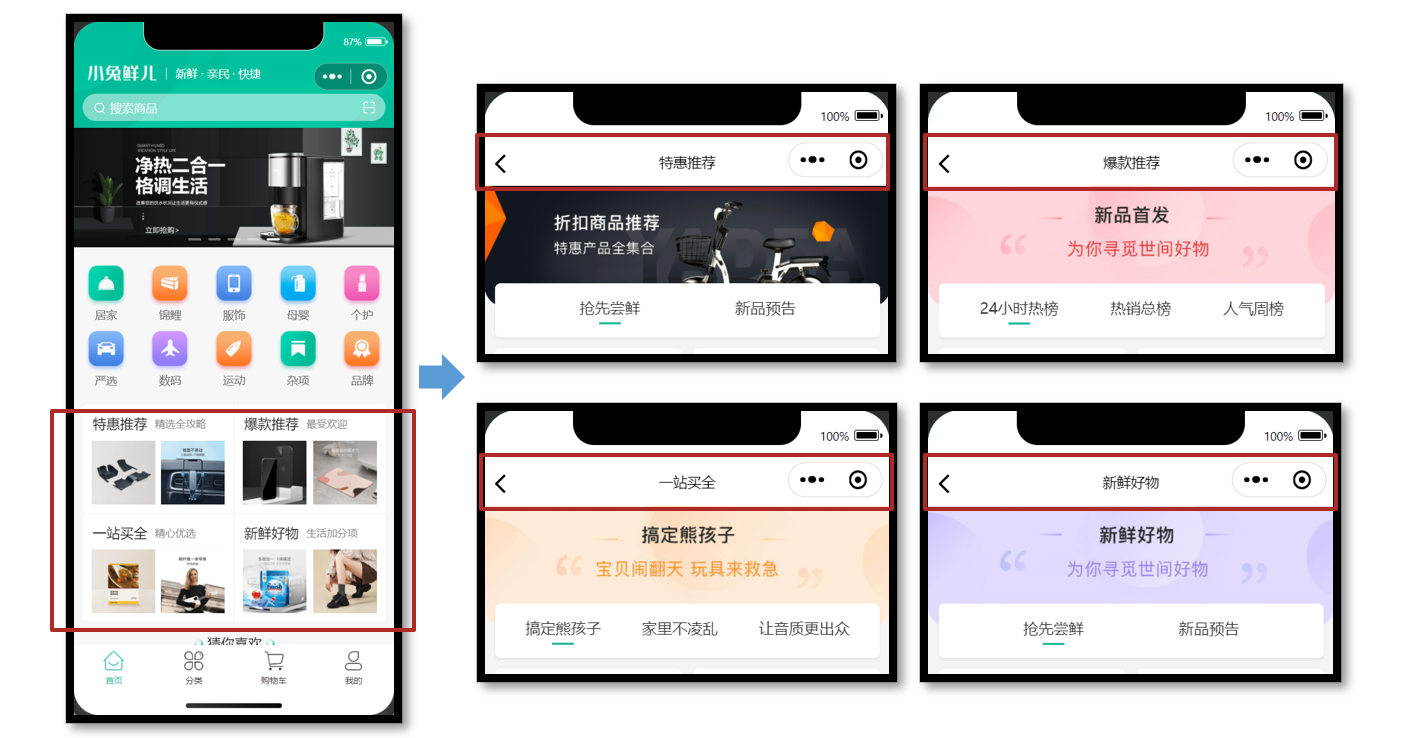
参考效果
推荐模块的布局结构是相同的,因此我们可以复用相同的页面及交互,只是所展示的数据不同。
静态结构
新建热门推荐页面文件,并在 pages.json 中添加路由(VS Code 插件自动完成)。
// /src/pages/hot/hot.vue
<script setup lang="ts">
// 热门推荐页 标题和url
const hotMap = [
  { type: '1', title: '特惠推荐', url: '/hot/preference' },
  { type: '2', title: '爆款推荐', url: '/hot/inVogue' },
  { type: '3', title: '一站买全', url: '/hot/oneStop' },
  { type: '4', title: '新鲜好物', url: '/hot/new' },
]
</script>

<template>
  <view class="viewport">
    <!-- 推荐封面图 -->
    <view class="cover">
      <image
        src="http://yjy-xiaotuxian-dev.oss-cn-beijing.aliyuncs.com/picture/2021-05-20/84abb5b1-8344-49ae-afc1-9cb932f3d593.jpg"
      ></image>
    </view>
    <!-- 推荐选项 -->
    <view class="tabs">
      <text class="text active">抢先尝鲜</text>
      <text class="text">新品预告</text>
    </view>
    <!-- 推荐列表 -->
    <scroll-view scroll-y class="scroll-view">
      <view class="goods">
        <navigator
          hover-class="none"
          class="navigator"
          v-for="goods in 10"
          :key="goods"
          :url="`/pages/goods/goods?id=`"
        >
          <image
            class="thumb"
            src="https://yanxuan-item.nosdn.127.net/5e7864647286c7447eeee7f0025f8c11.png"
          ></image>
          <view class="name ellipsis">不含酒精,使用安心爽肤清洁湿巾</view>
          <view class="price">
            <text class="symbol">¥</text>
            <text class="number">29.90</text>
          </view>
        </navigator>
      </view>
      <view class="loading-text">正在加载...</view>
    </scroll-view>
  </view>
</template>

<style lang="scss">
page {
  height: 100%;
  background-color: #f4f4f4;
}
.viewport {
  display: flex;
  flex-direction: column;
  height: 100%;
  padding: 180rpx 0 0;
  position: relative;
}
.cover {
  width: 750rpx;
  height: 225rpx;
  border-radius: 0 0 40rpx 40rpx;
  overflow: hidden;
  position: absolute;
  left: 0;
  top: 0;
}
.scroll-view {
  flex: 1;
}
.tabs {
  display: flex;
  justify-content: space-evenly;
  height: 100rpx;
  line-height: 90rpx;
  margin: 0 20rpx;
  font-size: 28rpx;
  border-radius: 10rpx;
  box-shadow: 0 4rpx 5rpx rgba(200, 200, 200, 0.3);
  color: #333;
  background-color: #fff;
  position: relative;
  z-index: 9;
  .text {
    margin: 0 20rpx;
    position: relative;
  }
  .active {
    &::after {
      content: '';
      width: 40rpx;
      height: 4rpx;
      transform: translate(-50%);
      background-color: #27ba9b;
      position: absolute;
      left: 50%;
      bottom: 24rpx;
    }
  }
}
.goods {
  display: flex;
  flex-wrap: wrap;
  justify-content: space-between;
  padding: 0 20rpx 20rpx;
  .navigator {
    width: 345rpx;
    padding: 20rpx;
    margin-top: 20rpx;
    border-radius: 10rpx;
    background-color: #fff;
  }
  .thumb {
    width: 305rpx;
    height: 305rpx;
  }
  .name {
    height: 88rpx;
    font-size: 26rpx;
  }
  .price {
    line-height: 1;
    color: #cf4444;
    font-size: 30rpx;
  }
  .symbol {
    font-size: 70%;
  }
  .decimal {
    font-size: 70%;
  }
}

.loading-text {
  text-align: center;
  font-size: 28rpx;
  color: #666;
  padding: 20rpx 0 50rpx;
}
</style>
获取页面参数
热门推荐页要根据页面参数区分需要获取的是哪种类型的推荐列表,然后再去调用相应的接口,来获取不同的数据,再渲染到页面当中。
项目首页(传递参数)
// src/pages/index/components/HotPanel.vue
<navigator :url="`/pages/hot/hot?type=${item.type}`">
  ...省略
</navigator>
热门推荐页(获取参数)
// src/pages/hot/hot.vue
<script setup lang="ts">
// 热门推荐页 标题和url
const hotMap = [
  { type: '1', title: '特惠推荐', url: '/hot/preference' },
  { type: '2', title: '爆款推荐', url: '/hot/inVogue' },
  { type: '3', title: '一站买全', url: '/hot/oneStop' },
  { type: '4', title: '新鲜好物', url: '/hot/new' },
]
// uniapp 获取页面参数
const query = defineProps<{
  type: string
}>()
// console.log(query)
const currHot = hotMap.find((v) => v.type === query.type)
// 动态设置标题
uni.setNavigationBarTitle({ title: currHot!.title })
</script>
传递不同的页面参数,动态设置推荐页标题。
获取数据
地址参数
不同类型的推荐,需要调用不同的 API 接口:
| type | 推荐类型 | 接口路径 |
|---|---|---|
| 1 | 特惠推荐 | /hot/preference |
| 2 | 爆款推荐 | /hot/inVogue |
| 3 | 一站买全 | /hot/oneStop |
| 4 | 新鲜好物 | /hot/new |
接口调用
调用接口获取推荐商品列表的数据,然后再将这些数据渲染出来。
接口地址:见上表
请求方式:GET
请求参数:
Query:
| 字段名称 | 是否必须 | 默认值 | 备注 |
|---|---|---|---|
| subType | 否 | 无 | 推荐列表 Tab 项的 id |
| page | 否 | 1 | 页码 |
| pageSize | 否 | 10 | 每页商品数量 |
请求封装
经过分析,尽管不同类型推荐的请求 url 不同,但请求参数及响应格式都具有一致性,因此可以将接口的调用进行封装,参考代码如下所示:
import { http } from '@/utils/http'
import type { PageParams } from '@/types/global'

type HotParams = PageParams & {
  /** Tab 项的 id,默认查询全部 Tab 项的第 1 页数据 */
  subType?: string
}
/**
 * 通用热门推荐类型
 * @param url 请求地址
 * @param data 请求参数
 */
export const getHotRecommendAPI = (url: string, data?: HotParams) => {
  return http<HotResult>({
    method: 'GET',
    url,
    data,
  })
}
类型声明
电商项目较为常见商品展示,商品的类型是可复用的,封装到 src/types/global.d.ts 文件中:
// src/types/global.d.ts
/** 通用商品类型 */
export type GoodsItem = {
  /** 商品描述 */
  desc: string
  /** 商品折扣 */
  discount: number
  /** id */
  id: string
  /** 商品名称 */
  name: string
  /** 商品已下单数量 */
  orderNum: number
  /** 商品图片 */
  picture: string
  /** 商品价格 */
  price: number
}
其实猜你喜欢的商品类型也相同,可复用通用商品类型,封装到 src/services/home.ts 文件中:
// src/services/home.ts
import type { GoodsItem } from '@/types/global'

// GuessItem 和 GoodsItem 类型相同
export type GuessItem = GoodsItem
热门推荐类型如下,新建 src/types/hot.d.ts 文件:
import type { PageResult, GoodsItem } from './global'

/** 热门推荐 */
export type HotResult = {
  /** id信息 */
  id: string
  /** 活动图片 */
  bannerPicture: string
  /** 活动标题 */
  title: string
  /** 子类选项 */
  subTypes: SubTypeItem[]
}

/** 热门推荐-子类选项 */
export type SubTypeItem = {
  /** 子类id */
  id: string
  /** 子类标题 */
  title: string
  /** 子类对应的商品集合 */
  goodsItems: PageResult<GoodsItem>
}
最后,把获取到的数据结合模板语法渲染到页面中。
多 Tabs 分页加载
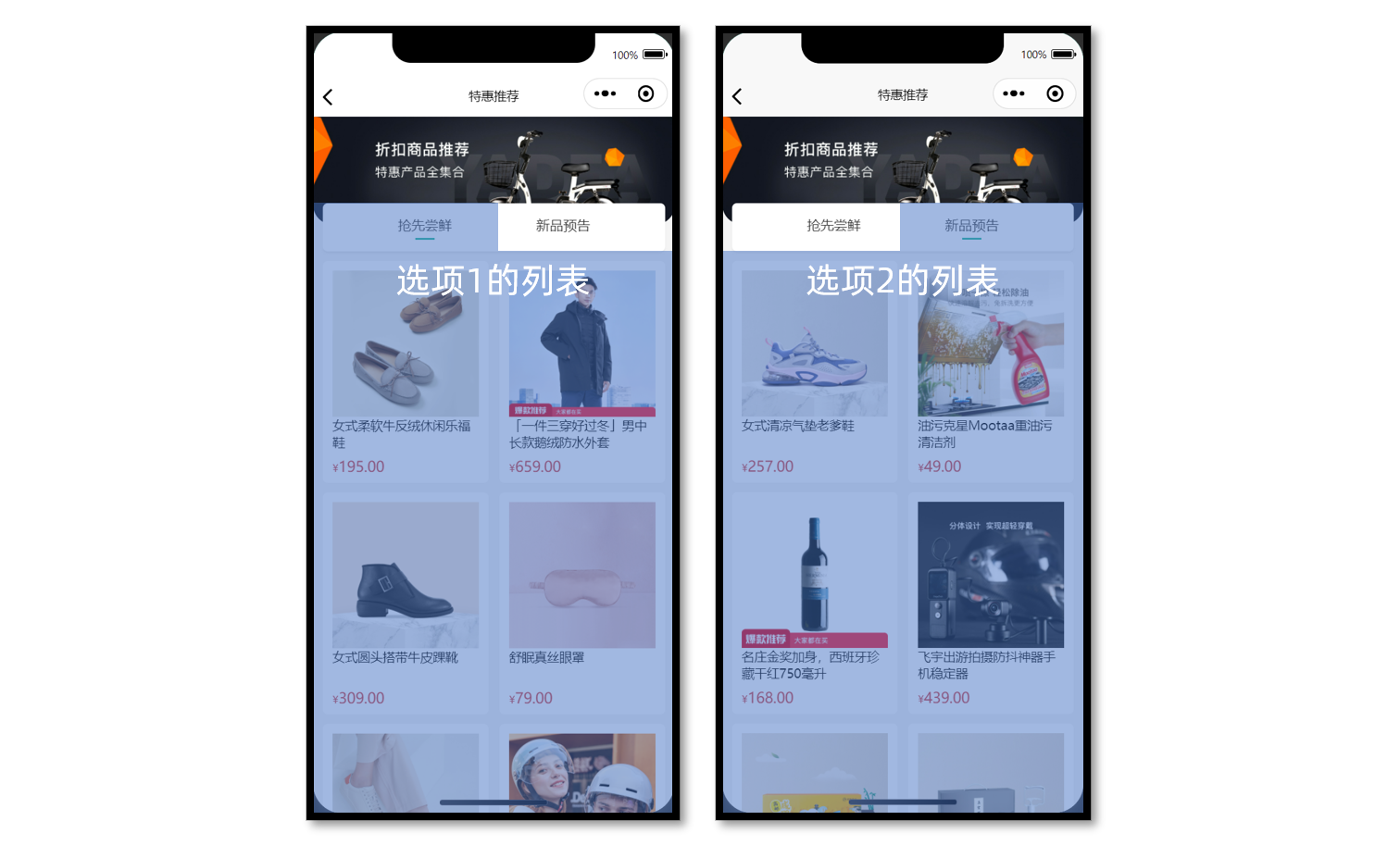
需要根据当前用户选中的 Tabs 加载对应的列表数据。
Tabs 交互基础
当用户点击页面中的 Tab 后,切换展示相应的商品列表,功能相对简单,快速实现即可。
参考代码
<script setup lang="ts">
// 高亮的下标
const activeIndex = ref(0)
</script>

<template>
  <!-- 推荐选项 -->
  <view class="tabs">
    <text
      class="text"
      v-for="(item, index) in subTypes"
      :key="item.id"
      :class="{ active: index === activeIndex }"
      @tap="activeIndex = index"
    >
      {{ item.title }}
    </text>
  </view>
  <!-- 推荐列表 -->
  <scroll-view
    scroll-y
    class="scroll-view"
    v-for="(item, index) in subTypes"
    :key="item.id"
    v-show="activeIndex === index"
  >
    ...省略
  </scroll-view>
</template>
选中 Tabs 分页
根据当前用户选中的 Tabs 加载对应的列表数据。
操作流程
- 根据高亮下标,获取对应列表数据
- 提取列表的分页参数,用于发送请求
- 滚动触底事件,页码累加,数组追加,退出判断等业务和常规分页基本一致
参考代码(总)
热门推荐页
<script setup lang="ts">
import { getHotRecommendAPI } from '@/services/hot'
import type { SubTypeItem } from '@/types/hot'
import { onLoad } from '@dcloudio/uni-app'
import { ref } from 'vue'

// 热门推荐页 标题和url
const hotMap = [
  { type: '1', title: '特惠推荐', url: '/hot/preference' },
  { type: '2', title: '爆款推荐', url: '/hot/inVogue' },
  { type: '3', title: '一站买全', url: '/hot/oneStop' },
  { type: '4', title: '新鲜好物', url: '/hot/new' },
]

// uniapp 获取页面参数
const query = defineProps<{
  type: string
}>()
// 获取当前推荐信息
const currHot = hotMap.find((v) => v.type === query.type)
// 动态设置标题
uni.setNavigationBarTitle({ title: currHot!.title })

// 推荐封面图
const bannerPicture = ref('')
// 推荐选项
const subTypes = ref<(SubTypeItem & { finish?: boolean })[]>([])
// 高亮的下标
const activeIndex = ref(0)
// 获取热门推荐数据
const getHotRecommendData = async () => {
  const res = await getHotRecommendAPI(currHot!.url, {
    // 技巧:环境变量,开发环境,修改初始页面方便测试分页结束
    page: import.meta.env.DEV ? 30 : 1,
    pageSize: 10,
  })
  // 保存封面
  bannerPicture.value = res.result.bannerPicture
  // 保存列表
  subTypes.value = res.result.subTypes
}

// 页面加载
onLoad(() => {
  getHotRecommendData()
})

// 滚动触底
const onScrolltolower = async () => {
  // 获取当前选项
  const currsubTypes = subTypes.value[activeIndex.value]
  // 分页条件
  if (currsubTypes.goodsItems.page < currsubTypes.goodsItems.pages) {
    // 当前页码累加
    currsubTypes.goodsItems.page++
  } else {
    // 标记已结束
    currsubTypes.finish = true
    // 退出并轻提示
    return uni.showToast({ icon: 'none', title: '没有更多数据了~' })
  }

  // 调用API传参
  const res = await getHotRecommendAPI(currHot!.url, {
    subType: currsubTypes.id,
    page: currsubTypes.goodsItems.page,
    pageSize: currsubTypes.goodsItems.pageSize,
  })
  // 新的列表选项
  const newsubTypes = res.result.subTypes[activeIndex.value]
  // 数组追加
  currsubTypes.goodsItems.items.push(...newsubTypes.goodsItems.items)
}
</script>

<template>
  <view class="viewport">
    <!-- 推荐封面图 -->
    <view class="cover">
      <image :src="bannerPicture"></image>
    </view>
    <!-- 推荐选项 -->
    <view class="tabs">
      <text
        v-for="(item, index) in subTypes"
        :key="item.id"
        class="text"
        :class="{ active: index === activeIndex }"
        @tap="activeIndex = index"
        >{{ item.title }}</text
      >
    </view>
    <!-- 推荐列表 -->
    <scroll-view
      v-for="(item, index) in subTypes"
      :key="item.id"
      v-show="activeIndex === index"
      scroll-y
      class="scroll-view"
      @scrolltolower="onScrolltolower"
    >
      <view class="goods">
        <navigator
          hover-class="none"
          class="navigator"
          v-for="goods in item.goodsItems.items"
          :key="goods.id"
          :url="`/pages/goods/goods?id=${goods.id}`"
        >
          <image class="thumb" :src="goods.picture"></image>
          <view class="name ellipsis">{{ goods.name }}</view>
          <view class="price">
            <text class="symbol">¥</text>
            <text class="number">{{ goods.price }}</text>
          </view>
        </navigator>
      </view>
      <view class="loading-text">
        {{ item.finish ? '没有更多数据了~' : '正在加载...' }}
      </view>
    </scroll-view>
  </view>
</template>
小兔鲜儿 - 分类模块
用户点击左菜单的一级分类,切换右侧对应的二级分类和商品。
准备工作
参考效果
商品分类页中的广告位,可复用之前定义的轮播图组件 XtxSwiper。
静态结构
商品分类页静态结构: src/pages/category/category.vue
<script setup lang="ts">
//
</script>

<template>
  <view class="viewport">
    <!-- 搜索框 -->
    <view class="search">
      <view class="input">
        <text class="icon-search">女靴</text>
      </view>
    </view>
    <!-- 分类 -->
    <view class="categories">
      <!-- 左侧:一级分类 -->
      <scroll-view class="primary" scroll-y>
        <view v-for="(item, index) in 10" :key="item" class="item" :class="{ active: index === 0 }">
          <text class="name"> 居家 </text>
        </view>
      </scroll-view>
      <!-- 右侧:二级分类 -->
      <scroll-view class="secondary" scroll-y>
        <!-- 焦点图 -->
        <XtxSwiper class="banner" :list="[]" />
        <!-- 内容区域 -->
        <view class="panel" v-for="item in 3" :key="item">
          <view class="title">
            <text class="name">宠物用品</text>
            <navigator class="more" hover-class="none">全部</navigator>
          </view>
          <view class="section">
            <navigator
              v-for="goods in 4"
              :key="goods"
              class="goods"
              hover-class="none"
              :url="`/pages/goods/goods?id=`"
            >
              <image
                class="image"
                src="https://yanxuan-item.nosdn.127.net/674ec7a88de58a026304983dd049ea69.jpg"
              ></image>
              <view class="name ellipsis">木天蓼逗猫棍</view>
              <view class="price">
                <text class="symbol">¥</text>
                <text class="number">16.00</text>
              </view>
            </navigator>
          </view>
        </view>
      </scroll-view>
    </view>
  </view>
</template>

<style lang="scss">
page {
  height: 100%;
  overflow: hidden;
}
.viewport {
  height: 100%;
  display: flex;
  flex-direction: column;
}
.search {
  padding: 0 30rpx 20rpx;
  background-color: #fff;
  .input {
    display: flex;
    align-items: center;
    justify-content: space-between;
    height: 64rpx;
    padding-left: 26rpx;
    color: #8b8b8b;
    font-size: 28rpx;
    border-radius: 32rpx;
    background-color: #f3f4f4;
  }
}
.icon-search {
  &::before {
    margin-right: 10rpx;
  }
}
/* 分类 */
.categories {
  flex: 1;
  min-height: 400rpx;
  display: flex;
}
/* 一级分类 */
.primary {
  overflow: hidden;
  width: 180rpx;
  flex: none;
  background-color: #f6f6f6;
  .item {
    display: flex;
    justify-content: center;
    align-items: center;
    height: 96rpx;
    font-size: 26rpx;
    color: #595c63;
    position: relative;
    &::after {
      content: '';
      position: absolute;
      left: 42rpx;
      bottom: 0;
      width: 96rpx;
      border-top: 1rpx solid #e3e4e7;
    }
  }
  .active {
    background-color: #fff;
    &::before {
      content: '';
      position: absolute;
      left: 0;
      top: 0;
      width: 8rpx;
      height: 100%;
      background-color: #27ba9b;
    }
  }
}
.primary .item:last-child::after,
.primary .active::after {
  display: none;
}
/* 二级分类 */
.secondary {
  background-color: #fff;
  .carousel {
    height: 200rpx;
    margin: 0 30rpx 20rpx;
    border-radius: 4rpx;
    overflow: hidden;
  }
  .panel {
    margin: 0 30rpx 0rpx;
  }
  .title {
    height: 60rpx;
    line-height: 60rpx;
    color: #333;
    font-size: 28rpx;
    border-bottom: 1rpx solid #f7f7f8;
    .more {
      float: right;
      padding-left: 20rpx;
      font-size: 24rpx;
      color: #999;
    }
  }
  .more {
    &::after {
      font-family: 'erabbit' !important;
      content: '\e6c2';
    }
  }
  .section {
    width: 100%;
    display: flex;
    flex-wrap: wrap;
    padding: 20rpx 0;
    .goods {
      width: 150rpx;
      margin: 0rpx 30rpx 20rpx 0;
      &:nth-child(3n) {
        margin-right: 0;
      }
      image {
        width: 150rpx;
        height: 150rpx;
      }
      .name {
        padding: 5rpx;
        font-size: 22rpx;
        color: #333;
      }
      .price {
        padding: 5rpx;
        font-size: 18rpx;
        color: #cf4444;
      }
      .number {
        font-size: 24rpx;
        margin-left: 2rpx;
      }
    }
  }
}
</style>
渲染轮播图
接口调用
渲染轮播图数据业务功能对于前端来说比较简单,只需调用后端提供的接口将获得的数据展现。
注意:传递参数 2 标识获取商品分类页广告。
接口地址:/home/banner
请求方式:GET
请求参数:
Query:
| 字段名称 | 是否必须 | 默认值 | 备注 |
|---|---|---|---|
| distributionSite | 否 | 1 | 活动 banner 位置,1 代表首页,2 代表商品分类页,默认为 1 |
一级分类
获取数据
该接口同时包含一级分类和二级分类数据,二级分类数据需要先对数据进行处理,再进行渲染。
接口调用
接口地址:/category/top
请求方式:GET
请求参数:无
请求封装
// src/services/category.ts
/**
 * 分类列表-小程序
 */
export const getCategoryTopAPI = () => {
  return http<CategoryTopItem[]>({
    method: 'GET',
    url: '/category/top',
  })
}
类型声明
// src/types/category.d.ts
import type { GoodsItem } from './global'

/** 一级分类项 */
export type CategoryTopItem = {
  /** 二级分类集合[ 二级分类项 ] */
  children: CategoryChildItem[]
  /** 一级分类id */
  id: string
  /** 一级分类图片集[ 一级分类图片项 ] */
  imageBanners: string[]
  /** 一级分类名称 */
  name: string
  /** 一级分类图片 */
  picture: string
}

/** 二级分类项 */
export type CategoryChildItem = {
  /** 商品集合[ 商品项 ] */
  goods: GoodsItem[]
  /** 二级分类id */
  id: string
  /** 二级分类名称 */
  name: string
  /** 二级分类图片 */
  picture: string
}
接下来,先把一级分类数据结合模板语法渲染到页面中。
Tab 交互
当用户点击一级分类时,需要高亮显示,即给它添加 .active 类名即可。
<script setup lang="ts">
import { getCategoryTopAPI } from '@/services/category'
import type { CategoryTopItem } from '@/types/category'
import { onLoad } from '@dcloudio/uni-app'
import { ref } from 'vue'

// 获取分类列表数据
const categoryList = ref<CategoryTopItem[]>([])
const getCategoryTopData = async () => {
  const res = await getCategoryTopAPI()
  categoryList.value = res.result
}

// 高亮下标
const activeIndex = ref(0)

// 页面加载
onLoad(() => {
  getCategoryTopData()
})
</script>

<template>
  <view class="viewport">
    <!-- 分类 -->
    <view class="categories">
      <!-- 左侧:一级分类 -->
      <scroll-view class="primary" scroll-y>
        <view
          class="item"
          v-for="(item, index) in categoryList"
          :key="item.id"
          :class="{ active: index === activeIndex }"
          @tap="activeIndex = index"
        >
          {{ item.name }}
        </view>
      </scroll-view>
    </view>
  </view>
</template>
二级分类
商品二级分类是从属于某个一级分类的,通过 computed 配合高亮下标提取当前二级分类数据。
参考代码
<script setup lang="ts">
import { computed } from 'vue'

// ...省略

// 提取当前二级分类数据
const subCategoryList = computed(() => {
  return categoryList.value[activeIndex.value]?.children || []
})
</script>

<template>
  <view class="viewport">
      <!-- ...省略 -->
      <!-- 右侧:二级分类 -->
      <scroll-view class="secondary" scroll-y>
        <!-- 焦点图 -->
        <XtxSwiper class="banner" :list="bannerList" />
        <!-- 内容区域 -->
        <view class="panel" v-for="item in subCategoryList" :key="item.id">
          <view class="title">
            <text class="name">{{ item.name }}</text>
            <navigator class="more" hover-class="none">全部</navigator>
          </view>
          <view class="section">
            <navigator
              v-for="goods in item.goods"
              :key="goods.id"
              class="goods"
              hover-class="none"
              :url="`/pages/goods/goods?id=${goods.id}`"
            >
              <image class="image" :src="goods.picture"></image>
              <view class="name ellipsis">{{ goods.name }}</view>
              <view class="price">
                <text class="symbol">¥</text>
                <text class="number">{{ goods.price }}</text>
              </view>
            </navigator>
          </view>
        </view>
      </scroll-view>
    </view>
  </view>
</template>
提取当前二级分类数据后,剩下的就是列表渲染。
骨架屏
参考效果
实现步骤参考首页的骨架屏。
代码参考(总)
商品分类页
<script setup lang="ts">
import { getCategoryTopAPI } from '@/services/category'
import { getHomeBannerAPI } from '@/services/home'
import type { CategoryTopItem } from '@/types/category'
import type { BannerItem } from '@/types/home'
import { onLoad } from '@dcloudio/uni-app'
import { computed, ref } from 'vue'
import PageSkeleton from './components/PageSkeleton.vue'

// 获取轮播图数据
const bannerList = ref<BannerItem[]>([])
const getBannerData = async () => {
  const res = await getHomeBannerAPI(2)
  bannerList.value = res.result
}

// 获取分类列表数据
const categoryList = ref<CategoryTopItem[]>([])
const activeIndex = ref(0)
const getCategoryTopData = async () => {
  const res = await getCategoryTopAPI()
  categoryList.value = res.result
}

// 是否数据加载完毕
const isFinish = ref(false)
// 页面加载
onLoad(async () => {
  await Promise.all([getBannerData(), getCategoryTopData()])
  isFinish.value = true
})

// 提取当前二级分类数据
const subCategoryList = computed(() => {
  return categoryList.value[activeIndex.value]?.children || []
})
</script>

<template>
  <view class="viewport" v-if="isFinish">
    <!-- 搜索框 -->
    <view class="search">
      <view class="input">
        <text class="icon-search">女靴</text>
      </view>
    </view>
    <!-- 分类 -->
    <view class="categories">
      <!-- 左侧:一级分类 -->
      <scroll-view class="primary" scroll-y>
        <view
          v-for="(item, index) in categoryList"
          :key="item.id"
          class="item"
          :class="{ active: index === activeIndex }"
          @tap="activeIndex = index"
        >
          <text class="name">
            {{ item.name }}
          </text>
        </view>
      </scroll-view>
      <!-- 右侧:二级分类 -->
      <scroll-view class="secondary" scroll-y>
        <!-- 焦点图 -->
        <XtxSwiper class="banner" :list="bannerList" />
        <!-- 内容区域 -->
        <view class="panel" v-for="item in subCategoryList" :key="item.id">
          <view class="title">
            <text class="name">{{ item.name }}</text>
            <navigator class="more" hover-class="none">全部</navigator>
          </view>
          <view class="section">
            <navigator
              v-for="goods in item.goods"
              :key="goods.id"
              class="goods"
              hover-class="none"
              :url="`/pages/goods/goods?id=${goods.id}`"
            >
              <image class="image" :src="goods.picture"></image>
              <view class="name ellipsis">{{ goods.name }}</view>
              <view class="price">
                <text class="symbol">¥</text>
                <text class="number">{{ goods.price }}</text>
              </view>
            </navigator>
          </view>
        </view>
      </scroll-view>
    </view>
  </view>
  <!-- 骨架屏 -->
  <PageSkeleton v-else />
</template>
小兔鲜儿 - 商品详情(登录前)
商品详情页分为两部分讲解:
- 登录前:展示商品信息,轮播图交互(当前模块)
- 登录后:加入购物车,立即购买(SKU 模块)
准备工作
参考效果
用户点击商品列表,跳转到对应的商品详情页。
静态结构
新建商品详情页。
// src/pages/goods/goods.vue
<script setup lang="ts">
// 获取屏幕边界到安全区域距离
const { safeAreaInsets } = uni.getSystemInfoSync()
</script>

<template>
  <scroll-view scroll-y class="viewport">
    <!-- 基本信息 -->
    <view class="goods">
      <!-- 商品主图 -->
      <view class="preview">
        <swiper circular>
          <swiper-item>
            <image
              mode="aspectFill"
              src="https://yanxuan-item.nosdn.127.net/99c83709ca5f9fd5c5bb35d207ad7822.png"
            />
          </swiper-item>
          <swiper-item>
            <image
              mode="aspectFill"
              src="https://yanxuan-item.nosdn.127.net/f9107d47c08f0b99c097e30055c39e1a.png"
            />
          </swiper-item>
          <swiper-item>
            <image
              mode="aspectFill"
              src="https://yanxuan-item.nosdn.127.net/754c56785cc8c39f7414752f62d79872.png"
            />
          </swiper-item>
          <swiper-item>
            <image
              mode="aspectFill"
              src="https://yanxuan-item.nosdn.127.net/ef16f8127610ef56a2a10466d6dae157.jpg"
            />
          </swiper-item>
          <swiper-item>
            <image
              mode="aspectFill"
              src="https://yanxuan-item.nosdn.127.net/1f0c3f5d32b0e804deb9b3d56ea6c3b2.png"
            />
          </swiper-item>
        </swiper>
        <view class="indicator">
          <text class="current">1</text>
          <text class="split">/</text>
          <text class="total">5</text>
        </view>
      </view>

      <!-- 商品简介 -->
      <view class="meta">
        <view class="price">
          <text class="symbol">¥</text>
          <text class="number">29.90</text>
        </view>
        <view class="name ellipsis">云珍·轻软旅行长绒棉方巾 </view>
        <view class="desc"> 轻巧无捻小方巾,旅行便携 </view>
      </view>

      <!-- 操作面板 -->
      <view class="action">
        <view class="item arrow">
          <text class="label">选择</text>
          <text class="text ellipsis"> 请选择商品规格 </text>
        </view>
        <view class="item arrow">
          <text class="label">送至</text>
          <text class="text ellipsis"> 请选择收获地址 </text>
        </view>
        <view class="item arrow">
          <text class="label">服务</text>
          <text class="text ellipsis"> 无忧退 快速退款 免费包邮 </text>
        </view>
      </view>
    </view>

    <!-- 商品详情 -->
    <view class="detail panel">
      <view class="title">
        <text>详情</text>
      </view>
      <view class="content">
        <view class="properties">
          <!-- 属性详情 -->
          <view class="item">
            <text class="label">属性名</text>
            <text class="value">属性值</text>
          </view>
          <view class="item">
            <text class="label">属性名</text>
            <text class="value">属性值</text>
          </view>
        </view>
        <!-- 图片详情 -->
        <image
          mode="widthFix"
          src="https://yanxuan-item.nosdn.127.net/a8d266886d31f6eb0d7333c815769305.jpg"
        ></image>
        <image
          mode="widthFix"
          src="https://yanxuan-item.nosdn.127.net/a9bee1cb53d72e6cdcda210071cbd46a.jpg"
        ></image>
      </view>
    </view>

    <!-- 同类推荐 -->
    <view class="similar panel">
      <view class="title">
        <text>同类推荐</text>
      </view>
      <view class="content">
        <navigator
          v-for="item in 4"
          :key="item"
          class="goods"
          hover-class="none"
          :url="`/pages/goods/goods?id=`"
        >
          <image
            class="image"
            mode="aspectFill"
            src="https://yanxuan-item.nosdn.127.net/e0cea368f41da1587b3b7fc523f169d7.png"
          ></image>
          <view class="name ellipsis">简约山形纹全棉提花毛巾</view>
          <view class="price">
            <text class="symbol">¥</text>
            <text class="number">18.50</text>
          </view>
        </navigator>
      </view>
    </view>
  </scroll-view>

  <!-- 用户操作 -->
  <view class="toolbar" :style="{ paddingBottom: safeAreaInsets?.bottom + 'px' }">
    <view class="icons">
      <button class="icons-button"><text class="icon-heart"></text>收藏</button>
      <button class="icons-button" open-type="contact">
        <text class="icon-handset"></text>客服
      </button>
      <navigator class="icons-button" url="/pages/cart/cart" open-type="switchTab">
        <text class="icon-cart"></text>购物车
      </navigator>
    </view>
    <view class="buttons">
      <view class="addcart"> 加入购物车 </view>
      <view class="buynow"> 立即购买 </view>
    </view>
  </view>
</template>

<style lang="scss">
page {
  height: 100%;
  overflow: hidden;
  display: flex;
  flex-direction: column;
}

.viewport {
  background-color: #f4f4f4;
}

.panel {
  margin-top: 20rpx;
  background-color: #fff;
  .title {
    display: flex;
    justify-content: space-between;
    align-items: center;
    height: 90rpx;
    line-height: 1;
    padding: 30rpx 60rpx 30rpx 6rpx;
    position: relative;
    text {
      padding-left: 10rpx;
      font-size: 28rpx;
      color: #333;
      font-weight: 600;
      border-left: 4rpx solid #27ba9b;
    }
    navigator {
      font-size: 24rpx;
      color: #666;
    }
  }
}

.arrow {
  &::after {
    position: absolute;
    top: 50%;
    right: 30rpx;
    content: '\e6c2';
    color: #ccc;
    font-family: 'erabbit' !important;
    font-size: 32rpx;
    transform: translateY(-50%);
  }
}

/* 商品信息 */
.goods {
  background-color: #fff;
  .preview {
    height: 750rpx;
    position: relative;
    .image {
      width: 750rpx;
      height: 750rpx;
    }
    .indicator {
      height: 40rpx;
      padding: 0 24rpx;
      line-height: 40rpx;
      border-radius: 30rpx;
      color: #fff;
      font-family: Arial, Helvetica, sans-serif;
      background-color: rgba(0, 0, 0, 0.3);
      position: absolute;
      bottom: 30rpx;
      right: 30rpx;
      .current {
        font-size: 26rpx;
      }
      .split {
        font-size: 24rpx;
        margin: 0 1rpx 0 2rpx;
      }
      .total {
        font-size: 24rpx;
      }
    }
  }
  .meta {
    position: relative;
    border-bottom: 1rpx solid #eaeaea;
    .price {
      height: 130rpx;
      padding: 25rpx 30rpx 0;
      color: #fff;
      font-size: 34rpx;
      box-sizing: border-box;
      background-color: #35c8a9;
    }
    .number {
      font-size: 56rpx;
    }
    .brand {
      width: 160rpx;
      height: 80rpx;
      overflow: hidden;
      position: absolute;
      top: 26rpx;
      right: 30rpx;
    }
    .name {
      max-height: 88rpx;
      line-height: 1.4;
      margin: 20rpx;
      font-size: 32rpx;
      color: #333;
    }
    .desc {
      line-height: 1;
      padding: 0 20rpx 30rpx;
      font-size: 24rpx;
      color: #cf4444;
    }
  }
  .action {
    padding-left: 20rpx;
    .item {
      height: 90rpx;
      padding-right: 60rpx;
      border-bottom: 1rpx solid #eaeaea;
      font-size: 26rpx;
      color: #333;
      position: relative;
      display: flex;
      align-items: center;
      &:last-child {
        border-bottom: 0 none;
      }
    }
    .label {
      width: 60rpx;
      color: #898b94;
      margin: 0 16rpx 0 10rpx;
    }
    .text {
      flex: 1;
      -webkit-line-clamp: 1;
    }
  }
}

/* 商品详情 */
.detail {
  padding-left: 20rpx;
  .content {
    margin-left: -20rpx;
    .image {
      width: 100%;
    }
  }
  .properties {
    padding: 0 20rpx;
    margin-bottom: 30rpx;
    .item {
      display: flex;
      line-height: 2;
      padding: 10rpx;
      font-size: 26rpx;
      color: #333;
      border-bottom: 1rpx dashed #ccc;
    }
    .label {
      width: 200rpx;
    }
    .value {
      flex: 1;
    }
  }
}

/* 同类推荐 */
.similar {
  .content {
    padding: 0 20rpx 200rpx;
    background-color: #f4f4f4;
    display: flex;
    flex-wrap: wrap;
    .goods {
      width: 340rpx;
      padding: 24rpx 20rpx 20rpx;
      margin: 20rpx 7rpx;
      border-radius: 10rpx;
      background-color: #fff;
    }
    .image {
      width: 300rpx;
      height: 260rpx;
    }
    .name {
      height: 80rpx;
      margin: 10rpx 0;
      font-size: 26rpx;
      color: #262626;
    }
    .price {
      line-height: 1;
      font-size: 20rpx;
      color: #cf4444;
    }
    .number {
      font-size: 26rpx;
      margin-left: 2rpx;
    }
  }
  navigator {
    &:nth-child(even) {
      margin-right: 0;
    }
  }
}

/* 底部工具栏 */
.toolbar {
  position: fixed;
  left: 0;
  right: 0;
  bottom: 0;
  z-index: 1;
  background-color: #fff;
  height: 100rpx;
  padding: 0 20rpx var(--window-bottom);
  border-top: 1rpx solid #eaeaea;
  display: flex;
  justify-content: space-between;
  align-items: center;
  box-sizing: content-box;
  .buttons {
    display: flex;
    & > view {
      width: 220rpx;
      text-align: center;
      line-height: 72rpx;
      font-size: 26rpx;
      color: #fff;
      border-radius: 72rpx;
    }
    .addcart {
      background-color: #ffa868;
    }
    .buynow,
    .payment {
      background-color: #27ba9b;
      margin-left: 20rpx;
    }
  }
  .icons {
    padding-right: 10rpx;
    display: flex;
    align-items: center;
    flex: 1;
    .icons-button {
      flex: 1;
      text-align: center;
      line-height: 1.4;
      padding: 0;
      margin: 0;
      border-radius: 0;
      font-size: 20rpx;
      color: #333;
      background-color: #fff;
      &::after {
        border: none;
      }
    }
    text {
      display: block;
      font-size: 34rpx;
    }
  }
}
</style>
获取数据
获取页面参数
根据商品的 id 查询到某个商品的详细信息,如图片、价格、型号等展示给用户。
// 接收页面参数
const query = defineProps<{
  id: string
}>()
接口调用
接口信息如下:
接口地址:/goods
请求方式:GET
请求参数:
Query
| 字段名称 | 是否必须 | 默认值 | 备注 |
|---|---|---|---|
| id | 是 | 无 | 商品 id |
请求封装
/**
 * 商品详情
 * @param id 商品id
 */
export const getGoodsByIdAPI = (id: string) => {
  return http<GoodsResult>({
    method: 'GET',
    url: '/goods',
    data: { id },
  })
}
类型声明
import type { GoodsItem } from './global'

/** 商品信息 */
export type GoodsResult = {
  /** id */
  id: string
  /** 商品名称 */
  name: string
  /** 商品描述 */
  desc: string
  /** 当前价格 */
  price: number
  /** 原价 */
  oldPrice: number
  /** 商品详情: 包含详情属性 + 详情图片 */
  details: Details
  /** 主图图片集合[ 主图图片链接 ] */
  mainPictures: string[]
  /** 同类商品[ 商品信息 ] */
  similarProducts: GoodsItem[]
  /** sku集合[ sku信息 ] */
  skus: SkuItem[]
  /** 可选规格集合备注[ 可选规格信息 ] */
  specs: SpecItem[]
  /** 用户地址列表[ 地址信息 ] */
  userAddresses: AddressItem[]
}

/** 商品详情: 包含详情属性 + 详情图片 */
export type Details = {
  /** 商品属性集合[ 属性信息 ] */
  properties: DetailsPropertyItem[]
  /** 商品详情图片集合[ 图片链接 ] */
  pictures: string[]
}

/** 属性信息 */
export type DetailsPropertyItem = {
  /** 属性名称 */
  name: string
  /** 属性值 */
  value: string
}

/** sku信息 */
export type SkuItem = {
  /** id */
  id: string
  /** 库存 */
  inventory: number
  /** 原价 */
  oldPrice: number
  /** sku图片 */
  picture: string
  /** 当前价格 */
  price: number
  /** sku编码 */
  skuCode: string
  /** 规格集合[ 规格信息 ] */
  specs: SkuSpecItem[]
}

/** 规格信息 */
export type SkuSpecItem = {
  /** 规格名称 */
  name: string
  /** 可选值名称 */
  valueName: string
}

/** 可选规格信息 */
export type SpecItem = {
  /** 规格名称 */
  name: string
  /** 可选值集合[ 可选值信息 ] */
  values: SpecValueItem[]
}

/** 可选值信息 */
export type SpecValueItem = {
  /** 是否可售 */
  available: boolean
  /** 可选值备注 */
  desc: string
  /** 可选值名称 */
  name: string
  /** 可选值图片链接 */
  picture: string
}

/** 地址信息 */
export type AddressItem = {
  /** 收货人姓名 */
  receiver: string
  /** 联系方式 */
  contact: string
  /** 省份编码 */
  provinceCode: string
  /** 城市编码 */
  cityCode: string
  /** 区/县编码 */
  countyCode: string
  /** 详细地址 */
  address: string
  /** 默认地址,1为是,0为否 */
  isDefault: number
  /** 收货地址 id */
  id: string
  /** 省市区 */
  fullLocation: string
}
接下来,将获取到的数据结合模板语法渲染到页面中。
轮播图交互
参考效果
当轮播图滑动切换的时候更新自定义下标 ,当图片被点击的时候大图预览。
参考代码
商品详情页轮播图交互
<script setup lang="ts">
// 轮播图变化时
const currentIndex = ref(0)
const onChange: UniHelper.SwiperOnChange = (ev) => {
  currentIndex.value = ev.detail.current
}

// 点击图片时
const onTapImage = (url: string) => {
  // 大图预览
  uni.previewImage({
    current: url,
    urls: goods.value!.mainPictures,
  })
}
</script>

<template>
  <!-- 商品主图 -->
  <view class="preview">
    <swiper @change="onChange" circular>
      <swiper-item v-for="item in goods?.mainPictures" :key="item">
        <image @tap="onTapImage(item)" mode="aspectFill" :src="item" />
      </swiper-item>
    </swiper>
    <view class="indicator">
      <text class="current">{{ currentIndex + 1 }}</text>
      <text class="split">/</text>
      <text class="total">{{ goods?.mainPictures.length }}</text>
    </view>
  </view>
</template>
弹出层交互
参考效果
uni-ui 弹出层组件:uni-popup
静态结构
提供 服务说明 和 收获地址 两个组件的静态结构,实现弹出层交互。
组件 1:服务说明
// ServicePanel.vue
<script setup lang="ts">
//
</script>

<template>
  <view class="service-panel">
    <!-- 关闭按钮 -->
    <text class="close icon-close"></text>
    <!-- 标题 -->
    <view class="title">服务说明</view>
    <!-- 内容 -->
    <view class="content">
      <view class="item">
        <view class="dt">无忧退货</view>
        <view class="dd">
          自收到商品之日起30天内,可在线申请无忧退货服务(食品等特殊商品除外)
        </view>
      </view>
      <view class="item">
        <view class="dt">快速退款</view>
        <view class="dd">
          收到退货包裹并确认无误后,将在48小时内办理退款,
          退款将原路返回,不同银行处理时间不同,预计1-5个工作日到账
        </view>
      </view>
      <view class="item">
        <view class="dt">满88元免邮费</view>
        <view class="dd">
          单笔订单金额(不含运费)满88元可免邮费,不满88元, 单笔订单收取10元邮费
        </view>
      </view>
    </view>
  </view>
</template>

<style lang="scss">
.service-panel {
  padding: 0 30rpx;
  border-radius: 10rpx 10rpx 0 0;
  position: relative;
  background-color: #fff;
}

.title {
  line-height: 1;
  padding: 40rpx 0;
  text-align: center;
  font-size: 32rpx;
  font-weight: normal;
  border-bottom: 1rpx solid #ddd;
  color: #444;
}

.close {
  position: absolute;
  right: 24rpx;
  top: 24rpx;
}

.content {
  padding: 20rpx 20rpx 100rpx 20rpx;

  .item {
    margin-top: 20rpx;
  }

  .dt {
    margin-bottom: 10rpx;
    font-size: 28rpx;
    color: #333;
    font-weight: 500;
    position: relative;

    &::before {
      content: '';
      width: 10rpx;
      height: 10rpx;
      border-radius: 50%;
      background-color: #eaeaea;
      transform: translateY(-50%);
      position: absolute;
      top: 50%;
      left: -20rpx;
    }
  }

  .dd {
    line-height: 1.6;
    font-size: 26rpx;
    color: #999;
  }
}
</style>
组件 2:收获地址组件
参考代码
商品详情页:通过组件 ref 获取弹出层组件实例,调用打开弹出层方法。
<script setup lang="ts">
import AddressPanel from './components/AddressPanel.vue'
import ServicePanel from './components/ServicePanel.vue'

// uni-ui 弹出层组件 ref
const popup = ref<{
  open: (type?: UniHelper.UniPopupType) => void
  close: () => void
}>()

// 弹出层条件渲染
const popupName = ref<'address' | 'service'>()
const openPopup = (name: typeof popupName.value) => {
  // 修改弹出层名称
  popupName.value = name
  // 打开弹出层
  popup.value?.open()
}
</script>

<template>
  <!-- 操作面板 -->
  <view class="action">
    <view class="item arrow">
      <text class="label">选择</text>
      <text class="text ellipsis"> 请选择商品规格 </text>
    </view>
    <view @tap="openPopup('address')" class="item arrow">
      <text class="label">送至</text>
      <text class="text ellipsis"> 请选择收获地址 </text>
    </view>
    <view @tap="openPopup('service')" class="item arrow">
      <text class="label">服务</text>
      <text class="text ellipsis"> 无忧退 快速退款 免费包邮 </text>
    </view>
  </view>
  <!-- uni-ui 弹出层 -->
  <uni-popup ref="popup" type="bottom" background-color="#fff">
    <AddressPanel v-if="popupName === 'address'" @close="popup?.close()" />
    <ServicePanel v-if="popupName === 'service'" @close="popup?.close()" />
  </uni-popup>
</template>

<script setup lang="ts">
import { getGoodsByIdAPI } from '@/services/goods'
import type { GoodsResult } from '@/types/goods'
import { onLoad } from '@dcloudio/uni-app'
import { ref } from 'vue'
import AddressPanel from './components/AddressPanel.vue'
import ServicePanel from './components/ServicePanel.vue'

// 获取屏幕边界到安全区域距离
const { safeAreaInsets } = uni.getSystemInfoSync()

// 接收页面参数
const query = defineProps<{
  id: string
}>()

// 获取商品详情信息
const goods = ref<GoodsResult>()
const getGoodsByIdData = async () => {
  const res = await getGoodsByIdAPI(query.id)
  goods.value = res.result
}

// 页面加载
onLoad(() => {
  getGoodsByIdData()
})

// 轮播图变化时
const currentIndex = ref(0)
const onChange: UniHelper.SwiperOnChange = (ev) => {
  currentIndex.value = ev.detail.current
}

// 点击图片时
const onTapImage = (url: string) => {
  // 大图预览
  uni.previewImage({
    current: url,
    urls: goods.value!.mainPictures,
  })
}

// uni-ui 弹出层组件 ref
const popup = ref<{
  open: (type?: UniHelper.UniPopupType) => void
  close: () => void
}>()

// 弹出层条件渲染
const popupName = ref<'address' | 'service'>()
const openPopup = (name: typeof popupName.value) => {
  // 修改弹出层名称
  popupName.value = name
  popup.value?.open()
}
</script>

<template>
  <scroll-view scroll-y class="viewport">
    <!-- 基本信息 -->
    <view class="goods">
      <!-- 商品主图 -->
      <view class="preview">
        <swiper @change="onChange" circular>
          <swiper-item v-for="item in goods?.mainPictures" :key="item">
            <image @tap="onTapImage(item)" mode="aspectFill" :src="item" />
          </swiper-item>
        </swiper>
        <view class="indicator">
          <text class="current">{{ currentIndex + 1 }}</text>
          <text class="split">/</text>
          <text class="total">{{ goods?.mainPictures.length }}</text>
        </view>
      </view>

      <!-- 商品简介 -->
      <view class="meta">
        <view class="price">
          <text class="symbol">¥</text>
          <text class="number">{{ goods?.price }}</text>
        </view>
        <view class="name ellipsis">{{ goods?.name }}</view>
        <view class="desc"> {{ goods?.desc }} </view>
      </view>

      <!-- 操作面板 -->
      <view class="action">
        <view class="item arrow">
          <text class="label">选择</text>
          <text class="text ellipsis"> 请选择商品规格 </text>
        </view>
        <view @tap="openPopup('address')" class="item arrow">
          <text class="label">送至</text>
          <text class="text ellipsis"> 请选择收获地址 </text>
        </view>
        <view @tap="openPopup('service')" class="item arrow">
          <text class="label">服务</text>
          <text class="text ellipsis"> 无忧退 快速退款 免费包邮 </text>
        </view>
      </view>
    </view>

    <!-- 商品详情 -->
    <view class="detail panel">
      <view class="title">
        <text>详情</text>
      </view>
      <view class="content">
        <view class="properties">
          <!-- 属性详情 -->
          <view class="item" v-for="item in goods?.details.properties" :key="item.name">
            <text class="label">{{ item.name }}</text>
            <text class="value">{{ item.value }}</text>
          </view>
        </view>
        <!-- 图片详情 -->
        <image
          v-for="item in goods?.details.pictures"
          :key="item"
          mode="widthFix"
          :src="item"
        ></image>
      </view>
    </view>

    <!-- 同类推荐 -->
    <view class="similar panel">
      <view class="title">
        <text>同类推荐</text>
      </view>
      <view class="content">
        <navigator
          v-for="item in goods?.similarProducts"
          :key="item.id"
          class="goods"
          hover-class="none"
          :url="`/pages/goods/goods?id=${item.id}`"
        >
          <image class="image" mode="aspectFill" :src="item.picture"></image>
          <view class="name ellipsis">{{ item.name }}</view>
          <view class="price">
            <text class="symbol">¥</text>
            <text class="number">{{ item.price }}</text>
          </view>
        </navigator>
      </view>
    </view>
  </scroll-view>

  <!-- 用户操作 -->
  <view class="toolbar" :style="{ paddingBottom: safeAreaInsets?.bottom + 'px' }">
    <view class="icons">
      <button class="icons-button"><text class="icon-heart"></text>收藏</button>
      <button class="icons-button" open-type="contact">
        <text class="icon-handset"></text>客服
      </button>
      <navigator class="icons-button"><text class="icon-cart"></text>购物车</navigator>
    </view>
    <view class="buttons">
      <view class="addcart"> 加入购物车 </view>
      <view class="payment"> 立即购买 </view>
    </view>
  </view>

  <!-- uni-ui 弹出层 -->
  <uni-popup ref="popup" type="bottom" background-color="#fff">
    <AddressPanel v-if="popupName === 'address'" @close="popup?.close()" />
    <ServicePanel v-if="popupName === 'service'" @close="popup?.close()" />
  </uni-popup>
</template>

<style lang="scss">
page {
  height: 100%;
  overflow: hidden;
  display: flex;
  flex-direction: column;
}

.viewport {
  background-color: #f4f4f4;
}

.panel {
  margin-top: 20rpx;
  background-color: #fff;
  .title {
    display: flex;
    justify-content: space-between;
    align-items: center;
    height: 90rpx;
    line-height: 1;
    padding: 30rpx 60rpx 30rpx 6rpx;
    position: relative;
    text {
      padding-left: 10rpx;
      font-size: 28rpx;
      color: #333;
      font-weight: 600;
      border-left: 4rpx solid #27ba9b;
    }
    navigator {
      font-size: 24rpx;
      color: #666;
    }
  }
}

.arrow {
  &::after {
    position: absolute;
    top: 50%;
    right: 30rpx;
    content: '\e6c2';
    color: #ccc;
    font-family: 'erabbit' !important;
    font-size: 32rpx;
    transform: translateY(-50%);
  }
}

/* 商品信息 */
.goods {
  background-color: #fff;
  .preview {
    height: 750rpx;
    position: relative;
    .indicator {
      height: 40rpx;
      padding: 0 24rpx;
      line-height: 40rpx;
      border-radius: 30rpx;
      color: #fff;
      font-family: Arial, Helvetica, sans-serif;
      background-color: rgba(0, 0, 0, 0.3);
      position: absolute;
      bottom: 30rpx;
      right: 30rpx;
      .current {
        font-size: 26rpx;
      }
      .split {
        font-size: 24rpx;
        margin: 0 1rpx 0 2rpx;
      }
      .total {
        font-size: 24rpx;
      }
    }
  }
  .meta {
    position: relative;
    border-bottom: 1rpx solid #eaeaea;
    .price {
      height: 130rpx;
      padding: 25rpx 30rpx 0;
      color: #fff;
      font-size: 34rpx;
      box-sizing: border-box;
      background-color: #35c8a9;
    }
    .number {
      font-size: 56rpx;
    }
    .brand {
      width: 160rpx;
      height: 80rpx;
      overflow: hidden;
      position: absolute;
      top: 26rpx;
      right: 30rpx;
    }
    .name {
      max-height: 88rpx;
      line-height: 1.4;
      margin: 20rpx;
      font-size: 32rpx;
      color: #333;
    }
    .desc {
      line-height: 1;
      padding: 0 20rpx 30rpx;
      font-size: 24rpx;
      color: #cf4444;
    }
  }
  .action {
    padding-left: 20rpx;
    .item {
      height: 90rpx;
      padding-right: 60rpx;
      border-bottom: 1rpx solid #eaeaea;
      font-size: 26rpx;
      color: #333;
      position: relative;
      display: flex;
      align-items: center;
      &:last-child {
        border-bottom: 0 none;
      }
    }
    .label {
      width: 60rpx;
      color: #898b94;
      margin: 0 16rpx 0 10rpx;
    }
    .text {
      flex: 1;
      -webkit-line-clamp: 1;
    }
  }
}

/* 商品详情 */
.detail {
  padding-left: 20rpx;
  .content {
    margin-left: -20rpx;
  }
  .properties {
    padding: 0 20rpx;
    margin-bottom: 30rpx;
    .item {
      display: flex;
      line-height: 2;
      padding: 10rpx;
      font-size: 26rpx;
      color: #333;
      border-bottom: 1rpx dashed #ccc;
    }
    .label {
      width: 200rpx;
    }
    .value {
      flex: 1;
    }
  }
}

/* 同类推荐 */
.similar {
  padding-left: 20rpx;
  .content {
    padding: 0 20rpx 20rpx;
    margin-left: -20rpx;
    background-color: #f4f4f4;
    overflow: hidden;
    navigator {
      width: 345rpx;
      padding: 24rpx 20rpx 20rpx;
      margin: 20rpx 20rpx 0 0;
      border-radius: 10rpx;
      background-color: #fff;
      float: left;
    }
    .image {
      height: 260rpx;
    }
    .name {
      height: 80rpx;
      margin: 10rpx 0;
      font-size: 26rpx;
      color: #262626;
    }
    .price {
      line-height: 1;
      font-size: 20rpx;
      color: #cf4444;
    }
    .number {
      font-size: 26rpx;
      margin-left: 2rpx;
    }
  }
  navigator {
    &:nth-child(even) {
      margin-right: 0;
    }
  }
}

/* 底部工具栏 */
.toolbar {
  background-color: #fff;
  height: 100rpx;
  padding: 0 20rpx;
  border-top: 1rpx solid #eaeaea;
  display: flex;
  justify-content: space-between;
  align-items: center;
  box-sizing: content-box;
  .buttons {
    display: flex;
    & > view {
      width: 220rpx;
      text-align: center;
      line-height: 72rpx;
      font-size: 26rpx;
      color: #fff;
      border-radius: 72rpx;
    }
    .addcart {
      background-color: #ffa868;
    }
    .payment {
      background-color: #27ba9b;
      margin-left: 20rpx;
    }
  }
  .icons {
    padding-right: 10rpx;
    display: flex;
    align-items: center;
    flex: 1;
    .icons-button {
      flex: 1;
      text-align: center;
      line-height: 1.4;
      padding: 0;
      margin: 0;
      border-radius: 0;
      font-size: 20rpx;
      color: #333;
      background-color: #fff;
    }
    text {
      display: block;
      font-size: 34rpx;
    }
  }
}
</style>