从零打造跑车仪表盘:Canvas绘制 + V2状态管理 + Animator动画驱动
摘要 :本文基于 HarmonyOS ArkTS 开发框架,使用 Canvas 画布组件 从零绘制一个跑车风格的汽车速度仪表盘,结合 状态管理V2 (@ComponentV2、@Local、@Param、@Monitor、@Computed)实现组件间数据流管理,并通过 Animator 动画 驱动指针平滑过渡。同时实现了长按按钮持续加速/刹车的交互效果。文章涵盖完整实现链路、V1与V2对比、Canvas分层绘制技巧及踩坑记录。
📋 目录
- 一、效果展示
- 二、技术栈与环境
- 三、项目结构
- [四、V2 状态管理设计](#四、V2 状态管理设计)
- [五、Canvas 绘制详解](#五、Canvas 绘制详解)
- 六、动画系统
- 七、交互设计
- 八、完整代码
- 九、踩坑记录
- 十、总结与扩展
一、效果展示
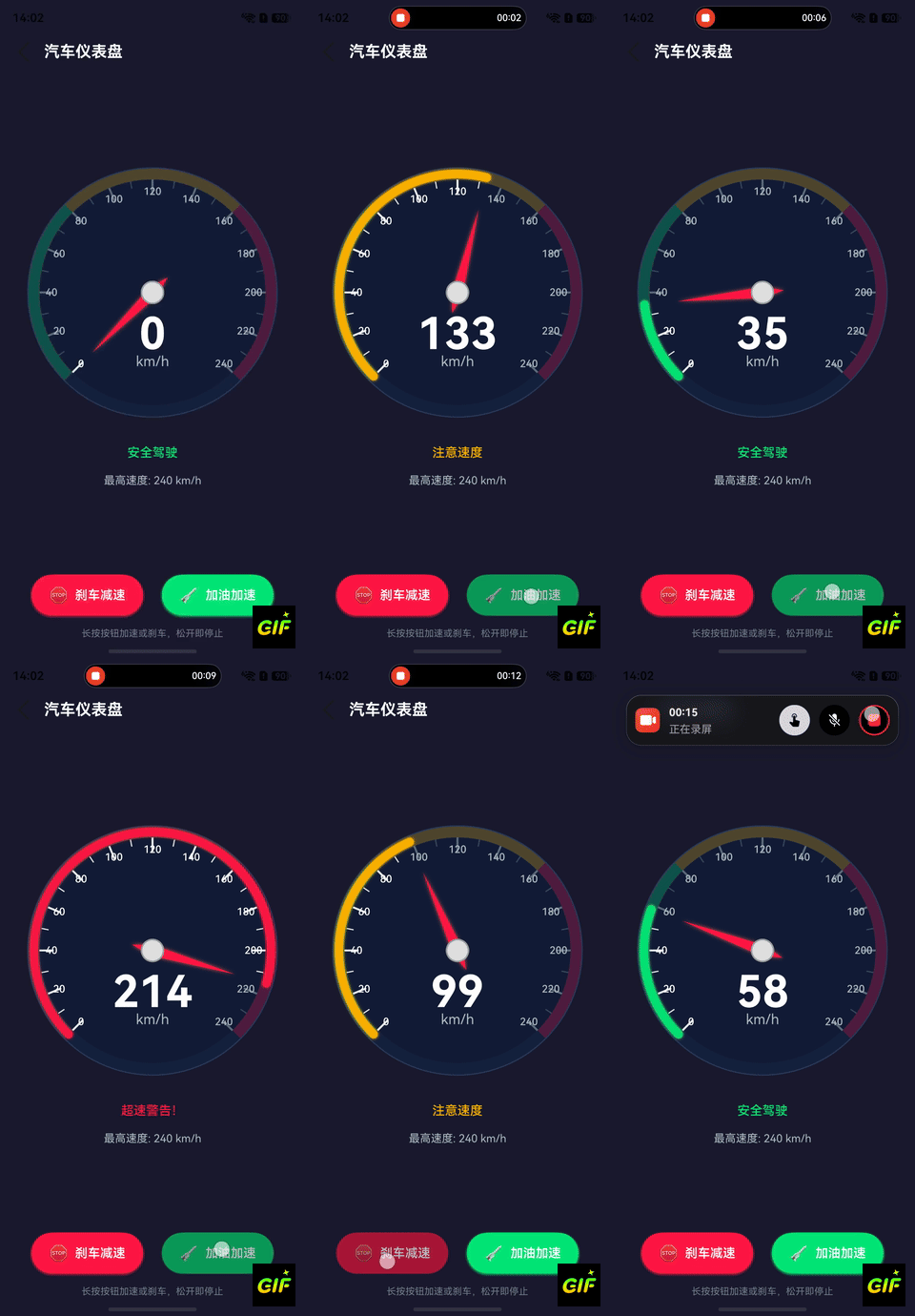
功能概览
| 功能 | 说明 |
|---|---|
| 仪表盘表盘 | 0-240 km/h 跑车风格深色表盘,三色分区弧线(绿/黄/红) |
| 菱形指针 | 红色发光指针,随速度平滑旋转 |
| 数字速度 | 表盘中央大字号显示当前速度 + km/h 单位 |
| 加油加速 | 长按右按钮,速度持续增加(每50ms +3 km/h) |
| 刹车减速 | 长按左按钮,速度持续减少(每50ms -5 km/h) |
| 区间提示 | 根据速度显示"安全驾驶"/"注意速度"/"超速警告!" |
速度分区配色
绿色安全区 (0-80 km/h)   ██ #00E676
黄色警告区 (80-160 km/h)  ██ #FFB300
红色危险区 (160-240 km/h) ██ #FF1744
二、技术栈与环境
| 项目 | 版本/说明 |
|---|---|
| 开发工具 | DevEco Studio 6.1+ |
| API Version | API 23+ |
| 编程语言 | ArkTS |
| 状态管理 | V2(@ComponentV2 + @Local + @Param + @Monitor + @Computed) |
| 绘图组件 | Canvas + CanvasRenderingContext2D |
| 动画 | @ohos.animator(AnimatorResult) |
| 交互 | onTouch + setInterval |
核心技术点
- @ComponentV2:新一代组件装饰器,提供更细粒度的响应式更新
- Canvas 分层绘制:7层独立绘制逻辑,每层职责清晰
- Animator 动画 :
createAnimator()创建动画实例,onFrame回调驱动每帧重绘 - onTouch 长按交互:通过触摸事件 + 定时器实现持续加速/刹车
三、项目结构
entry/src/main/ets/
├── common/
│   └── Constants.ets            ← 全局常量(新增汽车仪表盘相关常量)
├── components/
│   └── CarDashboard.ets         ← 🆕 汽车仪表盘组件(V2)
├── pages/
│   └── CarSpeedTest.ets         ← 🆕 汽车测速页面
├── entryability/
│   └── EntryAbility.ets         ← 入口Ability(更新为加载新页面)
└── ...
文件职责说明
| 文件 | 职责 | 状态管理版本 |
|---|---|---|
Constants.ets |
集中管理速度范围、角度、颜色、字体、动画参数等常量 | 纯静态类 |
CarDashboard.ets |
Canvas 绘制仪表盘 + Animator 驱动指针动画 | V2 |
CarSpeedTest.ets |
页面布局 + 按钮交互 + 状态管理 | V1(@Entry) |
EntryAbility.ets |
应用入口,加载 CarSpeedTest 页面 | --- |
四、V2 状态管理设计
4.1 V1 与 V2 装饰器对比
| V1 装饰器 | V2 装饰器 | 方向 | 说明 |
|---|---|---|---|
@State |
@Local |
自身 | 组件内部响应式状态 |
@Prop |
@Param |
父→子 | 父组件向子组件单向传递 |
@Link |
@Param + @Event |
父↔子 | 双向绑定(通过事件回调) |
@Watch |
@Monitor |
自身 | 监听属性变化触发回调 |
@Provide |
@Provider |
子树 | 跨组件状态共享 |
@Consume |
@Consumer |
子树 | 消费共享状态 |
| 计算属性 | @Computed |
自身 | 派生计算值(自动缓存) |
| --- | @Once |
父→子 | 仅首次初始化 |
4.2 本项目的状态管理架构
CarSpeedTest (@Entry @Component)          ← V1 页面组件
  │
  ├── @State currentSpeed: number         ← 页面级速度状态
  ├── @State isAccelerating: boolean      ← 加速按钮状态
  ├── @State isBraking: boolean           ← 刹车按钮状态
  │
  └── CarDashboard (@ComponentV2)         ← V2 仪表盘组件
        │
        ├── @Local currentSpeed: number   ← 内部动画速度(驱动Canvas重绘)
        ├── @Local canvasSize: number     ← 画布尺寸
        ├── @Param targetSpeed: number    ← 接收外部目标速度
        ├── @Param isAccelerating         ← 接收加速状态
        ├── @Param isBraking              ← 接收刹车状态
        ├── @Event onSpeedChange          ← 速度变化回调
        ├── @Monitor('targetSpeed')       ← 监听目标速度→触发动画
        └── @Computed speedZone           ← 派生速度区间
4.3 为什么页面用 V1,子组件用 V2?
关键决策 :@Entry 装饰器与 @ComponentV2 在某些 API 版本下存在兼容性问题。为了确保稳定性:
- 页面级 使用
@Entry @Component(V1),通过@State管理状态 - 子组件 使用
@ComponentV2(V2),通过@Param接收数据
V1 页面的 @State 可以传递给 V2 子组件的 @Param,两者可以混用在同一页面中。
4.4 @Monitor 替代 @Watch
在 V2 组件中,@Monitor 是 @Watch 的替代方案。当 targetSpeed(来自父组件的速度值)变化时,自动触发动画过渡:
typescript
@Monitor('targetSpeed')
onTargetSpeedChange() {
  if (this.currentSpeed === this.targetSpeed) {
    return;
  }
  // 停止旧动画,创建新动画
  if (this.speedAnimator) {
    this.speedAnimator.finish();
  }
  this.startAnimation(this.currentSpeed, this.targetSpeed);
}
五、Canvas 绘制详解
5.1 七层分层绘制策略
仪表盘采用分层绘制,每层职责独立,从底到顶依次绘制:
┌─────────────────────────────────────────┐
│  Layer 7: drawDigitalDisplay()          │  数字速度 + km/h 单位
│  Layer 6: drawNeedle()                  │  菱形指针 + 中心圆 + 发光
│  Layer 5: drawProgressArc()             │  当前速度进度弧 + 发光效果
│  Layer 4: drawScaleNumbers()            │  刻度数字 0,20,40,...,240
│  Layer 3: drawScaleMarks()              │  主刻度线 + 副刻度线
│  Layer 2: drawColorZones()              │  三色弧线区段(绿/黄/红)
│  Layer 1: drawDialBackground()          │  表盘深色背景 + 外环边框
└─────────────────────────────────────────┘
5.2 角度坐标系
仪表盘采用底部开口式设计(类似跑车仪表),角度范围 270°:
起始角度: 135° (左下方)
结束角度: 45°  (右下方)
跨越角度: 270° (从底部经过左侧、顶部到右侧)

角度映射公式:
  当前角度 = 起始角度 + 270° × (当前速度 / 最大速度)

示例:
  0 km/h   → 135°
  120 km/h → 135° + 270° × 0.5 = 270°
  240 km/h → 135° + 270° = 405° (即 45°)
5.3 三色分区弧线实现
三色分区是跑车仪表盘的核心视觉特征。每段弧线独立绘制:
typescript
private drawColorZones(cx: number, cy: number) {
  const totalAngleRange = this.getEffectiveAngleRange(); // 270°
  const startRad = this.degToRad(Constants.CAR_START_ANGLE);

  // 计算分区角度
  const greenEndFrac = 80 / 240;   // 绿色段占比
  const yellowEndFrac = 160 / 240; // 黄色段占比

  // 绿色段 (0-80 km/h)
  this.ctx.beginPath();
  this.ctx.arc(cx, cy, this.radius, startRad, greenEndRad);
  this.ctx.strokeStyle = Constants.CAR_COLOR_GREEN; // #00E676
  this.ctx.globalAlpha = 0.25;
  this.ctx.stroke();

  // 黄色段、红色段类似...
}
5.4 刻度线与数字
刻度线分为主刻度(每20km/h)和副刻度(每10km/h),已越过的刻度线高亮显示:
typescript
for (let i = 0; i <= totalSteps; i++) {
  const speed = i * 10;
  const angle = startAngle + totalDegrees * speed / maxSpeed;
  const rad = this.degToRad(angle);
  const isMajor = speed % 20 === 0;
  const isActive = speed <= this.currentSpeed; // 已越过

  // 计算刻度线两端坐标(三角函数)
  const outerR = this.radius - this.progressRingWidth * 0.5;
  const innerR = outerR - tickLength;
  const x1 = cx + Math.cos(rad) * outerR;
  const y1 = cy + Math.sin(rad) * outerR;
  const x2 = cx + Math.cos(rad) * innerR;
  const y2 = cy + Math.sin(rad) * innerR;

  // 高亮已越过的刻度
  this.ctx.strokeStyle = isActive
    ? Constants.CAR_COLOR_SCALE_ACTIVE  // 白色
    : Constants.CAR_COLOR_SCALE;        // 灰蓝色
}
5.5 菱形指针设计
指针使用坐标系变换(save → translate → rotate)绘制菱形:
typescript
this.ctx.save();
this.ctx.translate(cx, cy);      // 移动原点到表盘中心
this.ctx.rotate(rad);            // 旋转到目标角度

// 菱形指针四个顶点
this.ctx.beginPath();
this.ctx.moveTo(0, -needleLength);         // 针尖
this.ctx.lineTo(-needleWidth, 0);          // 左腰
this.ctx.lineTo(0, needleLength * 0.25);   // 底部中点
this.ctx.lineTo(needleWidth, 0);           // 右腰
this.ctx.closePath();

// 红色填充 + 发光阴影
this.ctx.shadowBlur = 12;
this.ctx.shadowColor = '#FF5252';
this.ctx.fillStyle = '#FF1744';
this.ctx.fill();

this.ctx.restore();
六、动画系统
6.1 Animator 配置
使用 @kit.ArkUI 中的 AnimatorResult 实现指针平滑过渡:
typescript
private animatorOptions: AnimatorOptions = {
  duration: 200,          // 200ms 快速响应
  easing: 'ease-out',     // 减速曲线,模拟惯性
  delay: 0,
  fill: 'forwards',       // 动画结束保持最终状态
  direction: 'normal',
  iterations: 1,
  begin: 0,
  end: 0
};
6.2 动画创建与触发
动画实例在组件 aboutToAppear 生命周期中创建,在 aboutToDisappear 中销毁:
typescript
aboutToAppear(): void {
  this.speedAnimator = this.getUIContext().createAnimator(this.animatorOptions);
}

aboutToDisappear(): void {
  if (this.speedAnimator) {
    this.speedAnimator.finish();
    this.speedAnimator = undefined;
  }
}
当 @Monitor 监听到 targetSpeed 变化时,重置并播放动画:
typescript
private startAnimation(from: number, to: number) {
  this.animatorOptions.begin = from;
  this.animatorOptions.end = to;
  this.speedAnimator.reset(this.animatorOptions);
  this.speedAnimator.onFrame = (value: number) => {
    this.currentSpeed = value;   // 更新内部速度
    this.drawDashboard();        // 每帧重绘Canvas
  };
  this.speedAnimator.play();
}
6.3 性能优化要点
- 短动画时长:200ms 确保快速响应,避免动画堆积
- ease-out 缓动:模拟物理惯性,速度变化更自然
- 及时 finish :新动画开始前先
finish()旧动画,防止冲突 - 条件绘制 :
canvasSize <= 0时跳过绘制,避免无效计算
七、交互设计
7.1 长按持续加速/刹车
使用 .onTouch() 事件监听按钮触摸状态,配合 setInterval 定时器实现持续变速:
typescript
// 加速按钮
Button('加油加速')
  .onTouch((event: TouchEvent) => {
    if (event.type === TouchType.Down) {
      this.startAccelerate();   // 开始定时加速
    } else if (event.type === TouchType.Up || event.type === TouchType.Cancel) {
      this.stopAccelerate();    // 停止加速
    }
  });

// 加速逻辑
private startAccelerate() {
  this.isAccelerating = true;
  this.accelerateTimer = setInterval(() => {
    if (this.currentSpeed < Constants.CAR_SPEED_MAX) {
      this.currentSpeed = Math.min(
        this.currentSpeed + Constants.CAR_ACCELERATE_RATE,  // +3 km/h
        Constants.CAR_SPEED_MAX
      );
    } else {
      this.stopAccelerate();  // 到达最大值自动停止
    }
  }, Constants.CAR_TIMER_INTERVAL);  // 每50ms执行一次
}
7.2 速度边界处理
| 场景 | 处理方式 |
|---|---|
| 速度达到最大值(240) | 自动停止加速定时器 |
| 速度降到最小值(0) | 自动停止刹车定时器 |
| 组件销毁(aboutToDisappear) | 清除所有定时器,防止内存泄漏 |
| 触摸取消(TouchType.Cancel) | 等同于松手,停止定时器 |
7.3 按钮视觉效果
按钮在不同状态下呈现不同样式:
typescript
.opacity(this.isAccelerating ? 0.7 : 1)    // 按下时透明度降低
.shadow({
  radius: this.isAccelerating ? 4 : 12,     // 按下时阴影收缩
  color: Constants.CAR_COLOR_GREEN,
  offsetY: this.isAccelerating ? 1 : 4      // 模拟按钮下沉
})
八、完整代码
8.1 CarDashboard.ets(仪表盘组件)
typescript
import { AnimatorOptions, AnimatorResult } from '@kit.ArkUI';
import { Constants } from '../common/Constants';

@ComponentV2
export struct CarDashboard {
  // V2 状态装饰器
  @Local currentSpeed: number = 0;
  @Local canvasSize: number = 0;

  @Param targetSpeed: number = 0;
  @Param isAccelerating: boolean = false;
  @Param isBraking: boolean = false;
  @Event onSpeedChange: (speed: number) => void = (speed: number) => {};

  // 计算属性
  @Computed get speedPercent(): number {
    return (this.currentSpeed - Constants.CAR_SPEED_MIN) /
      (Constants.CAR_SPEED_MAX - Constants.CAR_SPEED_MIN);
  }

  @Computed get speedZone(): string {
    if (this.currentSpeed <= Constants.CAR_GREEN_ZONE_END) return 'safe';
    if (this.currentSpeed <= Constants.CAR_YELLOW_ZONE_END) return 'moderate';
    return 'danger';
  }

  @Computed get zoneColor(): string {
    if (this.currentSpeed <= Constants.CAR_GREEN_ZONE_END) return Constants.CAR_COLOR_GREEN;
    if (this.currentSpeed <= Constants.CAR_YELLOW_ZONE_END) return Constants.CAR_COLOR_YELLOW;
    return Constants.CAR_COLOR_RED;
  }

  // 监听目标速度变化 → 触发平滑动画
  @Monitor('targetSpeed')
  onTargetSpeedChange() {
    if (this.currentSpeed === this.targetSpeed) return;
    if (this.speedAnimator) this.speedAnimator.finish();
    this.startAnimation(this.currentSpeed, this.targetSpeed);
  }

  // 监听画布尺寸变化 → 重算布局参数
  @Monitor('canvasSize')
  onCanvasSizeChange() {
    this.progressRingWidth = this.canvasSize * 0.04;
    this.radius = (this.canvasSize - this.progressRingWidth) * 0.5 * 0.9;
    this.needleLength = this.radius * 0.72;
    this.needleWidth = this.canvasSize * 0.02;
    this.centerDotRadius = this.canvasSize * 0.04;
  }

  // 私有成员
  private setting: RenderingContextSettings = new RenderingContextSettings(true);
  private ctx: CanvasRenderingContext2D = new CanvasRenderingContext2D(this.setting);
  private speedAnimator: AnimatorResult | undefined = undefined;
  private animatorOptions: AnimatorOptions = {
    duration: Constants.CAR_ANIMATION_DURATION,
    easing: 'ease-out',
    delay: 0, fill: 'forwards', direction: 'normal',
    iterations: 1, begin: 0, end: 0
  };
  private progressRingWidth: number = 0;
  private radius: number = 0;
  private needleLength: number = 0;
  private needleWidth: number = 0;
  private centerDotRadius: number = 0;

  // 动画驱动
  private startAnimation(from: number, to: number) {
    if (!this.speedAnimator) return;
    this.animatorOptions.begin = from;
    this.animatorOptions.end = to;
    this.speedAnimator.reset(this.animatorOptions);
    this.speedAnimator.onFrame = (value: number) => {
      this.currentSpeed = value;
      this.onSpeedChange(value);
      this.drawDashboard();
    };
    this.speedAnimator.play();
  }

  // 绘制入口(7层分层绘制)
  private drawDashboard() {
    if (this.canvasSize <= 0) return;
    const cx = this.canvasSize / 2, cy = this.canvasSize / 2;
    this.ctx.clearRect(0, 0, this.canvasSize, this.canvasSize);
    this.drawDialBackground(cx, cy);
    this.drawColorZones(cx, cy);
    this.drawScaleMarks(cx, cy);
    this.drawScaleNumbers(cx, cy);
    this.drawProgressArc(cx, cy);
    this.drawNeedle(cx, cy);
    this.drawDigitalDisplay(cx, cy);
  }

  // Layer 1: 表盘背景
  private drawDialBackground(cx: number, cy: number) {
    this.ctx.beginPath();
    this.ctx.arc(cx, cy, this.radius + this.progressRingWidth * 0.5, 0, 2 * Math.PI);
    this.ctx.lineWidth = 3;
    this.ctx.strokeStyle = Constants.CAR_COLOR_BORDER;
    this.ctx.stroke();
    this.ctx.beginPath();
    this.ctx.arc(cx, cy, this.radius + this.progressRingWidth * 0.5, 0, 2 * Math.PI);
    this.ctx.fillStyle = Constants.CAR_COLOR_DIAL_BG;
    this.ctx.fill();
    // 内阴影
    this.ctx.save();
    this.ctx.beginPath();
    this.ctx.arc(cx, cy, this.radius * 0.95, 0, 2 * Math.PI);
    this.ctx.fillStyle = '#0D1526';
    this.ctx.globalAlpha = 0.3;
    this.ctx.fill();
    this.ctx.globalAlpha = 1.0;
    this.ctx.restore();
  }

  // Layer 2: 三色分区弧线
  private drawColorZones(cx: number, cy: number) {
    const totalAngleRange = this.getEffectiveAngleRange();
    const startRad = this.degToRad(Constants.CAR_START_ANGLE);
    const greenEndFrac = Constants.CAR_GREEN_ZONE_END / Constants.CAR_SPEED_MAX;
    const yellowEndFrac = Constants.CAR_YELLOW_ZONE_END / Constants.CAR_SPEED_MAX;
    this.ctx.lineWidth = this.progressRingWidth;
    this.ctx.lineCap = 'butt';
    this.ctx.globalAlpha = 0.25;
    // 绿色段
    const greenEndRad = this.degToRad(Constants.CAR_START_ANGLE + totalAngleRange * greenEndFrac);
    this.ctx.beginPath();
    this.ctx.arc(cx, cy, this.radius, startRad, greenEndRad);
    this.ctx.strokeStyle = Constants.CAR_COLOR_GREEN;
    this.ctx.stroke();
    // 黄色段
    const yellowEndRad = this.degToRad(Constants.CAR_START_ANGLE + totalAngleRange * yellowEndFrac);
    this.ctx.beginPath();
    this.ctx.arc(cx, cy, this.radius, greenEndRad, yellowEndRad);
    this.ctx.strokeStyle = Constants.CAR_COLOR_YELLOW;
    this.ctx.stroke();
    // 红色段
    const redEndRad = this.degToRad(Constants.CAR_START_ANGLE + totalAngleRange);
    this.ctx.beginPath();
    this.ctx.arc(cx, cy, this.radius, yellowEndRad, redEndRad);
    this.ctx.strokeStyle = Constants.CAR_COLOR_RED;
    this.ctx.stroke();
    this.ctx.globalAlpha = 1.0;
  }

  // Layer 3-4: 刻度线和数字(代码见前文详解)
  // Layer 5: 进度弧(带发光效果)
  // Layer 6: 菱形指针(带发光阴影)
  // Layer 7: 数字速度显示

  // 工具方法
  private getEffectiveAngleRange(): number {
    let effectiveEnd = Constants.CAR_END_ANGLE;
    if (effectiveEnd < Constants.CAR_START_ANGLE) effectiveEnd += 360;
    return effectiveEnd - Constants.CAR_START_ANGLE;
  }

  private degToRad(degrees: number): number {
    return degrees * Math.PI / 180;
  }

  // 生命周期
  aboutToAppear(): void {
    this.speedAnimator = this.getUIContext().createAnimator(this.animatorOptions);
  }

  aboutToDisappear(): void {
    this.speedAnimator?.finish();
    this.speedAnimator = undefined;
  }

  build() {
    Column() {
      Canvas(this.ctx)
        .width('100%')
        .height('100%')
        .onReady(() => {
          const w = this.getUIContext().getComponentUtils()
            .getRectangleById('car_canvas').size.width;
          this.canvasSize = this.getUIContext().px2vp(w);
          this.drawDashboard();
        })
        .id('car_canvas');
    }
  }
}
8.2 CarSpeedTest.ets(页面)
typescript
import { Constants } from '../common/Constants';
import { CarDashboard } from '../components/CarDashboard';

@Entry
@Component
struct CarSpeedTest {
  @State currentSpeed: number = 0;
  @State isAccelerating: boolean = false;
  @State isBraking: boolean = false;
  @State maxSpeed: number = 0;
  @StorageProp('topRectHeight') topRectHeight: number = 0;
  @StorageProp('bottomRectHeight') bottomRectHeight: number = 0;

  private accelerateTimer: number = -1;
  private brakeTimer: number = -1;

  private getZoneText(): Resource {
    if (this.currentSpeed <= Constants.CAR_GREEN_ZONE_END) return $r('app.string.car_zone_safe');
    if (this.currentSpeed <= Constants.CAR_YELLOW_ZONE_END) return $r('app.string.car_zone_moderate');
    return $r('app.string.car_zone_danger');
  }

  private getZoneColor(): string {
    if (this.currentSpeed <= Constants.CAR_GREEN_ZONE_END) return Constants.CAR_COLOR_GREEN;
    if (this.currentSpeed <= Constants.CAR_YELLOW_ZONE_END) return Constants.CAR_COLOR_YELLOW;
    return Constants.CAR_COLOR_RED;
  }

  private startAccelerate() {
    this.isAccelerating = true;
    this.accelerateTimer = setInterval(() => {
      if (this.currentSpeed < Constants.CAR_SPEED_MAX) {
        this.currentSpeed = Math.min(this.currentSpeed + Constants.CAR_ACCELERATE_RATE, Constants.CAR_SPEED_MAX);
        if (this.currentSpeed > this.maxSpeed) this.maxSpeed = this.currentSpeed;
      } else { this.stopAccelerate(); }
    }, Constants.CAR_TIMER_INTERVAL);
  }

  private stopAccelerate() {
    this.isAccelerating = false;
    if (this.accelerateTimer !== -1) { clearInterval(this.accelerateTimer); this.accelerateTimer = -1; }
  }

  private startBrake() {
    this.isBraking = true;
    this.brakeTimer = setInterval(() => {
      if (this.currentSpeed > Constants.CAR_SPEED_MIN) {
        this.currentSpeed = Math.max(this.currentSpeed - Constants.CAR_BRAKE_RATE, Constants.CAR_SPEED_MIN);
      } else { this.stopBrake(); }
    }, Constants.CAR_TIMER_INTERVAL);
  }

  private stopBrake() {
    this.isBraking = false;
    if (this.brakeTimer !== -1) { clearInterval(this.brakeTimer); this.brakeTimer = -1; }
  }

  aboutToDisappear(): void {
    this.stopAccelerate();
    this.stopBrake();
  }

  build() {
    Column() {
      // 标题栏 + 仪表盘 + 区间提示 + 按钮区域
      // (完整布局代码见源文件)
    }
    .padding({ top: this.getUIContext().px2vp(this.topRectHeight) })
    .backgroundColor(Constants.CAR_COLOR_BG)
    .width('100%')
    .height('100%');
  }
}
8.3 Constants.ets(新增部分)
typescript
// ========== 汽车仪表盘常量 ==========
static readonly CAR_SPEED_MIN: number = 0;
static readonly CAR_SPEED_MAX: number = 240;
static readonly CAR_START_ANGLE: number = 135;
static readonly CAR_END_ANGLE: number = 45;
static readonly CAR_GREEN_ZONE_END: number = 80;
static readonly CAR_YELLOW_ZONE_END: number = 160;
static readonly CAR_COLOR_GREEN: string = '#00E676';
static readonly CAR_COLOR_YELLOW: string = '#FFB300';
static readonly CAR_COLOR_RED: string = '#FF1744';
static readonly CAR_COLOR_BG: string = '#1A1A2E';
static readonly CAR_COLOR_DIAL_BG: string = '#16213E';
static readonly CAR_COLOR_NEEDLE: string = '#FF1744';
static readonly CAR_COLOR_NEEDLE_GLOW: string = '#FF5252';
static readonly CAR_COLOR_TEXT_PRIMARY: string = '#FFFFFF';
static readonly CAR_COLOR_TEXT_SECONDARY: string = '#B0BEC5';
static readonly CAR_COLOR_SCALE: string = '#78909C';
static readonly CAR_COLOR_SCALE_ACTIVE: string = '#FFFFFF';
static readonly CAR_COLOR_BORDER: string = '#2A3A5C';
static readonly CAR_SPEED_FONT: string = '700 56vp sans-serif';
static readonly CAR_UNIT_FONT: string = '400 18vp sans-serif';
static readonly CAR_SCALE_FONT: string = '500 13vp sans-serif';
static readonly CAR_ANIMATION_DURATION: number = 200;
static readonly CAR_ACCELERATE_RATE: number = 3;
static readonly CAR_BRAKE_RATE: number = 5;
static readonly CAR_TIMER_INTERVAL: number = 50;
九、踩坑记录
🕳️ 坑1:@ComponentV2 不能与 @Reusable 共用
现象 :给 @ComponentV2 组件添加 @Reusable 装饰器后编译报错。
原因 :@Reusable 仅支持 @Component(V1组件),V2组件不支持组件池复用。
解决方案 :V2组件使用 @ObservedV2 + @Trace 实现细粒度响应式,减少不必要的重渲染。
typescript
// ❌ 错误:@Reusable 不兼容 @ComponentV2
@Reusable
@ComponentV2
struct MyComponent { ... }

// ✅ 正确:V2组件使用 @ObservedV2 + @Trace
@ObservedV2
class MyModel {
  @Trace value: number = 0;
}
🕳️ 坑2:ArkTS 泛型推断限制
现象 :使用 Array.from()、.map() 等泛型方法时编译报错 arkts-no-inferred-generic-params。
解决方案 :显式声明泛型参数,或改用 for 循环。
typescript
// ❌ 错误:隐式泛型推断
let arr = Array.from({ length: 5 }, (_, i) => i);

// ✅ 正确:显式泛型或用 for 循环
let arr: number[] = [];
for (let i = 0; i < 5; i++) arr.push(i);
🕳️ 坑3:Canvas onReady 时机
现象 :在 build() 中直接调用绘制方法,Canvas 显示空白。
原因 :Canvas 必须在 onReady() 回调触发后才能获取尺寸和进行绑制操作。
解决方案 :所有绘制逻辑放在 onReady 回调中,或通过尺寸变化监听触发。
typescript
Canvas(this.ctx)
  .onReady(() => {
    // 这里才能安全获取尺寸并绘制
    this.canvasSize = this.getUIContext().px2vp(canvasWidth);
    this.drawDashboard();
  })
🕳️ 坑4:Animator 生命周期管理
现象 :页面退出后仍然收到 onFrame 回调,导致空指针异常。
解决方案 :在 aboutToDisappear() 中调用 finish() 并置空引用。
typescript
aboutToDisappear(): void {
  if (this.speedAnimator) {
    this.speedAnimator.finish();
    this.speedAnimator = undefined;
  }
}
🕳️ 坑5:setInterval 定时器泄漏
现象:快速切换页面后,后台定时器仍在执行,修改已销毁组件的状态。
解决方案 :在 aboutToDisappear() 中清除所有定时器,并在 onTouch 的 Cancel 事件中也做清除处理。
typescript
aboutToDisappear(): void {
  this.stopAccelerate();  // clearInterval
  this.stopBrake();       // clearInterval
}

.onTouch((event: TouchEvent) => {
  if (event.type === TouchType.Down) {
    this.startAccelerate();
  } else if (event.type === TouchType.Up || event.type === TouchType.Cancel) {
    this.stopAccelerate();  // Cancel 也要清除!
  }
})
🕳️ 坑6:V1 与 V2 装饰器不能混用
现象 :在 @ComponentV2 中使用 @State、@Prop、@Watch 等 V1 装饰器,编译报错。
解决方案:V2 组件必须使用 V2 装饰器体系:
| V1 | V2 |
|---|---|
@State |
@Local |
@Prop |
@Param |
@Watch |
@Monitor |
十、总结与扩展
核心收获
- V2 状态管理的优势 :
@Monitor+@Computed让数据流更清晰,细粒度更新减少不必要的重绘 - Canvas 分层绘制:7层独立绘制逻辑,每层职责清晰,易于维护和扩展
- Animator 动画 :配合
@Monitor实现声明式动画触发,代码更优雅 - onTouch 交互:长按持续操作 + 松手停止的模式在很多场景下都适用
可扩展方向
| 方向 | 实现思路 |
|---|---|
| 陀螺仪联动 | 监听设备传感器,倾斜手机时指针偏移 |
| 多表盘联动 | 转速表 + 速度表 + 油量表,共享状态 |
| 驾驶模式切换 | 运动模式(红色主题)/ 经济模式(绿色主题) |
| 音效反馈 | 加速时播放引擎声,刹车时播放刹车声 |
| 速度历史记录 | 绘制速度-时间曲线图 |
参考文档
粒度更新减少不必要的重绘
-
Canvas 分层绘制 :7层独立绘制逻辑,每层职责清晰,易于维护和扩展
-
Animator 动画 :配合
@Monitor实现声明式动画触发,代码更优雅 -
onTouch 交互:长按持续操作 + 松手停止的模式在很多场景下都适用
可扩展方向
| 方向 | 实现思路 |
|---|---|
| 陀螺仪联动 | 监听设备传感器,倾斜手机时指针偏移 |
| 多表盘联动 | 转速表 + 速度表 + 油量表,共享状态 |
| 驾驶模式切换 | 运动模式(红色主题)/ 经济模式(绿色主题) |
| 音效反馈 | 加速时播放引擎声,刹车时播放刹车声 |
| 速度历史记录 | 绘制速度-时间曲线图 |