需要研究的问题:弄清这两种代码的核心逻辑。
开发视频播放器有2种方案可供选择。
| 方案 | 优点 | 缺点 |
|---|---|---|
| 安装 K-Lite 解码器 | 保持原 PyQt5 代码,系统级解决 | 仅限 Windows,某些 HEVC 仍需额外插件 |
| 改用 VLC 后端 | 跨平台,格式兼容性最强 | 需要额外安装 VLC 和 python-vlc,代码稍复杂 |
建议:如果你只是个人开发环境修复,装个 K-Lite 最快;如果程序要分发给别人,用 VLC 方案最省心,用户只需装 VLC 即可。
第一个方案:安装 K-Lite 解码器
一、安装
第一步:进入下载页面
在浏览器打开
你会看到一个包含多个表格和下载链接的页面。
第二步:找到 Basic 版本
页面往下滚动一点,你会看到四个版本对比表格:
| 版本 | 说明 |
|---|---|
| Basic | 包含最常用的解码器(我们需要的) |
| Standard | 更多工具 |
| Full | 更全 |
| Mega | 巨无霸套装 |
我们要找的是 Basic 那一列。
在 Basic 列的下方,会有几个蓝色链接,关键是找到像这样的文字:
Download Basic
(通常它是表格中最大、最明显的按钮或链接)
第三步:点击正确的下载链接
在 Basic 那一栏里,一般会有 三个镜像下载链接:
-
Server 1
-
Server 2
-
Server 3
任意选一个即可,推荐 Server 1 或 Server 2。
⚠️ 注意 :页面上可能会有一些类似"Download"的广告按钮(通常带边框或动画),不要点那些!
认准蓝色文字的超链接,例如:
text
Server 1 ───── 直接点击这个鼠标悬停时,浏览器左下角显示的网址应该以 https://files3.codecguide.com/ 或类似路径开头,而不是其它第三方网站。
第四步:下载并安装
点击正确的 Server 链接后会弹出下载,得到一个 K-Lite_Codec_Pack_XXXX_Basic.exe 文件。
-
双击运行安装程序。
-
安装过程中一路保持默认选项,无脑点 Next > 即可。
-
安装完成后 重启你的 Python 程序(不是重启电脑,重启程序就行),再打开 MP4 文件就能正常播放了。
二、代码
import sys
import vlc
from PyQt5.QtWidgets import (QApplication, QMainWindow, QWidget, QVBoxLayout,
                             QHBoxLayout, QPushButton, QSlider, QFileDialog,
                             QStyle, QFrame)
from PyQt5.QtCore import Qt, QTimer


class VlcPlayer(QMainWindow):
    def __init__(self):
        super().__init__()
        self.setWindowTitle("MP4 播放器 (VLC 后端)")
        self.resize(800, 600)

        # VLC 实例与播放器
        self.instance = vlc.Instance()
        self.player = self.instance.media_player_new()

        # 视频输出窗口(使用 QFrame 作为容器)
        self.video_frame = QFrame(self)
        self.video_frame.setStyleSheet("background-color: black;")
        # 将 VLC 嵌入到 QFrame 中
        self.player.set_hwnd(int(self.video_frame.winId()))

        # 控制按钮
        self.play_btn = QPushButton()
        self.play_btn.setIcon(self.style().standardIcon(QStyle.SP_MediaPlay))
        self.play_btn.clicked.connect(self.toggle_play)

        self.stop_btn = QPushButton()
        self.stop_btn.setIcon(self.style().standardIcon(QStyle.SP_MediaStop))
        self.stop_btn.clicked.connect(self.stop)

        self.open_btn = QPushButton("打开文件")
        self.open_btn.clicked.connect(self.open_file)

        # 进度条
        self.progress_slider = QSlider(Qt.Horizontal)
        self.progress_slider.sliderMoved.connect(self.set_position)

        # 音量滑块
        self.volume_slider = QSlider(Qt.Horizontal)
        self.volume_slider.setRange(0, 100)
        self.volume_slider.setValue(70)
        self.volume_slider.valueChanged.connect(self.change_volume)
        self.player.audio_set_volume(70)

        # 布局
        control_layout = QHBoxLayout()
        control_layout.addWidget(self.open_btn)
        control_layout.addWidget(self.play_btn)
        control_layout.addWidget(self.stop_btn)
        control_layout.addWidget(self.progress_slider)
        control_layout.addWidget(self.volume_slider)

        main_layout = QVBoxLayout()
        main_layout.addWidget(self.video_frame, 1)
        main_layout.addLayout(control_layout)

        container = QWidget()
        container.setLayout(main_layout)
        self.setCentralWidget(container)

        # 定时器,用于更新进度条
        self.timer = QTimer(self)
        self.timer.timeout.connect(self.update_progress)
        self.timer.start(500)  # 每 500ms 更新一次

        # 当前媒体时长(毫秒)
        self.media_duration = 0

    def open_file(self):
        file_path, _ = QFileDialog.getOpenFileName(
            self, "选择视频文件", "",
            "视频文件 (*.mp4 *.avi *.mkv *.mov *.flv *.ts);;所有文件 (*)"
        )
        if file_path:
            media = self.instance.media_new(file_path)
            self.player.set_media(media)
            self.player.play()
            self.play_btn.setIcon(self.style().standardIcon(QStyle.SP_MediaPause))

    def toggle_play(self):
        if self.player.is_playing():
            self.player.pause()
            self.play_btn.setIcon(self.style().standardIcon(QStyle.SP_MediaPlay))
        else:
            # 如果没有任何媒体,打开文件
            if self.player.get_media() is None:
                self.open_file()
                return
            self.player.play()
            self.play_btn.setIcon(self.style().standardIcon(QStyle.SP_MediaPause))

    def stop(self):
        self.player.stop()
        self.play_btn.setIcon(self.style().standardIcon(QStyle.SP_MediaPlay))

    def set_position(self, position):
        """滑块拖动设置播放位置"""
        self.player.set_time(position)

    def change_volume(self, value):
        self.player.audio_set_volume(value)

    def update_progress(self):
        """定时更新进度条(不打断拖动)"""
        # 获取当前播放时间(毫秒)
        if self.player.is_playing():
            length = self.player.get_length()
            if length > 0:
                self.media_duration = length
                self.progress_slider.setRange(0, length)
                current = self.player.get_time()
                self.progress_slider.setValue(current)

    def closeEvent(self, event):
        """窗口关闭时释放资源"""
        self.player.stop()
        self.player.release()
        event.accept()


if __name__ == "__main__":
    app = QApplication(sys.argv)
    player = VlcPlayer()
    player.show()
sys.exit(app.exec_())第二个方案:改用 VLC 后端
一、下载 VLC 便携版(ZIP 包)
前往 VLC 官方便携版页面:
Download official VLC media player for Windows - VideoLAN
在页面中找到 Portable versions 区块,点击 ZIP package 下载(通常是 64 位版本)。
直接下载链接示例:
https://get.videolan.org/vlc/3.0.20/win64/vlc-3.0.20-win64.zip
(版本号会随时间更新,选最新的即可)
二、解压并提取核心文件
下载后得到一个 ZIP 文件,解压到任意位置(例如桌面)。
进入解压后的文件夹,你会看到:
vlc-3.0.20/
├── plugins/
├── libvlc.dll
├── libvlccore.dll
├── vlc.exe
├── ...
你需要复制出来的只有三个东西:
-
libvlc.dll -
libvlccore.dll -
plugins文件夹(整个文件夹,包含解码器等)
把这些复制到你 Python 项目的根目录(和 .py 文件同级)。
如果觉得
plugins文件夹太大(约 100 MB),可以精简,但为了省事建议直接全复制。
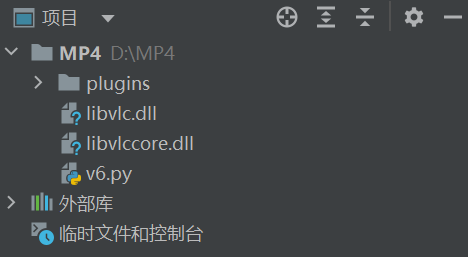
复制后的项目结构,如下图,其中v6.py是主程序
D:\MP4\
├── v6.py
├── libvlc.dll
├── libvlccore.dll
└── plugins\
项目结构图片
三、安装 python-vlc
pip install python-vlc四、代码
import sys
import os
import vlc
from PyQt5.QtWidgets import (QApplication, QMainWindow, QWidget, QVBoxLayout,
                             QHBoxLayout, QPushButton, QSlider, QFileDialog,
                             QStyle, QFrame)
from PyQt5.QtCore import Qt, QTimer
"""
创意来源:
https://chat.deepseek.com/a/chat/s/1908d6c2-0dea-45b2-b32a-17ac04cc3a75
"""

class PortablePlayer(QMainWindow):
    def __init__(self):
        super().__init__()
        self.setWindowTitle("MP4 播放器 (免安装解码器)")
        self.resize(800, 600)

        # --- 设置 VLC 插件路径(通过环境变量,最稳定)---
        base_dir = os.path.dirname(os.path.abspath(__file__))
        plugins_path = os.path.join(base_dir, 'plugins')
        if os.path.exists(plugins_path):
            os.environ['VLC_PLUGIN_PATH'] = plugins_path
        # 不再打印插件路径(若需要可取消注释下一行)
        # else:
        #     print("未找到自定义 plugins 文件夹,使用系统默认 VLC")

        # 将当前目录加入 PATH,确保能找到 DLL
        if base_dir not in os.environ.get('PATH', ''):
            os.environ['PATH'] = base_dir + os.pathsep + os.environ.get('PATH', '')

        # --- 静默 VLC 日志输出 ---
        os.environ['VLC_VERBOSE'] = '-1'
        self.instance = vlc.Instance('--quiet')
        if self.instance is None:
            raise RuntimeError(
                "VLC 初始化失败。请确保 libvlc.dll, libvlccore.dll 与程序在同一目录,\n"
                "且 plugins 文件夹完整。"
            )

        self.player = self.instance.media_player_new()

        # 视频容器
        self.video_frame = QFrame(self)
        self.video_frame.setStyleSheet("background-color: black;")
        self.player.set_hwnd(int(self.video_frame.winId()))

        # 按钮
        self.play_btn = QPushButton()
        self.play_btn.setIcon(self.style().standardIcon(QStyle.SP_MediaPlay))
        self.play_btn.clicked.connect(self.toggle_play)

        self.stop_btn = QPushButton()
        self.stop_btn.setIcon(self.style().standardIcon(QStyle.SP_MediaStop))
        self.stop_btn.clicked.connect(self.stop)

        self.open_btn = QPushButton("打开文件")
        self.open_btn.clicked.connect(self.open_file)

        self.progress_slider = QSlider(Qt.Horizontal)
        self.progress_slider.sliderMoved.connect(self.set_position)

        self.volume_slider = QSlider(Qt.Horizontal)
        self.volume_slider.setRange(0, 100)
        self.volume_slider.setValue(70)
        self.volume_slider.valueChanged.connect(self.change_volume)
        self.player.audio_set_volume(70)

        # 布局
        control_layout = QHBoxLayout()
        control_layout.addWidget(self.open_btn)
        control_layout.addWidget(self.play_btn)
        control_layout.addWidget(self.stop_btn)
        control_layout.addWidget(self.progress_slider)
        control_layout.addWidget(self.volume_slider)

        main_layout = QVBoxLayout()
        main_layout.addWidget(self.video_frame, 1)
        main_layout.addLayout(control_layout)

        container = QWidget()
        container.setLayout(main_layout)
        self.setCentralWidget(container)

        self.timer = QTimer(self)
        self.timer.timeout.connect(self.update_progress)
        self.timer.start(500)

    def open_file(self):
        file_path, _ = QFileDialog.getOpenFileName(
            self, "选择视频文件", "",
            "视频文件 (*.mp4 *.avi *.mkv *.mov *.flv);;所有文件 (*)"
        )
        if file_path:
            media = self.instance.media_new(file_path)
            self.player.set_media(media)
            self.player.play()
            self.play_btn.setIcon(self.style().standardIcon(QStyle.SP_MediaPause))

    def toggle_play(self):
        if self.player.is_playing():
            self.player.pause()
            self.play_btn.setIcon(self.style().standardIcon(QStyle.SP_MediaPlay))
        else:
            if self.player.get_media() is None:
                self.open_file()
                return
            self.player.play()
            self.play_btn.setIcon(self.style().standardIcon(QStyle.SP_MediaPause))

    def stop(self):
        self.player.stop()
        self.play_btn.setIcon(self.style().standardIcon(QStyle.SP_MediaPlay))

    def set_position(self, pos):
        self.player.set_time(pos)

    def change_volume(self, vol):
        self.player.audio_set_volume(vol)

    def update_progress(self):
        if self.player.is_playing():
            length = self.player.get_length()
            if length > 0:
                self.progress_slider.setRange(0, length)
                self.progress_slider.setValue(self.player.get_time())

    def closeEvent(self, event):
        self.player.stop()
        self.player.release()
        event.accept()


if __name__ == "__main__":
    app = QApplication(sys.argv)
    w = PortablePlayer()
    w.show()
    sys.exit(app.exec_())
五、用 PyInstaller 打包成 EXE
1.安装 PyInstaller
pip install pyinstaller2.打包命令(在项目目录执行)
pyinstaller --onefile --add-data "libvlc.dll;." --add-data "libvlccore.dll;." --add-data "plugins;plugins" --hidden-import vlc 你的脚本.py参数说明:
-
--onefile生成单个 exe(如果介意体积,可去掉改用--onedir,默认就是--onedir,文件夹式启动更快) -
--add-data把 dll 和 plugins 文件夹嵌入 -
--hidden-import vlc防止 vlc 模块遗漏
打包后 exe 运行时会解压到一个临时目录,代码中
__file__路径会指向解压位置,因此plugins文件夹能自动被找到。
七、为什么这样就不用别人装解码器了?
-
VLC 的解码器是纯软件实现的,不依赖 Windows 系统 API
-
我们把 VLC 的
libvlc.dll、libvlccore.dll和plugins文件夹打包进程序,等于自带了一个"解码器全家桶" -
用户电脑无论多干净,都能直接播放