一个基于 Electron 30+ 的多页面浏览器应用,支持外部网页加载、IPC 通信和调试工具控制。
1. 项目概述
1.1. 功能说明
-
主窗口展示首页,支持打开/关闭 DevTools 调试面板
-
获取 Node.js、Chromium、Electron 版本信息
-
跳转至搜索页面,集成百度、搜狗、必应、360 四大搜索引擎
-
通过 WebContentsView 在应用内嵌加载外部网页
1.2. 技术栈
-
Electron 30.0.0
-
原生 JavaScript + HTML + CSS
-
ES Module 规范
2. 项目结构
html
项目根目录/
├── node_modules/          # 依赖包
├── page/                  # 前端页面目录
│   ├── index.html         # 主页面
│   └── search.html        # 搜索页面
├── index.js               # Electron 主进程
├── preload.js             # 预加载脚本
├── package.json           # 项目配置
└── image.png              # 目录结构示意图
3. 核心代码
3.1. package.json
bash
{
    "name": "Electron加载外部网页",
    "version": "1.0.0",
    "private": true,
    "type": "module",
    "main": "index.js",
    "scripts": {
        "dev": "electron ."
    },
    "devDependencies": {
        "electron": "^30.0.0"
    }
}
3.2. index.js(主进程)
javascript
// 解决 ES Module 中 require 的问题
import { createRequire } from 'module';
const require = createRequire(import.meta.url);
const path = require("node:path");

const { app, BrowserWindow, ipcMain, WebContentsView } = require("electron");

const mainWindow = function() {
    let win = new BrowserWindow({
        width: 800,
        height: 600,
        webPreferences: {
            preload: path.join(process.cwd(), './preload.js'),
        }
    });

    win.loadFile("./page/index.html");
    win.setMenu(null);

    let webview = null;

    // 创建 WebContentsView 加载外部网页
    ipcMain.on("create-webview", () => {
        let [width, height] = win.getContentSize();
        if (webview === null) {
            webview = new WebContentsView();
            webview.setBounds({
                x: 0,
                y: 40,
                width: width,
                height: height - 40
            });
            win.contentView.addChildView(webview);
        }
    });

    // 加载指定 URL
    ipcMain.on('search-loadurl', (event, url) => {
        webview.webContents.loadURL(url);
    });

    // 打开调试工具
    ipcMain.on("open-dev-tools", () => {
        win.webContents.openDevTools();
    });

    // 关闭调试工具
    ipcMain.on("close-dev-tools", () => {
        win.webContents.closeDevTools();
    });

    // 获取系统版本信息
    ipcMain.handle("get-version", () => {
        return process.versions;
    });

    // 窗口自适应
    win.on("resize", () => {
        let [width, height] = win.getContentSize();
        if (webview !== null) {
            webview.setBounds({
                x: 0,
                y: 40,
                width: width,
                height: height - 40
            });
        }
    });
};

app.whenReady().then(() => {
    mainWindow();
});
3.3. preload.js(预加载脚本)
javascript
const { ipcRenderer, contextBridge } = require("electron");

// 暴露通信工具
contextBridge.exposeInMainWorld('tools', {
    ipcSend: function(msg, ...args) {
        ipcRenderer.send(msg, ...args);
    },
    ipcInvoke: function(msg) {
        return ipcRenderer.invoke(msg);
    }
});

// 暴露版本信息
contextBridge.exposeInMainWorld('versions', {
    chrome: function() {
        return process.versions.chrome;
    },
    electron: function() {
        return process.versions.electron;
    },
    node: function() {
        return process.versions.node;
    }
});
3.4. page/index.html(主页面)
html
<!DOCTYPE html>
<html lang="en">
<head>
    <meta charset="UTF-8" />
    <meta name="viewport" content="width=device-width, initial-scale=1.0" />
    <title>主页</title>
</head>
<body>
    <button id="open-dev-tools">打开调试面板</button>
    <button id="close-dev-tools">关闭调试面板</button>
    <button id="get-version-info">获取系统信息</button>
    <button id="go-to-search">前往搜索页面</button>

    <div id="info-box" style="display: none">
        <h1>系统信息</h1>
        <p>Node版本:<span id="node-version"></span></p>
        <p>Chromium版本:<span id="chrome-version"></span></p>
        <p>Electron版本:<span id="electron-version"></span></p>
    </div>

    <script>
        // 打开调试工具
        document.getElementById("open-dev-tools").addEventListener("click", () => {
            window.tools.ipcSend("open-dev-tools");
        });

        // 关闭调试工具
        document.getElementById("close-dev-tools").addEventListener("click", () => {
            window.tools.ipcSend("close-dev-tools");
        });

        // 获取系统版本
        document.getElementById("get-version-info").addEventListener("click", () => {
            window.tools.ipcInvoke("get-version").then(() => {
                document.getElementById("chrome-version").innerText = window.versions.chrome();
                document.getElementById("electron-version").innerText = window.versions.electron();
                document.getElementById("node-version").innerText = window.versions.node();
                document.getElementById("info-box").style.display = "block";
            });
        });

        // 跳转搜索页面
        document.getElementById("go-to-search").addEventListener("click", () => {
            window.location = "search.html";
        });
    </script>
</body>
</html>
3.5. page/search.html(搜索页面)
html
<!DOCTYPE html>
<html lang="en">
<head>
    <meta charset="UTF-8">
    <title>搜索页面</title>
    <style>
        * {
            padding: 0;
            margin: 0;
        }
        .search-box {
            width: 100%;
            height: 40px;
            background: #ccc;
        }
        .search-info {
            width: 100%;
            line-height: 40px;
            text-align: center;
        }
    </style>
</head>
<body>
    <div class="search-box">
        <div class="search-info">
            <select id="type">
                <option value="https://www.baidu.com/s?wd=">百度搜索</option>
                <option value="https://www.sogou.com/web?query=">搜狗搜索</option>
                <option value="https://cn.bing.com/search?q=">必应搜索</option>
                <option value="https://www.so.com/s?q=">360搜索</option>
            </select>
            <input id="info" placeholder="请输入搜索内容">
            <button id="submit">立即搜索</button>
        </div>
    </div>

    <script>
        document.getElementById("submit").addEventListener('click', () => {
            window.tools.ipcSend("create-webview");
            let type = document.getElementById("type").value;
            let info = document.getElementById("info").value;
            let url = type + info;
            window.tools.ipcSend("search-loadurl", url);
        });
    </script>
</body>
</html>
4. 运行与使用
4.1. 启动项目
bash
npm install
npm run dev
4.2. 操作流程
-
获取系统信息:点击"获取系统信息",显示 Node/Chromium/Electron 版本
-
打开调试面板:点击"打开调试面板",调出 DevTools
-
搜索外部网页:点击"前往搜索页面",选择搜索引擎并输入关键词,点击"立即搜索",结果在应用内加载
5. 关键知识点
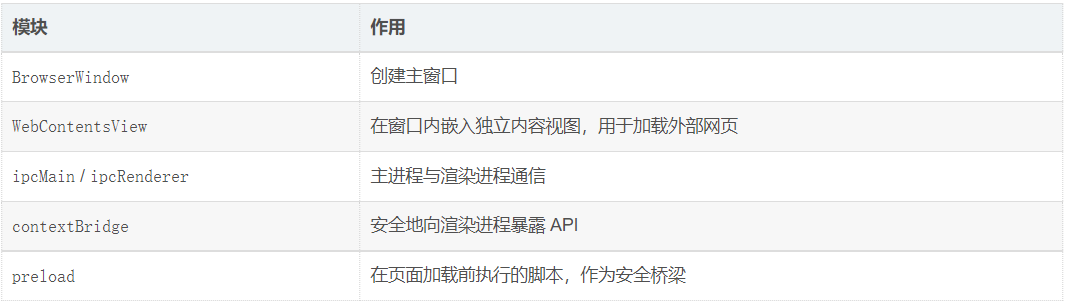
6. 项目源码
完整源码已在上方按文件列出,可直接复制使用。如需进一步扩展,可参考 Electron 官方文档。