大家好我是鸿蒙Jack,本期以我的《时光旅记》APP为例,讲一下 Media Library Kit 里的 Moving Photo,也就是动态照片能力怎么接入到真实业务里。
《时光旅记》的核心场景不是做一个系统图库,而是把用户旅途中的照片、视频、语音和文字整理成"瞬间"。所以我接动态照片时没有只停留在"选一张、播一下"的 Demo 思路,而是把它放进了完整链路:从系统相册选择动态照片,识别它是不是 Moving Photo,把静态图片和动态视频拆出来保存到应用沙箱,再写入本地数据库,最后在瞬间详情和全屏预览里恢复成可播放的动态照片。
下面这篇文章只讲动态照片,不展开普通图片、视频、OCR、AI识图等其它能力。
为什么不能只保存一张图片
动态照片不是一张会动的 JPG,它本质上是一张静态图片加一段短视频。Media Library Kit 对外抽象成 photoAccessHelper.MovingPhoto 对象,播放时交给 MovingPhotoView。
在《时光旅记》里,我希望用户退出应用、离线、进入回收站、做本地备份时,这条"瞬间"仍然是完整的。所以导入时我会把动态照片拆成两份:
一份静态图片,作为普通照片参与封面、九宫格、列表预览。
一份视频资源,只在用户进入全屏预览并点击播放时使用。
这样设计后,普通 UI 不需要一直挂着播放器,只有真正播放动态照片时才创建 MovingPhotoView,也避开了官方文档提到的 AVPlayer 并发数量问题。
#mermaid-svg-CRmL6ivqPKSHVLV0{font-family:"trebuchet ms",verdana,arial,sans-serif;font-size:16px;fill:#333;}@keyframes edge-animation-frame{from{stroke-dashoffset:0;}}@keyframes dash{to{stroke-dashoffset:0;}}#mermaid-svg-CRmL6ivqPKSHVLV0 .edge-animation-slow{stroke-dasharray:9,5!important;stroke-dashoffset:900;animation:dash 50s linear infinite;stroke-linecap:round;}#mermaid-svg-CRmL6ivqPKSHVLV0 .edge-animation-fast{stroke-dasharray:9,5!important;stroke-dashoffset:900;animation:dash 20s linear infinite;stroke-linecap:round;}#mermaid-svg-CRmL6ivqPKSHVLV0 .error-icon{fill:#552222;}#mermaid-svg-CRmL6ivqPKSHVLV0 .error-text{fill:#552222;stroke:#552222;}#mermaid-svg-CRmL6ivqPKSHVLV0 .edge-thickness-normal{stroke-width:1px;}#mermaid-svg-CRmL6ivqPKSHVLV0 .edge-thickness-thick{stroke-width:3.5px;}#mermaid-svg-CRmL6ivqPKSHVLV0 .edge-pattern-solid{stroke-dasharray:0;}#mermaid-svg-CRmL6ivqPKSHVLV0 .edge-thickness-invisible{stroke-width:0;fill:none;}#mermaid-svg-CRmL6ivqPKSHVLV0 .edge-pattern-dashed{stroke-dasharray:3;}#mermaid-svg-CRmL6ivqPKSHVLV0 .edge-pattern-dotted{stroke-dasharray:2;}#mermaid-svg-CRmL6ivqPKSHVLV0 .marker{fill:#333333;stroke:#333333;}#mermaid-svg-CRmL6ivqPKSHVLV0 .marker.cross{stroke:#333333;}#mermaid-svg-CRmL6ivqPKSHVLV0 svg{font-family:"trebuchet ms",verdana,arial,sans-serif;font-size:16px;}#mermaid-svg-CRmL6ivqPKSHVLV0 p{margin:0;}#mermaid-svg-CRmL6ivqPKSHVLV0 .label{font-family:"trebuchet ms",verdana,arial,sans-serif;color:#333;}#mermaid-svg-CRmL6ivqPKSHVLV0 .cluster-label text{fill:#333;}#mermaid-svg-CRmL6ivqPKSHVLV0 .cluster-label span{color:#333;}#mermaid-svg-CRmL6ivqPKSHVLV0 .cluster-label span p{background-color:transparent;}#mermaid-svg-CRmL6ivqPKSHVLV0 .label text,#mermaid-svg-CRmL6ivqPKSHVLV0 span{fill:#333;color:#333;}#mermaid-svg-CRmL6ivqPKSHVLV0 .node rect,#mermaid-svg-CRmL6ivqPKSHVLV0 .node circle,#mermaid-svg-CRmL6ivqPKSHVLV0 .node ellipse,#mermaid-svg-CRmL6ivqPKSHVLV0 .node polygon,#mermaid-svg-CRmL6ivqPKSHVLV0 .node path{fill:#ECECFF;stroke:#9370DB;stroke-width:1px;}#mermaid-svg-CRmL6ivqPKSHVLV0 .rough-node .label text,#mermaid-svg-CRmL6ivqPKSHVLV0 .node .label text,#mermaid-svg-CRmL6ivqPKSHVLV0 .image-shape .label,#mermaid-svg-CRmL6ivqPKSHVLV0 .icon-shape .label{text-anchor:middle;}#mermaid-svg-CRmL6ivqPKSHVLV0 .node .katex path{fill:#000;stroke:#000;stroke-width:1px;}#mermaid-svg-CRmL6ivqPKSHVLV0 .rough-node .label,#mermaid-svg-CRmL6ivqPKSHVLV0 .node .label,#mermaid-svg-CRmL6ivqPKSHVLV0 .image-shape .label,#mermaid-svg-CRmL6ivqPKSHVLV0 .icon-shape .label{text-align:center;}#mermaid-svg-CRmL6ivqPKSHVLV0 .node.clickable{cursor:pointer;}#mermaid-svg-CRmL6ivqPKSHVLV0 .root .anchor path{fill:#333333!important;stroke-width:0;stroke:#333333;}#mermaid-svg-CRmL6ivqPKSHVLV0 .arrowheadPath{fill:#333333;}#mermaid-svg-CRmL6ivqPKSHVLV0 .edgePath .path{stroke:#333333;stroke-width:2.0px;}#mermaid-svg-CRmL6ivqPKSHVLV0 .flowchart-link{stroke:#333333;fill:none;}#mermaid-svg-CRmL6ivqPKSHVLV0 .edgeLabel{background-color:rgba(232,232,232, 0.8);text-align:center;}#mermaid-svg-CRmL6ivqPKSHVLV0 .edgeLabel p{background-color:rgba(232,232,232, 0.8);}#mermaid-svg-CRmL6ivqPKSHVLV0 .edgeLabel rect{opacity:0.5;background-color:rgba(232,232,232, 0.8);fill:rgba(232,232,232, 0.8);}#mermaid-svg-CRmL6ivqPKSHVLV0 .labelBkg{background-color:rgba(232, 232, 232, 0.5);}#mermaid-svg-CRmL6ivqPKSHVLV0 .cluster rect{fill:#ffffde;stroke:#aaaa33;stroke-width:1px;}#mermaid-svg-CRmL6ivqPKSHVLV0 .cluster text{fill:#333;}#mermaid-svg-CRmL6ivqPKSHVLV0 .cluster span{color:#333;}#mermaid-svg-CRmL6ivqPKSHVLV0 div.mermaidTooltip{position:absolute;text-align:center;max-width:200px;padding:2px;font-family:"trebuchet ms",verdana,arial,sans-serif;font-size:12px;background:hsl(80, 100%, 96.2745098039%);border:1px solid #aaaa33;border-radius:2px;pointer-events:none;z-index:100;}#mermaid-svg-CRmL6ivqPKSHVLV0 .flowchartTitleText{text-anchor:middle;font-size:18px;fill:#333;}#mermaid-svg-CRmL6ivqPKSHVLV0 rect.text{fill:none;stroke-width:0;}#mermaid-svg-CRmL6ivqPKSHVLV0 .icon-shape,#mermaid-svg-CRmL6ivqPKSHVLV0 .image-shape{background-color:rgba(232,232,232, 0.8);text-align:center;}#mermaid-svg-CRmL6ivqPKSHVLV0 .icon-shape p,#mermaid-svg-CRmL6ivqPKSHVLV0 .image-shape p{background-color:rgba(232,232,232, 0.8);padding:2px;}#mermaid-svg-CRmL6ivqPKSHVLV0 .icon-shape .label rect,#mermaid-svg-CRmL6ivqPKSHVLV0 .image-shape .label rect{opacity:0.5;background-color:rgba(232,232,232, 0.8);fill:rgba(232,232,232, 0.8);}#mermaid-svg-CRmL6ivqPKSHVLV0 .label-icon{display:inline-block;height:1em;overflow:visible;vertical-align:-0.125em;}#mermaid-svg-CRmL6ivqPKSHVLV0 .node .label-icon path{fill:currentColor;stroke:revert;stroke-width:revert;}#mermaid-svg-CRmL6ivqPKSHVLV0 :root{--mermaid-font-family:"trebuchet ms",verdana,arial,sans-serif;} 系统相册动态照片
PhotoViewPicker 返回媒体 URI
PhotoAccessHelper.getAssets 查询 PhotoAsset
MediaAssetManager.requestMovingPhoto
MovingPhoto.requestContent
图片写入应用沙箱
视频写入应用沙箱
LocalMediaRecord
SQLite 持久化
瞬间详情/九宫格展示
ImagePreviewDialog 全屏预览
MediaAssetManager.loadMovingPhoto
MovingPhotoView 播放
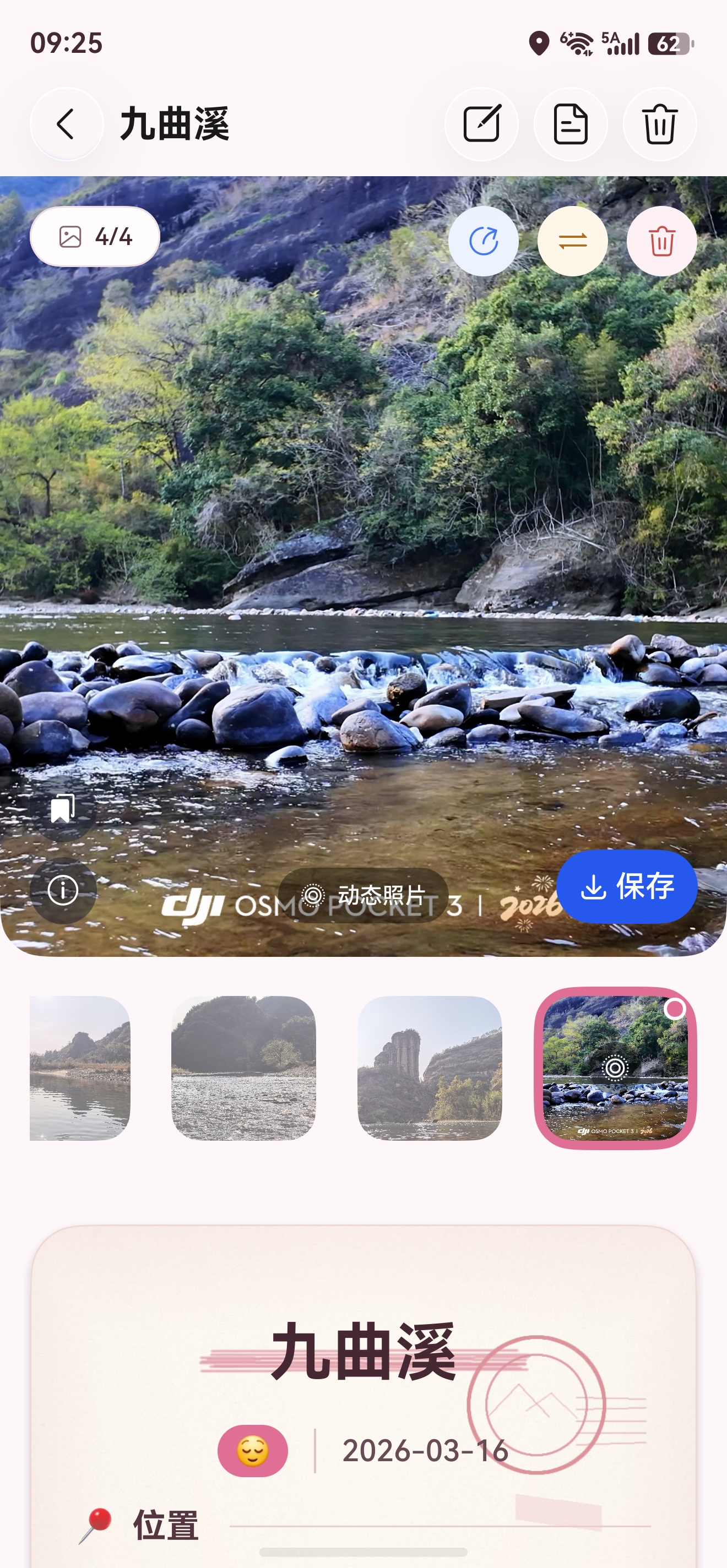
这里放一张效果图
选择和导入的流程
我在 MainPage.ets 里使用 PhotoViewPicker 拉起系统相册。项目当前选择类型是 PhotoViewMIMETypes.IMAGE_TYPE,这样用户选择普通图片和动态照片都能进入同一条导入链路。导入时先尝试按动态照片处理,如果 requestMovingPhoto 失败,就说明它不是动态照片或系统没有返回动态资源,再回退为普通图片导入。
SQLite 应用沙箱 Media Library Kit PhotoViewPicker 时光旅记 用户 SQLite 应用沙箱 Media Library Kit PhotoViewPicker 时光旅记 用户 #mermaid-svg-MbCdjBLb7RUlCX6a{font-family:"trebuchet ms",verdana,arial,sans-serif;font-size:16px;fill:#333;}@keyframes edge-animation-frame{from{stroke-dashoffset:0;}}@keyframes dash{to{stroke-dashoffset:0;}}#mermaid-svg-MbCdjBLb7RUlCX6a .edge-animation-slow{stroke-dasharray:9,5!important;stroke-dashoffset:900;animation:dash 50s linear infinite;stroke-linecap:round;}#mermaid-svg-MbCdjBLb7RUlCX6a .edge-animation-fast{stroke-dasharray:9,5!important;stroke-dashoffset:900;animation:dash 20s linear infinite;stroke-linecap:round;}#mermaid-svg-MbCdjBLb7RUlCX6a .error-icon{fill:#552222;}#mermaid-svg-MbCdjBLb7RUlCX6a .error-text{fill:#552222;stroke:#552222;}#mermaid-svg-MbCdjBLb7RUlCX6a .edge-thickness-normal{stroke-width:1px;}#mermaid-svg-MbCdjBLb7RUlCX6a .edge-thickness-thick{stroke-width:3.5px;}#mermaid-svg-MbCdjBLb7RUlCX6a .edge-pattern-solid{stroke-dasharray:0;}#mermaid-svg-MbCdjBLb7RUlCX6a .edge-thickness-invisible{stroke-width:0;fill:none;}#mermaid-svg-MbCdjBLb7RUlCX6a .edge-pattern-dashed{stroke-dasharray:3;}#mermaid-svg-MbCdjBLb7RUlCX6a .edge-pattern-dotted{stroke-dasharray:2;}#mermaid-svg-MbCdjBLb7RUlCX6a .marker{fill:#333333;stroke:#333333;}#mermaid-svg-MbCdjBLb7RUlCX6a .marker.cross{stroke:#333333;}#mermaid-svg-MbCdjBLb7RUlCX6a svg{font-family:"trebuchet ms",verdana,arial,sans-serif;font-size:16px;}#mermaid-svg-MbCdjBLb7RUlCX6a p{margin:0;}#mermaid-svg-MbCdjBLb7RUlCX6a .actor{stroke:hsl(259.6261682243, 59.7765363128%, 87.9019607843%);fill:#ECECFF;}#mermaid-svg-MbCdjBLb7RUlCX6a text.actor>tspan{fill:black;stroke:none;}#mermaid-svg-MbCdjBLb7RUlCX6a .actor-line{stroke:hsl(259.6261682243, 59.7765363128%, 87.9019607843%);}#mermaid-svg-MbCdjBLb7RUlCX6a .innerArc{stroke-width:1.5;stroke-dasharray:none;}#mermaid-svg-MbCdjBLb7RUlCX6a .messageLine0{stroke-width:1.5;stroke-dasharray:none;stroke:#333;}#mermaid-svg-MbCdjBLb7RUlCX6a .messageLine1{stroke-width:1.5;stroke-dasharray:2,2;stroke:#333;}#mermaid-svg-MbCdjBLb7RUlCX6a #arrowhead path{fill:#333;stroke:#333;}#mermaid-svg-MbCdjBLb7RUlCX6a .sequenceNumber{fill:white;}#mermaid-svg-MbCdjBLb7RUlCX6a #sequencenumber{fill:#333;}#mermaid-svg-MbCdjBLb7RUlCX6a #crosshead path{fill:#333;stroke:#333;}#mermaid-svg-MbCdjBLb7RUlCX6a .messageText{fill:#333;stroke:none;}#mermaid-svg-MbCdjBLb7RUlCX6a .labelBox{stroke:hsl(259.6261682243, 59.7765363128%, 87.9019607843%);fill:#ECECFF;}#mermaid-svg-MbCdjBLb7RUlCX6a .labelText,#mermaid-svg-MbCdjBLb7RUlCX6a .labelText>tspan{fill:black;stroke:none;}#mermaid-svg-MbCdjBLb7RUlCX6a .loopText,#mermaid-svg-MbCdjBLb7RUlCX6a .loopText>tspan{fill:black;stroke:none;}#mermaid-svg-MbCdjBLb7RUlCX6a .loopLine{stroke-width:2px;stroke-dasharray:2,2;stroke:hsl(259.6261682243, 59.7765363128%, 87.9019607843%);fill:hsl(259.6261682243, 59.7765363128%, 87.9019607843%);}#mermaid-svg-MbCdjBLb7RUlCX6a .note{stroke:#aaaa33;fill:#fff5ad;}#mermaid-svg-MbCdjBLb7RUlCX6a .noteText,#mermaid-svg-MbCdjBLb7RUlCX6a .noteText>tspan{fill:black;stroke:none;}#mermaid-svg-MbCdjBLb7RUlCX6a .activation0{fill:#f4f4f4;stroke:#666;}#mermaid-svg-MbCdjBLb7RUlCX6a .activation1{fill:#f4f4f4;stroke:#666;}#mermaid-svg-MbCdjBLb7RUlCX6a .activation2{fill:#f4f4f4;stroke:#666;}#mermaid-svg-MbCdjBLb7RUlCX6a .actorPopupMenu{position:absolute;}#mermaid-svg-MbCdjBLb7RUlCX6a .actorPopupMenuPanel{position:absolute;fill:#ECECFF;box-shadow:0px 8px 16px 0px rgba(0,0,0,0.2);filter:drop-shadow(3px 5px 2px rgb(0 0 0 / 0.4));}#mermaid-svg-MbCdjBLb7RUlCX6a .actor-man line{stroke:hsl(259.6261682243, 59.7765363128%, 87.9019607843%);fill:#ECECFF;}#mermaid-svg-MbCdjBLb7RUlCX6a .actor-man circle,#mermaid-svg-MbCdjBLb7RUlCX6a line{stroke:hsl(259.6261682243, 59.7765363128%, 87.9019607843%);fill:#ECECFF;stroke-width:2px;}#mermaid-svg-MbCdjBLb7RUlCX6a :root{--mermaid-font-family:"trebuchet ms",verdana,arial,sans-serif;} alt是动态照片普通图片或请求失败 点击添加照片select(IMAGE_TYPE)photoUrisgetAssets(uri)PhotoAssetrequestMovingPhoto(asset)MovingPhotorequestContent(imagePath, videoPath)保存 isMovingPhoto 和 videoUricopyUriToSandbox按普通图片保存在瞬间中展示媒体
这段逻辑的关键在于"先尝试动态照片,再回退普通图片"。因为 Picker 返回的都是媒体 URI,业务层不能只看扩展名判断。
ts
private async preparePhotoImportMediaRecords(
  hostContext: Context,
  notebookId: string,
  assetUris: Array<string>,
  readableUris: Array<string>,
  fallbackExtension: string,
  logTag: string
): Promise<PhotoImportPrepareResult> {
  let result: PhotoImportPrepareResult = new PhotoImportPrepareResult();
  let movingEntries: Array<PhotoImportPreparedEntry> = [];
  let normalAssetUris: Array<string> = [];
  let normalOrders: Array<number> = [];
  let helper: photoAccessHelper.PhotoAccessHelper = photoAccessHelper.getPhotoAccessHelper(hostContext);
  let totalCount: number = assetUris.length > 0 ? assetUris.length : readableUris.length;

  for (let i: number = 0; i < totalCount; i++) {
    let assetUri: string = i < assetUris.length ? assetUris[i] : '';
    if (assetUri.length === 0) {
      if (i < readableUris.length && readableUris[i].length > 0) {
        normalAssetUris.push(readableUris[i]);
        normalOrders.push(i);
      }
      continue;
    }

    let preferredName: string = guessFileName(assetUri, MediaKind.PHOTO, fallbackExtension);
    try {
      let media: LocalMediaRecord = await createMovingPhotoMediaRecord(
        hostContext,
        notebookId,
        assetUri,
        preferredName
      );
      let entry: PhotoImportPreparedEntry = new PhotoImportPreparedEntry();
      entry.assetUri = assetUri;
      entry.sourceUri = assetUri;
      entry.media = media;
      entry.order = i;
      movingEntries.push(entry);
      console.info(
        `[${logTag}] stage=moving-photo-copied index=${i.toString()} ` +
        `assetUri=${assetUri} targetUri=${media.localUri} videoUri=${media.movingPhotoVideoUri}`
      );
    } catch (_movingPhotoError) {
      normalAssetUris.push(assetUri);
      normalOrders.push(i);
    }
  }

  if (movingEntries.length > 0) {
    let movingAssetUris: Array<string> = movingEntries.map((entry: PhotoImportPreparedEntry): string => entry.assetUri);
    let movingReadableUris: Array<string> = await this.requestReadableUrisForPhotoImport(helper, movingAssetUris);
    for (let i: number = 0; i < movingEntries.length; i++) {
      let entry: PhotoImportPreparedEntry = movingEntries[i];
      if (i < movingReadableUris.length && movingReadableUris[i].length > 0) {
        entry.sourceUri = movingReadableUris[i];
        entry.media.sourceUri = entry.sourceUri;
      }
      result.entries.push(entry);
    }
  }

  if (normalAssetUris.length > 0) {
    let normalReadableUris: Array<string> = await this.requestReadableUrisForPhotoImport(helper, normalAssetUris);
    for (let i: number = 0; i < normalAssetUris.length; i++) {
      let sourceUri: string = i < normalReadableUris.length && normalReadableUris[i].length > 0
        ? normalReadableUris[i] : normalAssetUris[i];
      try {
        let preferredName: string = guessFileName(sourceUri, MediaKind.PHOTO, fallbackExtension);
        let target: SandboxFileTarget = await copyUriToSandbox(
          hostContext,
          notebookId,
          sourceUri,
          MediaKind.PHOTO,
          preferredName,
          fallbackExtension
        );
        let entry: PhotoImportPreparedEntry = new PhotoImportPreparedEntry();
        entry.assetUri = normalAssetUris[i];
        entry.sourceUri = sourceUri;
        entry.media = createMediaRecord(MediaKind.PHOTO, sourceUri, target);
        entry.order = normalOrders[i];
        result.entries.push(entry);
      } catch (_error) {
        result.failedCount = result.failedCount + 1;
      }
    }
  }

  result.entries = result.entries.sort((left: PhotoImportPreparedEntry, right: PhotoImportPreparedEntry): number => {
    return left.order - right.order;
  });
  return result;
}
从媒体库拿到 MovingPhoto
真正和 Moving Photo 打交道的是 TimeImprintService.ets。这里先通过 PhotoAccessHelper.getAssets 根据 URI 查询 PhotoAsset,再调用 MediaAssetManager.requestMovingPhoto。我使用的是 HIGH_QUALITY_MODE,因为《时光旅记》做的是回忆沉淀,不是临时快速预览,导入阶段可以多等一点时间换更稳定的资源质量。
ts
async function fetchPhotoAssetByUri(context: Context, sourceUri: string): Promise<photoAccessHelper.PhotoAsset> {
  let helper: photoAccessHelper.PhotoAccessHelper = photoAccessHelper.getPhotoAccessHelper(context);
  let predicates: dataSharePredicates.DataSharePredicates = new dataSharePredicates.DataSharePredicates();
  predicates.equalTo(photoAccessHelper.PhotoKeys.URI, sourceUri);
  let options: photoAccessHelper.FetchOptions = {
    fetchColumns: [
      photoAccessHelper.PhotoKeys.URI,
      photoAccessHelper.PhotoKeys.PHOTO_TYPE,
      photoAccessHelper.PhotoKeys.DISPLAY_NAME,
      photoAccessHelper.PhotoKeys.DATE_TAKEN_MS,
      photoAccessHelper.PhotoKeys.DATE_TAKEN
    ],
    predicates: predicates
  };
  let fetchResult: photoAccessHelper.FetchResult<photoAccessHelper.PhotoAsset> = await helper.getAssets(options);
  try {
    if (fetchResult.getCount() <= 0) {
      throw new Error(`photo asset not found: ${sourceUri}`);
    }
    return await fetchResult.getFirstObject();
  } finally {
    fetchResult.close();
  }
}

async function requestMovingPhotoFromMediaLibrary(
  context: Context,
  sourceUri: string
): Promise<photoAccessHelper.MovingPhoto> {
  let asset: photoAccessHelper.PhotoAsset = await fetchPhotoAssetByUri(context, sourceUri);
  let options: photoAccessHelper.RequestOptions = {
    deliveryMode: photoAccessHelper.DeliveryMode.HIGH_QUALITY_MODE
  };
  return new Promise<photoAccessHelper.MovingPhoto>((resolve, reject) => {
    photoAccessHelper.MediaAssetManager.requestMovingPhoto(context, asset, options, {
      onDataPrepared(movingPhoto: photoAccessHelper.MovingPhoto | undefined): void {
        if (movingPhoto === undefined) {
          reject(new Error('moving photo not found'));
          return;
        }
        resolve(movingPhoto);
      }
    }).catch(() => {
      reject(new Error('request moving photo failed'));
    });
  });
}
拿到 MovingPhoto 后,不要直接把这个对象塞进业务模型长期保存。对象是运行期资源,真正应该保存的是图片文件、视频文件和元数据。
ts
export async function createMovingPhotoMediaRecord(
  context: Context,
  notebookId: string,
  sourceUri: string,
  preferredName: string
): Promise<LocalMediaRecord> {
  let movingPhoto: photoAccessHelper.MovingPhoto = await requestMovingPhotoFromMediaLibrary(context, sourceUri);
  let imageTarget: SandboxFileTarget = await prepareSandboxFile(
    context,
    notebookId,
    MediaKind.PHOTO,
    preferredName,
    'jpg'
  );
  let videoTarget: SandboxFileTarget = await prepareSandboxFile(
    context,
    notebookId,
    MediaKind.VIDEO,
    buildMovingPhotoVideoName(preferredName),
    'mp4'
  );

  await movingPhoto.requestContent(imageTarget.filePath, videoTarget.filePath);

  let media: LocalMediaRecord = createMediaRecord(MediaKind.PHOTO, sourceUri, imageTarget);
  media.isMovingPhoto = true;
  media.movingPhotoVideoPath = videoTarget.filePath;
  media.movingPhotoVideoUri = videoTarget.fileUri;
  media.movingPhotoSourceVideoUri = movingPhoto.getUri();
  return media;
}

function buildMovingPhotoVideoName(imagePreferredName: string): string {
  let clean: string = imagePreferredName.trim();
  let dotIndex: number = clean.lastIndexOf('.');
  if (dotIndex > 0) {
    return clean.substring(0, dotIndex) + '.mp4';
  }
  return clean.length > 0 ? clean + '.mp4' : 'moving_photo.mp4';
}这里有一个容易踩坑的点:requestContent(imageTarget.filePath, videoTarget.filePath) 使用的是沙箱文件路径,不是媒体库 URI。导出完成后,我再用 fileUri.getUriFromPath 生成 file:// 形式的 localUri 和 movingPhotoVideoUri,给 ArkUI 组件使用。
数据模型怎么存
LocalMediaRecord 里把动态照片设计成"照片记录的增强字段",而不是单独拆成一条视频记录。这样在业务上它仍然是一张照片,只是多了一段可播放内容。
ts
export class LocalMediaRecord {
  id: string = '';
  kind: MediaKind = MediaKind.PHOTO;
  fileName: string = '';
  localPath: string = '';
  localUri: string = '';
  sourceUri: string = '';
  originalLocalPath: string = '';
  originalLocalUri: string = '';
  thumbnailPath: string = '';
  thumbnailUri: string = '';
  originalCloudUri: string = '';
  previewCloudUri: string = '';
  isPreviewCompressed: boolean = false;
  isMovingPhoto: boolean = false;
  movingPhotoVideoPath: string = '';
  movingPhotoVideoUri: string = '';
  movingPhotoSourceVideoUri: string = '';
  createdAt: string = '';
}
SQLite 表里对应增加这些列:
sql
is_moving_photo INTEGER NOT NULL DEFAULT 0,
moving_photo_video_path TEXT NOT NULL DEFAULT '',
moving_photo_video_uri TEXT NOT NULL DEFAULT '',
moving_photo_source_video_uri TEXT NOT NULL DEFAULT ''
读取时恢复到模型:
ts
media.isMovingPhoto = resultSet.getLong(resultSet.getColumnIndex('is_moving_photo')) === 1;
media.movingPhotoVideoPath = resultSet.getString(resultSet.getColumnIndex('moving_photo_video_path'));
media.movingPhotoVideoUri = resultSet.getString(resultSet.getColumnIndex('moving_photo_video_uri'));
media.movingPhotoSourceVideoUri = resultSet.getString(resultSet.getColumnIndex('moving_photo_source_video_uri'));
保存时写回数据库:
ts
mediaValues.push({
  id: media.id,
  moment_id: moment.id,
  sort_order: mediaIndex,
  kind: media.kind,
  file_name: media.fileName,
  local_path: media.localPath,
  local_uri: media.localUri,
  source_uri: media.sourceUri,
  original_local_path: media.originalLocalPath,
  original_local_uri: media.originalLocalUri,
  thumbnail_path: media.thumbnailPath,
  thumbnail_uri: media.thumbnailUri,
  original_cloud_uri: media.originalCloudUri,
  preview_cloud_uri: media.previewCloudUri,
  is_preview_compressed: media.isPreviewCompressed ? 1 : 0,
  is_moving_photo: media.isMovingPhoto ? 1 : 0,
  moving_photo_video_path: media.movingPhotoVideoPath,
  moving_photo_video_uri: media.movingPhotoVideoUri,
  moving_photo_source_video_uri: media.movingPhotoSourceVideoUri,
  created_at: media.createdAt
});
在详情页标记动态照片
在瞬间详情页,我没有直接在列表里播放动态照片。列表场景需要稳定、省电、可快速滚动,所以这里只显示静态图,再叠一个 livephoto 图标告诉用户这张照片可播放。
ts
private isMovingPhotoItem(item: LocalMediaRecord): boolean {
  return item.kind === MediaKind.PHOTO && item.isMovingPhoto && item.movingPhotoVideoUri.length > 0;
}
缩略图上的标识可以这样写:
ts
Stack({ alignContent: Alignment.Center }) {
  Image(item.localUri)
    .width(80)
    .height(80)
    .objectFit(ImageFit.Cover)
    .orientation(ImageRotateOrientation.AUTO)
    .borderRadius(16)

  if (this.isMovingPhotoItem(item)) {
    Row() {
      SymbolGlyph($r('sys.symbol.livephoto'))
        .fontSize(17)
        .fontColor([Color.White])
    }
    .width(24)
    .height(24)
    .justifyContent(FlexAlign.Center)
    .backgroundColor('#66000000')
    .borderRadius(12)
    .position({ left: 6, bottom: 6 })
  }
}
全屏预览时恢复 MovingPhoto
进入 ImagePreviewDialog 时,外层会把图片 URI 数组和对应的视频 URI 数组一起传进来。普通图片的视频 URI 是空字符串,动态照片才有 movingPhotoVideoUri。
ts
ImagePreviewDialog({
  imageUri: $previewImageUri,
  imageIndex: $previewImageIndex,
  imageUris: this.previewImageUris,
  movingPhotoVideoUris: this.previewMovingPhotoVideoUris,
  expressionAssistEnabled: this.store.microExpressionPhotoAssistEnabled,
  onClose: () => {
    this.closeImagePreview();
  },
  onImageChange: (index: number, uri: string) => {
    this.handleImagePreviewIndexChange(index, uri);
  }
})
组装 movingPhotoVideoUris 的逻辑如下:
ts
private resolvePreviewMovingPhotoVideoUris(previewUris: Array<string>): Array<string> {
  const result: Array<string> = [];
  const moment: MomentRecord | undefined = this.showMomentDetail ? this.getCurrentMomentDetail() : undefined;
  const photoItems: Array<LocalMediaRecord> = moment === undefined ? [] : this.getMomentPhotoMediaItems(moment);
  for (let i: number = 0; i < previewUris.length; i++) {
    let videoUri: string = '';
    if (i < photoItems.length && photoItems[i].isMovingPhoto && photoItems[i].movingPhotoVideoUri.length > 0) {
      videoUri = photoItems[i].movingPhotoVideoUri;
    }
    result.push(videoUri);
  }
  return result;
}
ImagePreviewDialog 里再通过 MediaAssetManager.loadMovingPhoto 从沙箱图片和沙箱视频恢复一个运行期 MovingPhoto。
ts
private async prepareMovingPhoto(): Promise<void> {
  this.stopMovingPhotoPlayback();
  this.clearMovingPhotoViewReadyTimer();
  this.clearMovingPhotoPlaybackRetryTimer();
  this.movingPhoto = undefined;
  this.movingPhotoLoadFailed = false;
  this.movingPhotoPlaying = false;
  this.movingPhotoViewReady = false;

  const currentImageUri: string = this.imageUri;
  const currentVideoUri: string = this.getCurrentMovingPhotoVideoUri();
  this.activeMovingPhotoVideoUri = currentVideoUri;
  if (currentImageUri.length === 0 || currentVideoUri.length === 0) {
    this.movingPhotoLoading = false;
    return;
  }

  const hostContext: Context | undefined = this.getUIContext().getHostContext();
  if (hostContext === undefined) {
    this.movingPhotoLoading = false;
    this.movingPhotoLoadFailed = true;
    return;
  }

  this.movingPhotoLoading = true;
  try {
    const movingPhoto: photoAccessHelper.MovingPhoto =
      await photoAccessHelper.MediaAssetManager.loadMovingPhoto(
        hostContext,
        currentImageUri,
        currentVideoUri
      );
    if (this.imageUri !== currentImageUri || this.getCurrentMovingPhotoVideoUri() !== currentVideoUri) {
      return;
    }
    this.movingPhoto = movingPhoto;
    this.movingPhotoLoadFailed = false;
  } catch (_error) {
    if (this.imageUri === currentImageUri && this.getCurrentMovingPhotoVideoUri() === currentVideoUri) {
      this.movingPhotoLoadFailed = true;
    }
  }

  if (this.imageUri === currentImageUri && this.getCurrentMovingPhotoVideoUri() === currentVideoUri) {
    this.movingPhotoLoading = false;
  }
}
最后用 MovingPhotoView 播放。官方文档说明 MovingPhotoView 底层使用 AVPlayer,同时开启的 AVPlayer 不建议超过 3 个,所以我只在当前页是动态照片时渲染它,并且页面消失时主动停止播放。
ts
private readonly movingPhotoController: MovingPhotoViewController = new MovingPhotoViewController();

private stopMovingPhotoPlayback(): void {
  this.clearMovingPhotoPlaybackRetryTimer();
  try {
    this.movingPhotoController.stopPlayback();
  } catch (_error) {
  }
  this.movingPhotoPlaying = false;
}

private startMovingPhotoPlayback(): void {
  if (this.movingPhoto === undefined || this.movingPhotoLoadFailed || !this.movingPhotoViewReady) {
    return;
  }
  this.clearMovingPhotoPlaybackRetryTimer();
  this.tryStartMovingPhotoPlayback();
  this.movingPhotoPlaybackRetryTimer = setTimeout(() => {
    this.movingPhotoPlaybackRetryTimer = -1;
    if (this.movingPhoto !== undefined && !this.movingPhotoPlaying && !this.movingPhotoLoadFailed &&
      this.movingPhotoViewReady) {
      this.tryStartMovingPhotoPlayback();
    }
  }, 160);
}

private tryStartMovingPhotoPlayback(): void {
  try {
    this.movingPhotoController.startPlayback();
  } catch (_error) {
    this.movingPhotoPlaying = false;
  }
}
UI 部分:
ts
if (this.movingPhoto !== undefined && this.activeMovingPhotoVideoUri === this.getMovingPhotoVideoUri(index)) {
  MovingPhotoView({
    movingPhoto: this.movingPhoto,
    controller: this.movingPhotoController
  })
    .width('100%')
    .height('100%')
    .muted(false)
    .objectFit(ImageFit.Contain)
    .scale({ x: this.previewScale, y: this.previewScale })
    .translate({ x: this.previewOffsetX, y: this.previewOffsetY, z: 0 })
    .onAppear(() => {
      this.scheduleMovingPhotoViewReady(this.getMovingPhotoVideoUri(index));
    })
    .onDisAppear(() => {
      this.movingPhotoViewReady = false;
      this.clearMovingPhotoViewReadyTimer();
      this.clearMovingPhotoPlaybackRetryTimer();
    })
    .onStart(() => {
      this.clearMovingPhotoPlaybackRetryTimer();
      this.movingPhotoPlaying = true;
    })
    .onFinish(() => {
      this.clearMovingPhotoPlaybackRetryTimer();
      this.movingPhotoPlaying = false;
    })
    .onStop(() => {
      this.clearMovingPhotoPlaybackRetryTimer();
      this.movingPhotoPlaying = false;
    })
    .onError(() => {
      this.clearMovingPhotoPlaybackRetryTimer();
      this.movingPhotoLoadFailed = true;
      this.movingPhotoPlaying = false;
    })
}
播放按钮我单独盖在中间,避免用户不知道这是一张可以播放的动态照片:
ts
if (this.movingPhotoLoading) {
  LoadingProgress()
    .width(32)
    .height(32)
    .color(Color.White)
} else if (this.movingPhoto !== undefined && this.movingPhotoViewReady && !this.movingPhotoLoadFailed &&
  !this.movingPhotoPlaying) {
  Button({ type: ButtonType.Circle, stateEffect: true }) {
    SymbolGlyph($r('sys.symbol.play_fill'))
      .fontSize(22)
      .fontColor([Color.White])
  }
  .width(52)
  .height(52)
  .backgroundColor('#66000000')
  .onClick(() => {
    this.startMovingPhotoPlayback();
  })
}
这里可以放一张"点击播放后动态照片播放中"的截图。
效果图占位:MovingPhotoView 播放中
权限和合规边界
项目没有申请 ohos.permission.READ_IMAGEVIDEO 和 ohos.permission.WRITE_IMAGEVIDEO。读取用户选择的照片时,主要依赖 PhotoViewPicker 和 requestPhotoUrisReadPermission 返回授权后的 URI。只有读取照片 EXIF 里的拍摄地点时,才会申请 ohos.permission.MEDIA_LOCATION。
这种做法对三方应用更友好。动态照片导入不需要拿整个相册权限,用户选了哪几张,应用就处理哪几张。
如果你的业务需要把一组沙箱里的图片和视频重新保存为系统图库动态照片,可以使用安全控件 SaveButton。安全控件点击成功后,创建 MediaAssetChangeRequest,指定 PhotoSubtype.MOVING_PHOTO,再分别添加图片资源和视频资源。
ts
import { common } from '@kit.AbilityKit';
import { photoAccessHelper } from '@kit.MediaLibraryKit';

@Entry
@Component
struct SaveMovingPhotoDemo {
  @State message: string = '保存动态照片';
  private saveButtonOptions: SaveButtonOptions = {
    icon: SaveIconStyle.FULL_FILLED,
    text: SaveDescription.SAVE_IMAGE,
    buttonType: ButtonType.Capsule
  };

  build() {
    Column({ space: 16 }) {
      Text(this.message)
        .fontSize(16)

      SaveButton(this.saveButtonOptions)
        .onClick(async (_event, result: SaveButtonOnClickResult) => {
          if (result !== SaveButtonOnClickResult.SUCCESS) {
            this.message = '用户未授权保存';
            return;
          }

          try {
            const context: common.UIAbilityContext =
              this.getUIContext().getHostContext() as common.UIAbilityContext;
            const helper: photoAccessHelper.PhotoAccessHelper = photoAccessHelper.getPhotoAccessHelper(context);
            const imageFileUri: string = 'file://' + context.filesDir + '/moving_photo.jpg';
            const videoFileUri: string = 'file://' + context.filesDir + '/moving_photo.mp4';

            const request: photoAccessHelper.MediaAssetChangeRequest =
              photoAccessHelper.MediaAssetChangeRequest.createAssetRequest(
                context,
                photoAccessHelper.PhotoType.IMAGE,
                'jpg',
                {
                  title: 'time_imprint_moving_photo',
                  subtype: photoAccessHelper.PhotoSubtype.MOVING_PHOTO
                }
              );

            request.addResource(photoAccessHelper.ResourceType.IMAGE_RESOURCE, imageFileUri);
            request.addResource(photoAccessHelper.ResourceType.VIDEO_RESOURCE, videoFileUri);
            await helper.applyChanges(request);

            this.message = '动态照片已保存到图库';
          } catch (error) {
            this.message = `保存失败:${JSON.stringify(error)}`;
          }
        })
    }
    .width('100%')
    .height('100%')
    .justifyContent(FlexAlign.Center)
  }
}
官方要求动态照片视频时长不能超过 10 秒,这个限制在做"导出为动态照片"能力时必须提前校验。
完整最小可用代码
下面是一份把关键链路收拢后的最小可用版本,可以直接放进一个工具类和一个预览组件里。真实项目里我把这些代码拆在 TimeImprintService.ets、MainPage.ets 和 ImagePreviewDialog.ets 中。
ts
// MovingPhotoImportService.ets
import { Context } from '@kit.AbilityKit';
import { dataSharePredicates } from '@kit.ArkData';
import { fileIo, fileUri } from '@kit.CoreFileKit';
import { photoAccessHelper } from '@kit.MediaLibraryKit';

export enum MediaKind {
  PHOTO = 'photo',
  VIDEO = 'video'
}

export class SandboxFileTarget {
  fileName: string = '';
  filePath: string = '';
  fileUri: string = '';
}

export class LocalMediaRecord {
  id: string = '';
  kind: MediaKind = MediaKind.PHOTO;
  fileName: string = '';
  localPath: string = '';
  localUri: string = '';
  sourceUri: string = '';
  isMovingPhoto: boolean = false;
  movingPhotoVideoPath: string = '';
  movingPhotoVideoUri: string = '';
  movingPhotoSourceVideoUri: string = '';
  createdAt: string = '';
}

const ROOT_DIRECTORY: string = 'time-imprint';

export async function createMovingPhotoMediaRecord(
  context: Context,
  notebookId: string,
  sourceUri: string,
  preferredName: string
): Promise<LocalMediaRecord> {
  const movingPhoto: photoAccessHelper.MovingPhoto = await requestMovingPhotoFromMediaLibrary(context, sourceUri);
  const imageTarget: SandboxFileTarget = await prepareSandboxFile(
    context,
    notebookId,
    MediaKind.PHOTO,
    preferredName,
    'jpg'
  );
  const videoTarget: SandboxFileTarget = await prepareSandboxFile(
    context,
    notebookId,
    MediaKind.VIDEO,
    buildMovingPhotoVideoName(preferredName),
    'mp4'
  );

  await movingPhoto.requestContent(imageTarget.filePath, videoTarget.filePath);

  const media: LocalMediaRecord = createMediaRecord(MediaKind.PHOTO, sourceUri, imageTarget);
  media.isMovingPhoto = true;
  media.movingPhotoVideoPath = videoTarget.filePath;
  media.movingPhotoVideoUri = videoTarget.fileUri;
  media.movingPhotoSourceVideoUri = movingPhoto.getUri();
  return media;
}

async function requestMovingPhotoFromMediaLibrary(
  context: Context,
  sourceUri: string
): Promise<photoAccessHelper.MovingPhoto> {
  const asset: photoAccessHelper.PhotoAsset = await fetchPhotoAssetByUri(context, sourceUri);
  const options: photoAccessHelper.RequestOptions = {
    deliveryMode: photoAccessHelper.DeliveryMode.HIGH_QUALITY_MODE
  };
  return new Promise<photoAccessHelper.MovingPhoto>((resolve, reject) => {
    photoAccessHelper.MediaAssetManager.requestMovingPhoto(context, asset, options, {
      onDataPrepared(movingPhoto: photoAccessHelper.MovingPhoto | undefined): void {
        if (movingPhoto === undefined) {
          reject(new Error('moving photo not found'));
          return;
        }
        resolve(movingPhoto);
      }
    }).catch(() => {
      reject(new Error('request moving photo failed'));
    });
  });
}

async function fetchPhotoAssetByUri(context: Context, sourceUri: string): Promise<photoAccessHelper.PhotoAsset> {
  const helper: photoAccessHelper.PhotoAccessHelper = photoAccessHelper.getPhotoAccessHelper(context);
  const predicates: dataSharePredicates.DataSharePredicates = new dataSharePredicates.DataSharePredicates();
  predicates.equalTo(photoAccessHelper.PhotoKeys.URI, sourceUri);
  const options: photoAccessHelper.FetchOptions = {
    fetchColumns: [
      photoAccessHelper.PhotoKeys.URI,
      photoAccessHelper.PhotoKeys.PHOTO_TYPE,
      photoAccessHelper.PhotoKeys.DISPLAY_NAME
    ],
    predicates
  };
  const fetchResult: photoAccessHelper.FetchResult<photoAccessHelper.PhotoAsset> = await helper.getAssets(options);
  try {
    if (fetchResult.getCount() <= 0) {
      throw new Error(`photo asset not found: ${sourceUri}`);
    }
    return await fetchResult.getFirstObject();
  } finally {
    fetchResult.close();
  }
}

async function prepareSandboxFile(
  context: Context,
  notebookId: string,
  kind: MediaKind,
  preferredName: string,
  fallbackExtension: string
): Promise<SandboxFileTarget> {
  const directory: string = await ensureNotebookDirectory(context, notebookId);
  const fileName: string = buildUniqueFileName(kind, preferredName, fallbackExtension);
  const target: SandboxFileTarget = new SandboxFileTarget();
  target.fileName = fileName;
  target.filePath = directory + '/' + fileName;
  target.fileUri = fileUri.getUriFromPath(target.filePath);
  return target;
}

async function ensureNotebookDirectory(context: Context, notebookId: string): Promise<string> {
  const rootPath: string = context.filesDir + '/' + ROOT_DIRECTORY;
  if (!fileIo.accessSync(rootPath)) {
    await fileIo.mkdir(rootPath, true);
  }
  const notebookPath: string = rootPath + '/' + notebookId;
  if (!fileIo.accessSync(notebookPath)) {
    await fileIo.mkdir(notebookPath, true);
  }
  return notebookPath;
}

function createMediaRecord(kind: MediaKind, sourceUri: string, target: SandboxFileTarget): LocalMediaRecord {
  const media: LocalMediaRecord = new LocalMediaRecord();
  media.id = createIdentifier('media');
  media.kind = kind;
  media.fileName = target.fileName;
  media.localPath = target.filePath;
  media.localUri = target.fileUri;
  media.sourceUri = sourceUri;
  media.createdAt = new Date().toISOString();
  return media;
}

function buildMovingPhotoVideoName(imagePreferredName: string): string {
  const clean: string = imagePreferredName.trim();
  const dotIndex: number = clean.lastIndexOf('.');
  if (dotIndex > 0) {
    return clean.substring(0, dotIndex) + '.mp4';
  }
  return clean.length > 0 ? clean + '.mp4' : 'moving_photo.mp4';
}

function buildUniqueFileName(kind: MediaKind, preferredName: string, fallbackExtension: string): string {
  let safeName: string = preferredName.trim().replace(/[\\/:*?"<>|]/g, '_');
  let dotIndex: number = safeName.lastIndexOf('.');
  let basename: string = safeName;
  let extension: string = fallbackExtension.replace(/^\./, '').toLowerCase();
  if (dotIndex > 0 && dotIndex < safeName.length - 1) {
    basename = safeName.substring(0, dotIndex);
    extension = safeName.substring(dotIndex + 1).toLowerCase();
  }
  if (basename.length === 0) {
    basename = kind === MediaKind.VIDEO ? 'video' : 'photo';
  }
  return basename + '_' + Date.now().toString() + '.' + extension;
}

function createIdentifier(prefix: string): string {
  return prefix + '_' + Date.now().toString() + '_' + Math.floor(Math.random() * 1000000).toString();
}
ts
// MovingPhotoPreview.ets
import { Context } from '@kit.AbilityKit';
import { photoAccessHelper, MovingPhotoView, MovingPhotoViewController } from '@kit.MediaLibraryKit';

@Component
export struct MovingPhotoPreview {
  imageUri: string = '';
  videoUri: string = '';

  @State private movingPhoto: photoAccessHelper.MovingPhoto | undefined = undefined;
  @State private loading: boolean = false;
  @State private loadFailed: boolean = false;
  @State private playing: boolean = false;
  private readonly controller: MovingPhotoViewController = new MovingPhotoViewController();

  aboutToAppear(): void {
    void this.loadMovingPhoto();
  }

  aboutToDisappear(): void {
    try {
      this.controller.stopPlayback();
    } catch (_error) {
    }
  }

  private async loadMovingPhoto(): Promise<void> {
    if (this.imageUri.length === 0 || this.videoUri.length === 0) {
      this.loadFailed = true;
      return;
    }

    const context: Context | undefined = this.getUIContext().getHostContext();
    if (context === undefined) {
      this.loadFailed = true;
      return;
    }

    this.loading = true;
    this.loadFailed = false;
    try {
      this.movingPhoto = await photoAccessHelper.MediaAssetManager.loadMovingPhoto(
        context,
        this.imageUri,
        this.videoUri
      );
    } catch (_error) {
      this.loadFailed = true;
    }
    this.loading = false;
  }

  build() {
    Stack({ alignContent: Alignment.Center }) {
      if (this.movingPhoto !== undefined && !this.loadFailed) {
        MovingPhotoView({
          movingPhoto: this.movingPhoto,
          controller: this.controller
        })
          .width('100%')
          .height('100%')
          .muted(false)
          .objectFit(ImageFit.Contain)
          .onStart(() => {
            this.playing = true;
          })
          .onFinish(() => {
            this.playing = false;
          })
          .onStop(() => {
            this.playing = false;
          })
          .onError(() => {
            this.loadFailed = true;
            this.playing = false;
          })
      } else {
        Image(this.imageUri)
          .width('100%')
          .height('100%')
          .objectFit(ImageFit.Contain)
          .orientation(ImageRotateOrientation.AUTO)
      }

      if (this.loading) {
        LoadingProgress()
          .width(32)
          .height(32)
      } else if (this.movingPhoto !== undefined && !this.playing && !this.loadFailed) {
        Button('播放')
          .width(84)
          .height(44)
          .onClick(() => {
            try {
              this.controller.startPlayback();
            } catch (_error) {
              this.playing = false;
            }
          })
      }
    }
    .width('100%')
    .height('100%')
  }
}
最后总结
在《时光旅记》里接 Moving Photo,我的核心思路是:用 Media Library Kit 识别并读取动态照片,用沙箱保存静态图和动态视频,用业务模型把它当作"增强照片"持久化,最后在全屏预览时再恢复为 MovingPhoto 播放。
这套方式比"每次都回系统相册取资源"更适合日记类应用。用户写下的是一段回忆,应用要保存的不只是当时那张图片,还要保存按下快门前后的那几秒声音和画面。