、
文章目录
- 前言
- [一、Connecting to Data Sources / 连接到数据源](#一、Connecting to Data Sources / 连接到数据源)
-
- [(一)Native Connectors Overview / 本机连接器概述](#(一)Native Connectors Overview / 本机连接器概述)
-
- [1. Choosing the Right Connector / 选择正确的连接器](#1. Choosing the Right Connector / 选择正确的连接器)
- [2. Connecting to MySQL / 连接到MySQL](#2. Connecting to MySQL / 连接到MySQL)
- [3. Connecting to HDFS / 连接到HDFS](#3. Connecting to HDFS / 连接到HDFS)
- [4. Connecting to the Web / 连接到Web](#4. Connecting to the Web / 连接到Web)
- [二、Managing Data Source Settings / 管理数据源设置](#二、Managing Data Source Settings / 管理数据源设置)
-
- [(一)Why Change Settings? / 为什么要更改设置?](#(一)Why Change Settings? / 为什么要更改设置?)
- [(二)Methods to Change Source Settings / 更改数据源设置的方法](#(二)Methods to Change Source Settings / 更改数据源设置的方法)
-
- [1. Method 1: Via Query Settings / 方法1:通过查询设置](#1. Method 1: Via Query Settings / 方法1:通过查询设置)
- [2. Method 2: Via Data Source Settings / 方法2:通过数据源设置](#2. Method 2: Via Data Source Settings / 方法2:通过数据源设置)
- [三、Power Query & Data Transformation / Power Query与数据转换](#三、Power Query & Data Transformation / Power Query与数据转换)
-
- [(一)Introduction to Power Query / Power Query简介](#(一)Introduction to Power Query / Power Query简介)
-
- [1. Key Features of M / M语言核心特点](#1. Key Features of M / M语言核心特点)
- [(二)Introduction to DAX / DAX简介](#(二)Introduction to DAX / DAX简介)
-
- [1. Key Features of DAX / DAX语言核心特点](#1. Key Features of DAX / DAX语言核心特点)
- [(三)Key Differences Between M and DAX / M与DAX核心区别](#(三)Key Differences Between M and DAX / M与DAX核心区别)
- [四、Problems with Raw Data & How to Clean / 原始数据问题与清洗方法](#四、Problems with Raw Data & How to Clean / 原始数据问题与清洗方法)
-
- [(一)Why Clean Data? / 为什么清洗数据?](#(一)Why Clean Data? / 为什么清洗数据?)
- [(二)Common Data Problems and Solutions / 常见数据问题与解决方案](#(二)Common Data Problems and Solutions / 常见数据问题与解决方案)
-
- [1. Inconsistent Data / 数据不一致](#1. Inconsistent Data / 数据不一致)
- [2. Missing or Null Values / 缺失值或空值](#2. Missing or Null Values / 缺失值或空值)
- [3. Duplicate Rows / 重复行](#3. Duplicate Rows / 重复行)
- [4. Unnecessary Rows / 不必要的行](#4. Unnecessary Rows / 不必要的行)
- [5. Incorrect Data Types / 错误的数据类型](#5. Incorrect Data Types / 错误的数据类型)
- [五、Organizing and Shaping Tables / 组织与塑造表格](#五、Organizing and Shaping Tables / 组织与塑造表格)
-
- [(一)Using First Row as Headers / 将第一行用作标题](#(一)Using First Row as Headers / 将第一行用作标题)
- [(二)Removing Unnecessary Columns / 删除不必要的列](#(二)Removing Unnecessary Columns / 删除不必要的列)
- [(三)Renaming Columns & Tables / 重命名列和表](#(三)Renaming Columns & Tables / 重命名列和表)
- [六、Data Type Configuration & Error Handling / 数据类型配置与错误处理](#六、Data Type Configuration & Error Handling / 数据类型配置与错误处理)
-
- [(一)Power Query Supported Data Types / Power Query支持的数据类型](#(一)Power Query Supported Data Types / Power Query支持的数据类型)
- [(二)How to Change Data Type / 如何更改数据类型](#(二)How to Change Data Type / 如何更改数据类型)
- [(三)Handling Conversion Errors / 处理转换错误](#(三)Handling Conversion Errors / 处理转换错误)
- [七、Value Replacement & Error Removal / 值替换与错误移除](#七、Value Replacement & Error Removal / 值替换与错误移除)
-
- [(一)Replace Values / 替换值](#(一)Replace Values / 替换值)
- [(二)Removing Rows with Errors / 移除错误行](#(二)Removing Rows with Errors / 移除错误行)
- [八、Advanced Transformations / 高级转换操作](#八、Advanced Transformations / 高级转换操作)
-
- [(一)Conditional Columns / 条件列](#(一)Conditional Columns / 条件列)
- [(二)Fill Down / 向下填充](#(二)Fill Down / 向下填充)
- [(三)Unpivot Columns / 逆透视列](#(三)Unpivot Columns / 逆透视列)
- [九、Combining Tables / 组合表](#九、Combining Tables / 组合表)
-
- [(一)Merge Queries / 合并查询](#(一)Merge Queries / 合并查询)
- [(二)Append Queries / 追加查询](#(二)Append Queries / 追加查询)
前言
This revision note is compiled from Chapter 4 of the Power BI course, focusing on Data Preparation. It covers core exam topics including data connection, Power Query (M language), DAX, and data cleansing steps. Designed for quick review and exam readiness, this bilingual (EN/CN) guide highlights key definitions and practical operations.
本复习笔记基于Power BI课程第4章数据准备内容整理,涵盖数据连接、Power Query (M语言)、DAX及数据清洗核心考点。中英对照,帮助快速理解与记忆,助力期末冲刺。
一、Connecting to Data Sources / 连接到数据源
(一)Native Connectors Overview / 本机连接器概述
-
Power BI Desktop provides over 100 native connectors, with new ones added regularly.
-
Power BI Desktop提供了超过100个本机连接器,并且团队会定期增加新连接器。
-
The most common data sources fall into three categories: Files , Databases , and Web Services.
-
最常见的数据源分为三类:文件 、数据库 和Web服务。
1. Choosing the Right Connector / 选择正确的连接器
-
You must know your data source to choose the correct connector.
-
你必须明确数据源类型,才能选对连接器。
-
For example, you cannot use the Oracle database connector to connect to a SQL Server database, even though both are database connectors.
-
例如,即使都是数据库连接器,也不能用Oracle连接器 去连SQL Server数据库。
2. Connecting to MySQL / 连接到MySQL
-
To connect to MySQL , you must first ensure that the MySQL Connector/ODBC driver is installed on your system.
-
要连接MySQL ,必须先在系统上安装MySQL Connector/ODBC驱动程序。
-
Steps: Open Power BI Desktop → Home tab → Get Data → More → select MySQL database.
-
操作步骤:打开Power BI Desktop → 主页 选项卡 → 获取数据 → 更多 → 选择 MySQL数据库。
3. Connecting to HDFS / 连接到HDFS
-
Power BI does not have a native direct HDFS connector.
-
Power BI 没有原生的直接HDFS连接器。
-
It supports connection via WebHDFS (a REST API layer provided by Hadoop) to retrieve data stored in HDFS.
-
它通过WebHDFS (Hadoop提供的REST API层)支持连接,以检索存储在HDFS中的数据。
4. Connecting to the Web / 连接到Web
-
Power BI has a built-in Web data connector for importing data from online sources.
-
Power BI内置了Web数据连接器,用于从在线源导入数据。
-
Steps: Home → Get Data → Web → Enter the URL.
-
操作步骤:主页 → 获取数据 → Web → 输入URL。
-
Data sources can be static web pages with tables, CSV/JSON files hosted online, or REST API endpoints.
-
数据源可以是包含表格的静态网页、在线托管的CSV/JSON文件,或REST API端点。
二、Managing Data Source Settings / 管理数据源设置
(一)Why Change Settings? / 为什么要更改设置?
-
After connecting to a data source, you may need to update settings if the source file moves or changes.
-
连接到数据源后,如果源文件移动或更改,你可能需要更新相关设置。
-
Example: If you move an Excel file to a different folder, you must update the file path in Power BI.
-
示例:如果你将Excel文件移到了另一个文件夹,必须在Power BI中更新文件路径。
(二)Methods to Change Source Settings / 更改数据源设置的方法
1. Method 1: Via Query Settings / 方法1:通过查询设置
-
In Power Query Editor , click the cog wheel next to the Source step under Applied Steps.
-
在Power Query Editor 中,点击Applied Steps 下Source步骤 旁的齿轮图标。
-
You can change the file path and file type here.
-
你可以在此更改文件路径和文件类型。
-
Shortcoming : You must change settings in each query that references the file. Tedious and error-prone if you have many queries.
-
缺点 :必须在每个引用该文件的查询中都更改设置。如果查询较多,过程繁琐且容易出错。
2. Method 2: Via Data Source Settings / 方法2:通过数据源设置
-
Select Data source settings on the Home tab.
-
在主页 选项卡上选择数据源设置。
-
This opens the Data source settings window , allowing you to change settings for all affected queries at the same time.
-
这会打开数据源设置窗口 ,允许你同时更改所有受影响查询的设置。
-
You can also manage Permissions (credentials and privacy levels) here via Edit Permissions and Clear Permissions.
-
你还可以在此通过编辑权限 和清除权限 管理权限(凭据和隐私级别)。
三、Power Query & Data Transformation / Power Query与数据转换
(一)Introduction to Power Query / Power Query简介
-
Power Query is Power BI's powerful ETL (Extract, Transform, Load) tool, also known as Get & Transform Data.
-
Power Query 是Power BI强大的ETL(提取、转换、加载) 工具,也称为获取和转换数据。
-
It can perform sophisticated transformations on your data.
-
它可以对数据执行复杂的转换操作。
-
The scripting language behind Power Query is M (Mashup).
-
Power Query背后的脚本语言是M(Mashup语言)。
1. Key Features of M / M语言核心特点
- Functional (like F#) / 函数式(类似F#)
- Case-sensitive / 区分大小写
- Used for data transformation / 用于数据转换
(二)Introduction to DAX / DAX简介
-
DAX (Data Analysis Expressions) is a formula language used in Power BI, Power Pivot, and SSAS.
-
DAX是一种公式语言,用于Power BI、Power Pivot和SSAS。
-
Designed for data modeling , calculations , and aggregations.
-
专为数据建模 、计算 和聚合设计。
-
Example:
Total Sales = SUM(Sales[Amount]) -
示例:
总销售额 = SUM(销售表[金额])
1. Key Features of DAX / DAX语言核心特点
- Case-insensitive / 不区分大小写
- Expression-based (like Excel) / 基于表达式(类似Excel)
- Used for calculations on loaded data / 用于已加载数据的计算
(三)Key Differences Between M and DAX / M与DAX核心区别
| Feature | M (Power Query) | DAX (Power BI) |
|---|---|---|
| Purpose | Data transformation (ETL) / 数据转换 | Data modeling & calculations / 数据建模与计算 |
| Case Sensitivity | Case-sensitive / 区分大小写 | Case-insensitive / 不区分大小写 |
| Syntax Style | Functional (like F#) / 函数式 | Expression-based (like Excel) / 基于表达式 |
| Where Used? | Power Query Editor | Power BI, Power Pivot, SSAS |
| Evaluation | Row-by-row transformations / 逐行转换 | Columnar & table-based calculations / 基于列和表的计算 |
四、Problems with Raw Data & How to Clean / 原始数据问题与清洗方法
(一)Why Clean Data? / 为什么清洗数据?
-
Cleaning data ensures reports and dashboards are accurate , reliable , and meaningful.
-
清洗数据可确保报表和仪表板准确 、可靠 且有意义。
-
Raw data often contains inconsistencies, null values, errors, or irrelevant records that can lead to incorrect insights and flawed decision-making.
-
原始数据通常包含不一致、空值、错误或不相关的记录,这些可能导致错误见解 和有缺陷的决策。
(二)Common Data Problems and Solutions / 常见数据问题与解决方案
1. Inconsistent Data / 数据不一致
-
Problem: Different spellings or formats (e.g., "NYC" vs. "New York").
-
问题:同一值的拼写或格式不同。
-
Solution : Use Replace Values in Power Query Editor to standardize data.
-
解决方案 :在Power Query Editor中使用替换值来标准化数据。
-
Why: Inconsistent values cause duplicate entries and inaccurate reports.
-
原因:不一致的值会导致重复条目和不准确报表。
2. Missing or Null Values / 缺失值或空值
-
Problem: Some fields are missing (e.g., customer email is null).
-
问题:某些字段缺失(如客户邮箱为空)。
-
Solution : Replace null values with defaults using Fill Down , Fill Up , or Replace Values.
-
解决方案 :使用向下填充 、向上填充 或替换值,用默认值替换空值。
-
Why: Missing values lead to incomplete analysis and calculation errors.
-
原因:缺失值会导致分析不完整和计算错误。
3. Duplicate Rows / 重复行
-
Problem: Multiple records for the same entity.
-
问题:同一实体的多条记录。
-
Solution : Use Remove Duplicates in Power Query.
-
解决方案 :在Power Query中使用删除重复项。
-
Why: Duplicate data inflates totals and misrepresents trends.
-
原因:重复数据会夸大总数并误导趋势。
4. Unnecessary Rows / 不必要的行
-
Problem: Extra rows like headers, blank rows, or system-generated data.
-
问题:多余行,如表头、空行或系统生成的数据。
-
Solution : Use Remove Top Rows , Remove Blank Rows , or Filter Rows.
-
解决方案 :使用删除顶部行 、删除空行 或筛选行。
-
Why: Unnecessary rows distort visualizations and reports.
-
原因:不必要的行会扭曲可视化结果和报表。
5. Incorrect Data Types / 错误的数据类型
-
Problem: Numbers recognized as text, or dates not recognized correctly.
-
问题:数字被误认为文本,或日期未被正确识别。
-
Solution: Change the data type to the correct one (e.g., Whole Number, Date).
-
解决方案:将数据类型更改为正确的类型(如整数、日期)。
-
Why : Incorrect data types cause aggregation errors (SUM, AVERAGE won't work).
-
原因 :错误的数据类型会导致聚合错误(SUM、AVERAGE无法计算)。
五、Organizing and Shaping Tables / 组织与塑造表格
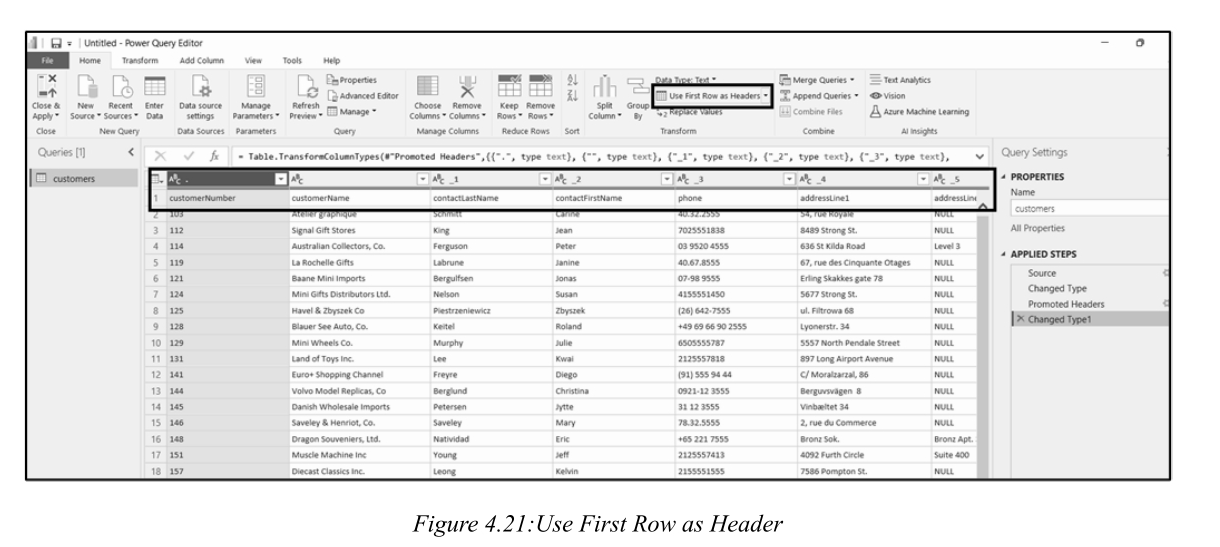
(一)Using First Row as Headers / 将第一行用作标题
-
Power BI may not always detect column headers automatically, especially with flat files (CSV, TXT) or legacy exports.
-
Power BI并不总能自动检测列标题,尤其是处理平面文件(CSV、TXT)或旧系统导出时。
-
Use First Row as Headers promotes the first row of data into column headers.
-
将第一行用作标题可将数据的第一行提升为列标题。
-
This action is recorded as a step in Applied Steps and can be modified or removed.
-
此操作在Applied Steps 中记录为一个步骤,可修改或删除。
(二)Removing Unnecessary Columns / 删除不必要的列
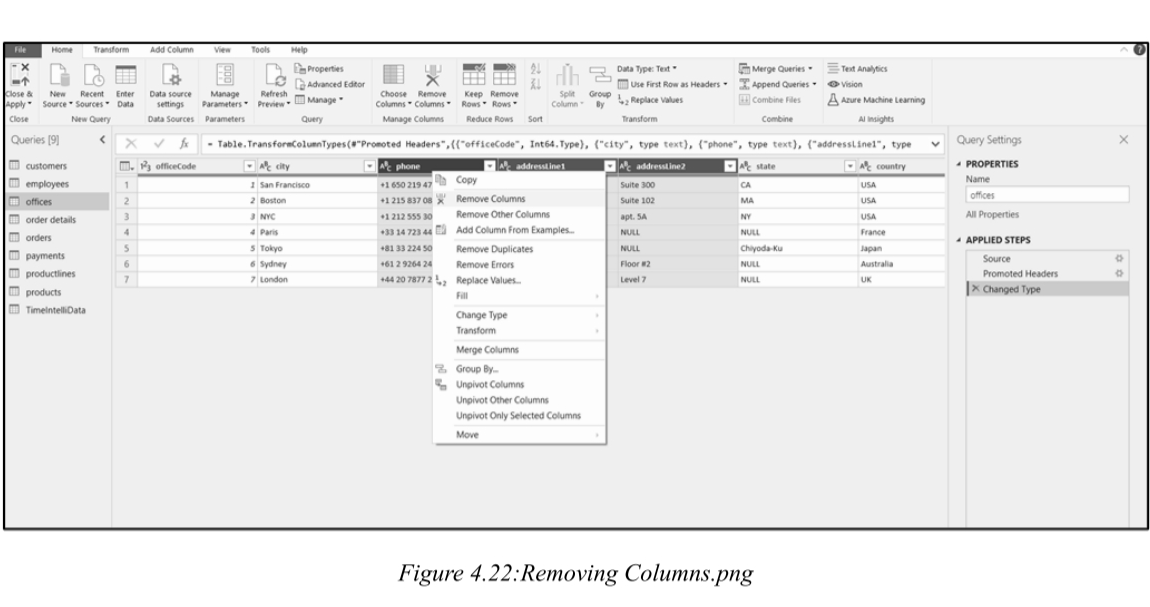
-
Retaining unused columns increases model size and negatively impacts performance.
-
保留不使用的列会增加模型大小,并对性能产生负面影响。
-
Best Practice: Remove unused columns as early as possible in the data preparation process.
-
最佳实践:在数据准备过程中尽早删除不使用的列。
-
Steps: Multi-select columns (Ctrl + click) → Right-click → Select Remove Columns.
-
步骤:多选列(Ctrl+单击)→ 右键单击 → 选择删除列。
(三)Renaming Columns & Tables / 重命名列和表
-
While no strict naming conventions are required, user-friendly names improve clarity and reduce confusion.
-
虽然没有严格的命名约定要求,但用户友好的名称可提高清晰度并减少混淆。
-
It's completely fine to use spaces in names (unlike database naming conventions).
-
在名称中使用空格完全没问题(不同于数据库命名约定)。
-
Example: Rename
pbi vw_SalestoSalesfor clarity. -
示例:将
pbi vw_Sales重命名为Sales以提高清晰度。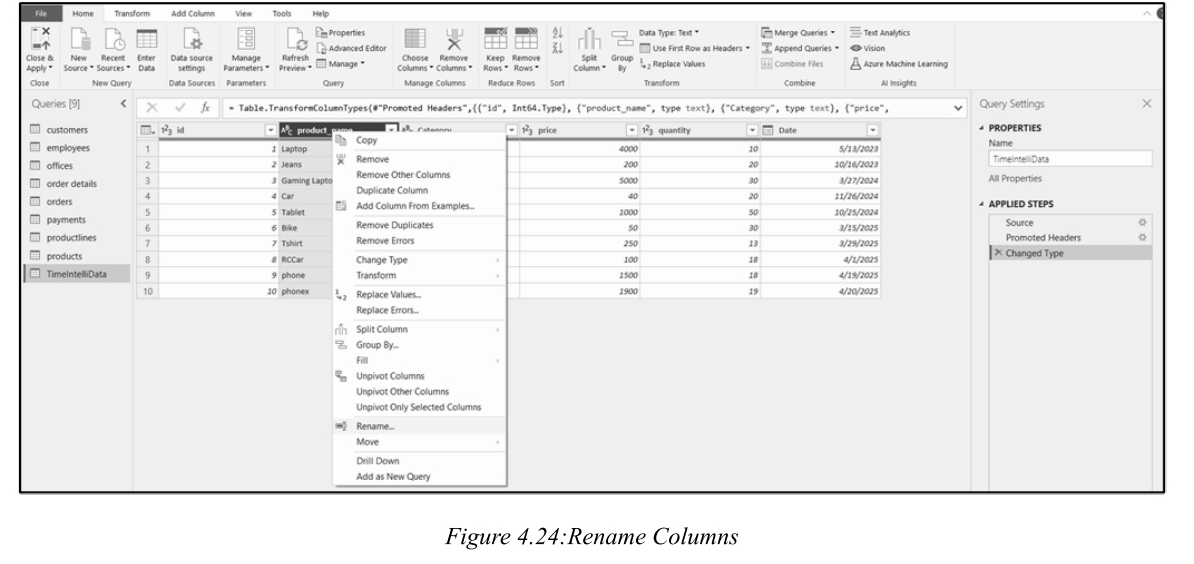
六、Data Type Configuration & Error Handling / 数据类型配置与错误处理
(一)Power Query Supported Data Types / Power Query支持的数据类型
- Decimal Number / 小数
- Fixed Decimal Number / 固定小数
- Whole Number / 整数
- Percentage / 百分比
- Date/Time / 日期/时间
- Date / 日期
- Time / 时间
- Date/Time/Timezone / 日期/时间/时区
- Duration / 持续时间
- Text / 文本
- True/False / 布尔值
- Binary / 二进制
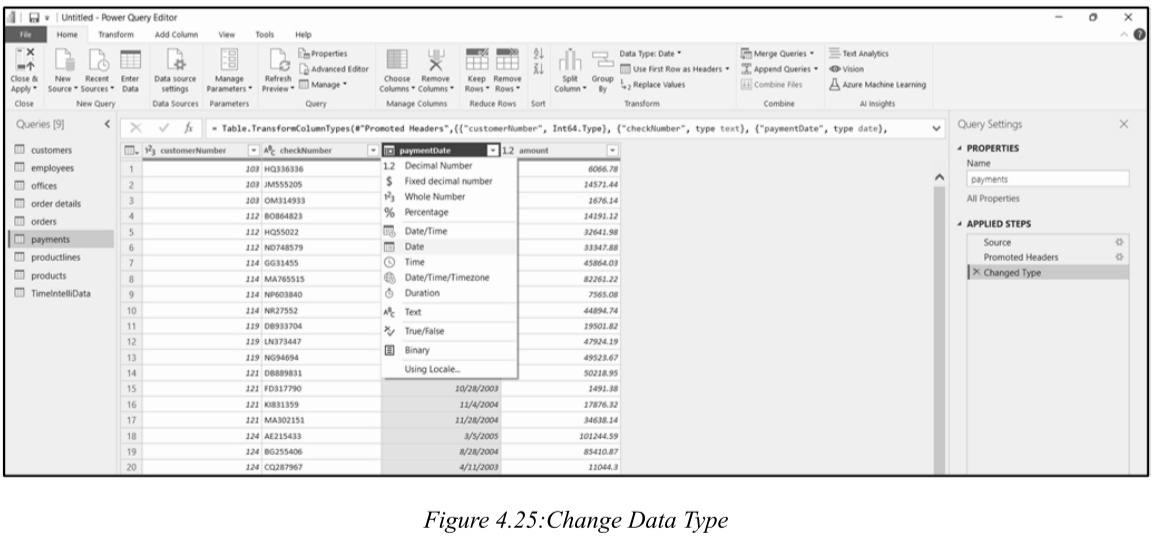
(二)How to Change Data Type / 如何更改数据类型
-
Method 1: Click the data type indicator (icon) on the column header and select a new type.
-
方法1:点击列标题上的数据类型指示器(图标),选择新类型。
-
Method 2: Right-click the column → Change Type → Select the new type.
-
方法2:右键单击列 → 更改类型 → 选择新类型。
(三)Handling Conversion Errors / 处理转换错误
-
Be careful: If you change a column to Whole Number but it contains letters, Power BI will produce an error.
-
注意:如果将列更改为整数但其中包含字母,Power BI会报错。
-
When a conversion fails:
- Replace current: Overwrites the previous conversion step (often fixes errors).
- 替换当前:覆盖之前的转换步骤(通常会修复错误)。
- Add new step: Adds a new conversion step on top of the existing one (use when two-step conversion is needed, e.g., Date/Time → Date).
- 添加新步骤:在现有转换之上添加新转换步骤(当需要两步转换时使用,如 日期/时间 → 日期)。
-
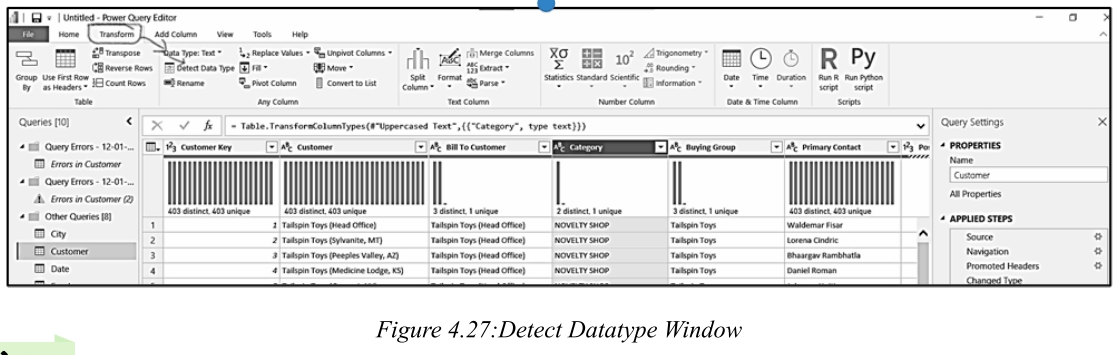
To auto-detect data types: Select columns → Transform → Any Column → Detect Data Type.
-
自动检测数据类型:选择列 → 转换 → 任意列 → 检测数据类型。
七、Value Replacement & Error Removal / 值替换与错误移除
(一)Replace Values / 替换值
-
Used to standardize or correct values (e.g., placeholders, inconsistent spellings).
-
用于标准化或更正值(如占位符、不一致的拼写)。
-
Important Distinction :
null(lowercase) = true absence of data (special value) vs."NULL"(uppercase) = text string. -
重要区分 :
null(小写)= 真正的数据缺失(特殊值) vs."NULL"(大写)= 文本字符串。 -
Power BI does not automatically interpret
"NULL"as null. You must explicitly replace"NULL"with a true null value. -
Power BI不会自动将
"NULL"解释为空。你必须明确将"NULL"替换为真正的空值。 -
Steps: Right-click column → Replace Values → Find:
NULL→ Replace With: (leave blank) → OK. -
步骤:右键单击列 → 替换值 → 查找:
NULL→ 替换为:(留空)→ 确定。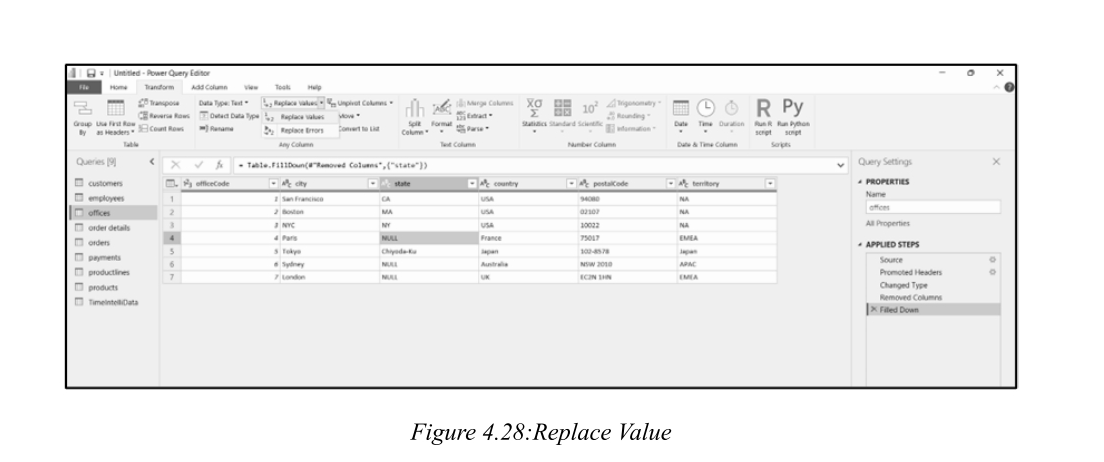
(二)Removing Rows with Errors / 移除错误行
-
Remove rows containing errors to maintain data integrity.
-
移除包含错误的行,以保持数据完整性。
-
Two methods:
- Remove errors from a specific column : Right-click column header → Remove Errors.
- 从特定列 移除错误:右键单击列标题 → 移除错误。
- Remove errors from the entire table : Click the table icon (left of headers) → Remove Errors.
- 从整个表 移除错误:点击表图标(标题左侧)→ 移除错误。
-
Removing rows should be a deliberate decision based on business context. Common scenarios where removing rows is
appropriate include:
-
删除行应该是基于业务上下文的深思熟虑的决定。适合删除行的常见场景包括:
- Invalid records that cannot be corrected due to missing or corrupt source data
- 由于源数据丢失或损坏而无法更正的无效记录
- Out-of-scope data, such as transactions outside the reporting period
- 超出范围的数据,如报告期以外的交易
- System-generated errors that do not represent real-world events
- 不代表真实事件的系统生成的错误
- Incomplete rows where critical fields are missing and cannot be inferred or filled
- 缺少关键字段且无法推断或填充的不完整行
- Duplicate rows, same row multiple time
- 重复行,同一行多次
八、Advanced Transformations / 高级转换操作
(一)Conditional Columns / 条件列
-
Adds new columns based on logical if/then/else statements.
-
基于逻辑if/then/else语句添加新列。
-
Example: If
quantityInStock > 500, output"not required", else"Required". -
示例:如果
库存数量 > 500,则输出"不需要",否则输出"需要"。 -
Steps: Add Column tab → Conditional Column → Define rules → Click OK.
-
步骤:添加列 选项卡 → 条件列 → 定义规则 → 点击确定。
(二)Fill Down / 向下填充
-
Replaces null values with the nearest non-null value above them until a new non-null value appears.
-
用上方最近的非空值替换空值,直到出现新的非空值。
-
Useful for handling sparsely populated data or incomplete records.
-
适用于处理稀疏填充的数据或不完整的记录。
-
Steps: Select column → Transform ribbon → Fill → Down.
-
步骤:选择列 → 转换 功能区 → 填充 → 向下。
(三)Unpivot Columns / 逆透视列
-
Reorganizes data from a wide format (columns for each year/month) into a long/tall format (rows for each combination), which is better suited for BI analysis.
-
将数据从宽 格式(每列代表一年/月)重新组织为长/高格式(每行代表一个组合),更适合BI分析。
-
Three methods:
- Unpivot Columns: Selected columns only; new columns are automatically included.
- Unpivot Other Columns: All columns except selected; new columns are automatically included.
- Unpivot Only Selected Columns : Selected columns only; new columns are not automatically included.
-
三种方法:
- 逆透视列:仅选定的列;新列会自动包含。
- 逆透视其他列:除选定外的所有列;新列会自动包含。
- 仅逆透视选定列 :仅选定的列;新列不会自动包含。
-
This is essential for answering questions like: "What was the average state population in 2016?".
-
这对于回答诸如"2016年各州平均人口是多少?"之类的问题至关重要。
九、Combining Tables / 组合表
(一)Merge Queries / 合并查询
-
Joins two tables based on a common column (similar to SQL JOINs).
-
基于公共列连接两个表(类似于SQL连接)。
-
Join Types:
- Left Outer: all rows from the first table + matching rows from the second.
- 左外部:第一个表的所有行 + 第二个表的匹配行。
- Right Outer: all rows from the second table + matching rows from the first.
- 右外部:第二个表的所有行 + 第一个表的匹配行。
- Full Outer: all rows from both tables.
- 完全外部:两个表的所有行。
- Inner: only matching rows from both tables.
- 内部:仅两个表的匹配行。
- Left Anti: rows only in the first table.
- 左反:仅第一个表中的行。
- Right Anti: rows only in the second table.
- 右反:仅第二个表中的行。
-
Steps: Home tab → Merge Queries → Select tables and join columns → Choose Join Kind.
-
步骤:主页 选项卡 → 合并查询 → 选择表和连接列 → 选择连接类型。
-
After merging, click the Expand icon to bring in selected columns from the second table.
-
合并后,点击展开图标以引入第二个表中的选定列。
-
It's recommended to disable load on the original tables and only load the merged query to keep the model clean.
-
建议禁用加载原始表,仅加载合并后的查询,以保持模型整洁。
(二)Append Queries / 追加查询
-
Stacks rows from two or more tables with the same or similar structure (stacking).
-
堆叠两个或多个具有相同或相似结构的表的行(纵向堆叠)。
-
Use case: Combining customer complaints from credit cards and student loans into a single dataset.
-
使用场景:将信用卡和学生贷款客户投诉合并到一个数据集中。
-
Steps: Home tab → Append Queries → Select tables to append → OK.
-
步骤:主页 选项卡 → 追加查询 → 选择要追加的表 → 确定。
-
Use Append Queries as New to create a new query while preserving the originals.
-
使用将追加查询作为新查询可在保留原始表的同时创建新查询。