文章目录
-
- 布局容器类
- 表单控件
- 媒体与内容
- 文本与样式
- 语义化标签(辅助功能)
- 关键差异说明
- 布局容器类示例
-
- `Container` (类似 `<div>`)
- [`Row` 和 `Column` (布局)](#
Row和Column(布局)) - `ListView` (类似 `<ul>`/`<ol>`)
- 表单控件示例
-
- `TextField` (类似 `<input>`)
- `DropdownButton` (类似 `<select>`)
- [`Checkbox` 和 `Radio` (复选框和单选框)](#
Checkbox和Radio(复选框和单选框)) - `ElevatedButton` (类似 `<button>`)
- `Form` (表单)
- 媒体与内容示例
- 文本与样式示例
-
- [`Text` 和 `RichText` (类似 `<h1>`, `<p>`, `<b>`等)](#
Text和RichText(类似<h1>,<p>,<b>等)) - `Wrap` (类似 `<span>`的流式布局)
- [`Text` 和 `RichText` (类似 `<h1>`, `<p>`, `<b>`等)](#
- 导航与结构
-
- [`AppBar` 和 `BottomNavigationBar` (类似 `<header>`, `<nav>`)](#
AppBar和BottomNavigationBar(类似<header>,<nav>)) - `Drawer` (侧边导航)
- [`AppBar` 和 `BottomNavigationBar` (类似 `<header>`, `<nav>`)](#
- 语义化标签
- 组合使用示例
在 Flutter 中,没有与 HTML 元素一一对应的实现,因为 Flutter 使用的是完全不同的渲染模型(基于 Canvas 绘制而非 DOM)。但可以通过 Flutter 的 Widget 实现相似的功能。
以下是常见 HTML 元素在 Flutter 中的近似对应关系:
布局容器类
| HTML 元素 | Flutter Widget | 说明 |
|---|---|---|
<div> |
Container、Row、Column、Stack |
通用容器,可通过组合实现各种布局 |
<span> |
TextSpan(在 RichText 中)或 Wrap |
内联文本或行内容器 |
<p> |
Text + 外边距(如 SizedBox) |
段落文本 |
<ul>/<ol> |
ListView + ListTile |
列表 |
<nav> |
BottomNavigationBar、Drawer、AppBar |
导航栏 |
<header>/<footer> |
AppBar、BottomAppBar |
页头/页脚 |
表单控件
| HTML 元素 | Flutter Widget | 说明 |
|---|---|---|
<input type="text"> |
TextField |
文本输入框 |
<textarea> |
TextField(设置 maxLines) |
多行文本输入 |
<select> |
DropdownButton |
下拉选择 |
<input type="checkbox"> |
Checkbox |
复选框 |
<input type="radio"> |
Radio |
单选框 |
<button> |
ElevatedButton、TextButton |
按钮 |
<form> |
Form + TextFormField |
表单容器 |
媒体与内容
| HTML 元素 | Flutter Widget | 说明 |
|---|---|---|
<img> |
Image |
显示图片 |
<video> |
VideoPlayer(需插件:video_player) |
视频播放 |
<audio> |
audioplayers(第三方插件) |
音频播放 |
<canvas> |
CustomPaint |
自定义绘制 |
<svg> |
SvgPicture(flutter_svg 包) |
SVG 矢量图 |
文本与样式
| HTML 元素 | Flutter Widget | 说明 |
|---|---|---|
<h1>~<h6> |
Text(设置 style: TextStyle(fontSize: ...)) |
标题文本 |
<b>/<strong> |
TextStyle(fontWeight: FontWeight.bold) |
粗体 |
<i>/<em> |
TextStyle(fontStyle: FontStyle.italic) |
斜体 |
<a> |
TextButton 或 GestureDetector + url_launcher |
超链接 |
<br> |
\n(在 Text 中)或 SizedBox(height: ...) |
换行或间距 |
语义化标签(辅助功能)
| HTML 元素 | Flutter Widget | 说明 |
|---|---|---|
语义化标签(如 <article>) |
Semantics |
为屏幕阅读器提供语义信息 |
<main> |
Scaffold 的 body |
主要内容区域 |
关键差异说明
-
布局系统不同:
Flutter 使用基于约束的布局(如
Row、Column、Flex),而非 HTML 的流式布局。 -
样式方式不同:
Flutter 通过 Widget 属性(如
style、decoration)设置样式,而非 CSS。 -
事件处理:
使用
GestureDetector、InkWell等处理交互,而非onclick属性。 -
动态更新:
Flutter 通过
setState、状态管理或StreamBuilder更新界面,而非直接操作 DOM。
布局容器类示例
Container (类似 <div>)
dart
Container(
  margin: EdgeInsets.all(16), // 外边距
  padding: EdgeInsets.all(20), // 内边距
  decoration: BoxDecoration(
    color: Colors.blue[100],
    borderRadius: BorderRadius.circular(10),
    border: Border.all(color: Colors.blue, width: 2),
  ),
  child: Text('这是一个类似 div 的容器'),
)
Row 和 Column (布局)
dart
// 类似水平排列的 div
Row(
  mainAxisAlignment: MainAxisAlignment.spaceBetween,
  children: [
    Container(width: 50, height: 50, color: Colors.red),
    Container(width: 50, height: 50, color: Colors.green),
    Container(width: 50, height: 50, color: Colors.blue),
  ],
)

// 类似垂直排列的 div
Column(
  crossAxisAlignment: CrossAxisAlignment.start,
  children: [
    Text('标题'),
    SizedBox(height: 10), // 间距
    Text('内容...'),
  ],
)
ListView (类似 <ul>/<ol>)
dart
ListView.builder(
  itemCount: 10,
  itemBuilder: (context, index) {
    return ListTile(
      leading: CircleAvatar(child: Text('${index + 1}')),
      title: Text('项目 ${index + 1}'),
      subtitle: Text('描述内容...'),
      trailing: Icon(Icons.arrow_forward),
      onTap: () {
        print('点击了第 ${index + 1} 项');
      },
    );
  },
)
表单控件示例
TextField (类似 <input>)
dart
// 单行文本输入
TextField(
  decoration: InputDecoration(
    labelText: '用户名',
    hintText: '请输入用户名',
    prefixIcon: Icon(Icons.person),
    border: OutlineInputBorder(),
  ),
  onChanged: (value) {
    print('输入内容: $value');
  },
)

// 多行文本输入 (类似 <textarea>)
TextField(
  maxLines: 4,
  decoration: InputDecoration(
    labelText: '描述',
    hintText: '请输入详细描述...',
    border: OutlineInputBorder(),
  ),
)
DropdownButton (类似 <select>)
dart
String? selectedValue = '选项1';

DropdownButton<String>(
  value: selectedValue,
  items: ['选项1', '选项2', '选项3', '选项4']
      .map((value) => DropdownMenuItem(
            value: value,
            child: Text(value),
          ))
      .toList(),
  onChanged: (value) {
    setState(() {
      selectedValue = value;
    });
  },
)
Checkbox 和 Radio (复选框和单选框)
dart
bool isChecked = false;
String? selectedOption;

Column(
  children: [
    // 复选框
    Row(
      children: [
        Checkbox(
          value: isChecked,
          onChanged: (value) {
            setState(() {
              isChecked = value!;
            });
          },
        ),
        Text('同意协议'),
      ],
    ),

    // 单选框组
    Column(
      children: [
        RadioGroup(
          groupValue: 'A',
          onChanged: (String? value) {
              setState(() {
              selectedOption = value;
            });
          },
          child: Column(
            children: [
              Row(
                mainAxisAlignment: MainAxisAlignment.center,
                children: [
                  Radio<String>(value: 'A'),
                  Text('选项 A'),
                ],
              ),
              Row(
                mainAxisAlignment: MainAxisAlignment.center,
                children: [
                  Radio<String>(value: 'B'),
                  Text('选项 B'),
                ],
              ),
            ],
          ),
        ),
        Text('你选择了: $selectedOption'),
      ],
    ),
  ],
)
ElevatedButton (类似 <button>)
dart
ElevatedButton(
  onPressed: () {
    // 处理点击事件
    print('按钮被点击');
  },
  style: ElevatedButton.styleFrom(
    backgroundColor: Colors.blue,
    foregroundColor: Colors.white,
    padding: EdgeInsets.symmetric(horizontal: 32, vertical: 12),
  ),
  child: Row(
    mainAxisSize: MainAxisSize.min,
    children: [
      Icon(Icons.send),
      SizedBox(width: 8),
      Text('提交'),
    ],
  ),
)
Form (表单)
dart
final _formKey = GlobalKey<FormState>();
String username = '';
String password = '';

Form(
  key: _formKey,
  child: Column(
    children: [
      TextFormField(
        decoration: InputDecoration(labelText: '用户名'),
        validator: (value) {
          if (value == null || value.isEmpty) {
            return '请输入用户名';
          }
          return null;
        },
        onSaved: (value) {
          username = value!;
        },
      ),
      TextFormField(
        decoration: InputDecoration(labelText: '密码'),
        obscureText: true,
        validator: (value) {
          if (value == null || value.length < 6) {
            return '密码至少6位';
          }
          return null;
        },
        onSaved: (value) {
          password = value!;
        },
      ),
      ElevatedButton(
        onPressed: () {
          if (_formKey.currentState!.validate()) {
            _formKey.currentState!.save();
            print('用户名: $username, 密码: $password');
          }
        },
        child: Text('登录'),
      ),
    ],
  ),
)
媒体与内容示例
Image (类似 <img>)
dart
// 从网络加载
Image.network(
  'https://example.com/image.jpg',
  width: 200,
  height: 200,
  fit: BoxFit.cover,
)

// 从本地资源加载
Image.asset(
  'assets/images/logo.png',
  width: 100,
  height: 100,
)

// 从文件加载
Image.file(
  File('/path/to/image.jpg'),
)
CustomPaint (类似 <canvas>)
dart
CustomPaint(
  size: Size(200, 200),
  painter: _MyPainter(),
)

class _MyPainter extends CustomPainter {
  @override
  void paint(Canvas canvas, Size size) {
    final paint = Paint()
      ..color = Colors.red
      ..style = PaintingStyle.fill;

    // 绘制圆形
    canvas.drawCircle(
      Offset(size.width / 2, size.height / 2),
      size.width / 2,
      paint,
    );

    // 绘制文字
    final textPainter = TextPainter(
      text: TextSpan(
        text: 'Canvas',
        style: TextStyle(color: Colors.white, fontSize: 20),
      ),
      textDirection: TextDirection.ltr,
    );
    textPainter.layout();
    textPainter.paint(
      canvas,
      Offset(
        (size.width - textPainter.width) / 2,
        (size.height - textPainter.height) / 2,
      ),
    );
  }

  @override
  bool shouldRepaint(covariant CustomPainter oldDelegate) => false;
}
文本与样式示例
Text 和 RichText (类似 <h1>, <p>, <b>等)
dart
// 标题 (类似 <h1>)
Text(
  '这是一个标题',
  style: TextStyle(
    fontSize: 24,
    fontWeight: FontWeight.bold,
    color: Colors.blue,
  ),
)

// 富文本 (类似 <p>包含<b>和<a>)
RichText(
  text: TextSpan(
    style: TextStyle(fontSize: 16, color: Colors.black),
    children: [
      TextSpan(text: '这是一个'),
      TextSpan(
        text: '加粗',
        style: TextStyle(fontWeight: FontWeight.bold, color: Colors.red),
      ),
      TextSpan(text: '文本,包含一个'),
      TextSpan(
        text: '链接',
        style: TextStyle(
          color: Colors.blue,
          decoration: TextDecoration.underline,
        ),
        recognizer: TapGestureRecognizer()
          ..onTap = () {
            print('链接被点击');
            // 使用 url_launcher 打开链接
            // launchUrl(Uri.parse('https://example.com'));
          },
      ),
      TextSpan(text: '。'),
    ],
  ),
)
Wrap (类似 <span>的流式布局)
dart
Wrap(
  spacing: 8, // 水平间距
  runSpacing: 8, // 垂直间距
  children: [
    Chip(label: Text('标签1')),
    Chip(label: Text('标签2')),
    Chip(label: Text('标签3')),
    Chip(label: Text('标签4')),
    Chip(label: Text('标签5')),
    Chip(label: Text('标签6')),
  ],
)
导航与结构
AppBar 和 BottomNavigationBar (类似 <header>, <nav>)
dart
Scaffold(
  appBar: AppBar(
    title: Text('页面标题'),
    actions: [
      IconButton(
        icon: Icon(Icons.search),
        onPressed: () {},
      ),
      IconButton(
        icon: Icon(Icons.settings),
        onPressed: () {},
      ),
    ],
  ),
  body: Center(child: Text('主要内容区域')),
  bottomNavigationBar: BottomNavigationBar(
    currentIndex: 0,
    items: [
      BottomNavigationBarItem(
        icon: Icon(Icons.home),
        label: '首页',
      ),
      BottomNavigationBarItem(
        icon: Icon(Icons.business),
        label: '业务',
      ),
      BottomNavigationBarItem(
        icon: Icon(Icons.person),
        label: '我的',
      ),
    ],
  ),
)
Drawer (侧边导航)
dart
Scaffold(
  appBar: AppBar(title: Text('带抽屉的页面')),
  drawer: Drawer(
    child: ListView(
      padding: EdgeInsets.zero,
      children: [
        DrawerHeader(
          decoration: BoxDecoration(color: Colors.blue),
          child: Text('侧边栏标题', style: TextStyle(color: Colors.white, fontSize: 24)),
        ),
        ListTile(
          leading: Icon(Icons.home),
          title: Text('首页'),
          onTap: () {},
        ),
        ListTile(
          leading: Icon(Icons.settings),
          title: Text('设置'),
          onTap: () {},
        ),
        Divider(),
        ListTile(
          leading: Icon(Icons.logout),
          title: Text('退出'),
          onTap: () {},
        ),
      ],
    ),
  ),
  body: Center(child: Text('主要内容')),
)
语义化标签
Semantics (为屏幕阅读器提供语义)
dart
Semantics(
  label: '主要操作按钮',
  hint: '双击以提交表单',
  button: true,
  child: ElevatedButton(
    onPressed: () {},
    child: Text('提交'),
  ),
)

// 组合使用多个语义节点
Semantics(
  container: true,
  child: Column(
    children: [
      Semantics(
        header: true,
        child: Text('文章标题', style: TextStyle(fontSize: 20)),
      ),
      Semantics(
        readOnly: true,
        child: Text('文章正文内容...'),
      ),
    ],
  ),
)
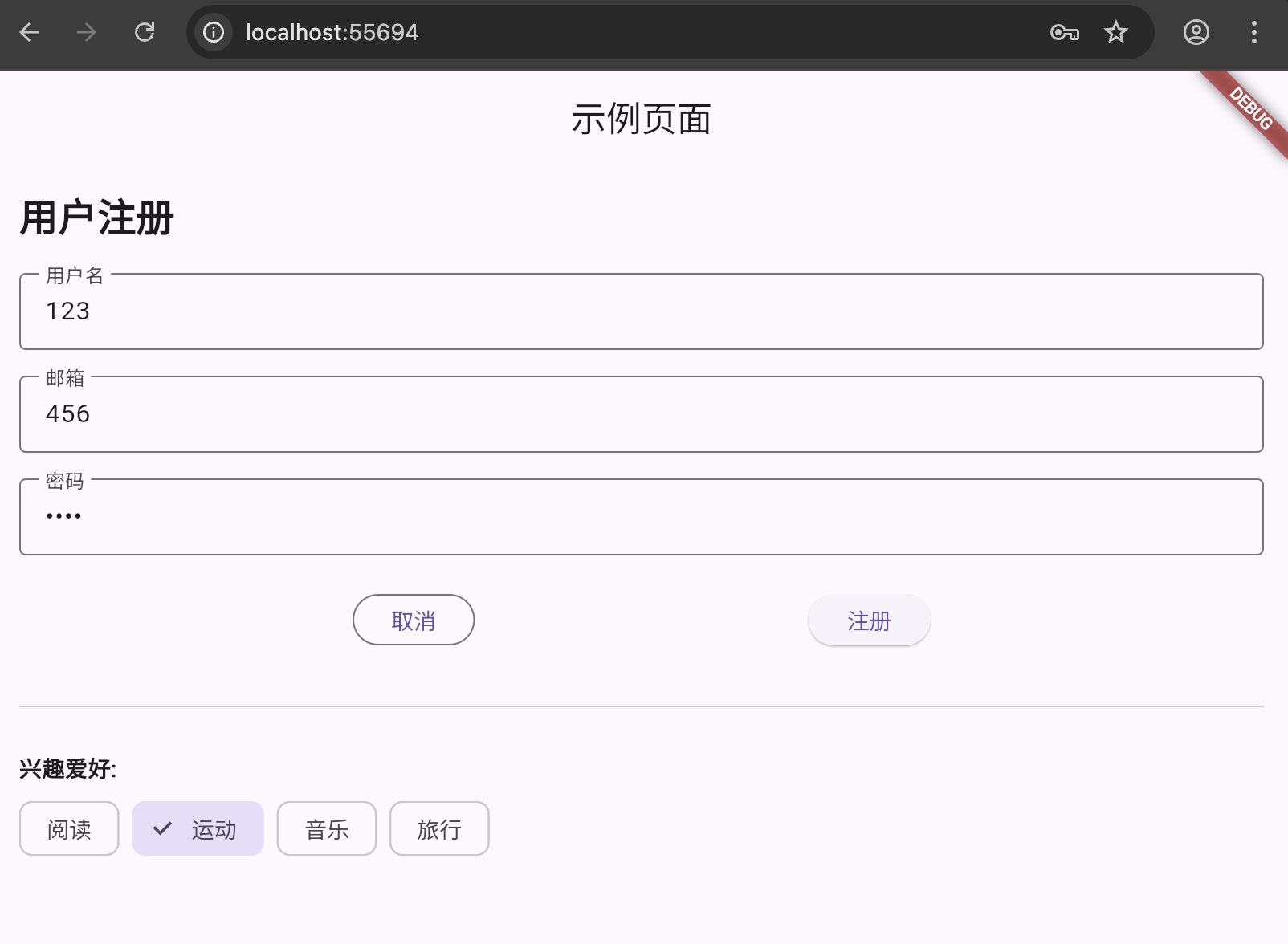
组合使用示例
dart
import 'package:flutter/material.dart';

void main() {
  runApp(const MyApp());
}

class MyApp extends StatelessWidget {
  const MyApp({super.key});

  @override
  Widget build(BuildContext context) {
    return MaterialApp(
      title: 'HTML 到 Flutter 示例',
      home: Scaffold(
        appBar: AppBar(title: const Text('示例页面')),
        body: SingleChildScrollView(
          padding: const EdgeInsets.all(16),
          child: Column(
            crossAxisAlignment: CrossAxisAlignment.start,
            children: [
              // 标题
              const Text(
                '用户注册',
                style: TextStyle(fontSize: 24, fontWeight: FontWeight.bold),
              ),
              const SizedBox(height: 20),

              // 表单
              Form(
                child: Column(
                  children: [
                    TextFormField(
                      decoration: const InputDecoration(
                        labelText: '用户名',
                        border: OutlineInputBorder(),
                      ),
                    ),
                    const SizedBox(height: 16),
                    TextFormField(
                      decoration: const InputDecoration(
                        labelText: '邮箱',
                        border: OutlineInputBorder(),
                      ),
                    ),
                    const SizedBox(height: 16),
                    TextFormField(
                      obscureText: true,
                      decoration: const InputDecoration(
                        labelText: '密码',
                        border: OutlineInputBorder(),
                      ),
                    ),
                    const SizedBox(height: 24),

                    // 按钮组
                    Row(
                      mainAxisAlignment: MainAxisAlignment.spaceEvenly,
                      children: [
                        OutlinedButton(
                          onPressed: () {},
                          child: const Text('取消'),
                        ),
                        ElevatedButton(
                          onPressed: () {},
                          child: const Text('注册'),
                        ),
                      ],
                    ),
                  ],
                ),
              ),

              const SizedBox(height: 30),
              const Divider(),
              const SizedBox(height: 20),

              // 标签云示例
              const Text('兴趣爱好:', style: TextStyle(fontWeight: FontWeight.bold)),
              const SizedBox(height: 10),
              Wrap(
                spacing: 8,
                runSpacing: 8,
                children: [
                  FilterChip(
                    label: const Text('阅读'),
                    selected: false,
                    onSelected: (bool value) {},
                  ),
                  FilterChip(
                    label: const Text('运动'),
                    selected: true,
                    onSelected: (bool value) {},
                  ),
                  FilterChip(
                    label: const Text('音乐'),
                    selected: false,
                    onSelected: (bool value) {},
                  ),
                  FilterChip(
                    label: const Text('旅行'),
                    selected: false,
                    onSelected: (bool value) {},
                  ),
                ],
              ),
            ],
          ),
        ),
      ),
    );
  }
}