VSCode(终端连接同样适用)通过SSH远程连接服务器通常要输入2-4次密码,非常繁琐(熟练的让人心疼)。为了解决这一问题,这篇记录一下如何在 Windows 上生成 SSH 密钥,并配置 Ubuntu 服务器免密码登录。配置完成后,可以直接通过 PowerShell 或 VSCode Remote SSH 连接服务器。
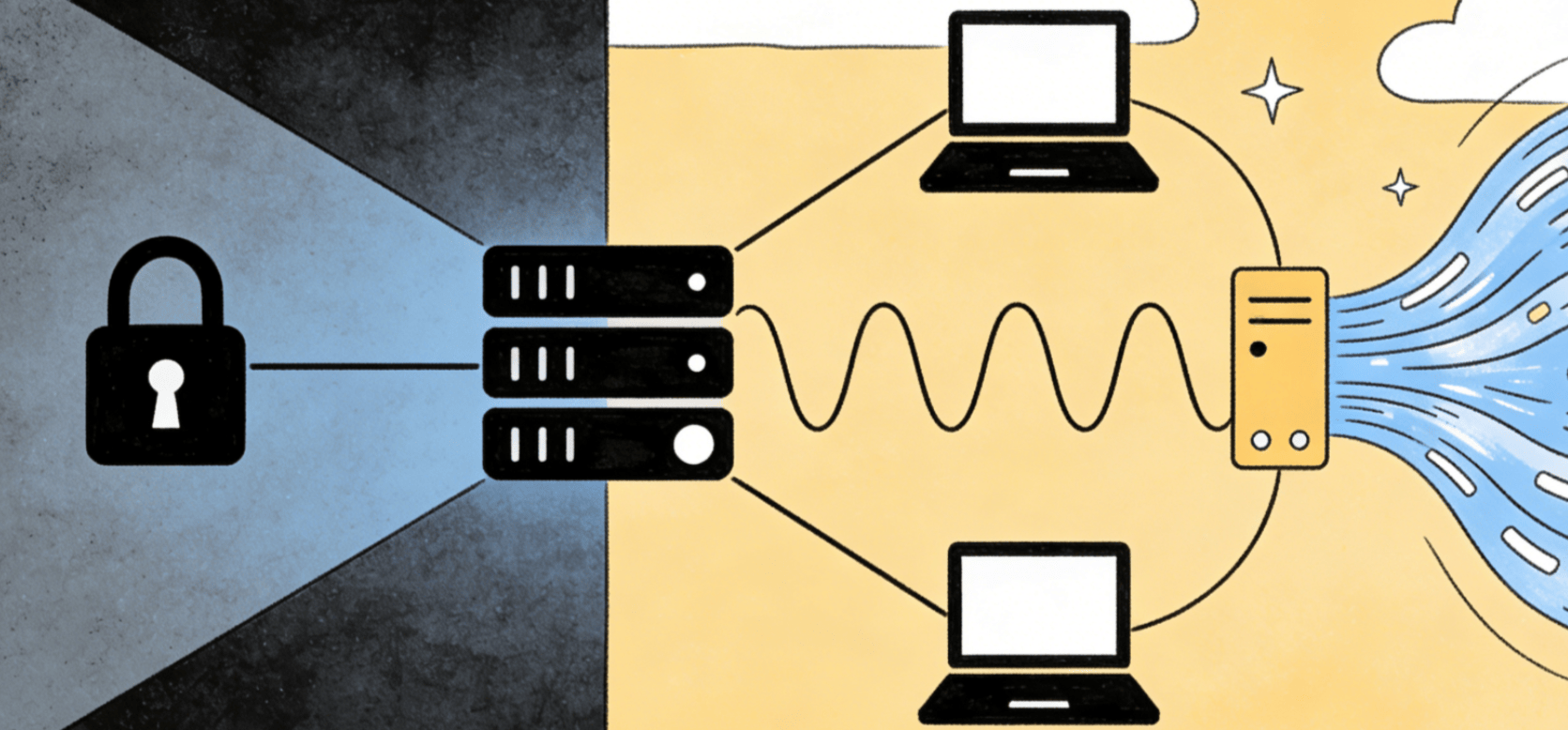
1. 在 Windows 生成 SSH 密钥
打开 Windows PowerShell,执行:
powershell
ssh-keygen -t ed25519一路回车即可,默认会生成在当前用户目录下:
text
C:\Users\你的用户名\.ssh\id_ed25519
C:\Users\你的用户名\.ssh\id_ed25519.pub
其中:
-
id_ed25519是私钥,保存在本地,不要泄露; -
id_ed25519.pub是公钥,需要添加到服务器。
这里使用 ed25519,相比传统的 rsa,它更安全,生成速度也更快。
2. 将公钥添加到服务器
先在 Windows 中打开公钥文件:
powershell
notepad "$env:USERPROFILE\.ssh\id_ed25519.pub"复制文件中的全部内容。
然后通过密码登录一次服务器:
powershell
ssh ubuntu@192.168.XX.XX登录后,在服务器上创建 SSH 配置目录,并编辑 authorized_keys 文件:
bash
mkdir -p ~/.ssh
nano ~/.ssh/authorized_keys
将刚才复制的公钥粘贴进去。注意一个公钥占一行。
保存后,设置权限:
bash
chmod 700 ~/.ssh
chmod 600 ~/.ssh/authorized_keys
这一步很重要。如果权限过宽,SSH 可能会拒绝使用公钥认证。
3. 测试免密码登录
退出服务器:
bash
exit然后在 Windows PowerShell 中重新连接:
powershell
ssh ubuntu@192.168.XX.XX如果不再要求输入密码,说明 SSH 免密码登录已经配置成功。
4. 配置 VSCode Remote SSH 快捷连接
为了方便在 VSCode 中连接,可以编辑 Windows 本地的 SSH 配置文件:
powershell
notepad "$env:USERPROFILE\.ssh\config"加入以下内容:
text
Host dell7920
    HostName 192.168.XX.XX
    User ubuntu
    IdentityFile ~/.ssh/id_ed25519
    IdentitiesOnly yes
保存后,在 VSCode 的 Remote SSH 中选择 dell7920,即可直接连接服务器。
5. 配置完成后的结构
text
Windows / VSCode
        |
        |  SSH Key
        v
Ubuntu Server
愉快的调试吧!