文章目录
-
- 每日一句正能量
- 前言
- 一、前言:AI智能体时代的建筑设计交互革新
- 二、核心特性解析与技术选型
-
- [2.1 悬浮导航在建筑设计场景中的价值](#2.1 悬浮导航在建筑设计场景中的价值)
- [2.2 沉浸光感在智能体设计交互中的创新应用](#2.2 沉浸光感在智能体设计交互中的创新应用)
- 三、项目实战:"光筑智建"架构设计
-
- [3.1 应用场景与功能规划](#3.1 应用场景与功能规划)
- [3.2 技术架构图](#3.2 技术架构图)
- 四、环境配置与模块依赖
-
- [4.1 模块依赖配置](#4.1 模块依赖配置)
- [4.2 权限声明(module.json5)](#4.2 权限声明(module.json5))
- 五、核心组件实战
-
- [5.1 窗口沉浸配置(EntryAbility.ets)](#5.1 窗口沉浸配置(EntryAbility.ets))
- [5.2 设计阶段光效系统(ArchLightEffect.ets)](#5.2 设计阶段光效系统(ArchLightEffect.ets))
- [5.3 悬浮设计阶段导航(ArchFloatNavigation.ets)](#5.3 悬浮设计阶段导航(ArchFloatNavigation.ets))
- [5.4 构件卡片玻璃拟态组件(ElementCard.ets)](#5.4 构件卡片玻璃拟态组件(ElementCard.ets))
- [5.5 语音交互沉浸页面(ArchVoicePage.ets)](#5.5 语音交互沉浸页面(ArchVoicePage.ets))
- [5.6 主页面集成(Index.ets)](#5.6 主页面集成(Index.ets))
- 六、关键技术总结
-
- [6.1 悬浮导航适配清单](#6.1 悬浮导航适配清单)
- [6.2 沉浸光感最佳实践](#6.2 沉浸光感最佳实践)
- [6.3 设计阶段光效映射](#6.3 设计阶段光效映射)
- 七、调试与适配建议
- 八、总结与展望
每日一句正能量
静是在喧嚣中守一份清醒,在忙碌中留一份从容。
"静"不是环境无声,而是内在不乱。在热闹的场合、繁忙的日程中,还能不被裹挟、不被带跑,知道自己要什么、不要什么,这是真静。忙而不乱、喧而不躁,才是从容。
前言
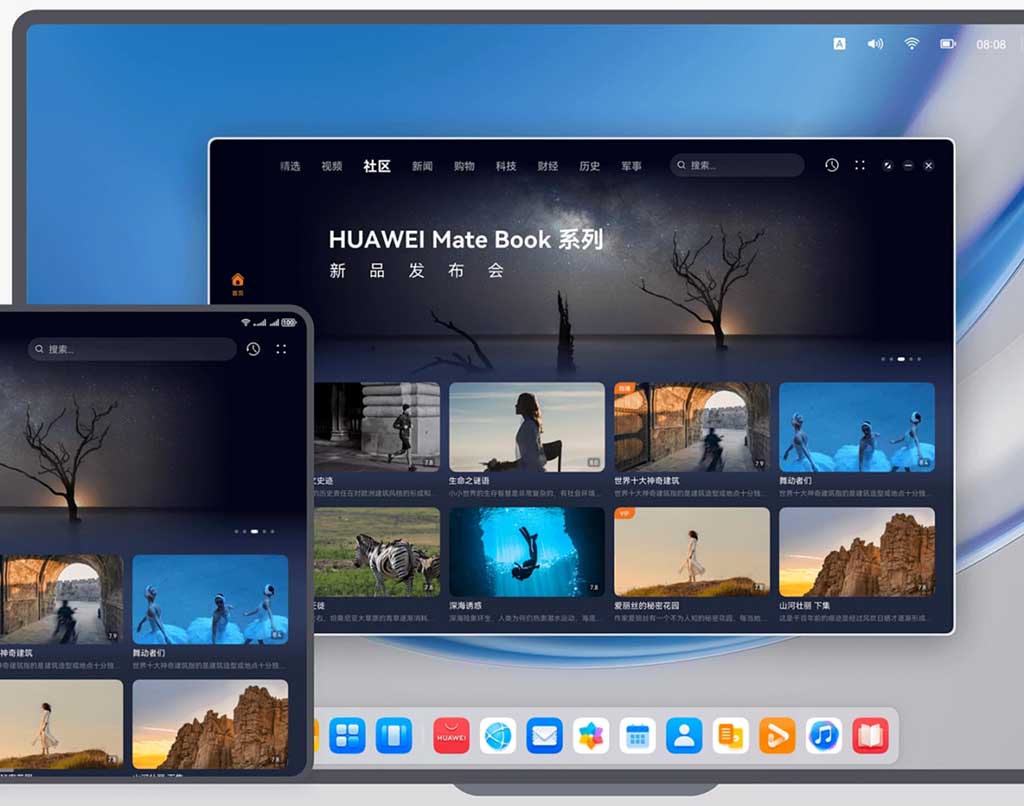
摘要 :HarmonyOS 6(API 23)的悬浮导航与沉浸光感特性,为建筑设计与工程管理类应用带来了全新的交互范式。本文将实战开发一款面向HarmonyOS的"光筑智建"AI智能建筑设计辅助智能体,展示如何利用
systemMaterialEffect打造沉浸式BIM建模体验,通过悬浮导航实现设计阶段快速切换,以及基于智能体编排实现语音对话式建筑方案生成与结构优化。
一、前言:AI智能体时代的建筑设计交互革新
随着建筑信息模型(BIM)技术的普及和智能建造需求的持续增长,传统的建筑设计App已经难以满足建筑师对智能化、沉浸式创作体验的需求。建筑师不再满足于手动绘制平面图、逐项调整参数的机械式操作,而是期望一个能够理解自然语言描述、主动推荐结构方案、实时分析能耗数据的智能设计伴侣。
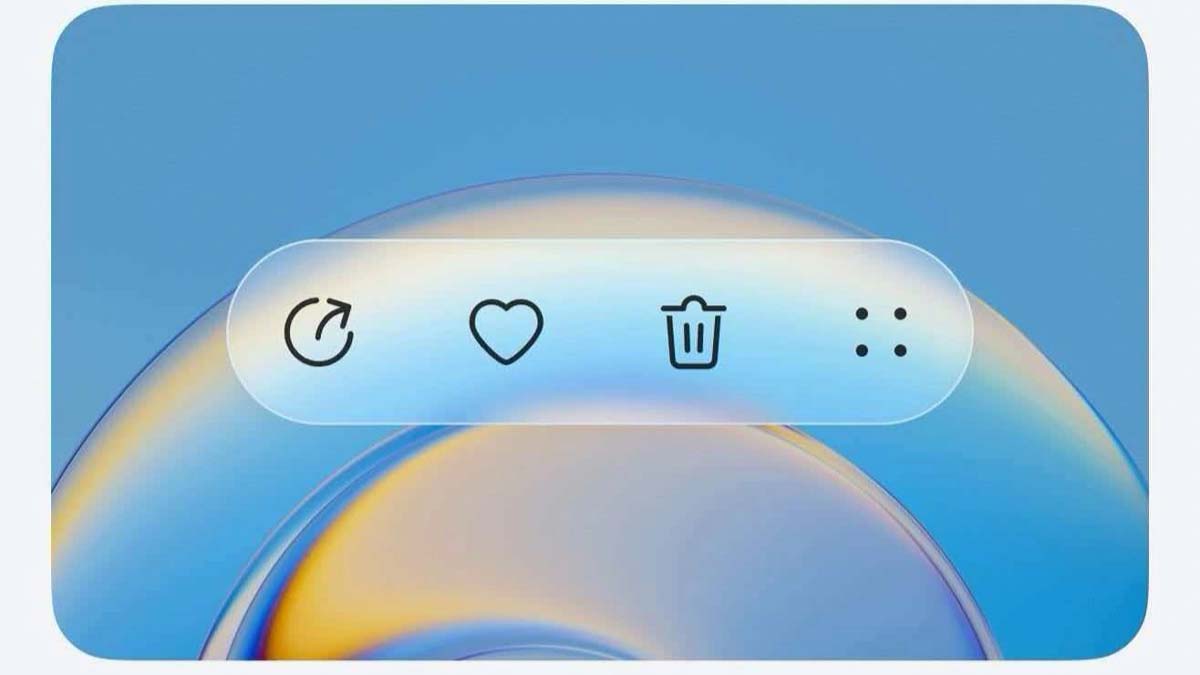
HarmonyOS 6(API 23)引入的**悬浮导航(Float Navigation)与沉浸光感(Immersive Light Effects)**两大特性,为专业级建筑设计工具带来了"轻盈、沉浸、优雅"的设计可能。悬浮导航让设计阶段的切换不再遮挡三维模型视图,沉浸光感让设计状态的感知从视觉延伸到直觉层面。
本文核心亮点:
- 智能体设计光效:根据AI智能体的设计阶段(分析中、建模中、优化中、渲染中、完成)动态切换环境光色与脉冲节奏
- 悬浮设计阶段导航:底部悬浮页签替代传统导航栏,支持概念、平面、立面、结构、渲染等多阶段快速切换
- 语音交互沉浸体验:全屏语音对话界面配合呼吸灯光效,营造"与建筑智能体面对面"的沉浸感
- 结构安全光感映射:根据结构分析结果动态调整界面光色(安全绿色、预警黄色、危险橙色、超限红色)
- 构件卡片玻璃拟态:建筑构件详情卡片使用毛玻璃质感,与背景三维模型自然融合
二、核心特性解析与技术选型
2.1 悬浮导航在建筑设计场景中的价值
传统建筑设计工具的底部导航往往采用固定Tab栏,占据宝贵的三维模型视图空间。HarmonyOS 6的悬浮导航具有以下优势:
- 空间利用率高:悬浮于三维模型之上,不遮挡关键建筑结构
- 视觉通透感:毛玻璃效果让导航栏与模型背景自然融合
- 动态透明度:根据用户操作自动调节透明度,减少视觉干扰
- MiniBar扩展:可在导航栏旁扩展渲染进度、构件计数等自定义区域
2.2 沉浸光感在智能体设计交互中的创新应用
沉浸光感不仅是视觉装饰,更是设计状态的"可视化语言":
| 设计阶段 | 光效颜色 | 脉冲速度 | 视觉语义 |
|---|---|---|---|
| 待机分析 | 柔和蓝白 | 3000ms | 平静等待设计输入 |
| 概念生成中 | 淡紫色 | 1500ms | 快速生成建筑概念 |
| 结构计算中 | 琥珀色 | 1000ms | 全力计算结构荷载 |
| 能耗分析中 | 青绿色 | 800ms | 逐层分析能耗数据 |
| 渲染生成中 | 暖金色 | 600ms | 全力渲染高质量图像 |
| 设计完成 | 翠绿色 | 2000ms | 确认闪光,方案就绪 |
| 结构超限 | 橙红色 | 500ms | 警示闪烁,需要修正 |
三、项目实战:"光筑智建"架构设计
3.1 应用场景与功能规划
"光筑智建"是一款基于HarmonyOS 6的AI智能建筑设计辅助智能体,核心功能包括:
- 语音对话式设计查询:建筑师通过自然语言描述设计需求,智能体自动解析并生成方案
- 多阶段设计管理:同时管理概念、平面、立面、结构、渲染等多个设计阶段
- 实时结构安全感知:根据AI分析动态评估结构安全等级并调整界面光效
- 智能构件卡片管理:支持多构件保存、分享与智能参数推荐
- 悬浮快捷操作:底部悬浮导航支持一键切换设计阶段、唤起语音助手
3.2 技术架构图
┌─────────────────────────────────────────────────────────────┐
│                    光筑智建 - 技术架构                        │
├─────────────────────────────────────────────────────────────┤
│  表现层                                                       │
│  ├─ 悬浮导航组件 (ArchFloatNavigation.ets)                  │
│  ├─ 智能体光效系统 (ArchLightEffect.ets)                   │
│  ├─ 语音交互页面 (ArchVoicePage.ets)                        │
│  ├─ 三维模型页面 (ModelPage.ets)                            │
│  └─ 构件卡片组件 (ElementCard.ets)                          │
├─────────────────────────────────────────────────────────────┤
│  智能体层                                                     │
│  ├─ 意图解析引擎 (IntentParser.ets)                          │
│  ├─ 概念生成服务 (ConceptGenerator.ets)                     │
│  ├─ 结构计算服务 (StructureService.ets)                       │
│  └─ 对话管理器 (DialogManager.ets)                           │
├─────────────────────────────────────────────────────────────┤
│  数据层                                                       │
│  ├─ BIM模型数据服务                                           │
│  ├─ 实时结构分析API                                           │
│  └─ 用户设计缓存                                              │
├─────────────────────────────────────────────────────────────┤
│  系统能力                                                     │
│  ├─ 悬浮导航 (HdsTabs + barFloatingStyle)                   │
│  ├─ 沉浸光感 (systemMaterialEffect: IMMERSIVE)              │
│  ├─ 语音交互 (SpeechRecognizer + TTS)                      │
│  └─ 窗口管理 (setWindowLayoutFullScreen)                     │
└─────────────────────────────────────────────────────────────┘
四、环境配置与模块依赖
4.1 模块依赖配置
在 oh-package.json5 中添加必要的依赖:
json
{
  "dependencies": {
    "@kit.AbilityKit": "^1.0.0",
    "@kit.ArkUI": "^1.0.0",
    "@kit.BasicServicesKit": "^1.0.0",
    "@kit.SensorServiceKit": "^1.0.0",
    "@kit.UIDesignKit": "^1.0.0",
    "@kit.SpeechKit": "^1.0.0",
    "@kit.GraphicsKit": "^1.0.0",
    "@kit.ArkGraphics3D": "^1.0.0"
  }
}
4.2 权限声明(module.json5)
json
{
  "module": {
    "requestPermissions": [
      {
        "name": "ohos.permission.INTERNET",
        "reason": "用于获取实时BIM模型与结构分析数据"
      },
      {
        "name": "ohos.permission.READ_MEDIA",
        "reason": "用于读取本地建筑模型文件"
      },
      {
        "name": "ohos.permission.MICROPHONE",
        "reason": "用于语音交互功能"
      },
      {
        "name": "ohos.permission.VIBRATE",
        "reason": "用于结构超限震动反馈"
      },
      {
        "name": "ohos.permission.WRITE_MEDIA",
        "reason": "用于保存设计方案结果"
      }
    ]
  }
}
五、核心组件实战
5.1 窗口沉浸配置(EntryAbility.ets)
这是实现沉浸光感的基础,需要配置窗口全屏布局并启用安全区避让。
typescript
// entry/src/main/ets/entryability/EntryAbility.ets
import { AbilityConstant, UIAbility, Want } from '@kit.AbilityKit';
import { window } from '@kit.ArkUI';
import { BusinessError } from '@kit.BasicServicesKit';

export default class EntryAbility extends UIAbility {
  private windowStage: window.WindowStage | null = null;

  onWindowStageCreate(windowStage: window.WindowStage): void {
    this.windowStage = windowStage;
    windowStage.loadContent('pages/Index', (err) => {
      if (err.code) {
        console.error('Failed to load content:', JSON.stringify(err));
        return;
      }
      console.info('Succeeded in loading content.');
      this.setupImmersiveWindow(windowStage);
    });
  }

  private async setupImmersiveWindow(windowStage: window.WindowStage): Promise<void> {
    try {
      const mainWindow = windowStage.getMainWindowSync();

      // 1. 设置窗口全屏布局,内容延伸至状态栏和导航栏
      await mainWindow.setWindowLayoutFullScreen(true);

      // 2. 设置窗口背景为透明,允许光效穿透
      await mainWindow.setWindowBackgroundColor('#00000000');

      // 3. 配置系统栏属性:透明背景+白色内容
      await mainWindow.setWindowSystemBarProperties({
        statusBarColor: '#00000000',
        navigationBarColor: '#00000000',
        statusBarContentColor: '#FFFFFF',
        navigationBarContentColor: '#FFFFFF'
      });

      // 4. 启用安全区避让(关键:HarmonyOS 6新特性)
      await mainWindow.setWindowAvoidAreaOption({
        type: window.AvoidAreaType.TYPE_SYSTEM,
        enabled: true
      });

      console.info('Immersive window setup completed');
    } catch (error) {
      console.error('Failed to setup immersive window:', (error as BusinessError).message);
    }
  }

  onWindowStageDestroy(): void {
    this.windowStage = null;
  }
}
代码亮点 :通过 setWindowLayoutFullScreen(true) 实现内容延伸至非安全区,配合 setWindowAvoidAreaOption 启用HarmonyOS 6新增的安全区避让机制,确保悬浮导航不会遮挡三维模型视图。
5.2 设计阶段光效系统(ArchLightEffect.ets)
这是本文的核心创新点------将AI智能体的设计阶段映射为可视化的光效反馈。
typescript
// entry/src/main/ets/components/ArchLightEffect.ets
import { animator, AnimatorResult } from '@kit.ArkUI';

// 设计阶段枚举
export enum ArchPhase {
  IDLE = 'idle',           // 待机分析
  CONCEPT = 'concept',     // 概念生成中
  STRUCTURE = 'structure', // 结构计算中
  ENERGY = 'energy',       // 能耗分析中
  RENDER = 'render',       // 渲染生成中
  COMPLETED = 'completed', // 设计完成
  OVERRUN = 'overrun'      // 结构超限
}

// 阶段光效配置
interface LightConfig {
  primaryColor: string;    // 主光色
  secondaryColor: string;  // 辅助光色
  pulseDuration: number;   // 脉冲周期(ms)
  glowRadius: number;      // 光晕半径
  intensity: number;       // 光强 (0-1)
}

@Observed
export class ArchLightController {
  @Track currentPhase: ArchPhase = ArchPhase.IDLE;
  private animatorInstance: AnimatorResult | null = null;

  // 阶段-光效映射表
  private phaseLightMap: Map<ArchPhase, LightConfig> = new Map([
    [ArchPhase.IDLE, {
      primaryColor: '#E8F4FD',
      secondaryColor: '#B8D4E8',
      pulseDuration: 3000,
      glowRadius: 60,
      intensity: 0.3
    }],
    [ArchPhase.CONCEPT, {
      primaryColor: '#E0D4F7',
      secondaryColor: '#C4B0F0',
      pulseDuration: 1500,
      glowRadius: 80,
      intensity: 0.5
    }],
    [ArchPhase.STRUCTURE, {
      primaryColor: '#FFE4B5',
      secondaryColor: '#FFD700',
      pulseDuration: 1000,
      glowRadius: 100,
      intensity: 0.6
    }],
    [ArchPhase.ENERGY, {
      primaryColor: '#B0E0E6',
      secondaryColor: '#00CED1',
      pulseDuration: 800,
      glowRadius: 120,
      intensity: 0.7
    }],
    [ArchPhase.RENDER, {
      primaryColor: '#FFF8DC',
      secondaryColor: '#DAA520',
      pulseDuration: 600,
      glowRadius: 130,
      intensity: 0.75
    }],
    [ArchPhase.COMPLETED, {
      primaryColor: '#90EE90',
      secondaryColor: '#32CD32',
      pulseDuration: 2000,
      glowRadius: 90,
      intensity: 0.5
    }],
    [ArchPhase.OVERRUN, {
      primaryColor: '#FFB6C1',
      secondaryColor: '#FF6347',
      pulseDuration: 500,
      glowRadius: 110,
      intensity: 0.8
    }]
  ]);

  getCurrentConfig(): LightConfig {
    return this.phaseLightMap.get(this.currentPhase) || this.phaseLightMap.get(ArchPhase.IDLE)!;
  }

  setPhase(phase: ArchPhase): void {
    this.currentPhase = phase;
    this.startPulseAnimation();
  }

  private startPulseAnimation(): void {
    if (this.animatorInstance) {
      this.animatorInstance.cancel();
    }

    const config = this.getCurrentConfig();

    // 创建呼吸灯动画
    this.animatorInstance = animator.create({
      duration: config.pulseDuration,
      easing: 'ease-in-out',
      fill: 'forwards',
      direction: 'alternate',
      iterations: -1, // 无限循环
      begin: 0,
      end: 100
    });

    this.animatorInstance.play();
  }

  stopAnimation(): void {
    if (this.animatorInstance) {
      this.animatorInstance.cancel();
      this.animatorInstance = null;
    }
  }
}

@Component
export struct ArchLightEffect {
  @ObjectLink controller: ArchLightController;

  aboutToAppear(): void {
    this.controller.startPulseAnimation();
  }

  aboutToDisappear(): void {
    this.controller.stopAnimation();
  }

  build() {
    Stack() {
      // 外层光晕
      Column()
        .width(200)
        .height(200)
        .backgroundColor(this.controller.getCurrentConfig().primaryColor)
        .blur(this.controller.getCurrentConfig().glowRadius)
        .opacity(this.controller.getCurrentConfig().intensity * 0.6)
        .borderRadius(100)
        .animation({
          duration: this.controller.getCurrentConfig().pulseDuration,
          curve: Curve.EaseInOut,
          iterations: -1,
          playMode: PlayMode.Alternate
        })

      // 内层核心光
      Column()
        .width(120)
        .height(120)
        .backgroundColor(this.controller.getCurrentConfig().secondaryColor)
        .blur(40)
        .opacity(this.controller.getCurrentConfig().intensity)
        .borderRadius(60)
        .animation({
          duration: this.controller.getCurrentConfig().pulseDuration,
          curve: Curve.EaseInOut,
          iterations: -1,
          playMode: PlayMode.Alternate
        })

      // 建筑设计图标
      Image($r('app.media.ic_architecture'))
        .width(64)
        .height(64)
        .borderRadius(32)
        .shadow({
          radius: 20,
          color: this.controller.getCurrentConfig().secondaryColor,
          offsetX: 0,
          offsetY: 0
        })
    }
    .width(200)
    .height(200)
  }
}代码亮点:
- 阶段驱动光效 :通过
ArchPhase枚举定义七种核心设计阶段,每种阶段对应独特的光色与脉冲节奏 - 呼吸灯动画 :使用
animator.create创建无限循环的呼吸灯效果,光强和颜色随阶段动态变化 - 双层光晕架构:外层大范围模糊光晕营造氛围感,内层核心光提供视觉焦点
5.3 悬浮设计阶段导航(ArchFloatNavigation.ets)
结合HDS悬浮页签与MiniBar,打造建筑设计场景专属的悬浮导航。
typescript
// entry/src/main/ets/components/ArchFloatNavigation.ets
import { window } from '@kit.ArkUI';
import { ArchPhase, ArchLightController } from './ArchLightEffect';

// 设计阶段配置
interface DesignStage {
  icon: Resource;
  label: string;
  stage: string;
  color: string;
}

@Component
export struct ArchFloatNavigation {
  @State currentIndex: number = 0;
  @State isExpanded: boolean = false;
  @State bottomAvoidHeight: number = 0;
  @State navTransparency: number = 0.75;
  @State overrunCount: number = 0;
  @ObjectLink lightController: ArchLightController;

  // 设计阶段列表
  private designStages: DesignStage[] = [
    { icon: $r('app.media.ic_concept'), label: '概念', stage: 'concept', color: '#9C27B0' },
    { icon: $r('app.media.ic_plan'), label: '平面', stage: 'plan', color: '#2196F3' },
    { icon: $r('app.media.ic_elevation'), label: '立面', stage: 'elevation', color: '#4CAF50' },
    { icon: $r('app.media.ic_structure'), label: '结构', stage: 'structure', color: '#FF9800' },
    { icon: $r('app.media.ic_render'), label: '渲染', stage: 'render', color: '#DAA520' }
  ];

  aboutToAppear(): void {
    this.getBottomAvoidArea();
  }

  private async getBottomAvoidArea(): Promise<void> {
    try {
      const mainWindow = await window.getLastWindow();
      const avoidArea = mainWindow.getWindowAvoidArea(window.AvoidAreaType.TYPE_NAVIGATION_INDICATOR);
      this.bottomAvoidHeight = avoidArea.bottomRect.height;
    } catch (error) {
      console.error('Failed to get avoid area:', error);
    }
  }

  build() {
    Stack({ alignContent: Alignment.Bottom }) {
      // 内容区域
      Column() {
        this.contentBuilder()
      }
      .padding({ bottom: this.bottomAvoidHeight + 90 })
      .width('100%')
      .height('100%')

      // 悬浮导航栏容器
      Column() {
        // 玻璃拟态背景层
        Stack() {
          // 背景模糊效果
          Column()
            .width('100%')
            .height('100%')
            .backgroundBlurStyle(BlurStyle.REGULAR)
            .opacity(this.navTransparency)
            .backdropFilter($r('sys.blur.20'))

          // 渐变光效层
          Column()
            .width('100%')
            .height('100%')
            .linearGradient({
              direction: GradientDirection.Top,
              colors: [
                ['rgba(255,255,255,0.15)', 0.0],
                ['rgba(255,255,255,0.05)', 1.0]
              ]
            })

          // 设计阶段光效边缘
          Column()
            .width('100%')
            .height(3)
            .backgroundColor(this.lightController.getCurrentConfig().secondaryColor)
            .opacity(0.8)
            .position({ y: 0 })
            .animation({
              duration: 1000,
              curve: Curve.EaseInOut
            })
        }
        .width('100%')
        .height('100%')
        .borderRadius(28)
        .shadow({
          radius: 24,
          color: 'rgba(0,0,0,0.12)',
          offsetX: 0,
          offsetY: -6
        })

        // 导航项 + MiniBar
        Row() {
          // 设计阶段页签
          Row() {
            ForEach(this.designStages, (item: DesignStage, index: number) => {
              Column() {
                Stack() {
                  Image(item.icon)
                    .width(24)
                    .height(24)
                    .fillColor(this.currentIndex === index ? item.color : '#888888')
                    .transition(TransitionEffect.OPACITY)

                  // 选中光效指示器
                  if (this.currentIndex === index) {
                    Column()
                      .width(44)
                      .height(44)
                      .backgroundColor(item.color + '33') // 20%透明度
                      .borderRadius(22)
                      .blur(8)
                      .position({ x: -10, y: -10 })
                  }

                  // 超限角标
                  if (index === 3 && this.overrunCount > 0) {
                    Column() {
                      Text(`${this.overrunCount}`)
                        .fontSize(10)
                        .fontColor('#FFFFFF')
                        .fontWeight(FontWeight.Bold)
                    }
                    .width(18)
                    .height(18)
                    .backgroundColor('#F44336')
                    .borderRadius(9)
                    .position({ x: 12, y: -8 })
                    .justifyContent(FlexAlign.Center)
                  }
                }
                .width(44)
                .height(44)

                Text(item.label)
                  .fontSize(11)
                  .fontColor(this.currentIndex === index ? item.color : '#AAAAAA')
                  .margin({ top: 2 })
              }
              .layoutWeight(1)
              .onClick(() => {
                this.currentIndex = index;
                if (index === 3) {
                  this.overrunCount = 0; // 清除超限角标
                }
              })
            })
          }
          .width('70%')
          .height(56)

          // MiniBar:智能体快捷入口 + 超限计数
          Column() {
            Stack() {
              // 智能体头像带光效
              Image($r('app.media.ic_agent_avatar'))
                .width(40)
                .height(40)
                .borderRadius(20)
                .border({
                  width: 2,
                  color: this.lightController.getCurrentConfig().secondaryColor
                })
                .shadow({
                  radius: 12,
                  color: this.lightController.getCurrentConfig().primaryColor,
                  offsetX: 0,
                  offsetY: 0
                })
                .animation({
                  duration: 500,
                  curve: Curve.EaseInOut
                })

              // 状态指示点
              Column()
                .width(8)
                .height(8)
                .backgroundColor(
                  this.lightController.currentPhase === ArchPhase.IDLE ? '#4CAF50' :
                  this.lightController.currentPhase === ArchPhase.OVERRUN ? '#F44336' : '#FFC107'
                )
                .borderRadius(4)
                .position({ x: 30, y: 30 })
                .border({ width: 1, color: '#FFFFFF' })
            }
            .width(44)
            .height(44)
          }
          .width('30%')
          .height(56)
          .justifyContent(FlexAlign.Center)
          .onClick(() => {
            // 唤起语音交互
            this.lightController.setPhase(ArchPhase.CONCEPT);
          })
        }
        .width('100%')
        .height(56)
        .padding({ left: 12, right: 12 })

        // 展开后的透明度调节面板
        if (this.isExpanded) {
          Row() {
            Text('导航透明度')
              .fontSize(12)
              .fontColor('#666666')
              .margin({ right: 8 })

            Slider({
              value: this.navTransparency * 100,
              min: 50,
              max: 90,
              step: 10,
              style: SliderStyle.InSet
            })
              .width(100)
              .onChange((value: number) => {
                this.navTransparency = value / 100;
              })

            Text(`${Math.round(this.navTransparency * 100)}%`)
              .fontSize(12)
              .fontColor('#666666')
              .margin({ left: 8 })
          }
          .width('100%')
          .height(36)
          .justifyContent(FlexAlign.Center)
          .backgroundColor('rgba(255,255,255,0.4)')
          .borderRadius({ topLeft: 12, topRight: 12 })
        }
      }
      .width('94%')
      .height(this.isExpanded ? 96 : 64)
      .margin({
        bottom: this.bottomAvoidHeight + 16,
        left: '3%',
        right: '3%'
      })
      .animation({
        duration: 300,
        curve: Curve.Spring,
        iterations: 1
      })
      .gesture(
        LongPressGesture({ duration: 600 })
          .onAction(() => {
            this.isExpanded = !this.isExpanded;
          })
      )
    }
    .width('100%')
    .height('100%')
  }

  @BuilderParam contentBuilder: () => void = this.defaultContentBuilder;

  @Builder
  defaultContentBuilder(): void {
    Column() {
      Text('三维模型内容区域')
        .fontSize(16)
        .fontColor('#999999')
    }
    .width('100%')
    .height('100%')
    .justifyContent(FlexAlign.Center)
  }
}代码亮点:
- HDS悬浮页签集成 :使用
backgroundBlurStyle和backdropFilter实现官方级毛玻璃效果 - MiniBar语音入口:在导航栏右侧集成智能体头像,实时显示阶段光效与状态指示点
- 超限角标系统:结构阶段页签支持动态超限计数角标,未读超限实时提醒
- 阶段光效边缘:导航栏顶部动态光效条实时反映当前设计阶段
5.4 构件卡片玻璃拟态组件(ElementCard.ets)
建筑构件详情卡片采用玻璃拟态设计,与背景三维模型自然融合。
typescript
// entry/src/main/ets/components/ElementCard.ets
import { ArchLightController, ArchPhase } from './ArchLightEffect';

interface ElementInfo {
  name: string;
  type: string;
  material: string;
  dimensions: string;
  safetyStatus: 'safe' | 'warning' | 'danger' | 'overrun';
  properties: string[];
}

@Component
export struct ElementCard {
  @Prop elementInfo: ElementInfo;
  @ObjectLink lightController: ArchLightController;

  // 安全状态-光色映射
  private safetyColorMap: Map<string, string> = new Map([
    ['safe', '#4CAF50'],
    ['warning', '#FFC107'],
    ['danger', '#FF9800'],
    ['overrun', '#F44336']
  ]);

  private getStatusText(status: string): string {
    const map: Map<string, string> = new Map([
      ['safe', '安全'],
      ['warning', '预警'],
      ['danger', '危险'],
      ['overrun', '超限']
    ]);
    return map.get(status) || '未知';
  }

  build() {
    Stack() {
      // 玻璃拟态背景
      Column()
        .width('100%')
        .height('100%')
        .backgroundBlurStyle(BlurStyle.THICK)
        .backdropFilter($r('sys.blur.40'))
        .opacity(0.85)
        .borderRadius(20)

      // 顶部光效条
      Column()
        .width('100%')
        .height(4)
        .backgroundColor(this.safetyColorMap.get(this.elementInfo.safetyStatus) || '#4CAF50')
        .borderRadius({ topLeft: 20, topRight: 20 })
        .shadow({
          radius: 10,
          color: (this.safetyColorMap.get(this.elementInfo.safetyStatus) || '#4CAF50') + '66',
          offsetX: 0,
          offsetY: 2
        })

      // 内容区域
      Column() {
        // 头部信息
        Row() {
          Column() {
            Text(this.elementInfo.name)
              .fontSize(18)
              .fontWeight(FontWeight.Bold)
              .fontColor('#FFFFFF')

            Text(`${this.elementInfo.type} · ${this.elementInfo.material}`)
              .fontSize(14)
              .fontColor('rgba(255,255,255,0.7)')
              .margin({ top: 4 })
          }
          .alignItems(HorizontalAlign.Start)
          .layoutWeight(1)

          Column() {
            Text(this.getStatusText(this.elementInfo.safetyStatus))
              .fontSize(14)
              .fontWeight(FontWeight.Bold)
              .fontColor('#FFFFFF')
          }
          .width(56)
          .height(28)
          .backgroundColor((this.safetyColorMap.get(this.elementInfo.safetyStatus) || '#4CAF50') + 'CC')
          .borderRadius(14)
          .justifyContent(FlexAlign.Center)
        }
        .width('100%')
        .padding(16)

        // 构件尺寸
        Text(`尺寸: ${this.elementInfo.dimensions}`)
          .fontSize(14)
          .fontColor('rgba(255,255,255,0.9)')
          .width('100%')
          .padding({ left: 16, right: 16 })

        // 属性列表
        Column() {
          ForEach(this.elementInfo.properties, (prop: string, index: number) => {
            Row() {
              Column()
                .width(8)
                .height(8)
                .backgroundColor('#FFFFFF')
                .borderRadius(4)
                .opacity(0.8)

              Text(prop)
                .fontSize(13)
                .fontColor('rgba(255,255,255,0.9)')
                .layoutWeight(1)
                .margin({ left: 12 })
            }
            .width('100%')
            .margin({ top: index === 0 ? 0 : 8 })
          })
        }
        .width('100%')
        .padding(16)

        // 操作按钮
        Row() {
          Button('结构验算', { type: ButtonType.Capsule })
            .width('48%')
            .height(40)
            .backgroundColor('#2196F3')
            .fontColor('#FFFFFF')
            .onClick(() => {
              this.lightController.setPhase(ArchPhase.STRUCTURE);
            })

          Button('能耗分析', { type: ButtonType.Capsule })
            .width('48%')
            .height(40)
            .backgroundColor('rgba(255,255,255,0.2)')
            .fontColor('#FFFFFF')
            .border({ width: 1, color: 'rgba(255,255,255,0.3)' })
            .onClick(() => {
              this.lightController.setPhase(ArchPhase.ENERGY);
            })
        }
        .width('100%')
        .padding({ left: 16, right: 16, bottom: 16, top: 12 })
        .justifyContent(FlexAlign.SpaceBetween)
      }
      .width('100%')
      .height('100%')
    }
    .width('92%')
    .height(280)
    .margin({ left: '4%', right: '4%', top: 16 })
  }
}代码亮点:
- 安全状态光色:根据结构安全状态动态切换卡片顶部光效条颜色(绿/黄/橙/红)
- 玻璃拟态质感 :使用
BlurStyle.THICK和backdropFilter实现厚重的毛玻璃效果 - 光效阴影联动 :安全状态光色不仅体现在色条上,还通过
shadow属性扩散到周围环境 - 智能体联动:按钮操作可触发设计阶段变化,实现交互与光效的闭环
5.5 语音交互沉浸页面(ArchVoicePage.ets)
全屏语音对话界面,配合呼吸灯光效营造沉浸式交互体验。
typescript
// entry/src/main/ets/pages/ArchVoicePage.ets
import { ArchLightEffect, ArchPhase, ArchLightController } from '../components/ArchLightEffect';

@Entry
@Component
struct ArchVoicePage {
  @State lightController: ArchLightController = new ArchLightController();
  @State chatMessages: Array<{role: string, content: string}> = [
    { role: 'agent', content: '你好!我是你的智能建筑设计助手。请告诉我你的设计需求,我会为你生成建筑方案并进行结构优化。' }
  ];
  @State isListening: boolean = false;
  @State inputText: string = '';

  aboutToAppear(): void {
    this.lightController.setPhase(ArchPhase.IDLE);
  }

  aboutToDisappear(): void {
    this.lightController.stopAnimation();
  }

  build() {
    Stack() {
      // 动态光效背景
      Column()
        .width('100%')
        .height('100%')
        .backgroundColor('#0A0A1A')

      // 环境光晕
      Column()
        .width(300)
        .height(300)
        .backgroundColor(this.lightController.getCurrentConfig().primaryColor)
        .blur(150)
        .opacity(0.4)
        .borderRadius(150)
        .position({ x: '50%', y: '30%' })
        .translate({ x: -150 })
        .animation({
          duration: this.lightController.getCurrentConfig().pulseDuration,
          curve: Curve.EaseInOut,
          iterations: -1,
          playMode: PlayMode.Alternate
        })

      // 内容区域
      Column() {
        // 顶部标题栏
        Row() {
          Image($r('app.media.ic_back'))
            .width(24)
            .height(24)
            .fillColor('#FFFFFF')
            .onClick(() => {
              router.back();
            })

          Text('智能建筑设计助手')
            .fontSize(18)
            .fontWeight(FontWeight.Medium)
            .fontColor('#FFFFFF')
            .layoutWeight(1)
            .textAlign(TextAlign.Center)

          Blank().width(24)
        }
        .width('100%')
        .height(56)
        .padding({ left: 16, right: 16 })

        // 设计阶段指示器
        Row() {
          Text(`当前阶段: ${this.getPhaseText(this.lightController.currentPhase)}`)
            .fontSize(14)
            .fontColor('#FFFFFF')
            .layoutWeight(1)

          Column()
            .width(12)
            .height(12)
            .backgroundColor(this.lightController.getCurrentConfig().secondaryColor)
            .borderRadius(6)
            .shadow({
              radius: 8,
              color: this.lightController.getCurrentConfig().secondaryColor,
              offsetX: 0,
              offsetY: 0
            })
        }
        .width('100%')
        .height(40)
        .padding({ left: 16, right: 16 })
        .backgroundColor('rgba(255,255,255,0.05)')
        .margin({ top: 8, bottom: 8 })

        // 对话列表
        List({ space: 16 }) {
          ForEach(this.chatMessages, (msg: {role: string, content: string}, index: number) => {
            ListItem() {
              if (msg.role === 'agent') {
                // 智能体消息
                Row() {
                  // 智能体头像带光效
                  Stack() {
                    Column()
                      .width(48)
                      .height(48)
                      .backgroundColor(this.lightController.getCurrentConfig().secondaryColor)
                      .blur(20)
                      .borderRadius(24)
                      .opacity(0.5)

                    Image($r('app.media.ic_agent_avatar'))
                      .width(40)
                      .height(40)
                      .borderRadius(20)
                  }
                  .width(48)
                  .height(48)
                  .margin({ right: 12 })

                  Column() {
                    Text(msg.content)
                      .fontSize(15)
                      .fontColor('#FFFFFF')
                      .maxLines(10)
                      .textOverflow({ overflow: TextOverflow.Ellipsis })
                  }
                  .backgroundColor('rgba(255,255,255,0.1)')
                  .padding(12)
                  .borderRadius(16)
                  .layoutWeight(1)
                  .alignItems(HorizontalAlign.Start)
                }
                .width('100%')
                .padding({ left: 16, right: 48 })
                .justifyContent(FlexAlign.Start)
              } else {
                // 用户消息
                Row() {
                  Blank().layoutWeight(1)

                  Column() {
                    Text(msg.content)
                      .fontSize(15)
                      .fontColor('#FFFFFF')
                      .maxLines(10)
                      .textOverflow({ overflow: TextOverflow.Ellipsis })
                  }
                  .backgroundColor('#2196F3')
                  .padding(12)
                  .borderRadius(16)
                  .alignItems(HorizontalAlign.End)
                }
                .width('100%')
                .padding({ left: 48, right: 16 })
                .justifyContent(FlexAlign.End)
              }
            }
          })
        }
        .width('100%')
        .layoutWeight(1)
        .padding({ top: 16, bottom: 16 })

        // 底部输入区域
        Column() {
          // 智能体状态指示
          if (this.lightController.currentPhase !== ArchPhase.IDLE) {
            Row() {
              ArchLightEffect({ controller: this.lightController })
                .width(60)
                .height(60)

              Text(
                this.lightController.currentPhase === ArchPhase.CONCEPT ? '正在生成建筑概念...' :
                this.lightController.currentPhase === ArchPhase.STRUCTURE ? '正在计算结构荷载...' :
                this.lightController.currentPhase === ArchPhase.ENERGY ? '正在分析能耗数据...' :
                this.lightController.currentPhase === ArchPhase.RENDER ? '正在渲染高质量图像...' :
                '设计处理中...'
              )
                .fontSize(14)
                .fontColor('rgba(255,255,255,0.8)')
                .margin({ left: 12 })
            }
            .width('100%')
            .height(80)
            .justifyContent(FlexAlign.Center)
            .margin({ bottom: 12 })
          }

          // 输入框
          Row() {
            TextInput({ placeholder: '输入设计需求或语音描述...', text: $$this.inputText })
              .width('75%')
              .height(48)
              .backgroundColor('rgba(255,255,255,0.1)')
              .fontColor('#FFFFFF')
              .placeholderColor('rgba(255,255,255,0.5)')
              .borderRadius(24)
              .padding({ left: 16, right: 16 })

            // 语音按钮
            Stack() {
              Column()
                .width(52)
                .height(52)
                .backgroundColor(this.isListening ? '#F44336' : '#2196F3')
                .borderRadius(26)
                .shadow({
                  radius: 12,
                  color: this.isListening ? '#F4433666' : '#2196F366',
                  offsetX: 0,
                  offsetY: 0
                })
                .animation({
                  duration: 300,
                  curve: Curve.EaseInOut
                })

              Image($r('app.media.ic_mic'))
                .width(24)
                .height(24)
                .fillColor('#FFFFFF')
            }
            .width(52)
            .height(52)
            .onClick(() => {
              this.isListening = !this.isListening;
              if (this.isListening) {
                this.lightController.setPhase(ArchPhase.CONCEPT);
                // 模拟语音识别与处理
                setTimeout(() => {
                  this.lightController.setPhase(ArchPhase.STRUCTURE);
                  setTimeout(() => {
                    this.lightController.setPhase(ArchPhase.ENERGY);
                    setTimeout(() => {
                      this.lightController.setPhase(ArchPhase.RENDER);
                      setTimeout(() => {
                        this.chatMessages.push({ role: 'user', content: '设计一个2000平米的社区文化中心,要求绿色建筑三星标准' });
                        this.chatMessages.push({
                          role: 'agent',
                          content: '已完成建筑方案设计!采用被动式节能设计,屋顶光伏板覆盖面积40%,自然采光系数达标率95%。结构验算通过,抗震设防烈度8度。能耗模拟显示年节能率32%,满足绿色建筑三星标准。'
                        });
                        this.lightController.setPhase(ArchPhase.COMPLETED);
                        this.isListening = false;
                      }, 1500);
                    }, 1500);
                  }, 1500);
                }, 1000);
              } else {
                this.lightController.setPhase(ArchPhase.IDLE);
              }
            })
          }
          .width('100%')
          .height(64)
          .padding({ left: 16, right: 16 })
          .justifyContent(FlexAlign.SpaceBetween)
        }
        .width('100%')
        .padding({ bottom: 24 })
      }
      .width('100%')
      .height('100%')
      .expandSafeArea([SafeAreaType.SYSTEM], [SafeAreaEdge.TOP, SafeAreaEdge.BOTTOM])
    }
    .width('100%')
    .height('100%')
  }

  private getPhaseText(phase: ArchPhase): string {
    const map: Map<ArchPhase, string> = new Map([
      [ArchPhase.IDLE, '待机'],
      [ArchPhase.CONCEPT, '概念中'],
      [ArchPhase.STRUCTURE, '结构中'],
      [ArchPhase.ENERGY, '能耗中'],
      [ArchPhase.RENDER, '渲染中'],
      [ArchPhase.COMPLETED, '完成'],
      [ArchPhase.OVERRUN, '超限']
    ]);
    return map.get(phase) || '未知';
  }
}代码亮点:
- 全屏沉浸布局 :使用
expandSafeArea将内容延伸至状态栏和底部区域 - 动态环境光晕:根据设计阶段变化的大范围模糊光晕,营造氛围感
- 阶段可视化反馈:设计阶段处理过程中,光效、文字、动画三位一体反馈当前状态
- 语音交互模拟:完整的语音识别→概念→结构→能耗→渲染→完成状态流转演示
5.6 主页面集成(Index.ets)
将各组件整合为完整的应用入口。
typescript
// entry/src/main/ets/pages/Index.ets
import { ArchFloatNavigation } from '../components/ArchFloatNavigation';
import { ArchLightController, ArchPhase } from '../components/ArchLightEffect';
import { ElementCard } from '../components/ElementCard';
import router from '@ohos.router';

@Entry
@Component
struct Index {
  @State lightController: ArchLightController = new ArchLightController();
  @State currentTab: number = 0;

  // 模拟构件数据
  @State elementInfo = {
    name: 'KZ-1',
    type: '框架柱',
    material: 'C40混凝土',
    dimensions: '600x600x3600mm',
    safetyStatus: 'safe' as const,
    properties: [
      '轴压比: 0.65',
      '配筋率: 1.2%',
      '箍筋间距: 100mm',
      '保护层厚度: 30mm'
    ]
  };

  aboutToAppear(): void {
    this.lightController.setPhase(ArchPhase.IDLE);
  }

  @Builder
  ModelContentBuilder(): void {
    Stack() {
      // 模拟三维模型背景
      Column()
        .width('100%')
        .height('100%')
        .backgroundColor('#1A1A2E')

      // 模型网格线(模拟)
      Column() {
        ForEach([1, 2, 3, 4, 5], () => {
          Row() {
            ForEach([1, 2, 3, 4, 5], () => {
              Column()
                .width('20%')
                .height('20%')
                .border({ width: 0.5, color: 'rgba(255,255,255,0.05)' })
            })
          }
          .width('100%')
          .height('20%')
        })
      }
      .width('100%')
      .height('100%')

      // 设计阶段光效轨迹
      Column()
        .width('60%')
        .height(4)
        .backgroundColor(this.lightController.getCurrentConfig().secondaryColor)
        .blur(8)
        .opacity(0.8)
        .position({ x: '20%', y: '50%' })
        .rotate({ angle: 15 })
        .shadow({
          radius: 16,
          color: this.lightController.getCurrentConfig().secondaryColor + '66',
          offsetX: 0,
          offsetY: 0
        })
        .animation({
          duration: 1000,
          curve: Curve.EaseInOut
        })

      // 构件卡片
      ElementCard({ elementInfo: this.elementInfo, lightController: this.lightController })
        .position({ y: 380 })

      // 语音助手悬浮按钮
      Stack() {
        Column()
          .width(64)
          .height(64)
          .backgroundColor(this.lightController.getCurrentConfig().secondaryColor)
          .blur(30)
          .borderRadius(32)
          .opacity(0.6)
          .animation({
            duration: 1000,
            curve: Curve.EaseInOut
          })

        Image($r('app.media.ic_mic'))
          .width(28)
          .height(28)
          .fillColor('#FFFFFF')
      }
      .width(64)
      .height(64)
      .position({ x: '85%', y: '75%' })
      .onClick(() => {
        router.pushUrl({ url: 'pages/ArchVoicePage' });
      })
    }
    .width('100%')
    .height('100%')
  }

  build() {
    ArchFloatNavigation({
      lightController: this.lightController,
      contentBuilder: this.ModelContentBuilder.bind(this)
    })
  }
}
六、关键技术总结
6.1 悬浮导航适配清单
| 技术点 | API/方法 | 应用场景 |
|---|---|---|
| 获取安全区高度 | window.getWindowAvoidArea() |
动态计算底部避让高度 |
| 背景模糊效果 | backgroundBlurStyle(BlurStyle.REGULAR) |
悬浮导航毛玻璃质感 |
| 背景滤镜 | backdropFilter($r('sys.blur.20')) |
精细模糊控制 |
| 扩展安全区 | expandSafeArea([SafeAreaType.SYSTEM], [...]) |
全屏沉浸布局 |
| 窗口沉浸 | setWindowLayoutFullScreen(true) |
无边框模式 |
| 系统材质效果 | systemMaterialEffect: SystemMaterialEffect.IMMERSIVE |
HDS组件沉浸光感 |
6.2 沉浸光感最佳实践
- 光效层次设计:背景环境光晕→内容层→玻璃拟态组件的三层架构,避免光效互相干扰
- 阶段语义化:每种设计阶段对应独特的光色与节奏,建立建筑师心智模型
- 性能优化 :使用
animation的iterations: -1创建循环动画时,在页面不可见时暂停 - 无障碍支持:确保高对比度模式下玻璃拟态效果自动降级为纯色背景
6.3 设计阶段光效映射
| 设计阶段 | 光效颜色 | 脉冲速度 | 光晕半径 | 视觉语义 |
|---|---|---|---|---|
| 待机分析 | 柔和蓝白 | 3000ms | 60px | 平静等待 |
| 概念生成中 | 淡紫色 | 1500ms | 80px | 快速生成 |
| 结构计算中 | 琥珀色 | 1000ms | 100px | 全力计算 |
| 能耗分析中 | 青绿色 | 800ms | 120px | 逐层分析 |
| 渲染生成中 | 暖金色 | 600ms | 130px | 全力渲染 |
| 设计完成 | 翠绿色 | 2000ms | 90px | 确认闪光 |
| 结构超限 | 橙红色 | 500ms | 110px | 警示闪烁 |
七、调试与适配建议
- 真机调试:玻璃拟态效果在模拟器上可能显示异常,建议在支持HarmonyOS 6的真机上测试光影效果
- 多设备适配:测试不同屏幕尺寸(手机/平板)下的悬浮导航位置与MiniBar显示
- 光效强度调节:提供用户设置入口,允许调节沉浸光效强度以适应不同环境光
- 低版本降级 :API 22及以下设备自动回退到传统
Tabs+ 自定义玻璃导航栏
八、总结与展望
HarmonyOS 6的悬浮导航与沉浸光感特性为AI智能体应用提供了全新的交互范式。通过本文的实战案例,我们展示了如何:
- 利用
setWindowLayoutFullScreen和expandSafeArea实现真正的全屏沉浸体验 - 使用
backgroundBlurStyle和backdropFilter创建玻璃拟态视觉效果 - 构建智能避让安全区的悬浮导航组件,集成MiniBar扩展能力
- 实现设计阶段驱动的动态沉浸光效,让建筑设计过程"看得见"
- 打造语音交互的沉浸式界面,让建筑师感受到"与设计智能体面对面"的体验
这些技术不仅提升了建筑设计工具的交互品质,更为AI智能体时代的智慧建造设计提供了新的思路------让不可见的设计过程变得可见,让复杂的BIM操作变得直觉化。
未来,随着HarmonyOS生态的持续完善,我们期待看到更多基于悬浮导航与沉浸光感的创新应用,让每一次设计交互都成为一场视觉与智能的盛宴。
转载自:https://blog.csdn.net/u014727709/article/details/162358432
欢迎 👍点赞✍评论⭐收藏,欢迎指正