背景
之前写了两篇关于HTML转图片的文章,使用过的都应该发现存在问题。
- 有些HTML或者css特性不支持,因为使用的依赖库太老了。
- 生成后的图片像素差,稍微放大就发现模糊。
鉴于上面的问题,被内外部使用人员多次吐槽,后面因为有了AI,故再次优化项目的此功能,经测试后发现完美将HTML转为PNG图片,这里记录下。
要求
写一个库,以
java文件方式或者jar包方式或者maven依赖方式调用,直接对给定HTML内容生成PNG图片
项目介绍:html2png
主要功能
将 HTML 内容渲染成高质量 PNG 图片
实现方式
全部逻辑集中在 HtmlToPng.java,核心机制如下:
1. 真实浏览器渲染(Playwright + Chromium/Edge)
- 使用 Playwright for Java 启动无头浏览器
- 优先复用系统已安装的浏览器(Edge > Chrome > Brave > Chromium),支持 Win/macOS/Linux
- 设备像素比 2.0(Retina 清晰度)
2. 远程图片内联下载
- 渲染前用正则扫描
<img>标签,把http(s)://远程图片下载到本地临时目录并替换路径,避免跨域/网络失败
3. 智能尺寸测量(核心亮点)
- 先用宽视口(1280×800)加载 HTML,让内容按设计宽度自然展开
- 通过浏览器内核
getBoundingClientRect()+getComputedStyle()测量目标元素(.receipt-container或 body 第一个子元素)的真实渲染尺寸 - 按实际宽度重设视口,让元素贴左对齐,消除右侧空白
- 再次测量后精确截图,避免因宽视口导致的空白
4. 精确裁剪
- 截图区域自动加 16px padding
- 找不到目标元素时兜底:全页截图 + Java AWT 白边裁剪(颜色容差 15)
5. 临时资源清理
- 带重试(5 次指数退避)确保临时 HTML 和图片资源被清理
技术栈
| 组件 | 技术 |
|---|---|
| 语言 | Java 17 |
| 渲染引擎 | Playwright(无头浏览器) |
| 图片裁剪 | Java AWT (BufferedImage) |
| HTTP 下载 | Java 11+ HttpClient |
| 打包 | Maven Shade Plugin(可执行 fat-jar) |
一句话总结:用真实浏览器引擎渲染 HTML,让浏览器自己测量内容尺寸,再精确截图成 PNG,确保 CSS、字体、图片都准确呈现,且无多余空白。
以上介绍内容由 AI 生成
相关代码
依赖pom
xml
<?xml version="1.0" encoding="UTF-8"?>
<project xmlns="http://maven.apache.org/POM/4.0.0"
         xmlns:xsi="http://www.w3.org/2001/XMLSchema-instance"
         xsi:schemaLocation="http://maven.apache.org/POM/4.0.0 http://maven.apache.org/xsd/maven-4.0.0.xsd">
    <modelVersion>4.0.0</modelVersion>

    <groupId>com.example</groupId>
    <artifactId>html2png</artifactId>
    <version>5.0-SNAPSHOT</version>
    <packaging>jar</packaging>

    <name>html2png</name>
    <description>HTML-to-PNG converter (Playwright real browser engine)</description>

    <properties>
        <maven.compiler.source>17</maven.compiler.source>
        <maven.compiler.target>17</maven.compiler.target>
        <project.build.sourceEncoding>UTF-8</project.build.sourceEncoding>
    </properties>

    <dependencies>
        <dependency>
            <groupId>com.microsoft.playwright</groupId>
            <artifactId>playwright</artifactId>
            <version>1.48.0</version>
        </dependency>
    </dependencies>

    <build>
        <plugins>
            <plugin>
                <groupId>org.apache.maven.plugins</groupId>
                <artifactId>maven-compiler-plugin</artifactId>
                <version>3.13.0</version>
                <configuration>
                    <release>17</release>
                </configuration>
            </plugin>
            <plugin>
                <groupId>org.apache.maven.plugins</groupId>
                <artifactId>maven-shade-plugin</artifactId>
                <version>3.6.0</version>
                <executions>
                    <execution>
                        <phase>package</phase>
                        <goals>
                            <goal>shade</goal>
                        </goals>
                        <configuration>
                            <transformers>
                                <transformer implementation="org.apache.maven.plugins.shade.resource.ManifestResourceTransformer">
                                    <mainClass>com.example.HtmlToPng</mainClass>
                                </transformer>
                            </transformers>
                            <filters>
                                <filter>
                                    <artifact>*:*</artifact>
                                    <excludes>
                                        <exclude>META-INF/*.SF</exclude>
                                        <exclude>META-INF/*.DSA</exclude>
                                        <exclude>META-INF/*.RSA</exclude>
                                    </excludes>
                                </filter>
                            </filters>
                        </configuration>
                    </execution>
                </executions>
            </plugin>
        </plugins>
    </build>
</project>
函数代码
java
package com.example;
import com.microsoft.playwright.Browser;
import com.microsoft.playwright.BrowserType;
import com.microsoft.playwright.Page;
import com.microsoft.playwright.Playwright;
import com.microsoft.playwright.options.ScreenshotType;
import com.microsoft.playwright.options.WaitUntilState;
import javax.imageio.ImageIO;
import java.awt.image.BufferedImage;
import java.io.InputStream;
import java.net.URI;
import java.net.http.HttpClient;
import java.net.http.HttpRequest;
import java.net.http.HttpResponse;
import java.nio.file.Files;
import java.nio.file.Path;
import java.nio.file.Paths;
import java.nio.file.StandardCopyOption;
import java.util.Arrays;
import java.util.HashMap;
import java.util.Map;
import java.util.regex.Matcher;
import java.util.regex.Pattern;
public class HtmlToPng {
private static final double DEVICE_SCALE_FACTOR = 2.0;
private static final int PADDING_PX = 16;
/**
* Convert HTML content string to a PNG image file using real browser engine.
*
* @param htmlContent the HTML source to render
* @param outputPngPath the destination PNG file path
* @return true if the PNG was generated successfully, false otherwise
*/
public static boolean htmlToPng(String htmlContent, String outputPngPath) {
if (htmlContent == null || htmlContent.isEmpty()
|| outputPngPath == null || outputPngPath.isEmpty()) {
System.err.println("Invalid input");
return false;
}
Path outputPng;
try {
outputPng = Paths.get(outputPngPath).toAbsolutePath().normalize();
Path parent = outputPng.getParent();
if (parent != null)
Files.createDirectories(parent);
} catch (Exception e) {
System.err.println("Invalid output path: " + e.getMessage());
return false;
}
Path assetsDir = null;
Path tempHtml = null;
boolean success = false;
try {
assetsDir = Files.createTempDirectory("html2png_assets_");
htmlContent = inlineRemoteImages(htmlContent, assetsDir);
tempHtml = Files.createTempFile("html2png_", ".html");
Files.writeString(tempHtml, htmlContent);
String fileUrl = tempHtml.toUri().toString();
try (Playwright playwright = Playwright.create()) {
Browser browser = launchBrowser(playwright);
try {
// 先用足够宽的视口加载,确保内容按设计宽度自然展开
Page page = browser.newPage(new Browser.NewPageOptions()
.setViewportSize(1280, 800)
.setDeviceScaleFactor(DEVICE_SCALE_FACTOR));
page.navigate(fileUrl, new Page.NavigateOptions()
.setWaitUntil(WaitUntilState.NETWORKIDLE)
.setTimeout(30000));
captureScreenshot(page, outputPng);
page.close();
} finally {
browser.close();
}
}
System.out.println("PNG saved: " + outputPng);
success = Files.exists(outputPng) && Files.size(outputPng) > 0;
return success;
} catch (Exception e) {
System.err.println("Error converting HTML to PNG: " + e.getMessage());
e.printStackTrace();
return false;
} finally {
cleanupTempFiles(tempHtml, assetsDir);
}
}
private static Browser launchBrowser(Playwright playwright) {
BrowserType.LaunchOptions opts = new BrowserType.LaunchOptions()
.setHeadless(true)
.setArgs(Arrays.asList(
"--headless=new",
"--disable-gpu",
"--no-sandbox",
"--disable-setuid-sandbox",
"--disable-dev-shm-usage",
"--allow-file-access-from-files"));
Path browserPath = detectBrowserPath();
if (browserPath != null) {
opts.setExecutablePath(browserPath);
System.out.println("Using local browser: " + browserPath);
} else {
System.out.println("No local browser found, using Playwright bundled Chromium.");
}
return playwright.chromium().launch(opts);
}
private static Path detectBrowserPath() {
String override = System.getProperty("html2png.browser.path");
if (override == null || override.isEmpty()) {
override = System.getenv("HTML2PNG_BROWSER_PATH");
}
if (override != null && !override.isEmpty()) {
Path p = Paths.get(override);
if (Files.exists(p))
return p;
System.err.println("Configured browser path does not exist: " + override);
}
String os = System.getProperty("os.name", "").toLowerCase();
String pf = System.getenv("ProgramFiles");
String pf86 = System.getenv("ProgramFiles(X86)");
String localAppData = System.getenv("LOCALAPPDATA");
String[] candidates;
if (os.contains("win")) {
candidates = new String[] {
pf86 + "\\Microsoft\\Edge\\Application\\msedge.exe",
pf + "\\Microsoft\\Edge\\Application\\msedge.exe",
localAppData + "\\Microsoft\\Edge\\Application\\msedge.exe",
pf + "\\Google\\Chrome\\Application\\chrome.exe",
pf86 + "\\Google\\Chrome\\Application\\chrome.exe",
localAppData + "\\Google\\Chrome\\Application\\chrome.exe",
pf + "\\BraveSoftware\\Brave-Browser\\Application\\brave.exe",
pf + "\\Chromium\\Application\\chromium.exe"
};
} else if (os.contains("mac")) {
candidates = new String[] {
"/Applications/Microsoft Edge.app/Contents/MacOS/Microsoft Edge",
"/Applications/Google Chrome.app/Contents/MacOS/Google Chrome",
"/Applications/Brave Browser.app/Contents/MacOS/Brave Browser",
"/Applications/Chromium.app/Contents/MacOS/Chromium"
};
} else {
candidates = new String[] {
getLinuxCandidate("microsoft-edge"),
getLinuxCandidate("microsoft-edge-stable"),
getLinuxCandidate("google-chrome"),
getLinuxCandidate("google-chrome-stable"),
getLinuxCandidate("chromium"),
getLinuxCandidate("chromium-browser"),
getLinuxCandidate("brave-browser"),
"/opt/google/chrome/chrome",
"/opt/chromium/chromium"
};
}
for (String path : candidates) {
if (path == null || path.isEmpty())
continue;
try {
Path p = Paths.get(path);
if (Files.exists(p))
return p;
} catch (Exception ignored) {
}
}
return null;
}
private static String getLinuxCandidate(String name) {
for (String dir : new String[] { "/usr/bin", "/usr/local/bin", "/snap/bin" }) {
Path p = Paths.get(dir, name);
if (Files.exists(p))
return p.toString();
}
return null;
}
private static void captureScreenshot(Page page, Path outputPng) throws Exception {
// 第一次测量:用足够宽的视口让内容自然展开
page.waitForLoadState();
try {
page.waitForFunction("document.fonts && document.fonts.ready", null,
new Page.WaitForFunctionOptions().setTimeout(5000));
} catch (Exception ignored) {
}
// 通过 JS 让浏览器测量目标元素的实际渲染尺寸
String measureJs = "(function() {"
+ " var target = document.querySelector('.receipt-container')"
+ " || (document.body.firstElementChild || document.body);"
+ " if (!target) return null;"
+ " var r = target.getBoundingClientRect();"
+ " var cs = getComputedStyle(target);"
+ " return {"
+ " x: r.left,"
+ " y: r.top,"
+ " width: Math.ceil(r.width),"
+ " height: Math.ceil(r.height"
+ " + parseFloat(cs.marginTop || '0') + parseFloat(cs.marginBottom || '0'))"
+ " };"
+ "})()";
var result = page.evaluate(measureJs);
Double x = null, y = null, width = null, height = null;
if (result instanceof Map) {
Map<?, ?> m = (Map<?, ?>) result;
x = toDouble(m.get("x"));
y = toDouble(m.get("y"));
width = toDouble(m.get("width"));
height = toDouble(m.get("height"));
}
if (width != null && height != null && width > 0 && height > 0) {
// 关键:按元素实际宽度重设视口(含 padding),重新渲染
// 这样元素会贴左对齐,避免因宽视口导致的右侧大片空白
int targetWidth = (int) Math.ceil(width) + 2 * PADDING_PX;
int targetHeight = (int) Math.ceil(height) + 2 * PADDING_PX;
page.setViewportSize(targetWidth, targetHeight);
// 等待重排稳定后重新测量(重设视口后位置会变化)
page.waitForLoadState();
try {
Thread.sleep(200);
} catch (InterruptedException ignored) {
}
var result2 = page.evaluate(measureJs);
if (result2 instanceof Map) {
Map<?, ?> m2 = (Map<?, ?>) result2;
x = toDouble(m2.get("x"));
y = toDouble(m2.get("y"));
width = toDouble(m2.get("width"));
height = toDouble(m2.get("height"));
}
double px = x != null ? x : 0;
double py = y != null ? y : 0;
// 截图区域:从元素左上角开始,包含 padding
double clipX = Math.max(0, px - PADDING_PX);
double clipY = Math.max(0, py - PADDING_PX);
double clipW = width + 2 * PADDING_PX;
double clipH = height + 2 * PADDING_PX;
System.out.println("Measured target: " + width + "x" + height
+ " at (" + px + "," + py + "), clip=" + clipW + "x" + clipH);
page.screenshot(new Page.ScreenshotOptions()
.setPath(outputPng)
.setClip(clipX, clipY, clipW, clipH)
.setType(ScreenshotType.PNG));
return;
}
// 兜底:整页截图 + 裁白边
page.screenshot(new Page.ScreenshotOptions()
.setPath(outputPng)
.setFullPage(true)
.setType(ScreenshotType.PNG));
trimWhitespace(outputPng, PADDING_PX);
}
private static Double toDouble(Object o) {
if (o instanceof Number)
return ((Number) o).doubleValue();
return null;
}
private static final Pattern IMG_TAG_PATTERN = Pattern.compile(
"<img\\s+([^>]*?)src\\s*=\\s*[\"']([^\"']+)[\"'][^>]*?>",
Pattern.CASE_INSENSITIVE);
private static String inlineRemoteImages(String html, Path assetsDir) {
Map<String, String> cache = new HashMap<>();
Matcher m = IMG_TAG_PATTERN.matcher(html);
StringBuffer sb = new StringBuffer();
while (m.find()) {
String fullTag = m.group(0);
String src = m.group(2);
if (src.startsWith("http://") || src.startsWith("https://")) {
String localPath = cache.computeIfAbsent(src, u -> downloadImage(u, assetsDir));
String replacement = fullTag.replace(src, localPath);
m.appendReplacement(sb, Matcher.quoteReplacement(replacement));
} else {
m.appendReplacement(sb, Matcher.quoteReplacement(fullTag));
}
}
m.appendTail(sb);
return sb.toString();
}
private static String downloadImage(String url, Path assetsDir) {
try {
URI uri = URI.create(url);
String path = uri.getPath();
String fileName = (path == null || path.isEmpty()) ? "img.bin"
: path.substring(path.lastIndexOf('/') + 1);
if (fileName.isEmpty())
fileName = "img.bin";
Path target = assetsDir.resolve(System.currentTimeMillis() + "_" + fileName);
HttpClient client = HttpClient.newHttpClient();
HttpRequest request = HttpRequest.newBuilder()
.uri(uri)
.timeout(java.time.Duration.ofSeconds(15))
.GET()
.build();
HttpResponse<InputStream> response = client.send(request,
HttpResponse.BodyHandlers.ofInputStream());
try (InputStream is = response.body()) {
Files.copy(is, target, StandardCopyOption.REPLACE_EXISTING);
}
return target.toUri().toString();
} catch (Exception e) {
System.err.println("Failed to download " + url + ": " + e.getMessage());
return url;
}
}
private static void trimWhitespace(Path imagePath, int padding) throws Exception {
BufferedImage img = ImageIO.read(imagePath.toFile());
if (img == null)
return;
int w = img.getWidth(), h = img.getHeight();
int bg = img.getRGB(0, 0), tol = 15;
int top = 0;
outer: for (int y = 0; y < h; y++)
for (int x = 0; x < w; x++)
if (!colorClose(img.getRGB(x, y), bg, tol)) {
top = y;
break outer;
}
int bottom = h - 1;
outer: for (int y = h - 1; y >= 0; y--)
for (int x = 0; x < w; x++)
if (!colorClose(img.getRGB(x, y), bg, tol)) {
bottom = y;
break outer;
}
int left = 0;
outer: for (int x = 0; x < w; x++)
for (int y = 0; y < h; y++)
if (!colorClose(img.getRGB(x, y), bg, tol)) {
left = x;
break outer;
}
int right = w - 1;
outer: for (int x = w - 1; x >= 0; x--)
for (int y = 0; y < h; y++)
if (!colorClose(img.getRGB(x, y), bg, tol)) {
right = x;
break outer;
}
top = Math.max(0, top - padding);
left = Math.max(0, left - padding);
bottom = Math.min(h - 1, bottom + padding);
right = Math.min(w - 1, right + padding);
int nw = right - left + 1, nh = bottom - top + 1;
if (nw > 0 && nh > 0 && nw < w && nh < h) {
BufferedImage cropped = img.getSubimage(left, top, nw, nh);
ImageIO.write(cropped, "png", imagePath.toFile());
}
}
private static boolean colorClose(int a, int b, int t) {
int r1 = (a >> 16) & 0xFF, g1 = (a >> 8) & 0xFF, b1 = a & 0xFF;
int r2 = (b >> 16) & 0xFF, g2 = (b >> 8) & 0xFF, b2 = b & 0xFF;
return Math.abs(r1 - r2) <= t && Math.abs(g1 - g2) <= t && Math.abs(b1 - b2) <= t;
}
private static void cleanupTempFiles(Path tempHtml, Path assetsDir) {
int maxRetries = 5;
long initialDelayMs = 300;
deleteWithRetry(tempHtml, maxRetries, initialDelayMs);
deleteWithRetry(assetsDir, maxRetries, initialDelayMs);
}
private static void deleteWithRetry(Path path, int maxRetries, long initialDelayMs) {
if (path == null || !Files.exists(path))
return;
long delay = initialDelayMs;
for (int attempt = 1; attempt <= maxRetries; attempt++) {
try {
if (attempt > 1) {
Thread.sleep(delay);
delay *= 2;
}
deleteRecursively(path);
if (!Files.exists(path)) {
System.out.println("Cleanup: deleted " + path + " (attempt " + attempt + ")");
return;
}
System.out.println("Cleanup: still exists " + path + ", retrying...");
} catch (InterruptedException ie) {
Thread.currentThread().interrupt();
System.err.println("Cleanup: interrupted while deleting " + path);
return;
} catch (Exception e) {
System.err.println("Cleanup: failed on attempt " + attempt + " for " + path + ": " + e.getMessage());
}
}
if (Files.exists(path)) {
System.err.println("Cleanup: WARNING - unable to delete " + path + " after " + maxRetries + " attempts");
System.err.println("Cleanup: Please manually delete: " + path);
}
}
private static void deleteRecursively(Path p) throws Exception {
if (!Files.exists(p))
return;
if (Files.isDirectory(p)) {
try (var walk = Files.walk(p)) {
walk.sorted(java.util.Comparator.reverseOrder())
.forEach(x -> {
try {
Files.deleteIfExists(x);
} catch (Exception e) {
System.err.println("Cleanup: cannot delete " + x + ": " + e.getMessage());
}
});
}
} else {
Files.deleteIfExists(p);
}
}
public static void main(String[] args) {
if (args.length > 0 && "installBrowsers".equalsIgnoreCase(args[0])) {
System.out.println("To install Playwright bundled Chromium:");
System.out.println(" Option 1: npx playwright install chromium");
System.out.println(" Option 2: Use system-installed Chrome/Edge (auto-detected)");
System.out.println(" Option 3: java -Dhtml2png.browser.path=/path/to/chrome -jar ...");
return;
}
Path inputHtml = Paths.get("F:\\test", "bri-test-phone.html");
// Path inputHtml = Paths.get("F:\\test", "bri-test-email.html");
String html = readFully(inputHtml);
String output = "F:\\test\\bri-test-phone.png";
// String output = "F:\\test\\bri-test-email.png";
long start = System.currentTimeMillis();
boolean ok = htmlToPng(html, output);
long elapsed = System.currentTimeMillis() - start;
System.out.println("Result: " + (ok ? "SUCCESS" : "FAILED") + " (" + elapsed + " ms)");
}
private static String readFully(Path p) {
try {
return Files.readString(p);
} catch (Exception e) {
throw new RuntimeException(e);
}
}
}测试新旧版对比
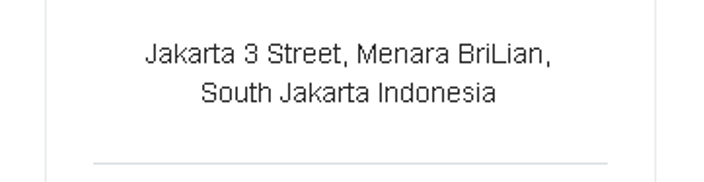
旧版生成的图片:
新版生成的图片:
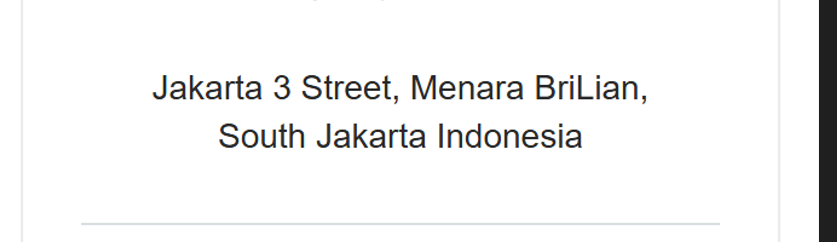
对比发现,第二种方式和浏览器打开html一样。
使用方法
具体使用方法查看下面不同环境下的文档内容,一下内容同样由AI根据项目生成的。
====================================================================
Windows 开发测试环境部署与使用指南
环境要求
| 软件 | 版本要求 | 下载地址 |
|---|---|---|
| JDK | 17+ | https://adoptium.net/ |
| Maven | 3.8+ | https://maven.apache.org/download.cgi |
| Chrome 或 Edge | 90+ | 系统通常已默认安装 |
步骤 1:安装 JDK 17
powershell
# 方式 1:winget 安装(推荐)
winget install EclipseAdoptium.Temurin.17.JDK

# 方式 2:手动下载
# 访问 https://adoptium.net/ 下载 Windows x64 MSI 安装包

# 验证
java -version
# 输出:openjdk version "17.0.x" ...
步骤 2:配置环境变量
powershell
# 新增系统变量
JAVA_HOME = C:\Program Files\Eclipse Adoptium\jdk-17.x.x

# Path 变量添加
%JAVA_HOME%\bin
步骤 3:安装 Maven
powershell
# 方式 1:winget 安装
winget install Apache.Maven

# 方式 2:手动下载 https://maven.apache.org/download.cgi
# 解压到 C:\Dev\apache-maven-3.9.x

# 配置环境变量
MAVEN_HOME = C:\Dev\apache-maven-3.9.x
Path 添加:%MAVEN_HOME%\bin

# 验证
mvn -version
步骤 4:确认浏览器可用
Windows 通常预装了 Edge:
powershell
# 检查 Edge
Test-Path "C:\Program Files (x86)\Microsoft\Edge\Application\msedge.exe"

# 检查 Chrome
Test-Path "C:\Program Files\Google\Chrome\Application\chrome.exe"

# 如需安装
winget install Microsoft.Edge
winget install Google.Chrome
Windows 默认已安装中文字体(Microsoft YaHei、SimSun),通常无需额外装字体。
API 使用方法
核心 API
java
/**
 * 将 HTML 内容渲染为 PNG 图片(使用真实浏览器引擎)
 *
 * @param htmlContent   HTML 源码字符串
 * @param outputPngPath 输出 PNG 文件的路径
 * @return true=成功,false=失败
 */
public static boolean htmlToPng(String htmlContent, String outputPngPath)
方式 1:作为独立工具运行(命令行测试)
jar 包内置了 main 方法,可直接运行测试:
powershell
# 使用默认配置(自动检测 Edge/Chrome)
java -jar target\html2png-5.0-SNAPSHOT.jar

# 指定浏览器路径
java -Dhtml2png.browser.path="C:\Program Files (x86)\Microsoft\Edge\Application\msedge.exe" `
     -jar target\html2png-5.0-SNAPSHOT.jar

# 通过环境变量指定浏览器
$env:HTML2PNG_BROWSER_PATH = "C:\Program Files\Google\Chrome\Application\chrome.exe"
java -jar target\html2png-5.0-SNAPSHOT.jar

# 查看 Playwright 浏览器安装帮助
java -jar target\html2png-5.0-SNAPSHOT.jar installBrowsers
运行成功后会输出:
Using local browser: C:\Program Files (x86)\Microsoft\Edge\Application\msedge.exe
Measured target: 542.0x731.0 at (16.0,8.0), clip=574.0x763.0
PNG saved: F:\test\bri-test-phone.png
Result: SUCCESS (xxxx ms)
方式 2:在你的项目中集成(推荐)
步骤 1:构建并安装到本地 Maven 仓库
powershell
cd D:\projects\html2png
mvn clean install -DskipTests
install会把 jar 放入本地 Maven 仓库(~/.m2/repository),供其它项目作为依赖引用。
步骤 2:在你的项目 pom.xml 中添加依赖
xml
<dependency>
    <groupId>com.example</groupId>
    <artifactId>html2png</artifactId>
    <version>5.0-SNAPSHOT</version>
</dependency>
步骤 3:调用 API
java
import com.example.HtmlToPng;

public class MyReceiptGenerator {
    public static void main(String[] args) {
        // 方式 A:直接传入 HTML 字符串
        String html = "<html><body><h1>电子收据</h1><p>金额:¥100.00</p></body></html>";
        boolean ok = HtmlToPng.htmlToPng(html, "D:\\output\\receipt.png");
        System.out.println("结果: " + (ok ? "成功" : "失败"));

        // 方式 B:从文件读取 HTML 再转换
        String htmlFromFile = java.nio.file.Files.readString(
            java.nio.file.Paths.get("D:\\template\\receipt.html"));
        HtmlToPng.htmlToPng(htmlFromFile, "D:\\output\\receipt.png");

        // 方式 C:在 Spring Boot 服务中调用
        // @PostMapping("/receipt/generate")
        // public byte[] generateReceipt(@RequestBody ReceiptData data) {
        //     String html = renderTemplate(data);  // 你的模板渲染逻辑
        //     String tmpPath = System.getProperty("java.io.tmpdir") + "\\" + UUID.randomUUID() + ".png";
        //     HtmlToPng.htmlToPng(html, tmpPath);
        //     return Files.readAllBytes(Paths.get(tmpPath));
        // }
    }
}
工作原理(问题排查必读)
程序按以下步骤工作,理解后便于排查问题:
- 下载远程图片 :扫描 HTML 中的
<img src="http...">,下载到本地临时目录并替换路径 - 宽视口加载:先用 1280×800 视口加载 HTML,让内容按设计宽度自然展开
- 等待字体加载 :等待
document.fonts.ready(最多 5 秒),确保字体加载完成 - 浏览器测量尺寸 :通过
getBoundingClientRect()获取目标元素(.receipt-container或 body 第一个子元素)的真实渲染尺寸 - 重设视口:按测量到的实际宽度重设视口,让元素贴左对齐,消除右侧空白
- 精确截图:按元素真实尺寸 + 16px padding 截图
目标元素选择优先级:
.receipt-container(业务约定容器)body的第一个子元素body自身
提示:如果你的 HTML 容器 class 不是
receipt-container,截图会取 body 第一个子元素的尺寸,通常也能正确工作。
构建项目
powershell
cd D:\projects\html2png

# 编译打包(生成 target\html2png-5.0-SNAPSHOT.jar)
mvn clean package -DskipTests

# 安装到本地 Maven 仓库(供其它项目引用)
mvn clean install -DskipTests

# 产物位置
dir target\html2png-5.0-SNAPSHOT.jar
常见问题
Q1:浏览器找不到?
powershell
# 方式 1:设置 JVM 参数
java -Dhtml2png.browser.path="C:\Path\To\chrome.exe" -jar your-app.jar

# 方式 2:设置环境变量
$env:HTML2PNG_BROWSER_PATH = "C:\Path\To\chrome.exe"
java -jar your-app.jar
Q2:中文显示方框?
Windows 默认已安装中文字体。如确实缺少,访问 https://fonts.google.com/noto/specimen/Noto+Sans+SC 下载安装。
Q3:Maven 依赖下载慢?
在 ~/.m2/settings.xml 中配置阿里云镜像:
xml
<mirrors>
    <mirror>
        <id>aliyun</id>
        <mirrorOf>central</mirrorOf>
        <url>https://maven.aliyun.com/repository/central</url>
    </mirror>
</mirrors>
Q4:截图右侧有大片空白?
程序已通过"重设视口"机制自动解决。如仍出现:
- 确认 HTML 中目标容器(
.receipt-container或 body 第一个子元素)有明确的宽度设置 - 查看控制台输出的
Measured target: WxH at (x,y)日志,确认测量值是否合理
Q5:文件被占用 / Access denied?
- 关闭占用文件的进程(如图片查看器)
- 更换输出路径
- 使用管理员权限运行
快捷命令汇总
powershell
# 一键安装环境
winget install EclipseAdoptium.Temurin.17.JDK
winget install Apache.Maven

# 一键验证环境
java -version
mvn -version
Test-Path "C:\Program Files (x86)\Microsoft\Edge\Application\msedge.exe"

# 一键构建并测试
cd D:\projects\html2png
mvn clean package -DskipTests
java -jar target\html2png-5.0-SNAPSHOT.jar
====================================================================
Linux (Red Hat) 生产环境部署与使用指南
适用 Red Hat Enterprise Linux 7/8/9、CentOS 7/8、Rocky Linux 8/9、AlmaLinux 8/9。
环境要求
| 软件 | 版本要求 |
|---|---|
| 操作系统 | RHEL 7+ / CentOS 7+ / Rocky 8+ / AlmaLinux 8+ |
| JDK | 17+ |
| 内存 | ≥ 1GB(推荐 2GB) |
| 磁盘 | ≥ 500MB 可用空间 |
步骤 1:安装 JDK 17
bash
# RHEL 8/9、Rocky、AlmaLinux
sudo dnf install -y java-17-openjdk java-17-openjdk-devel

# RHEL 7、CentOS 7
sudo yum install -y java-17-openjdk java-17-openjdk-devel

# 验证
java -version
# 输出:openjdk version "17.0.x" ...
如果默认仓库没有 JDK 17,使用 Adoptium 仓库:
bash
sudo curl -o /etc/yum.repos.d/adoptium.repo \
  https://raw.githubusercontent.com/adoptium/temurin-repo/master/adoptium.repo
sudo dnf install -y temurin-17-jdk
步骤 2:安装浏览器
方式 A:安装 Google Chrome(推荐)
bash
# RHEL 8/9
sudo dnf install -y https://dl.google.com/linux/direct/google-chrome-stable_current_x86_64.rpm

# CentOS 7
sudo yum install -y https://dl.google.com/linux/direct/google-chrome-stable_current_x86_64.rpm

# 验证
which google-chrome
google-chrome --version
方式 B:安装 Chromium
bash
# RHEL 9
sudo dnf install -y epel-release
sudo dnf install -y chromium

# RHEL 8
sudo dnf install -y https://dl.fedoraproject.org/pub/epel/epel-release-latest-8.noarch.rpm
sudo dnf install -y chromium

# CentOS 7
sudo yum install -y epel-release
sudo yum install -y chromium

# 验证
which chromium
chromium --version
步骤 3:安装多语言字体(关键)
为什么重要 :程序会等待
document.fonts.ready后才测量元素尺寸。字体缺失会导致:
- 中日韩等字符显示为方框(豆腐块)
- 文字宽高计算错误,导致截图尺寸偏差、内容被裁剪
bash
# 添加 EPEL 仓库
sudo dnf install -y epel-release   # RHEL 8+
sudo yum install -y epel-release   # CentOS 7

# 安装 CJK 中日韩字体
sudo dnf install -y google-noto-sans-cjk-fonts google-noto-sans-fonts

# 安装其他语言字体(按需)
sudo dnf install -y google-noto-sans-arabic-fonts       # 阿拉伯语
sudo dnf install -y google-noto-sans-devanagari-fonts   # 印地语
sudo dnf install -y google-noto-sans-thai-fonts        # 泰语
sudo dnf install -y google-noto-sans-vietnamese-fonts  # 越南语

# CentOS 7 可能包名不同
sudo yum install -y google-noto-sans-cjk-ttf google-noto-sans-ttf

# 刷新字体缓存
sudo fc-cache -fv

# 验证字体(建议 ≥ 200 个)
fc-list | grep -i noto | head -10
fc-list | wc -l
步骤 4:安装浏览器运行时依赖
bash
sudo dnf install -y \
    nss-lib libxkbcommon libXcomposite libXdamage libXrandr \
    libgbm libXss libXtst libX11-xcb libxcb-util libxcb-keysyms \
    libxcb-image libasound libatspi libcups libdrm

# 如果报缺少某个库,用 provides 查找
sudo dnf provides "*/libxxx.so"
步骤 5:上传 jar 包
bash
# 在 Windows 本地编译好 jar 后上传
scp target/html2png-5.0-SNAPSHOT.jar user@server:/opt/app/

# 服务器上创建目录
sudo mkdir -p /opt/app
sudo chown -R user:user /opt/app
cd /opt/app
API 使用方法
核心 API
java
/**
 * 将 HTML 内容渲染为 PNG 图片(使用真实浏览器引擎)
 *
 * @param htmlContent   HTML 源码字符串
 * @param outputPngPath 输出 PNG 文件的路径
 * @return true=成功,false=失败
 */
public static boolean htmlToPng(String htmlContent, String outputPngPath)
方式 1:作为独立工具运行(命令行)
jar 包内置了 main 方法,可直接运行测试:
bash
# 使用默认配置(自动检测系统浏览器)
java -jar html2png-5.0-SNAPSHOT.jar

# 指定浏览器路径
java -Dhtml2png.browser.path=/usr/bin/google-chrome \
     -jar html2png-5.0-SNAPSHOT.jar

# 通过环境变量指定浏览器
export HTML2PNG_BROWSER_PATH=/usr/bin/google-chrome
java -jar html2png-5.0-SNAPSHOT.jar

# 查看 Playwright 浏览器安装帮助
java -jar html2png-5.0-SNAPSHOT.jar installBrowsers
方式 2:在你的项目中集成(推荐)
步骤 1:安装到本地 Maven 仓库
在 html2png 项目目录执行:
bash
mvn clean install -DskipTests步骤 2:在你的项目 pom.xml 中添加依赖
xml
<dependency>
    <groupId>com.example</groupId>
    <artifactId>html2png</artifactId>
    <version>5.0-SNAPSHOT</version>
</dependency>
步骤 3:调用 API
java
import com.example.HtmlToPng;

public class MyReceiptGenerator {
    public static void main(String[] args) {
        // 方式 A:直接传入 HTML 字符串
        String html = "<html><body><h1>电子收据</h1><p>金额:¥100.00</p></body></html>";
        boolean ok = HtmlToPng.htmlToPng(html, "/tmp/receipt.png");
        System.out.println("结果: " + (ok ? "成功" : "失败"));

        // 方式 B:从文件读取 HTML 再转换
        String htmlFromFile = java.nio.file.Files.readString(
            java.nio.file.Paths.get("/data/template/receipt.html"));
        HtmlToPng.htmlToPng(htmlFromFile, "/data/output/receipt.png");

        // 方式 C:在 Spring Boot 服务中调用
        // public byte[] generateReceipt(ReceiptData data) {
        //     String html = renderTemplate(data);  // 你的模板渲染逻辑
        //     String tmpPath = "/tmp/" + UUID.randomUUID() + ".png";
        //     HtmlToPng.htmlToPng(html, tmpPath);
        //     return Files.readAllBytes(Paths.get(tmpPath));
        // }
    }
}
工作原理(问题排查必读)
程序按以下步骤工作,理解后便于排查问题:
- 下载远程图片 :扫描 HTML 中的
<img src="http...">,下载到本地临时目录并替换路径 - 宽视口加载:先用 1280×800 视口加载 HTML,让内容按设计宽度自然展开
- 等待字体加载 :等待
document.fonts.ready(最多 5 秒),确保字体加载完成 - 浏览器测量尺寸 :通过
getBoundingClientRect()获取目标元素(.receipt-container或 body 第一个子元素)的真实渲染尺寸 - 重设视口:按测量到的实际宽度重设视口,让元素贴左对齐,消除右侧空白
- 精确截图:按元素真实尺寸 + 16px padding 截图
目标元素选择优先级:
.receipt-container(业务约定容器)body的第一个子元素body自身
提示:如果你的 HTML 容器 class 不是
receipt-container,截图会取 body 第一个子元素的尺寸,通常也能正确工作。
配置 systemd 服务(生产推荐)
bash
sudo cat > /etc/systemd/system/html2png.service << 'EOF'
[Unit]
Description=HTML to PNG Converter Service
After=network.target

[Service]
Type=simple
User=appuser
Group=appuser
WorkingDirectory=/opt/app
ExecStart=/usr/bin/java \
    -Xms256m -Xmx1024m \
    -Dhtml2png.browser.path=/usr/bin/google-chrome \
    -Dfile.encoding=UTF-8 \
    -jar /opt/app/html2png-5.0-SNAPSHOT.jar
Restart=on-failure
RestartSec=10
MemoryMax=2G

NoNewPrivileges=yes
PrivateTmp=yes
ProtectSystem=strict
ReadWritePaths=/opt/app /tmp
ProtectHome=yes

[Install]
WantedBy=multi-user.target
EOF

# 创建运行用户并启动
sudo useradd -r -s /bin/false appuser
sudo chown -R appuser:appuser /opt/app
sudo systemctl daemon-reload
sudo systemctl start html2png
sudo systemctl enable html2png

# 检查状态与日志
sudo systemctl status html2png
sudo journalctl -u html2png -f
验证清单
部署完成后逐项验证:
bash
# 1. JDK 版本应为 17.x
java -version

# 2. 浏览器可用
/usr/bin/google-chrome --version

# 3. 字体已安装(建议 ≥ 200)
fc-list | grep -i noto | wc -l

# 4. 运行时库完整(应无输出)
ldd /usr/bin/google-chrome 2>/dev/null | grep "not found"

# 5. 程序正常运行,应看到 "Result: SUCCESS"
java -jar /opt/app/html2png-5.0-SNAPSHOT.jar
常见问题排查
Q1:Chrome 启动报 "missing shared library"
bash
ldd /usr/bin/google-chrome | grep "not found"
sudo dnf install -y nss-lib libXss libXtst ...
sudo dnf provides "*/libxxx.so"
Q2:root 用户启动报 "Running as root without --no-sandbox"
代码已自动添加 --no-sandbox 参数,无需额外处理。
Q3:中文字体显示方框 / 截图尺寸异常
bash
fc-list | grep -i "noto.*cjk"
sudo dnf install -y google-noto-sans-cjk-fonts
sudo fc-cache -fv
sudo systemctl restart html2png
Q4:截图右侧有大片空白
这是视口未贴合内容导致。程序已通过"重设视口"机制自动解决。如仍出现:
- 确认 HTML 中目标容器(
.receipt-container或 body 第一个子元素)有明确的宽度设置 - 检查
document.fonts.ready是否超时(日志会输出测量结果)
Q5:Chrome 崩溃或内存不足
bash
# 在 systemd 服务文件中增加 JVM 内存
-Xms512m -Xmx2048m
# 代码已内置 --disable-dev-shm-usage --disable-gpu 参数
Q6:浏览器无法启动 "permission denied"
bash
ls -la /usr/bin/google-chrome
sudo chmod 755 /usr/bin/google-chrome

# SELinux 问题
getenforce
sudo setenforce 0   # 临时关闭测试
Q7:离线环境部署
bash
# 在联网机器下载 RPM
yumdownloader --resolve google-chrome-stable google-noto-sans-cjk-fonts nss-lib
tar czvf html2png-rpms.tar.gz *.rpm
scp html2png-rpms.tar.gz user@server:/tmp/

# 离线服务器安装
sudo rpm -ivh --force /tmp/*.rpm
Q8:版本兼容性
| RHEL 版本 | 浏览器支持 | 字体支持 | 建议 |
|---|---|---|---|
| RHEL 9 | Chrome 120+ | 完整 | 推荐生产版本 |
| RHEL 8 | Chrome 120+ | 完整 | 推荐 |
| RHEL 7 | Chrome 109 | 部分 | 建议升级 RHEL 8+ |
一键部署脚本
保存为 deploy.sh,在服务器上执行:
bash
#!/bin/bash
set -e

APP_DIR="/opt/app"
JAR_FILE="html2png-5.0-SNAPSHOT.jar"

echo "=== Step 1: Install JDK ==="
if ! command -v java &>/dev/null; then
    if command -v dnf &>/dev/null; then
        dnf install -y java-17-openjdk java-17-openjdk-devel
    else
        yum install -y java-17-openjdk java-17-openjdk-devel
    fi
fi

echo "=== Step 2: Install Chrome ==="
if ! command -v google-chrome &>/dev/null && ! command -v chromium &>/dev/null; then
    if command -v dnf &>/dev/null; then
        dnf install -y https://dl.google.com/linux/direct/google-chrome-stable_current_x86_64.rpm || \
            dnf install -y chromium
    else
        yum install -y https://dl.google.com/linux/direct/google-chrome-stable_current_x86_64.rpm || \
            yum install -y chromium
    fi
fi

echo "=== Step 3: Install Fonts ==="
if command -v dnf &>/dev/null; then
    dnf install -y google-noto-sans-cjk-fonts google-noto-sans-fonts 2>/dev/null || true
else
    yum install -y google-noto-sans-cjk-fonts google-noto-sans-fonts 2>/dev/null || true
fi
fc-cache -fv

echo "=== Step 4: Install Runtime Dependencies ==="
if command -v dnf &>/dev/null; then
    dnf install -y nss-lib libXcomposite libXdamage libXrandr libgbm libasound libdrm 2>/dev/null || true
else
    yum install -y nss-lib libXcomposite libXdamage libXrandr libgbm libasound libdrm 2>/dev/null || true
fi

echo "=== Step 5: Deploy Application ==="
mkdir -p $APP_DIR
cp $JAR_FILE $APP_DIR/ 2>/dev/null || { echo "请上传 jar 文件到 $APP_DIR/"; exit 1; }

echo "=== Step 6: Start Service ==="
java -jar $APP_DIR/$JAR_FILE &
echo $! > $APP_DIR/app.pid

echo ""
echo "=== Deployment Complete ==="
echo "App running in background, PID: $(cat $APP_DIR/app.pid)"
使用:
bash
chmod +x deploy.sh
sudo ./deploy.sh