ArcGIS JS 基础教程(13):屏幕坐标与地理坐标互转
零、写在前面
📌 本系列教程完整目录 :ArcGIS JS 系列基础教程(100个项目常用热门功能)
💡 在线示例 :完整可运行的 HTML 示例,无需任何环境配置,可直接在浏览器中打开体验
🗂️ 专栏导航 :收藏 + 关注,专栏文章第一时间送达
❤️ 一键三连:点赞(给教程充电)+ 评论(提问必回)+ 收藏(下次再看)
一、功能介绍
在 WebGIS 开发中,经常需要在"用户鼠标点击的屏幕位置"和"真实地理坐标"之间进行转换。ArcGIS Maps SDK for JavaScript 提供了两个核心方法:
view.toMap(screenPoint):将屏幕像素坐标(以视图容器左上角为原点)转换为地理坐标Point(经纬度 + 高程)view.toScreen(mapPoint):将地理坐标Point转换为屏幕像素坐标{ x, y }
这两个方法是实现鼠标拾取、坐标标注、测量工具、点击添加标记、鼠标悬停信息提示等功能的基础。它们就像桥梁一样,把"用户看得到摸得着的屏幕"和"地图背后的地理空间"连接了起来。
二、功能实现
核心 API: view.toMap() 和 view.toScreen(),均在 SceneView 实例上调用。
2.1 屏幕坐标 → 地理坐标(toMap)
将鼠标点击的像素位置转换为 WGS84 经纬度坐标:
javascript
// 监听地图点击事件
view.on("click", (event) => {
    // event.x, event.y 是相对视图容器左上角的像素坐标
    const screenPoint = { x: event.x, y: event.y };

    // 转换为地理坐标
    const mapPoint = view.toMap(screenPoint);

    console.log(`屏幕像素:(${screenPoint.x}, ${screenPoint.y})`);
    console.log(`地理坐标:经度 ${mapPoint.longitude.toFixed(6)}, 纬度 ${mapPoint.latitude.toFixed(6)}`);
    console.log(`地面高程:${mapPoint.z?.toFixed(2) || "无"} 米`);
});
返回值说明:
- 返回的是
Point对象,包含longitude、latitude、z(海拔高度) z值仅在场景加载了高程数据时有效,否则为undefined- 坐标系默认是 WGS84(EPSG:4326)
2.2 地理坐标 → 屏幕坐标(toScreen)
将已知的地理坐标转换为屏幕像素位置,常用于在特定地理位置上叠加 UI 元素:
javascript
const Point = await $arcgis.import("@arcgis/core/geometry/Point.js");

// 创建地理坐标点
const mapPoint = new Point({
    longitude: 116.397,
    latitude: 39.917
});

// 转换为屏幕坐标
const screenPoint = view.toScreen(mapPoint);

console.log(`屏幕像素位置:x=${screenPoint.x}, y=${screenPoint.y}`);
⚠️ 注意: 如果地理坐标不在当前视野范围内,返回的屏幕坐标会超出视口范围(如 x < 0 或 x > view.width)。
2.3 鼠标移动实时坐标
结合 pointer-move 事件实现鼠标位置实时显示坐标:
javascript
view.on("pointer-move", (event) => {
    const screenPoint = { x: event.x, y: event.y };
    const mapPoint = view.toMap(screenPoint);

    // 更新 UI 显示当前鼠标所在位置的经纬度
    document.getElementById("coords").textContent =
        `经度 ${mapPoint.longitude.toFixed(6)}, 纬度 ${mapPoint.latitude.toFixed(6)}`;
});
2.4 点击添加标记
结合 toMap() 和 GraphicsLayer,实现点击地图添加标记物:
javascript
view.on("click", (event) => {
    const mapPoint = view.toMap({ x: event.x, y: event.y });

    // 在地理坐标处添加图形标记
    const graphic = new Graphic({
        geometry: mapPoint,
        symbol: {
            type: "point-3d",
            symbolLayers: [{
                type: "icon",
                resource: { primitive: "circle" },
                size: 16,
                material: { color: [255, 50, 50] }
            }]
        }
    });

    markerLayer.add(graphic);
});
2.5 屏幕坐标格式说明
屏幕坐标使用 { x, y } 对象格式,坐标系原点在视图容器的左上角:
(0, 0) ──────────────────→ x 增大(右)
  │
  │
  │
  ↓
y 增大(下)| 位置 | 屏幕坐标 |
|---|---|
| 视图容器左上角 | { x: 0, y: 0 } |
| 视图容器右下角 | { x: view.width, y: view.height } |
| 视图容器中心 | { x: view.width/2, y: view.height/2 } |
三、功能应用
| 应用场景 | 方法 | 说明 |
|---|---|---|
| 点击地图获取坐标 | toMap() |
用户点击后显示/记录该点的经纬度 |
| 鼠标悬停显示坐标 | toMap() + pointer-move |
底部状态栏实时显示鼠标所处坐标 |
| 点击添加 POI 标记 | toMap() + Graphic |
在地图点击位置放置标记(Pin) |
| 坐标输入反向定位 | toScreen() + goTo |
用户输入经纬度后飞到该位置 |
| 地理标签 UI 叠加 | toScreen() |
在建筑/POI 上方悬浮 HTML 标签 |
| 测量工具 | toMap() |
点击两个点计算距离 |
| 屏幕截图区域定位 | toScreen() |
确定截图框的地理范围 |
| 数据采集工具 | toMap() |
野外调研时点击记录采样点坐标 |
四、核心代码
📦 完整代码 已保存至
sample/lesson13_coordinate_conversion.html,可直接在浏览器打开。
html
<!DOCTYPE html>
<html lang="zh-CN">
<head>
    <meta charset="UTF-8">
    <meta name="viewport" content="width=device-width, initial-scale=1.0">
    <title>第13课:屏幕坐标与地理坐标互转</title>
    <link rel="stylesheet" href="https://js.arcgis.com/5.0/esri/themes/light/main.css">
    <script type="module" src="https://js.arcgis.com/5.0/"></script>
    <style>
        * {
            margin: 0;
            padding: 0;
            box-sizing: border-box;
        }

        body {
            font-family: "Microsoft YaHei", sans-serif;
        }

        #mapContainer {
            width: 100vw;
            height: 100vh;
        }

        .page-title {
            position: absolute;
            top: 20px;
            left: 50%;
            transform: translateX(-50%);
            background: rgba(255, 255, 255, 0.95);
            padding: 10px 24px;
            border-radius: 6px;
            font-size: 18px;
            font-weight: bold;
            z-index: 100;
            box-shadow: 0 2px 8px rgba(0, 0, 0, 0.15);
        }

        .control-panel {
            position: absolute;
            top: 80px;
            right: 20px;
            background: rgba(255, 255, 255, 0.95);
            padding: 16px;
            border-radius: 8px;
            box-shadow: 0 2px 12px rgba(0, 0, 0, 0.15);
            z-index: 100;
            min-width: 320px;
        }

        .control-panel h3 {
            margin: 0 0 8px 0;
            font-size: 14px;
            color: #333;
        }

        .section {
            margin-bottom: 12px;
            padding-bottom: 10px;
            border-bottom: 1px solid #eee;
        }

        .section:last-child {
            border-bottom: none;
            margin-bottom: 0;
        }

        .info-row {
            display: flex;
            gap: 8px;
            margin-bottom: 4px;
            font-size: 12px;
        }

        .info-row .label {
            color: #666;
            min-width: 60px;
        }

        .info-row .value {
            font-weight: bold;
            color: #1890ff;
            font-family: monospace;
        }

        .btn-row {
            display: flex;
            gap: 8px;
            margin-top: 8px;
        }

        .btn-row button {
            flex: 1;
            padding: 7px 0;
            border: 1px solid #d9d9d9;
            border-radius: 4px;
            background: white;
            cursor: pointer;
            font-size: 12px;
            transition: all 0.2s;
        }

        .btn-row button:hover {
            border-color: #1890ff;
            color: #1890ff;
        }

        .btn-row button.primary {
            background: #1890ff;
            color: white;
            border-color: #1890ff;
        }

        .btn-row button.danger {
            border-color: #ff4d4f;
            color: #ff4d4f;
        }

        .form-group {
            margin-bottom: 8px;
        }

        .form-group label {
            display: block;
            font-size: 12px;
            color: #666;
            margin-bottom: 3px;
        }

        .form-group input {
            width: 100%;
            padding: 5px 8px;
            border: 1px solid #d9d9d9;
            border-radius: 4px;
            font-size: 12px;
        }

        .form-group input:focus {
            border-color: #1890ff;
            outline: none;
        }

        .status-bar {
            position: absolute;
            bottom: 20px;
            left: 50%;
            transform: translateX(-50%);
            background: rgba(0, 0, 0, 0.75);
            color: white;
            padding: 8px 20px;
            border-radius: 20px;
            font-size: 13px;
            z-index: 100;
            display: flex;
            gap: 20px;
            white-space: nowrap;
        }

        .status-bar .coord-item {
            font-family: monospace;
        }

        .status-bar .coord-item span {
            color: #40a9ff;
            font-weight: bold;
        }

        .crosshair {
            position: absolute;
            z-index: 99;
            pointer-events: none;
            width: 30px;
            height: 30px;
            border-left: 2px dashed rgba(24, 144, 255, 0.7);
            border-top: 2px dashed rgba(24, 144, 255, 0.7);
            display: none;
        }

        .click-hint {
            position: absolute;
            top: 60px;
            left: 50%;
            transform: translateX(-50%);
            background: rgba(24, 144, 255, 0.9);
            color: white;
            padding: 4px 12px;
            border-radius: 3px;
            font-size: 12px;
            z-index: 101;
            pointer-events: none;
            display: none;
        }
    </style>
</head>
<body>
<h1 class="page-title">第13课:屏幕坐标与地理坐标互转</h1>

<div class="crosshair" id="crosshair"></div>
<div class="click-hint" id="clickHint">点击地图获取该点地理坐标</div>

<div class="control-panel">
    <div class="section">
        <h3>📍 点击地图获取坐标(toMap)</h3>
        <div class="info-row"><span class="label">屏幕坐标:</span><span class="value" id="screenCoords">--</span></div>
        <div class="info-row"><span class="label">经度:</span><span class="value" id="lngCoord">--</span></div>
        <div class="info-row"><span class="label">纬度:</span><span class="value" id="latCoord">--</span></div>
        <div class="info-row"><span class="label">高程:</span><span class="value" id="elevCoord">--</span></div>
    </div>

    <div class="section">
        <h3>🎯 坐标反查(输入坐标定位)</h3>
        <div class="form-group">
            <label>经度(如 116.397):</label>
            <input type="number" id="inputLng" placeholder="118.080" step="0.001">
        </div>
        <div class="form-group">
            <label>纬度(如 39.917):</label>
            <input type="number" id="inputLat" placeholder="30.330" step="0.001">
        </div>
        <div class="btn-row">
            <button id="btnLocate" class="primary">🚀 飞到坐标</button>
            <button id="btnToScreen">📺 查屏幕位置</button>
        </div>
    </div>

    <div class="section">
        <h3>🔴 标记管理</h3>
        <div class="btn-row">
            <button id="btnClearMarks" class="danger">🗑 清除所有标记</button>
        </div>
    </div>
</div>

<div class="status-bar" id="statusBar">
    <div class="coord-item">鼠标:<span id="hoverLng">--</span>, <span id="hoverLat">--</span></div>
    <div>|</div>
    <div class="coord-item">高程:<span id="hoverElev">--</span>m</div>
</div>

<div id="mapContainer"></div>

<script type="module">
    const Map = await $arcgis.import("@arcgis/core/Map.js");
    const SceneView = await $arcgis.import("@arcgis/core/views/SceneView.js");
    const GraphicsLayer = await $arcgis.import("@arcgis/core/layers/GraphicsLayer.js");
    const IntegratedMesh3DTilesLayer = await $arcgis.import("@arcgis/core/layers/IntegratedMesh3DTilesLayer.js");

    const Graphic = await $arcgis.import("@arcgis/core/Graphic.js");
    const Point = await $arcgis.import("@arcgis/core/geometry/Point.js");
    const getTianditu = await $arcgis.import("https://openlayers.vip/examples/resources/tianditu.js");

    // 天地图底图 + 高程
    const vecLayers = getTianditu.default({type: "vec_w"});
    const map = new Map({
        basemap: {baseLayers: [vecLayers.base, vecLayers.anno]},
        ground: {
            surface: {
                elevationLayers: [{
                    url: "https://www.geosceneonline.cn/image/rest/services/OpenData/ChinaTerrain3D/ImageServer/"
                }]
            }
        }
    });

    const view = new SceneView({
        container: "mapContainer",
        map: map,
        camera: {
            position: {longitude: 118.080, latitude: 30.330, z: 8000},
            heading: 0,
            tilt: 50
        }
    });
    window.view = view;


    const layer = new IntegratedMesh3DTilesLayer({
        url: "http://openlayers.vip/cesium/3dtile/xianggang_1.1/tileset.json",
    });
    map.add(layer);

    await view.when();

    // 等待 3D Tiles 图层加载,获取其范围
    await view.whenLayerView(layer);

    // 定位至图层范围
    view.goTo({
        target: layer.fullExtent,
        tilt: 55
    }, {duration: 1500});


    // 标记图层
    const markerLayer = new GraphicsLayer({title: "点击标记"});
    map.add(markerLayer);

    // DOM 元素
    const crosshair = document.getElementById("crosshair");
    const clickHint = document.getElementById("clickHint");

    // ===== toMap:屏幕坐标 → 地理坐标 =====
    function screenToMap(screenX, screenY) {
        return view.toMap({x: screenX, y: screenY});
    }

    // ===== toScreen:地理坐标 → 屏幕坐标 =====
    function mapToScreen(longitude, latitude) {
        const pt = new Point({longitude, latitude});
        return view.toScreen(pt);
    }

    // ===== 更新右侧面板坐标信息 =====
    function updateClickInfo(screenX, screenY, mapPoint) {
        document.getElementById("screenCoords").textContent =
            `(${Math.round(screenX)}, ${Math.round(screenY)})`;
        document.getElementById("lngCoord").textContent =
            mapPoint.longitude.toFixed(6) + "°";
        document.getElementById("latCoord").textContent =
            mapPoint.latitude.toFixed(6) + "°";
        document.getElementById("elevCoord").textContent =
            (mapPoint.z != null) ? mapPoint.z.toFixed(2) + " m" : "无高程数据";
    }

    // ===== 添加红色双圈标记 =====
    function addMarker(mapPoint) {
        // 内圈实心红点
        markerLayer.add(new Graphic({
            geometry: mapPoint,
            symbol: {
                type: "point-3d",
                symbolLayers: [{
                    type: "icon",
                    resource: {primitive: "circle"},
                    size: 18,
                    material: {color: [255, 50, 50]},
                    outline: {color: [255, 255, 255], size: 1.5}
                }]
            }
        }));
        // 外圈半透明白色
        markerLayer.add(new Graphic({
            geometry: mapPoint,
            symbol: {
                type: "point-3d",
                symbolLayers: [{
                    type: "icon",
                    resource: {primitive: "circle"},
                    size: 28,
                    material: {color: [255, 255, 255, 0.4]}
                }]
            }
        }));
    }

    // ===== 初始化 =====
    view.when(() => {
        console.log("场景加载完成");

        // ---------- 鼠标移动:实时显示坐标 ----------
        view.on("pointer-move", (event) => {
            const mapPoint = screenToMap(event.x, event.y);
            document.getElementById("hoverLng").textContent = mapPoint.longitude.toFixed(6);
            document.getElementById("hoverLat").textContent = mapPoint.latitude.toFixed(6);
            document.getElementById("hoverElev").textContent =
                (mapPoint.z != null) ? Math.round(mapPoint.z) : "--";

            // 十字准星跟随鼠标
            crosshair.style.left = (event.x - 15) + "px";
            crosshair.style.top = (event.y - 15) + "px";
            crosshair.style.display = "block";
        });

        view.on("pointer-leave", () => {
            crosshair.style.display = "none";
        });

        // ---------- 点击:获取坐标 + 添加标记 ----------
        view.on("click", (event) => {
            const mapPoint = screenToMap(event.x, event.y);
            updateClickInfo(event.x, event.y, mapPoint);
            addMarker(mapPoint);

            // 显示点击反馈
            clickHint.style.display = "block";
            clickHint.style.left = (event.x - 100) + "px";
            clickHint.style.top = (event.y - 40) + "px";
            clickHint.textContent =
                `✅ ${mapPoint.longitude.toFixed(4)}, ${mapPoint.latitude.toFixed(4)}`;
            setTimeout(() => {
                clickHint.style.display = "none";
            }, 1500);
        });

        // ---------- 按钮:飞到指定坐标 ----------
        document.getElementById("btnLocate").addEventListener("click", () => {
            const lng = parseFloat(document.getElementById("inputLng").value);
            const lat = parseFloat(document.getElementById("inputLat").value);
            if (isNaN(lng) || isNaN(lat)) {
                alert("请输入有效的经纬度");
                return;
            }
            view.goTo({
                center: [lng, lat],
                zoom: 16
            }, {
                duration: 2000,
                easing: "cubic-out"
            });
        });

        // ---------- 按钮:坐标反查屏幕位置 ----------
        document.getElementById("btnToScreen").addEventListener("click", () => {
            const lng = parseFloat(document.getElementById("inputLng").value);
            const lat = parseFloat(document.getElementById("inputLat").value);
            if (isNaN(lng) || isNaN(lat)) {
                alert("请输入有效的经纬度");
                return;
            }
            const screenPt = mapToScreen(lng, lat);
            const inView = screenPt.x >= 0 && screenPt.x <= view.width
                && screenPt.y >= 0 && screenPt.y <= view.height;
            alert(
                `地理坐标:(${lng}, ${lat})\n` +
                `屏幕坐标:(${Math.round(screenPt.x)}, ${Math.round(screenPt.y)})\n` +
                (inView ? "✅ 该坐标在视野范围内" : "⚠️ 该坐标不在当前视野范围内")
            );
        });

        // ---------- 按钮:清除标记 ----------
        document.getElementById("btnClearMarks").addEventListener("click", () => {
            markerLayer.removeAll();
            document.getElementById("screenCoords").textContent = "--";
            document.getElementById("lngCoord").textContent = "--";
            document.getElementById("latCoord").textContent = "--";
            document.getElementById("elevCoord").textContent = "--";
        });
    });
</script>
</body>
</html>
五、在线示例
🔗 在线体验地址(GitHub资源,等待时间较长,或者架梯子) :https://southjor.github.io/arcgis-examples/lessons/lesson13.html
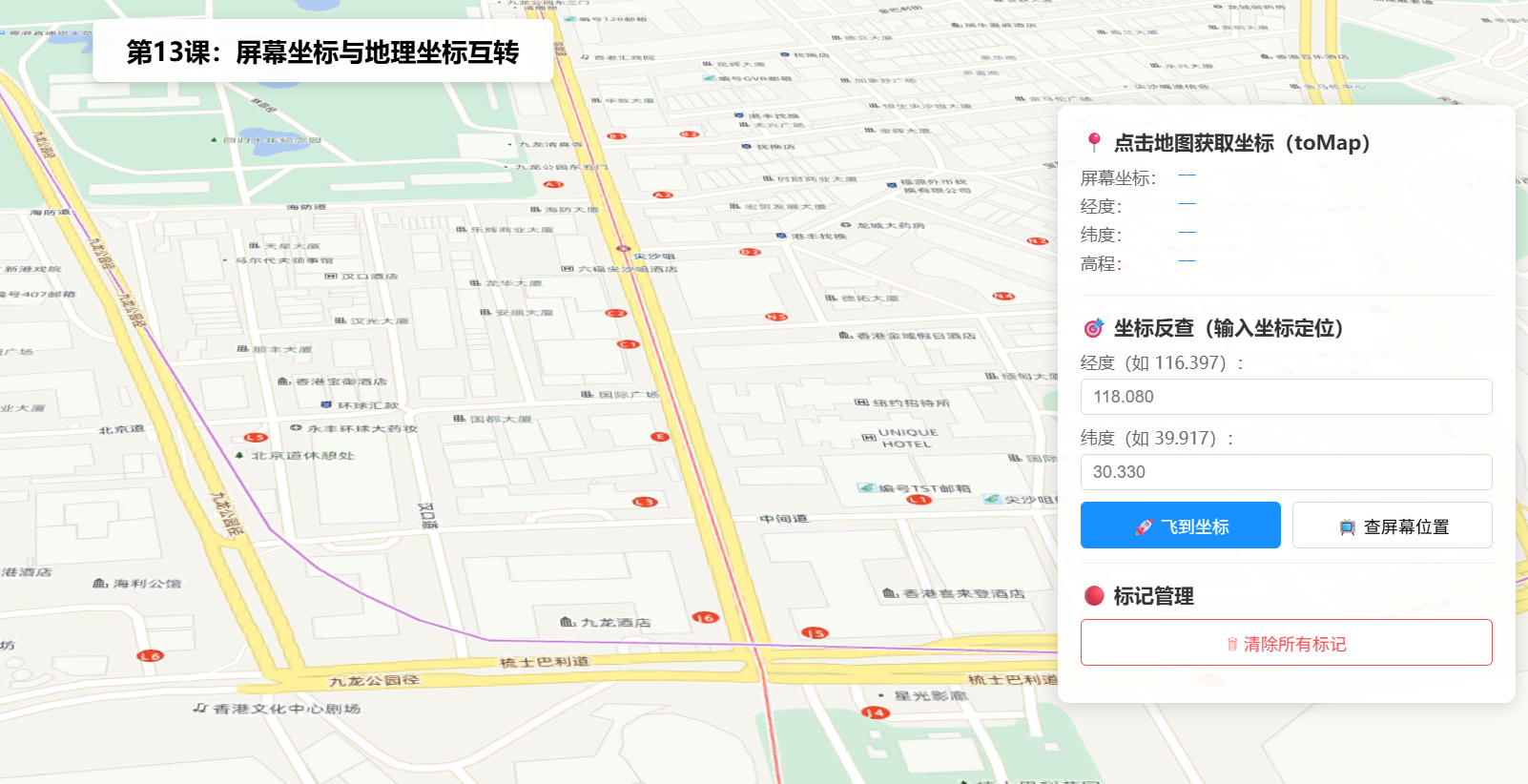
操作说明:
- 鼠标移动:在场景中滑动鼠标,底部状态栏实时显示当前鼠标位置的经纬度和地面高程
- 点击地图:点击任意位置,右侧面板显示该点的屏幕坐标、经纬度和高程,同时在场景中添加红色标记
- 坐标输入 :在经纬度输入框中输入坐标,点击「🚀 飞到坐标」通过
goTo飞到该位置- 坐标反查:输入坐标后点击「📺 查屏幕位置」,弹窗显示该地理坐标对应的屏幕像素位置
- 清除标记:点击「🗑 清除所有标记」移除所有已添加的标记点
- 十字准星:鼠标移动时蓝色虚线十字标跟随,帮助精确定位
六、关键API说明
| API | 参数 | 返回值 | 说明 |
|---|---|---|---|
view.toMap(screenPoint) |
{ x, y } |
Point |
屏幕像素 → 地理坐标(含 longitude/latitude/z) |
view.toScreen(mapPoint) |
Point |
{ x, y } |
地理坐标 → 屏幕像素位置 |
event.x / event.y |
--- | number | 鼠标事件中相对视图容器的像素坐标 |
mapPoint.z |
--- | number | undefined | 地面高程(米),需加载高程数据 |
常见坑点
| 问题 | 原因 | 解决方案 |
|---|---|---|
toMap() 返回的 z 为 undefined |
未加载高程数据( ground 未配置) |
在 Map 中配置 ground.surface.elevationLayers |
toScreen() 返回坐标超出范围 |
地理坐标不在当前视野内 | 先判断 x < 0 或 x > view.width 确认是否可见 |
| 点击获取的坐标和鼠标位置不一致 | 地图可能被 CSS 偏移(padding/margin) | 使用 event.x/event.y(已自动处理偏移) |
| 多次点击标记重叠 | 每次点击都直接在地理坐标处添加 | 无影响------toMap 返回的是精确坐标;如需去重可先查询已有标记 |
七、系列导航
💡 小贴士 :
toMap()和toScreen()是一对"双向桥"。记住三个关键场景:(1) 点击拾取 用toMap();(2) 标签叠加 用toScreen();(3) 实时跟随 用pointer-move+toMap()。结合这三招,你可以在三维地图上实现任何坐标交互功能。