系列: DevEco CLI 工具链实战 · 第 5 篇
引言
devecocli device 看似简单------只有 list 和 view 两个子命令------但它是 run、log 等命令的基础设施。理解 DeviceManager 的发现引擎、属性获取方式和设备类型覆盖机制,有助于排查设备连接问题。
本文将带你掌握:
- ✅
device list/device view的使用与输出 - ✅ DeviceManager 发现引擎的工作原理
- ✅ hdc 交互细节与设备类型覆盖
核心实现
Step 1: device list
目标: 列出当前活跃的设备
bash
devecocli device list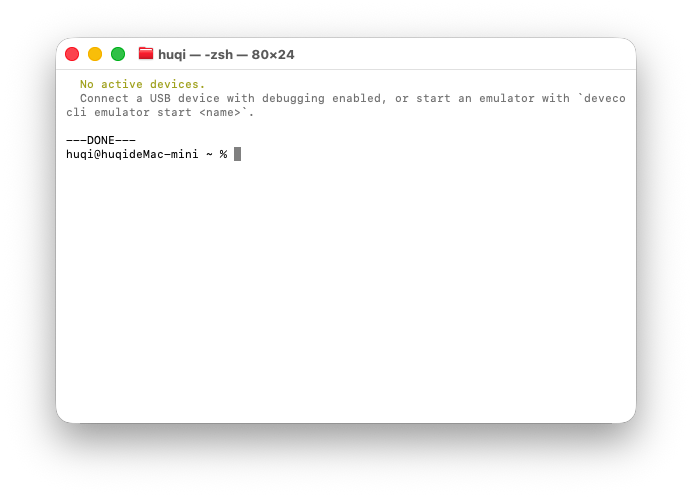

输出示例:
Name              Serial             Kind       Device Type
───────────────── ────────────────── ────────── ────────────
HUAWEI Mate 70    SGDUV12345678901   device     phone
Pixel_8_API_26 127.0.0.1:5555 emulator phone| 字段 | 说明 |
|---|---|
| Name | 设备名称(真机为型号,模拟器为实例名) |
| Serial | 序列号(真机为设备序列号,模拟器为 127.0.0.1:<port>) |
| Kind | device(真机)或 emulator(模拟器) |
| Device Type | 产品形态:phone / tablet / wearable / tv / 2in1 等 |
说明 :
device list仅显示当前活跃 设备。要查看所有模拟器实例(含已停止的),使用devecocli emulator list。
Step 2: device view
目标: 查看设备详细信息
bash
# 单设备环境
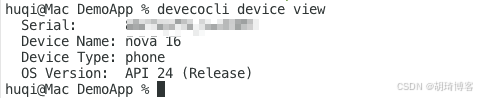
devecocli device view

# 多设备环境(必须 -t 指定)
devecocli device view -t SGDUV12345678901
devecocli device view -t 127.0.0.1:5555
输出包含:序列号、设备名称、设备类型、操作系统版本等。
Step 3: DeviceManager 发现引擎
目标: 理解设备发现的底层机制
typescript
// src/service/device-manager.ts (简化)
export class DeviceManager {
  static async listDevices(): Promise<ConnectedDeviceEntry[]> {
    // 1. hdc list targets → 获取所有连接的序列号
    const targets = await execa(hdcPath, ['list', 'targets']);

    // 2. 对每个序列号,批量获取设备属性
    const entries = await Promise.all(
      targets.map(serial => this.queryDeviceProperties(serial))
    );

    // 3. 区分真机与模拟器(模拟器序列号匹配 127.0.0.1:*)
    // 4. 用 emulator list 覆盖模拟器的 deviceType
    return entries;
  }
}
发现流程:
hdc list targets------ 获取所有已连接设备的序列号hdc shell param get------ 批量获取设备属性(名称、类型、OS 版本)- 模拟器识别 ------ 序列号匹配
127.0.0.1:*的为模拟器 - 设备类型覆盖 ------ 用
emulator list的信息覆盖模拟器的 deviceType
Step 4: hdc shell param get 批量属性
目标: 理解设备属性获取方式
typescript
// src/utils/hdc-param.ts (简化)
export class HdcParam {
  // 单个属性获取
  static async get(serial: string, key: string): Promise<string>;

  // 批量属性获取(减少 hdc 调用次数)
  static async getBatch(serial: string, keys: string[]): Promise<Record<string, string>>;
}
获取的关键属性:
| 参数 Key | 用途 |
|---|---|
const.secure.prod.name |
设备产品名称 |
const.secure.dev.type |
设备类型 |
hw_sc.build.os.version |
操作系统版本 |
说明 :
hdc shell param get有时会返回 "channel-still-establishing" 等连接建立中的信息,HdcParam会自动重试。
Step 5: 模拟器设备类型覆盖
目标: 理解为什么模拟器的 deviceType 需要覆盖
hdc shell param get 返回的模拟器 deviceType 可能不准确(如所有模拟器都返回 phone)。DeviceManager 会调用 emulator list 获取模拟器的真实 deviceType,并用 applyEmulatorDeviceTypeOverrides() 覆盖:
typescript
// src/commands/device.ts (简化)
function applyEmulatorDeviceTypeOverrides(
  entries: ConnectedDeviceEntry[],
  emulatorDeviceTypeByName: Map<string, string>
): void {
  for (const entry of entries) {
    if (entry.isEmulator && entry.name) {
      const fine = emulatorDeviceTypeByName.get(entry.name);
      if (fine) entry.deviceType = fine;  // 覆盖为真实类型
    }
  }
}
这确保了 device list 中模拟器的 Device Type 准确反映其配置(phone / tablet / wearable / tv 等)。
关键指令
device list展示活跃设备,区分真机与模拟器device view查看详细信息- DeviceManager 通过 hdc 自动发现设备并获取属性
- 模拟器 deviceType 通过 emulator list 覆盖,确保准确
关键代码解读
TextTable ------ 固定宽度表格
typescript
// src/utils/text-table.ts (简化)
export function renderTable(headers: string[], rows: TableRow[]): string {
  // 计算每列最大宽度
  // 对齐填充
  // 返回格式化字符串
}
device list、emulator list、emulator image list 都使用 TextTable 渲染输出。
常见问题排查
| 问题 | 原因 | 解决方案 |
|---|---|---|
No active devices |
无设备连接 | 连接真机或启动模拟器 |
| 设备名称显示为序列号 | param get 失败 |
检查 hdc 连接,重启 hdc |
| 模拟器 deviceType 不准确 | 覆盖逻辑未生效 | 检查 emulator list 输出 |
总结
device list显示活跃设备(真机 + 运行中模拟器),device view查看详情- DeviceManager 通过
hdc list targets发现设备,hdc shell param get批量获取属性 - 模拟器识别 :序列号匹配
127.0.0.1:*,deviceType 通过emulator list覆盖 - 多设备时
device view需-t指定,run/log需--device指定
下篇预告
第 6 篇 : 模拟器全生命周期 emulator ------ 深入
devecocli emulator的 9 个子命令:实例管理、系统镜像、虚拟设备与许可证。