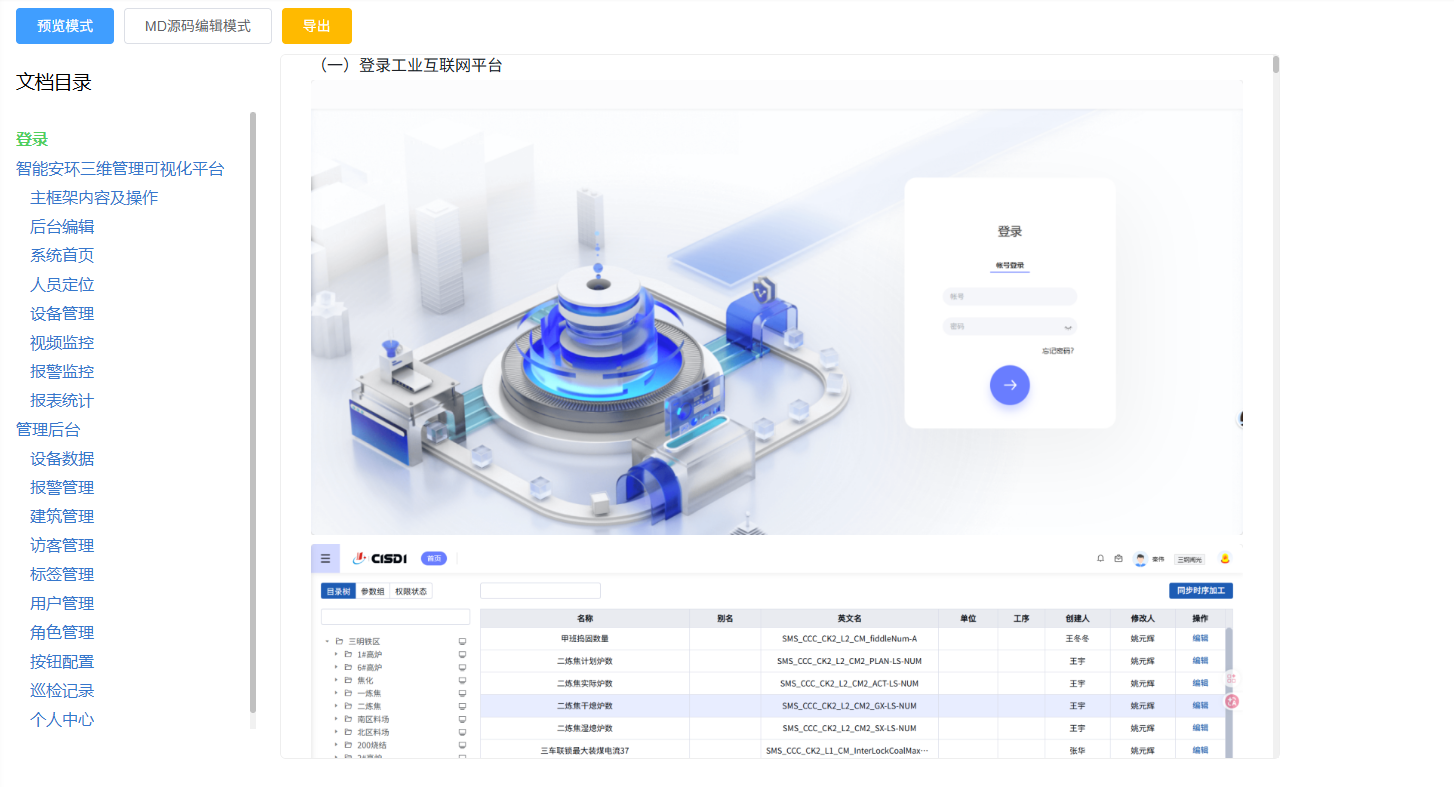
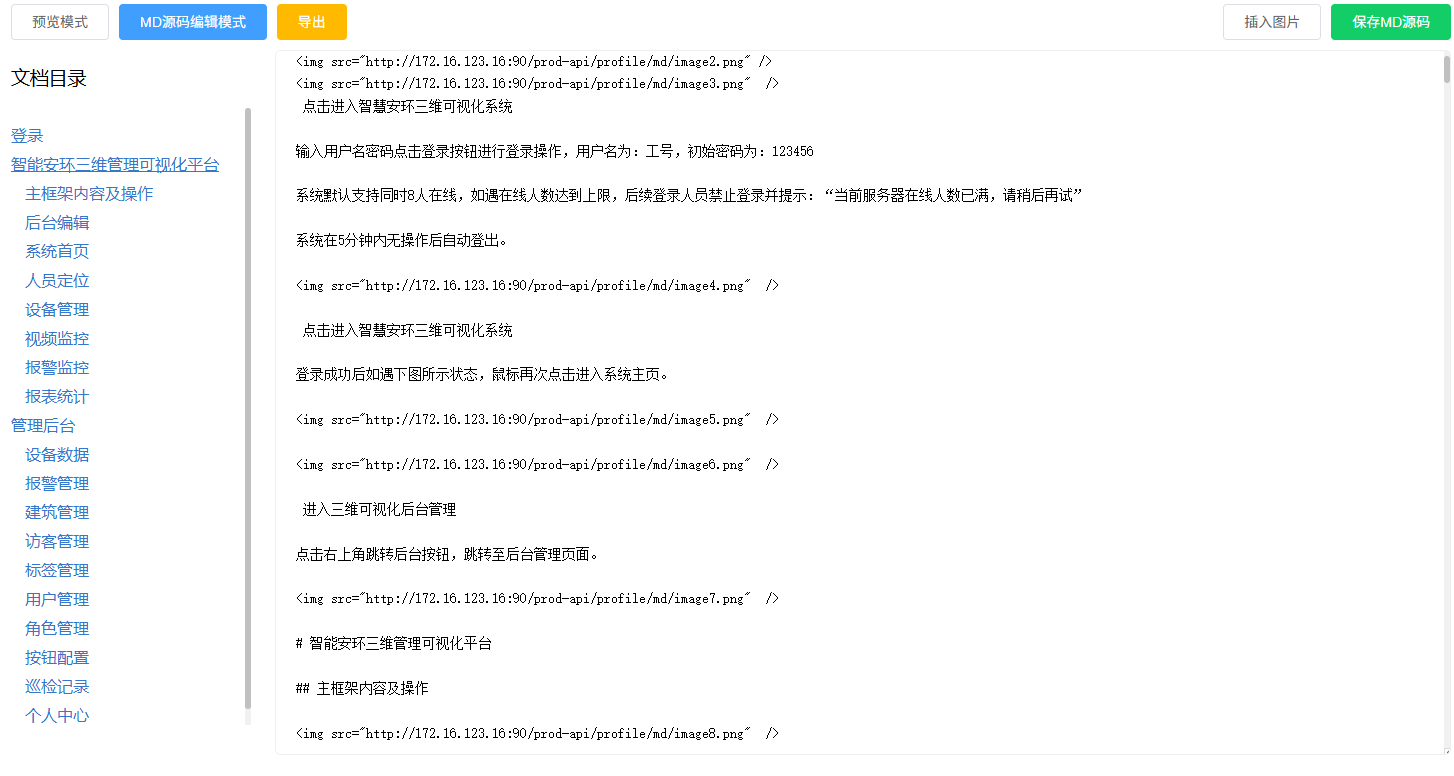
此功能具备将markdown格式的文件转换为html展示在页面上,并将修改markdown源码实现在线编辑的功能,并将自动生成目录树,切具备在鼠标位置插入图片功能,和导出word文档功能(目前导出的word文档有些样式有点问题,没找到解决办法)
所需要用到的插件npm install marked highlight.js github-markdown-css
里面引入的import { articleMD, getArticle, uploadImage } from '@/api/login'是我自己项目里的接口,编辑接口,详情接口及上传图片的接口,根据实际情况来
预览模式和MD源码编辑模式就是查看和编辑功能,每次点击预览模式都会重新调取一遍详情接口,图片具备在鼠标位置插入,没光标位置会在末尾插入,且点击图片有放大预览效果功能,导出word文档对里面的图片进行了base64处理。文档目录以进行处理会根据markdown内容自动生成,也会点击目录跳转到相应的位置并会给目录一个高亮提示
javascript
<template>
<div class="container">
<!-- 顶部切换栏 -->
<div class="tab-bar">
<div>
<el-button :class="['tab-btn', viewMode === 'preview' ? 'active' : '']" @click="switchMode('preview')">
预览模式
</el-button>
<el-button :class="['tab-btn', viewMode === 'edit' ? 'active' : '']" @click="switchMode('edit')">
MD源码编辑模式
</el-button>
<el-button type="warning" @click="exportMd">
导出
</el-button>
</div>
<!-- 仅编辑模式显示图片上传 -->
<div style="text-align: right;" v-if="viewMode === 'edit'">
<el-button style="margin-right: 10px;" @click="$refs.imgInput.click()">插入图片</el-button>
<input ref="imgInput" type="file" accept="image/*" hidden @change="insertImage" />
<el-button type="success" @click="saveMd">保存MD源码</el-button>
</div>
</div>
<div class="md-wrap" style="display:flex;gap:24px;padding:0 20px;">
<!-- 左侧固定目录树 v-for动态渲染 -->
<div>
<h3>文档目录</h3>
<div class="toc-sidebar">
<ul style="padding-left:0;list-style:none;">
<li v-for="item in tocList" :key="item.id"
:style="{ margin: '8px 0', paddingLeft: (item.level - 1) * 14 + 'px' }">
<a :href="`#${item.id}`" :class="{ 'active-toc': activeId === item.id }">
{{ item.title }}
</a>
</li>
</ul>
</div>
</div>
<!-- 右侧区域:分预览 / 编辑 -->
<div class="right-area" style="flex:1;">
<!-- 预览模式 绑定滚动 -->
<div v-if="viewMode === 'preview'" class="markdown-body" ref="mdBox" @scroll="handleScroll"></div>
<!-- MD编辑模式 -->
<textarea v-else v-model="rawMd" ref="textareaRef" class="md-editor" placeholder="在此编辑Markdown内容..."></textarea>
</div>
</div>
</div>
</template>
<script>
import { articleMD, getArticle, uploadImage } from '@/api/login'
import marked from 'marked'
import hljs from 'highlight.js'
import 'github-markdown-css'
import 'highlight.js/styles/github.css'
export default {
name: 'MarkView',
data() {
return {
rawMd: '',
viewMode: 'preview',
activeId: '',
tocList: [] // 目录数组,v-for渲染
}
},
mounted() {
this.init()
},
methods: {
init() {
getArticle(3).then(res => {
this.rawMd = this.fixMdImagePath(res.data.mdContent)
this.renderFullMd()
})
},
switchMode(mode) {
this.viewMode = mode
this.activeId = ''
this.$nextTick(() => {
if (mode === 'preview') {
this.init()
} else {
this.renderFullMd()
}
})
},
fixMdImagePath(mdContent) {
return mdContent.replace(/!\[(.*?)\]\((.*?)\)/g, (match, alt, imgPath) => {
// if (!imgPath.startsWith('http')) {
// let realPath = imgPath.replace(/^\.+\//, '')
// return ``
// }
return match
})
},
// 为标题添加id属性,用于目录树
addHeadingId(htmlStr) {
const idCache = {}
return htmlStr.replace(/<(h[1-6])>(.+?)<\/\1>/g, (_, tag, text) => {
let id = text.replace(/[^\u4e00-\u9fa5a-zA-Z0-9]/g, '-').replace(/-+/g, '-')
if (idCache[id]) {
idCache[id]++
id += '-' + idCache[id]
} else {
idCache[id] = 1
}
return `<${tag} id="${id}">${text}</${tag}>`
})
},
// 渲染Markdown内容,预览模式和编辑模式都调用
renderFullMd() {
if (!this.rawMd) return
marked.setOptions({
highlight(code, lang) {
if (lang && hljs.getLanguage(lang)) {
return hljs.highlight(code, { language: lang }).value
}
return hljs.highlightAuto(code).value
},
gfm: true,
breaks: true
})
let html = marked.parse(this.rawMd)
html = this.addHeadingId(html)
if (this.viewMode === 'preview') {
this.$refs.mdBox.innerHTML = html
this.$nextTick(() => {
const imgArr = this.$refs.mdBox.querySelectorAll('img')
imgArr.forEach(img => {
// 鼠标悬浮放大镜样式
img.style.cursor = 'zoom-in'
// 防止重复绑定事件
img.onclick = null
img.onclick = () => {
// 创建全屏黑色遮罩
const mask = document.createElement('div')
mask.style.cssText = `
position: fixed;
top: 0;
left: 0;
width: 100vw;
height: 100vh;
background: rgba(0,0,0,0.9);
z-index: 99999;
display: flex;
align-items: center;
justify-content: center;
`
// 大图
const bigImg = new Image()
bigImg.src = img.src
bigImg.style.maxWidth = '90%'
bigImg.style.maxHeight = '90vh'
mask.appendChild(bigImg)
// 点击遮罩任意位置关闭弹窗
mask.onclick = () => {
mask.remove()
}
document.body.appendChild(mask)
}
})
})
}
// 生成目录数组,替换innerHTML拼接
this.generateTocList(html)
},
// 生成目录数组存在tocList,v-for渲染
generateTocList(html) {
const tempDom = document.createElement('div')
tempDom.innerHTML = html
const headers = tempDom.querySelectorAll('h1,h2,h3')
const list = []
headers.forEach(h => {
list.push({
id: h.id,
title: h.innerText,
level: Number(h.tagName.slice(1))
})
})
this.tocList = list
},
// 滚动监听,只更新activeId,Vue自动响应高亮
handleScroll() {
if (this.viewMode !== 'preview' || !this.$refs.mdBox) return
const scrollBox = this.$refs.mdBox
const allHeadings = scrollBox.querySelectorAll('h1,h2,h3')
let currentId = ''
// 倒序遍历
for (let i = allHeadings.length - 1; i >= 0; i--) {
const h = allHeadings[i]
const offsetTop = h.offsetTop - scrollBox.scrollTop
if (offsetTop < 100) {
currentId = h.id
break
}
}
// 仅修改activeId,Vue自动更新class高亮
this.activeId = currentId
},
// 插入图片
insertImage(e) {
const file = e.target.files[0]
var imgMd = ''
if (!file) return
// const tempUrl = URL.createObjectURL(file)
var formData = new FormData()
formData.append('file', file)
formData.append('filePath', 'md')
uploadImage(formData).then(res => {
if (res.code == 200) {
imgMd = `<img src="${'http://你自己的线上ip:8080' + res.fileName}" />`
const textarea = this.$refs.textareaRef
const start = textarea.selectionStart
const end = textarea.selectionEnd
this.rawMd = this.rawMd.slice(0, start) + imgMd + this.rawMd.slice(end)
e.target.value = ''
this.$message.success('插入成功')
}
})
},
//转成文档
async exportMd() {
const loading = this.$loading({
lock: true,
text: '正在生成文档,markdown转码中...',
spinner: 'el-icon-document',
background: 'rgba(0, 0, 0, 0.7)'
})
try {
let html = marked.parse(this.rawMd)
// 1. 提取所有图片地址,转base64,避免Word离线空白
const imgReg = /<img src="([^"]+)"/g
let match
const imgUrls = []
while ((match = imgReg.exec(html)) !== null) {
imgUrls.push(match[1])
}
// 批量替换图片src为base64
for (const url of imgUrls) {
const base64 = await this.getImgBase64(url)
html = html.replace(`src="${url}"`, `src="${base64}"`)
}
html = html.replace(/<img/g, '<img width="1000"')
const fullHtml = `
<html lang="zh-CN">
<head>
<meta charset="UTF-8">
<!-- Word兼容标识,提升CSS生效概率 -->
<meta name="ProgId" content="Word.Document">
<style>
body {
font-family:"Microsoft YaHei";
font-size:14px;
line-height:1.8;
}
p {
text-indent:2em;
margin:8px 0;
}
h1 {
font-size: 26px !important;
margin: 30px 0 15px;
border-bottom: 1px solid #eee;
padding-bottom: 8px;
font-weight: bold !important;
}
h2 {
font-size: 22px !important;
margin: 24px 0 12px;
font-weight: bold !important;
}
h3 {
font-size: 20px !important;
margin: 20px 0 10px;
font-weight: bold !important;
}
h4 {
font-size: 18px !important;
margin: 16px 0 8px;
font-weight: bold !important;
}
h5 {
font-size: 16px !important;
margin: 12px 0 6px;
font-weight: bold !important;
}
ul,ol {
margin-left:5px;
list-style: none;
padding-left: 0;
}
li {
list-style: none;
margin:3px 0;
text-indent:0;
display: flex;
align-items: center;
}
table {
border-collapse:collapse;
width:95%;
margin:25px 0;
}
td,th {
border:1px solid #ccc;
padding:8px 12px;
}
th {
background:#f5f7fa;
}
</style>
</head>
<body>
${html}
</body>
</html>`
var blob = new Blob([fullHtml], { type: 'application/vnd.openxmlformats-officedocument.wordprocessingml.document' })
var url = URL.createObjectURL(blob)
var a = document.createElement('a')
a.href = url
a.download = '操作手册.docx'
// 必须插入body
document.body.appendChild(a)
a.click()
URL.revokeObjectURL(url)
this.$message.success('导出完成')
}
catch (err) {
console.error(err)
this.$message.error('导出异常')
}
finally {
loading.close()
}
},
// 转成base64
getImgBase64(url) {
return new Promise((resolve) => {
const img = new Image()
img.crossOrigin = 'Anonymous'
img.onload = () => {
const canvas = document.createElement('canvas')
const maxW = 1000
let w = img.width
let h = img.height
if (w > maxW) {
h = (maxW / w) * h
w = maxW
}
canvas.width = w
canvas.height = h
const ctx = canvas.getContext('2d')
ctx.drawImage(img, 0, 0, w, h)
resolve(canvas.toDataURL('image/png'))
}
// 图片加载失败兜底
img.onerror = () => resolve(url)
img.src = url
})
},
//保存
saveMd() {
const encodeStr = encodeURIComponent(this.rawMd)
const base64Md = btoa(encodeStr)
const form = {
title: '操作手册',
mdContent: this.rawMd,
id: 3
}
articleMD(form).then(res => {
if (res.code == 200) {
this.$message.success('保存成功')
}
})
}
}
}
</script>
<style scoped>
/* 切换按钮样式 */
.tab-bar {
display: flex;
justify-content: space-between;
padding: 0 20px;
margin: 10px 0;
}
.tab-btn {
/* padding: 6px 18px;
border: 1px solid #ccc;
background: #fff;
cursor: pointer;
margin-right: 8px;
border-radius: 4px; */
}
.tab-btn.active {
background: #409eff;
color: #fff;
border-color: #409eff;
}
/* 预览区域 */
.markdown-body {
box-sizing: border-box;
max-width: 1000px;
max-height: 80vh;
overflow-y: auto;
padding: 10px 30px;
line-height: 1.8;
border: 1px solid #eee;
border-radius: 6px;
}
.markdown-body img {
max-width: 100%;
border: 1px solid #eee;
border-radius: 4px;
}
/* MD编辑文本域 */
.md-editor {
width: 100%;
height: 80vh;
padding: 20px;
border: 1px solid #eee;
border-radius: 6px;
font-size: 14px;
line-height: 1.6;
resize: vertical;
}
.toc-sidebar {
min-width: 240px;
max-width: 300px;
max-height: 70vh;
overflow-y: auto;
}
/* 侧边目录 */
.toc-sidebar h3 {
max-height: 80vh;
overflow-y: auto;
border-bottom: 1px solid #eee;
padding-bottom: 10px;
}
.toc-sidebar a {
color: #3677cc;
text-decoration: none;
}
.toc-sidebar a:hover {
text-decoration: underline;
}
/* 滚动高亮样式 */
.toc-sidebar a.active-toc {
color: #4FCF5E !important;
font-weight: bold;
/* background: #e6f0ff; */
/* padding: 2px 6px; */
border-radius: 4px;
}
</style>