系列:鸿蒙 HarmonyOS 6.1 新特性实战 · 第 50 篇
当 Column/Row 的多层嵌套使代码深度超过 4 层,或者需要将某个元素同时相对多个兄弟元素进行对齐时,RelativeContainer 是更优的选择。它通过给每个元素分配 .id() 并在 alignRules 中声明锚点关系,以平铺结构替代深层嵌套,让布局逻辑一目了然。本篇通过侧边栏布局和 Profile 卡片两个实战示例,讲清 RelativeContainer 的核心机制。
运行效果
初始状态(侧边栏 + 内容区 + 底部导航栏布局): 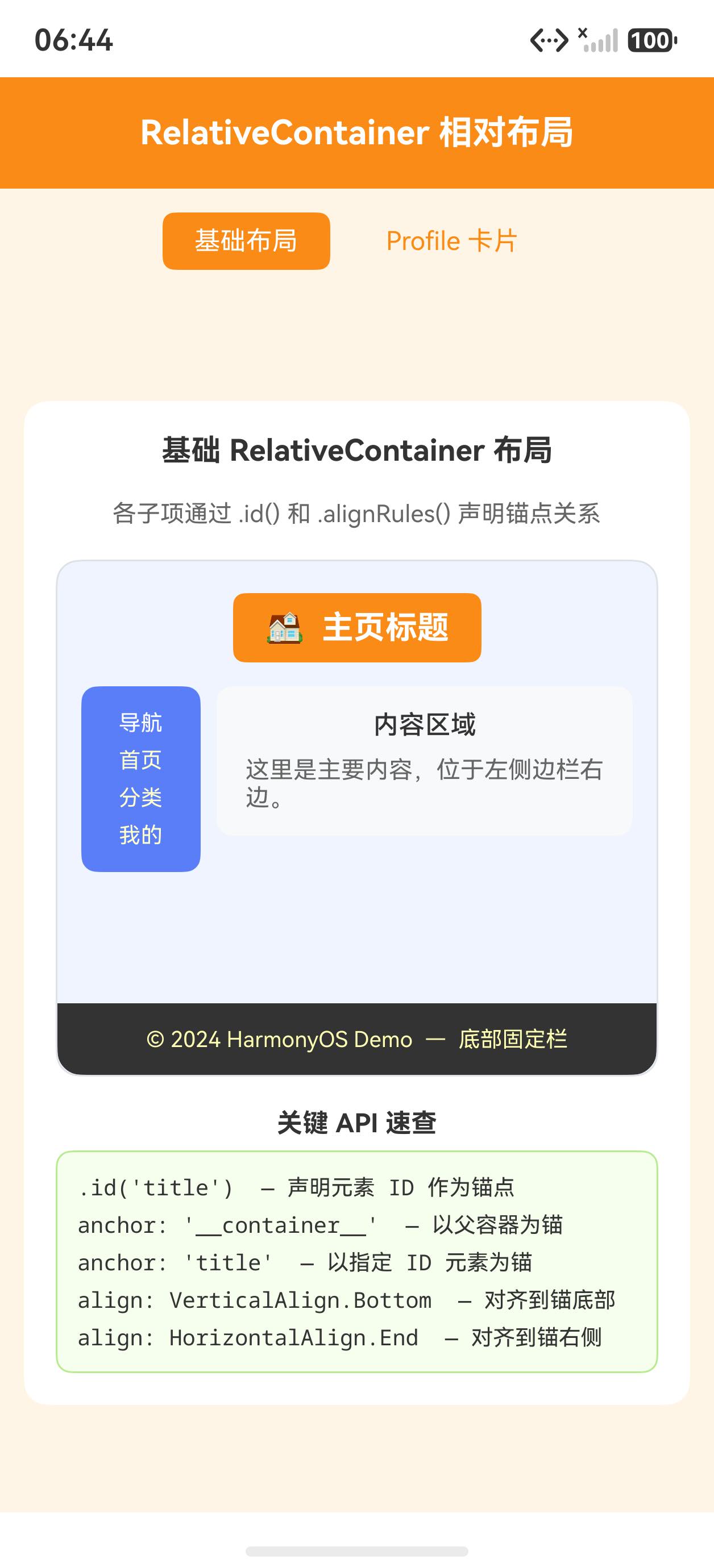
切换到 Profile 卡片布局,头像、姓名、简介、按钮各自锚定在不同位置: 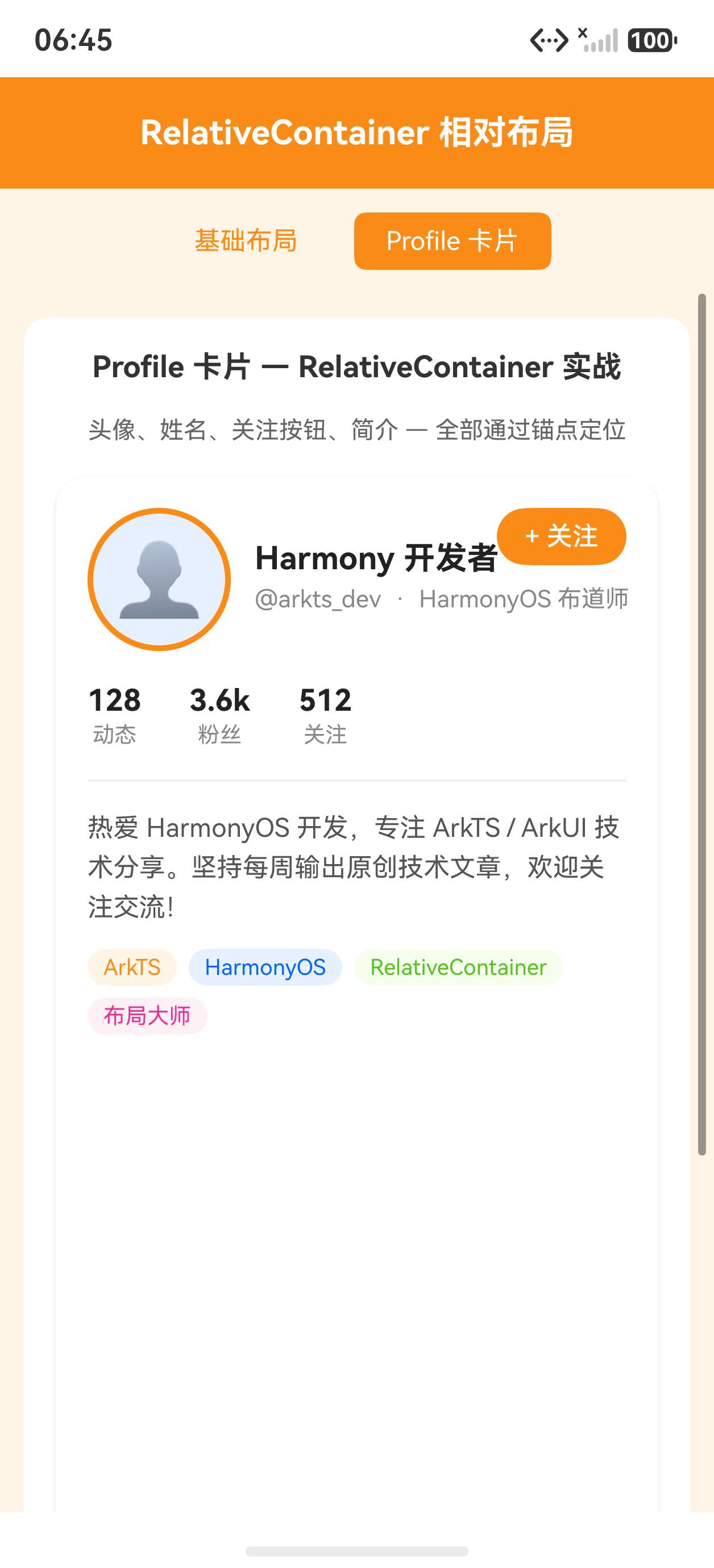
核心概念:id 与 alignRules
RelativeContainer 的工作原理分两步:
- 声明锚点 :用
.id('elementId')给需要被其他元素引用的组件分配唯一 ID - 声明对齐关系 :用
alignRules指定当前组件的各条边相对于哪个锚点的哪条边对齐
特殊锚点 '__container__' 代表 RelativeContainer 本身,无需声明 id:
typescript
RelativeContainer() {
  // 标题:水平居中,贴顶部
  Text('主页标题')
    .id('title')
    .alignRules({
      top: { anchor: '__container__', align: VerticalAlign.Top },
      middle: { anchor: '__container__', align: HorizontalAlign.Center }
    })
    .margin({ top: 20 })
    .fontSize(18).fontWeight(FontWeight.Bold).fontColor('#1a1a1a')

  // 侧边栏:标题下方,贴左边
  Column({ space: 16 }) {
    Text('首页').fontSize(14).fontColor('#333')
    Text('分类').fontSize(14).fontColor('#333')
    Text('我的').fontSize(14).fontColor('#333')
  }
  .id('sidebar')
  .alignRules({
    top: { anchor: 'title', align: VerticalAlign.Bottom },
    left: { anchor: '__container__', align: HorizontalAlign.Start }
  })
  .width(80).backgroundColor('#f0f4ff')
  .padding(12).margin({ top: 8 })

  // 内容区:与侧边栏顶部对齐,紧贴侧边栏右侧
  Text('内容区域\n\n这里是正文内容,\n可以显示文章或商品列表。')
    .id('content')
    .alignRules({
      top: { anchor: 'sidebar', align: VerticalAlign.Top },
      left: { anchor: 'sidebar', align: HorizontalAlign.End }
    })
    .margin({ left: 8 })
    .fontSize(13).fontColor('#555').padding(12)

  // 底部导航栏:贴底部、横跨全宽
  Text('首页  |  分类  |  购物车  |  我的')
    .id('bottomBar')
    .alignRules({
      bottom: { anchor: '__container__', align: VerticalAlign.Bottom },
      left: { anchor: '__container__', align: HorizontalAlign.Start },
      right: { anchor: '__container__', align: HorizontalAlign.End }
    })
    .width('100%').height(56)
    .backgroundColor('#0066ff').fontColor('#fff')
    .textAlign(TextAlign.Center).fontSize(13)
}
.width('100%').height(400)
.backgroundColor('#fafafa').borderRadius(8)
alignRules 方向键解读
alignRules 中每个键(top、bottom、left、right、middle、center)定义的是"当前元素的这条边对齐到锚点的哪条边":
| alignRules 键 | 含义 |
|---|---|
top |
当前元素的顶边对齐到锚点 |
bottom |
当前元素的底边对齐到锚点 |
left |
当前元素的左边对齐到锚点 |
right |
当前元素的右边对齐到锚点 |
middle |
当前元素的水平中线对齐到锚点 |
center |
当前元素的垂直中线对齐到锚点 |
align 值指定锚点元素的哪条边作为参考线:VerticalAlign.Bottom 表示锚点的底边 ,HorizontalAlign.End 表示锚点的右边。
typescript
// 实例:将 B 放在 A 的正下方
Text('B')
  .alignRules({
    // B 的顶边 对齐到 A 的底边 → B 在 A 下方
    top: { anchor: 'a', align: VerticalAlign.Bottom },
    // B 的左边 对齐到 A 的左边 → B 与 A 左对齐
    left: { anchor: 'a', align: HorizontalAlign.Start }
  })
实战:Profile 卡片
Profile 卡片是 RelativeContainer 的经典场景:头像固定在左侧,姓名在头像右侧居中,简介在姓名下方,操作按钮在右上角:
typescript
RelativeContainer() {
  // 头像
  Text('👤')
    .id('avatar')
    .fontSize(56)
    .alignRules({
      top: { anchor: '__container__', align: VerticalAlign.Top },
      left: { anchor: '__container__', align: HorizontalAlign.Start }
    })
    .margin({ top: 16, left: 16 })

  // 姓名:头像右侧,与头像垂直居中
  Text('张小明')
    .id('name')
    .fontSize(16).fontWeight(FontWeight.Bold).fontColor('#1a1a1a')
    .alignRules({
      center: { anchor: 'avatar', align: VerticalAlign.Center },
      left: { anchor: 'avatar', align: HorizontalAlign.End }
    })
    .margin({ left: 12 })

  // 简介:姓名下方
  Text('HarmonyOS 开发工程师 | 鸿蒙布局专家')
    .id('bio')
    .fontSize(12).fontColor('#888')
    .alignRules({
      top: { anchor: 'name', align: VerticalAlign.Bottom },
      left: { anchor: 'name', align: HorizontalAlign.Start }
    })
    .margin({ top: 4 })

  // 关注按钮:贴右上角
  Button('+ 关注').height(32).fontSize(13)
    .id('followBtn')
    .alignRules({
      top: { anchor: '__container__', align: VerticalAlign.Top },
      right: { anchor: '__container__', align: HorizontalAlign.End }
    })
    .margin({ top: 20, right: 16 })

  // 分隔线:头像下方,横跨全宽
  Divider()
    .id('divider')
    .strokeWidth(1).color('#eeeeee')
    .alignRules({
      top: { anchor: 'avatar', align: VerticalAlign.Bottom },
      left: { anchor: '__container__', align: HorizontalAlign.Start },
      right: { anchor: '__container__', align: HorizontalAlign.End }
    })
    .margin({ top: 12 })
}
.width('100%').height(160)
.backgroundColor('#fff').borderRadius(12)
.padding({ left: 0, right: 0 })
完整代码
typescript
@Entry
@Component
struct RelativeContainerDemo {
  @State showProfile: boolean = false

  build() {
    Column({ space: 16 }) {
      // 标题
      Text('RelativeContainer 演示')
        .fontSize(16).fontWeight(FontWeight.Bold).fontColor('#1a1a1a')

      // 切换按钮
      Button(this.showProfile ? '切换到侧边栏布局' : '切换到 Profile 卡片')
        .width('70%').height(40)
        .onClick(() => {
          this.showProfile = !this.showProfile
        })

      if (!this.showProfile) {
        // --------- 侧边栏布局 ---------
        Text('侧边栏 + 内容 + 底部导航')
          .fontSize(14).fontColor('#666')

        RelativeContainer() {
          Text('主页标题')
            .id('title')
            .alignRules({
              top: { anchor: '__container__', align: VerticalAlign.Top },
              middle: { anchor: '__container__', align: HorizontalAlign.Center }
            })
            .margin({ top: 20 })
            .fontSize(17).fontWeight(FontWeight.Bold).fontColor('#1a1a1a')

          Column({ space: 14 }) {
            Text('首页').fontSize(13).fontColor('#333')
            Text('分类').fontSize(13).fontColor('#333')
            Text('消息').fontSize(13).fontColor('#333')
            Text('我的').fontSize(13).fontColor('#333')
          }
          .id('sidebar')
          .alignRules({
            top: { anchor: 'title', align: VerticalAlign.Bottom },
            left: { anchor: '__container__', align: HorizontalAlign.Start }
          })
          .width(76).backgroundColor('#f0f4ff').padding(12).margin({ top: 10 })

          Text('内容区域\n\n欢迎来到 HarmonyOS!\n这里展示文章、商品\n或其他动态内容。')
            .id('content')
            .alignRules({
              top: { anchor: 'sidebar', align: VerticalAlign.Top },
              left: { anchor: 'sidebar', align: HorizontalAlign.End }
            })
            .margin({ left: 10 })
            .fontSize(13).fontColor('#555').padding(12)
            .lineHeight(22)

          Text('首页  |  分类  |  购物车  |  我的')
            .id('bottomBar')
            .alignRules({
              bottom: { anchor: '__container__', align: VerticalAlign.Bottom },
              left: { anchor: '__container__', align: HorizontalAlign.Start },
              right: { anchor: '__container__', align: HorizontalAlign.End }
            })
            .width('100%').height(50)
            .backgroundColor('#0066ff').fontColor('#fff')
            .textAlign(TextAlign.Center).fontSize(13)
        }
        .width('100%').height(380)
        .backgroundColor('#fafafa').borderRadius(8)
      } else {
        // --------- Profile 卡片布局 ---------
        Text('Profile 卡片')
          .fontSize(14).fontColor('#666')

        RelativeContainer() {
          Text('👤')
            .id('avatar')
            .fontSize(56)
            .alignRules({
              top: { anchor: '__container__', align: VerticalAlign.Top },
              left: { anchor: '__container__', align: HorizontalAlign.Start }
            })
            .margin({ top: 16, left: 16 })

          Text('张小明')
            .id('name')
            .fontSize(16).fontWeight(FontWeight.Bold).fontColor('#1a1a1a')
            .alignRules({
              center: { anchor: 'avatar', align: VerticalAlign.Center },
              left: { anchor: 'avatar', align: HorizontalAlign.End }
            })
            .margin({ left: 12 })

          Text('HarmonyOS 开发工程师 | 鸿蒙布局专家')
            .id('bio')
            .fontSize(12).fontColor('#888')
            .alignRules({
              top: { anchor: 'name', align: VerticalAlign.Bottom },
              left: { anchor: 'name', align: HorizontalAlign.Start }
            })
            .margin({ top: 4 })

          Button('+ 关注').height(32).fontSize(13)
            .id('followBtn')
            .alignRules({
              top: { anchor: '__container__', align: VerticalAlign.Top },
              right: { anchor: '__container__', align: HorizontalAlign.End }
            })
            .margin({ top: 20, right: 16 })

          Divider()
            .id('divider')
            .strokeWidth(1).color('#eeeeee')
            .alignRules({
              top: { anchor: 'avatar', align: VerticalAlign.Bottom },
              left: { anchor: '__container__', align: HorizontalAlign.Start },
              right: { anchor: '__container__', align: HorizontalAlign.End }
            })
            .margin({ top: 12 })

          Text('动态  128')
            .id('stat1')
            .alignRules({
              top: { anchor: 'divider', align: VerticalAlign.Bottom },
              left: { anchor: '__container__', align: HorizontalAlign.Start }
            })
            .margin({ top: 12, left: 20 })
            .fontSize(13).fontColor('#555')

          Text('关注  56')
            .id('stat2')
            .alignRules({
              top: { anchor: 'divider', align: VerticalAlign.Bottom },
              middle: { anchor: '__container__', align: HorizontalAlign.Center }
            })
            .margin({ top: 12 })
            .fontSize(13).fontColor('#555')

          Text('粉丝  1.2k')
            .id('stat3')
            .alignRules({
              top: { anchor: 'divider', align: VerticalAlign.Bottom },
              right: { anchor: '__container__', align: HorizontalAlign.End }
            })
            .margin({ top: 12, right: 20 })
            .fontSize(13).fontColor('#555')
        }
        .width('100%').height(200)
        .backgroundColor('#fff').borderRadius(12)
        .shadow({ radius: 8, color: '#0000001a', offsetX: 0, offsetY: 2 })
      }
    }
    .width('100%').padding(16)
    .backgroundColor('#f5f5f5')
  }
}
API 速查
| 属性/方法 | 说明 |
|---|---|
.id(string) |
为组件声明 ID,使其可作为其他组件的锚点 |
__container__ |
特殊锚点字符串,代表 RelativeContainer 自身 |
alignRules |
对象,键为当前元素的边(top/bottom/left/right/middle/center),值为锚点和对齐方式 |
anchor: string |
锚点元素的 id,或 '__container__' |
align: VerticalAlign |
锚点元素的垂直参考边:Top / Center / Bottom |
align: HorizontalAlign |
锚点元素的水平参考边:Start / Center / End |
middle |
当前元素的水平中线与锚点对齐(用于水平居中) |
center |
当前元素的垂直中线与锚点对齐(用于垂直居中) |
小结
- 每个被引用为锚点的元素必须设置
.id(),未设置 id 的元素无法被其他元素引用 __container__是 RelativeContainer 自身的魔法字符串,无需声明,直接在 anchor 中使用align值指定的是锚点元素 的参考边,例如VerticalAlign.Bottom= 锚点的底边middle键(水平居中)和center键(垂直居中)是快捷方式,分别替代同时设置 left+right 或 top+bottom- RelativeContainer 适合复杂的多元素相对定位场景,Column/Row 嵌套超过 3-4 层时可考虑替换
- 简单的顺序排列用 Column/Row 更直观简洁;RelativeContainer 的优势在于跨组件对齐和绝对位置控制
上一篇:WaterFlow 瀑布流布局实战 | 下一篇:第 51 篇(Stack 层叠布局与 Overlay 浮层)