下面这篇笔记可以直接发布到 CSDN,内容包含了你的代码、运行命令、结果和详细讲解。
Pytest + Selenium 自动化测试:失败自动截图并集成 Allure 报告
前言
在 UI 自动化测试中,测试失败时如果能自动截图并附加到报告里,会极大提高问题排查效率。
本文将演示如何使用 Pytest + Selenium + Allure 实现这一功能,并通过一个"商品新增"的测试用例来展示完整流程。
环境准备
- Python 3.x
- Selenium
- Pytest + pytest-order(控制用例执行顺序)
- allure-pytest 插件
- 项目已有
utils.py、页面对象等(根据你实际项目调整)
安装依赖:
bash
pip install selenium pytest allure-pytest pytest-order完整测试代码
以下代码位于 script/admin/test_goods.py,用于在已登录的后台系统中新增商品,并故意断言一个不存在的文本,模拟失败场景。
python
import time
import allure
import pytest

# 导入附件类型,用于告诉 Allure 截图是 PNG 格式
from allure_commons.types import AttachmentType

from config import BASE_PATH
from script.admin.admin_home import HomePage
from script.admin.admin_goods import GoodsPage
from utils import DriverUtils, el_is_exist_by_text


@pytest.mark.run(order=3)  # 在登录之后执行
class TestAddGoods:
    def setup_class(self):
        # 获取已由 test_login 打开并登录的浏览器驱动
        self.driver = DriverUtils.get_admin_driver()

    def teardown_class(self):
        # 不关闭浏览器,留待 test_end 统一关闭
        print("⏳ 商品新增用例执行完毕,等待 test_end 关闭浏览器")

    def test_add_goods(self):
        # 1. 进入商品管理页面(此时浏览器应已处于后台首页)
        HomePage().to_goods_page()
        time.sleep(3)

        # 2. 新增商品
        goods_name = f"goods_{time.strftime('%Y%m%d%H%M%S')}"
        GoodsPage().add_goods(goods_name, "12", "13", "15", "210", "220")
        time.sleep(3)
        print("✅ 商品新增业务执行完毕")

        # 3. 故意写一个肯定不存在的文本,模拟断言失败
        try:
            # 尝试断言这个乱码文本是否在页面上
            assert el_is_exist_by_text(self.driver, "ADFDHJSGACVBSDJCGW78E") is not False

        except Exception as e:
            # ----------------- 失败时自动截图并附加到 Allure 报告 -----------------

            # 直接截取当前屏幕的图片,转为二进制数据
            screenshot_bytes = self.driver.get_screenshot_as_png()

            # 将截图附加到 Allure 测试报告中
            allure.attach(
                screenshot_bytes,
                name="失败截图_add_goods",          # 报告里显示的附件名
                attachment_type=AttachmentType.PNG  # 附件类型为 PNG
            )

            # 异常继续抛出,确保用例标记为失败
            raise e
控制台运行与结果
在项目根目录执行:
bash
pytest运行输出(部分):
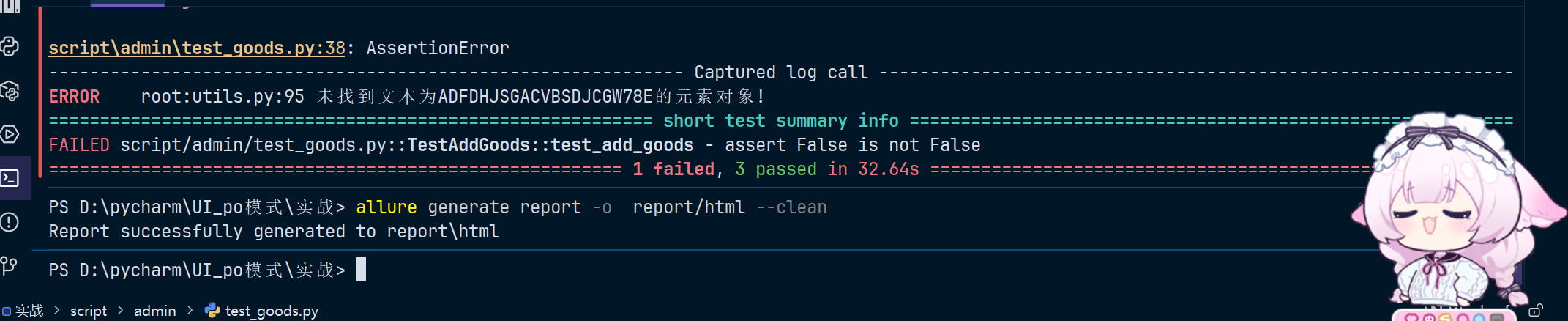
说明:
- `test_add_goods` 用例因为断言失败而报错。
- 异常被捕获后,执行了截图并附加到 Allure 报告,然后重新抛出异常,所以最终测试结果是 **FAILED**。
- 其它 3 个用例(`test_begin`、`test_login`、`test_end`)均通过。

## 生成 Allure 报告

测试完成后,使用以下命令生成 HTML 报告:
```bash
allure generate report -o report/html --cleanreport是存放原始 allure 结果数据的目录(默认 Pytest 会生成到此)。-o report/html指定输出 HTML 报告的路径。--clean表示每次生成前清空旧的报告。
运行后提示:
Report successfully generated to report\html查看报告
在本地查看报告:
bash
allure open report/html浏览器会自动打开报告,在失败用例详情中可以看到我们附加的 失败截图_add_goods,直接点击即可查看失败时的页面。
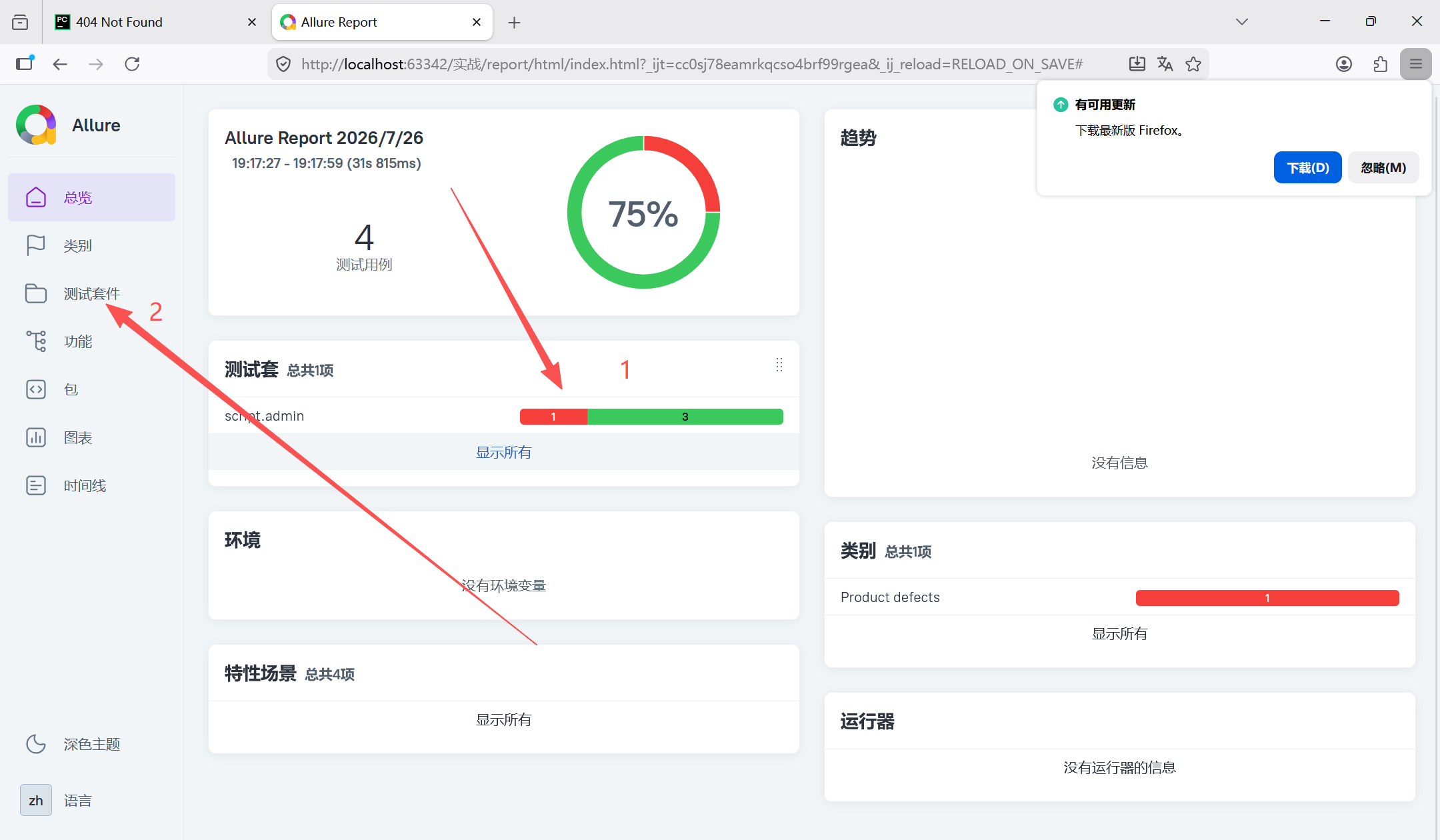
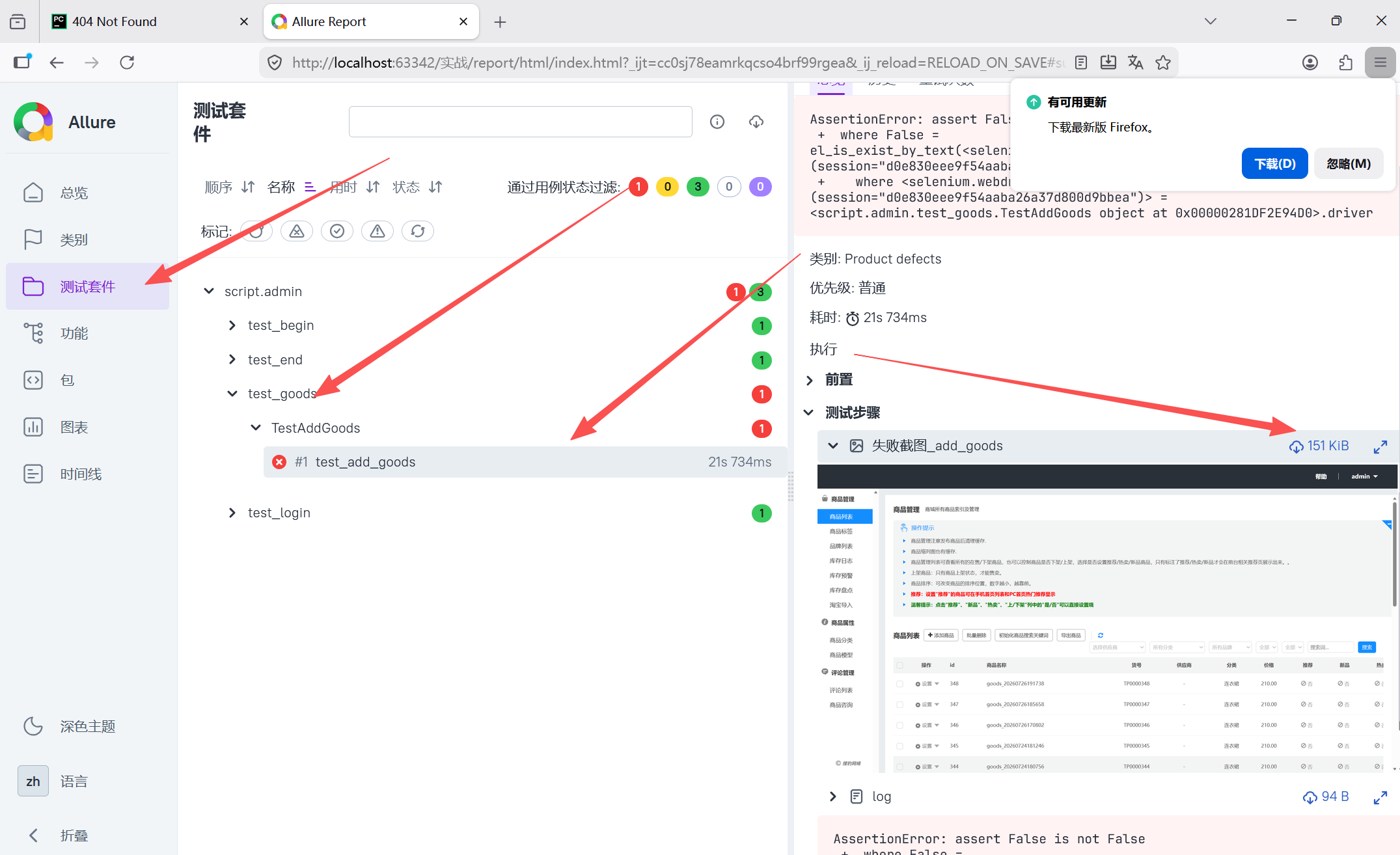
(实际运行时会显示你的截图)
关键点解析
-
allure.attach的正确用法- 第一个参数:二进制数据(这里用
driver.get_screenshot_as_png()直接获得)。 name:附件显示名称。attachment_type:需从allure_commons.types导入AttachmentType。
- 第一个参数:二进制数据(这里用
-
断言函数
el_is_exist_by_text这是项目自定义的工具函数,用于查找指定文本的元素是否存在。
若未找到则返回
False,因此用is not False来断言元素存在。 -
异常处理与截图时机
在
except块中截图并附加,然后再raise e。这样既保留了测试失败的正确状态,又成功添加了证据。
总结
通过本文的示例,你可以在自己的 Pytest 自动化框架中轻松集成失败自动截图和 Allure 报告。
这样一来,每次测试失败都能快速定位问题界面,大大提升测试维护效率。
提示 :如果你的 Allure 报告没有显示附件,请检查
pytest.ini中是否添加了--alluredir参数,或命令行运行时指定了--alluredir=report。
如果这篇文章对你有帮助,欢迎点赞、收藏、关注~
有问题欢迎评论区交流讨论!