在日常开发中,我们经常遇到需要处理 Word 文档的场景。传统做法是将文件上传到后端服务器,由服务器完成转换后再返回结果。这种方式不仅增加了服务器负担,还带来了用户数据隐私的顾虑。
本文介绍一种基于 WebAssembly(WASM)技术的纯前端实现方案,借助 Spire.Doc for JavaScript 库在浏览器中解析和转换 Word 文档。
方案选择
Spire.Doc for JavaScript (或其免费版) 是一个专为前端环境设计的文档处理库,通过 WebAssembly 技术将成熟的 .NET 文档引擎移植到浏览器中。它支持:
- 读写 Word(.docx / .doc)文档
- 转换为 PDF、HTML、Markdown 等多种格式
- 处理文本、表格、图片、样式等丰富内容
- 不依赖服务器,完全在客户端运行
对于 Word 转 Markdown 这一场景,该库提供了原生 Markdown 导出选项,能够自动将 Word 内容转换为符合规范的 Markdown 文本,大幅简化了开发工作。
注:本文示例基于 React 框架,但核心逻辑同样适用于 Vue 或其他前端框架。
核心实现原理
1. WebAssembly 模块加载
Spire.Doc 的 WASM 模块通过 Emscripten 编译,暴露了文档操作的 API。加载过程如下:
javascript
const publicUrl = process.env.PUBLIC_URL || '';
const spireModule = await import(
  /* webpackIgnore: true */ `${publicUrl}/spire.doc.js`
);
const rawModule = spireModule.default || spireModule;
window.wasmModule = typeof rawModule === 'function'
  ? await rawModule({
      locateFile: p => p.endsWith('.wasm') ? `${publicUrl}/${p}` : p
    })
  : rawModule;
这里有两个关键点:
- 使用
/* webpackIgnore: true */注释避免 Webpack 打包时处理该导入 - 通过
locateFile回调指定.wasm文件的加载路径
2. 虚拟文件系统(VFS)
WASM 模块运行在沙箱环境中,无法直接访问宿主操作系统的文件系统。Emscripten 提供了虚拟文件系统(VFS),允许我们在 WASM 内存中模拟文件读写。
代码中的 writeFileToVFS 函数实现了将用户选择的文件写入 VFS:
javascript
const writeFileToVFS = (fileName, arrayBuffer) => {
  const FS = window.dotnetRuntime?.Module?.FS;
  if (!FS) throw new Error('FS 对象未就绪');
  FS.writeFile(fileName, new Uint8Array(arrayBuffer));
};
这个 VFS 是独立于浏览器文件系统的,所有操作都在 WASM 内存中完成,确保了数据不会离开用户设备。
3. 文件读取与转换流程
整个转换流程分为五个步骤:
#mermaid-svg-LAL1z23gDxrcKxEq{font-family:"trebuchet ms",verdana,arial,sans-serif;font-size:16px;fill:#333;}@keyframes edge-animation-frame{from{stroke-dashoffset:0;}}@keyframes dash{to{stroke-dashoffset:0;}}#mermaid-svg-LAL1z23gDxrcKxEq .edge-animation-slow{stroke-dasharray:9,5!important;stroke-dashoffset:900;animation:dash 50s linear infinite;stroke-linecap:round;}#mermaid-svg-LAL1z23gDxrcKxEq .edge-animation-fast{stroke-dasharray:9,5!important;stroke-dashoffset:900;animation:dash 20s linear infinite;stroke-linecap:round;}#mermaid-svg-LAL1z23gDxrcKxEq .error-icon{fill:#552222;}#mermaid-svg-LAL1z23gDxrcKxEq .error-text{fill:#552222;stroke:#552222;}#mermaid-svg-LAL1z23gDxrcKxEq .edge-thickness-normal{stroke-width:1px;}#mermaid-svg-LAL1z23gDxrcKxEq .edge-thickness-thick{stroke-width:3.5px;}#mermaid-svg-LAL1z23gDxrcKxEq .edge-pattern-solid{stroke-dasharray:0;}#mermaid-svg-LAL1z23gDxrcKxEq .edge-thickness-invisible{stroke-width:0;fill:none;}#mermaid-svg-LAL1z23gDxrcKxEq .edge-pattern-dashed{stroke-dasharray:3;}#mermaid-svg-LAL1z23gDxrcKxEq .edge-pattern-dotted{stroke-dasharray:2;}#mermaid-svg-LAL1z23gDxrcKxEq .marker{fill:#333333;stroke:#333333;}#mermaid-svg-LAL1z23gDxrcKxEq .marker.cross{stroke:#333333;}#mermaid-svg-LAL1z23gDxrcKxEq svg{font-family:"trebuchet ms",verdana,arial,sans-serif;font-size:16px;}#mermaid-svg-LAL1z23gDxrcKxEq p{margin:0;}#mermaid-svg-LAL1z23gDxrcKxEq .label{font-family:"trebuchet ms",verdana,arial,sans-serif;color:#333;}#mermaid-svg-LAL1z23gDxrcKxEq .cluster-label text{fill:#333;}#mermaid-svg-LAL1z23gDxrcKxEq .cluster-label span{color:#333;}#mermaid-svg-LAL1z23gDxrcKxEq .cluster-label span p{background-color:transparent;}#mermaid-svg-LAL1z23gDxrcKxEq .label text,#mermaid-svg-LAL1z23gDxrcKxEq span{fill:#333;color:#333;}#mermaid-svg-LAL1z23gDxrcKxEq .node rect,#mermaid-svg-LAL1z23gDxrcKxEq .node circle,#mermaid-svg-LAL1z23gDxrcKxEq .node ellipse,#mermaid-svg-LAL1z23gDxrcKxEq .node polygon,#mermaid-svg-LAL1z23gDxrcKxEq .node path{fill:#ECECFF;stroke:#9370DB;stroke-width:1px;}#mermaid-svg-LAL1z23gDxrcKxEq .rough-node .label text,#mermaid-svg-LAL1z23gDxrcKxEq .node .label text,#mermaid-svg-LAL1z23gDxrcKxEq .image-shape .label,#mermaid-svg-LAL1z23gDxrcKxEq .icon-shape .label{text-anchor:middle;}#mermaid-svg-LAL1z23gDxrcKxEq .node .katex path{fill:#000;stroke:#000;stroke-width:1px;}#mermaid-svg-LAL1z23gDxrcKxEq .rough-node .label,#mermaid-svg-LAL1z23gDxrcKxEq .node .label,#mermaid-svg-LAL1z23gDxrcKxEq .image-shape .label,#mermaid-svg-LAL1z23gDxrcKxEq .icon-shape .label{text-align:center;}#mermaid-svg-LAL1z23gDxrcKxEq .node.clickable{cursor:pointer;}#mermaid-svg-LAL1z23gDxrcKxEq .root .anchor path{fill:#333333!important;stroke-width:0;stroke:#333333;}#mermaid-svg-LAL1z23gDxrcKxEq .arrowheadPath{fill:#333333;}#mermaid-svg-LAL1z23gDxrcKxEq .edgePath .path{stroke:#333333;stroke-width:2.0px;}#mermaid-svg-LAL1z23gDxrcKxEq .flowchart-link{stroke:#333333;fill:none;}#mermaid-svg-LAL1z23gDxrcKxEq .edgeLabel{background-color:rgba(232,232,232, 0.8);text-align:center;}#mermaid-svg-LAL1z23gDxrcKxEq .edgeLabel p{background-color:rgba(232,232,232, 0.8);}#mermaid-svg-LAL1z23gDxrcKxEq .edgeLabel rect{opacity:0.5;background-color:rgba(232,232,232, 0.8);fill:rgba(232,232,232, 0.8);}#mermaid-svg-LAL1z23gDxrcKxEq .labelBkg{background-color:rgba(232, 232, 232, 0.5);}#mermaid-svg-LAL1z23gDxrcKxEq .cluster rect{fill:#ffffde;stroke:#aaaa33;stroke-width:1px;}#mermaid-svg-LAL1z23gDxrcKxEq .cluster text{fill:#333;}#mermaid-svg-LAL1z23gDxrcKxEq .cluster span{color:#333;}#mermaid-svg-LAL1z23gDxrcKxEq div.mermaidTooltip{position:absolute;text-align:center;max-width:200px;padding:2px;font-family:"trebuchet ms",verdana,arial,sans-serif;font-size:12px;background:hsl(80, 100%, 96.2745098039%);border:1px solid #aaaa33;border-radius:2px;pointer-events:none;z-index:100;}#mermaid-svg-LAL1z23gDxrcKxEq .flowchartTitleText{text-anchor:middle;font-size:18px;fill:#333;}#mermaid-svg-LAL1z23gDxrcKxEq rect.text{fill:none;stroke-width:0;}#mermaid-svg-LAL1z23gDxrcKxEq .icon-shape,#mermaid-svg-LAL1z23gDxrcKxEq .image-shape{background-color:rgba(232,232,232, 0.8);text-align:center;}#mermaid-svg-LAL1z23gDxrcKxEq .icon-shape p,#mermaid-svg-LAL1z23gDxrcKxEq .image-shape p{background-color:rgba(232,232,232, 0.8);padding:2px;}#mermaid-svg-LAL1z23gDxrcKxEq .icon-shape .label rect,#mermaid-svg-LAL1z23gDxrcKxEq .image-shape .label rect{opacity:0.5;background-color:rgba(232,232,232, 0.8);fill:rgba(232,232,232, 0.8);}#mermaid-svg-LAL1z23gDxrcKxEq .label-icon{display:inline-block;height:1em;overflow:visible;vertical-align:-0.125em;}#mermaid-svg-LAL1z23gDxrcKxEq .node .label-icon path{fill:currentColor;stroke:revert;stroke-width:revert;}#mermaid-svg-LAL1z23gDxrcKxEq :root{--mermaid-font-family:"trebuchet ms",verdana,arial,sans-serif;} 用户选择文件
读取为 ArrayBuffer
写入 VFS
加载字体资源
执行转换
从 VFS 读取结果
触发下载
步骤一:读取文件
使用 FileReader 将用户选择的文件读取为 ArrayBuffer:
javascript
const fileBuffer = await new Promise((resolve, reject) => {
  const reader = new FileReader();
  reader.onload = (e) => resolve(e.target.result);
  reader.onerror = (e) => reject(e.target.error);
  reader.readAsArrayBuffer(selectedFile);
});
步骤二:写入 VFS
将 ArrayBuffer 转换为 Uint8Array 后写入虚拟文件系统:
javascript
writeFileToVFS(inputFileName, fileBuffer);步骤三:加载字体
文档渲染通常需要字体支持,这里从服务器加载字体文件到 VFS 的指定目录(Spire.Doc 内置了字体加载辅助方法):
javascript
await window.spire.FetchFileToVFS(
  'CALIBRI.ttf',
  '/Library/Fonts/',
  `${process.env.PUBLIC_URL}/static/font/`
);
步骤四:执行转换
实例化 Document 对象,加载文件并保存为 Markdown 格式:
javascript
const doc = new wasmModule.Document();
doc.LoadFromFile(inputFileName);
doc.SaveToFile({
  fileName: outputFileName,
  fileFormat: wasmModule.FileFormat.Markdown
});
doc.Dispose();
这里调用的 Document、LoadFromFile、SaveToFile 等 API 均由 Spire.Doc for JavaScript 提供,其 FileFormat.Markdown 枚举值表示输出目标格式。
步骤五:输出结果
从 VFS 读取生成的 Markdown 文件内容,创建 Blob 并触发下载:
javascript
const mdContent = window.dotnetRuntime.Module.FS.readFile(outputFileName);
const blob = new Blob([mdContent], { type: 'text/markdown;charset=utf-8' });
const url = URL.createObjectURL(blob);
// 创建 a 标签触发下载...
用户界面设计
为了提升用户体验,界面采用了以下设计:
文件选择交互
使用隐藏的原生 <input type="file"> 配合自定义按钮,实现更友好的文件选择体验:
javascript
const triggerFileSelect = () => {
  if (loading) return;
  fileInputRef.current?.click();
};
自定义按钮可以完全控制样式,同时通过 accept 属性限制文件类型。
状态反馈
通过状态提示区域向用户展示当前操作进度:
- 模块加载状态(加载中 / 就绪 / 失败)
- 文件选择状态(已选文件名称和大小)
- 转换进度(读取中 / 转换中 / 完成)
文件管理
提供清除已选文件的功能,方便用户重新选择:
javascript
const clearSelectedFile = () => {
  setSelectedFile(null);
  setStatus('📂 已清除选择,请重新选择文档');
  if (fileInputRef.current) {
    fileInputRef.current.value = '';
  }
};
关键实现细节
模块加载状态管理
使用 React 的 useState 管理 WASM 模块实例和加载状态,确保在模块就绪后才允许用户操作:
javascript
const [wasmModule, setWasmModule] = useState(null);
const [loading, setLoading] = useState(true);

// 按钮禁用条件
disabled={loading || !wasmModule || !selectedFile}
资源清理
转换完成后,需要清理 VFS 中的临时文件,避免内存累积:
javascript
try {
  window.dotnetRuntime.Module.FS.unlink(inputFileName);
  window.dotnetRuntime.Module.FS.unlink(outputFileName);
} catch (_) {
  // 清理失败不影响主流程
}
同时,下载完成后要释放 URL.createObjectURL 创建的对象 URL:
javascript
URL.revokeObjectURL(url);文件类型校验
在客户端进行文件类型校验,提前拦截不支持的格式:
javascript
const isValid =
  file.type === 'application/vnd.openxmlformats-officedocument.wordprocessingml.document' ||
  file.type === 'application/msword' ||
  file.name.endsWith('.docx') ||
  file.name.endsWith('.doc');
性能优化建议
1. 模块预加载
在应用启动时即开始加载 WASM 模块,而非等到用户点击转换按钮时才加载,可以减少用户等待时间。
2. 字体缓存
字体文件较大(通常数 MB),建议配置服务器缓存策略,避免重复加载。
3. 大文件处理
对于较大的 Word 文档,转换过程可能耗时较长。可以考虑增加进度提示或使用 Web Worker 避免阻塞主线程。
4. 内存管理
及时释放不再使用的对象(调用 Dispose() 方法),并清理 VFS 中的临时文件,防止内存泄漏。
完整代码示例
以下是整合了上述所有功能的核心组件代码(使用 React Hooks,并集成了 Spire.Doc for JavaScript):
javascript
import React, { useState, useEffect, useRef } from 'react';

function WordToMarkdown() {
  const [wasmModule, setWasmModule] = useState(null);
  const [loading, setLoading] = useState(true);
  const [status, setStatus] = useState('正在加载 WASM 模块...');
  const [selectedFile, setSelectedFile] = useState(null);
  const fileInputRef = useRef(null);

  // 加载 WASM 模块(Spire.Doc for JavaScript)
  useEffect(() => {
    (async () => {
      try {
        const publicUrl = process.env.PUBLIC_URL || '';
        const spireModule = await import(
          /* webpackIgnore: true */ `${publicUrl}/spire.doc.js`
        );
        const rawModule = spireModule.default || spireModule;
        window.wasmModule = typeof rawModule === 'function'
          ? await rawModule({
              locateFile: p => p.endsWith('.wasm') ? `${publicUrl}/${p}` : p
            })
          : rawModule;
        setWasmModule(window.wasmModule);
        setStatus('✅ 模块就绪,请选择 Word 文档');
      } catch (error) {
        console.error(error);
        setStatus('❌ 模块加载失败');
      } finally {
        setLoading(false);
      }
    })();
  }, []);

  const handleFileChange = (event) => {
    const file = event.target.files[0];
    if (file) {
      const isValid =
        file.type === 'application/vnd.openxmlformats-officedocument.wordprocessingml.document' ||
        file.type === 'application/msword' ||
        file.name.endsWith('.docx') ||
        file.name.endsWith('.doc');

      if (!isValid) {
        setStatus('⚠️ 请选择 .docx 或 .doc 格式的文件');
        setSelectedFile(null);
        event.target.value = '';
        return;
      }

      setSelectedFile(file);
      setStatus(`📄 已选择: ${file.name} (${(file.size / 1024).toFixed(1)} KB)`);
    }
  };

  const triggerFileSelect = () => {
    if (loading) return;
    fileInputRef.current?.click();
  };

  const clearSelectedFile = () => {
    setSelectedFile(null);
    setStatus('📂 已清除选择,请重新选择文档');
    if (fileInputRef.current) {
      fileInputRef.current.value = '';
    }
  };

  const writeFileToVFS = (fileName, arrayBuffer) => {
    const FS = window.dotnetRuntime?.Module?.FS;
    if (!FS) throw new Error('FS 对象未就绪');
    FS.writeFile(fileName, new Uint8Array(arrayBuffer));
  };

  const convertWordToMD = async () => {
    const wasmModule = window.wasmModule?.spiredoc;
    if (!wasmModule || !selectedFile) return;

    try {
      setStatus('⏳ 正在读取文件...');

      const fileBuffer = await new Promise((resolve, reject) => {
        const reader = new FileReader();
        reader.onload = (e) => resolve(e.target.result);
        reader.onerror = (e) => reject(e.target.error);
        reader.readAsArrayBuffer(selectedFile);
      });

      const inputFileName = selectedFile.name;
      writeFileToVFS(inputFileName, fileBuffer);

      setStatus('⏳ 加载字体...');
      await window.spire.FetchFileToVFS(
        'CALIBRI.ttf',
        '/Library/Fonts/',
        `${process.env.PUBLIC_URL}/static/font/`
      );

      setStatus('⏳ 转换中,请稍候...');
      const doc = new wasmModule.Document();
      doc.LoadFromFile(inputFileName);

      const outputFileName = 'WordToMarkdown.md';
      doc.SaveToFile({
        fileName: outputFileName,
        fileFormat: wasmModule.FileFormat.Markdown
      });
      doc.Dispose();

      const mdContent = window.dotnetRuntime.Module.FS.readFile(outputFileName);
      const blob = new Blob([mdContent], { type: 'text/markdown;charset=utf-8' });
      const url = URL.createObjectURL(blob);
      const a = document.createElement('a');
      a.href = url;
      a.download = outputFileName;
      document.body.appendChild(a);
      a.click();
      document.body.removeChild(a);
      URL.revokeObjectURL(url);

      try {
        window.dotnetRuntime.Module.FS.unlink(inputFileName);
        window.dotnetRuntime.Module.FS.unlink(outputFileName);
      } catch (_) {}

      setStatus(`✅ 转换成功!已下载 ${outputFileName}`);
    } catch (error) {
      console.error(error);
      setStatus('❌ 转换失败: ' + error.message);
    }
  };

  return (
    <div style={{ maxWidth: '600px', margin: '40px auto', padding: '30px', textAlign: 'center' }}>
      <h1>📝 Word → Markdown</h1>
      <p style={{ color: '#666' }}>纯前端 · 基于 Spire.Doc for JavaScript</p>

      <div style={{
        padding: '10px 16px',
        borderRadius: '8px',
        background: status.includes('❌') || status.includes('⚠️') ? '#fff0f0' : '#f0f7ff',
        color: status.includes('❌') || status.includes('⚠️') ? '#c00' : '#0050b3',
        border: '1px solid ' + (status.includes('❌') || status.includes('⚠️') ? '#ffccc7' : '#d6e4ff'),
        marginBottom: '24px',
        minHeight: '40px',
        display: 'flex',
        alignItems: 'center',
        justifyContent: 'center'
      }}>
        {status}
      </div>

      <input
        ref={fileInputRef}
        type="file"
        accept=".docx,.doc"
        onChange={handleFileChange}
        style={{ display: 'none' }}
      />

      <button
        onClick={triggerFileSelect}
        disabled={loading}
        style={{
          padding: '12px 28px',
          fontSize: '16px',
          borderRadius: '8px',
          border: '2px dashed #40a9ff',
          background: '#fafafa',
          color: loading ? '#999' : '#0050b3',
          cursor: loading ? 'not-allowed' : 'pointer',
          minWidth: '200px'
        }}
      >
        📂 {loading ? '加载中...' : '选择 Word 文档'}
      </button>

      {selectedFile && (
        <div style={{ marginTop: '12px', display: 'flex', alignItems: 'center', justifyContent: 'center', gap: '12px' }}>
          <span style={{ background: '#f6ffed', padding: '4px 16px', borderRadius: '16px', border: '1px solid #b7eb8f' }}>
            📎 {selectedFile.name}
          </span>
          <button onClick={clearSelectedFile} style={{ background: 'none', border: 'none', color: '#ff4d4f', cursor: 'pointer' }}>
            ✕
          </button>
        </div>
      )}

      <button
        onClick={convertWordToMD}
        disabled={loading || !wasmModule || !selectedFile}
        style={{
          marginTop: '20px',
          padding: '12px 48px',
          fontSize: '16px',
          borderRadius: '8px',
          border: 'none',
          background: (loading || !wasmModule || !selectedFile) ? '#d9d9d9' : '#1890ff',
          color: '#fff',
          cursor: (loading || !wasmModule || !selectedFile) ? 'not-allowed' : 'pointer',
          fontWeight: '500',
          boxShadow: (loading || !wasmModule || !selectedFile) ? 'none' : '0 2px 8px rgba(24,144,255,0.4)'
        }}
      >
        🚀 转换并下载
      </button>
    </div>
  );
}

export default WordToMarkdown;
运行与预览
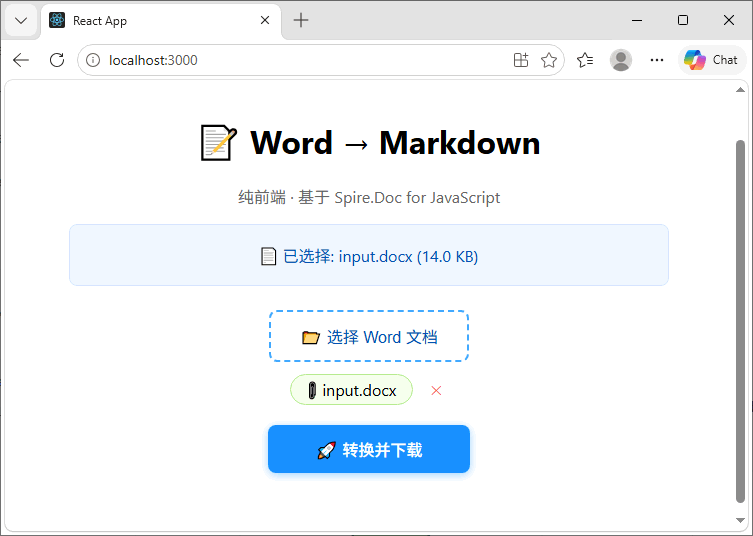
将 Spire.Doc 的 WASM 资源放置在 public 目录下,并按示例配置字体文件路径 (📌 点击查看安装教程)。
- 执行
npm start启动开发服务器。 - 点击"选择 Word 文档"上传 .docx 或 .doc 文件。
- 点击"转换并下载",稍等片刻,浏览器将自动下载生成的 Markdown 文件。
总体而言,对于需要在浏览器端处理 Word 文档的场景,本文提供了一个值得参考的纯前端解决方案。