Harmony鸿蒙实战开发-🐶浏览器app【源码在文末】
文章目录
运行工具:DevEco Studio
一、运行演示
1、logo

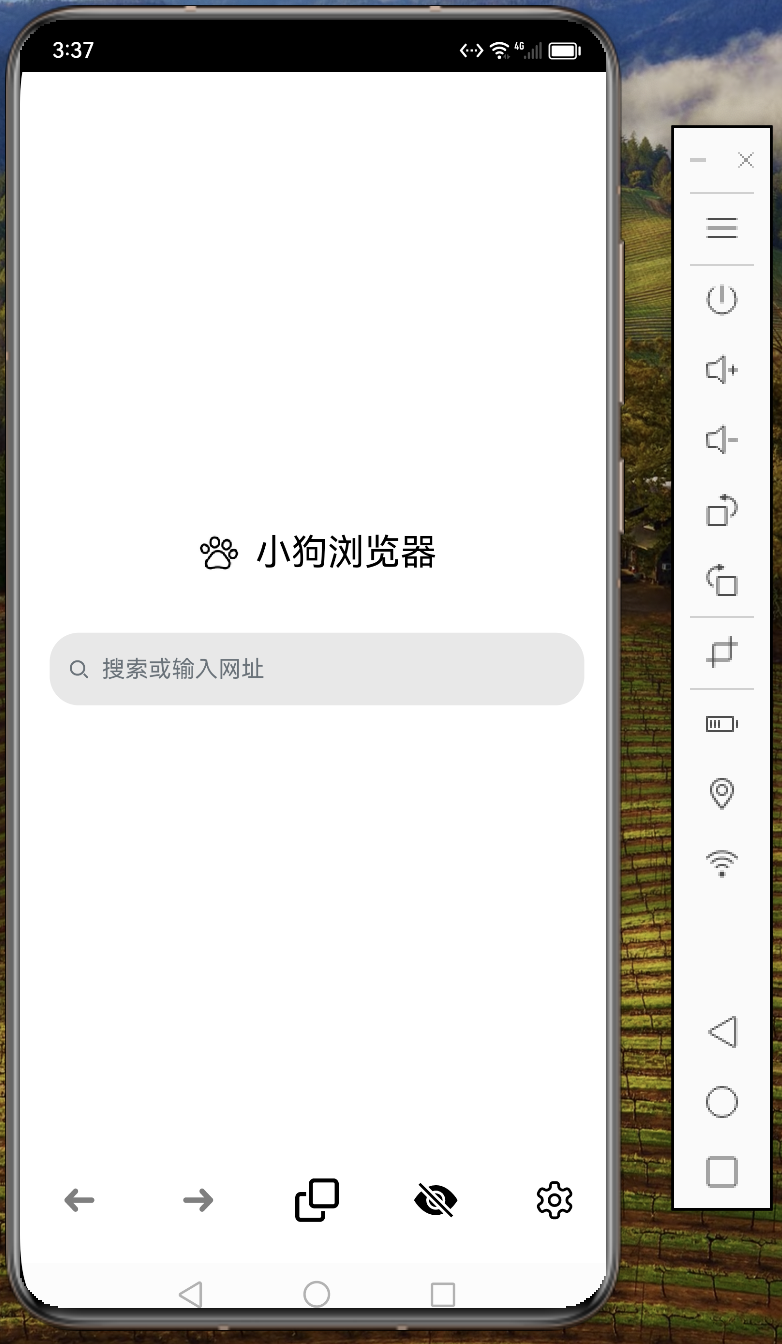
2、首界面
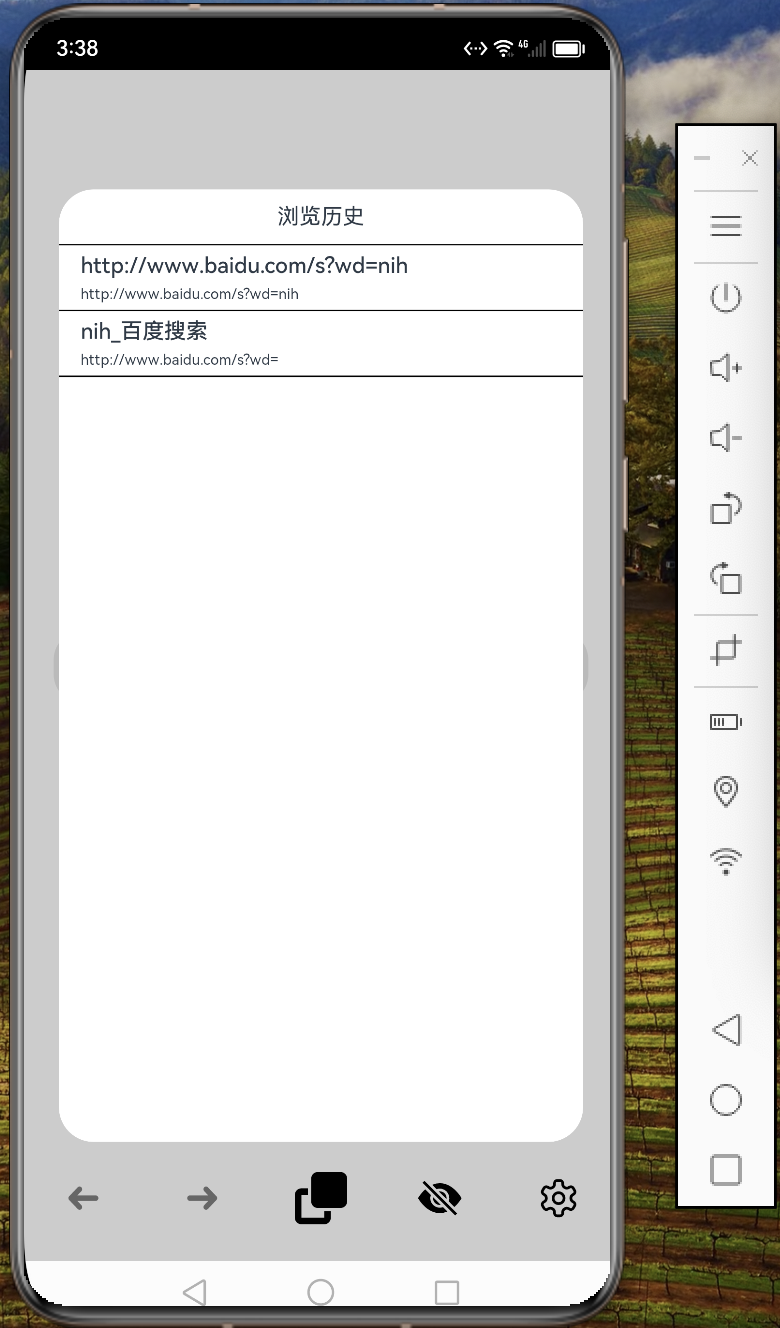
3、浏览历史
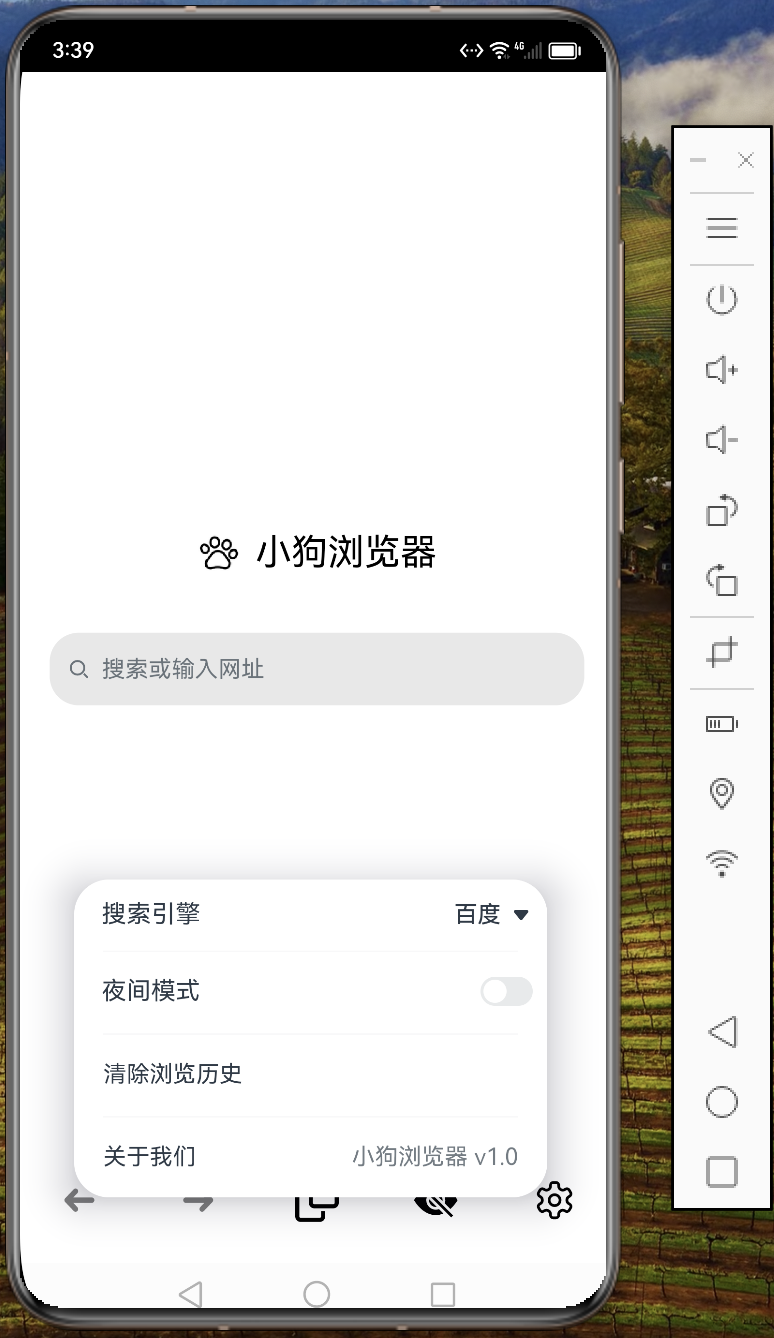
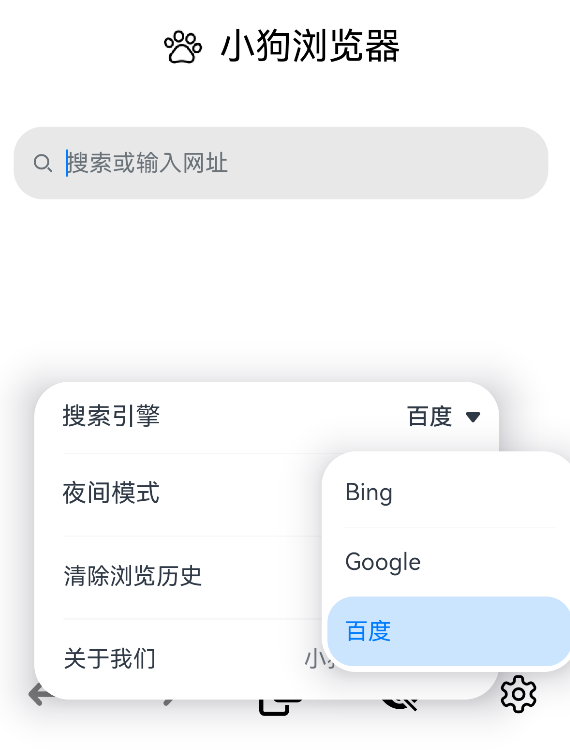
4、设置
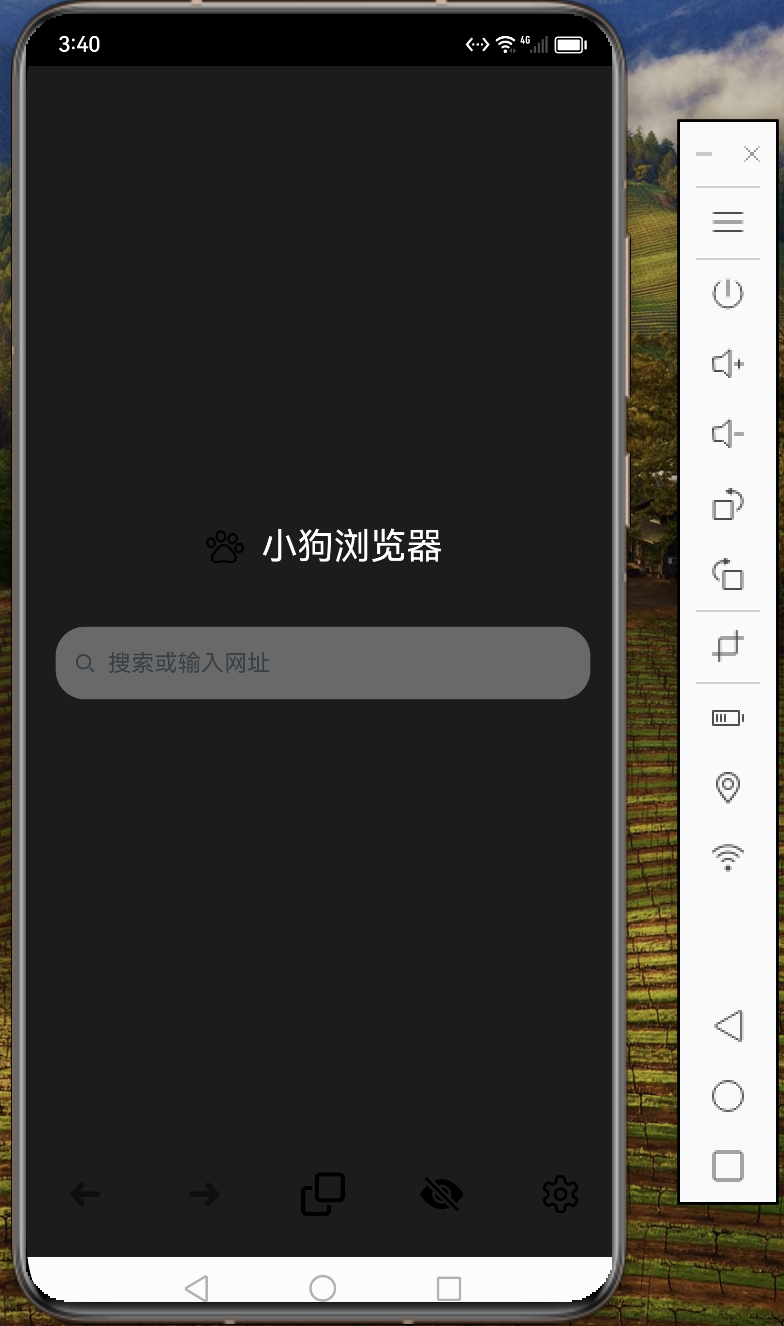
5、夜间模式
6、切换搜索引擎
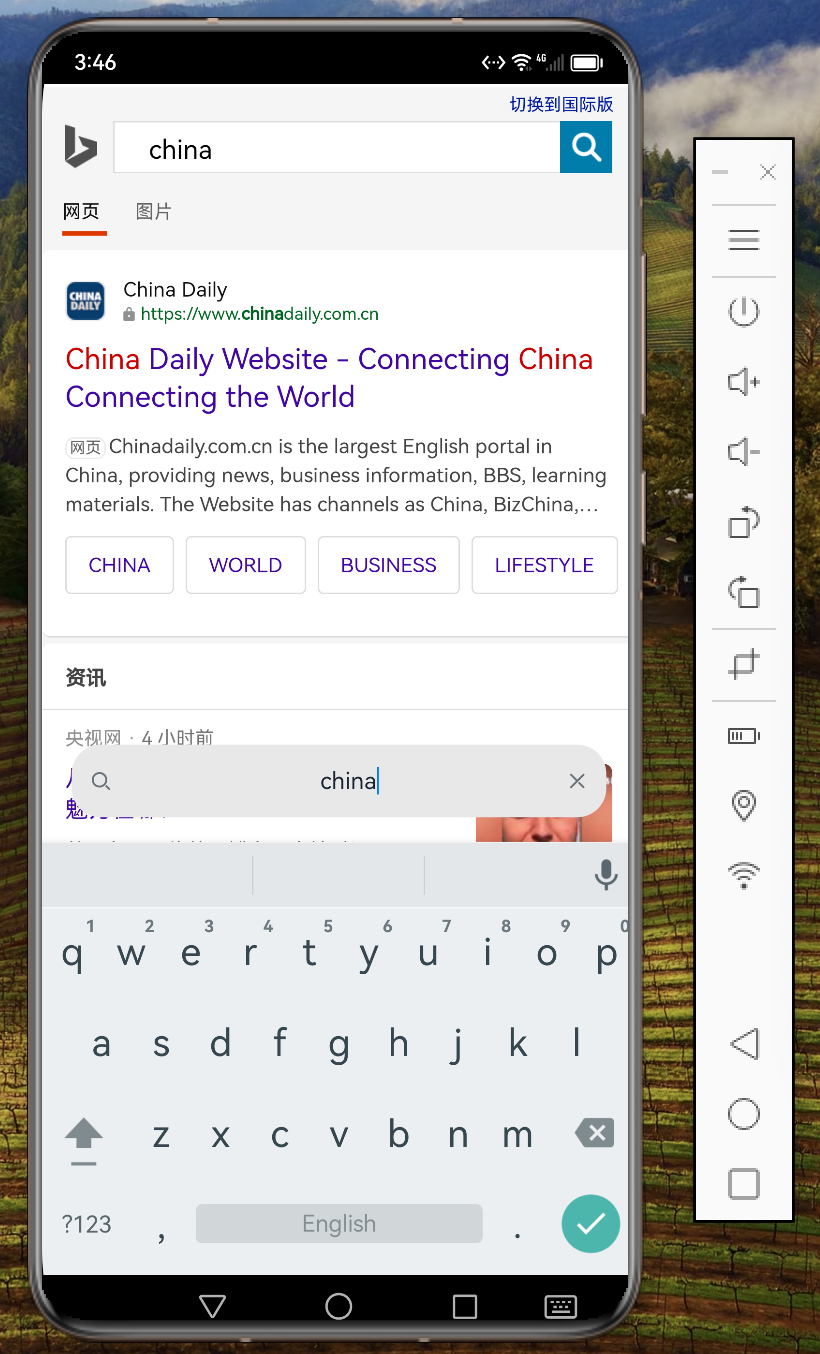
7、进行搜索
二、部分代码
typescript
import webview from '@ohos.web.webview'
import CommonConstants from "../common/constants/CommonConstants"
import { FunctionButtons } from '../view/FunctionButtons'
import History from '../common/bean/History'
import window from '@ohos.window'
import PreferenceModel from '../model/PreferenceModel'

// 将持久化存储中不同属性的初始值设定为默认值
PersistentStorage.PersistProp("privateMode", "false")
PersistentStorage.PersistProp("currentEngineIndex", 0)
PersistentStorage.PersistProp("currentEngineName", "Bing")
PersistentStorage.PersistProp("darkMode", "false")

@Entry
@Component
struct Index {
  // 定义用于存储网页地址的状态变量
  @State url: string = ""
  // 定义Web组件的显示状态,初始为隐藏
  @State isShowed: Visibility = Visibility.None
  // 定义一个高度状态变量,初始为10%
  @State high: string = "10%"
  // 定义搜索框文本的对齐方式状态变量,初始为左对齐
  @State textAlign: TextAlign = TextAlign.Start
  // 定义键盘高度状态变量,初始为0
  @State keyboardHeight: number = 0
  // 定义当前页面加载进度状态变量,初始为0
  @State currentProgress: number = 0
  // 定义页面是否可回退的状态变量,初始为false
  @State isBacked: boolean = false
  // 定义页面是否可前进的状态变量,初始为false
  @State isForwarded: boolean = false

  // 定义并提供一个历史记录数组,初始为空数组
  @Provide("histories") histories: Array<History> = []

  // 定义并提供一个WebView控制器实例
  @Provide webviewController: webview.WebviewController = new webview.WebviewController()
  // 定义并提供一个搜索状态变量,初始为false
  @Provide("webIsSearched") @Watch("onSearched") isSearched: boolean = false

  // 从应用程序存储中链接到持久化的隐私模式属性
  @StorageLink("privateMode") privateMode: string = "false"
  // 从应用程序存储中链接到持久化的暗模式属性
  @StorageLink("darkMode") darkMode: string = "false"
  // 从应用程序存储中链接到持久化的搜索引擎索引属性
  @StorageLink("currentEngineIndex") searchEngine: number = 0

  // 定义一个窗口类实例,初始为null
  private windowClass: window.Window = null

  // 在组件即将显示时执行的异步函数
  async aboutToAppear() {
    // 从存储中获取偏好设置
    await PreferenceModel.getPreferencesFromStorage();
    // 获取浏览历史记录并更新状态变量
    PreferenceModel.getHistories().then(histories => {
      if (histories !== null) {
        this.histories = histories
      }
    })

    // 开启软键盘高度变化的监听
    window.getLastWindow(getContext(this), (err, data) => {
      if (err) {
        console.log(err.message)
      }
      this.windowClass = data
      this.windowClass.on("keyboardHeightChange", (data) => {
        this.keyboardHeight =  data
      })
    })
  }

  // 保存浏览记录的函数
  onSaveHistory() {
    // 创建一个新的历史记录对象
    let history = new History(this.webviewController.getTitle(), this.webviewController.getUrl())
    // 将新的历史记录添加到历史记录数组中
    this.histories.push(history)
    // 将更新后的历史记录数组写入存储中
    PreferenceModel.writeHistories(this.histories)
  }

  // 判断用户输入的内容是否为网址的函数
  private checkContent(content: string) {
    // 检查内容是否以特定域名后缀结尾
    if (content.endsWith(".com") || content.endsWith(".cn") || content.endsWith(".tv")) {
      return true
    } else {
      return false
    }
  }

  // 搜索完成后的回调函数
  onSearched() {
    // 显示Web组件
    this.isShowed = Visibility.Visible
    // 修改Web组件的高度
    this.high = "91%"
    // 修改搜索框的文本对齐方式
    this.textAlign = TextAlign.Center
  }

  // 构建UI界面的函数
  build() {
    // 使用Flex布局组件
    Flex({ direction: FlexDirection.Column , alignItems: ItemAlign.Center}) {
      // 定义一个列组件
      Column() {
        // 再定义一个嵌套的列组件
        Column() {
          // 如果没有进行搜索,显示应用程序的名称和图标
          if (!this.isSearched) {
            // 定义一个行组件,包含图标和应用名称
            Row() {
              Image($r("app.media.app_icon"))
                .width(30)
                .height(30)
                .margin({ bottom: 25, right: 10 })
              Text(CommonConstants.APP_NAME)
                .fontSize(25)
                .fontColor(this.darkMode === "false"? Color.Black : Color.White)
                .margin({ bottom: 25 })
                .animation({
                  duration: 300
                })
            }
            .width("100%")
            .height("100%")
            .justifyContent(FlexAlign.Center)
          }
          // 定义Web组件,用于加载网页
          Web({ src: this.url, controller: this.webviewController })
            .width("100%")
            .height("100%")
            .visibility(this.isShowed)
            .animation({
              duration: 300
            })
            // 页面加载进度变化的回调函数
            .onProgressChange((event) => {
                this.currentProgress = event.newProgress
            })
            // 刷新访问历史记录的回调函数
            .onRefreshAccessedHistory((event) => {
              if (!event.isRefreshed && !this.privateMode) {
                this.onSaveHistory()
              }
              this.isBacked = this.webviewController.accessBackward()
              this.isForwarded = this.webviewController.accessForward()
            })
        }
        .width("100%")
        .height(this.high)
        .justifyContent(FlexAlign.Center)
        .animation({
          duration: 300
        })

        // 定义一个堆栈布局组件,包含搜索框和进度条
        Stack({ alignContent: Alignment.Bottom }) {
          // 定义搜索组件
          Search({ placeholder: "搜索或输入网址", value: this.url })
            .width("90%")
            .height("8%")
            .size({ height: 50 })
            .margin({ top: 5, bottom: 10 })
            .offset(this.isSearched ? { y: -this.keyboardHeight / 3.8 } : {})
            .textAlign(this.textAlign)
            .backgroundColor(this.darkMode === "false"? "#E8E8E8" : "#696969")
            .animation({
              duration: 300
            })
            // 提交搜索内容的回调函数
            .onSubmit((value) => {
              // 判断内容是否为网址
              if (this.checkContent(value)) {
                this.webviewController.loadUrl(value)
              } else {
                this.webviewController.loadUrl(CommonConstants.SEARCH_ENGINE[this.searchEngine].prefix + value)
              }
              this.url = this.webviewController.getOriginalUrl()

              // 更改搜索框的搜索状态
              if (!this.isSearched) {
                this.isSearched = true
              }
              // 保存浏览历史
              this.onSaveHistory()
            })
          // 定义进度条组件
          Progress({ value: this.currentProgress, type: ProgressType.Linear })
            .visibility(this.currentProgress === 100 || this.currentProgress === 0 ? Visibility.None : Visibility.Visible)
            .animation({
              duration: 100
            })
        }
      }
      .width("100%")
      .layoutWeight(11)
      .justifyContent(FlexAlign.Center)
      // 定义功能按钮组件
      FunctionButtons({ isBacked: $isBacked, isForward: $isForwarded })
        .width("100%")
        .margin({ top: 5 })
        .layoutWeight(1)
    }
    .backgroundColor(this.darkMode === "false"? Color.White : "#1C1C1C")
    .animation({
      duration: 300
    })
  }
}
三、源码
通过百度网盘分享的文件:...zip
链接:https://pan.baidu.com/s/1xbu6QWOItJCKOzAaG49Piw
文件已经加密,请联系请加下方(wx号),获取源码,仅一杯奶茶钱
号码:Lvnvn0508