如果我们有一个已经开发了一段时间的 Visual Studio/C++ 项目,希望使用 Git 做版本管理,同时又不希望源代码被其他人看到,那么一个比较简单的方案就是:Git + GitHub Private Repository。
本文以一个已经存在的 Windows C++ 项目为例,从零开始介绍:如何创建 GitHub 私有仓库、初始化本地 Git、配置 .gitignore、完成第一次 commit 和 push,以及最后如何让 Codex 在完成代码修改后自动 commit 和 push。
一、整体流程
Windows 本地项目
        │
        ▼
    git init
        │
        ▼
配置 .gitignore
        │
        ▼
    git add
        │
        ▼
   git commit
        │
        ▼
建立 GitHub Private Repository
        │
        ▼
配置 origin
        │
        ▼
    git push
        │
        ▼
GitHub 私有云端代码仓库
以后继续修改代码时,只需要:
修改代码 → git status / git diff → git add → git commit → git push二、创建 GitHub Private Repository
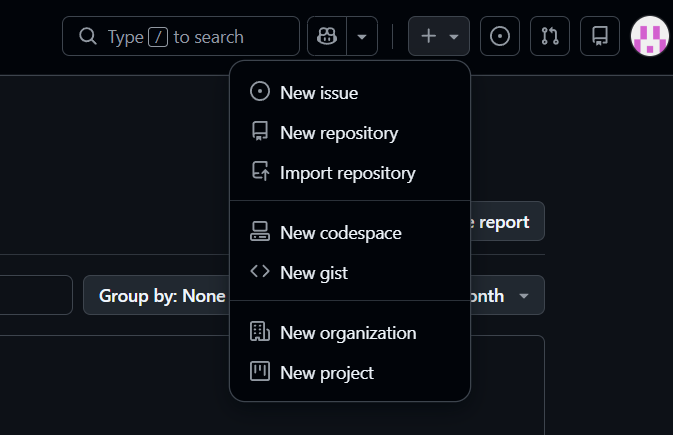
(一)进入创建仓库页面
登录 GitHub 后,点击右上角"+",选择 New repository:
(二)填写仓库信息
| 选项 | 建议设置 |
|---|---|
| Owner | 自己的 GitHub 账号 |
| Repository name | 项目名称,例如 razehack |
| Description | 可选 |
| Visibility | Private |
| Add README | Off |
| Add .gitignore | No .gitignore |
| License | No license |
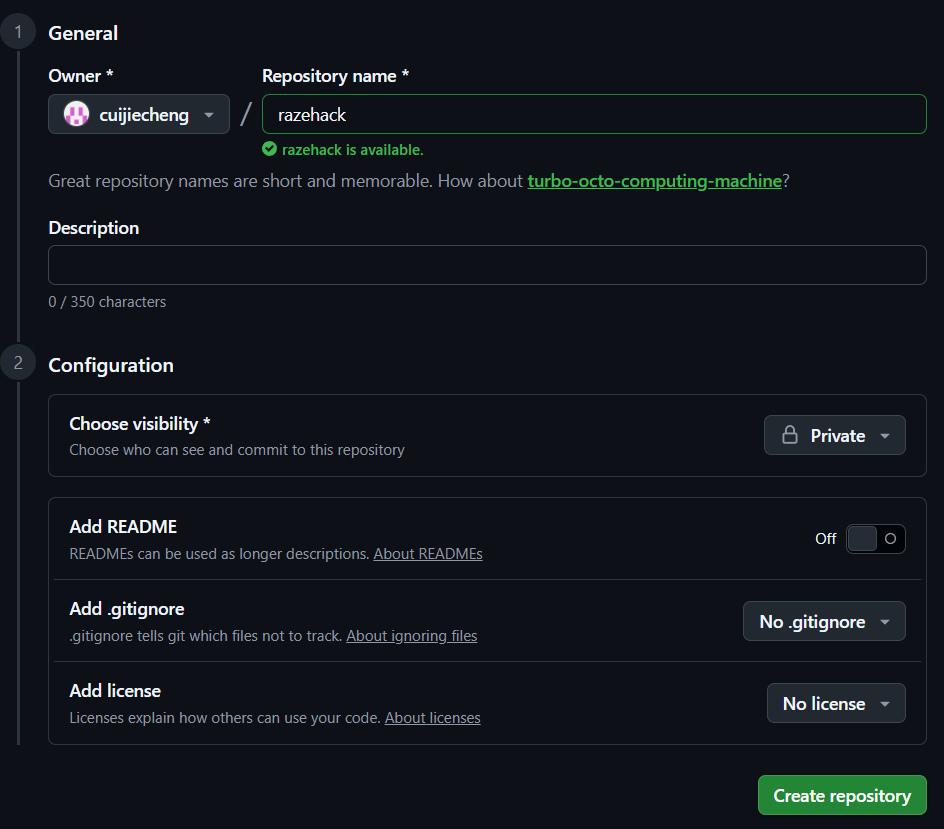
最重要的是 Visibility 必须选择 Private。 如果选择 Public,项目源代码将公开。
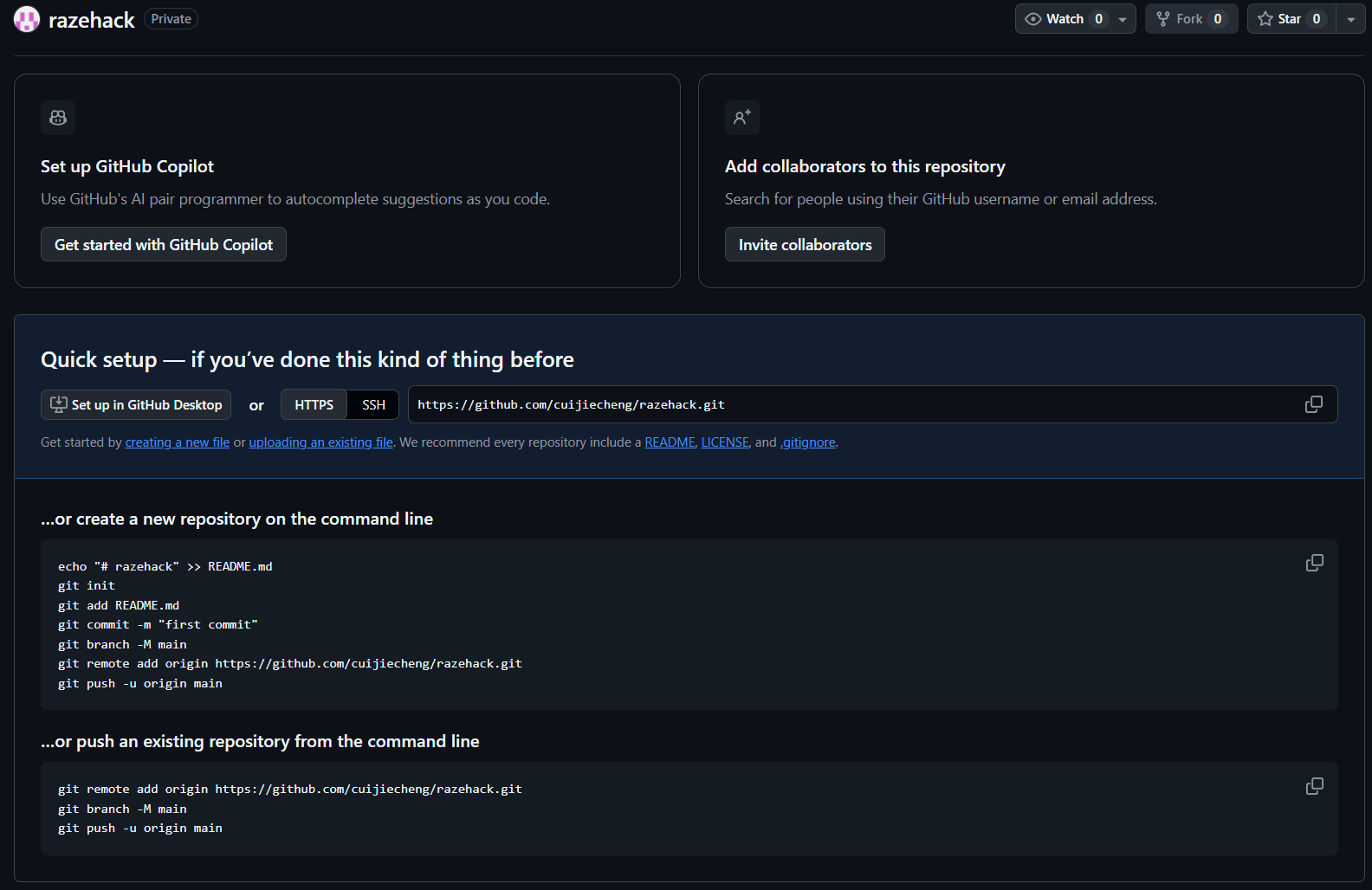
已有本地项目时,建议创建空仓库,最后点击 Create repository。
创建完仓库后,如下图所示:
三、在 Windows 本地初始化 Git
(一)PowerShell 和 CMD 选哪个?
Git 在两者中都能使用,本文统一使用 PowerShell。
(二)进入项目目录
cd "C:\你的项目路径\razehack"
git --version
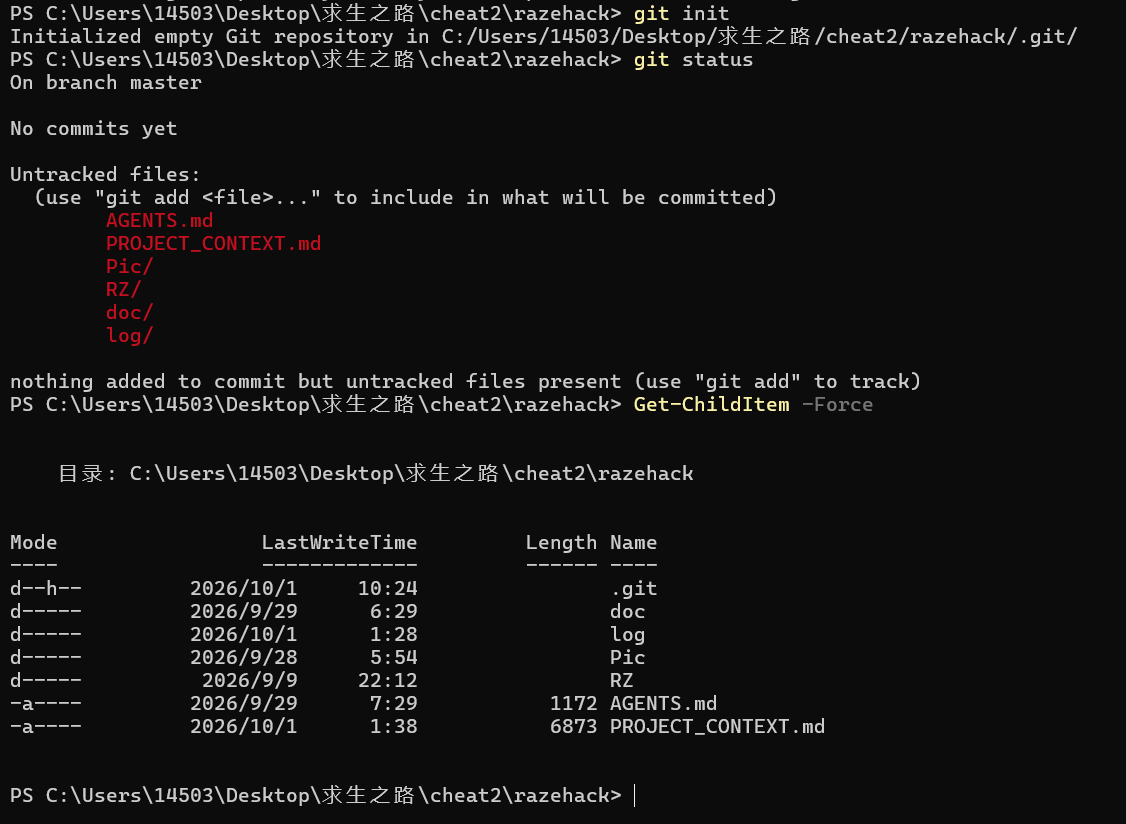
(三)初始化 Git 仓库
git init
git status
项目目录中会出现隐藏的 .git/,用于保存版本历史、分支和对象等信息:
四、为 Visual Studio/C++ 项目配置 .gitignore
(一)为什么不能直接 git add .?
Visual Studio/C++ 会产生编译产物、中间文件、缓存、运行日志和用户配置,因此应先配置忽略规则。
(二)创建 .gitignore
notepad .gitignore

# Visual Studio
.vs/
.vscode/
*.suo
*.user
*.userosscache
*.sln.docstates

# C/C++ build output
Debug/
Release/
x64/
x86/
Win32/
[Bb]uild/
[Bb]in/
[Oo]bj/
[Ll]ib/
*.obj
*.o
*.pch
*.pdb
*.idb
*.ilk
*.ipch
*.tlog
*.lastbuildstate
*.exe
*.dll
*.lib
*.exp

# Visual Studio generated
ipch/
*.VC.db
*.VC.VC.opendb
*.opensdf
*.sdf

# Temporary/cache
*.tmp
*.temp
*.log
*.cache
*.bak
Thumbs.db
Desktop.ini

# Runtime logs
log/

# Images
*.png
*.jpg
*.jpeg
*.gif
*.bmp
*.webp
*.tif
*.tiff

# Videos
*.mp4
*.avi
*.mov
*.mkv
*.wmv
*.webm
*.flv

# Project-required DirectX import library
!RZ/SDK/DirectX/d3dx9.lib
(三)项目必需的 .lib 文件怎么办?
*.lib 会排除所有 .lib,但 !RZ/SDK/DirectX/d3dx9.lib 可将项目必需的库重新纳入 Git。
(四)编译输出目录直接排除
如果 RZ/DLL/ 全部是编译生成的 DLL/PDB,可在 .gitignore 中加入 RZ/DLL/。
五、检查 .gitignore 是否生效
(一)查看未跟踪文件
git status --short(二)查看被忽略文件
git status --ignored(三)检查某个文件为什么被忽略
git check-ignore -v Pic/1.png
git check-ignore -v Pic/1.mp4
六、已经 git add 以后才修改 .gitignore 怎么办?
单纯修改 .gitignore 不会自动移除已进入暂存区的文件。可执行:
git rm -r --cached -f .
git add .
**--cached 不会删除硬盘上的项目文件。**它只是重新建立 Git 暂存区。
(一)检查图片和视频
git status --short | Select-String "\.(png|jpg|jpeg|gif|bmp|webp|tif|tiff|mp4|avi|mov|mkv|wmv|webm|flv)$"(二)确认必须保留的 d3dx9.lib
git status --short | Select-String "d3dx9.lib"应该看到 A RZ/SDK/DirectX/d3dx9.lib。
七、配置 Git Commit 作者身份
(一)第一次 commit 的 Author identity unknown
Git 需要知道 commit 作者。user.name 和 user.email 是提交作者身份,不是 GitHub 登录密码。
(二)推荐使用 GitHub noreply 邮箱
在 GitHub Settings → Emails 中找到 noreply 邮箱,然后:
git config --global user.name "你的GitHub用户名"
git config --global user.email "你的GitHub noreply邮箱"

git config --global user.name
git config --global user.email
八、完成第一次 Commit
git commit -m "Initial commit"
git status
此时版本已经保存在本地 Git 中,但还没有上传 GitHub。
九、将 master 修改为 main
git branch -M main
git status
十、把本地仓库连接到 GitHub
(一)添加远程仓库
git remote add origin https://github.com/用户名/项目名.git(二)检查 origin
git remote -v十一、第一次 git push
git push -u origin main第一次 HTTPS push 可能通过 Git Credential Manager 打开浏览器进行 GitHub 授权。成功后本地 main 会跟踪 origin/main。
十二、解决 TLS certificate verification has been disabled 警告
(一)检查配置来源
git config --show-origin --get http.sslVerify(二)重新启用 TLS 验证
git config --global http.sslVerify true
git config --global --get http.sslVerify
git fetch
如果 fetch 正常且不再出现安全警告,说明已经恢复。
十三、以后日常修改代码怎么使用 Git?
(一)基本工作流
git status
git diff
git add .
git commit -m "描述本次修改"
git push
(二)git push 还需要每次输入密码吗?
通常不需要。第一次通过 Git Credential Manager/浏览器完成授权后,凭据通常由 Windows 保存。凭据过期、被删除、授权撤销或更换电脑时,可能需要重新认证。
十四、如何理解 Git 的几个关键阶段?
① 工作区(正在修改)
        │ git add
        ▼
② 暂存区(准备提交)
        │ git commit
        ▼
③ 本地 Git Repository(形成版本)
        │ git push
        ▼
④ GitHub Remote Repository(云端 Private 仓库)| 命令 | 作用 |
|---|---|
| git status | 查看当前变化 |
| git diff | 查看具体修改 |
| git add | 加入暂存区 |
| git commit | 在本地保存一个版本 |
| git push | 上传本地 commit 到 GitHub |
| git fetch | 获取远程提交信息但不直接合并 |
十五、让 Codex 自动 Commit 和 Push
(一)为什么使用 AGENTS.md?
可以在项目根目录 AGENTS.md 中加入项目级 Git 工作规则,避免每次都重复提醒 Codex。
(二)推荐的 Codex Git 工作流
## Git workflow

After completing any requested code change:

1. Review the changes with `git diff` and ensure that only files related to the current task are included.
2. Run the relevant build/tests when practical.
3. Check `git status`.
4. Stage the files related to the current task.
5. Create a Git commit with a concise message describing the change.
6. Push the commit to the current remote branch with `git push`.
7. Report the commit hash and whether the push succeeded.

Unless I explicitly say otherwise, completing a coding task includes committing and pushing the completed changes.

Do not:
- commit unrelated changes made by me or another tool;
- use `git add .` blindly when unrelated working-tree changes exist;
- use `git push --force` or `git push --force-with-lease`;
- rewrite, amend, rebase, or delete existing Git history unless I explicitly request it;
- discard local changes to make the working tree clean;
- commit credentials, API keys, passwords, logs, build artifacts, images, or videos that are excluded by `.gitignore`.

If `git push` fails because of authentication, conflicts, branch protection, network errors, or other repository issues, stop and report the error instead of using a destructive workaround.
(三)为什么不是每修改一个文件就 push?
更合理的粒度是"每完成一个完整开发任务,再 commit + push",而不是每保存一个文件都提交。
(四)Codex 是否需要重新输入密码?
如果 Codex 在同一台 Windows 电脑、同一用户环境中调用本机 Git,并能访问 Git Credential Manager 保存的凭据,通常可以直接 push。独立云端或隔离环境则需要单独授权。
十六、一些容易踩的坑
(一)Private 不代表可以提交密码
不要提交 .env、密码、API Key、Access Token、SSH 私钥、证书私钥和数据库密码。
(二)不要盲目 git add .
有自己和 Codex 并行修改时,先用 git status、git diff 检查,再加入当前任务相关文件。
(三)不要让自动化工具随便 force push
没有明确授权时,不要使用 git push --force 或 git push --force-with-lease。
(四).gitignore 不能删除已经提交的历史
文件已经 commit 后,再写进 .gitignore 不会让旧 commit 中的文件自动消失。
十七、最终推荐的日常开发流程
自己开发:
修改代码
↓
git status
git diff
↓
git add 相关文件
git commit -m "本次修改说明"
git push
使用 Codex:
给 Codex 一个完整开发任务
        ↓
Codex 修改代码
        ↓
检查 git diff
        ↓
编译 / 测试
        ↓
提交当前任务相关文件
        ↓
git commit
        ↓
git push
        ↓
报告 commit hash 和 push 结果
十八、总结
对于个人 Windows Visual Studio/C++ 私人项目,一套实用方案就是:
Visual Studio / Codex
        │
        ▼
本地 Git Repository
        │ commit
        ▼
本地版本历史
        │ push
        ▼
GitHub Private Repository
第一次配置完成以后,日常核心操作就是 git status、git add、git commit 和 git push。配合 AGENTS.md,还可以让 Codex 在完成开发任务后自动检查、测试、commit 和 push。