目录
一、前言
在前端开发中,渲染PDF文件一直是一项重要而挑战性的任务。而今,我们可以借助pdf.js库来轻松实现这一目标。pdf.js是一个开源的JavaScript库,它可以在浏览器中渲染PDF文件,实现了在网页上查看PDF文档的功能。它提供了丰富的API和功能,使得在前端页面展示PDF文件变得轻而易举。让我们一起探索pdf.js的奇妙之处,轻松实现前端PDF文件的渲染与展示吧!
二、简介
1、pdf.js介绍
pdf.js是一款基于JavaScript的开源PDF阅读器组件,可以在网页中直接显示和操作PDF文件,目前已知的前端渲染pdf组件都是基于pdf.js进行封装。
git地址:https://github.com/mozilla/pdf.js
注:开源且免费
2、插件版本参数
|--------------------------------------------|-----------|
| 插件 | 版本 |
| Node | v22.13.0 |
| @types/react | ^18.0.33 |
| @types/react-dom | ^18.0.11 |
| pdfjs-2.5.207-es5-dist.zip (viewer.js使用方式) | 2.5.207 |
| pdfjs-dist (canvas渲染方式) | 3.6.172 |
三、通过viewer.html实现预览(推荐)
1、介绍
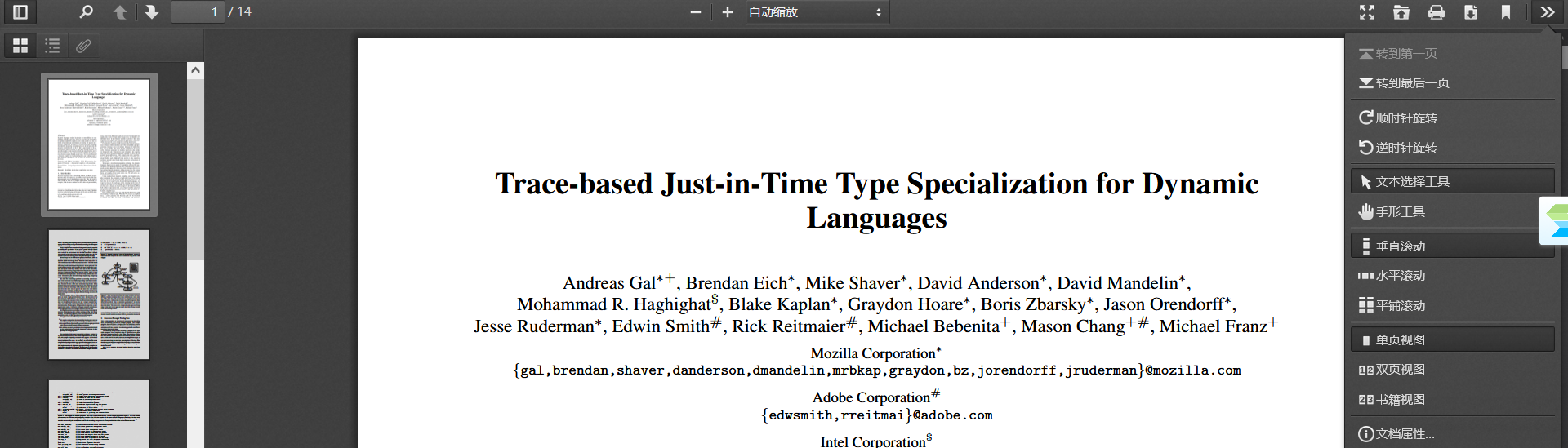
除了PDF预览,还待配套的工具栏,支持功搜索、缩放、目录、打印等功能~
Demo如图:
2、部署
【1】下载插件包
下载地址:https://github.com/mozilla/pdf.js/releases/tag/v2.5.207

【2】客户端方式
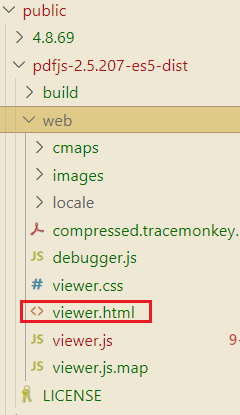
把下载后的pdfjs-2.5.207-es5-dist.zip解压后,放在项目中的public文件夹下
【3】服务端方式(待验证)
可将pdf.js包 放到服务器上 如:http://ip:port/static/pdfjs
3、使用方法
【1】预览PDF文件
1)客户端方式(基于React框架为例)
javascript
const viewPDF: React.FC = () => {
    // pdf文件路径,放在项目的public目录下
    const pdfUrl = '/A.pdf';
    //pdf.js库的代码,放在项目的public目录下
    const pdfServerUrl = '/pdfjs-2.5.207-es5-dist/web/viewer.html'
    const url = `${pdfServerUrl}?file=${pdfUrl}`

    return <>
        <h1>pdf 搜索(基于pdf-dist,pdf_viewer.html)</h1>
        <iframe id='pdfIframe' src={url} width="100%" height="100%"></iframe>
      </>;
}
2)服务端方式(待整理)
【2】外部搜索条件触发pdf.js的搜索逻辑
- 跳转至第一个匹配的内容
- 匹配内容高亮
javascript
const viewPDF: React.FC = () => {
    // pdf文件路径,放在项目的public目录下
    const pdfUrl = '/A.pdf';
    //pdf.js库的代码,放在项目的public目录下
    const pdfServerUrl = '/pdfjs-2.5.207-es5-dist/web/viewer.html'
    const url = `${pdfServerUrl}?file=${pdfUrl}`

    let pdfContentWindow: any = null; //缓存iframContent
    const getPdfContent = () => {
        const pdfFrame: any = document.getElementById('pdfIframe');
        if (!pdfFrame) {
          return;
        }
        pdfContentWindow = pdfFrame.contentWindow;
        //pdf组件部分信息,包括:当前页码、总共页码等
        console.log('page===>', pdfContentWindow.PDFViewerApplication);
    }
    const onSearchForOut = (searchText: string) => {
        pdfContentWindow.postMessage(searchText, '*');
        pdfContentWindow.addEventListener('message', (e: any) => {

          // 高亮匹配结果
          pdfContentWindow.PDFViewerApplication.findBar.findField.value = e.data;
          pdfContentWindow.PDFViewerApplication.findBar.highlightAll.checked = true;                        pdfContentWindow.PDFViewerApplication.findBar.dispatchEvent('highlightallchange');
          //触发搜索项'下一个'事件
          pdfContentWindow.PDFViewerApplication.findBar.dispatchEvent('again', false);

    }, false);
  }
  useEffect(() => {
    getPdfContent();
    setTimeout(() => {
      // 外部的搜索条件
      onSearchForOut('阳区CBD核心区')
    }, 3* 1000)
  }, []);


    return <>
        <h1>pdf 搜索(基于pdf-dist,pdf_viewer.html)</h1>
        <iframe id='pdfIframe' src={url} width="100%" height="100%"></iframe>
      </>;
}
四、把pdf渲染为canvas实现预览
1、安装
bash
npm install pdfjs-dist --save2、功能实现
【1】实现pdf预览
javascript
import { Button } from 'antd';
import { useState, useEffect, useRef } from 'react';
import * as pdfjsLib from 'pdfjs-dist'; // 引入pdfjs-dist
const pdfUrl = '/zyk.pdf'; // pdf 文件路径,pdf文件存放于public目录下
const workerUrl = `/pdf.worker.min.js`; //webworker存放于public目录下
pdfjsLib.GlobalWorkerOptions.workerSrc = workerUrl;

const viewPdf = (props: {height: string}) => {
  const {height} = props;
  const pdfContainerRef = useRef<any>(null);
  const [pagesList, setPagesList] = useState<any>([]);
  const scale = 2; // 缩放比例
  // 渲染单个页面
  const renderPage = async (page: any, pageNumber: number) => {
    const viewport = page.getViewport({ scale });
    const pageContentDom = document.createElement('div');
    pageContentDom.id = `pdfPage-content-${pageNumber}`;
    pageContentDom.style.width = `${viewport.width}px`;
    pageContentDom.style.height = `${viewport.height}px`;
    pageContentDom.style.position = 'relative';
    // 创建 Canvas 元素
    const canvas = document.createElement('canvas');
    const context = canvas.getContext('2d');
    canvas.id=`pdfPage-${pageNumber}`
    canvas.width = viewport.width;
    canvas.height = viewport.height;
    canvas.style.border = '1px solid black';
    pageContentDom.appendChild(canvas);
    pdfContainerRef.current.appendChild(pageContentDom);
    // 渲染 PDF 页面到 Canvas
    await page.render({
      canvasContext: context,
      viewport,
    }).promise;
  };
  // 渲染 PDF 页面
  const renderPagesGroup = ( pages: any) => {
    pages.forEach(({page}:any, index: number) => {
      renderPage(page, index);
    });
  };
  // 加载 PDF 文件
  const loadPdf = async (url: any) => {
    const pdf = await pdfjsLib.getDocument(url).promise;
    const pages: any[] = [];
    for (let i = 1; i <= pdf.numPages; i++) {
      const page = await pdf.getPage(i);
      const textContent = await page.getTextContent();
      pages.push({
        page,
        textContent
      });
    }
    setPagesList(pages);
    renderPagesGroup(pages);
  };
  useEffect(() => {
    loadPdf(pdfUrl);
  }, []);
  return <>
      <div>
          <h1>PDF 搜索(基于@pdfjs-dist-自定义实现)</h1>
      <div>
      <div style={{ height: height || '500px' }}>
        {/* PDF 容器 */}
        <div ref={pdfContainerRef} style={{ position: 'relative', height: '100%', overflowY: 'scroll' }} />
      </div>
      </div>
     </div>
    </>
};

export default viewPdf;
【2】实现pdf内容文本可选进行复制
javascript
...
//基于"【1】实现pdf预览"代码, 修改renderPage方法

// 渲染单个页面
 const renderPage = async (page: any, pageNumber: number) => {
    const viewport = page.getViewport({ scale });
    const pageContentDom = document.createElement('div');
    pageContentDom.id = `pdfPage-content-${pageNumber}`;
 //add-begin: 文本可选则  为了文本层和canvas层重叠,利用组件库的类名(类名不能修改)
 pageContentDom.className = 'pdfViewer';
 pageContentDom.style.setProperty('--scale-factor', scale as any);
 //add-end: 文本可选则
    pageContentDom.style.width = `${viewport.width}px`;
    pageContentDom.style.height = `${viewport.height}px`;
    pageContentDom.style.position = 'relative';
    // 创建 Canvas 元素
    const canvas = document.createElement('canvas');
    const context = canvas.getContext('2d');
    canvas.id=`pdfPage-${pageNumber}`
    canvas.width = viewport.width;
    canvas.height = viewport.height;
    canvas.style.border = '1px solid black';
    pageContentDom.appendChild(canvas);
    createHeightLightCanvas(viewport, pageNumber, pageContentDom);
    pdfContainerRef.current.appendChild(pageContentDom);
    // 渲染 PDF 页面到 Canvas
    await page.render({
      canvasContext: context,
      viewport,
    }).promise;
 //add-begin: 文本可选则
    const textLayerDiv = document.createElement('div');
    textLayerDiv.style.width = viewport.width;
    textLayerDiv.style.height = viewport.height;
    //为了文本层和canvas层重叠,利用组件库的类名
    textLayerDiv.className = 'textLayer';
    const textContent = await page.getTextContent();
    pdfjsLib.renderTextLayer({
      textContentSource: textContent,
      container: textLayerDiv,
      viewport: viewport,
      textDivs: [],
    });
    pageContentDom.appendChild(textLayerDiv);
 //add-end: 文本可选则
  };
【3】实现搜索,匹配内容高亮,并且可以跳转至匹配内容的位置
javascript
import { Button } from 'antd';
import { useState, useEffect, useRef } from 'react';
import * as pdfjsLib from 'pdfjs-dist'; // 引入pdfjs-dist
const pdfUrl = '/zyk.pdf'; // pdf 文件路径,pdf文件存放于public目录下
const workerUrl = `/pdf.worker.min.js`; //webworker存放于public目录下
pdfjsLib.GlobalWorkerOptions.workerSrc = workerUrl;

const viewPdf = (props: {height: string}) => {
   const {height} = props;
  const [searchText, setSearchText] = useState('');
  const pdfContainerRef = useRef<any>(null);
  const [pagesList, setPagesList] = useState<any>([]);
  const [matchList, setMatchList] = useState<any>([]);
  const scale = 2; // 缩放比例
  const createHeightLightCanvas = (viewport: any, pageNumber: number, parentDom: any) => {
    // 为每页创建一个高亮层canvas
    const highlightCanvas = document.createElement('canvas');
    highlightCanvas.id = `highlightCanvas-${pageNumber}`;
    highlightCanvas.className = 'highlightCanvas';
    highlightCanvas.width = viewport.width;
    highlightCanvas.height = viewport.height;
    highlightCanvas.style.position = 'absolute';
    highlightCanvas.style.top = '0';
    highlightCanvas.style.left = '0';
    highlightCanvas.style.zIndex = '1';
    parentDom.appendChild(highlightCanvas);
  }
  // pageNumber 页码(从0开始)
  const jumpToPage = (pageIndex: number) => {
    let beforeCanvasHeight = 0;
    for (let i = 0; i < pageIndex; i++) {
      const canvasParentDom = pdfContainerRef.current.querySelector(`#pdfPage-content-${i}`);
      let canvasParentHeight = canvasParentDom.style.height.replace('px', '');
      beforeCanvasHeight += Number(canvasParentHeight);
    }
    pdfContainerRef.current.scrollTo({
      top: beforeCanvasHeight, // 垂直滚动位置
      behavior: 'smooth'
    });
  }
  const getCurrentTextContentY = (canvas: any, match: any) => {
    // pdfjs 坐标系原点在左下角。transform[5]代表y轴的基线,所以需要减去高度
    const {textBlock} = match;
    const { transform, height } = textBlock;
    return canvas.height - (transform[5] + height -2) * scale;
  }
  // 滚动到指定的匹配项
  const scrollToMatch = (match: any) => {
    const { pageIndex, matchList } = match;
    const firstMatchContent = matchList[0];
    // 获取滚动区域的高度
    const scrollHeight = pdfContainerRef.current.scrollHeight;
    console.log('滚动区域的高度:', scrollHeight);
    // 获取当前页码之前dom的高度
    let beforePageHeight = 0;
    for (let i = 0; i < pageIndex; i++) {
      const canvasParentDom = pdfContainerRef.current.querySelector(`#pdfPage-content-${i}`);
      let canvasParentHeight = canvasParentDom.style.height.replace('px', '');
      beforePageHeight += Number(canvasParentHeight);
    }
    // todo 继续计算 匹配项目的高度
    const currentPageCanvas = pdfContainerRef.current.querySelector(`#pdfPage-${pageIndex}`);
    const textContentY = getCurrentTextContentY(currentPageCanvas, firstMatchContent);
    const offsetTop = 50; //为了滚动目标文字不顶格
    const targetScrollTop = beforePageHeight + textContentY -offsetTop;
    pdfContainerRef.current.scrollTo({
      top: targetScrollTop, // 垂直滚动位置
      behavior: 'smooth'
    });
  };
  // 绘制高亮区域
  const drawHighlights = async (canvas: any, matchesList: MatchBlockItem[]) => {
    if (matchesList.length === 0) {
      return;
    }
    const context = canvas.getContext('2d');
    context.fillStyle = 'rgba(255, 255, 0, 0.5)'; // 黄色半透明填充
    matchesList.forEach((match: any) => {
      const {textBlock} = match;
      const { transform, width, height, str } = textBlock;
      // 获取每一个字符的宽度
      const charWidth = width / str.length;
      const lightWidth = (match.textEndIndex - match.textStartIndex) * charWidth;
      const lightHeight = height;
      const x = transform[4] + match.textStartIndex * charWidth;
      const y = getCurrentTextContentY(canvas, match);
      context.fillRect(
        Math.floor(x * scale),
        Math.floor(y),
        Math.ceil(lightWidth * scale),
        Math.ceil(lightHeight * scale)
      );
    });
  };
  // 渲染单个页面
  const renderPage = async (page: any, pageNumber: number) => {
    const viewport = page.getViewport({ scale });
    const pageContentDom = document.createElement('div');
    pageContentDom.id = `pdfPage-content-${pageNumber}`;
    //为了文本层和canvas层重叠,利用组件库的类名
    pageContentDom.className = 'pdfViewer';
    pageContentDom.style.setProperty('--scale-factor', scale as any);
    pageContentDom.style.width = `${viewport.width}px`;
    pageContentDom.style.height = `${viewport.height}px`;
    pageContentDom.style.position = 'relative';
    // 创建 Canvas 元素
    const canvas = document.createElement('canvas');
    const context = canvas.getContext('2d');
    canvas.id=`pdfPage-${pageNumber}`
    canvas.width = viewport.width;
    canvas.height = viewport.height;
    canvas.style.border = '1px solid black';
    pageContentDom.appendChild(canvas);
    createHeightLightCanvas(viewport, pageNumber, pageContentDom);
    pdfContainerRef.current.appendChild(pageContentDom);
    // 渲染 PDF 页面到 Canvas
    await page.render({
      canvasContext: context,
      viewport,
    }).promise;
    // 渲染文本框
    const textLayerDiv = document.createElement('div');
    textLayerDiv.style.width = viewport.width;
    textLayerDiv.style.height = viewport.height;
    //为了文本层和canvas层重叠,利用组件库的类名
    textLayerDiv.className = 'textLayer';
    const textContent = await page.getTextContent();
    pdfjsLib.renderTextLayer({
      textContentSource: textContent,
      container: textLayerDiv,
      viewport: viewport,
      textDivs: [],
    });
    pageContentDom.appendChild(textLayerDiv)
  };
  // 渲染 PDF 页面
  const renderPagesGroup = ( pages: any) => {
    pages.forEach(({page}:any, index: number) => {
      renderPage(page, index);
    });
  };
  // 加载 PDF 文件
  const loadPdf = async (url: any) => {
    const pdf = await pdfjsLib.getDocument(url).promise;
    const pages: any[] = [];
    for (let i = 1; i <= pdf.numPages; i++) {
      const page = await pdf.getPage(i);
      const textContent = await page.getTextContent();
      pages.push({
        page,
        textContent
      });
    }
    setPagesList(pages);
    renderPagesGroup(pages);
  };
  const findAllMatches = (text: string, pattern: string) => {
    // 创建正则表达式对象
    const regex = new RegExp(pattern, 'g');
    // 使用match方法找到所有匹配项
    const matches = text.match(regex);
    // 如果没有匹配项,返回空数组
    if (!matches) {
        return [];
    }
    // 创建一个数组来存储所有匹配的位置
    const positions = [];
    // 遍历所有匹配项,找到它们在字符串中的位置
    let match;
    while ((match = regex.exec(text)) !== null) {
      positions.push(match.index);
    }
    return positions;
  }

  // todo 优化参数个数,
  const getMatchesList = (
    items: any,
    currentItem: any,
    currentItemIndex: number,
    currentTextIndex: number,
    searchStr: string): MatchBlockItem[] => {
    let matchSearchList: MatchBlockItem[] = [];
    if(currentItem.str.length - (currentTextIndex + 1) < searchStr.length -1 ) {
      // 获取当前文本块中剩余字符,如果小于搜索字符长度,则继续查找下一个文本块
      let itemText = currentItem.str.slice(currentTextIndex); // 获取当前文本块中剩余字符
      let tempMatchSearchList = [{
        blockIndex: currentItemIndex,
        textStartIndex: currentTextIndex,
        textEndIndex: currentItem.str.length,// 由于统一使用slice截取,所以不包括最后一位
        textBlock: currentItem
      }]; // 存储后续文本块
      let index = currentItemIndex;
      const otherSearchLength = searchStr.length -1;
      while (itemText.length <= otherSearchLength) {
        index = index + 1;
        const currentOtherSearchLength = otherSearchLength - itemText.length; // 当前剩余搜索字符长度
        if (items[index].str.length > currentOtherSearchLength) {
          // 文本块的长度大于剩余搜索字符长度,则截取剩余搜索字符长度的字符
          itemText = `${itemText}${items[index].str.slice(0, currentOtherSearchLength+1)}`;
          tempMatchSearchList.push({
            blockIndex: index,
            textStartIndex: 0,
            textEndIndex: currentOtherSearchLength + 1,
            textBlock: items[index]
          })
        } else {
          // 文本块的长度小于剩余搜索字符长度,则截取全部字符, 继续
          itemText = `${itemText}${items[index].str}`;
          tempMatchSearchList.push({
            blockIndex: index,
            textStartIndex: 0,
            textEndIndex: items[index].str.length,
            textBlock: items[index]
          })
        }
      }
      if (itemText === searchStr) {
        matchSearchList = matchSearchList.concat(tempMatchSearchList);
      }
    }
    else {
      // 获取当前文本块中剩余字符,如果大于等于搜索字符长度,则截取当前文本块中搜索文本长度的字符
      const textEndIndex = currentTextIndex + searchStr.length;
      const text = currentItem.str.slice(currentTextIndex, textEndIndex); // 取出匹配字符所在文本块及后续文本块
      if (text === searchStr) {
        console.log('匹配到了:', currentItem, currentItemIndex)
        matchSearchList.push({
          blockIndex: currentItemIndex,
          textStartIndex: currentTextIndex,
          textEndIndex: textEndIndex,
          textBlock: currentItem
        })
      }
    }
    return matchSearchList;
  }

  // 查找文本的所有出现位置
  const findAllOccurrences = (items: any, searchStr: string): MatchBlockItem[] => {
    const firstSearchStr = searchStr[0];
    let matchSearchList: MatchBlockItem[] = [];
    for(let i=0; i<items.length; i++) {
      const currentItem = items[i];
      const currentMatchIndexList = findAllMatches(currentItem.str, firstSearchStr); // 获取当前文本块中第一个匹配字符的索引列表
      if (currentMatchIndexList.length > 0) {
        for(let j=0; j<currentMatchIndexList.length; j++){
          matchSearchList = [...matchSearchList, ...getMatchesList(items, currentItem, i, currentMatchIndexList[j], searchStr)];
        }
      }
    }
    return matchSearchList;
  };
  const clearHeightLightsCanvas = () => {
    const highlightCanvases = Array.from(pdfContainerRef.current.querySelectorAll('.highlightCanvas'));
    highlightCanvases.forEach((canvas: any) => {
      const context = canvas.getContext('2d');
      context.clearRect(0, 0, canvas.width, canvas.height);
    });
  }
  const handleSearch = async () => {
    clearHeightLightsCanvas()
    if (!searchText) {
      jumpToPage(0);
      return;
    }
    const newMatches: any = [];
    console.log('pagesList', pagesList)
    // todo  目前是按照每页来匹配,可能会匹配不到跨页的内容
    pagesList.forEach(async ({textContent}: any, pageIndex: number) => {
      const pageMatches = findAllOccurrences(textContent.items, searchText);
      newMatches.push({
        pageIndex, // 页面索引
        matchList: pageMatches, // 匹配项列表
      });
    })
    console.log('newMatches', newMatches);
    const isNotMatch = newMatches.every((match: any) => match.matchList.length === 0);
    if (isNotMatch) {
      alert('未找到匹配项');
      return;
    }
    /// 重新绘制高亮区域
    pagesList.forEach((_: any, pageIndex: number) => {
      const highlightCanvas = pdfContainerRef.current.querySelectorAll('.highlightCanvas')[pageIndex]; // 获取高亮层 Canvas
      const currentMatches = newMatches.find((match: any) => match.pageIndex === pageIndex);
      drawHighlights(
        highlightCanvas,
        currentMatches?.matchList || []
      );
    });
    // 跳转
    const isExistItem = newMatches.find((match: any) => match.matchList.length > 0);
    if (isExistItem) {
      scrollToMatch(isExistItem);
    }
  };
   // 初始化 PDF.js
   useEffect(() => {
    loadPdf(pdfUrl);
  }, []);
  return <>
      <div>
      <h1>PDF 搜索(基于@pdfjs-dist-自定义实现)</h1>
      <input
        type="text"
        value={searchText}
        onChange={(e) => setSearchText(e.target.value)}
        placeholder="输入要搜索的内容"
      />
        <Button onClick={handleSearch}>搜索</Button>
      <div>
      <div style={{ height: height || '500px' }}>
        {/* PDF 容器 */}
        <div ref={pdfContainerRef} style={{ position: 'relative', height: '100%', overflowY: 'scroll' }} />
      </div>
      </div>
     </div>
    </>
};

export default viewPdf;
【4】获取pdf文件中目录的数据结构
javascript
....
//基于'【1】实现pdf预览'的代码
  const get= async (url: any) => {
    const pdf = await pdfjsLib.getDocument(url).promise;
    // 获取目录数据
    const pdfCatalogue= await pdf.getOutline();
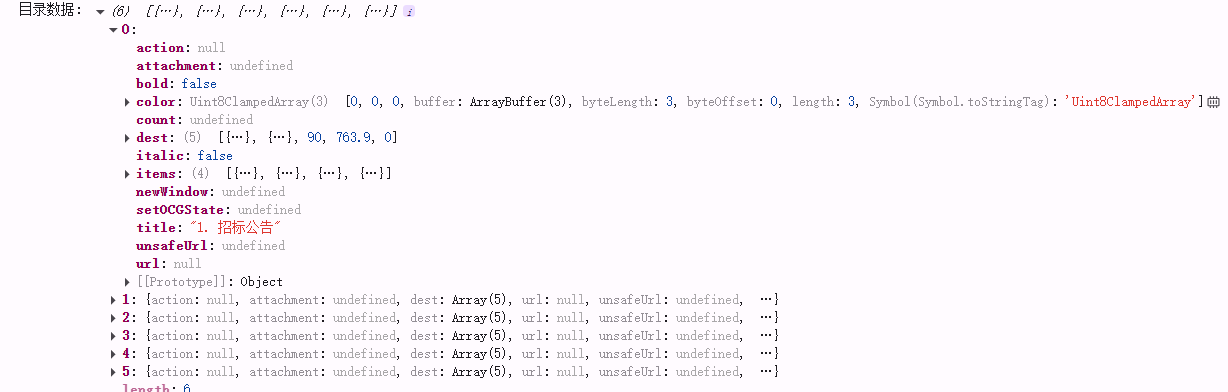
    console.log('目录数据:', pdfCatalogue);
  };
...