前端文件分片是大文件上传场景中的重要优化手段,其必要性和优势主要体现在以下几个方面:
一、必要性分析
1. 突破浏览器/服务器限制
-
浏览器限制:部分浏览器对单次上传文件大小有限制(如早期IE限制4GB)
-
服务器限制:Nginx/Apache默认配置对请求体大小有限制(如client_max_body_size)
-
内存限制:大文件一次性上传可能导致内存溢出(OOM)
2. 应对网络不稳定性
-
大文件单次上传时,网络波动可能导致整个上传失败
-
分片后只需重传失败的分片,避免重复传输已成功部分
3. 提升服务器处理能力
-
服务端可并行处理多个分片(分布式存储场景)
-
避免单次大文件写入造成的磁盘I/O压力
二、核心优势
1. 断点续传能力 
2. 并行加速上传
javascript
// 可同时上传多个分片(需服务端支持)
const uploadPromises = chunks.map(chunk => uploadChunk(chunk));
await Promise.all(uploadPromises);
3. 精准进度控制
javascript
// 分片粒度更细,进度反馈更精确
const progress = (uploadedChunks / totalChunks * 100).toFixed(1);
4. 节省系统资源
-
前端内存:分片处理避免一次性加载大文件到内存
-
服务器资源:分批次处理降低瞬时负载压力
5. 失败重试优化
-
只需重传失败分片(如:3次重试机制)
-
分片MD5校验避免重复传输
三、典型应用场景
1. 云存储服务
-
百度网盘、阿里云OSS等的大文件上传
-
支持暂停/恢复上传操作
2. 视频处理平台
-
4K/8K视频上传(常见文件大小1GB+)
-
上传时同步生成预览图
3. 医疗影像系统
-
处理大型DICOM文件(单文件可达数GB)
-
边传边处理的实时需求
4. 分布式系统
-
跨数据中心分片存储
-
区块链文件存储
四、与传统上传对比
| 特性 | 传统上传 | 分片上传 |
|---|---|---|
| 大文件支持 | ❌ 有限制 | ✅ 无限制 |
| 网络中断恢复 | ❌ 重新开始 | ✅ 断点续传 |
| 进度反馈精度 | 0%或100% | 百分比进度 |
| 服务器内存压力 | 高 | 低 |
| 实现复杂度 | 简单 | 较高 |
| 适用场景 | 小文件 | 大文件/不稳定网络 |
五、实现注意事项
分片策略
-
动态分片:根据网络质量自动调整分片大小
-
固定分片:通常设置为1-5MB(平衡数量与效率)
文件校验
-
前端生成文件Hash(如MD5)
-
服务端合并时校验分片顺序
并发控制
-
浏览器并行连接数限制(Chrome 6个/域名)
-
需实现上传队列管理
错误处理
-
分片级重试机制
-
失败分片自动重新排队
**六、**组件封装
6.1组件功能特点:
-
完整的拖拽/点击上传功能
-
实时文件预览(图片/普通文件)
-
分片上传进度显示
-
获取原始文件和分片数据
-
详细的日志记录
-
自定义回调函数支持
-
响应式交互设计
-
完善的错误处理
6.2代码演示
效果预览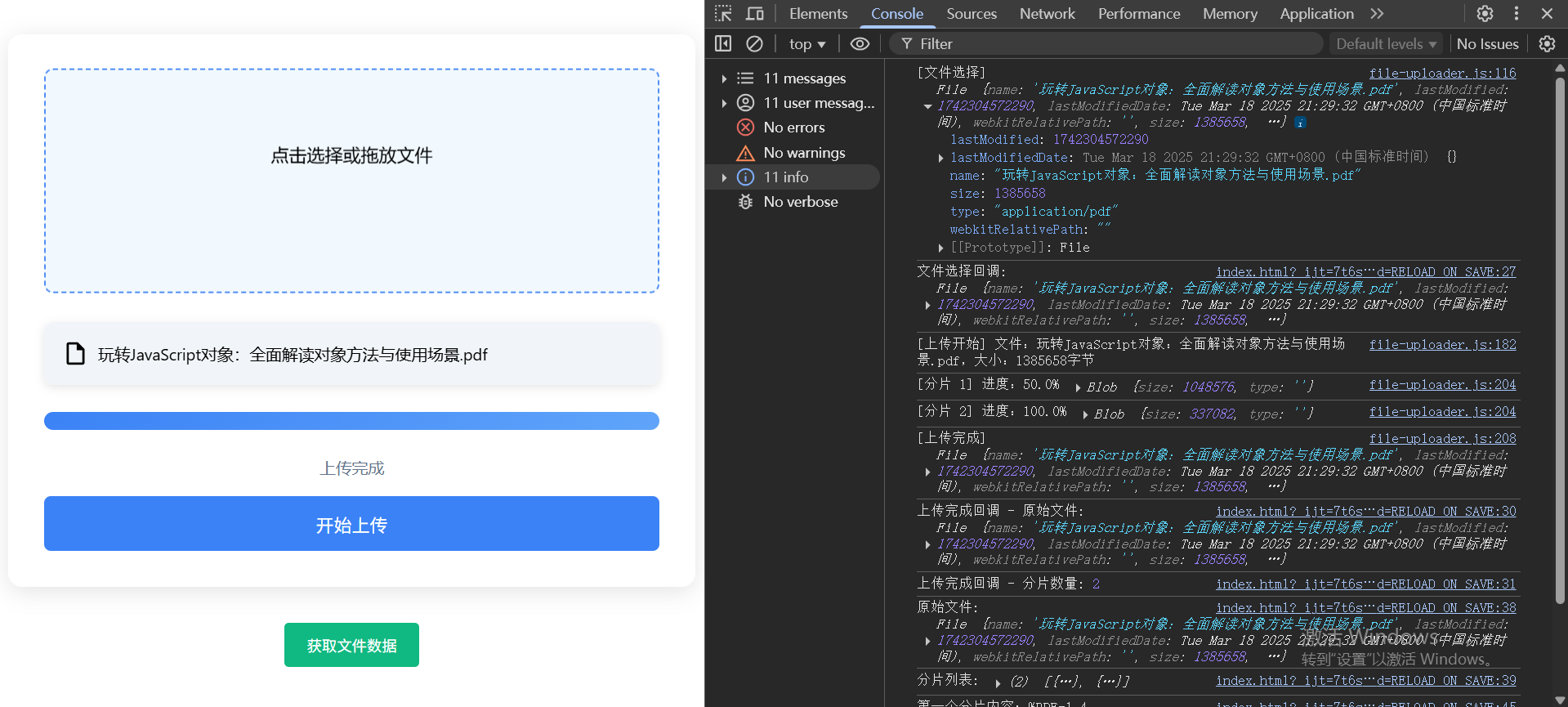
FileUploader 组件封装
javascript
// file-uploader.js
class FileUploader {
    /**
     * 文件上传组件
     * @param {Object} options 配置选项
     * @param {string} options.container - 容器选择器(必需)
     * @param {number} [options.chunkSize=2*1024*1024] - 分片大小(字节)
     * @param {string} [options.buttonText='开始上传'] - 按钮文字
     * @param {string} [options.promptText='点击选择或拖放文件'] - 提示文字
     * @param {function} [options.onFileSelect] - 文件选择回调
     * @param {function} [options.onUploadComplete] - 上传完成回调
     */
    constructor(options) {
        // 合并配置
        this.config = {
            chunkSize: 2 * 1024 * 1024,
            buttonText: '开始上传',
            promptText: '点击选择或拖放文件',
            ...options
        };

        // 状态管理
        this.currentFile = null;
        this.chunks = [];
        this.isProcessing = false;
        this.uploadedChunks = 0;

        // 初始化
        this.initContainer();
        this.bindEvents();
    }

    // 初始化容器结构
    initContainer() {
        this.container = document.querySelector(this.config.container);
        this.container.classList.add('file-uploader');
        this.container.innerHTML = `
          <div class="upload-area">
            <input type="file">
            <p>${this.config.promptText}</p>
          </div>
          <div class="preview-container"></div>
          <div class="progress-container">
            <div class="progress-bar" style="width:0%"></div>
          </div>
          <div class="status">准备就绪</div>
          <button class="upload-btn" type="button">
            ${this.config.buttonText}
           </button>
        `;

        // DOM引用
        this.dom = {
            uploadArea: this.container.querySelector('.upload-area'),
            fileInput: this.container.querySelector('input[type="file"]'),
            previewContainer: this.container.querySelector('.preview-container'),
            progressBar: this.container.querySelector('.progress-bar'),
            status: this.container.querySelector('.status'),
            uploadBtn: this.container.querySelector('.upload-btn')
        };
    }

    // 事件绑定
    bindEvents() {
        this.dom.fileInput.addEventListener('change', e => this.handleFileSelect(e));
        this.dom.uploadArea.addEventListener('click', e => {
            if (e.target === this.dom.uploadArea) this.dom.fileInput.click();
        });
        this.dom.uploadBtn.addEventListener('click', () => this.startUpload());
        this.initDragDrop();
    }

    // 拖拽处理
    initDragDrop() {
        const highlight = () => this.dom.uploadArea.classList.add('dragover');
        const unhighlight = () => this.dom.uploadArea.classList.remove('dragover');

        ['dragenter', 'dragover'].forEach(event => {
            this.dom.uploadArea.addEventListener(event, e => {
                e.preventDefault();
                highlight();
            });
        });

        ['dragleave', 'drop'].forEach(event => {
            this.dom.uploadArea.addEventListener(event, e => {
                e.preventDefault();
                unhighlight();
            });
        });

        this.dom.uploadArea.addEventListener('drop', e => {
            const file = e.dataTransfer.files[0];
            if (file) this.handleFileSelect({ target: { files: [file] } });
        });
    }

    // 处理文件选择
    async handleFileSelect(e) {
        if (this.isProcessing) return;
        this.isProcessing = true;

        try {
            const file = e.target.files[0];
            if (!file) return;

            this.cleanup();

            this.currentFile = {
                raw: file,
                previewUrl: URL.createObjectURL(file)
            };

            this.createPreview();
            this.updateStatus('文件已准备就绪');
            console.info('[文件选择]', file);

            // 触发回调
            if (this.config.onFileSelect) {
                this.config.onFileSelect(file);
            }
        } finally {
            this.isProcessing = false;
            e.target.value = '';
        }
    }

    // 创建预览
    createPreview() {
        this.dom.previewContainer.innerHTML = '';

        const previewItem = document.createElement('div');
        previewItem.className = 'preview-item';

        if (this.currentFile.raw.type.startsWith('image/')) {
            const img = new Image();
            img.className = 'preview-img';
            img.src = this.currentFile.previewUrl;
            img.onload = () => URL.revokeObjectURL(this.currentFile.previewUrl);
            previewItem.appendChild(img);
        } else {
            const fileBox = document.createElement('div');
            fileBox.className = 'file-info';
            fileBox.innerHTML = `
        <svg class="file-icon" viewBox="0 0 24 24">
          <path fill="currentColor" d="M14,2H6A2,2 0 0,0 4,4V20A2,2 0 0,0 6,22H18A2,2 0 0,0 20,20V8L14,2M18,20H6V4H13V9H18V20Z"/>
        </svg>
        <span class="file-name">${this.currentFile.raw.name}</span>
      `;
            previewItem.appendChild(fileBox);
        }

        const deleteBtn = document.createElement('button');
        deleteBtn.className = 'delete-btn';
        deleteBtn.innerHTML = '×';
        deleteBtn.onclick = () => {
            this.dom.previewContainer.removeChild(previewItem);
            URL.revokeObjectURL(this.currentFile.previewUrl);
            this.currentFile = null;
            this.updateStatus('文件已删除');
            this.dom.progressBar.style.width = '0%';
        };

        previewItem.appendChild(deleteBtn);
        this.dom.previewContainer.appendChild(previewItem);
    }

    // 开始上传
    async startUpload() {
        if (!this.currentFile) return this.showAlert('请先选择文件');
        if (this.isProcessing) return;

        try {
            this.isProcessing = true;
            this.dom.uploadBtn.disabled = true;
            this.chunks = [];

            const file = this.currentFile.raw;
            const totalChunks = Math.ceil(file.size / this.config.chunkSize);
            this.uploadedChunks = 0;

            console.info('[上传开始]', `文件:${file.name},大小:${file.size}字节`);
            this.updateStatus('上传中...');
            this.dom.progressBar.style.width = '0%';

            for (let i = 0; i < totalChunks; i++) {
                const start = i * this.config.chunkSize;
                const end = Math.min(start + this.config.chunkSize, file.size);
                const chunk = file.slice(start, end);

                this.chunks.push({
                    index: i,
                    start,
                    end,
                    size: end - start,
                    chunk: chunk
                });

                await new Promise(resolve => setTimeout(resolve, 300)); // 模拟上传

                this.uploadedChunks++;
                const progress = (this.uploadedChunks / totalChunks * 100).toFixed(1);
                this.dom.progressBar.style.width = `${progress}%`;
                console.info(`[分片 ${i + 1}]`, `进度:${progress}%`, chunk);
            }

            this.updateStatus('上传完成');
            console.info('[上传完成]', file);

            if (this.config.onUploadComplete) {
                this.config.onUploadComplete({
                    originalFile: file,
                    chunks: this.chunks
                });
            }
        } catch (error) {
            this.updateStatus('上传出错');
            console.info('[上传错误]', error);
        } finally {
            this.isProcessing = false;
            this.dom.uploadBtn.disabled = false;
        }
    }

    // 获取文件数据
    getFileData() {
        return {
            originalFile: this.currentFile?.raw || null,
            chunks: this.chunks
        };
    }

    // 状态更新
    updateStatus(text) {
        this.dom.status.textContent = text;
    }

    // 清理状态
    cleanup() {
        if (this.currentFile) {
            URL.revokeObjectURL(this.currentFile.previewUrl);
            this.currentFile = null;
        }
        this.chunks = [];
        this.dom.previewContainer.innerHTML = '';
        this.dom.progressBar.style.width = '0%';
    }

    // 显示提示
    showAlert(message) {
        const alert = document.createElement('div');
        alert.textContent = message;
        alert.style.cssText = `
      position: fixed;
      top: 20px;
      left: 50%;
      transform: translateX(-50%);
      padding: 12px 24px;
      background: #ef4444;
      color: white;
      border-radius: 6px;
      box-shadow: 0 2px 8px rgba(0,0,0,0.2);
      z-index: 1000;
      animation: fadeIn 0.3s;
    `;

        document.body.appendChild(alert);
        setTimeout(() => alert.remove(), 3000);
    }
}
FileUploader组件样式
css
/* file-uploader.css */
* {
    box-sizing: border-box;
}
.file-uploader {
    font-family: 'Segoe UI', system-ui, sans-serif;
    max-width: 800px;
    margin: 2rem auto;
    padding: 2rem;
    background: #ffffff;
    border-radius: 12px;
    box-shadow: 0 4px 20px rgba(0,0,0,0.1);
}

.upload-area {
    width: 100%;
    min-height: 200px;
    position: relative;
    border: 2px dashed #cbd5e1;
    padding: 3rem 2rem;
    text-align: center;
    border-radius: 8px;
    background: #f8fafc;
    transition: all 0.3s ease;
    cursor: pointer;
}

.upload-area:hover {
    border-color: #3b82f6;
    background: #f0f9ff;
    transform: translateY(-2px);
}

.upload-area.dragover {
    border-color: #2563eb;
    background: #dbeafe;
}

.upload-area input[type="file"] {
    opacity: 0;
    position: absolute;
    top: 0;
    left: 0;
    width: 100%;
    height: 100%;
    cursor: pointer;
}

.preview-container {
    display: flex;
    flex-wrap: wrap;
    gap: 1rem;
    margin: 1.5rem 0;
    width: 100%;
}

.preview-item {
    position: relative;
    width: 100%;
    max-height: 120px;
    border-radius: 8px;
    overflow: hidden;
    box-shadow: 0 2px 8px rgba(0,0,0,0.1);
    transition: transform 0.2s ease;
}

.preview-item:hover {
    transform: translateY(-2px);
}

.preview-img {
    width: 100%;
    height: 100%;
    object-fit: cover;
}

.file-info {
    padding: 1rem;
    background: #f1f5f9;
    border-radius: 8px;
    display: flex;
    align-items: center;
    gap: 0.5rem;
    width: 100%;
    height: 100%;
    box-sizing: border-box;
}

.file-icon {
    width: 24px;
    height: 24px;
    flex-shrink: 0;
}

.file-name {
    font-size: 0.9em;
    overflow: hidden;
    text-overflow: ellipsis;
    white-space: nowrap;
    flex-grow: 1;
}

.delete-btn {
    position: absolute;
    top: 6px;
    right: 6px;
    background: rgba(239,68,68,0.9);
    color: white;
    border: none;
    border-radius: 50%;
    width: 24px;
    height: 24px;
    cursor: pointer;
    display: flex;
    align-items: center;
    justify-content: center;
    opacity: 0;
    transition: opacity 0.2s ease;
}

.preview-item:hover .delete-btn {
    opacity: 1;
}

.progress-container {
    width: 100%;
    height: 16px;
    background: #e2e8f0;
    border-radius: 8px;
    overflow: hidden;
    margin: 1.5rem 0;
}

.progress-bar {
    height: 100%;
    background: linear-gradient(135deg, #3b82f6, #60a5fa);
    transition: width 0.3s ease;
}

.status {
    color: #64748b;
    font-size: 0.9rem;
    text-align: center;
    margin: 1rem 0;
    min-height: 1.2em;
}

.upload-btn {
    display: block;
    width: 100%;
    padding: 0.8rem;
    background: #3b82f6;
    color: white;
    border: none;
    border-radius: 6px;
    font-size: 1rem;
    cursor: pointer;
    transition: all 0.2s ease;
}

.upload-btn:hover {
    background: #2563eb;
    transform: translateY(-1px);
    box-shadow: 0 2px 8px rgba(59,130,246,0.3);
}

.upload-btn:disabled {
    background: #94a3b8;
    cursor: not-allowed;
    transform: none;
    box-shadow: none;
}

@keyframes fadeIn {
    from { opacity: 0; transform: translateY(-10px); }
    to { opacity: 1; transform: translateY(0); }
}
HTML测试文件
html
<!-- test.html -->
<!DOCTYPE html>
<html lang="zh-CN">
<head>
    <meta charset="UTF-8">
    <title>完整文件上传测试</title>
    <link rel="stylesheet" href="file-uploader.css">
</head>
<body>
<!-- 上传容器 -->
<div id="uploader"></div>

<!-- 操作按钮 -->
<div style="text-align:center;margin:20px">
    <button onclick="getFileData()" style="padding:10px 20px;background:#10b981;color:white;border:none;border-radius:4px;cursor:pointer">
        获取文件数据
    </button>
</div>

<script src="file-uploader.js"></script>
<script>
    // 初始化上传组件
    const uploader = new FileUploader({
        container: '#uploader',
        chunkSize: 1 * 1024 * 1024, // 1MB分片
        onFileSelect: (file) => {
            console.log('文件选择回调:', file);
        },
        onUploadComplete: (data) => {
            console.log('上传完成回调 - 原始文件:', data.originalFile);
            console.log('上传完成回调 - 分片数量:', data.chunks.length);
        }
    });

    // 获取文件数据示例
    function getFileData() {
        const data = uploader.getFileData();
        console.log('原始文件:', data.originalFile);
        console.log('分片列表:', data.chunks);

        // 查看第一个分片内容(示例)
        if (data.chunks.length > 0) {
            const reader = new FileReader();
            reader.onload = () => {
                console.log('第一个分片内容:', reader.result.slice(0, 100) + '...');
            };
            reader.readAsText(data.chunks[0].chunk);
        }
    }
</script>
</body>
</html>