背景
canvas 是 html5 标准中提供的一个标签, 顾名思义是定义在浏览器上的画布
- 通过其强大的绘图接口,我们可以实现各种各样的图形,炫酷的动画,
- 甚至可以利用他开发小游戏,包括市面上很流行的数据可视化框架底层都用到了Canvas。
- 既然他这么强大,那我们还有什么理由不去学习它呢?
基础
渲染上下文
<canvas>是一个HTML元素,我们可以将它简单理解为一个画板,通过Canvas提供的绘制api我们就可以绘制出各种图形。
<!DOCTYPE html>
<html lang="en">

<head>
  <meta charset="UTF-8">
  <meta name="viewport" content="width=device-width, initial-scale=1.0">
  <title>Document</title>
  <style>
    .canvas {
      background-color: pink;
    }
  </style>
</head>

<body>
  <canvas id="canvas" width="600" height="600" class="canvas" />

  <script>
    // 获取画布
    const c = document.getElementById("canvas")

    /**
     * 获取画笔
     * 可选参数:
     * 2d: 获取平面画笔, 绘制2d图形
     * webgl: 获取3d画笔, 绘制3d图形
     *
    */
    const ctx = c.getContext("2d")

  </script>
</body>

</html>
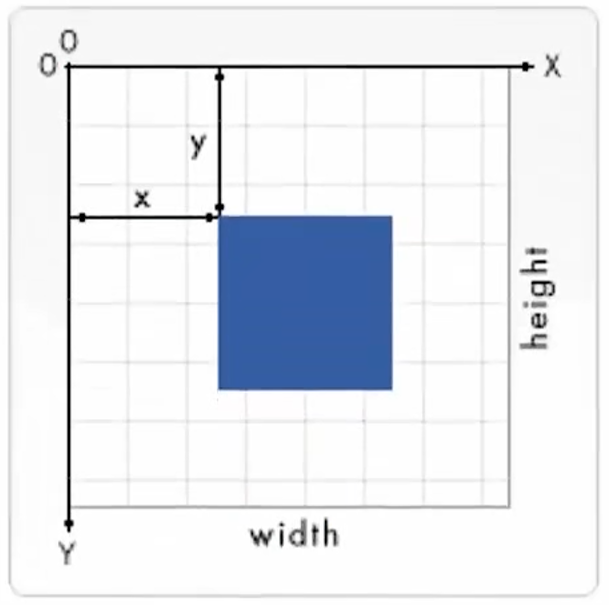
canvas中的坐标系和html中的坐标系一样
- 坐标: 控制图形画在什么位置
- 尺寸: 控制图形画多大
绘制图形
1.1. 线(线, 三角形, 矩形)
重要的API
-
绘制: moveTo, lineTo,stroke
-
设置样式: lineWidth,strokeStyle
-
路径: beginPath,closePath
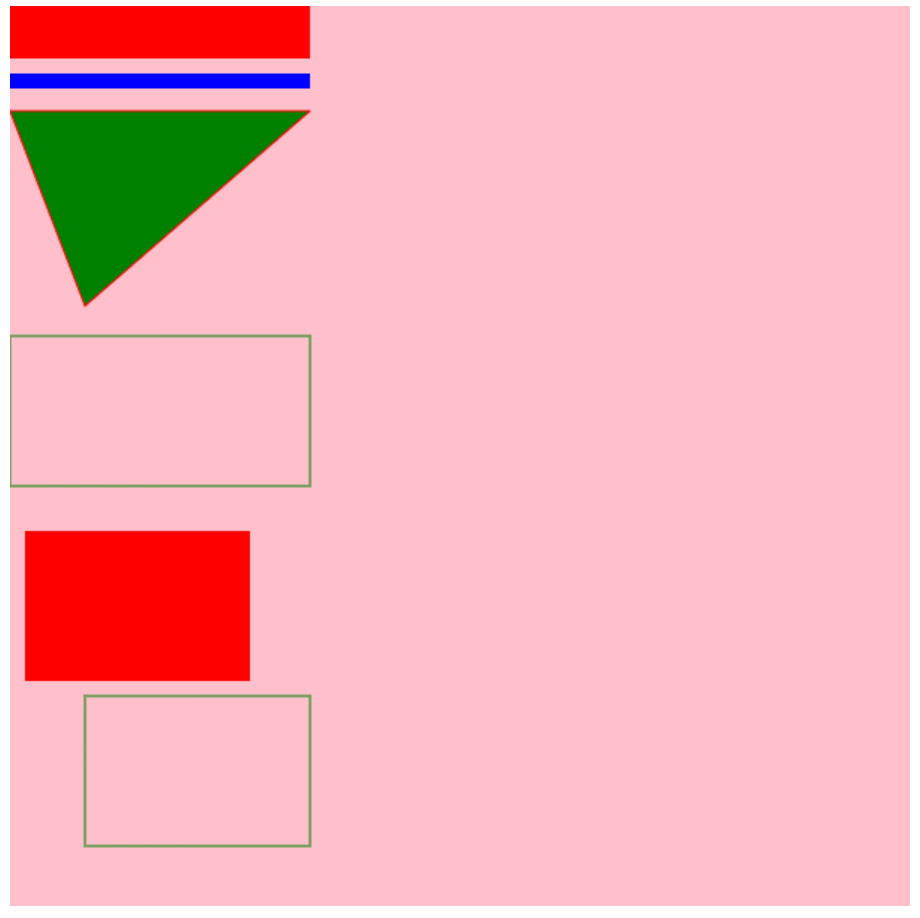
Document <script> // 获取画布 const c = document.getElementById("canvas") /** * 获取画笔 */ const ctx = c.getContext("2d") /** * 绘制线条 */ ctx.moveTo(0, 10) // 确定画笔位置 ctx.lineTo(200, 10) // 线的终点 ctx.lineWidth = 50 // 设置线的宽度 ctx.strokeStyle = 'red' // 设置画笔的颜色 (画笔是全局唯一实例) ctx.stroke() // 完成绘制 /** * 绘制线条 */ ctx.beginPath() // 新建路径, 不影响其他路径 ctx.moveTo(0, 50) ctx.lineTo(200, 50) ctx.lineWidth = 10 ctx.strokeStyle = 'blue' ctx.stroke() // stroke的绘制以beginPath为界 /** * 绘制三角形 */ ctx.beginPath() ctx.moveTo(0, 70) ctx.lineTo(200, 70) ctx.lineTo(50, 200) // ctx.lineTo(0, 70) // 手动画线完成路径闭合 ctx.closePath() // 让路径自动闭合 ctx.lineWidth = 1 ctx.fillStyle = 'green' // 设置填充颜色 ctx.fill() // 完成填充 ctx.strokeStyle = 'red' // 设置画笔颜色 ctx.stroke() // 完成绘制 /** * 绘制矩形1 */ ctx.beginPath() // 上定义矩形: 四个参数分别表示矩形左上角的 x 坐标、y 坐标,以及矩形的宽度和高度。 ctx.rect(0, 220, 200, 100) ctx.strokeStyle = 'green' ctx.stroke() /** * 绘制矩形2 */ ctx.beginPath() // 绘制矩形并设置填充色 ctx.fillStyle = 'red' ctx.fillRect(10, 350, 150 ,100) // 绘制矩形并设置边框颜色 ctx.strokeStyle = 'green' ctx.strokeRect(50, 460, 150, 100) </script>
1.2. 弧线(弧, 圆弧, 圆)
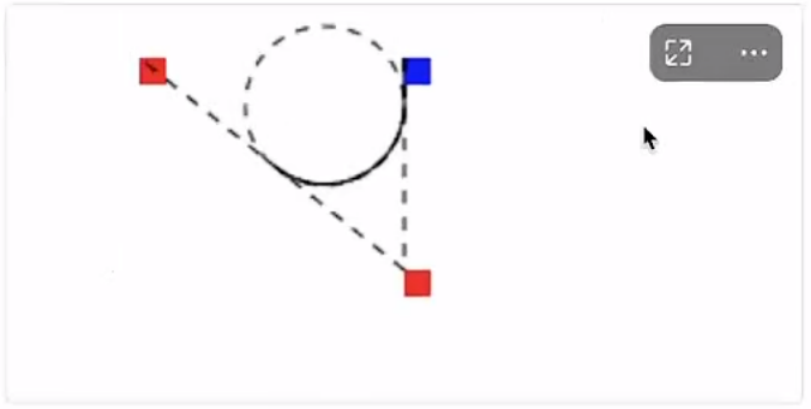
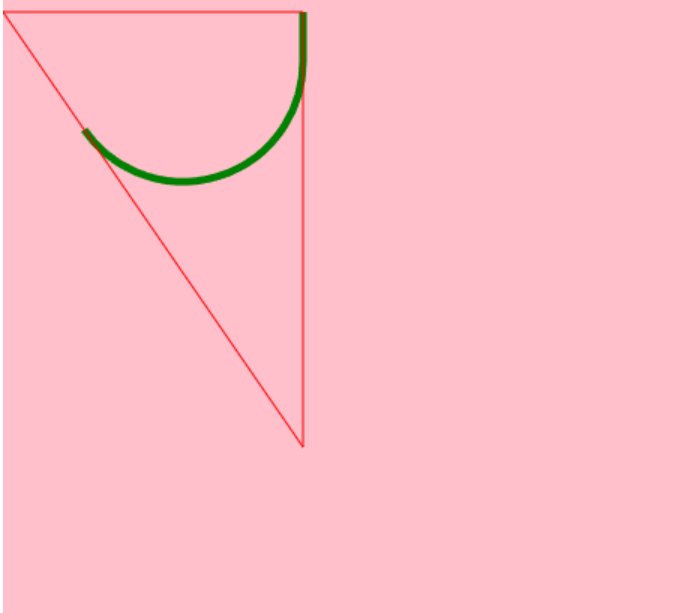
arcTo(x1, y1, x2, y2, radius);
-
x1和y1: 画笔的坐标
-
x2和y2: 两个辅助点
-
radius: 控制内切圆的半径, 半径越大弧越大
-
三个点相连组成角, 根据半径计算内切圆, 圆和三角相交的地方叫切点
-
切点相连就画出了一个弧, 弧与起点相连, 就是最终得到的弧线
-
示例
Document
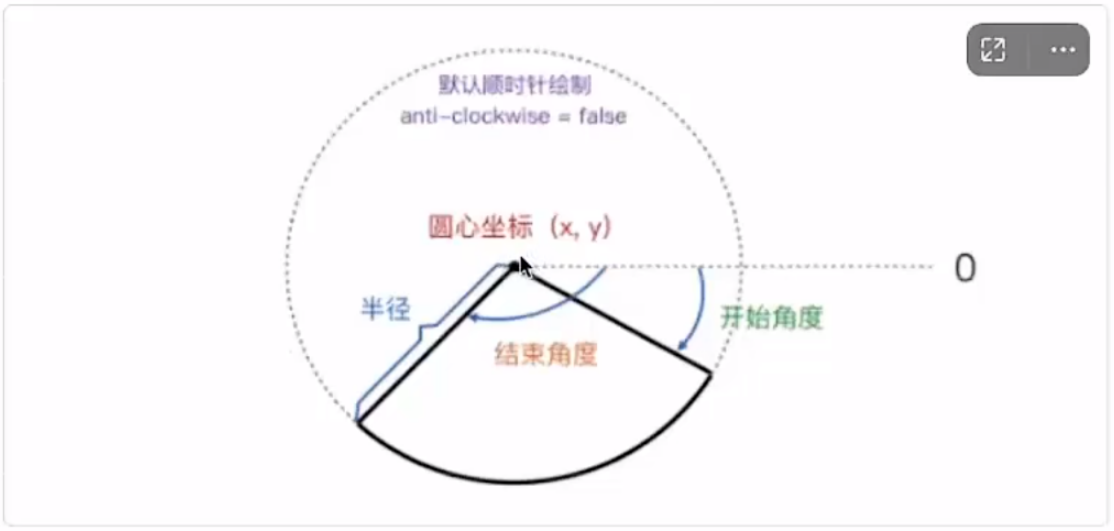
arc(x, y,radius, startAngle, endAngle, anticlockwise);
-
参数x, y: 圆心的坐标
-
参数radius: 圆的半径
-
参数startAngle, endAngle: 起始角度和终止角度
-
参数anticlockwise: 顺时针还是逆时针, 默认顺时针
-
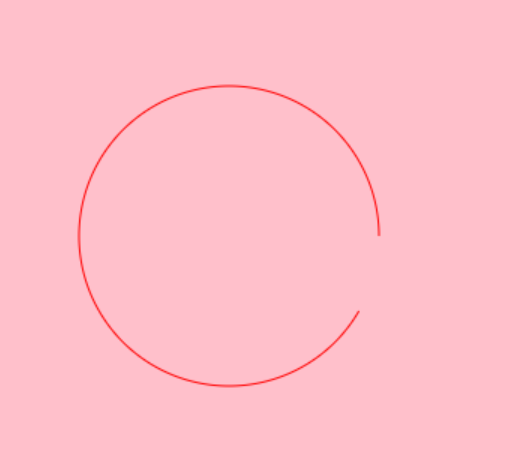
示例代码
Document
1.3. 贝塞尔曲线
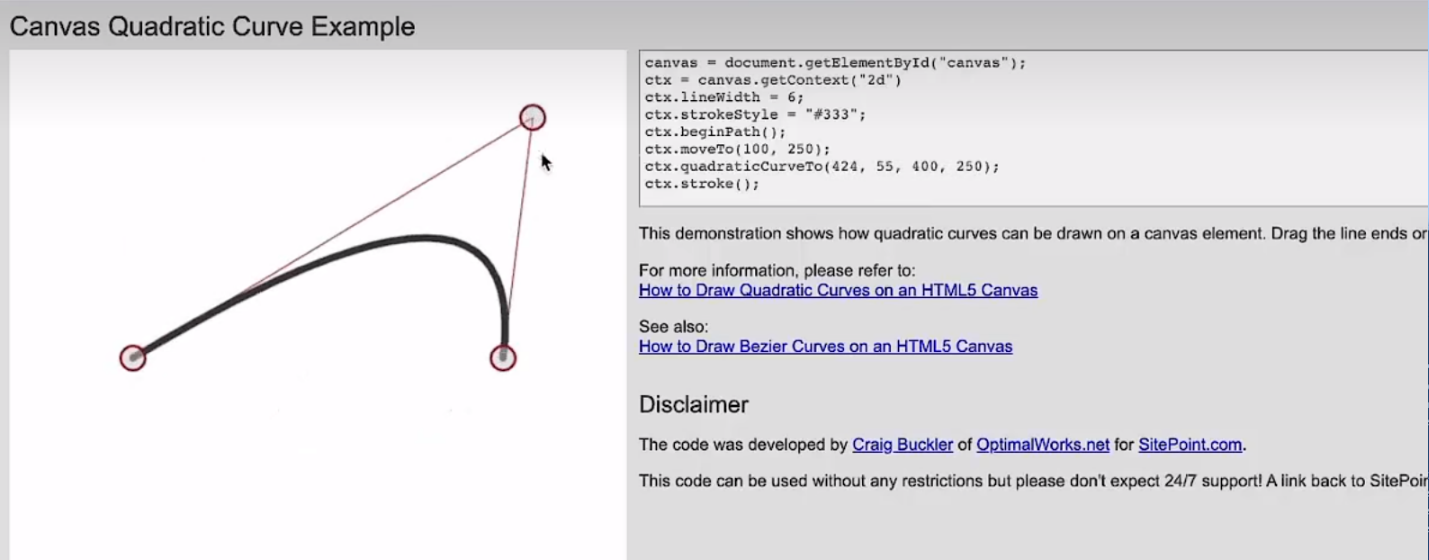
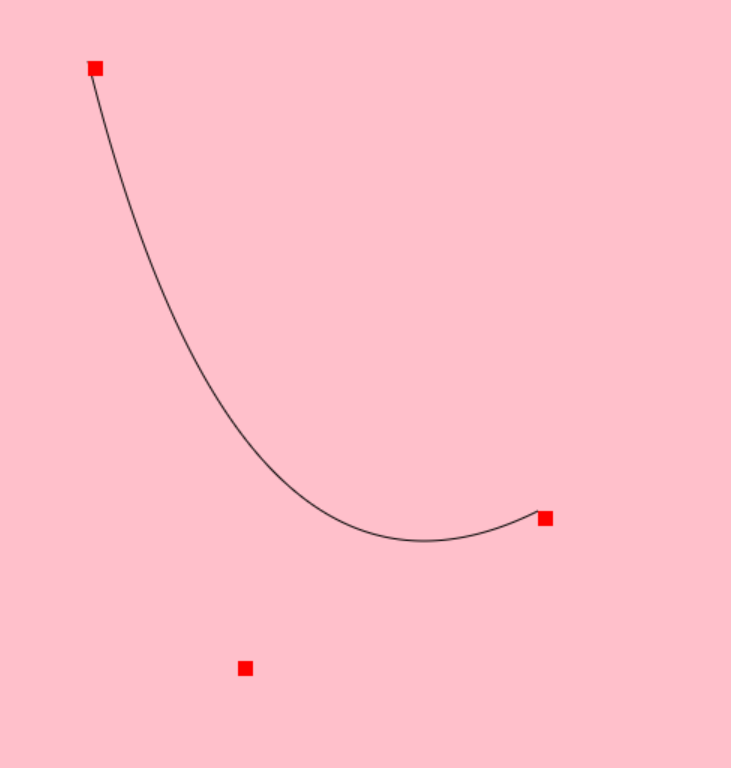
贝塞尔曲线二阶
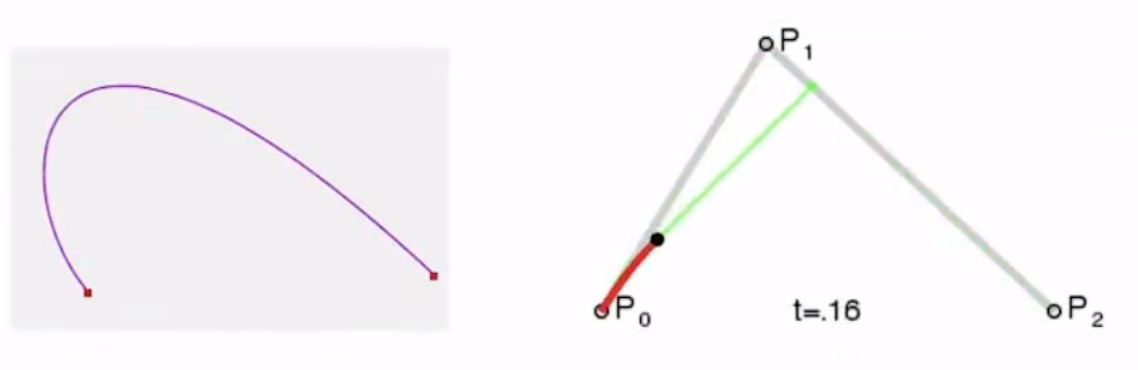
quadraticCurveTo(cpx, cpy, x, y);
- 参数说明
- cpx, cpy 是控制点的坐标
- x,y 是结束点的坐标
- 通过调整控制点, 就可以生成各种曲线
- 二次贝塞尔曲线调试工具:
Canvas Quadratic Curve Example
-
示例代码
Document
贝塞尔曲线三阶
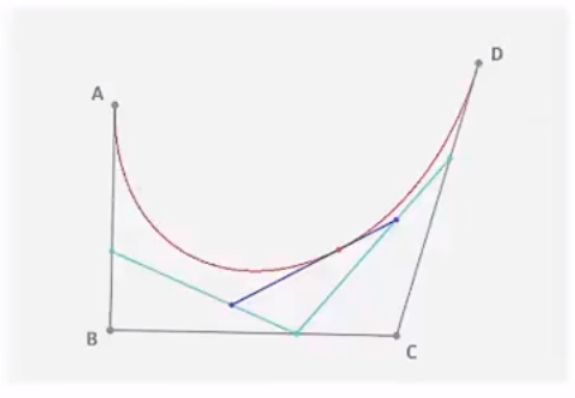
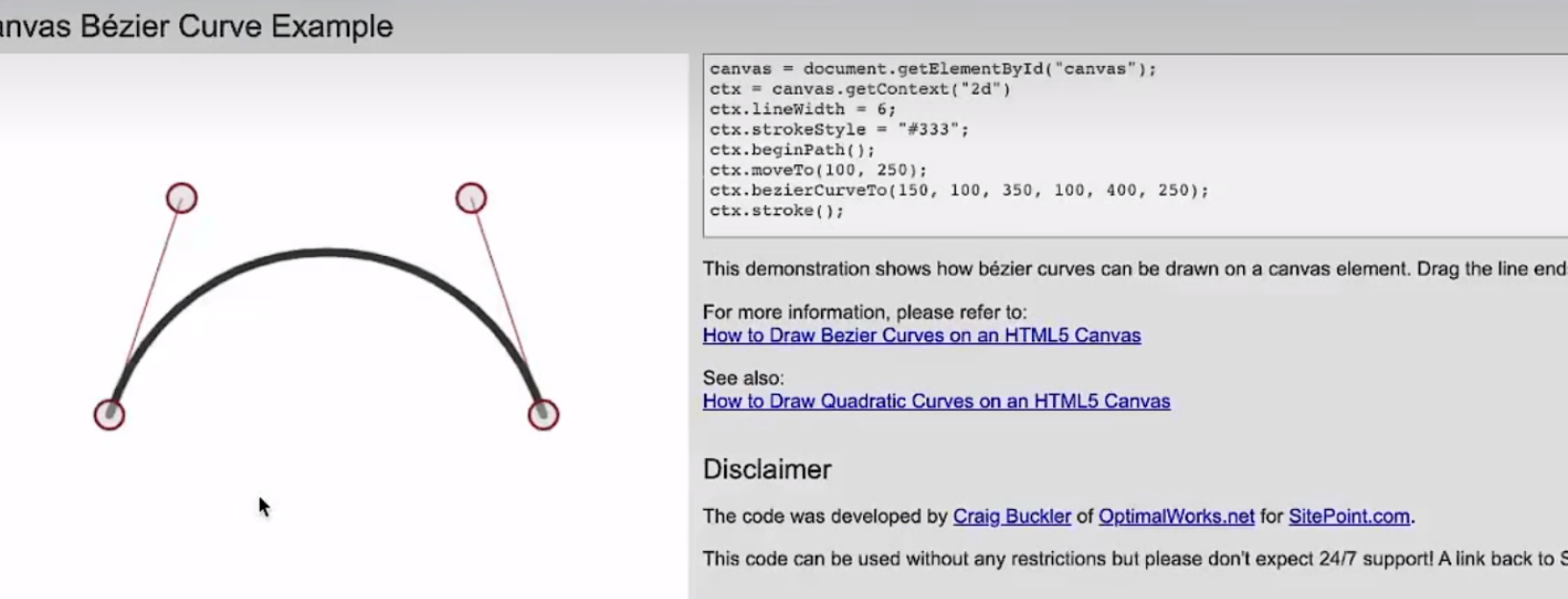
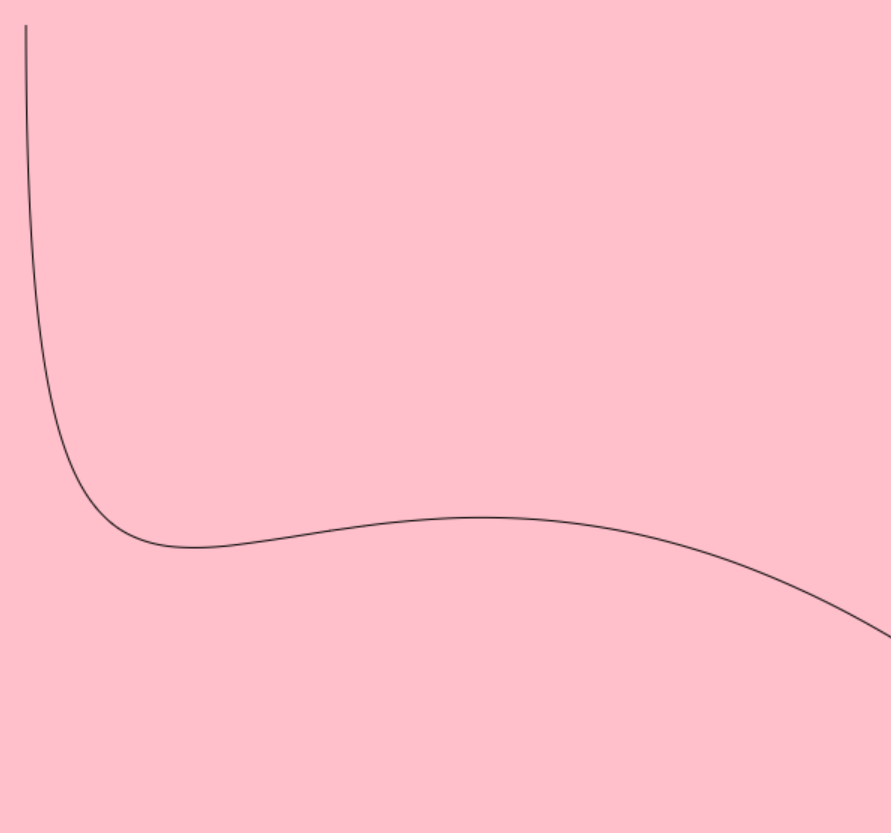
bezierCurveTo(cp1x, cp1y, cp2x, cp2y, x, y)
- 参数说明
- 三阶就是比二阶多了一个控制点
- cpx1, cpy1 是控制点1的坐标
- cpx2, cpy2 是控制点2的坐标
- x,y 是结束点的坐标
- 通过调整控制点, 就可以生成各种曲线
- 三次贝塞尔调试工具:
-
示例代码
Document
绘图样式
a. 线条样式
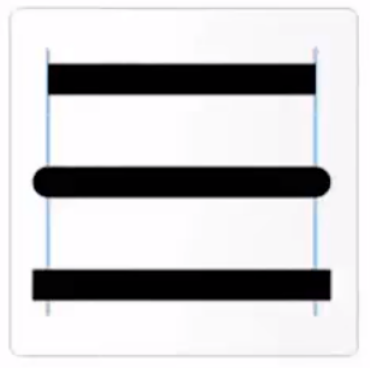
- lineWidth: 设置线条的宽度
- lineCap: 设置线条两端的形状
-
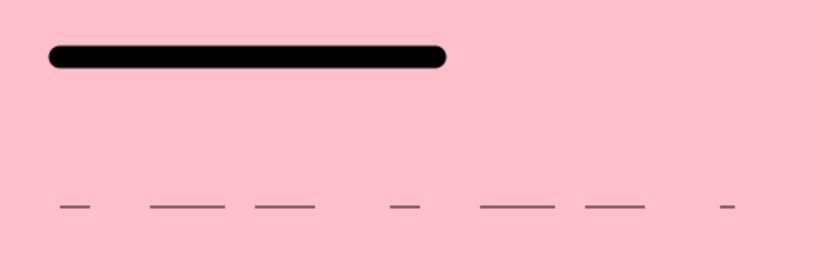
setLineDash: 设置线条为虚线
-
代码示例
Document
b. 渐变
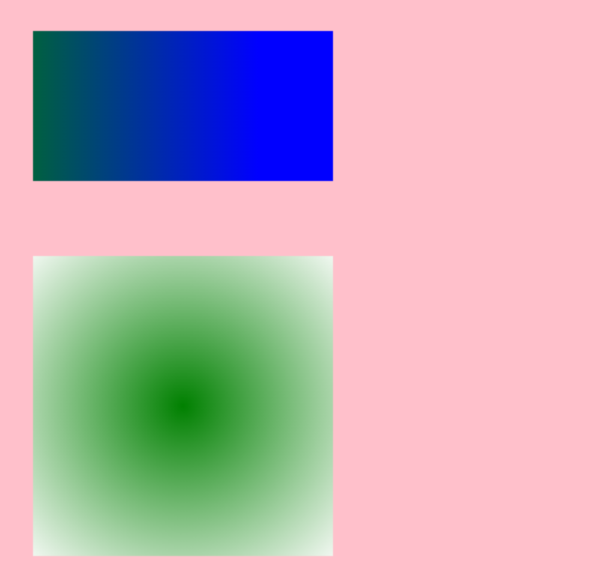
- 线性渐变 ctx.createLinearGradient(x0,y0,x1, y1);
- 参数说明
- x0,y0是渐变的起点坐标
- x1, y1是渐变的终点坐标
- 有了起点和终点就确定了渐变的方向
- 径向渐变 ctx.createRadialGradient(x0,y0,r0, x1, y1, r1)
- 参数说明
- x0, y0是第一个圆的坐标(圆心), r0是半径
- x1, y1是第二个圆的坐标(圆心), r1是半径
-
示例代码
Document
c. 纹理样式
- ctx.createPattern(image, repetition);
参数说明
- image: 把图片作为纹理进行填充
- repetition: 是否重复
代码示例
<!DOCTYPE html>
<html lang="en">

<head>
  <meta charset="UTF-8">
  <meta name="viewport" content="width=device-width, initial-scale=1.0">
  <title>Document</title>
  <style>
    .canvas {
      background-color: pink;
    }
  </style>
</head>

<body>
  <canvas id="canvas" width="600" height="600" class="canvas" />

  <script>
    // 获取画布
    const c = document.getElementById("canvas")

    // 获取画笔
    const ctx = c.getContext("2d")

    // 纹理样式
    let img = new Image()
    img.src = 'images/DE.jpg'
    img.onload = function () {
      let pattern = ctx.createPattern(img, 'repeat')
      ctx.fillStyle = pattern
      ctx.fillRect(50, 200, 300, 100)
    }

  </script>
</body>

</html>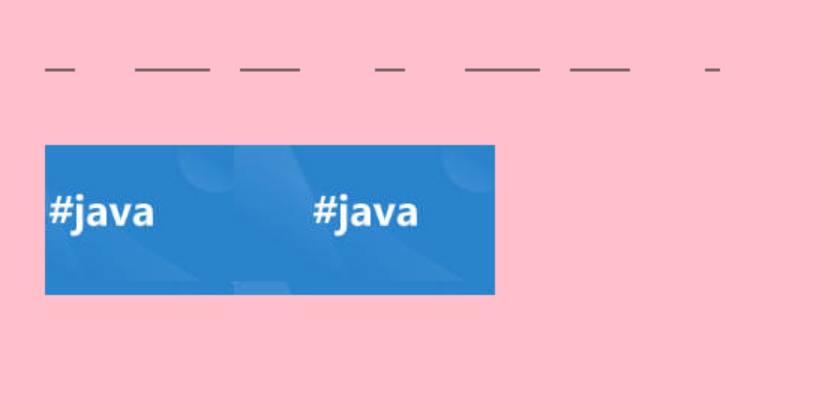
绘制文本
绘制方式
- 轮廓文本 stokeText()
- 填充文本 fillText()
绘制样式
- font、textAlign(设置水平对齐方式)、direction(设置文字方向)、textBaseline(设置垂直对齐方式)
- 阴影: shadowOffsetX和shadowOffsetY、shadowBlur、shadowColor
示例代码
<!DOCTYPE html>
<html lang="en">

<head>
  <meta charset="UTF-8">
  <meta name="viewport" content="width=device-width, initial-scale=1.0">
  <title>Document</title>
  <style>
    .canvas {
      background-color: pink;
    }
  </style>
</head>

<body>
  <canvas id="canvas" width="600" height="600" class="canvas" />

  <script>
    // 获取画布
    const c = document.getElementById("canvas")

    // 获取画笔
    const ctx = c.getContext("2d")

    // 设置文字样式 (字号: 88px 字体: 罗马字体)
    ctx.font = "88px Times New Roman"
    // 设置阴影
    ctx.shadowOffsetX = 2 //偏移
    ctx.shadowOffsetY = 2 //偏移
    ctx.shadowBlur = 2    //模糊度
    ctx.shadowColor = "rgba(255,0,0,0.5)"
    // 绘制文本
    ctx.fillText('hello canvas', 100, 100)


    // 纹理背景文字
    let img = new Image()
    img.src = 'images/DE.jpg'
    img.onload = function () {
      let pattern = ctx.createPattern(img, 'repeat')
      ctx.fillStyle = pattern
      ctx.fillText('hello canvas2', 100, 400)
    }

  </script>
</body>

</html>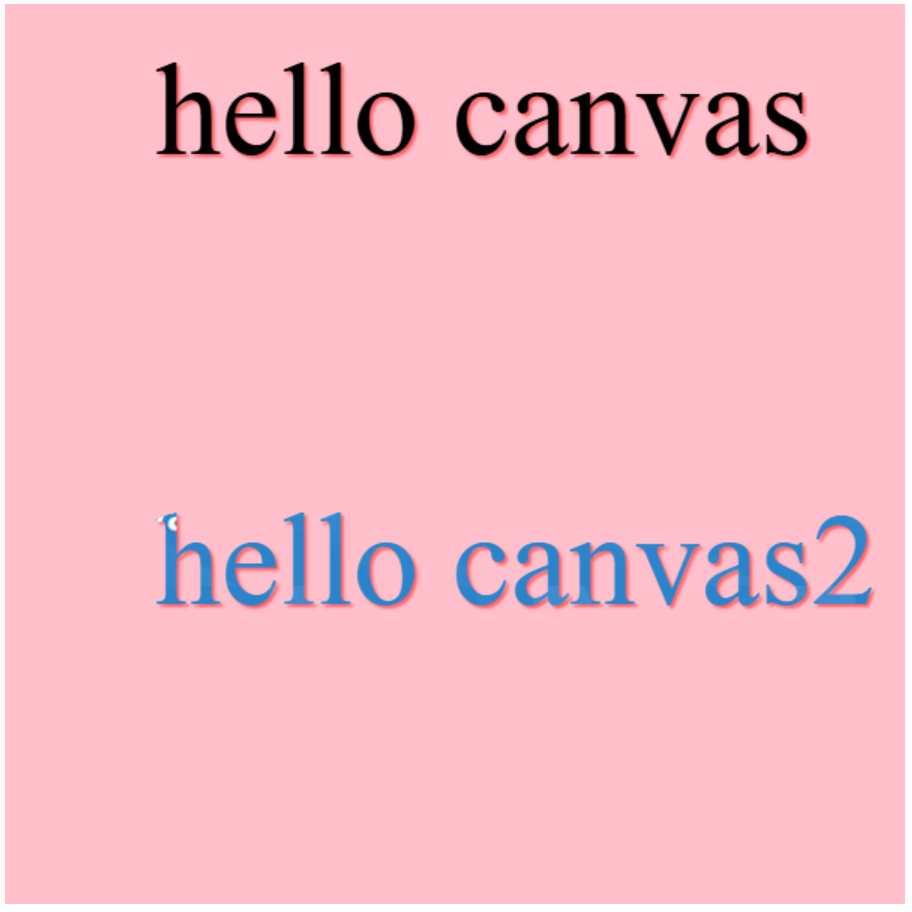
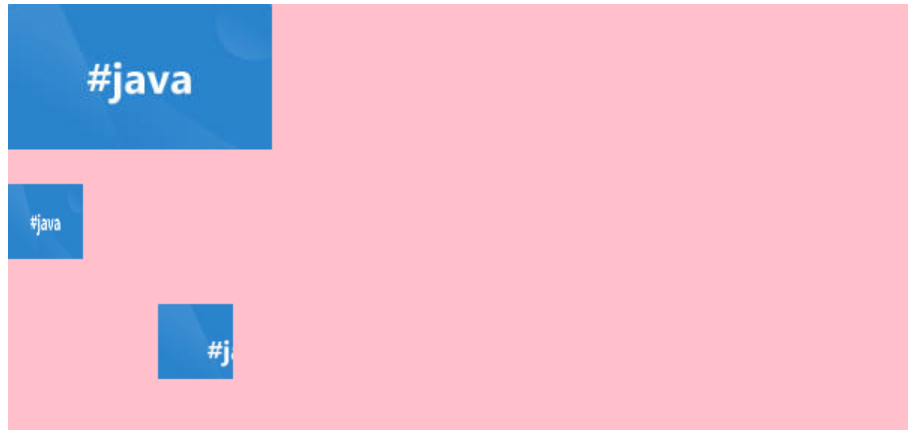
绘制图片
drawimage用法
-
drawlmage(image, dx, dy);
-
drawlmage(image, dx, dy, dWidth, dHeight);
-
drawlmage(image, sx, sy, sWidth, sHeight, dx, dy, dWidth, dHeight);
Document
进阶
变形
- 平移, 旋转, 缩放
平移(translate)、旋转(rotate)、缩放(scale)
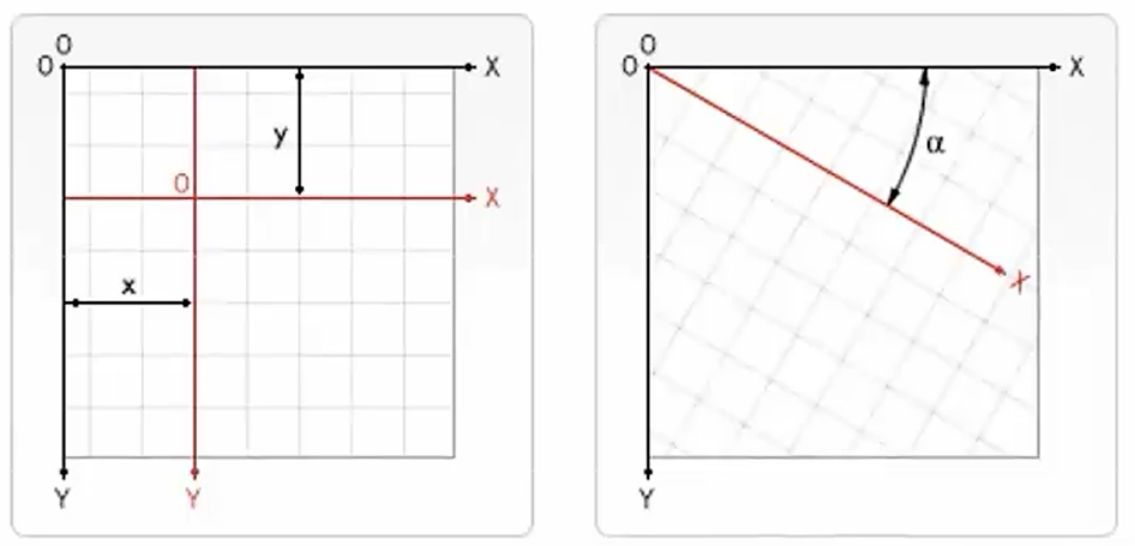
平移改变的是画布的坐标系位置
<!DOCTYPE html>
<html lang="en">

<head>
  <meta charset="UTF-8">
  <meta name="viewport" content="width=device-width, initial-scale=1.0">
  <title>Document</title>
  <style>
    .canvas {
      background-color: pink;
    }
  </style>
</head>

<body>
  <canvas id="canvas" width="600" height="600" class="canvas" />

  <script>
    // 获取画布
    const c = document.getElementById("canvas")
    // 获取画笔
    const ctx = c.getContext("2d")

    //==================================
    // 测试平移的效果
    // 画个矩形
    ctx.fillStyle = 'red'
    ctx.fillRect(0, 0, 100, 100)

    // 平移坐标后再画一个矩形
    ctx.translate(400, 400)
    ctx.fillRect(0, 0, 100, 100)

    // 把坐标平移回原点, 再画一个矩形
    ctx.translate(-400, -400)
    ctx.fillStyle = 'black'
    ctx.fillRect(0, 0, 50, 50)

  </script>
</body>

</html>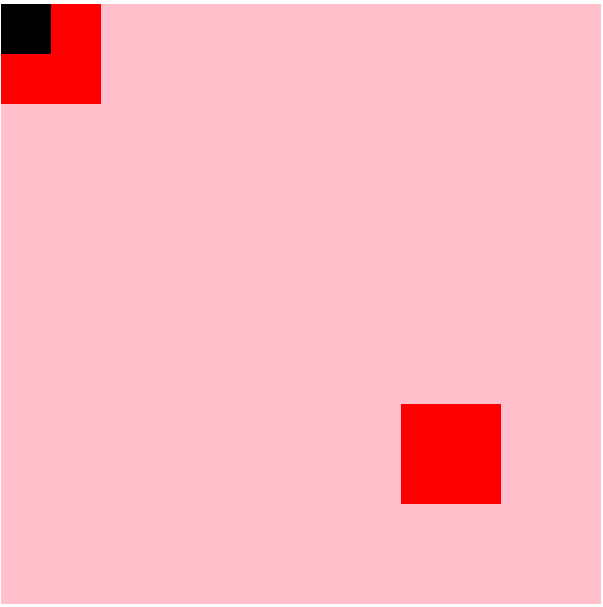
旋转和缩放是对图形的操作
<!DOCTYPE html>
<html lang="en">

<head>
  <meta charset="UTF-8">
  <meta name="viewport" content="width=device-width, initial-scale=1.0">
  <title>Document</title>
  <style>
    .canvas {
      background-color: pink;
    }
  </style>
</head>

<body>
  <canvas id="canvas" width="600" height="600" class="canvas" />

  <script>
    // 获取画布
    const c = document.getElementById("canvas")
    // 获取画笔
    const ctx = c.getContext("2d")

    // 旋转图形
    ctx.fillStyle = 'yellow'
    ctx.rotate(Math.PI / 6) // 旋转60度
    ctx.fillRect(100, 0, 100, 100)
    ctx.restore()

    // 缩放图形
    ctx.fillStyle = 'blue'
    ctx.scale(0.5, 0.5)
    ctx.fillRect(400, 400, 100, 100)
    ctx.restore()

  </script>
</body>

</html>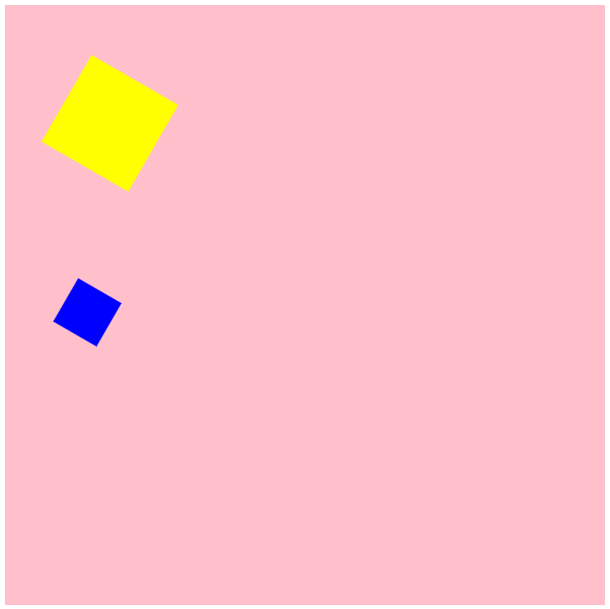
- 状态的保存和恢复 (栈结构)
画布的状态是可以保存和恢复的
<!DOCTYPE html>
<html lang="en">

<head>
  <meta charset="UTF-8">
  <meta name="viewport" content="width=device-width, initial-scale=1.0">
  <title>Document</title>
  <style>
    .canvas {
      background-color: pink;
    }
  </style>
</head>

<body>
  <canvas id="canvas" width="600" height="600" class="canvas" />

  <script>
    // 获取画布
    const c = document.getElementById("canvas")
    // 获取画笔
    const ctx = c.getContext("2d")

    // 上案例的写法需要不断平移坐标, 比较麻烦
    // 通过保存和恢复画布状态, 简化对画布的操作

    // 画个矩形
    ctx.fillStyle = 'red'
    ctx.fillRect(0, 0, 100, 100)

    // 平移前先保存画布的状态信息
    ctx.save()
    // 平移坐标后再画一个矩形
    ctx.translate(400, 400)
    ctx.fillRect(0, 0, 100, 100)
    // 绘制完平移的图形后,恢复之前的状态信息
    ctx.restore()

    // 再绘制图形就不受平移的影响了
    ctx.fillStyle = 'black'
    ctx.fillRect(0, 0, 50, 50)

  </script>
</body>

</html>- transform, setTransform
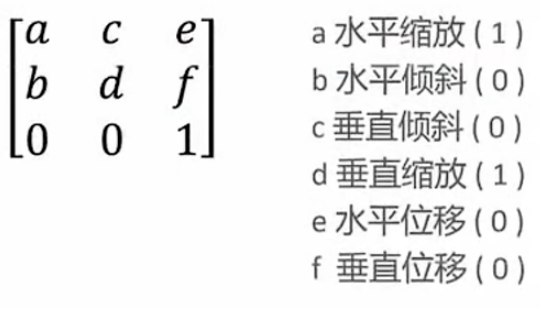
矩阵变换
语法: transform(a, b, c, d, e, f);
参数:
<!DOCTYPE html>
<html lang="en">

<head>
  <meta charset="UTF-8">
  <meta name="viewport" content="width=device-width, initial-scale=1.0">
  <title>Document</title>
  <style>
    .canvas {
      background-color: pink;
    }
  </style>
</head>

<body>
  <canvas id="canvas" width="600" height="600" class="canvas" />

  <script>
    // 获取画布
    const c = document.getElementById("canvas")
    // 获取画笔
    const ctx = c.getContext("2d")

    // 矩阵变换-平移
    ctx.transform(1, 0, 0, 1, 400, 400)
    ctx.fillStyle = 'red'
    ctx.fillRect(0, 0, 100, 100)
    ctx.restore()

    // 矩阵变换-缩放
    ctx.transform(0.5, 0, 0, 0.5, 10, 10)
    ctx.fillStyle = 'green'
    ctx.fillRect(0, 0, 100, 100)
    ctx.restore()

    // 矩阵变换-倾斜
    ctx.transform(1, 0.2, 0.2, 1, 10, 10)
    ctx.fillStyle = 'blue'
    ctx.fillRect(0, 0, 100, 100)
    ctx.restore()

  </script>
</body>

</html>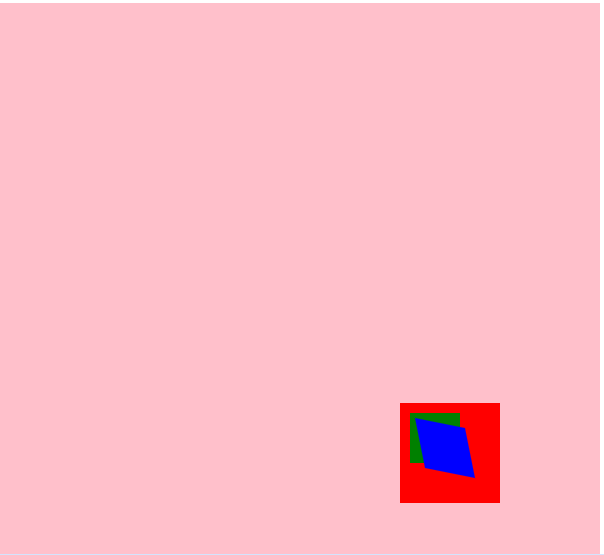
合成
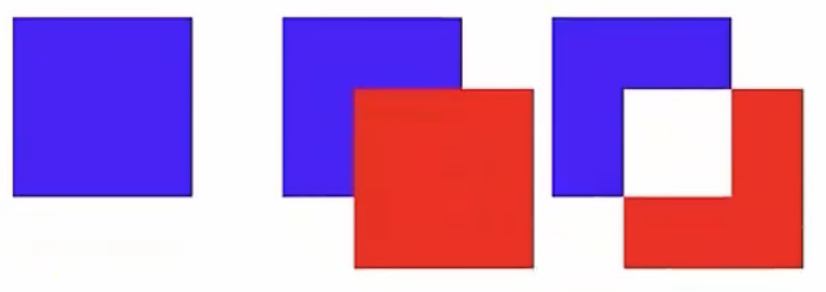
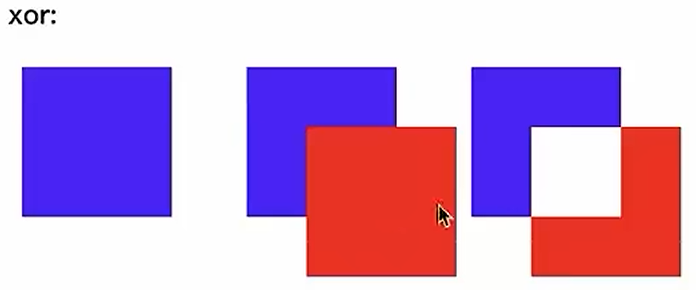
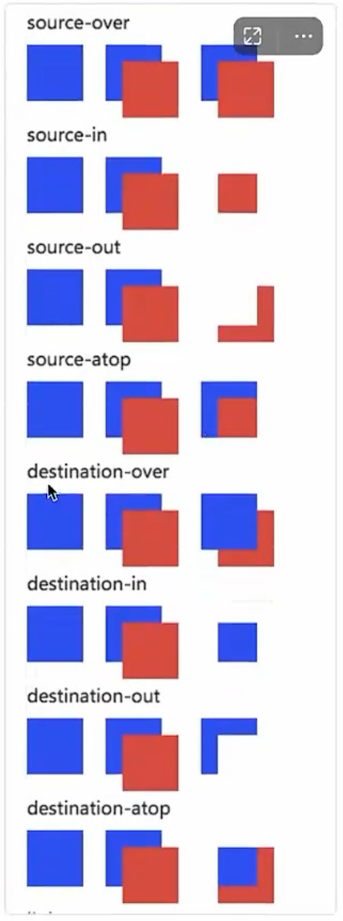
Canvas 提供了26 种图片混排模式
- 语法: ctx.globalCompositeOperation = type;
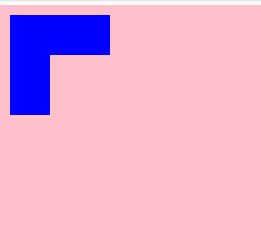
- 重点参数: destination-out, 可以实现镂空效果
- 其他的合成模式
-
示例代码
Document
裁剪
clip() 需要配置路径使用
<!DOCTYPE html>
<html lang="en">

<head>
  <meta charset="UTF-8">
  <meta name="viewport" content="width=device-width, initial-scale=1.0">
  <title>Document</title>
  <style>
    .canvas {
      background-color: pink;
    }
  </style>
</head>

<body>
  <canvas id="canvas" width="600" height="600" class="canvas" />

  <script>
    // 获取画布
    const c = document.getElementById("canvas")
    // 获取画笔
    const ctx = c.getContext("2d")

    ctx.rect(0, 0, 200, 100) // 矩形区域
    ctx.clip() // 超出矩形区域的文字会被裁剪

    ctx.fillStyle = 'red'
    ctx.font = '44px Times New Roman'
    ctx.fillText('hello canvas', 50, 50)

  </script>
</body>

</html>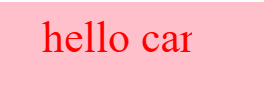
实战
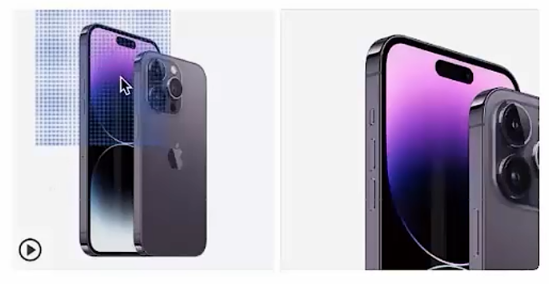
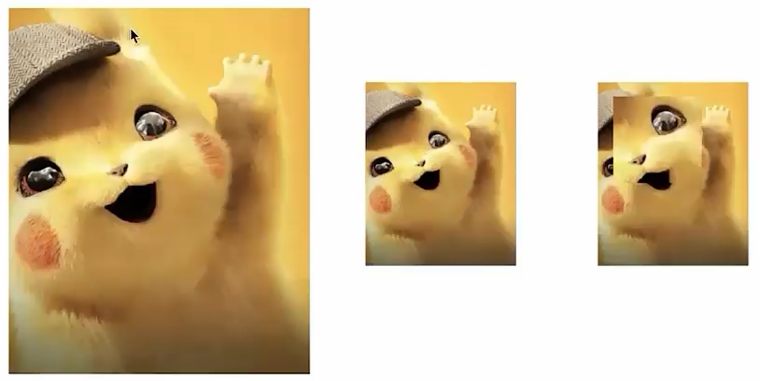
1. 放大镜效果
技术点: 离屏渲染
将一个canvas对象绘制到另一个canvas对象上 (离开用户可视范围内进行染)
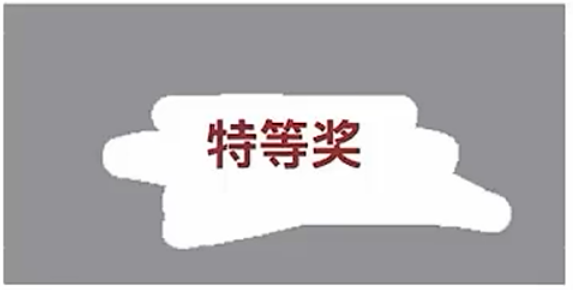
2. 刮刮乐效果
技术点: 图像合成
利用图像合成让绘制的内容与原矩形重合部分清空
3. 滤镜效果
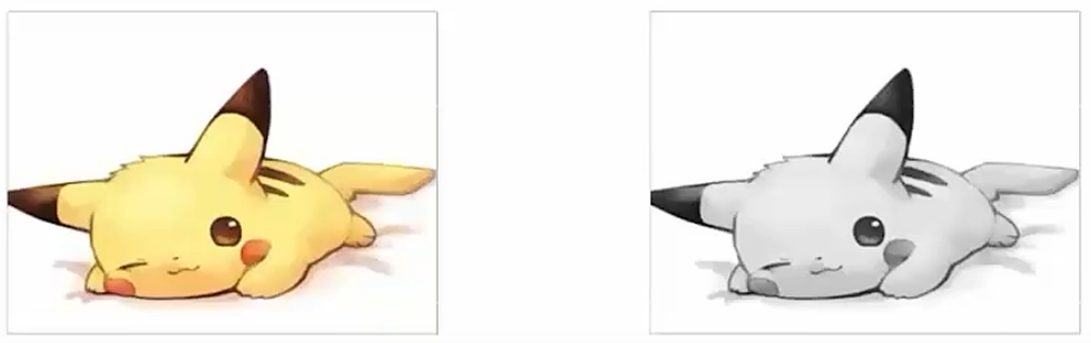
技术点: 单位像素处理
这里我们主要借用 getlmageData 函数,他返回每个像素的 RGBA 值。借助图像处理公式,操作像素进行相应的、数学运算即可。
- getlmageData()
- putlmageData()